Lookbooks
Ready-made looks and sets: several products shown on the storefront as one page and, if you like, sold as a bundle.
Open in the admin panel/catalog/lookbooks A lookbook is a curated set of products: for example, an «Autumn look» (hoodie, jeans and sneakers) or a bouquet in a flower shop. On the website and in the mobile app it is a page of its own: a cover, a description and the products in a set order. When selling is enabled the buyer orders the whole set with one button, and a service fee (assembly, packing) can be added on top.
How to open
- In the sidebar, expand the Catalog group.
- Click Lookbooks.
Tip: The section can be renamed (e.g. «Bouquets» or «Sets»): the name is set per language on the lookbook page under «Online store» → «Pages». The sidebar and the page heading then show your name.
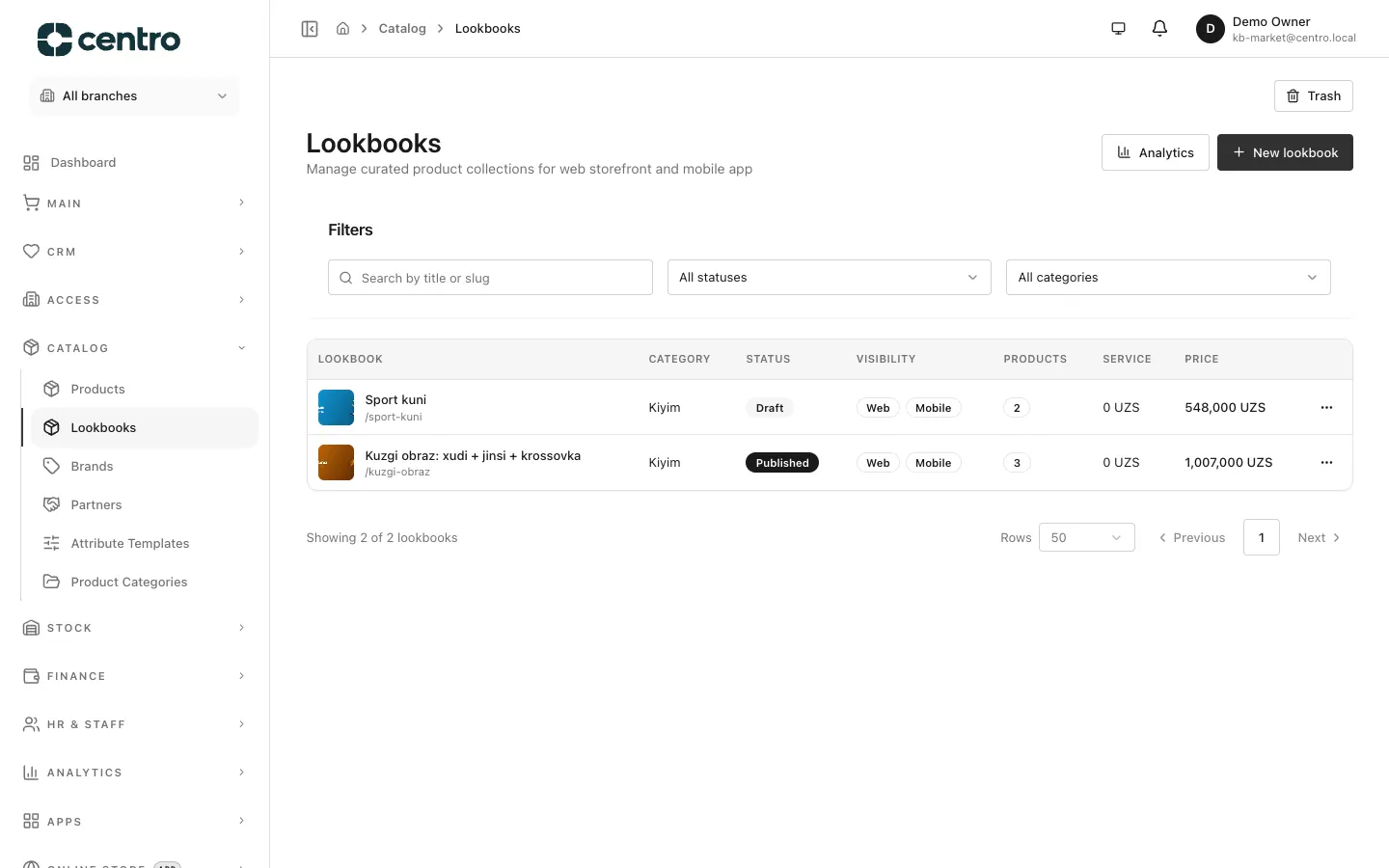
Filters and columns
- Search / «All statuses» / «All categories»
- Search by title or slug; status — «Draft», «Published», «Archived»; the lookbook category. Filters are kept in the page address.
- «Lookbook» / «Category» / «Status»
- The cover, the title (click to open the lookbook page) and /slug; the category or «No category»; the status badge.
- «Visibility» / «Products»
- The «Web» and «Mobile» badges — whether the lookbook is shown on the website and in the app; the number of items in it.
- «Service» / «Price»
- «Service» — the extra fee (in percent mode the percentage is in brackets). «Price» — what the buyer pays: product prices × quantity + the service fee.
- The «⋯» menu
- «Edit», «Publish» / «Unpublish», «Archive» and «Delete». At the top — the «Analytics» and «New lookbook» buttons.
Important: Right now «Archive» and «Delete» do the same thing: the lookbook disappears from the list and goes to the trash (the «Lookbook archived» notice), where it can be restored. «Delete permanently» on the lookbook page works the same way.
Creating and editing a lookbook #
Title and description per language, slug, category, status, visibility, sale settings, the service fee and images.
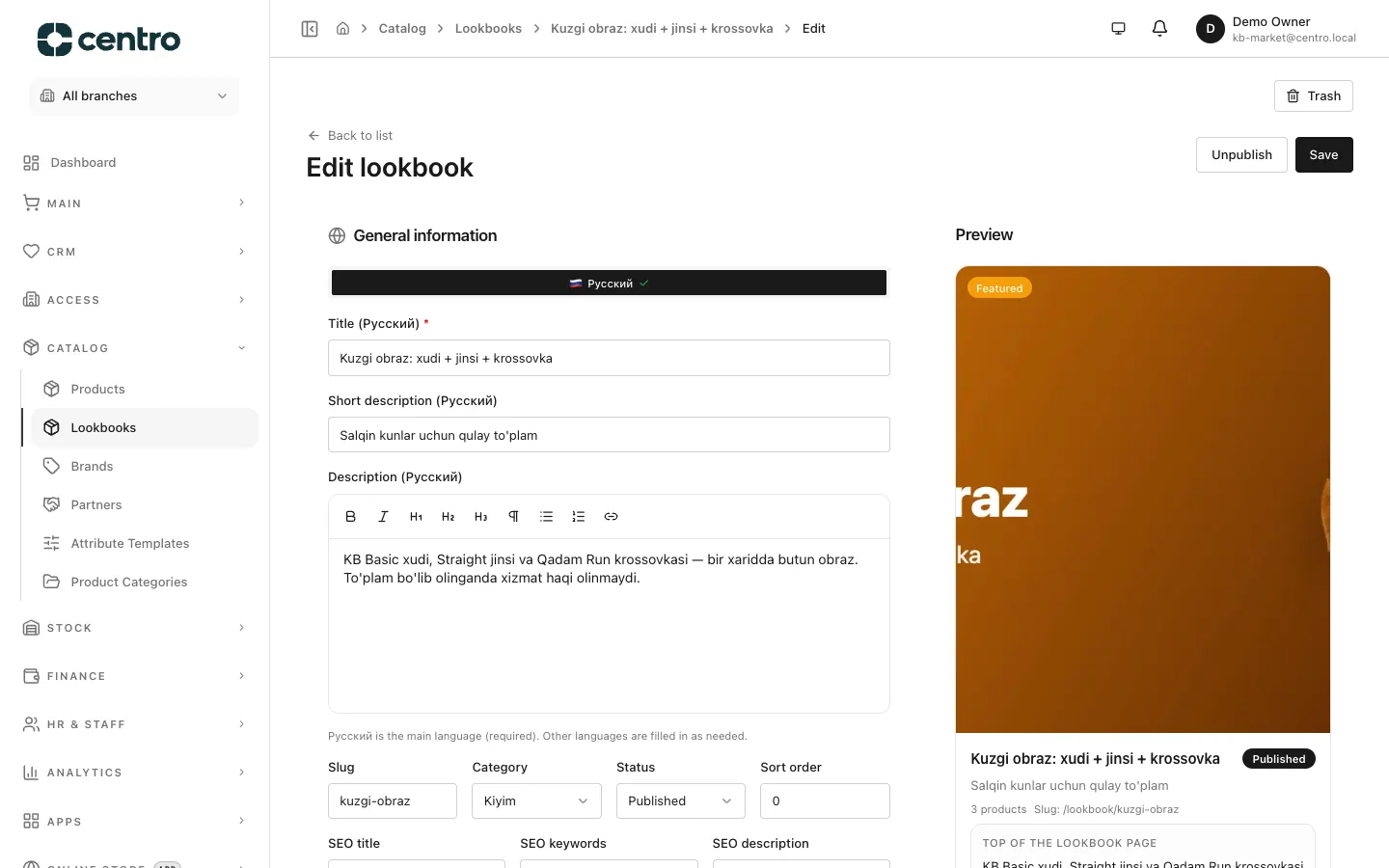
The «General information» card
- «Title» / «Short description» / «Description»
- Per language tab. The title is required (*) in the main language; the short description is shown on the card, the full one (with formatting) at the top of the lookbook page.
- «Slug»
- The address on the website (/lookbook/<slug>). For a new lookbook it is built from the title; if it is taken you get «A lookbook with this title already exists».
- «Category» / «Status» / «Sort order»
- The category is one of the product categories or «No category». In the status list «Draft» and «Published» appear only when «Черновики» (drafts) and «Продажа образов» (selling looks) are on in the lookbook page settings; «Archived» is always there. A smaller number sorts higher.
- SEO fields
- «SEO title», «SEO keywords» (comma-separated) and «SEO description» — what search results show. When empty, the title and short description are used.
- «Before publishing»
- The yellow box lists what is missing: the title, the slug or at least one product. When everything is there you see the green «Ready to publish».
- «Featured» / «Show on web store» / «Show in mobile app»
- «Featured» puts the lookbook on the home page; the other two control visibility on the website and in the mobile app.
- «Reusable (can be sold again)»
- When off, the lookbook is automatically archived (moved to the trash) after its first sale — handy for a one-off bouquet or look. Turn it on for permanent sets.
Selling: «Online ordering» and «Order settings»
- «Online ordering»
- Visible only when «Продажа образов» (selling looks) is on in the lookbook page settings. When on, the «Order settings» block opens below.
- «Sell as a bundle» / «Show product prices»
- Bundle — all products are added together and cannot be picked one by one. The second switch shows or hides each product’s price in the lookbook.
- «Service fee»: «Amount» or «Percent»
- «Amount» — a fixed extra charge in sum (as in the POS). «Percent» — a percentage of the products total (0–100, quick buttons 10–50%) that recalculates itself when the set changes. The calculation below — «Products», «Service» and «Bouquet total» — is what lands on the receipt, using the same rules as the server.
- «Service fee display»
- «As a separate line» — the customer sees the products and the service fee separately; «Include in product prices» — the fee is spread over the products and the customer sees only the total.
On the right is the Preview: the storefront card (cover, title, status, short description, number of products, slug), the top of the page and the search (SEO) snippet. Below it, Media: the «Cover image» (one picture) and the «Gallery» (several, «Add images»), each up to 10MB.
Tip: A new lookbook’s draft is kept in the browser: close the page and come back and you will see «Lookbook draft restored». «Clear draft» removes it. When editing, the top bar has a «Publish» / «Unpublish» button (if selling is allowed).
Lookbook contents: picking products #
Adding products and variants, quantity, note and order.
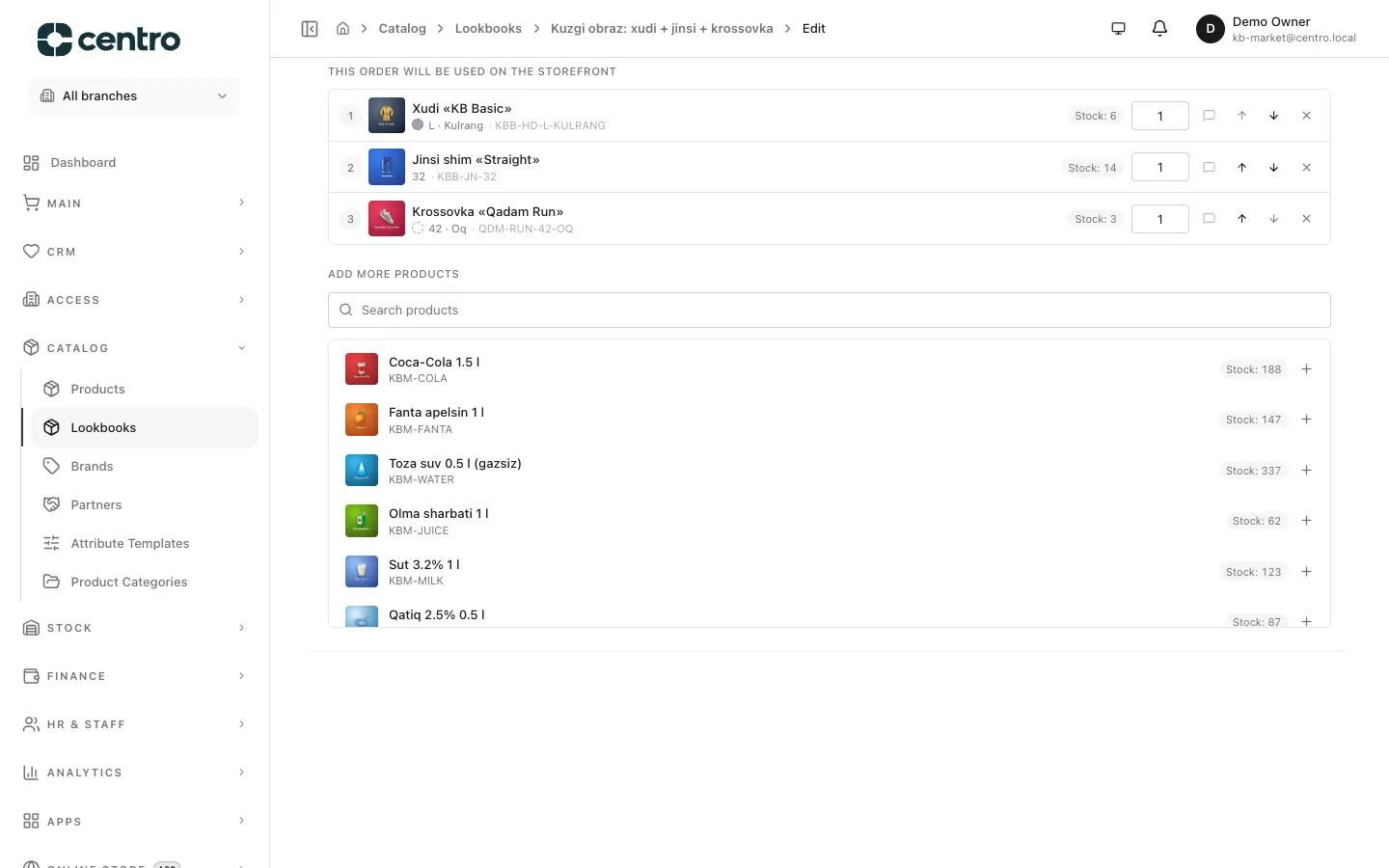
- In the «Included products» card, type a name, SKU or slug into «Search products».
- Click the row you need. A product with variants appears as one row per variant (size, colour) with a colour dot; «Stock: N» is on the right.
- In the selected list set the quantity, add a caption through the note icon (e.g. «Complete the look with these shoes») and reorder with the arrows — the storefront uses exactly this order.
- Save the form.
Tip: The stock badge is informational: it turns red when stock is short but does not block adding. The list shows up to 80 rows at a time — search for the rest («Showing … of … — refine the search»).
The lookbook page #
Contents, the price breakdown, visibility and the status buttons.
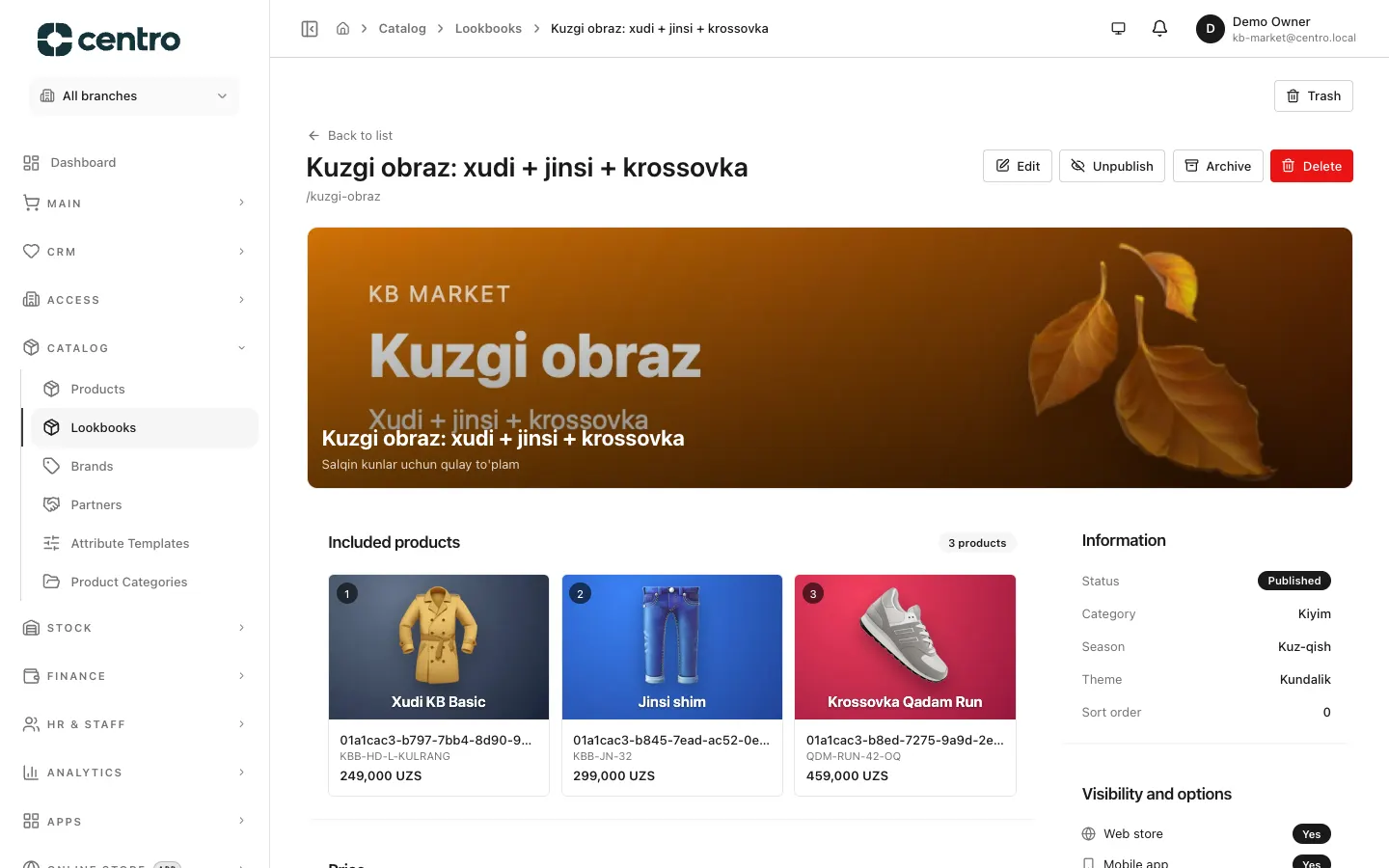
- At the top — the cover, title and short description; the «Edit», «Publish» / «Unpublish», «Archive» and «Delete» buttons.
- «Included products» — cards with the position number and quantity (×2), price and note.
- «Price» — «Products» (items and pieces), «Products total», «Service» (with percentage and display mode), «Total» and «Prices visible to the buyer».
- On the right — «Information» (status, category, season, theme, sort order) and «Visibility and options» (web store, mobile app, online ordering, featured), «Style tags».
Lookbook analytics #
Orders, units sold and revenue for each lookbook.
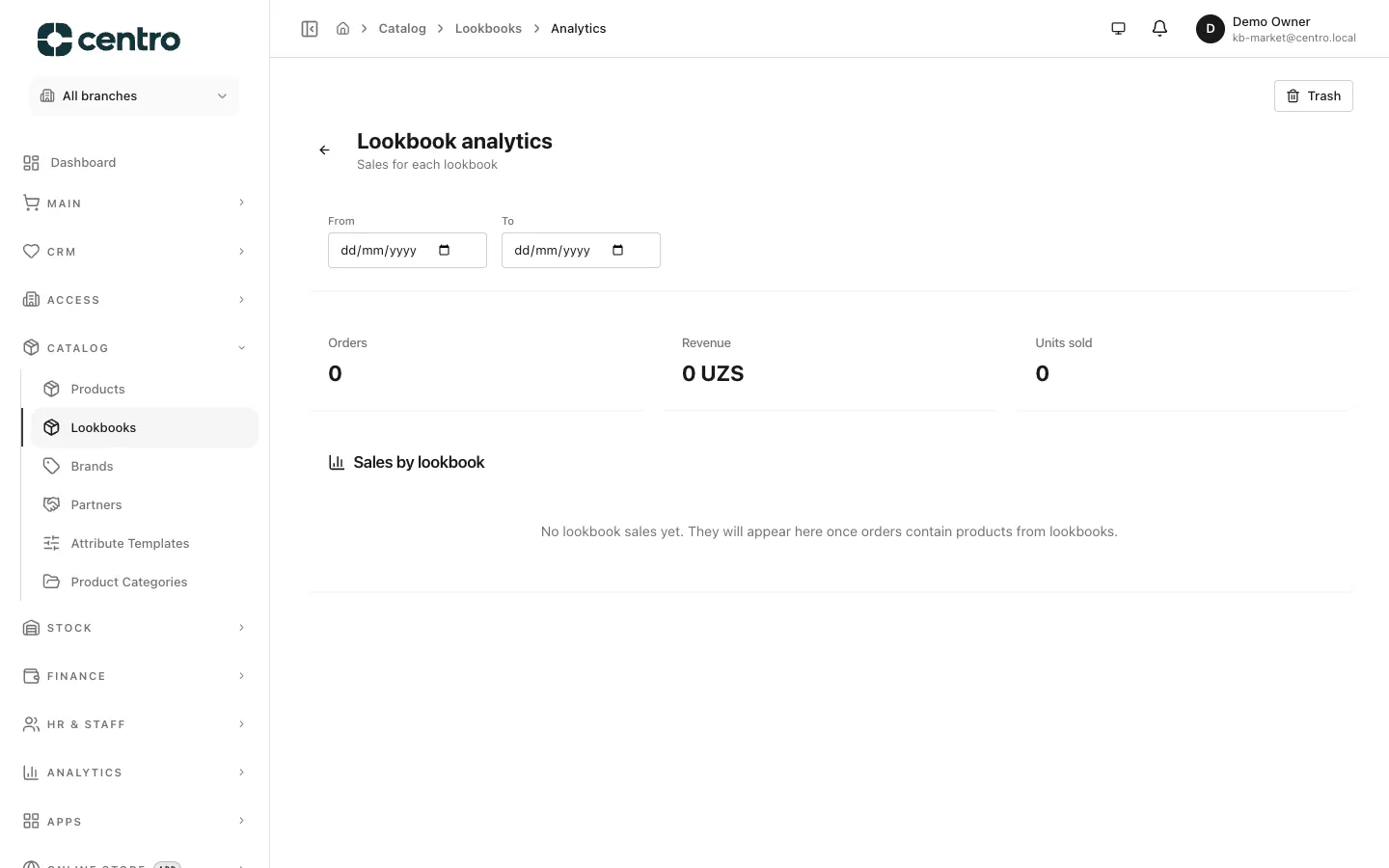
Opened with the «Analytics» button in the list. Pick a period with the «From» / «To» dates (empty — all time); «Reset» clears them. The cards are «Orders», «Revenue», «Units sold»; the table shows orders, units and revenue per lookbook. Only orders where products were sold as a lookbook count.