Workstations
Kitchen zones (hot section, bar, packing): venue, parallel jobs, timeout and staff.
Open in the admin panel/catalog/stations A station is a kitchen work spot with its own KDS screen. Order items are routed by station type: if a product has «Preparation station» = Bar it goes to the «Bar» station; without a type it goes to a Kitchen-type station. Each venue has its own stations.
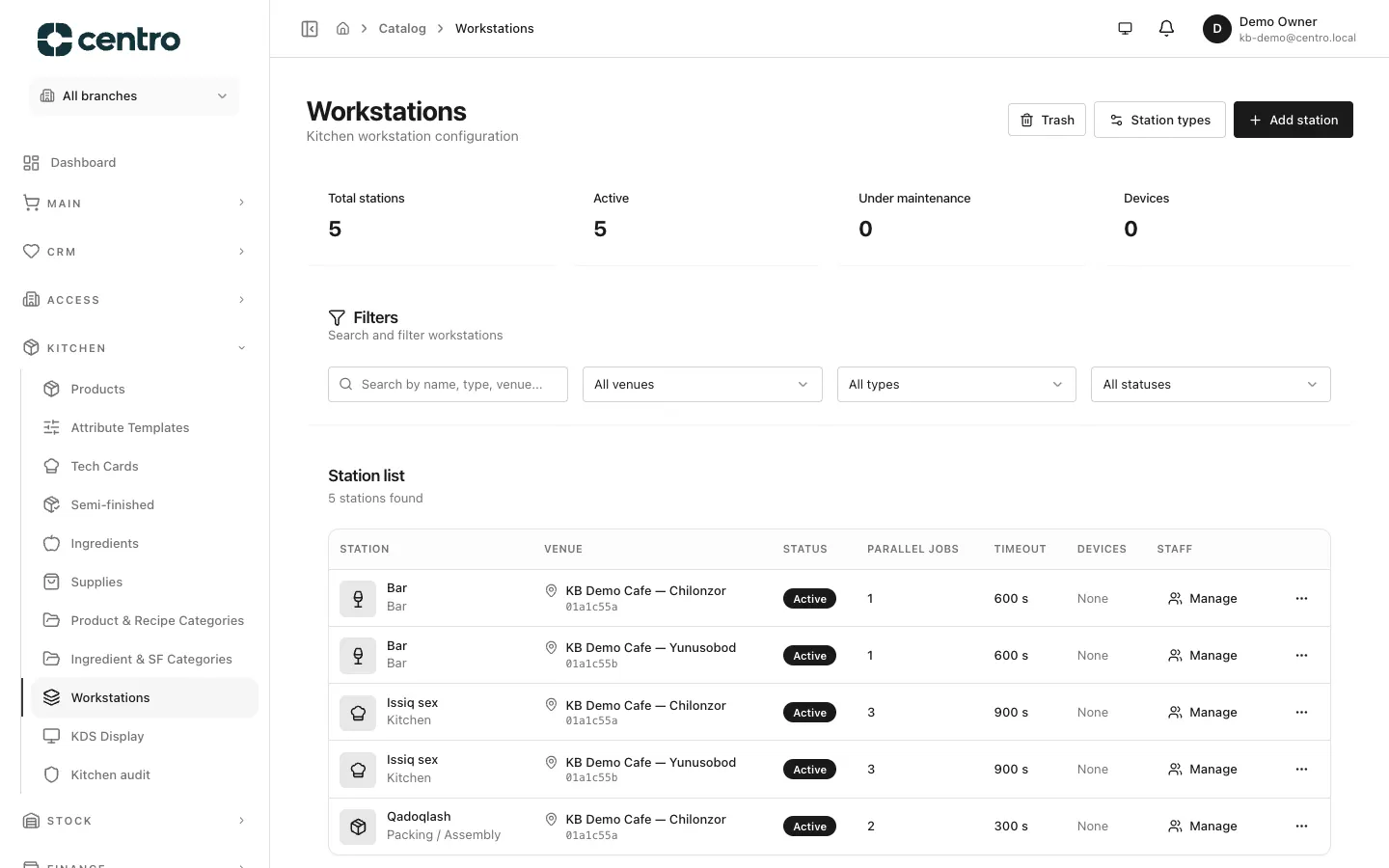
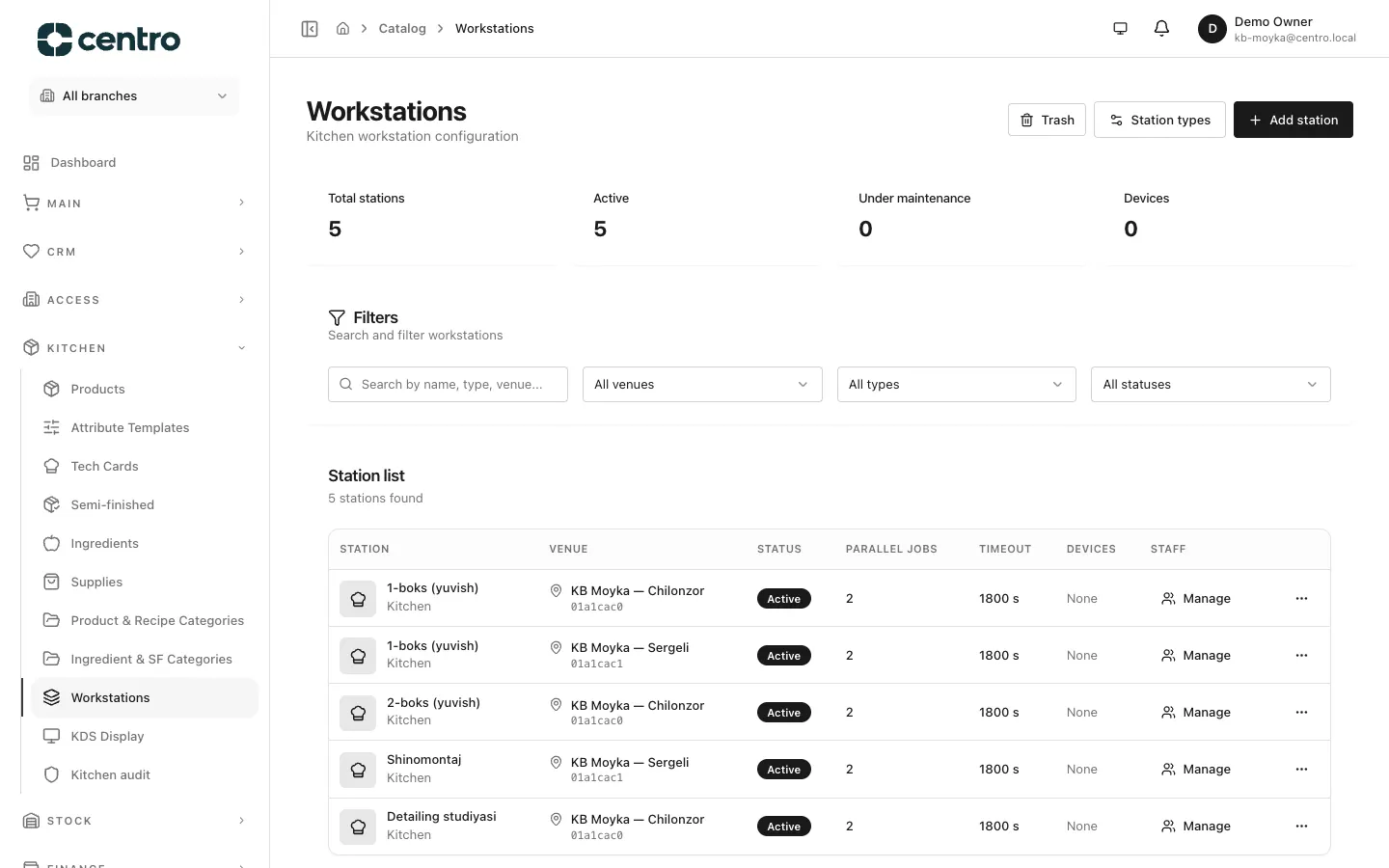
Cards, filters and columns
- «Total stations», «Active», «Under maintenance», «Devices»
- Overall counters.
- «Filters»
- Search by name, type or venue; venue, type and status («Active», «Inactive», «Under maintenance»); «Reset».
- «Status»
- Clicking the badge activates or deactivates the station.
- «Parallel jobs» / «Timeout»
- How many items one cook works on at once and after how many seconds a card counts as late (the station SLA threshold).
- «Staff» — «Manage»
- Opens the window for assigning cooks to the station (see below). The «⋯» menu has «Edit», «Staff», «Delete».
- «Trash»
- The button at the right of the page header — deleted stations. «Delete» does not erase a station at once: it stays in the trash for 30 days and can be restored (a restored station is back in the list and on the KDS). How the trash works — see «Trash: restoring deleted records» on the «Products» page.
Adding and editing a station #
Fields of the «New station» dialog.
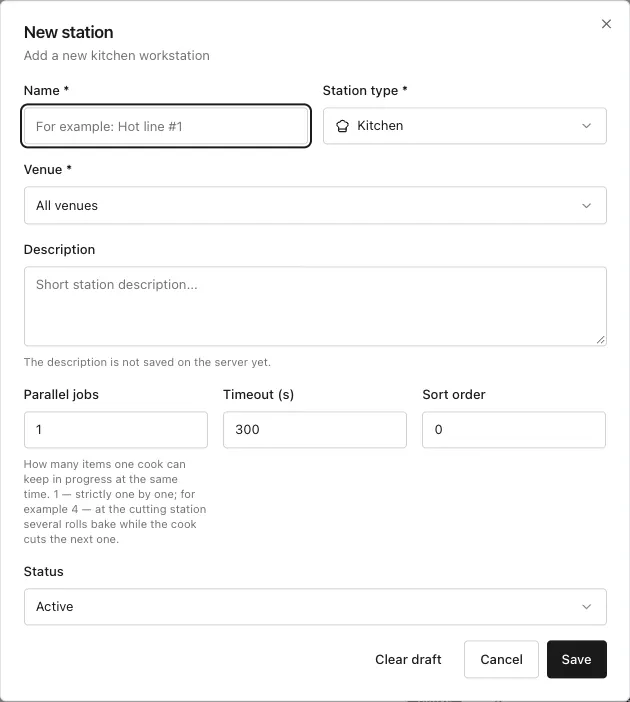
- «Name *»
- The name shown on screen, up to 100 characters (e.g. Issiq sex).
- «Station type *»
- Routing works by this type. A «Packing / Assembly» station sees the whole order and is used for assembly.
- «Venue *»
- Shown when there is more than one venue. «All venues» creates one station per venue. The venue cannot be changed after creation.
- «Parallel jobs»
- From 1 to 20. 1 means strictly one at a time; 4, for example, lets a cook slice the next roll while several bake.
- «Timeout (s)»
- Default 300 seconds; stored as the station warning threshold.
- «Sort order» / «Status»
- The order sets the sequence of zones in pipeline mode.
Important: The «Description» field is not saved on the server yet. A new station draft is kept in the browser — «Clear draft» removes it.
Station types and staff #
Custom station types and assigning cooks to a station.
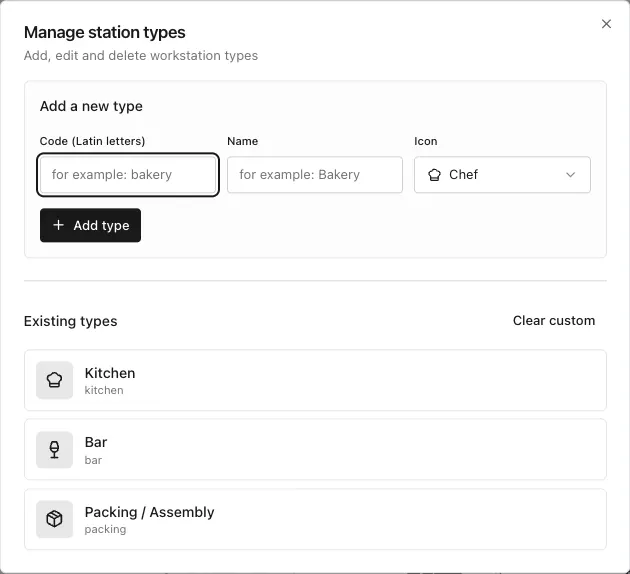
The «Station types» button lists the built-in types (Kitchen, Bar, grill, desserts and more) and lets you «Add a new type»: «Code (Latin letters)», «Name», «Icon», then «Add type». Custom types carry the «Custom» badge and can be edited or deleted.
Important: Custom station types are stored in this browser only.
Assign a cook to a station
- Click «Manage» in the station row — the «Staff — <name>» window opens.
- Pick an employee (search by name or position). Employees without a user account cannot be selected.
- Choose the role: «Cook», «Chef» or «Expeditor» and add. To remove someone, click the button next to them in the list.