Supplies
Packaging and supplies: the directory, rules that add them to orders automatically, auto-packing, sauce cups and outer bags, stock, a check and reports.
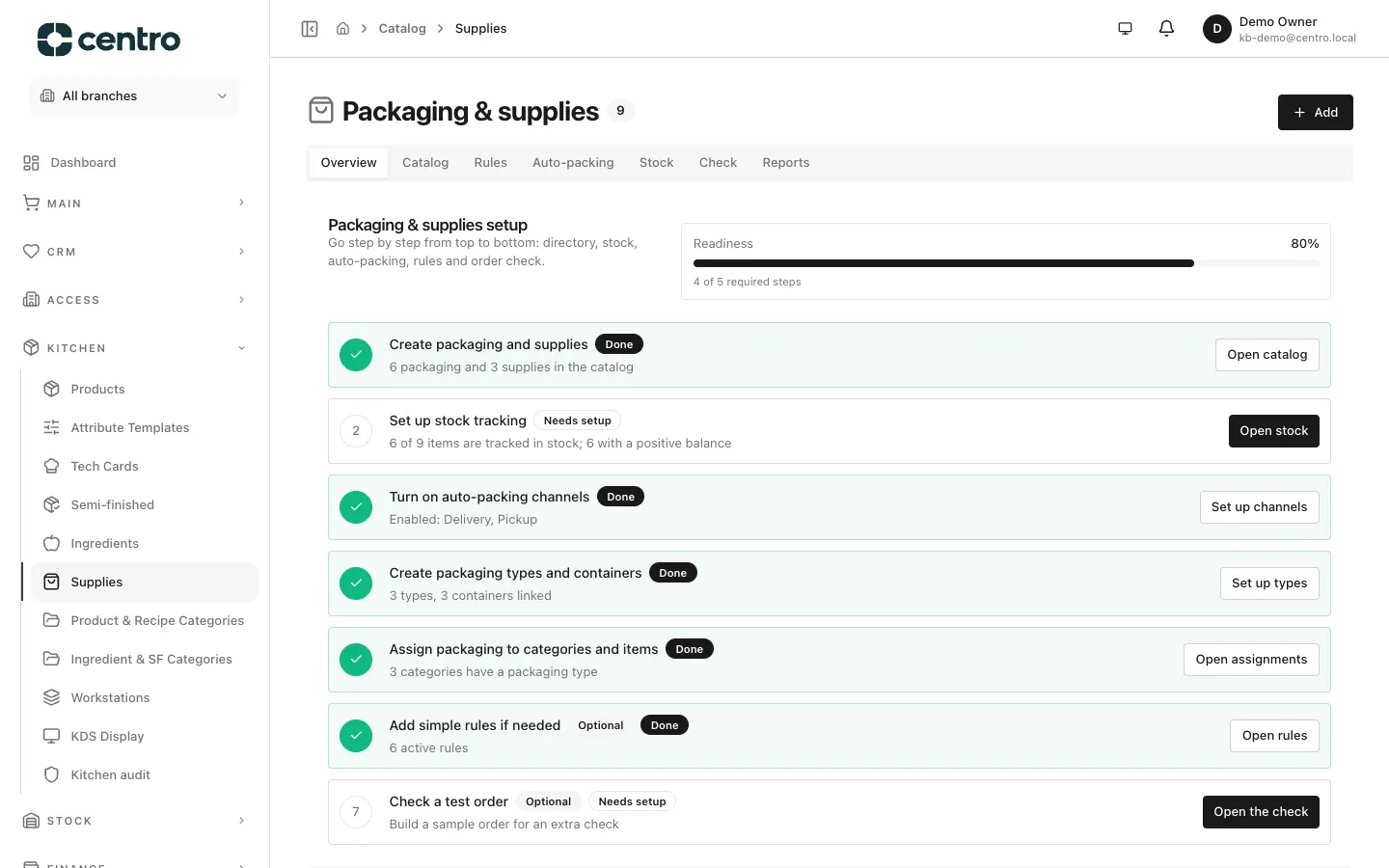
Open in the admin panel/catalog/supplies The page header is «Packaging & supplies». A supply is a napkin, a disposable fork, a cup lid; packaging is a takeaway box, a paper cup, a sauce cup, a bag. They are tracked in stock like ingredients and written off together with the order; their cost goes to Packing Cost. Seven tabs: «Overview», «Catalog», «Rules», «Auto-packing», «Stock», «Check», «Reports». Every block on the tabs has its own save button — changes apply right after it.
Two different logics
- Add rules (the «Rules» tab) — simple things: 1 bag per delivery order, 2 napkins per guest, a lid for a drink, a sauce portion for a dish.
- Auto-packing (the «Auto-packing» tab) — the system picks containers for the dishes by channel, temperature, packaging type and slots, then counts sauce cups and outer bags.
Important: Do not make one item both a rule and an auto-packing container — it would be written off twice. «Auto-packing diagnostics» and the «Conflict» column in the rules show this risk only for containers linked to packaging types. Do not duplicate an outer bag (from an «Inner packaging in the outer bag» rule) with a «Per order» rule — the system does not check this, watch it yourself.
A car wash usually does not need auto-packing: on the «Rules» tab it is enough to add supplies to every order — disposable paper floor mats, a seat protection film, a microfibre cloth — and they are written off together with the wash service.
Overview and quick scenarios #
The setup checklist, the readiness percentage and buttons for the most common tasks.
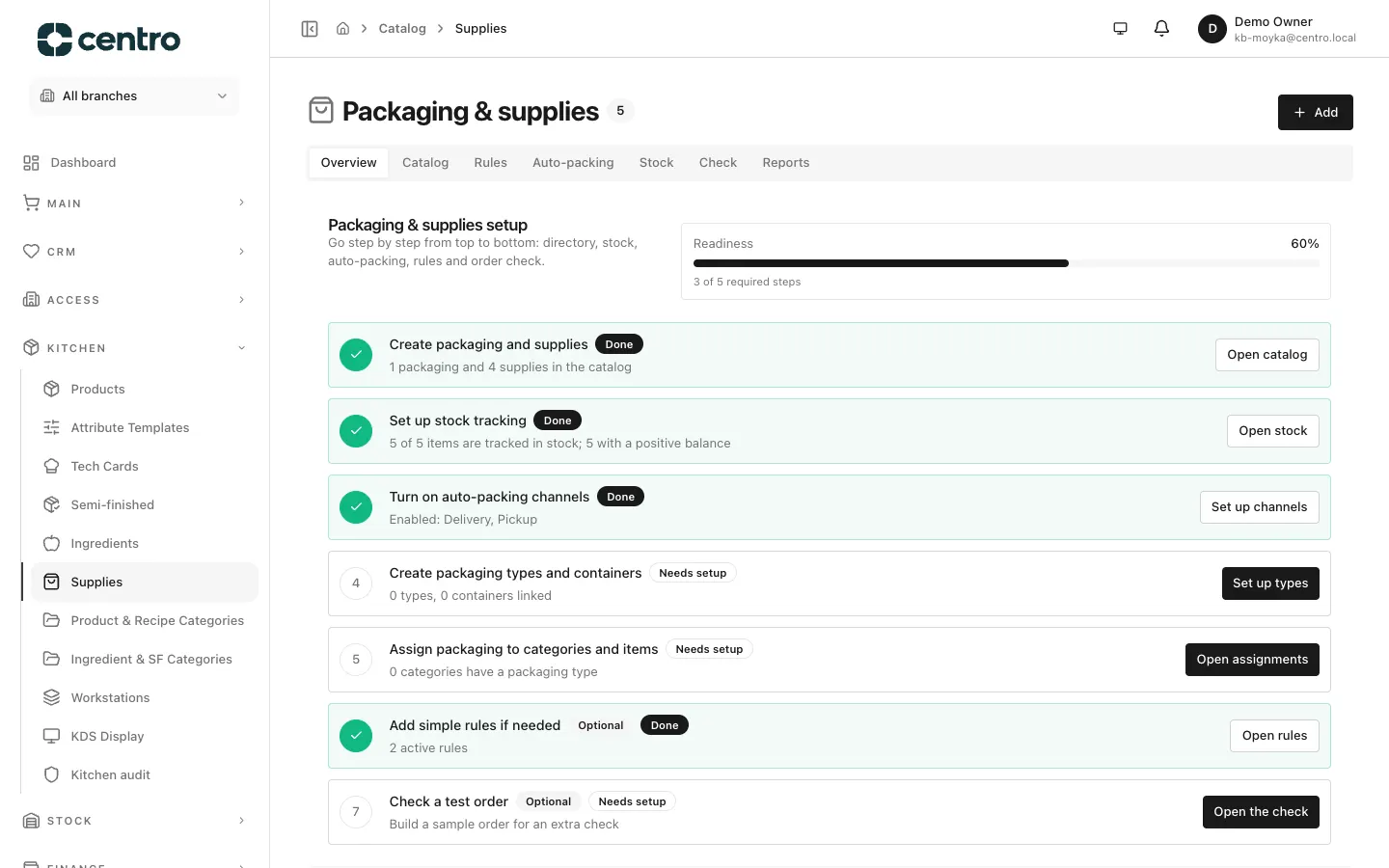
The «Packaging & supplies setup» card has seven steps. The button next to each opens the right tab; a finished step is marked «Done». The «Readiness» percentage counts only the required steps; steps marked «Optional» do not affect it.
Steps
- Create packaging and supplies
- Done when the catalog has at least one item.
- Set up stock tracking
- Done when every item is in stock records (a receipt was posted).
- Turn on auto-packing channels · Create packaging types and containers · Assign packaging to categories and items
- Required when the catalog has packaging. With supplies only they are optional («Auto-packing is not needed for simple supply rules»).
- Set up supply rules
- Done with at least one active rule. When auto-packing is used, the step is called «Add simple rules if needed» and becomes optional.
- Check a test order
- Always optional: done when positions are chosen on the «Check» tab and there are no conflicts.
Below are four counters («Total items», «Supplies», «Packaging», «Out of stock») and the «Two different logics» and «What to remember» cards.
«Quick scenarios»
- Create packaging
- The «Packaging» or «Supply» button opens the create-item window with the type preselected.
- Set up a category
- «Go to categories» opens the «Auto-packing» tab with the «Category settings» table.
- Bags and cutlery
- «Bag» opens the rule form prefilled: organization, «Delivery», «Per order», 1 pcs. «Cutlery» — «All channels», «Per guest». You only pick the item and save.
- Check an order
- «Open the check» opens the «Check» tab with the «Delivery» channel and one empty line.
Catalog #
Packaging and supply cards: type, unit, capacity, sale price, export and import.
Add an item
- Click «Add» in the page header — the «Add packaging or supply» window opens. Enter the name in the primary language (other languages are optional), and a category and barcode if needed.
- «Item type»: «Supply» or «Packaging». Only packaging can be an auto-packing container, a sauce cup or an outer bag. For packaging, «Capacity (slots)» — how many slots fit into the container (a whole number from 1).
- «Unit»: pcs, kg or l — it cannot be changed after the item is created. If you sell the bag to customers, enter «Price for selling the item directly (optional)»; you can add an image (PNG, JPG up to 10MB). Click «Save».
- The quantity is entered not in the card but with a «Stock → Receipts» document.
Working with the list
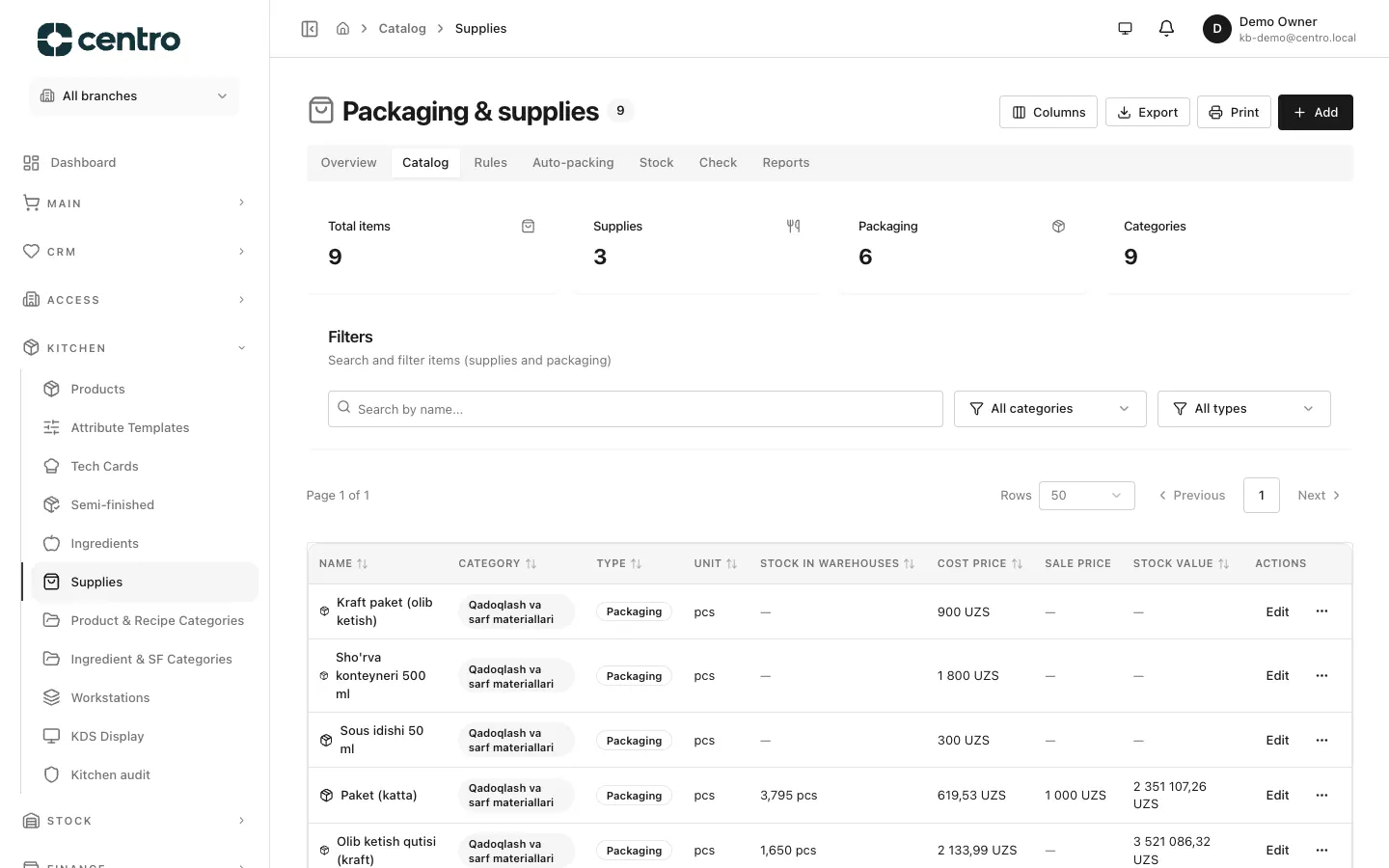
- The «Filters» card has a name search and multi-select of categories and types; above are the «Total items», «Supplies», «Packaging», «Categories» counters.
- The «Columns» menu turns table columns on and off («Barcode», «Stock in warehouses», «Cost price», «Sale price», «Stock value» and others); «Reset to default» restores the original set.
- Deleting an item asks for confirmation. An item used in a tech card, a prep item or an unfinished order cannot be deleted — the system shows the reason.
- «Print» in the page header opens the list as it is shown now (filters, sorting, current page) in a print window: Name, Barcode, Category, Type, Unit. If the browser blocks pop-ups you get a warning — allow them for this site.
Export and import
- «Export» → «Export»
- Downloads the list with the current filter to Excel or CSV. Columns, in the interface language: «Name», «Barcode», «Category», «Type» («Packaging» or «Supply»), «Unit».
- «Export» → «Import»
- The «import template» link downloads an empty template (headers in the interface language). Every row creates a new item (existing ones are not updated): «Packaging» in the «Type» column (or the Russian «Упаковка», or packaging) means packaging, anything else — a supply; the category is matched by name, if not found — no category; the unit: шт/кг/л or pcs/kg/l, empty — pcs. Columns are read by the header in the interface language, by the Russian header of older files («Название», «Штрихкод», «Категория», «Тип», «Ед. измерения») or by the English key (name, barcode, category, type, uom). Rows with errors are listed with their number and reason, the rest are created.
Add rules #
Which supply, on which channel and in what quantity is added to the order automatically; composite portions and the final rule check.
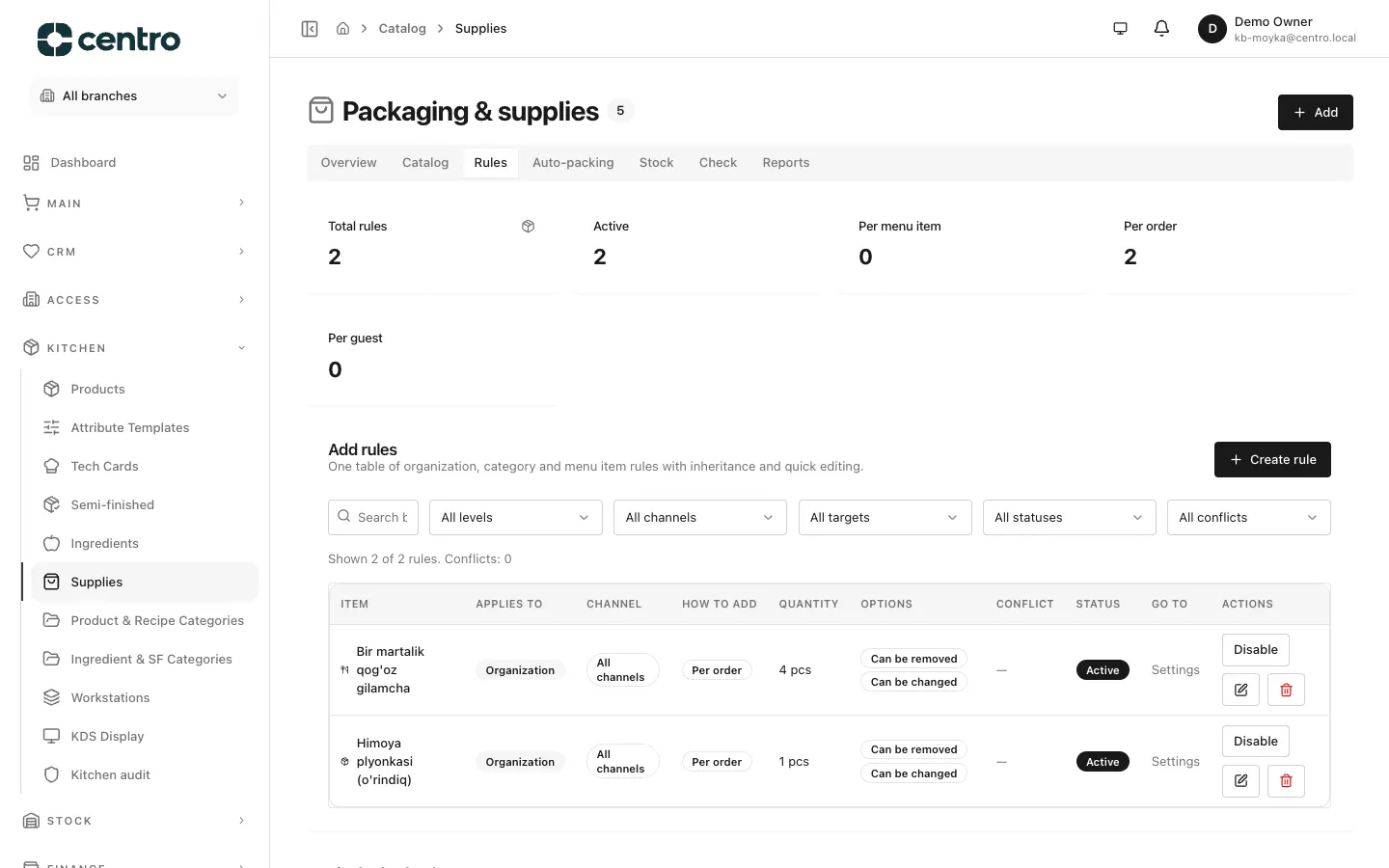
Create a rule
- Click «Create rule» — a form opens above the table (clicking again — «Close»).
- «Where the rule applies»: «Organization» — all orders, «Category» — a group of dishes, «Menu item» — one product. The item is picked from a searchable list («All / Products / Variants / Tech cards»); a tech card without a linked product cannot get an item rule — link it to a product or use a category rule.
- Choose the «Supply or packaging» (or tick «Composite portion» — see below) and the «Channel»: «All channels», «Dine-in», «Pickup» or «Delivery».
- «How to add»: for an organization rule — «Per order», «Per guest» or «Per menu item»; category and item rules always apply to the order line («Per menu item»).
- Set «How to count the quantity» and the «Quantity» (above 0), tick the options and click «Create».
«How to count the quantity» — 9 options
- Always the set quantity
- Exactly the «Quantity»: 1 bag per order.
- Multiply by servings
- For a category/item: quantity × servings in the line (3 drinks — 3 lids).
- Multiply by guests
- Quantity × the order’s guest count (1 if not set).
- From calculated boxes · From calculated slots · From the number of order items · From the number of packed dishes · Only from separately added dishes
- They depend on the auto-packing result and are available only for an organization rule (choosing one switches the level to «Organization», «Per order»). Formula: quantity × ⌈basis ÷ «Capacity»⌉. The basis is the picked boxes, the slots used in them, all order servings, packed dishes (each with its category’s «Supply units») or only dishes outside combos. Example: quantity 1, basis «Boxes / containers», capacity 3 — 1 bag per 3 boxes.
- Combos per piece + separate items in groups
- One for every combo and one for every «Capacity» dishes outside combos: quantity × (combos + ⌈separate dishes ÷ capacity⌉).
For the options that depend on auto-packing a yellow block opens: «Calculation basis», «Capacity», «Temperature» («All temperatures» or one) and «Packaging type» («All types» or one) — e.g. count forks only for hot dishes.
Options
- Can be removed in the order
- The cashier or operator can remove the auto-added supply from the order (the «Can be removed» badge in the table).
- Quantity can be changed
- Allows changing the quantity in the order (the «Can be changed» badge).
- Do not inherit the category rule for this item
- Only on a «Menu item» rule. For the same supply the item rule already wins over the category rule; with the tick the category’s composite portions are not added to this item either.
The rules table
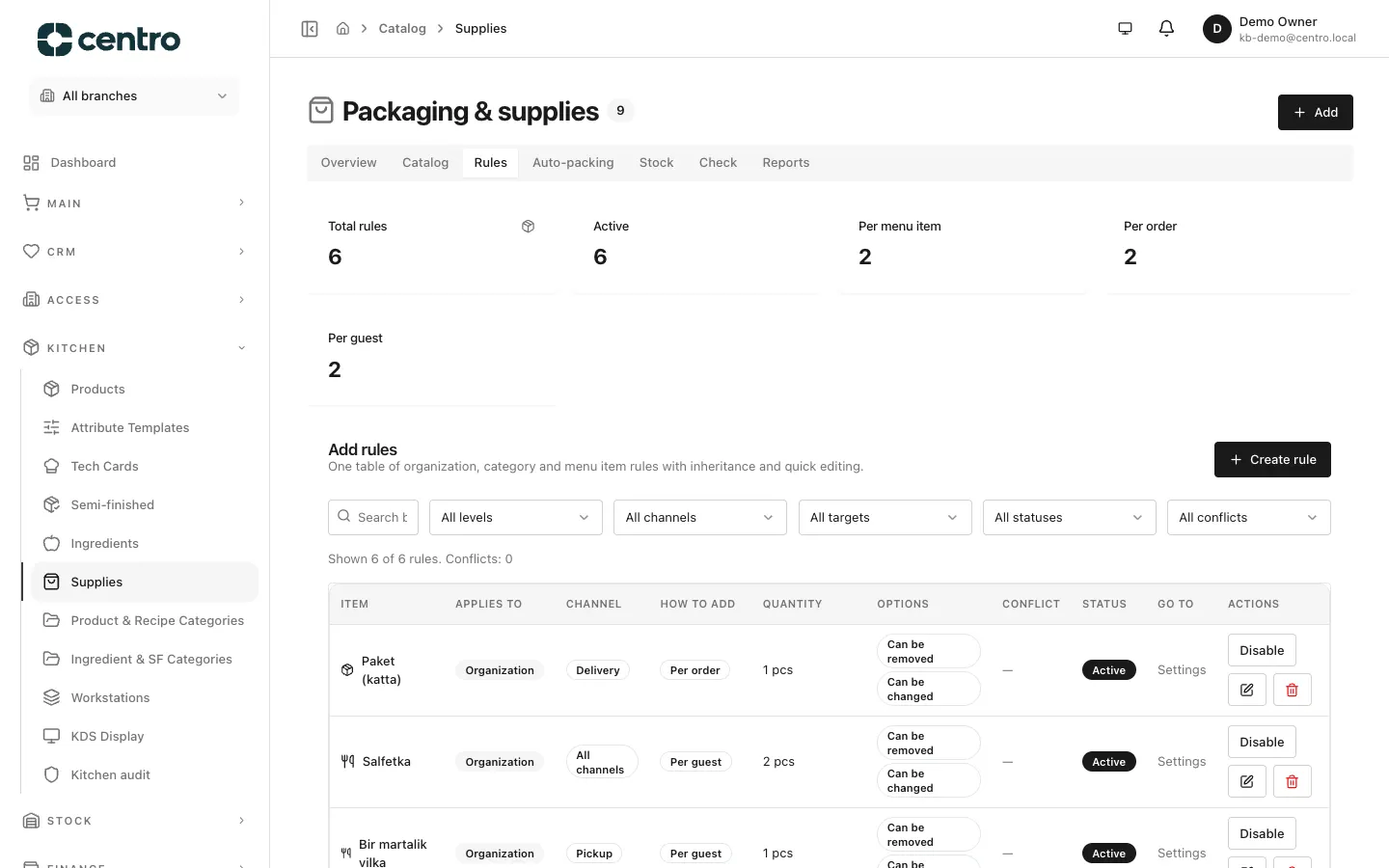
- Counters on top: «Total rules», «Active» and a count per «How to add» method.
- Filters: search, level, channel, target (organization or a specific category/item), status («Active» / «Disabled») and conflict («Only with conflicts» / «No conflicts»). Below: «Shown N of M rules. Conflicts: K».
- The «Conflict» column: «Risk of double write-off» — the supply is also an auto-packing container; «Duplicate rule» — two active rules with the same level, target, channel, method and item.
- «Open» in the «Go to» column leads to editing the category or product; an organization rule just shows «Settings» there. Actions: «Disable»/«Enable» (organization rules only), edit and delete. When editing, the level, target, add method and composite-portion tick cannot be changed, and for an organization rule neither can the supply and channel.
Tip: Priority for the same supply: menu item rule → category rule → organization rule. Set up categories first, the item only as an exception. Before going live, build a test order on the «Check» tab.
Composite portion #
One rule writes off both the container and the sauce or add-on inside it.
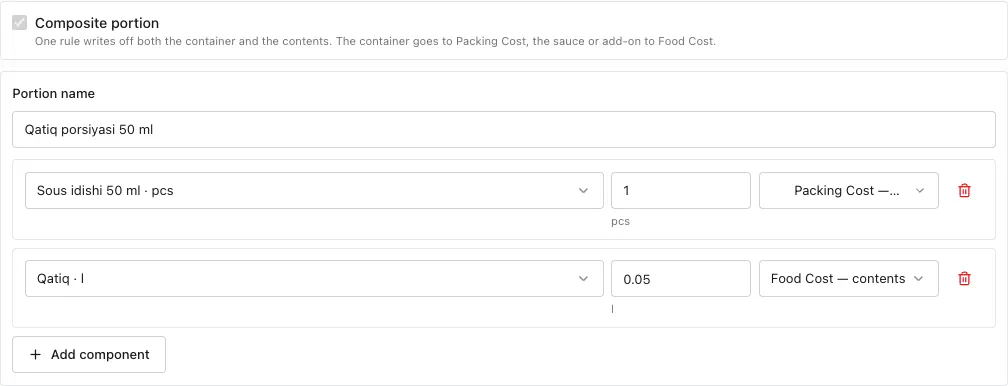
- Tick «Composite portion» in the rule form. The level becomes «Organization» and the method «Per order»; change the level to «Category» or «Menu item» if needed.
- Enter the «Portion name» — e.g. «Qatiq porsiyasi 50 ml». The rule appears in the table under this name.
- Add lines with «Add component»: an item (any ingredient, supply or packaging), a quantity (the unit comes from the item) and a cost bucket: «Food Cost — contents», «Packing Cost — container» or «Packing Cost — supply».
- Set the channel, counting method and quantity (how many portions) and click «Create». Every portion writes off all components in the given amounts.
Important: Composite portions are not shown in the «Final rule check» or in the «Total write-off» of the «Check» tab — they are written off only in a real order. See the result in the order’s ingredients and in the reports.
Final rule check #
Shows which supplies are added to a menu item on the chosen channel, taking priority into account.
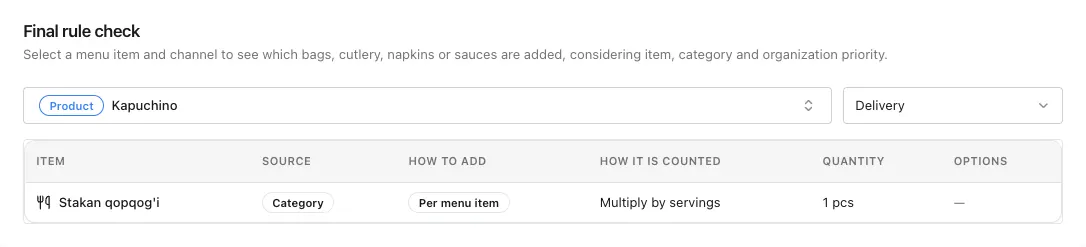
At the bottom of the «Rules» tab choose a menu item (from a searchable list) and a channel («Delivery» by default). The table shows: the item, «Source» (which level’s rule won — product, category or organization), «How to add», «How it is counted», «Quantity» and «Options». For one supply only the winning rule is shown. Only rules added to the item’s line are here: organization «Per order» and «Per guest» rules are counted for the whole order — see them on the «Check» tab.
Auto-packing #
Sales channels, packaging types and containers, sauce cups, outer bags, category and item settings, diagnostics.
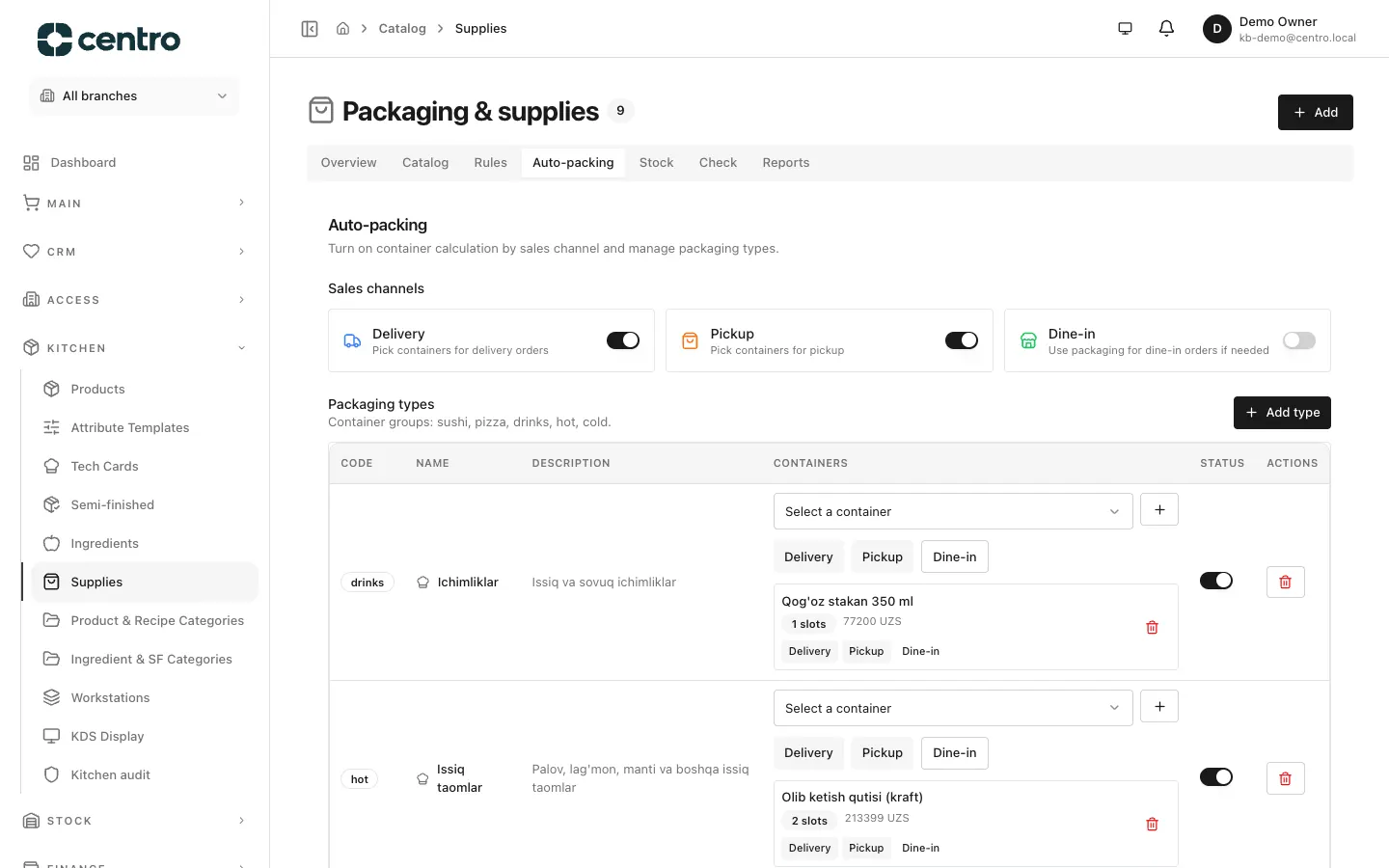
When an order is created, the system takes every dish’s final settings (temperature, packaging type, slots — from the item or the category), groups the dishes by temperature and packaging type and picks the best set of containers of that type for each group: by capacity first, the cheaper one if equal. Every combo is packed separately. Then sauce cups and outer bags are counted. All of this works only if auto-packing is on for the order’s channel.
Setup order
- In «Sales channels» turn on the channels where auto-packing works: «Delivery», «Pickup», «Dine-in» if needed. If a channel is on but there are no types or containers, the yellow warning «Auto-packing is on, but setup is not finished» appears.
- «Packaging types»: «Add type» → «Short code» (Latin letters without spaces, unique in the organization: sushi, drinks) and «Display name» → «Create». A type can be switched off with the «Status» toggle; a switched-off type cannot be chosen in category and item settings.
- In each type’s row, in the «Containers» column, choose a container, tick the channels (at least one) and click «+». The channel buttons under a container turn its use on that channel on or off (at least one must stay). The container capacity comes from «Capacity (slots)» in its catalog card.
- In «Category settings» give the categories a temperature, type and slots, set up exceptions in «Menu item overrides» if needed, then add sauce cups and outer bags and check «Auto-packing diagnostics».
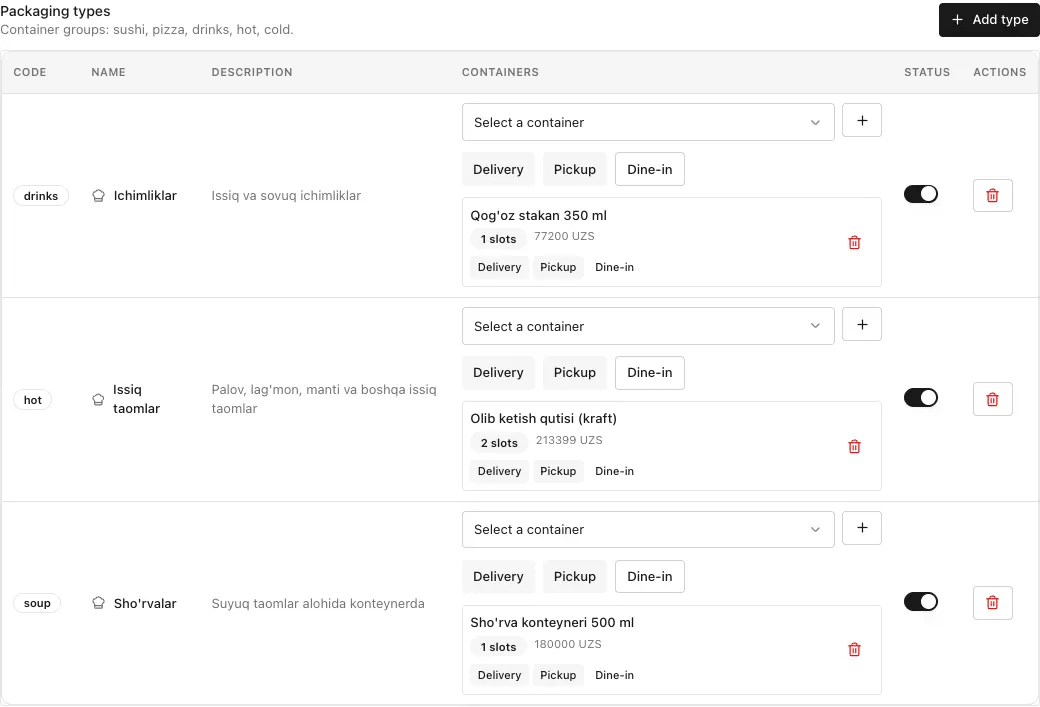
Important: Deleting a packaging type affects category and item settings: dishes linked to this type are left without a container. Assign them another type first.
Category settings #
Temperature, packaging type, slots, supply units and isolation for each menu category.
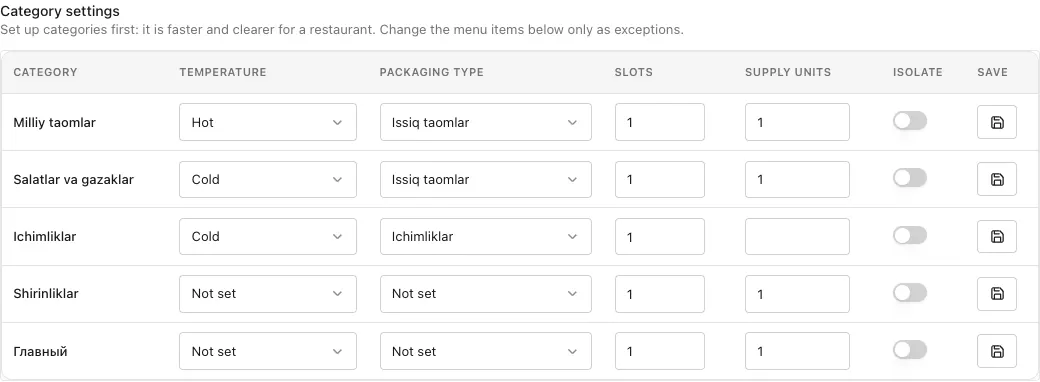
- Temperature
- «Hot», «Cold» or «Room temperature». Dishes of different temperatures never share a container.
- Packaging type
- Which containers to choose from. If «Not set», the category’s dishes get no container (shown in diagnostics).
- Slots
- How many slots one serving takes in a container. E.g. a 2-slot box and manti taking 2 slots — one serving per box.
- Supply units
- How many units one serving counts for the «Packed dishes» basis (chopsticks, napkins, cutlery). Step 0.25; 0 for drinks, sushi and gunkans.
- Isolate
- When on, every serving is packed into its own container without mixing with other dishes (soup, pizza).
Tip: Every row is saved separately — with the save button at the end of the row. The list comes from the menu categories; if there are none, a «Create category» button is shown.
Menu item overrides #
Exceptions for a single product or tech card, the combo calculation mode and the final packaging check.
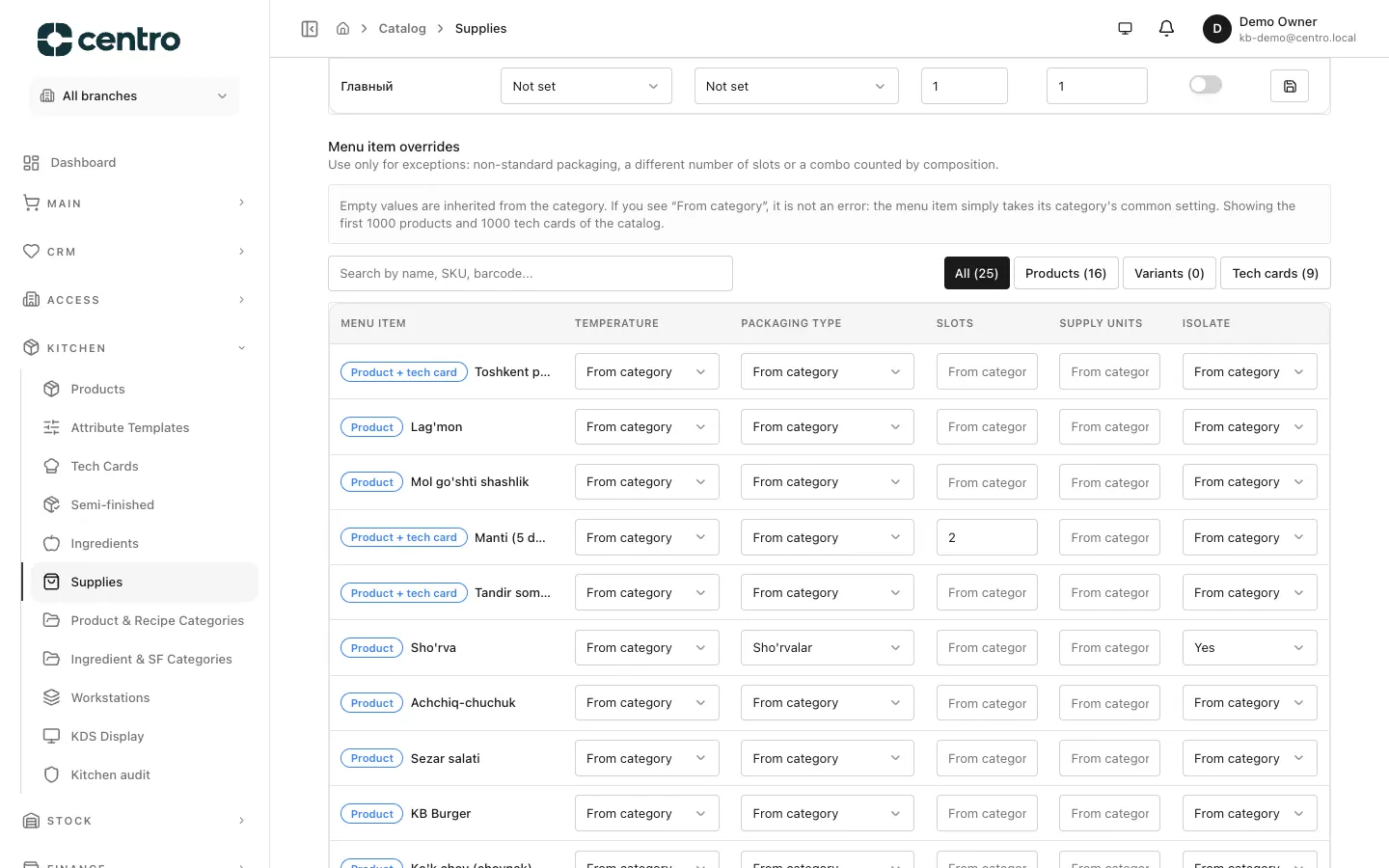
The table lists products, variants and tech cards (up to 1000 products and 1000 tech cards); the search and the «All / Products / Variants / Tech cards» buttons narrow the list. The columns are the same as for a category, but each has a «From category» value — this is not an error, the item takes its category’s setting. Change only the field that differs and click the save button in the row.
Calculation mode
- By the item itself
- The combo is packed as one dish — by its own slots and type.
- By combo composition
- Every dish of the combo is packed by its own settings; substitutions chosen by the customer in the order are taken into account. Every combo instance is packed separately and, if there is an outer-bag rule, gets at least one bag of its own.

The «Final packaging check» block shows the values for the chosen item after inheritance from the category: «Temperature», «Type» (the type code), «Slots», «Quantity» (always 0 here — there is no order), «Supply units» and «Isolation».
Sauce cups by actual composition #
Counts the needed sauce cups from the amount of sauce in the order.
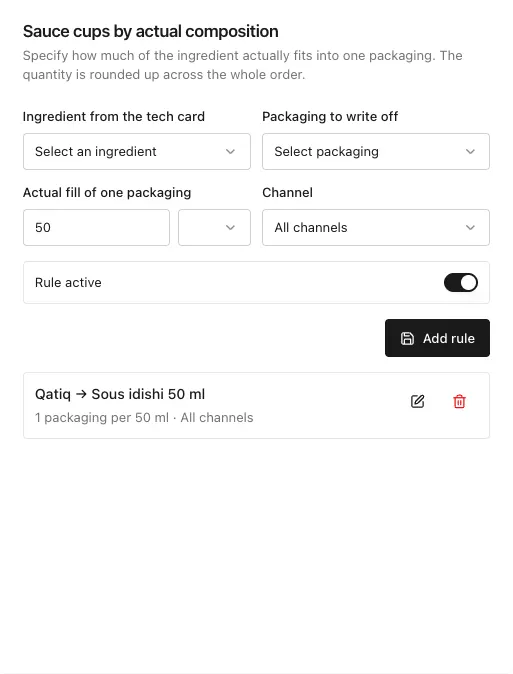
- «Ingredient from the tech card» — the sauce (e.g. soy sauce) and «Packaging to write off» — the sauce cup (only «Packaging» items).
- «Actual fill of one packaging» and the «Fill unit» (g or kg for a kg ingredient, ml or l for l, pcs for pcs) — how much really fits into one cup.
- Choose the channel, keep «Rule active» and click «Add rule». There is one rule per ingredient + packaging + channel; edit with the pencil button.
Calculation: the amount of this ingredient across all the order’s tech cards is summed, converted to the rule unit, divided by the fill and rounded up for the whole order. Example: 3 dishes with 30 ml of soy sauce each = 90 ml, a 50 ml cup → 2 cups. The rule works only when auto-packing is on for the channel.
Inner packaging in the outer bag #
Counts how many outer bags are needed for boxes, soup containers and cups.
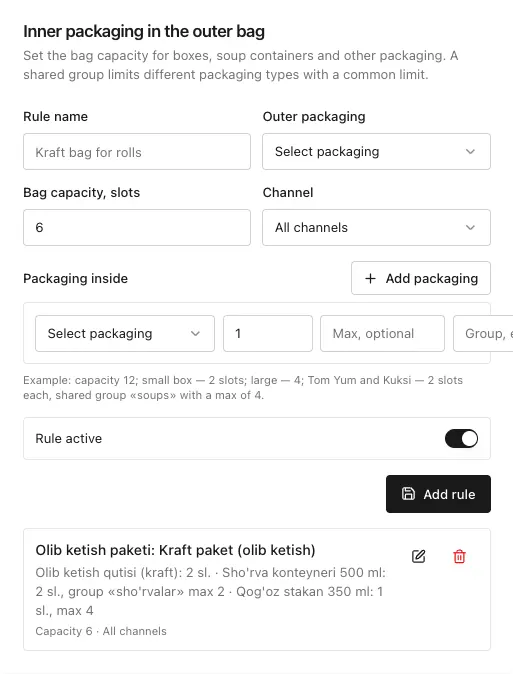
- Rule name · Outer packaging · Channel
- The bag (a «Packaging» item) and the channel. One rule per outer packaging + channel.
- Bag capacity, slots
- How many slots fit into one bag.
- Packaging inside
- With «Add packaging»: the inner packaging (each once, not the outer one), «Slots» (from 1 to the bag capacity), an optional «Max in bag» — how many of it at most go into one bag.
- Shared limit group · Shared group maximum in the bag
- Give different packagings the same group name (e.g. «soups») and one shared limit — together they never exceed it in one bag. All rows of a group must have the same limit.
Calculation: the containers and sauce cups picked by auto-packing are placed into bags starting with the biggest; when space, the «max» or a group limit runs out, a new bag is opened. Every combo starts with its own bags, separate dishes fill the free space. Example: 2 boxes (2+2) + a soup (2) + 2 cups (1+1) = 8 slots, capacity 6 → 2 bags.
Auto-packing diagnostics #
Checks the enabled channels, packaging types, containers and the risk of double write-off.
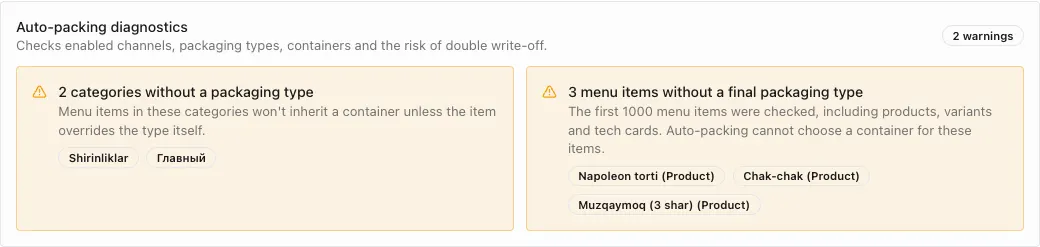
- No active packaging types — a channel is on but no active type exists.
- N categories without a packaging type and N menu items without a final packaging type — these dishes get no container (the first 1000 items are checked; names are shown as badges).
- N packaging types without containers and N containers without capacity — nothing to write off or the selection will be wrong.
- N rules at risk of double write-off — the supply is both a rule and a container.
Tip: If all channels are off, diagnostics do not run. With no warnings, a green line shows the active channels and «No critical problems found in the current selection».
Stock, check and reports #
Packaging stock, movement history, a test order and costs by period.
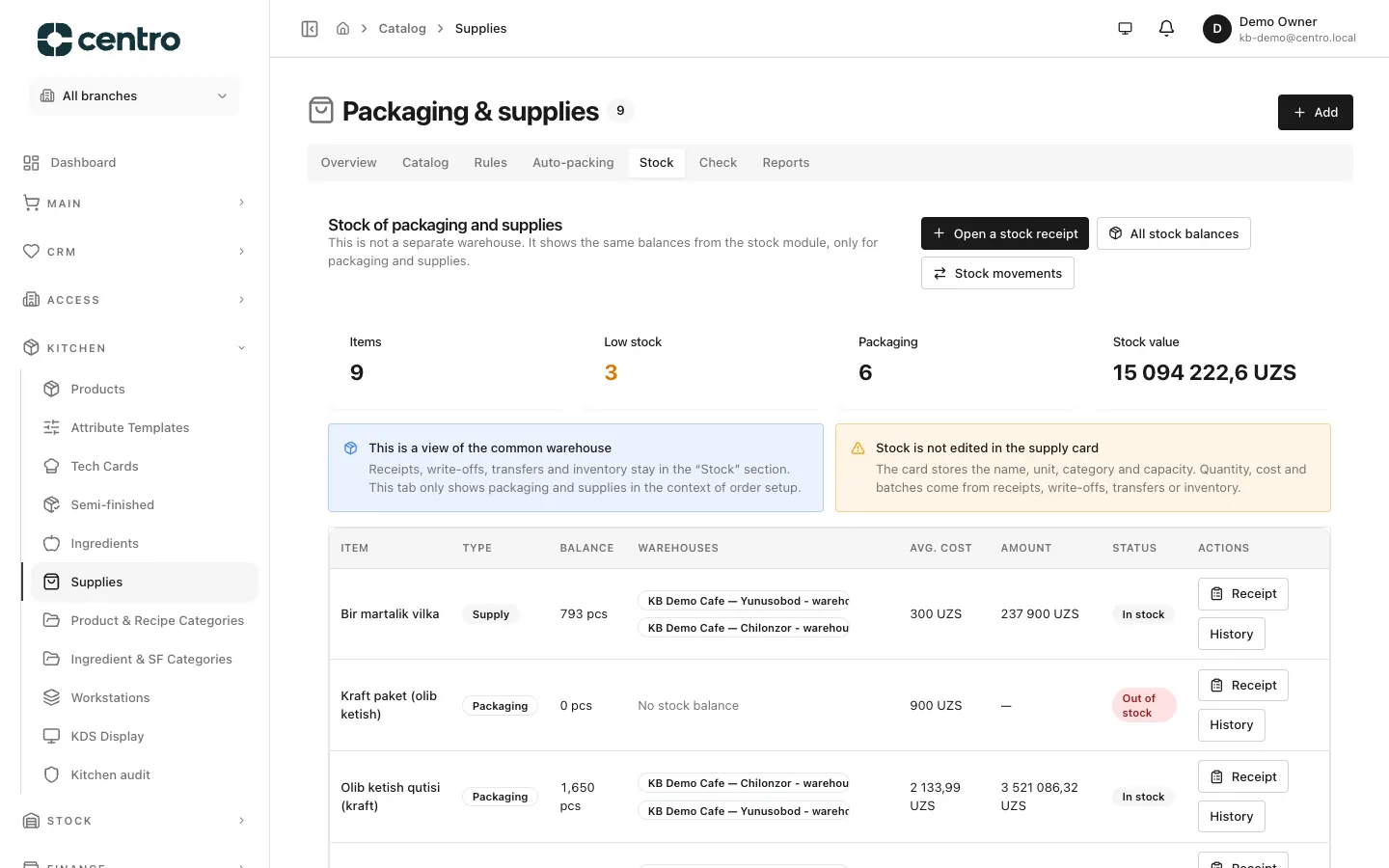
Stock is not a separate warehouse but the same balances from the stock module, only for packaging and supplies. On top are the «Items», «Low stock», «Packaging», «Stock value» counters. Clicking a row opens «Movement history» (date, operation, change, balance after, document). The «Open a stock receipt», «All stock balances» and «Stock movements» buttons lead to the stock section.
Order check #
A test order: what will be added and written off and where stock runs short — without creating an order.
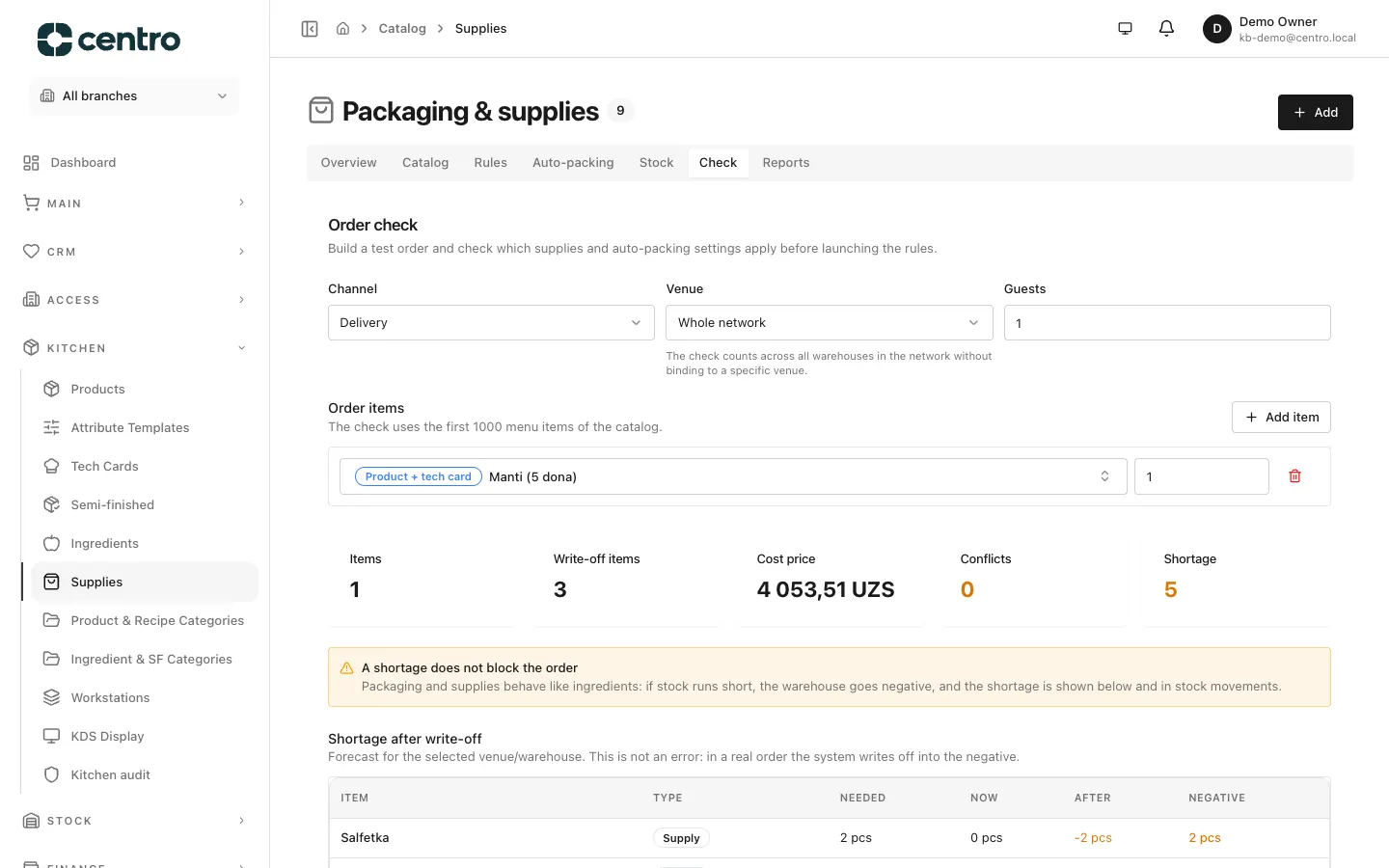
- Choose the «Channel» (delivery, dine-in or pickup), the «Venue» and «Guests». «Whole network» uses all warehouses; with a venue its linked warehouse is used (if there is none, the stock check is incomplete).
- In «Order items» choose a menu item and quantity; add more lines with «Add item».
- The result is calculated at once: the «Items», «Write-off items», «Cost price», «Conflicts», «Shortage» counters and tables. Nothing is saved.
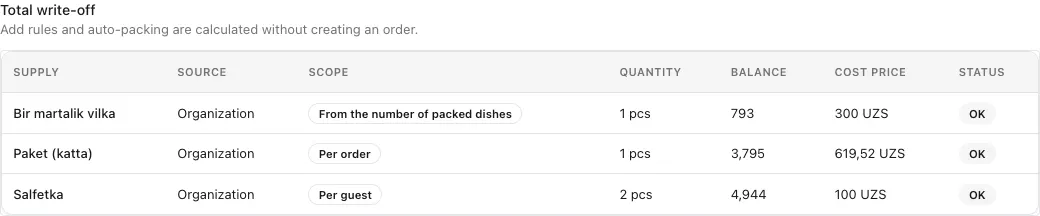
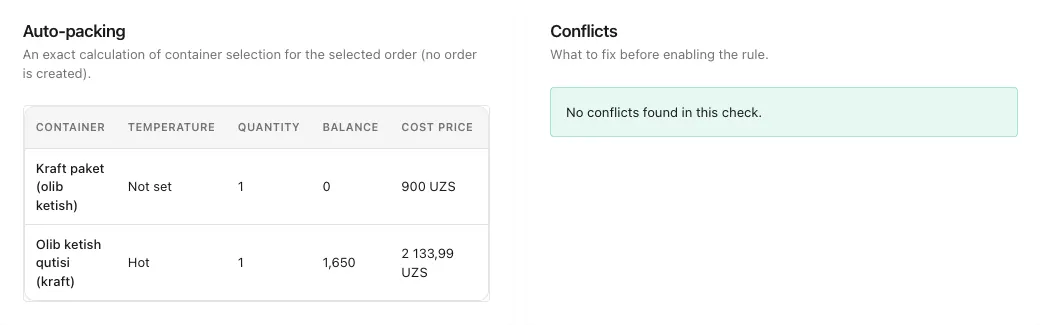
- Shortage after write-off — needed, now, after and how much below zero. A shortage does not block the order: in a real order the stock goes negative.
- Total write-off — supplies added by rules: source (level), scope, quantity, balance, cost and status («OK» or «Goes negative»).
- Auto-packing — the picked containers, sauce cups and outer bags; Conflicts — what to fix before going live (channel off, no type, containers not calculated, no rules found).
Packaging and supply reports #
Costs of the packaging and supplies actually written off, by period, channel and branch.
The «Reports» tab lets you choose the «Period» (week, month, quarter, year), «Channel» and «Branch / venue» («All venues» — the whole network). The report counts both sources: simple supplies added by rules and auto-packing containers. The «Excel» and «CSV» buttons export the loaded report to a file.
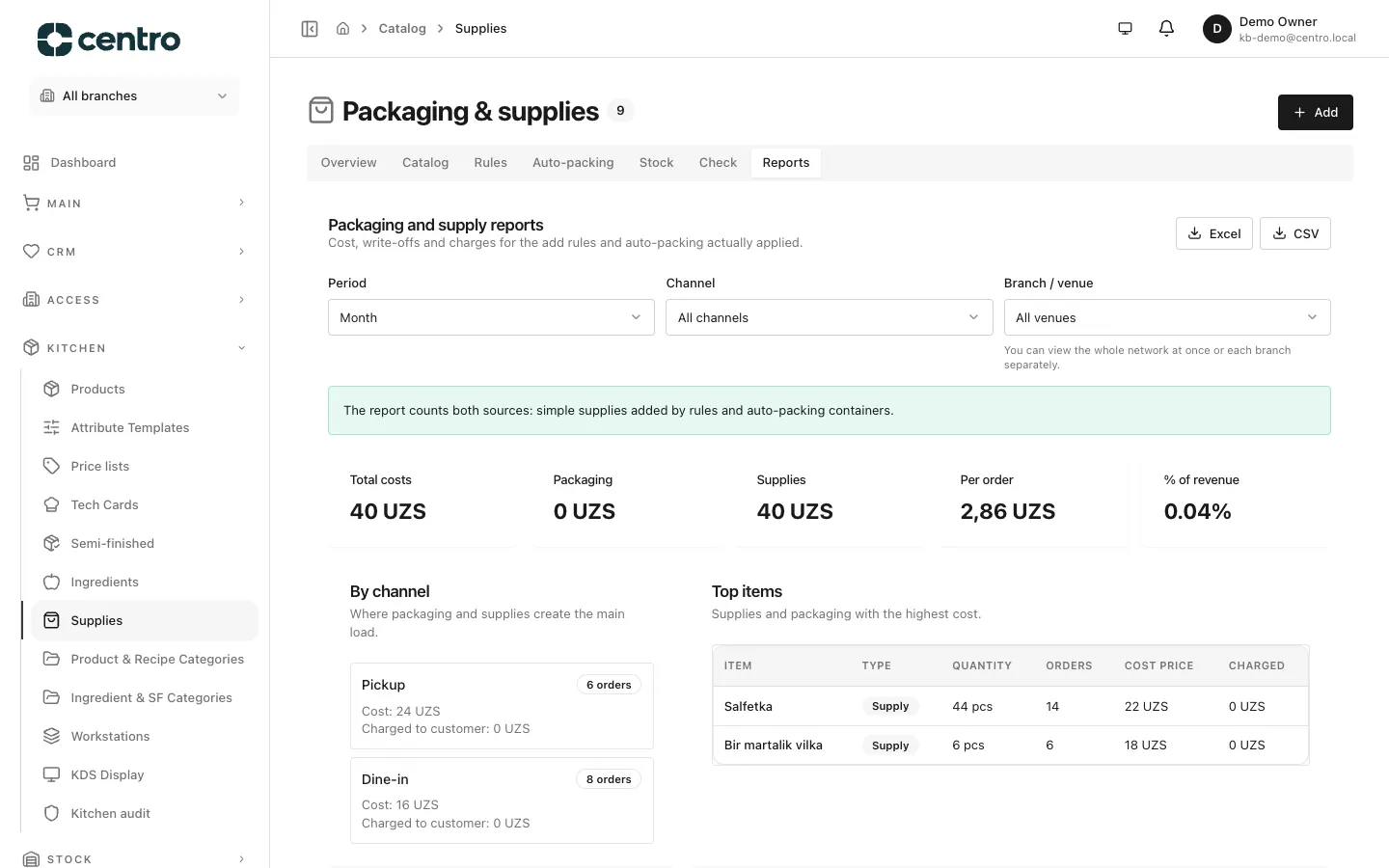
- Total costs · Packaging · Supplies
- The cost of the packaging and supplies written off in the period.
- Per order · % of revenue
- The average cost per order and the share of costs in revenue.
- By channel
- Per channel: number of orders, cost and «Charged to customer».
- Top items
- The most expensive supplies and packaging: type, quantity, orders, cost, «Charged». «Average per order» is only in the export file.
- Current negative balances
- Packaging and supplies with a negative balance per warehouse/branch — they need a receipt.
Tip: «Charged to customer» is what the customer paid for packaging (e.g. a paid bag at the till); 0 for free packaging. The report shows actual write-offs from orders, so the effect of new rules appears after the next orders.