Price lists
Special prices for wholesale and regular customers: fixed prices, wholesale tiers and a discount on the other products.
Open in the admin panel/catalog/price-lists A price list holds special prices for wholesale and regular customers. Create a list, give it fixed product prices (with wholesale tiers by quantity) and/or a percentage discount on all other products, and assign it to customers. When such a customer is attached to an order, the register and the server price the lines by their list. The section exists for every organization type and needs no separate plan module.
How to open
- In the sidebar expand the Catalog group (restaurants and car washes call it Kitchen).
- Click Price lists.
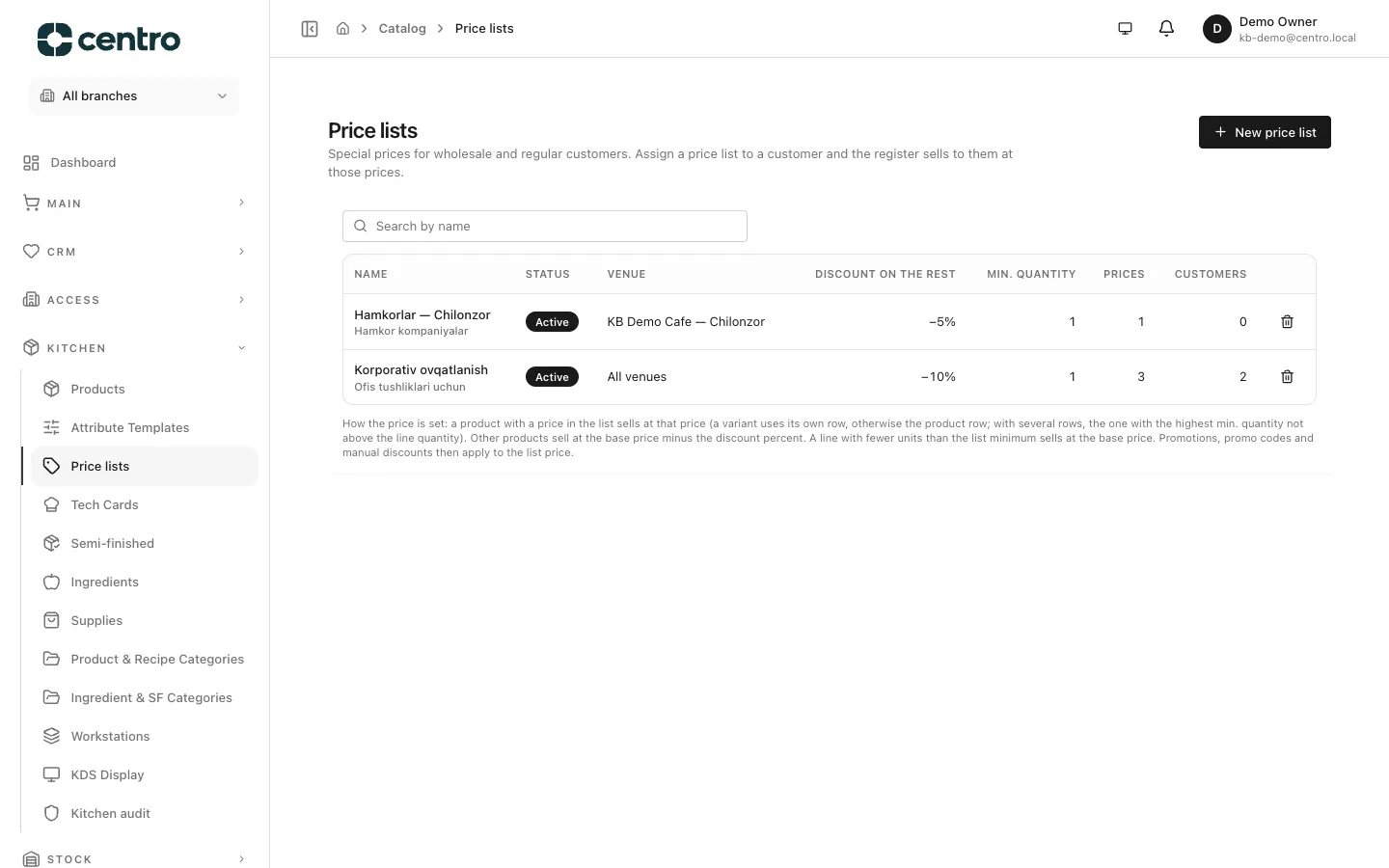
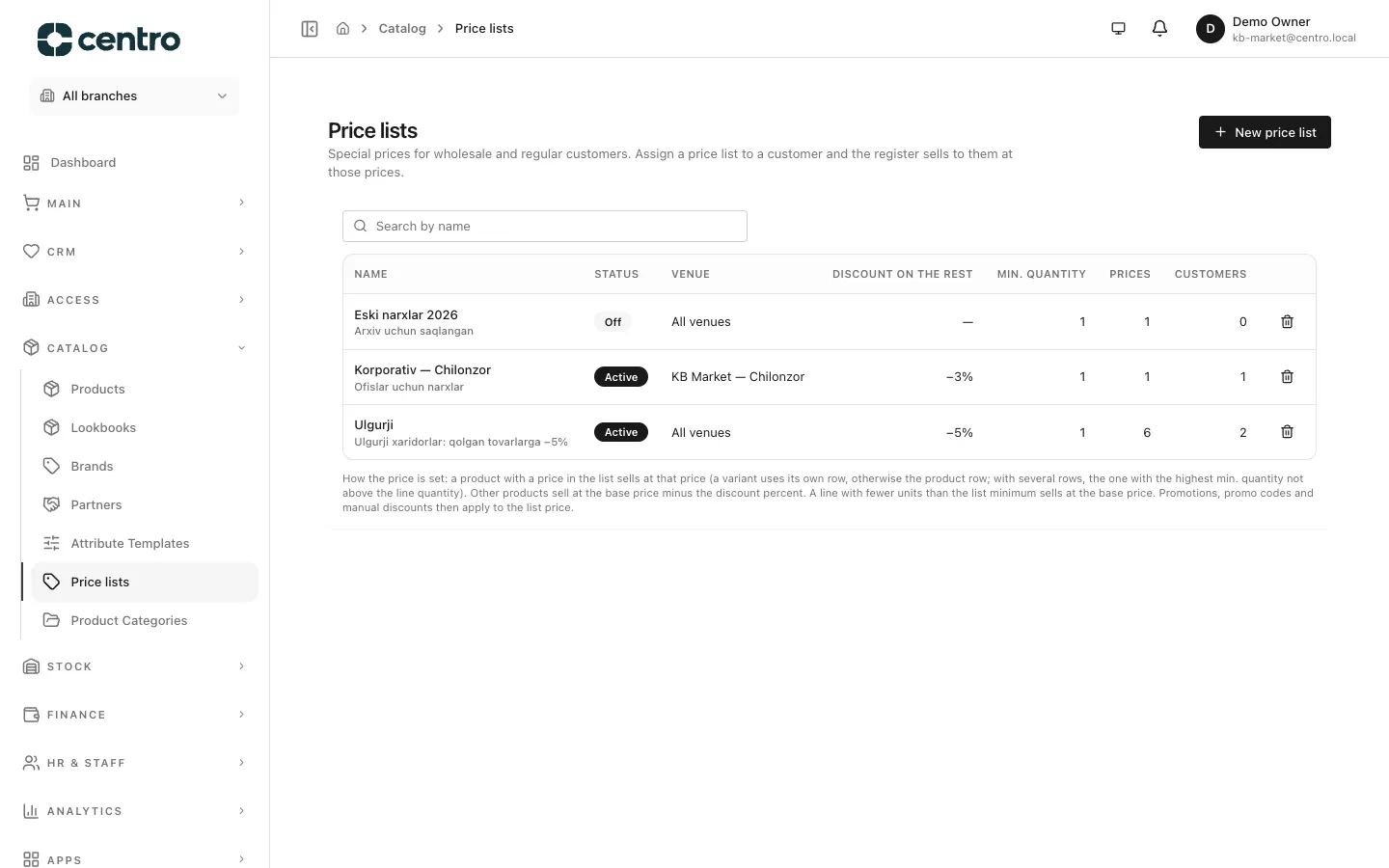
Table columns
- «Name»
- Name and description; clicking a row opens the price list page. «Search by name» above the table filters by name.
- «Status»
- «Active» or «Off».
- «Venue»
- The venue where the list works, or «All venues».
- «Discount on the rest»
- The discount on products without a price in the list (e.g. −5%) or «—».
- «Min. quantity»
- Wholesale threshold: with fewer units in a line the list does not apply.
- «Prices» / «Customers»
- How many fixed prices the list has and how many customers it is assigned to.
Good to know
- Permissions: in Access → Positions, «Catalog» → «Menu and products» at «View» to see price lists, «Full access» to create, change and delete them and edit prices.
- A customer has one price list or none. Until a list is created and assigned to a customer, no prices change anywhere.
- The register refreshes the price lists from the server about every 5 minutes and keeps them for offline work — a change in the admin panel reaches the register within minutes.
Creating and setting up a price list #
Name, discount on the rest, minimum quantity, venue, active switch; deleting and switching off.
How to do it
- On the «Price lists» page click New price list.
- Enter a name (for example, «Wholesale»), fill in the other fields if needed and click Create.
- The new list’s page opens right away — add the prices there (see «The price list page and prices»).
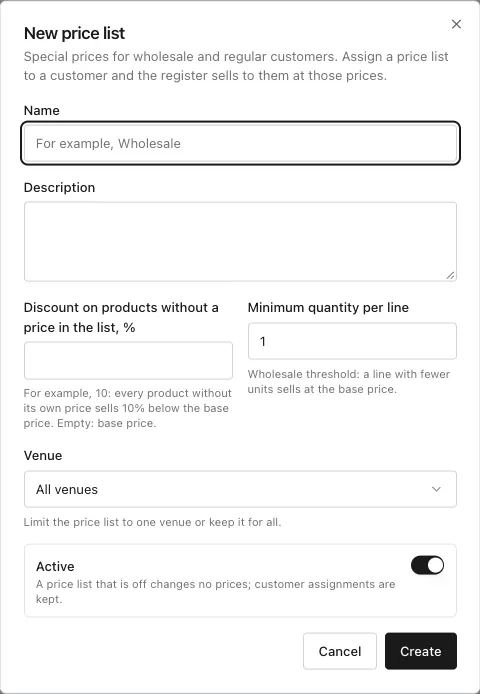
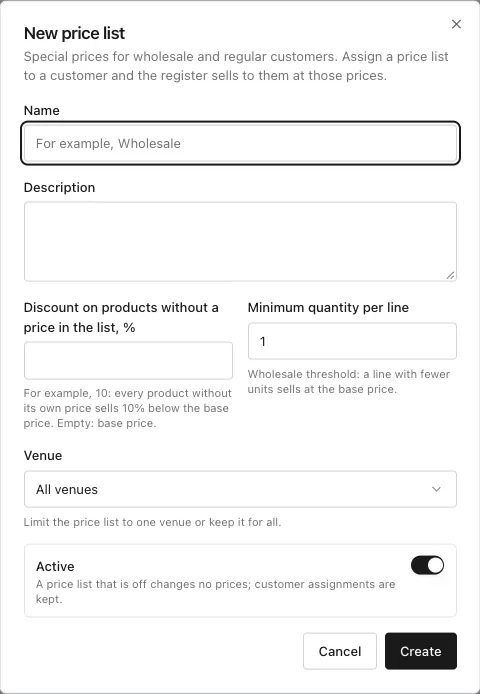
Price list fields
- «Name»
- Required, up to 200 characters. Names are unique in the organization (case-insensitive), otherwise «A price list with this name already exists».
- «Description»
- Optional; shown under the name in the list.
- «Discount on products without a price in the list, %»
- For example, 10: every product without its own price sells 10% below the base price. Above 0 and below 100, at most two decimals. Empty: such products sell at the base price.
- «Minimum quantity per line»
- Wholesale threshold: a line with fewer units is not priced by the list at all and keeps the base price. A whole number from 1 to 1,000,000, default 1.
- «Venue»
- «All venues» or one venue. A list limited to a venue works only in that venue’s orders and registers.
- «Active»
- A price list that is off changes no prices; customer assignments are kept. To pause a list, switch it off rather than delete it.
Later the same fields are changed on the price list page, in the «Settings» card (Save button).
Important: Deleting: click the bin icon at the end of the row in the price list table and confirm «Delete the price list “{name}”?». The list and its prices are deleted for good (no trash, no restore) and its customers go back to the regular prices. Orders already sold do not change.
How the price is calculated #
Fixed price, wholesale tiers, discount on the rest, minimum quantity, how it combines with promotions and when the list does not apply.
When a customer with a price list is attached to an order, each line is priced in this order (the note «How the price is set» at the bottom of the page states the same rule):
- The list must be active and match the order’s venue («All venues» or exactly that venue). The list currency is the organization’s currency.
- If the line has fewer units than the list’s «Min. quantity», the base price stays.
- If the product has a fixed price in the list, that price is used. A variant uses its own row first, otherwise the product row («All variants»). With several rows, the one with the highest «From, pcs» not above the line quantity wins (wholesale tiers).
- Without a fixed price, the «Discount on the rest» percent comes off the base price (rounded to whole minor units).
- If no percent is set either, the base price stays.
Tip: Example: the «Wholesale» list has two rows for product A — from 1 pc 9,000 and from 10 pcs 8,500 sum — and 5% off the rest. A’s base price is 10,000: 3 pcs sell at 9,000, 12 pcs at 8,500. Product B with base price 20,000 (not in the list) sells at 19,000. If the list minimum quantity is 5, 3 pcs of A sell at 10,000.
Good to know
- With discounts. The list price replaces the catalog price; promotions, promo codes, the customer’s tier discount, manual discounts and bonuses are then calculated on the list price exactly as on a catalog price.
- Modifiers and combo selections are added on top of the list price — the list replaces only the product’s base price.
- Lines a list never prices: tech cards (dishes), weighed and measured products, lookbook (bouquet) components, lines whose price the cashier set by hand, promotion gifts.
- Orders a list does not touch: delivery (the price is fixed by the delivery quote) and aggregator / marketplace orders. In other orders — register sale, takeaway, dine-in, pickup — the list works.
- When the customer changes. If a customer is attached, replaced or removed on an unpaid order, the server re-prices the lines by the new list (or back to the base price) and writes «Цена по прайс-листу: …» (price by the price list) or «Базовая цена без прайс-листа: …» (base price without a price list) to the order log. When a quantity changes, the tier and the minimum quantity are checked again. Prices of a paid or closed order do not change.
- An order line keeps which list priced it, the base price it replaced and the list price — even if the list is deleted later.
The price list page and prices #
Settings, the list’s customers and the fixed-price editor: product or variant, wholesale tiers, discount percent.
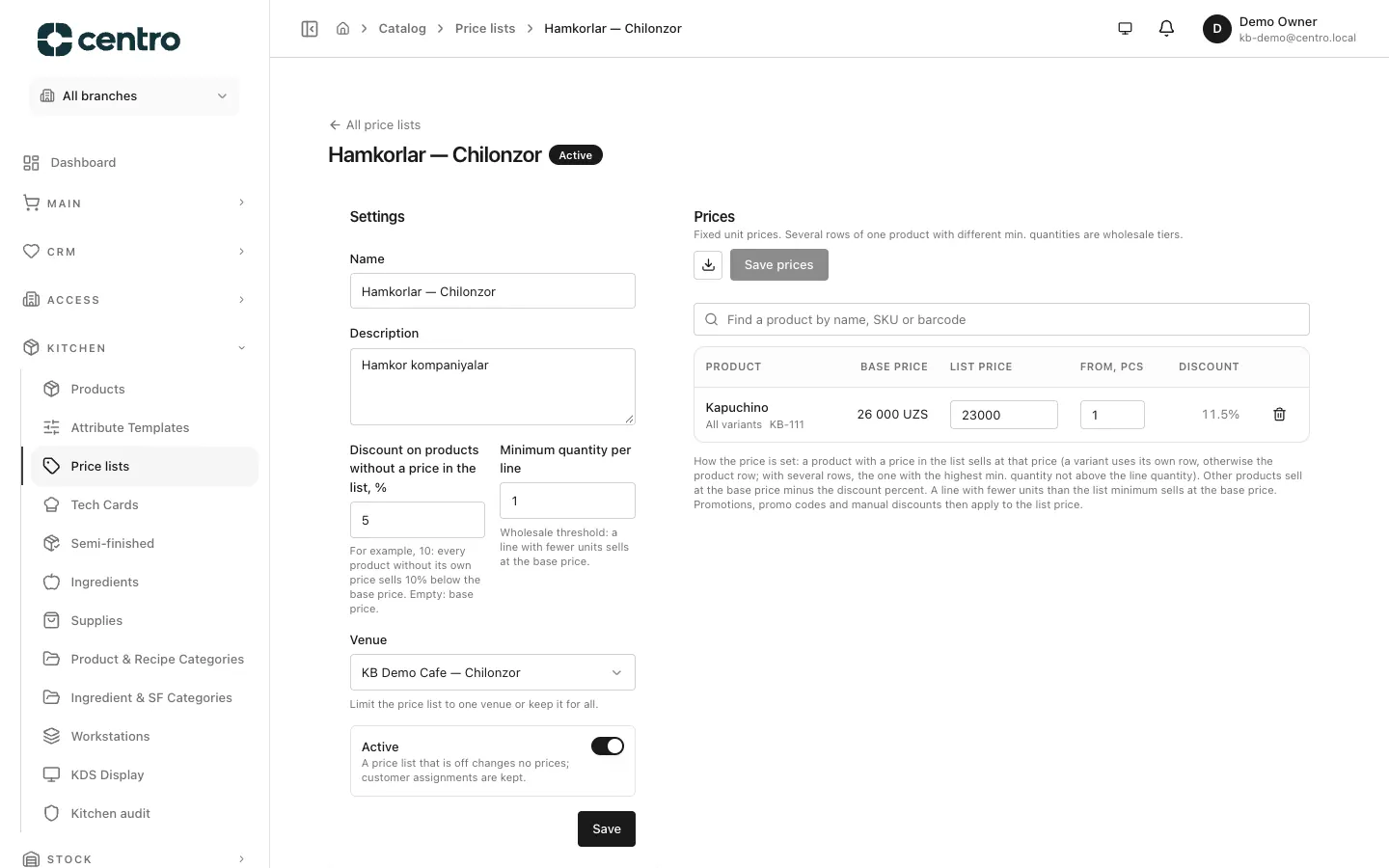
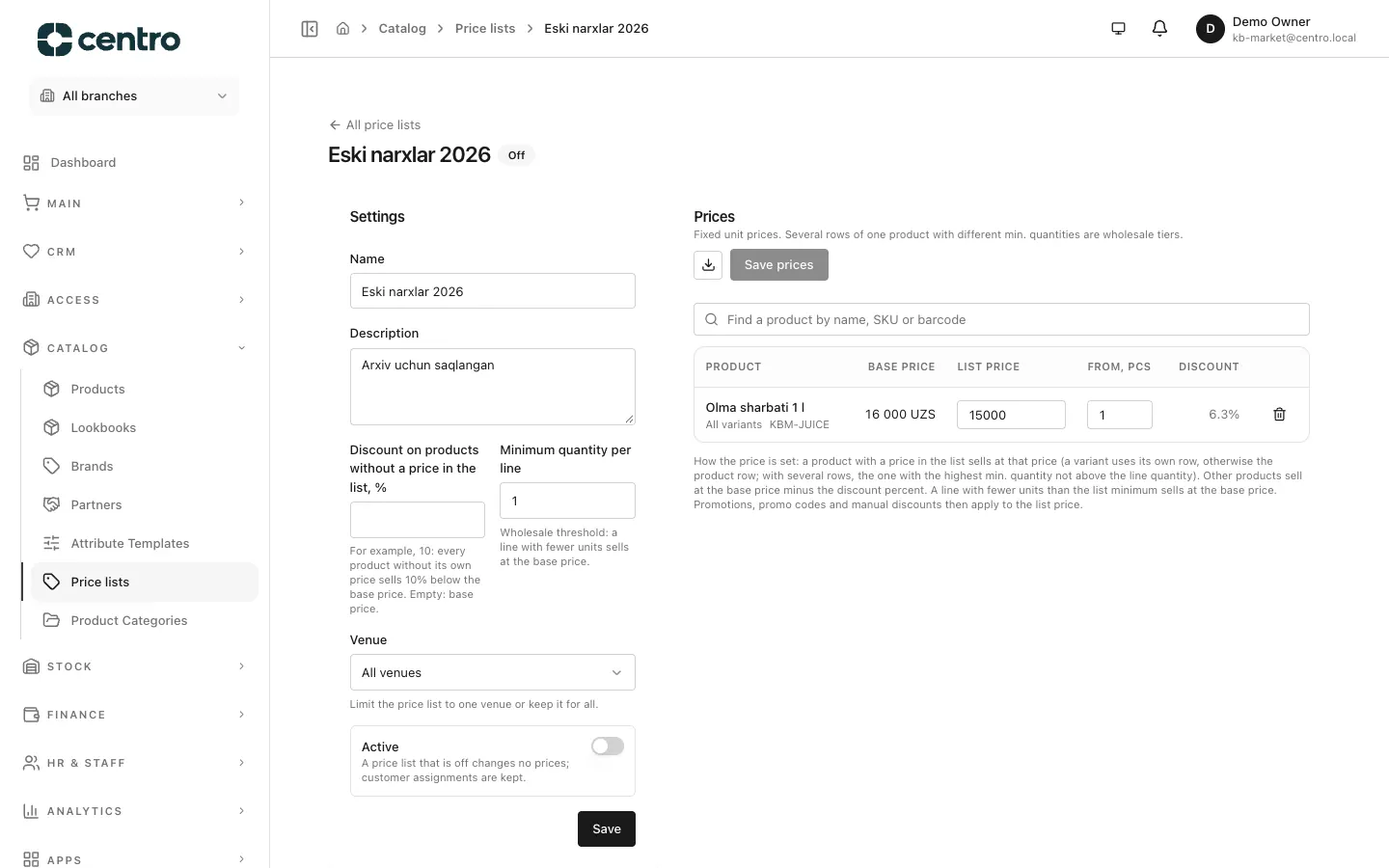
Click a row or a name in the table. At the top: the «All price lists» link, the name and the status («Active» / «Off»). On the left are the «Settings» card (the create fields, Save) and «Customers with this price list»; on the right — «Prices».
Adding prices
- In the «Prices» card start typing into «Find a product by name, SKU or barcode» — up to 20 products and their variants appear.
- Click a product name to add one row for all variants («All variants»); click a variant under it for a row of that variant only. A new row starts with the base price as its price.
- Enter «List price» and «From, pcs». For a wholesale tier, add the same product again with another «From, pcs».
- Click Save prices. While there are unsaved changes, «You have unsaved price changes» is shown.
The «Prices» table
- «Product»
- The name, with the variant or «All variants» and the SKU below.
- «Base price»
- The current catalog price (the variant’s own price if set).
- «List price»
- The fixed unit price in sums (e.g. 12 500,50). Cannot be empty or negative.
- «From, pcs»
- The tier: the price works when the line has this many units or more. A whole number from 1.
- «Discount»
- How many percent the list price is below the base price — calculated automatically.
- Bin icon («Remove»)
- Removes the row; after Save prices the price is gone from the list.
Good to know
- On save: the same product (or variant) twice with the same «From, pcs» gives «The same product with the same minimum quantity is repeated»; a wrong price or quantity gives «Check the rows…». A list holds at most 20,000 prices.
- An empty «Prices» table reads «No individual prices: the discount on the rest applies (if set)» — a list can work with the percent alone.
- «Customers with this price list» lists the customers it is assigned to (name and phone); a name opens the customer card, «Go to customers» opens the customer list. The list is assigned not here but on the customer card or in bulk on the customers page (see «Customer price list» under CRM → «Customers»).
Importing and exporting prices #
Exporting prices to Excel or CSV and loading them from a file by SKU or barcode.
How to do it
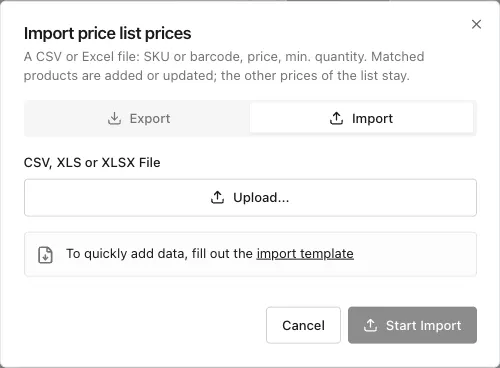
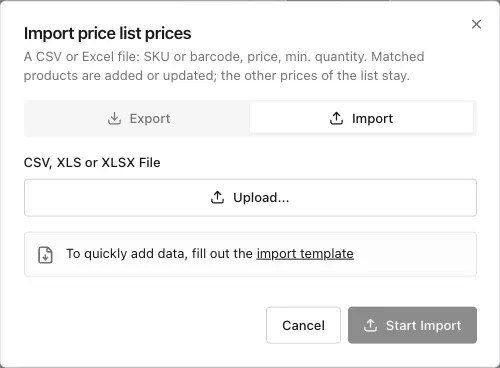
- Click the download icon (arrow) in the «Prices» card header — the «Import price list prices» window opens.
- Export: on the «Export» tab choose «Excel (.xlsx)» or «CSV (.csv)» and click Start Export — the list’s saved prices are downloaded.
- Import: on the «Import» tab choose a file (Upload...) and click Start Import. An empty template is downloaded with the «import template» link in the window.
File columns
- «SKU» / «Barcode»
- At least one is required. The product is looked up by SKU first, then by barcode; a variant’s own code is checked before the product’s.
- «List price»
- In sums, required, not negative.
- «Min. quantity»
- The tier («From, pcs»); empty means 1.
- «Product», «Variant», «Base price»
- Exported for reference; ignored on import.
Good to know
- Column headers are written in the interface language. Import recognises the header in the interface language, the old Russian header («Артикул», «Штрихкод», «Цена по прайс-листу», «Мин. количество») or an alias (SKU, Artikul, Barcode, Shtrix-kod, Цена, Price, Narx, Min quantity).
- Import adds or updates the matched products (by product + variant + min. quantity); the list’s other prices stay — import never deletes prices.
- Rows with errors are skipped and the rest are imported; the window shows the row number and the reason: «no product with this SKU or barcode», «several products have this code», «the same product and min. quantity are already in the file», a price or quantity error.
Important: Import discards unsaved edits in the table: click Save prices before importing.