Product & Recipe Categories Product Categories
Menu sections: order, nesting, channel visibility and cost type. Store sections: order, nesting, channel visibility and cost type.
Open in the admin panel/catalog/categories Categories split the menu into sections (Milliy taomlar, Salatlar, Ichimliklar, Shirinliklar). They drive the button groups in the POS and the website and app menus; products and tech cards share the same categories.
For a store this menu item is called «Product Categories». Categories split the range into sections (e.g. Ichimliklar, Sut mahsulotlari, Bakaleya, Kiyim, Poyabzal) and can be nested (Kiyim → Futbolkalar). They drive the POS button groups, the website and app catalog, the lookbook category and reports.
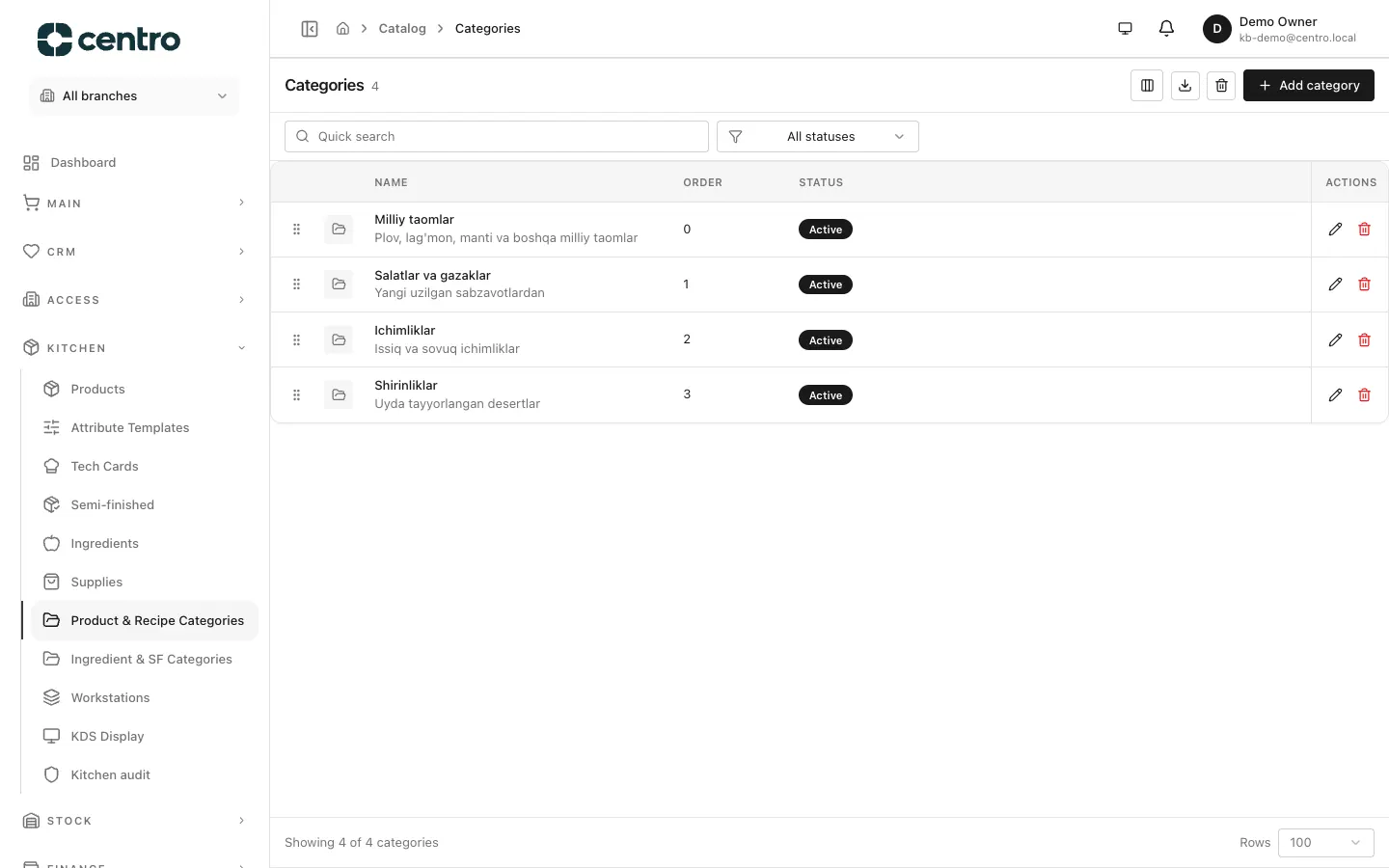
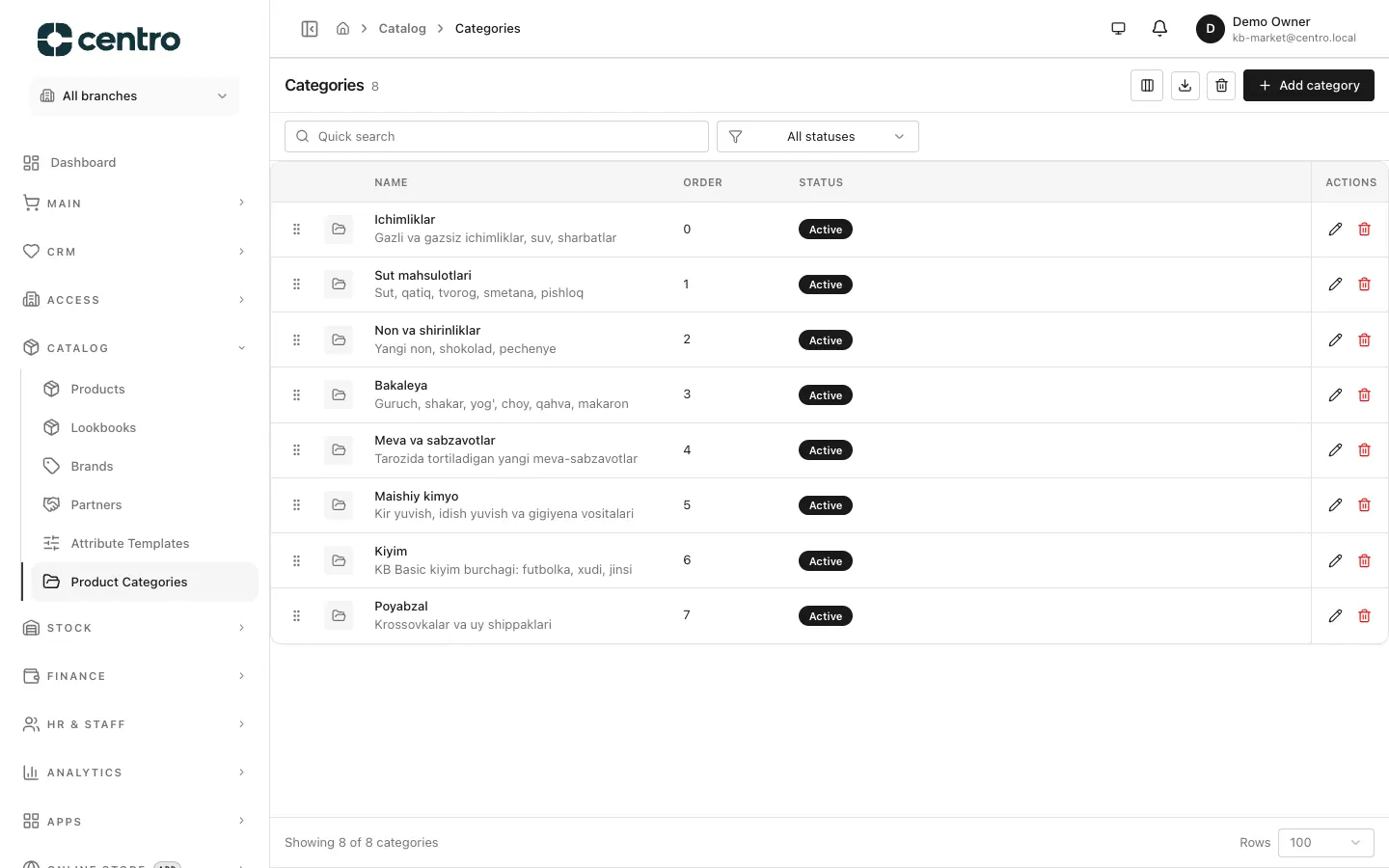
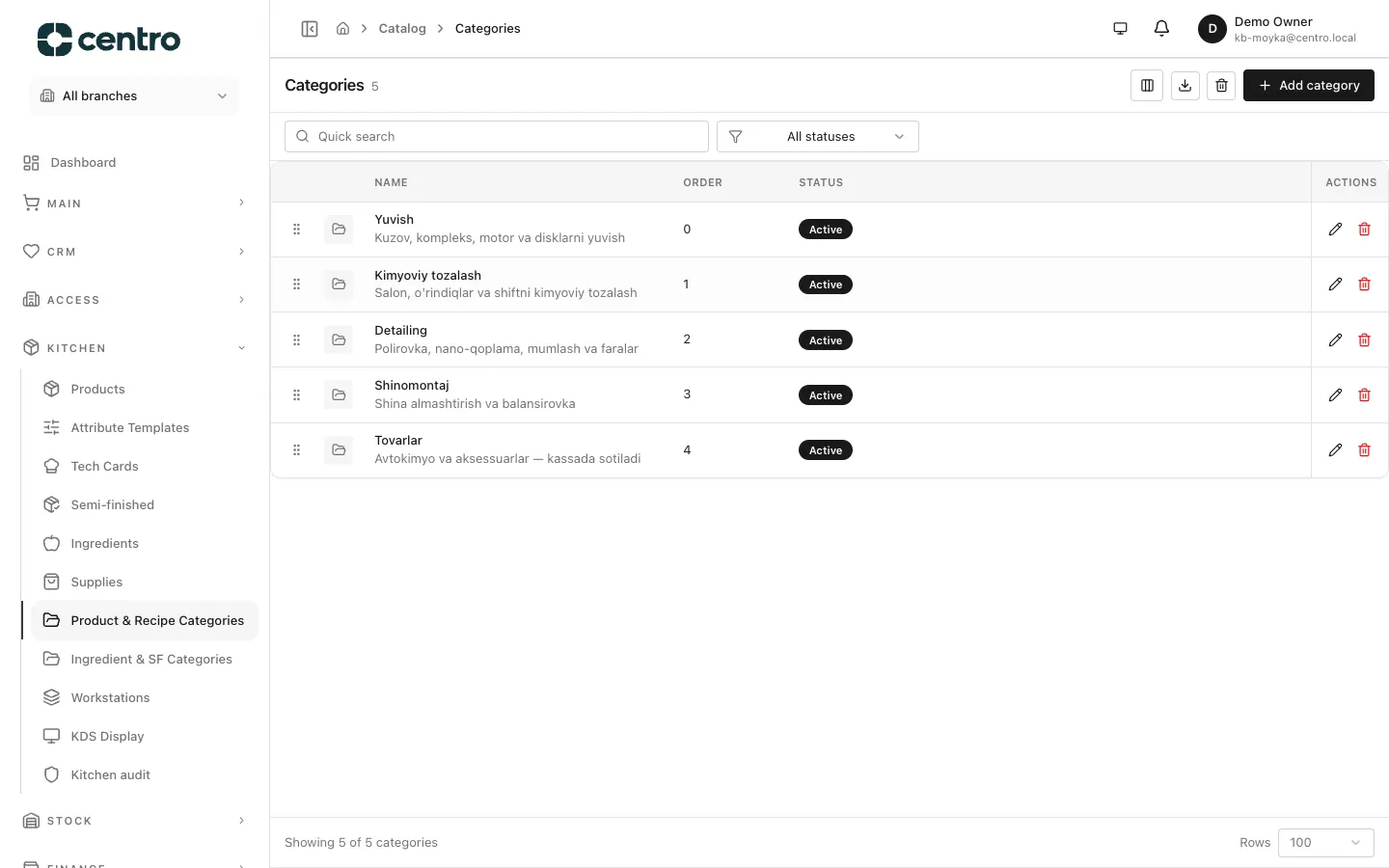
- The list is a tree with nested categories indented. Drag a row by the handle on the left to reorder within one level (dragging is off while a search or filter is active).
- «Quick search» and the status filter («Active», «Inactive», «Archived»); «Columns» adds image, ID, slug, parent and created-date columns.
- The export/import button exports categories to Excel and loads them from a file; the bin shows deleted categories (see «Trash: restoring deleted records» on the «Products» page).
The Excel file format
- Columns
- «Name» (required), «Parent category» (the parent’s name), «Description», «Sort order» (a whole number, empty = 0). The headers are written in the interface language (Excel sheet «Categories»); the «import template» link downloads an empty file with exactly these columns. The import recognises a column by its header in the interface language, by the Russian header of older exports («Название», «Родительская категория», «Описание», «Порядок сортировки») or by the English key (name, parentName, description, sortOrder). Export writes the same four columns in tree order.
- How the import works
- Only new categories are created; existing ones are not updated. A row is skipped if: the name is empty; a category with that name exists; the address (slug) is taken; the parent is not found or several categories have that name. A parent created by an earlier row of the same file is found too. At the end you see «Categories created: M of N» and the reason for each skipped row.
Important: Deleting a category also hides its nested categories. Move the products to another category first.
Category form #
Name, parent, order, cost type, visibility and image.
Creating a category
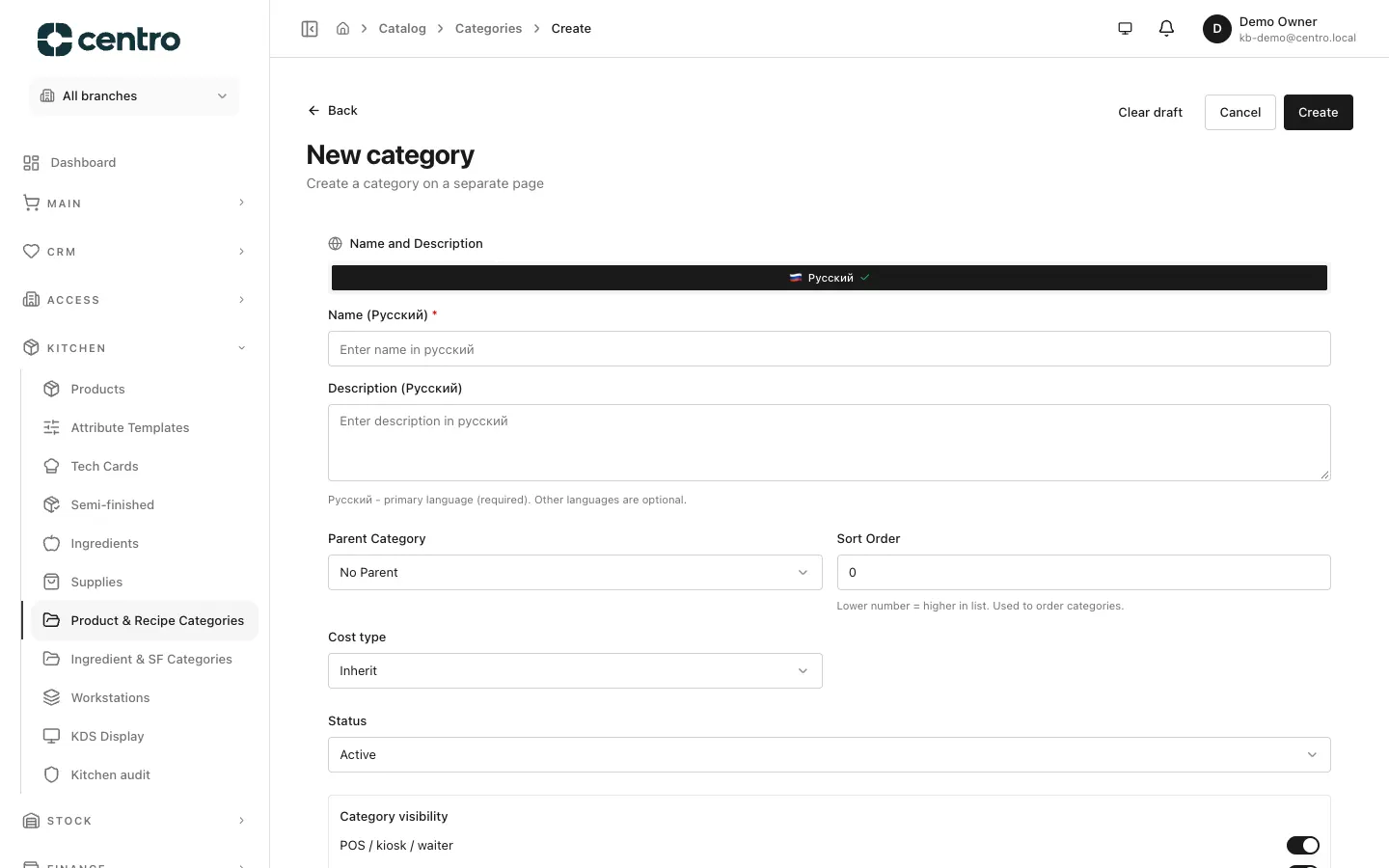
- In the category list click «Add category» (when the list is empty the same button is in the middle) — a separate «New category» page opens.
- Fill in the fields described below and click «Create» — the category list opens after saving.
What is checked on creation
- The name must not match another category’s name (case-insensitive) — otherwise «A category with this name already exists. Enter a different name.» The category address (slug) is built from the name; if it matches an existing one — «A category with this or a similar name already exists (the category address matches). Change the name.»
- A new category is first saved as active and then gets the chosen «Status». If the second step fails you see «The category was created, but the status was not saved» — change the status when editing the category.
- What you type is kept as a draft in this browser and restored when you reopen the page («Category draft restored»). Click «Clear draft» to start over.
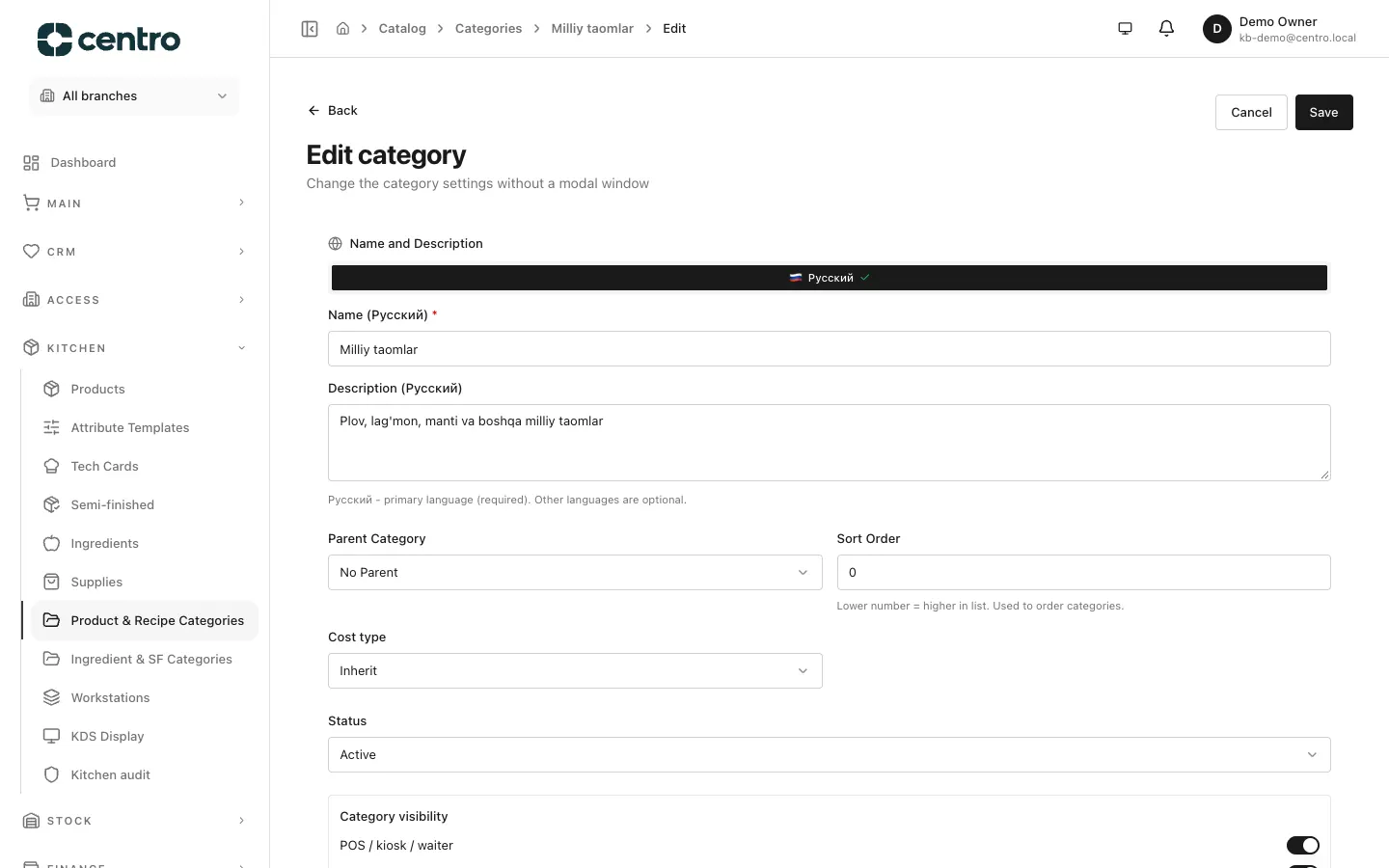
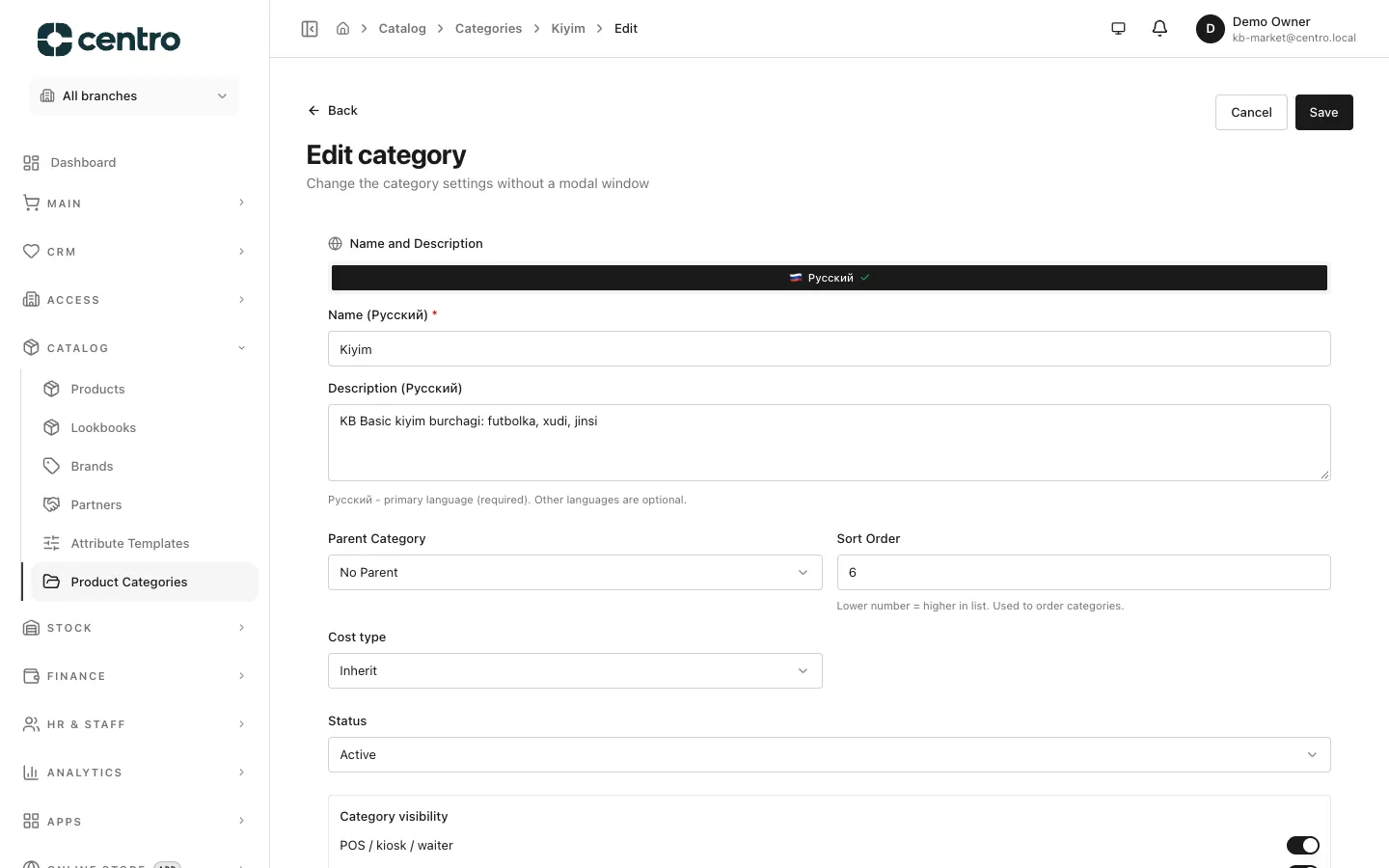
- «Name» / «Description»
- Per language; the default-language name is required and the slug is built from it. Two categories with the same name are not allowed.
- «Parent Category» / «Sort Order»
- Choose a parent for a nested category. A smaller number appears higher in the list.
- «Cost type»
- «Inherit», Food Cost or Beverage Cost — a product set to «By category» takes its value from here.
- «Category visibility»
- Switches «POS / kiosk / waiter», «Mobile app», «Website»: the whole section is hidden on a switched-off channel.
- «Status», image, SEO
- Drag in the image; the SEO switch opens the meta title (up to 70 characters), meta description (up to 200) and keywords.
Tip: Categories have no station field: where a dish lands on the kitchen display is set by «Preparation station» in the product.
Editing. The pencil in a list row opens the «Edit category» page — same fields, the button is «Save». The differences: no draft is kept; the category address (slug) stays as it was even if you rename the category, so links on the website and in the app keep working; a cleared description, image or translation, or SEO switched off, is really removed. The list opens after saving.
Important: The system category cannot be changed: its page shows «The system category cannot be edited» and a «To categories» button.