KDS Display
Only: Restaurant, Car wash
How the kitchen screens work: order flow, the «Ready» button, handoff, SLA and sound.
Open in the admin panel/catalog/kds KDS (Kitchen Display System) — cooks see orders on a tablet or monitor instead of paper tickets. This page holds the organization-wide KDS settings. The screen itself is opened in the KDS Display app on a kitchen device.
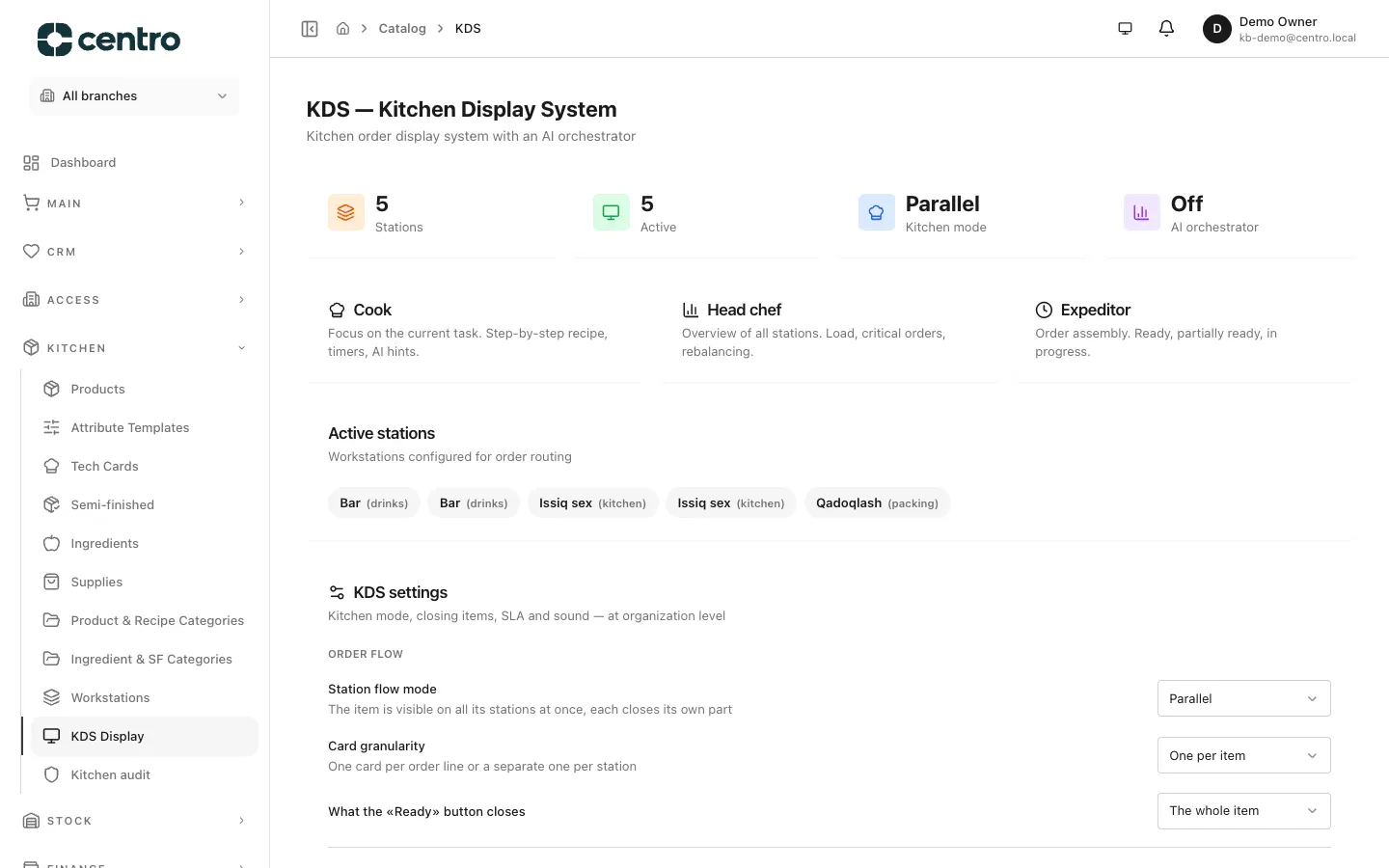
- At the top: number of stations, active ones, «Kitchen mode» and the «AI orchestrator» state.
- Screen modes: «Cook» (current task, step-by-step recipe, timers), «Head chef» (load of all stations, critical orders), «Expeditor» (order assembly).
- «Active stations» — the working stations (type in brackets). «Manage stations» opens «Workstations».
KDS settings #
What each setting changes.
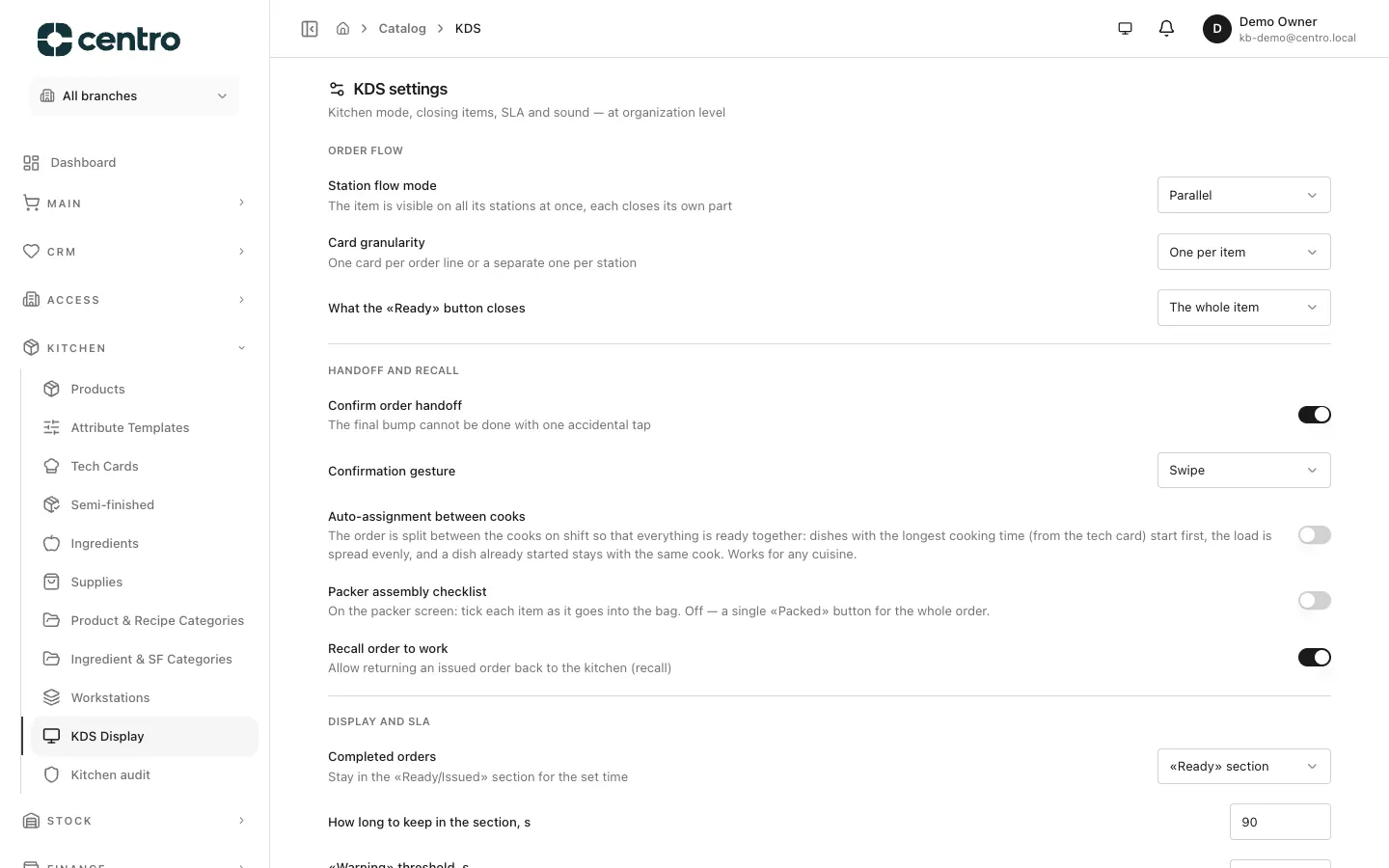
Order flow
- «Station flow mode»
- «Pipeline» — the item passes the zones in turn (order follows the stations’ sort order); «Parallel» — the item shows on all its stations at once and each closes its part; «Single station» — everything on one screen.
- «Card granularity»
- «One per item» or «One per station» (parallel mode only).
- What the «Ready» button closes
- «Recipe step», «The whole item» or «The whole order».
Handoff and recall
- «Confirm order handoff» / «Confirmation gesture»
- The final close cannot happen with one accidental tap: it needs a «Swipe», «Double tap» or «Long press».
- «Auto-assignment between cooks»
- The order is split between the cooks on shift: the longest dishes (by tech card time) start first, the load is balanced, and a started dish stays with the same cook.
- «Packer assembly checklist»
- The packer ticks each item; when off, there is one «Packed» button for the whole order.
- «Recall order to work»
- Allows sending an issued order back to the kitchen (recall).
Display and SLA
- «Completed orders»
- Stay in the «Ready» section for the set number of seconds, or «Hide immediately».
- «Warning» / «Critical» threshold
- After this many seconds the card turns yellow, then red; the critical threshold must be at least the warning one.
- «New order sound» / «AI orchestrator»
- The new-order signal. The AI orchestrator (paid option) distributes smartly across stations; when off, simple rules are used.
Tip: After changes press «Save» at the bottom — it shows «There are unsaved changes» or «All changes saved». The settings apply to all venues.