Tech Cards
The recipe of a dish: which ingredients and how much of each, cost price, price, cooking steps and stations. A sale writes exactly this composition off the stock.
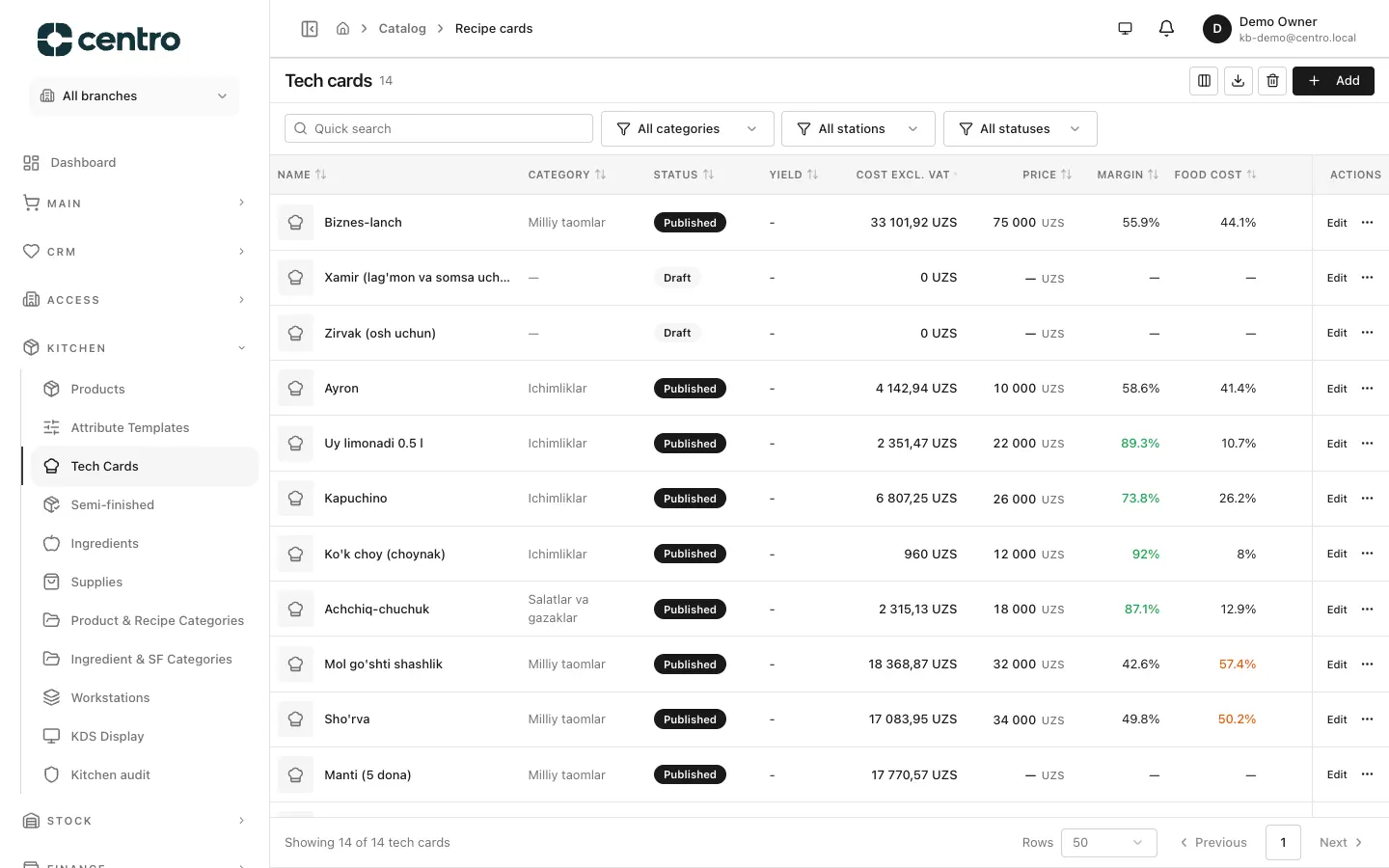
Open in the admin panel/catalog/recipes A tech card is the «passport» of one dish. It records what the dish is made of (ingredients and semi-finished items with net/gross), its cost price, sale price, the cooking steps and which station (for example, Issiq sex or Bar) the order goes to. The list is under «Kitchen → Tech Cards».
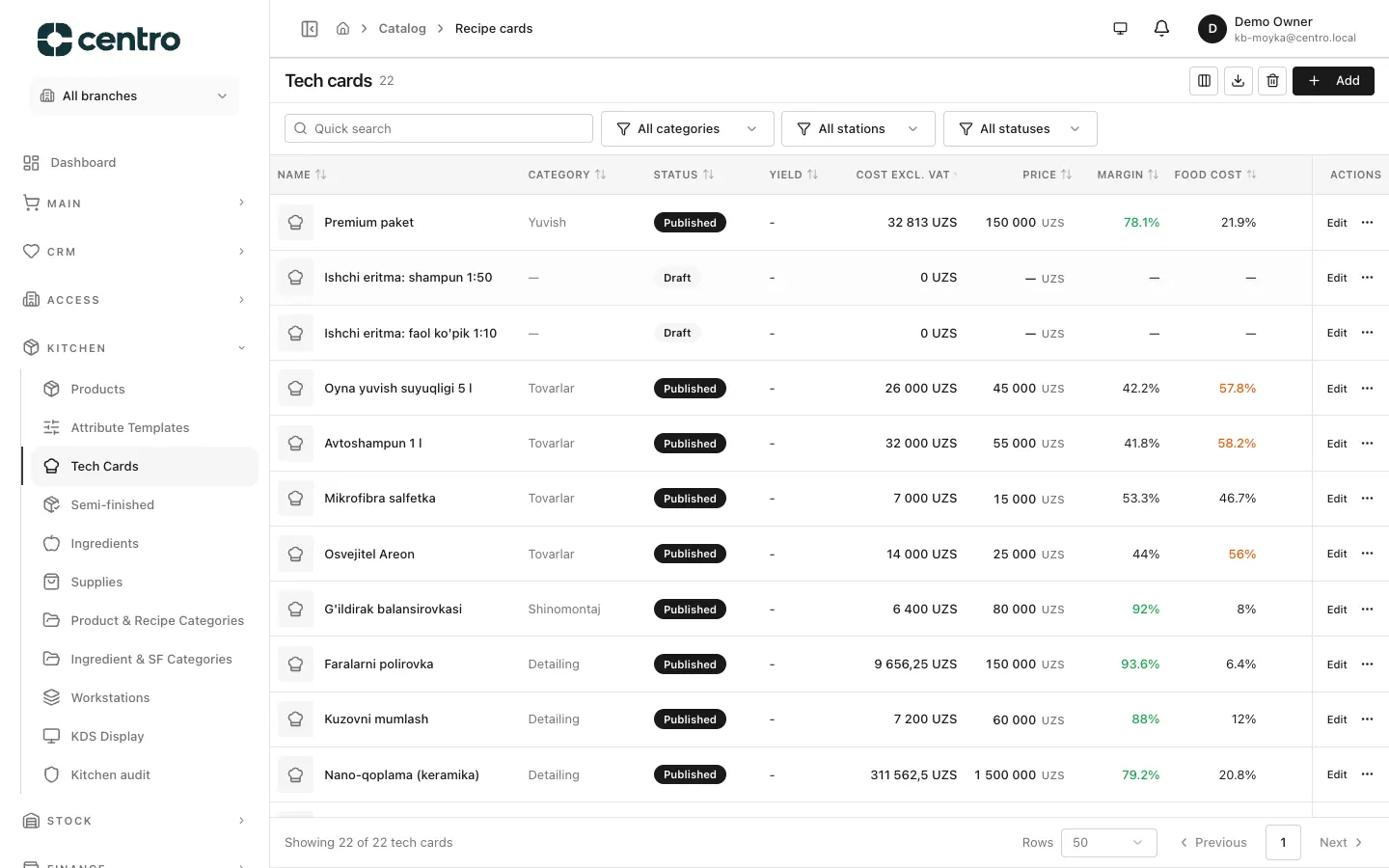
Tip: For a car wash a tech card is the consumption norm of one service. For example, «Kompleks yuvish»: 1500 ml of working foam solution, 2000 ml of shampoo solution, 100 ml of interior cleaner, 30 ml of tyre black, 2 paper floor mats. Ingredients are car chemicals and consumables (the «Avtokimyo» and «Sarf materiallari» categories); a semi-finished item is a diluted working solution (e.g. «Ishchi eritma: faol ko'pik 1:10»). Selling the service writes these quantities off stock and gives the service its cost; the «Steps» tab can hold the washing procedure.
What is written off on a sale
- A regular tech card (e.g. Lag'mon, Kapuchino) is sold in POS and the menu as its own item. When the order closes, the system writes off every line of the card (quantity × servings sold): 1 Lag'mon = 80 g of beef, 40 g of bell pepper, and so on.
- A semi-finished item in the composition (e.g. Zirvak): if it is «produced», its own stock is written off (it is made in advance with a «Production» document); if it is «purchased», the sale expands its composition and writes the ingredients off directly.
- A «producible» tech card (e.g. Toshkent palovi, Tandir somsa) is linked to a catalog product. You cook it in advance in a batch (a kazan, a tray) and post it to the product's stock with a «Production» document — the ingredients are written off at production, and a sale reduces the finished product's stock.
List columns and filters
- «Status»
- «Draft» — the card is saved but not used in sales; «Published» — the working version; «Archive» — outdated. Saving the form publishes the card automatically. The «Hidden» badge means the card is hidden in POS.
- «Cost excl. VAT» / «Cost incl. VAT»
- The cost of one serving: the quantity of each composition line × the ingredient's average cost. Ingredient prices come from receipts (weighted average), so the cost changes after a new receipt.
- «Price», «Margin», «Food cost»
- Price is the card's sale price (editable right in the column). Margin = (price − cost) / price. Food cost = cost / price: usually 25–35% for a restaurant. Producible cards have no price — they are sold at the linked product's price.
- Filters
- «Quick search», «All categories», «All stations», «All statuses». The «Columns» button turns on extra columns (Version, Profit, Cooking time, Created).
- Row menu «…»
- «View», «Edit», «Publish», «Hide in POS» / «Activate (show in POS)», «Archive», «Duplicate», «Delete». Duplicating is a quick start for a similar dish (for example, another size).
Creating and editing a tech card #
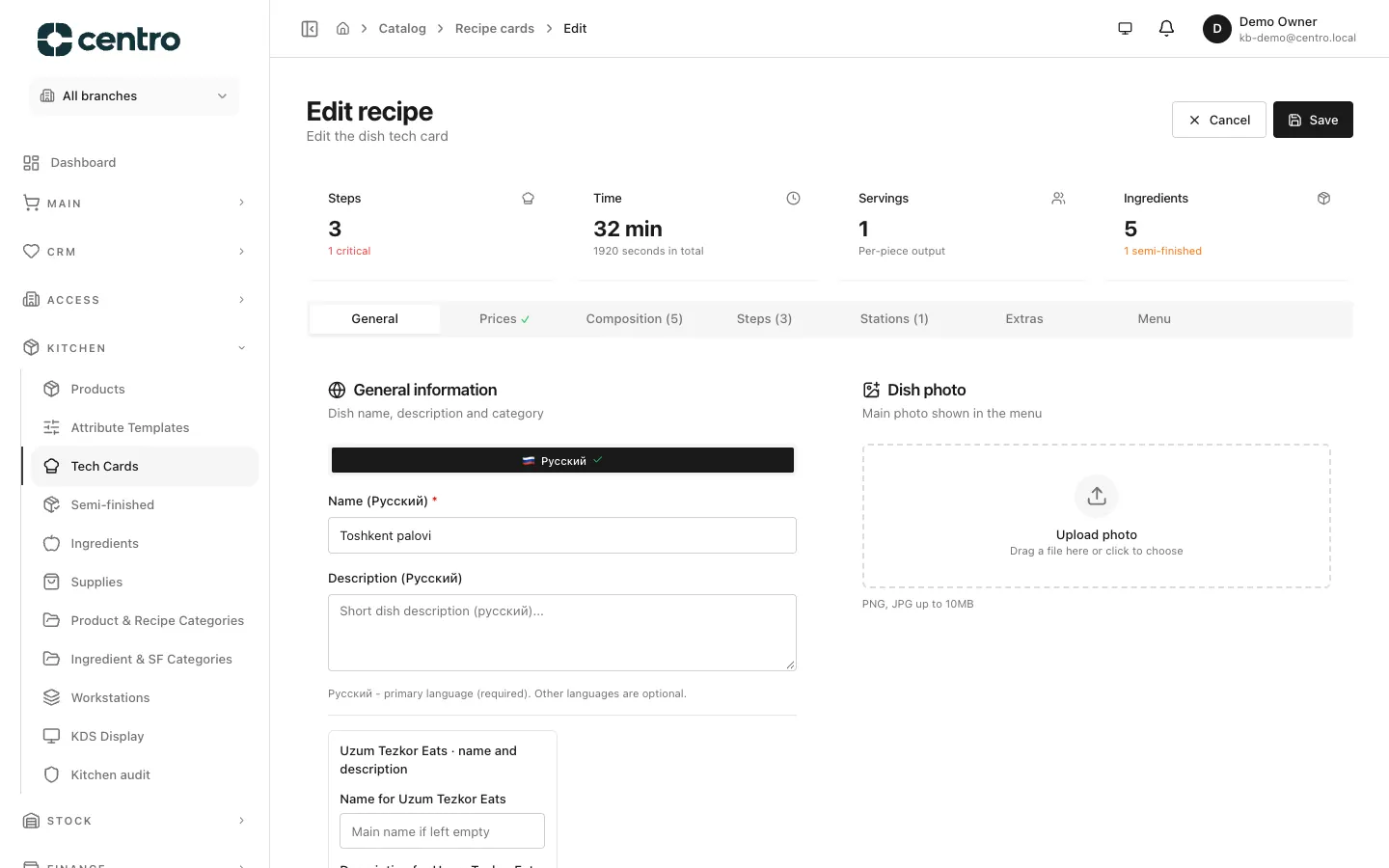
Form tabs: General, Prices, Composition, Steps, Stations, Modifiers, Extras, Menu.
A new tech card — step by step
- In the list click «Add».
- On the «General» tab enter the name, category and «Recipe type»: «Standard» — a dish made of ingredients, «Combo / Set» — a set of ready dishes (business lunch, see «Combo / set: contents and substitutions»).
- On the «Composition» tab add lines with «Add»: choose an ingredient or semi-finished item, enter the net quantity and the unit (g, ml, pcs).
- On the «Prices» tab set the «Sale price» (optional for a producible card).
- Fill in «Steps» and «Stations» if needed, then click «Save» — the card is published.
The «General» tab
- «Name», «Description»
- Per language tab — the primary language is required, others are for customer apps.
- «IKPU / MXIK», «Barcode»
- IKPU is the 17-digit classification code for the fiscal receipt.
- «Cost type»
- Which P&L line the cost goes to: Food Cost or Beverage Cost. «By category» takes it from the category.
- «Producible»
- When on, the card appears in the «Production» document. In «The tech card produces» choose where the output is received: «Semi-finished» (the card's own stock), «Product» or «Product variant». «Yield of one batch» and «Number of servings from this yield» define what share of the stock one sold serving writes off; without weight «Per-piece output: 1 serving = 1 pc in stock» applies.
- «Visibility», «Visibility by channel», «Availability by venue»
- Turning «Active» off hides the card from the catalog and POS. Channels are POS, the mobile app and the web store; the venue switch puts the dish on the stop list in all channels of one branch.
- «Discounts and promotions»
- Exclude the dish from manual discounts, promotions, promo codes or certificate payments.
More on the «General» tab
- «Cooking steps»
- A switch on a standard card. Turning it off hides the «Steps» tab and clears the steps and stations (after saving) — handy for a simple drink or a ready item.
- «Dish photo», «Tags», «SEO optimization»
- The photo (PNG, JPG up to 10 MB) is shown in the menu and the app. Tags are keywords for search and filtering. With SEO on you enter the website page title (50–70 characters), description (150–200 characters) and keywords.
- «Visibility», channels, stop list
- The cards further down decide where and when the dish sells — see «Where it sells: visibility, stop list, fulfillment».
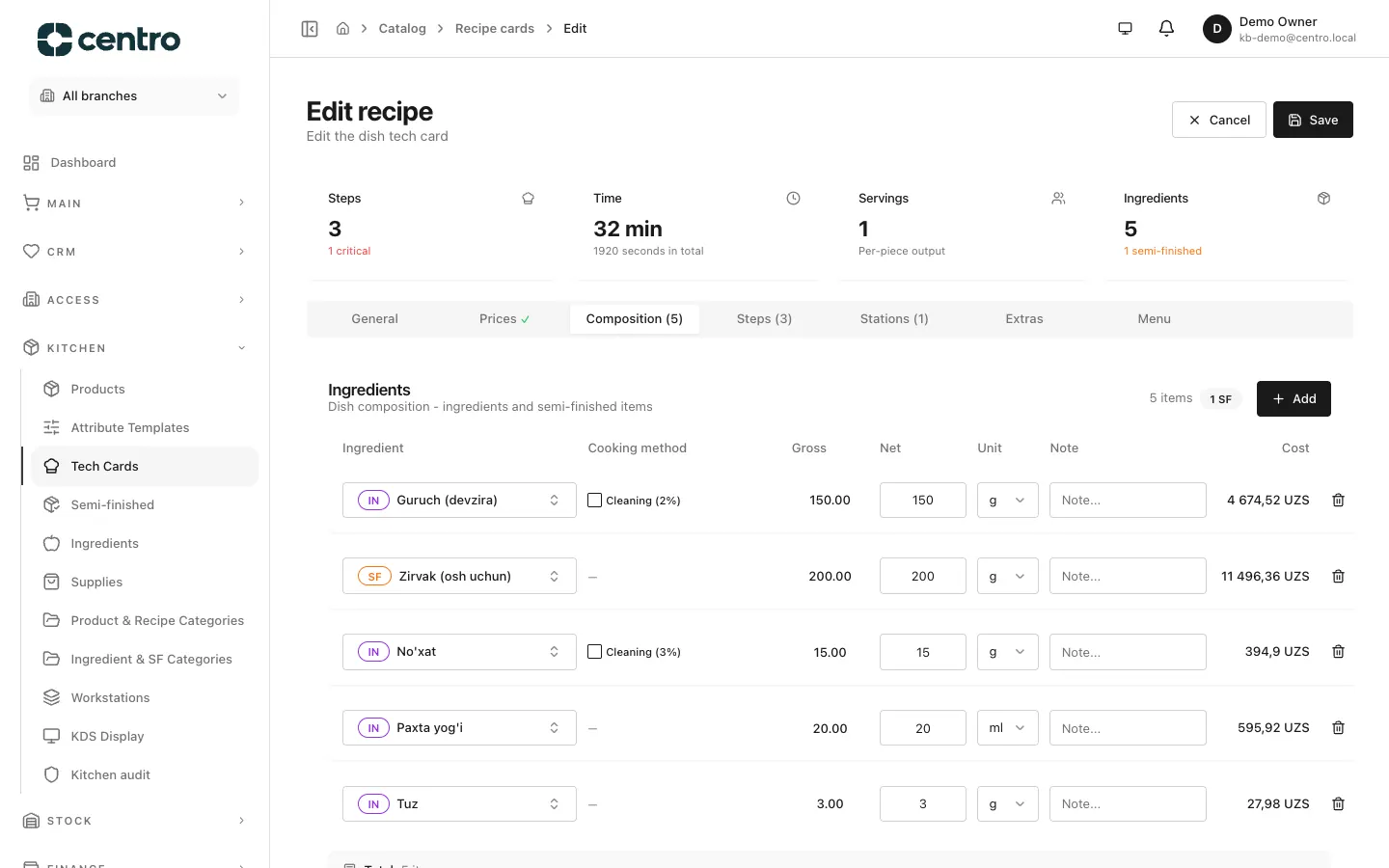
Columns of the «Composition» tab
- «Ingredient»
- The picker has tabs: ingredients (IN), semi-finished (SF) and products (PR). A finished product can also be added — it is written off its own stock.
- «Net»
- The weight/volume in the finished dish — this is what you enter. The unit must match the ingredient's unit: g or kg for kg, ml or l for l, pcs for pcs.
- «Cooking method» and «Gross»
- If the ingredient card has losses (e.g. beef: cleaning 10%, boiling 35%), tick the method here — gross = net / (1 − loss%). For example, 100 g net with a 20% cleaning loss → 125 g gross: that is how much raw product you need in stock.
- «Cost», «Total:», «Total cost»
- The cost of each line and of the whole serving; below — net and gross totals per unit.
Important: Stock write-off comes from the quantities in the tech card. After the first sales check the written-off amounts in «Stock → Movements» and adjust the composition if needed — inventory discrepancies most often come from an inaccurate tech card.
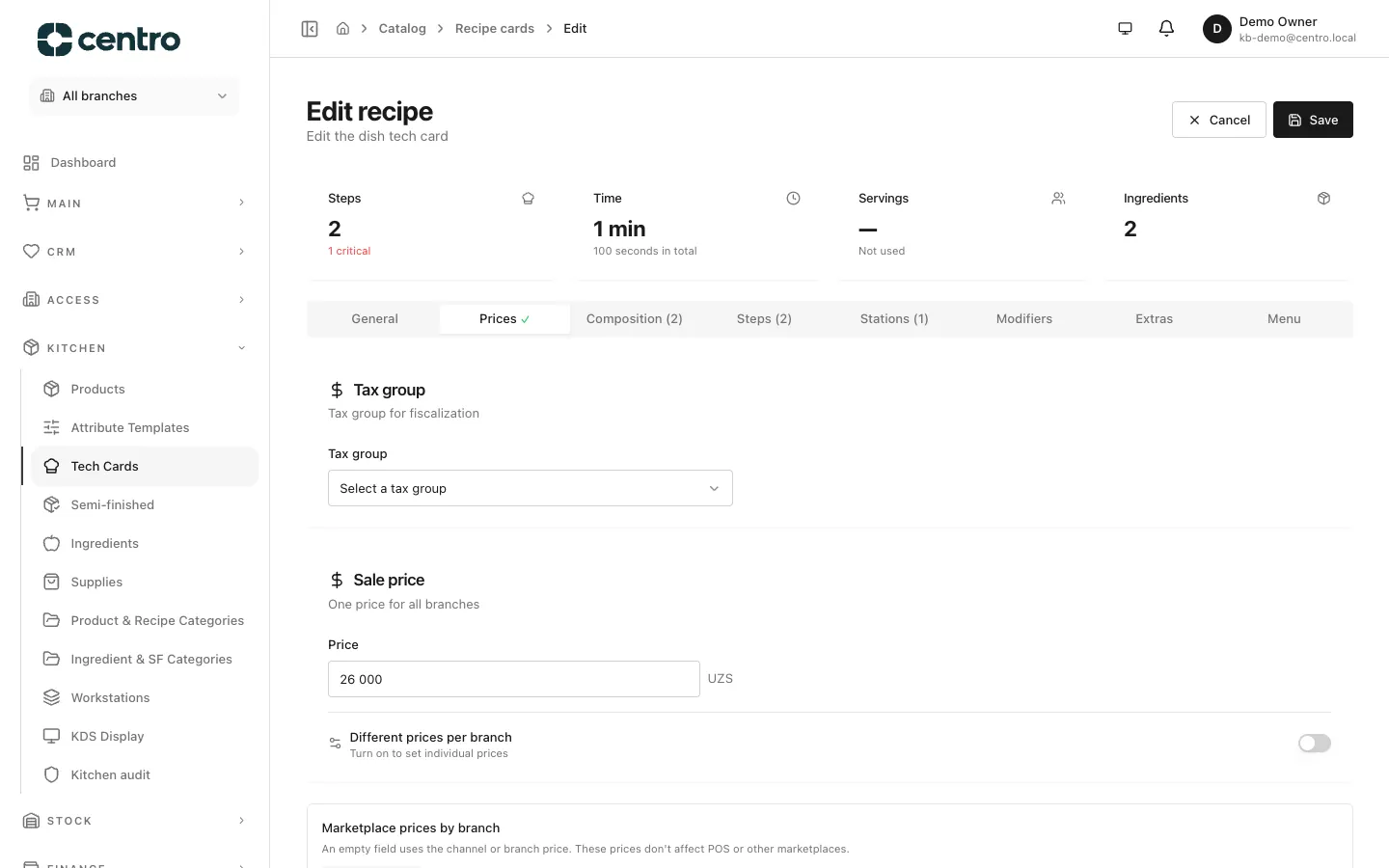
Other tabs
- «Prices»
- «Tax group» (for fiscalization), «Sale price», «Different prices per branch» (its own price and the «Available in venue» switch per venue) and «Prices by source» — a separate price for the website, app, POS and marketplaces. Details — «Prices: venues, channels and marketplaces».
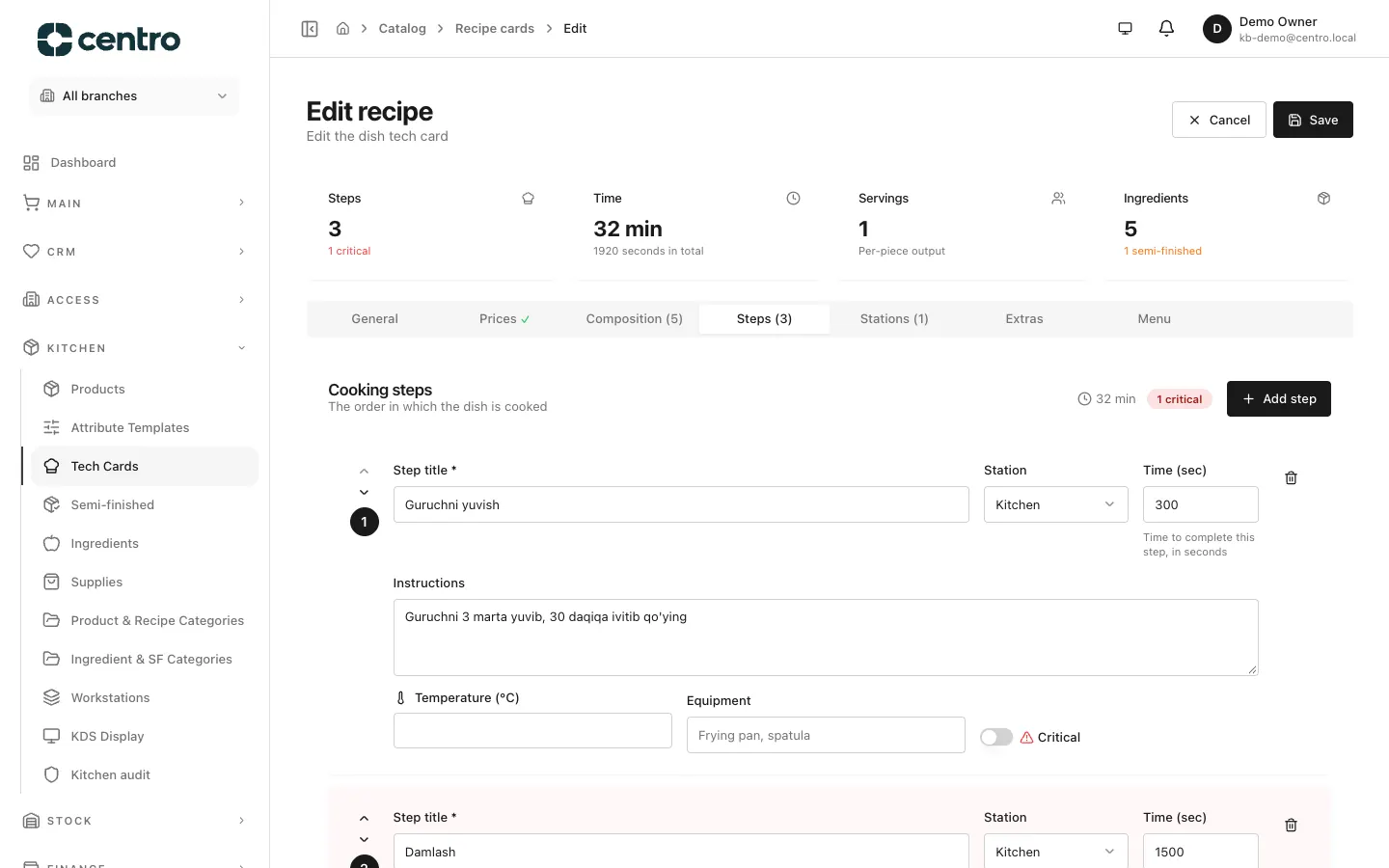
- «Steps»
- Each step: title, station, time (sec), instructions, temperature, equipment and the «Critical» mark. The sum of step times is used on the kitchen display (KDS) as the dish's cooking time.
- «Stations»
- Which kitchen stations the order is sent to. If steps use stations that are not selected, a warning appears — add them with «Add automatically». A combo needs no stations: it is routed to the expo.
- «Modifiers»
- Groups for POS and the app (single or multiple choice); each modifier changes the price and the write-off. Details — «Modifiers: size, add-ons, removals, swaps».
- «Extras»
- Nutrition (kcal, PFC), storage of the finished dish, expected losses, allergens and notes for cooks — see «Extras: nutrition, storage, losses and allergens».
- «Menu»
- On the left — «Linked menu items», on the right — «Available items» (with search and «Limit»). «Link» attaches a product to the card, «Unlink» detaches it. One recipe can be linked to several products (e.g. pizza sizes): when such a product is ordered in POS, the card is sent to the right kitchen stations. Links are stored with «Save».
Important: «Save» does three steps: stores the card, publishes it and (for a producible card) links it to the product. If a later step fails, a message says the card was created but not published or not linked to a product — read the reason and click «Save» again: no duplicate is created. A new card cannot reuse an existing name.
Tip: The draft is saved automatically: the entered data comes back even if you close the page. To start over, click «Clear draft».
Combo / set: contents and substitutions #
A set such as a business lunch: which dishes it contains, how many servings, what can be swapped and for what surcharge.
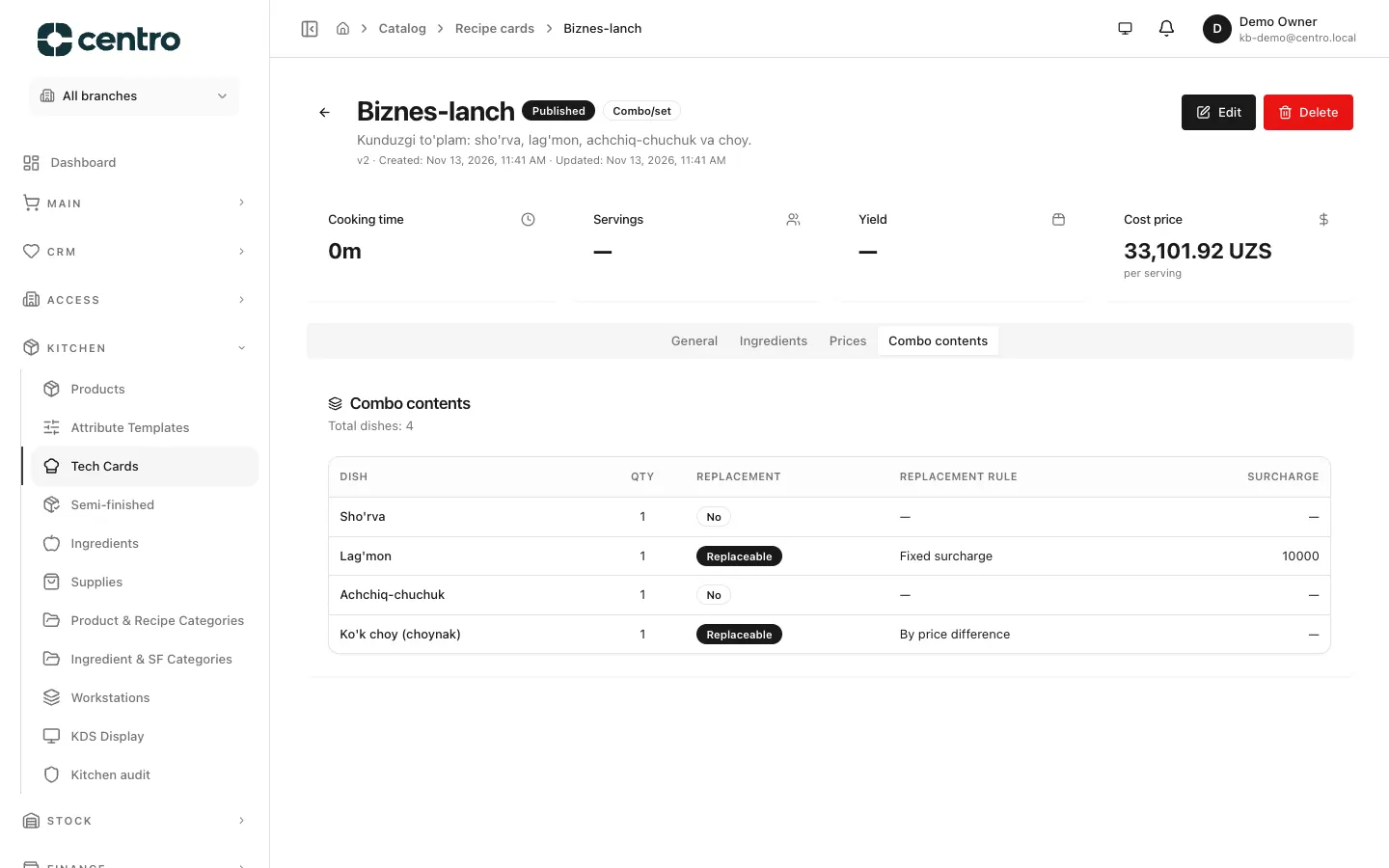
A combo is a tech card assembled from ready dishes: it has no ingredients or steps of its own; its contents are other tech cards and products. To create one, choose «Recipe type» → «Combo / Set» on the «General» tab: the «Composition» tab is replaced by «Combo/set contents», and the «Steps» and «Modifiers» tabs are hidden. The combo price is set on the «Prices» tab like for any dish (e.g. «Biznes-lanch» costs 75 000 so'm while its dishes cost 102 000 so'm separately).
Important: Changing the type erases data: switching to «Combo / Set» clears the composition, steps and stations; switching back to «Standard» clears the combo list. It is stored only after «Save» — if you switched by mistake, click «Cancel» without saving.
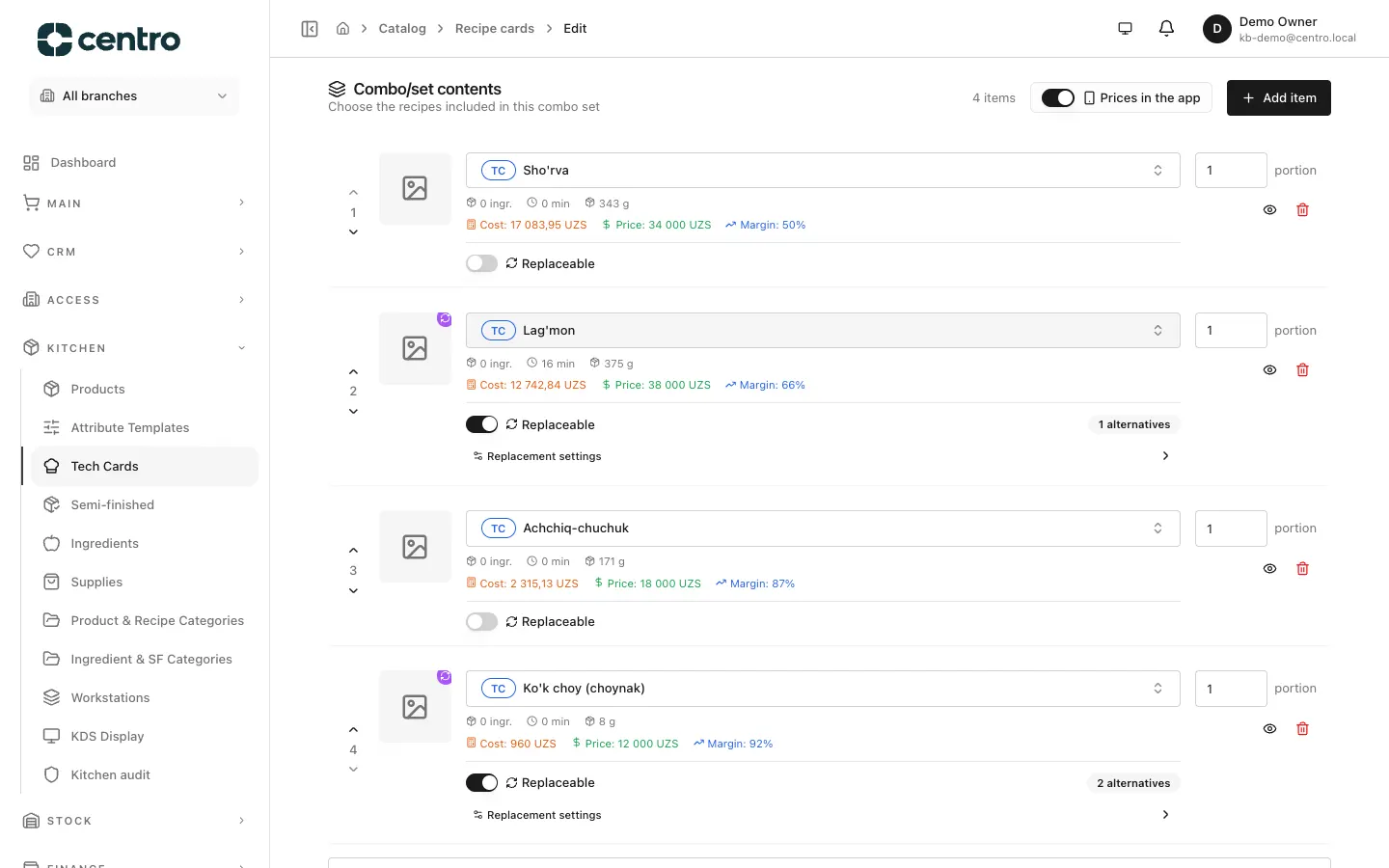
Adding dishes
- Click «Add item» (or «Add another item» below the list) — the picker opens.
- Search by name, category, SKU or barcode. The «All / Tech cards / Products» filter on top narrows the list: «TC» is a tech card, «PRD» a ready product (e.g. a drink). A tech card shows its number of ingredients, semi-finished items and cooking time.
- Below the list are «Loaded: TC x/y, products x/y» and two «Limit» selectors: the picker loads up to 1000 tech cards and products at once. If a dish is missing, raise the limit (up to 10 000).
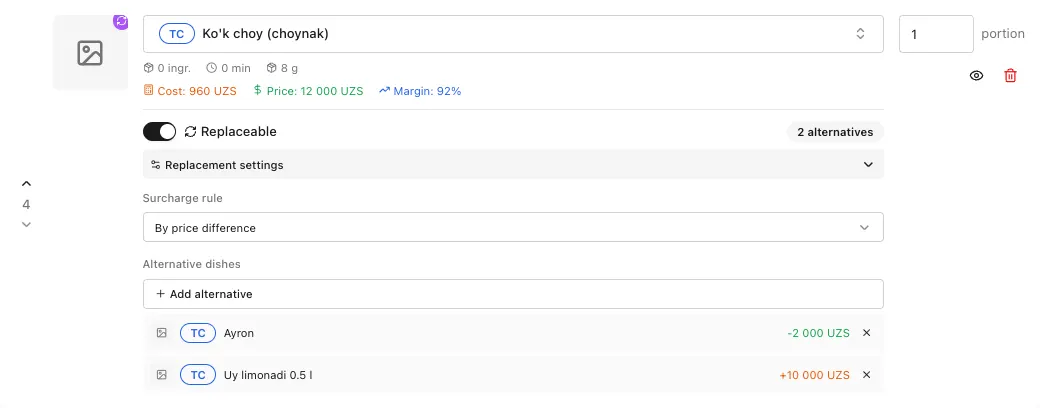
- Enter the number of servings on the right («portion», from 0.01; e.g. 2 flatbreads). The ↑/↓ arrows change the order of the lines in the set. The eye icon («View recipe») shows the card's photo, time, ingredients, allergens and nutrition; the bin removes the line.
What a line shows
- «Cost:», «Price:», «Margin:»
- The dish's cost and price × the number of servings. The price is the dish's price in the first venue; margin = (price − cost) / price.
- Weight (g / ml)
- The dish's yield or the weight computed from its composition. It adds up to «Weight/yield» in «Profitability».
Substitutions. To let the guest swap a line for another dish, turn on «Replaceable» and expand «Replacement settings». «Surcharge rule»: «No surcharge» — the swap is free; «By price difference» — the guest pays the difference between the alternative's and the original dish's price (a cheaper alternative lowers the price); «Fixed surcharge» — one amount for any swap, entered in «Surcharge amount». Add the options under «Alternative dishes» with «Add alternative» (tech cards or products); each alternative shows its price difference.
How a combo works when sold
- In POS, the kiosk and the waiter app adding a combo opens a window: the list of the set's dishes, and for replaceable lines the alternatives and their surcharge. The surcharge is multiplied by the line's servings and added to the combo price. If an included dish has its own modifiers, they are chosen in the same window.
- With «By price difference» the difference uses the prices in that venue and may be negative (a cheaper alternative is a discount).
- Each dish is written off stock by its own tech card; if it was swapped, by the tech card of the chosen alternative.
- The surcharge is always calculated by the server from the combo rule — the amount sent by the POS, kiosk, website or waiter app is ignored. In the kiosk and on the website an order with a disallowed replacement or a wrong set is rejected — refresh the menu and try again. An order the till sold offline keeps its paid amount when it syncs.
- In the kitchen the combo is routed to the expo station while its dishes are cooked at their own stations — so nothing needs to be chosen on the combo's «Stations» tab.
- Substitutions work in the web store too: in «Set contents» on the product page a replaceable item has a «Replace» button, and the dialog shows the alternatives with their surcharge by the rule. The cart price is recalculated and the replacement goes into the order and to the kitchen. The server calculates the surcharge itself.
«Prices in the app» and «Profitability»
- «Prices in the app»
- The switch in the card header: when on, the website shows each dish's own price for its quantity in the combo contents and in the replacement dialog (to show the value of the set). The combo price itself does not change.
- «Cost price», «Sum of prices», «Weight/yield»
- Totals over all lines, servings included. A dish without weight shows «N without weight»; if the set mixes grams and millilitres it says «mass and volume in the composition» and no total is shown.
- «Original price», «Margin»
- Original price is the combo price from the «Prices» tab (first venue), without substitutions. Margin = (combo price − cost) / combo price; with no price set it uses the sum of prices. 30% and above is blue, 15–30% yellow, below 15% red; below 20% a warning suggests raising the price or replacing costly items.

Tip: For a car wash a combo is a service package. For example, «Premium paket»: Kompleks yuvish + Kuzovni mumlash + Disk va shina yuvish for 150 000 so'm; the waxing can be swapped for headlight polishing «By price difference». Each service's chemicals are written off by its own tech card.
Modifiers: size, add-ons, removals, swaps #
Choice groups at the till and in the app — every option changes the price and the stock write-off.
The «Modifiers» tab exists on a regular (standard, non-producible) tech card: producible and combo cards hide it and their groups are not saved. Fill in the «Composition» first — «Remove» and «Replacement» pick only from the card's own composition. Modifiers are grouped: e.g. Lag'mon has «Porsiya» (one required choice), «Qo'shimchalar» and «Istaklar» (several options).
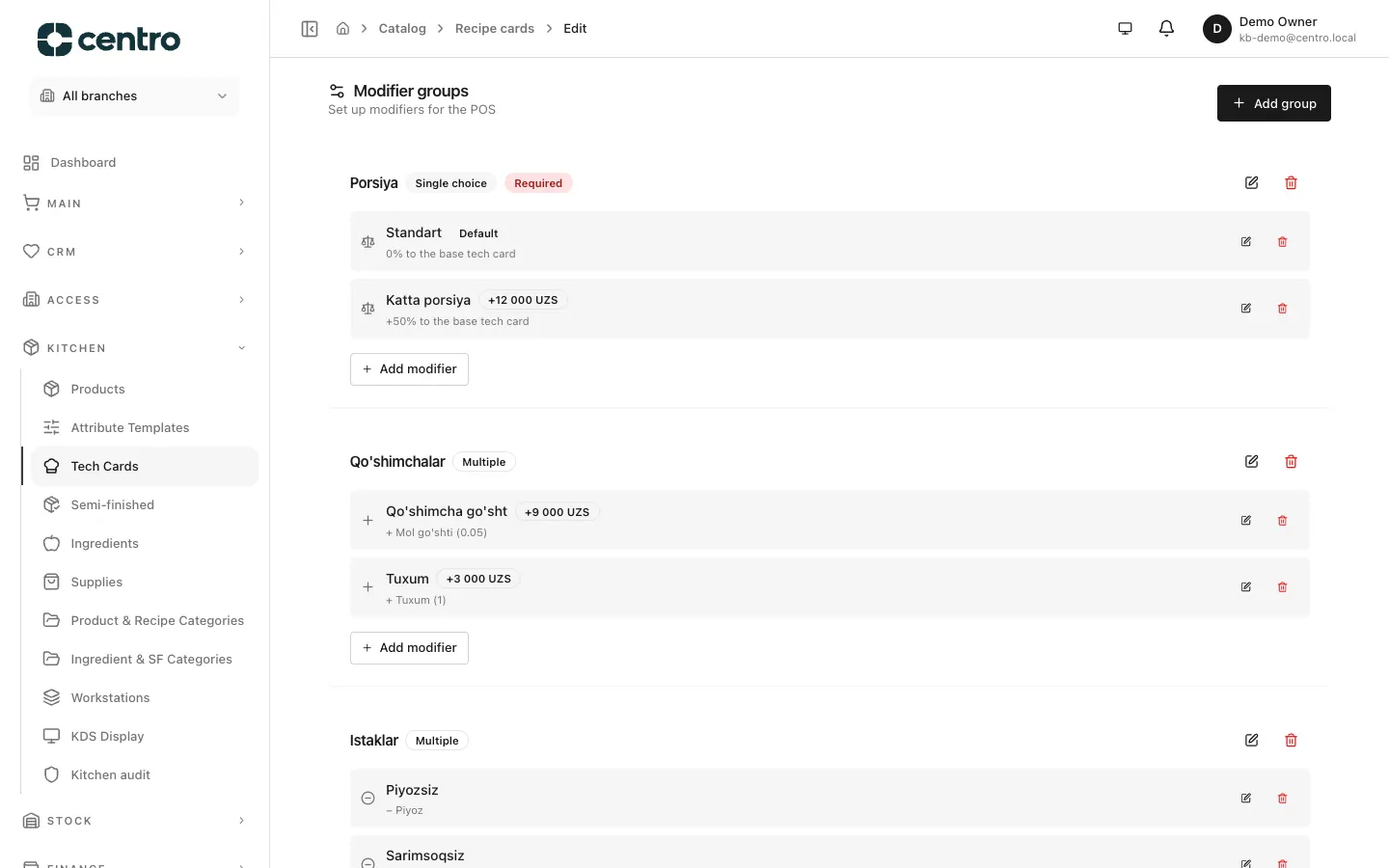
The group dialog («Add group»)
- «Selection type»
- «Single choice» — only one option from the group (size, doneness). «Multiple» — several (add-ons, sauces); it adds «Min. choice» and «Max. choice» (the minimum cannot exceed the maximum).
- «Required choice»
- When on, the cashier or guest cannot add the dish without choosing from this group (the group shows «Required»). Handy for sizes — mark one option «Default».
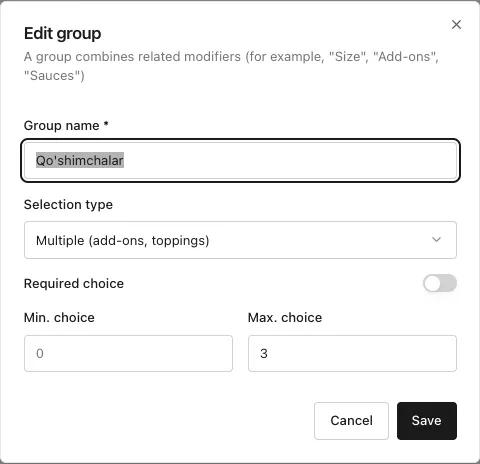
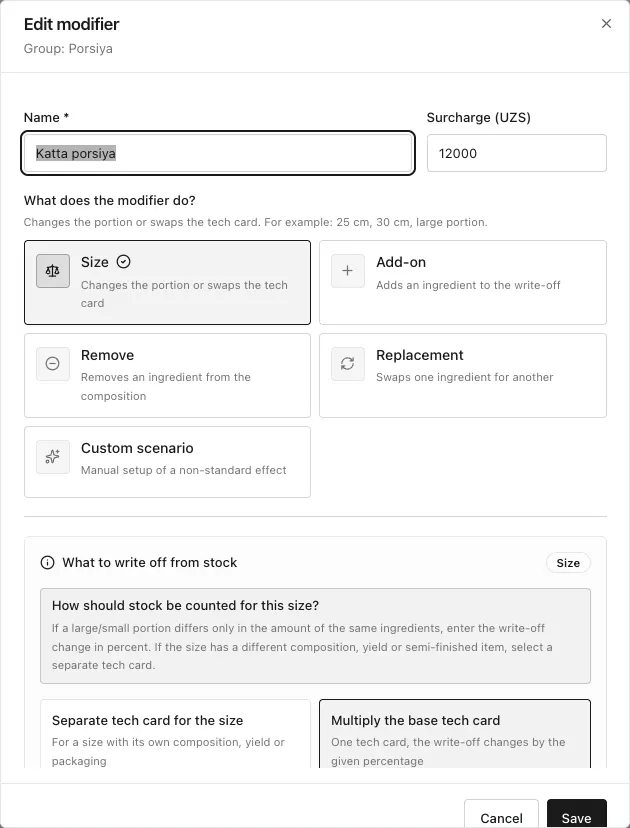
The modifier dialog («Add modifier»)
- «Name *», «Surcharge»
- The name shown at the till and in the app, and the amount added to the dish price (0 — free).
- «Size»
- Answer «How should stock be counted for this size?». «Multiply the base tech card» — one card, the write-off changes by «Write-off change (%)»: 0% — unchanged, +50% — 1.5 times more, −30% — less (must be above −100%); the dialog shows the calculation per ingredient. «Separate tech card for the size» — when the size has a different composition, yield or packaging (e.g. a 25 and a 35 cm pizza): pick «Tech card to write off for this size» and a sale writes stock off by it instead of the base card.
- «Add-on»
- Any ingredient or semi-finished item from the directory and its «Quantity» (unit matching the ingredient: g or kg, ml or l, pcs). «Max per item» — how many times the add-on can be taken per dish (e.g. extra meat up to 2 times).
- «Remove», «Replacement»
- Picked only from the card's own composition («Piyozsiz», «Go'sht o'rniga tovuq»). «Remove» excludes the ingredient from the write-off; «Replacement» sets «What to replace», «Replace with» (any ingredient or SF) and «Replacement quantity». The guest's add-ons are not affected.
- «Custom scenario»
- For an unusual case pick the «Effect type» manually: «Swap tech card», «Change the base tech card write-off», «Add ingredient», «Remove ingredient» or «Replace ingredient». The fields are the same as for the types above.
- «Advanced settings»
- «Default» — the option is pre-selected when the dish is added; «Image» — an optional photo for the till and app (PNG, JPG up to 5 MB).
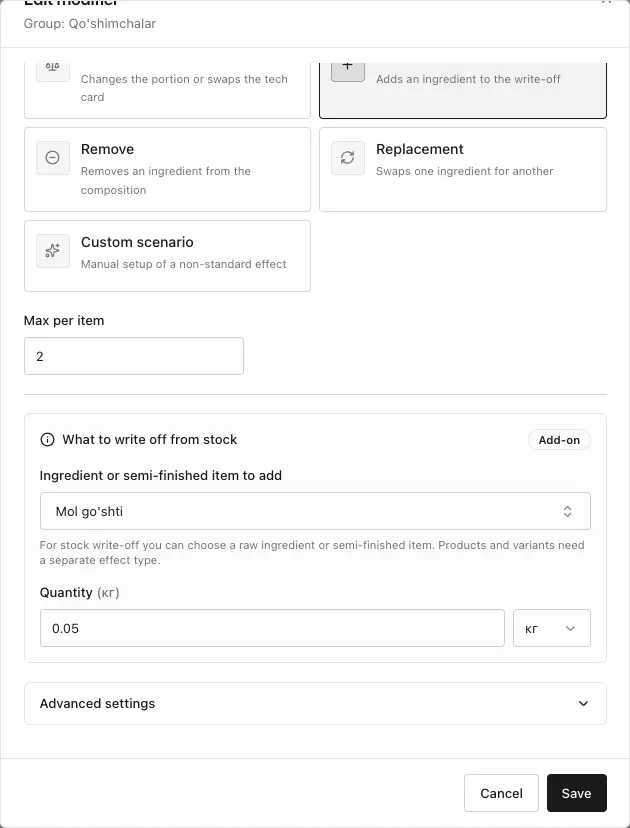
Tip: Groups and modifiers are stored only when the card is saved with «Save». For sizes of a simple dish «Multiply the base tech card» is easier than separate cards — the composition is edited in one place.
Tip: At a car wash the «Size» type fits body classes: e.g. a «Kuzov turi» group — Sedan (default), Krossover +30%, Jip +50% — chemical use and price follow the vehicle size.
Prices: venues, channels and marketplaces #
One price, a branch price, a channel price and a marketplace price per branch — which applies when.
- «Tax group»
- The VAT rate on the fiscal receipt.
- «Sale price» → «Price»
- One price for all branches.
- «Different prices per branch»
- When on, the «Prices by venue» table opens: its own price per venue. With «Use price» off that venue's price is ignored and the dish sells at the lowest of the other active prices. With «Available in venue» off the dish is not sold in that venue.
- «Prices by source» → «Set prices by channel»
- A separate price for each active order source (website, mobile app, POS, connected marketplaces and others). Each row has «Use price»; visibility in a channel is set not here but in «Visibility by channel».
- «Marketplace prices by branch»
- Shown only when Yandex Eats or Uzum Tezkor is connected. Pick the marketplace and enter a «Custom price» per branch; an empty field uses the channel or branch price (shown as «Base price»). These prices do not change POS or other marketplaces.
Which price is used (priority)
- The branch × channel price (e.g. the Uzum Tezkor price in Chilonzor).
- The channel price (for all branches).
- The venue price.
- If the venue has no price — the lowest active branch price.
Tip: A channel price equal to the base price (the lowest active branch price) is not treated as separate — the branch price applies. So enter a channel price only when it really differs.
Where it sells: visibility, stop list, fulfillment #
Channels, marketplace names, availability by venue and the temporary stop list on the «General» tab.
- «Visibility»: «Active», «New», «Featured»
- Turning «Active» off hides the card from the catalog and POS. «New» marks the dish as new, «Featured» shows it in recommendations (the view page shows the «New» and «Bestseller» badges).
- «Visibility by channel»
- Switches for POS, the mobile app and the web store. If Yandex Eats / Uzum Tezkor are connected they have their own «Shown in menu» switch — independent of other channels. With a marketplace on, «Dish yield for marketplaces» (g or ml) appears; if the composition is in g/ml it can stay empty — the yield is computed from the composition.
- «<Marketplace> · name and description»
- A separate name and description for a connected marketplace (below the general information). Empty fields send the main name and description.
- «Availability by venue»
- Turning a venue's switch off hides the dish in that venue in every channel — POS, app, website and marketplaces (a permanent stop list). It takes effect when the card is saved.
- «Fulfillment types»
- «Dine-in», «Pickup», «Delivery» — which order types can include the dish (e.g. remove a soup from delivery).
«Temporarily unavailable · stop list». The block under «Availability by venue» appears when editing an existing card. The dish stays visible on the website, kiosk and POS but cannot be added to an order. For each venue enter «Start (empty = now)» and «Available again» and click «Add to stop list»; an empty end means until switched back manually. Status: «Available», «Scheduled» or «In stop list»; to bring it back early, click «Remove».
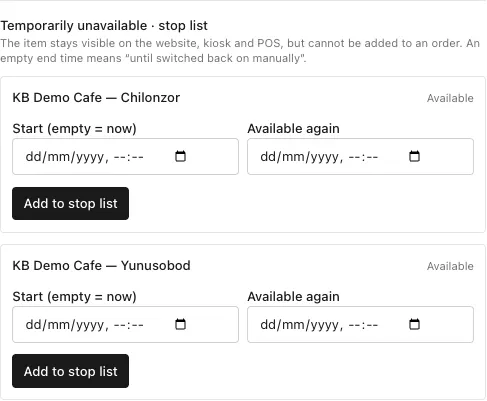
Important: «Add to stop list» and «Remove» are saved at once — without waiting for the card's «Save». The end time must be after the start.
Extras: nutrition, storage, losses and allergens #
Nutrition, storage of the finished dish, expected losses, allergens for customers and notes for cooks.
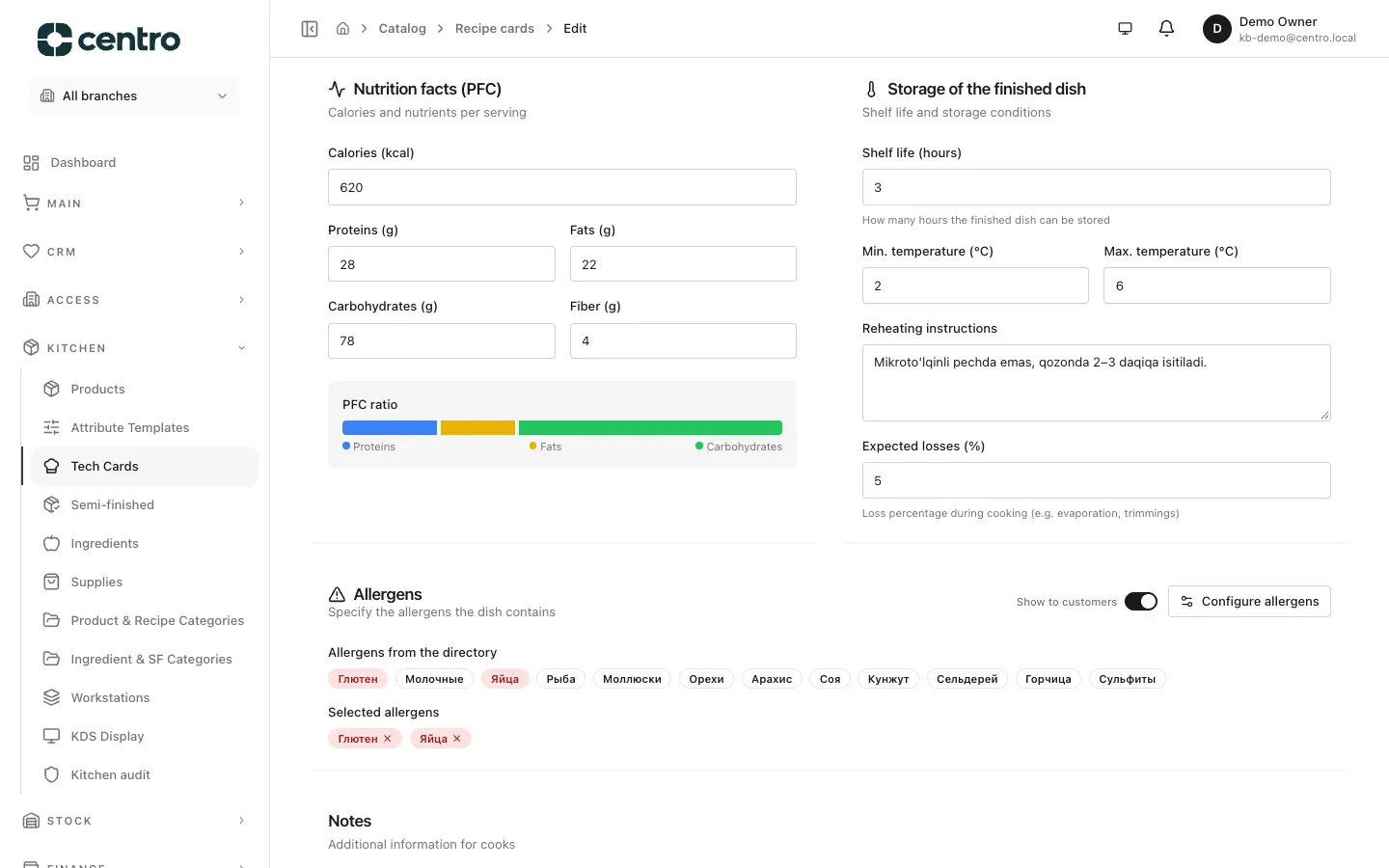
- «Nutrition facts (PFC)»
- Calories, protein, fat, carbohydrates and «Fiber (g)» per serving; below — the PFC ratio bar. The view page shows it «per serving».
- «Storage of the finished dish»
- «Shelf life (hours)», «Min./Max. temperature (°C)» and «Reheating instructions» — reference for the kitchen. The temperature is saved in whole degrees (fractions are rounded) and shown on the tech card page under «Storage conditions» → «Temperature» as a «min…max°C» range, e.g. «2…6°C»; a bound that was not entered shows as «—».
- «Expected losses (%)»
- Overall cooking losses (evaporation, trimmings). The view page shows them under «Yield» as «losses: N%». Per-ingredient gross/net losses are computed separately — by the method on the «Composition» tab.
- «Allergens» → «Show to customers»
- With the switch on, click the ones present in the dish under «Allergens from the directory» — they move to «Selected allergens» (removed with ×). With it off, allergens are hidden from customers and the list cannot be edited.
- «Notes»
- Internal notes for cooks; not shown to customers.
«Configure allergens». The allergen list is stored not in the card but in the venue — it provides names and translations for the customer app. In the dialog pick the «Venue», turn on the languages in «Languages for allergens» (one is marked as primary), then edit each allergen's «Default name» and translations or switch it off. The template has 12 allergens (gluten, dairy, eggs, fish, shellfish, nuts, peanuts, soy, sesame, celery, mustard, sulfites). Add a new one under «Add allergen»: an ID (Latin, e.g. sesame) and a name. «Reset to template» restores the list and languages — but only after «Save».
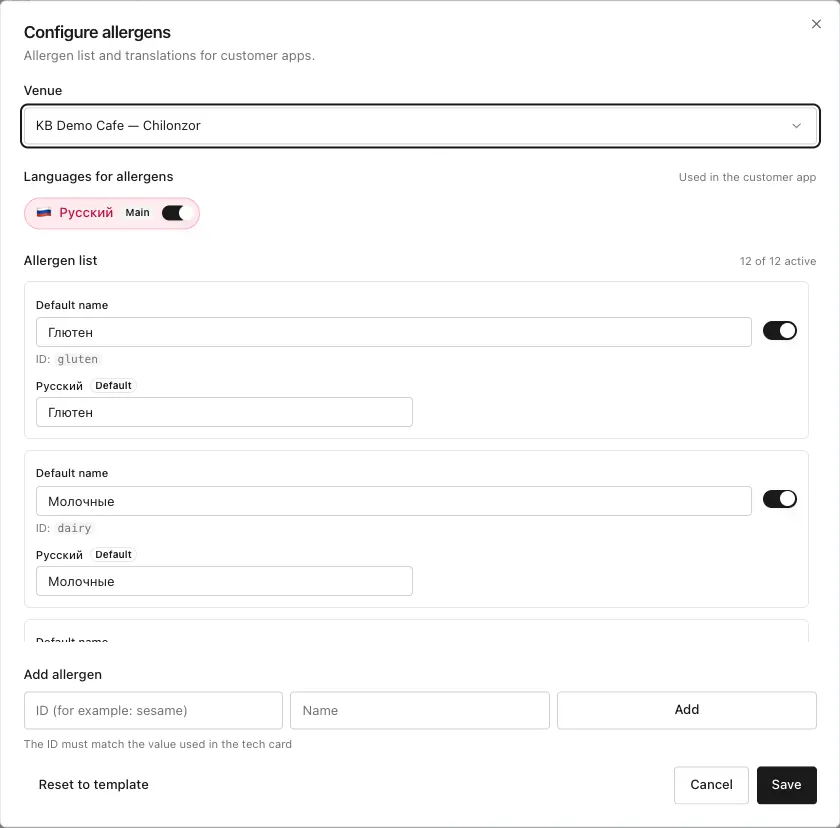
Important: «Save» in the dialog writes the list to the venue settings at once and affects every tech card of that venue. Do not change or delete an allergen ID that is already selected in cards — the ID must match the value in the card.
Export, import and trash #
Downloading the tech card list to Excel/CSV, creating drafts from a file and restoring deleted cards.
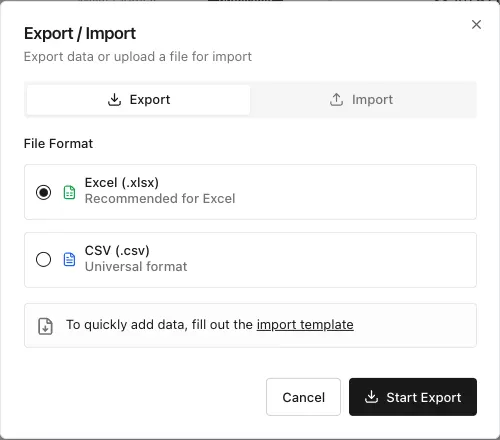
The export icon above the list opens the «Export / Import» dialog. On the «Export» tab pick the format (Excel or CSV): the rows loaded in the list (with the current filters) are downloaded — name, category, status, yield and its unit, cost, stations, cooking time (sec) and description. Column headers, the status and the sheet name are written in the interface language.
How import works
- On the «Import» tab download the template via the «import template» link (headers in the interface language) and choose a CSV, XLS or XLSX file. The columns read are «Name», «Description», «Yield», «Yield unit», «Stations», «Cooking time (sec)». A column is found by its header in the interface language, by its Russian header as in older files («Название», «Описание», «Выход», «Единица выхода», «Станции», «Время приготовления (сек)») or by the English key (name, description, yield, yieldUom, stations, totalSlaSecs).
- Each row creates a draft tech card — without composition, steps or price. The «Category» column is ignored on import. Then open each one, fill in the composition, price and category and click «Save» — that publishes it.
- Rows without a name are skipped; errors are listed with the row number («Tech cards created: N of M»).
Tip: A deleted tech card goes to the tech card trash — click the bin icon above the list to restore it. How the trash works (auto-cleanup, restoring several, deleting forever) is described in the «Trash: restoring deleted records» section of the «Products» page.
Viewing a tech card #
A read-only card: time, servings, yield, cost per serving and tabs.
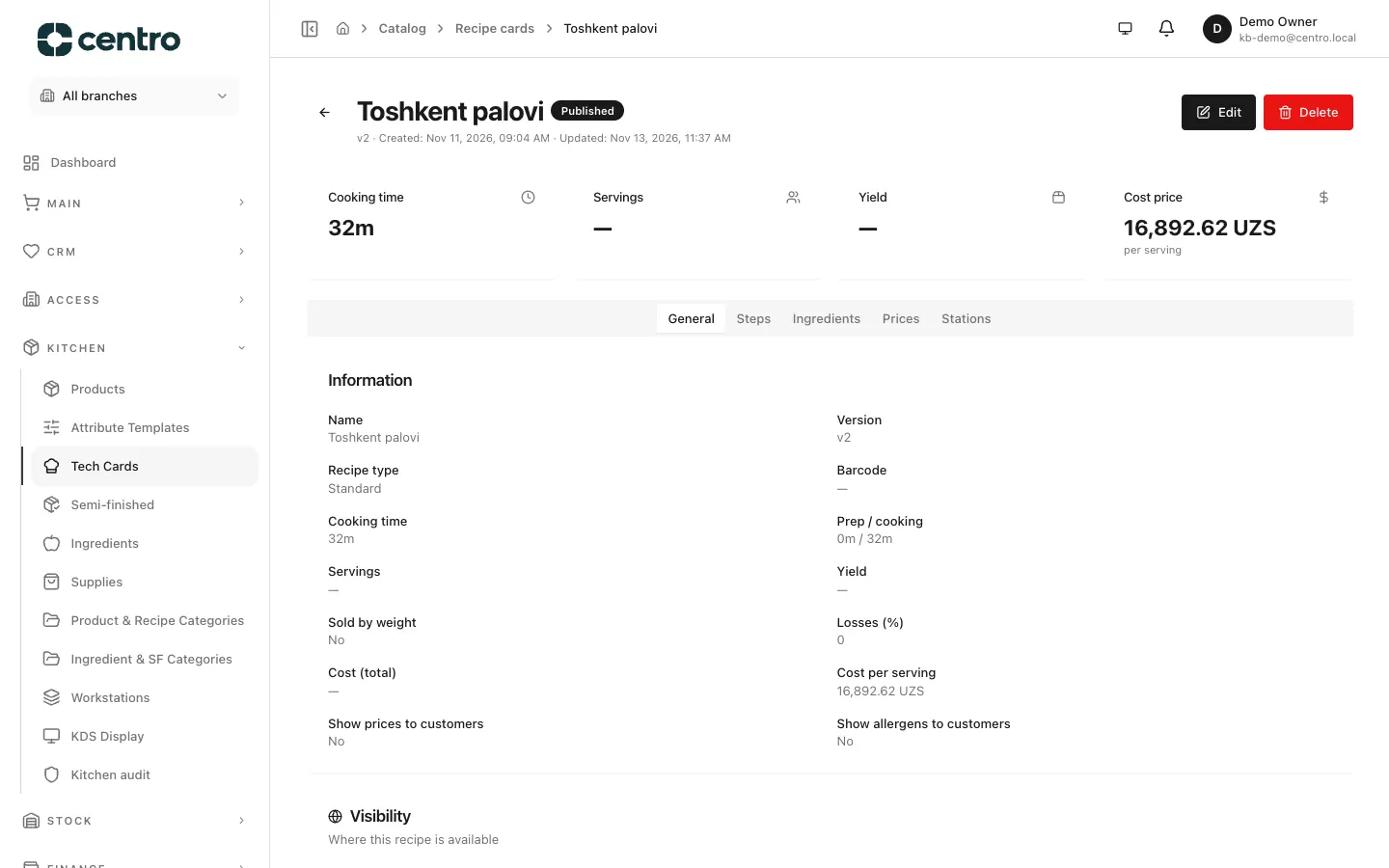
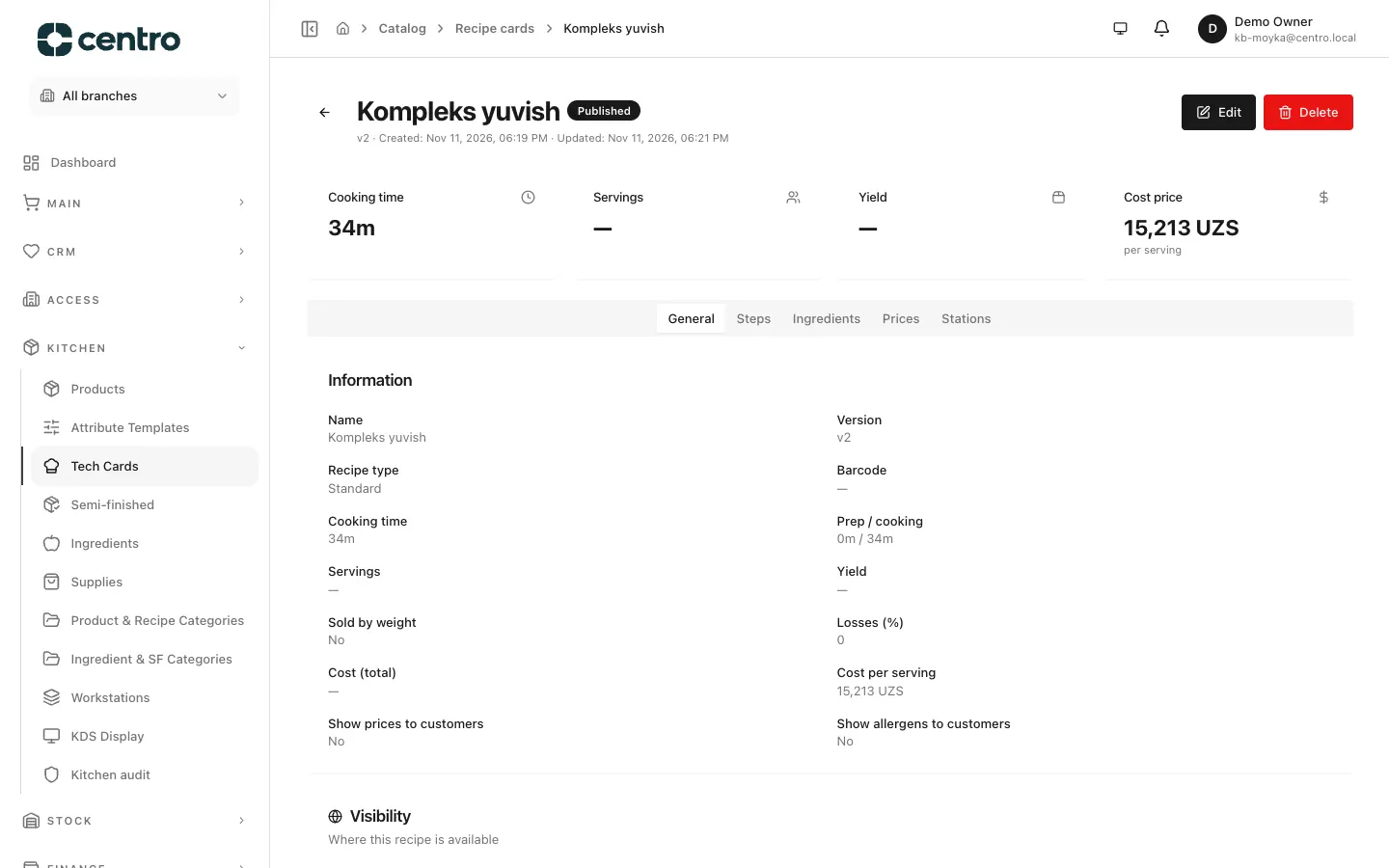
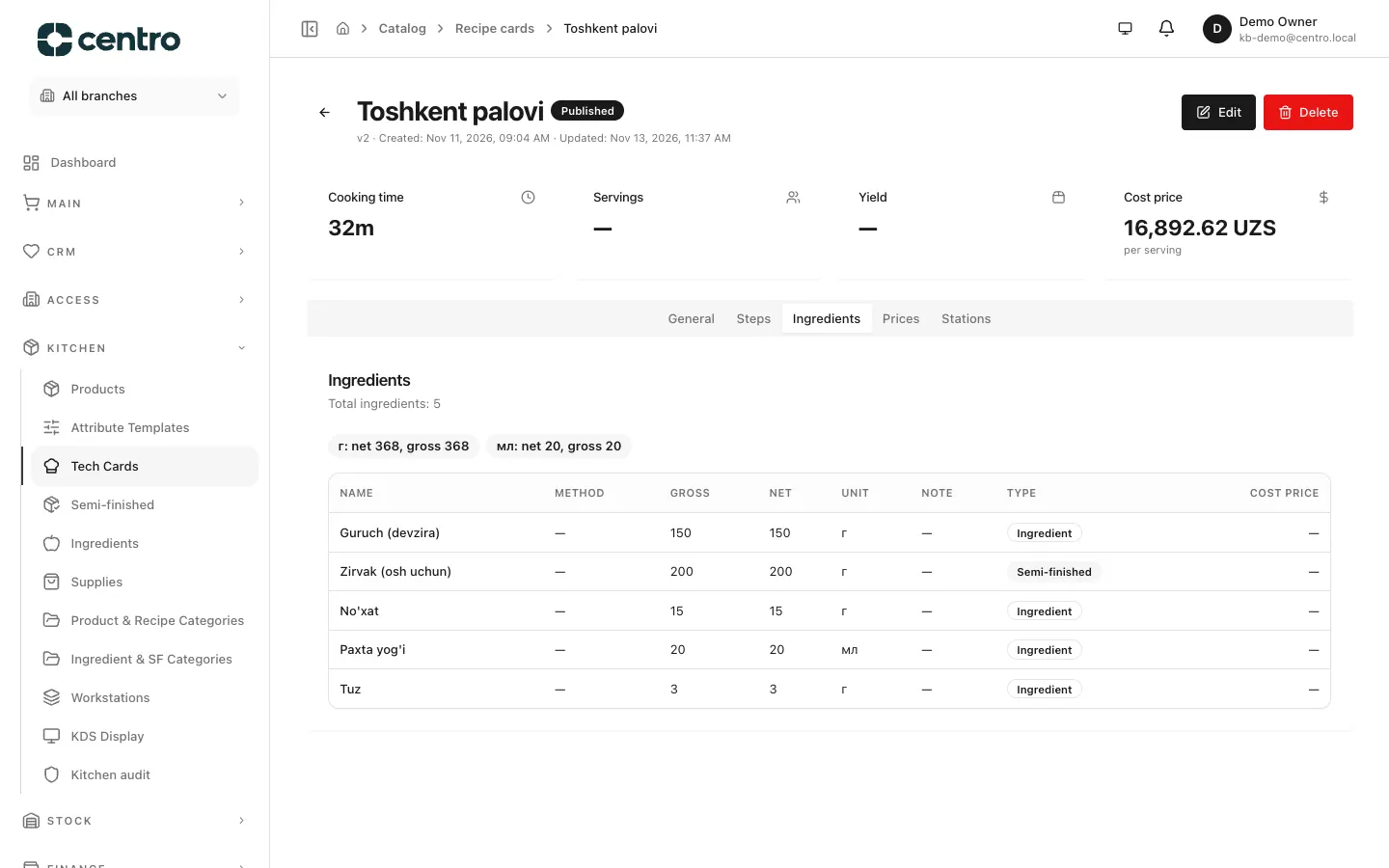
Click the card's name in the list. On top — the version and dates and four cards («Cooking time», «Servings», «Yield», «Cost price» — per serving). Tabs: «General», «Steps», «Ingredients», «Prices», «Stations» and others. To change it, click «Edit» — the «Edit recipe» form opens, and the last step of the path at the top is «Edit».
Which tabs and badges appear
- Badges
- Next to the name — the status («Published», «Draft», «Archive») and, when relevant, «Combo/set», «Sold by weight», «Bestseller» (featured), «New».
- Conditional tabs
- «Steps» — when steps are on; «Modifiers» — when a regular card has groups; «Combo contents» — for a combo (dish, quantity, replacement, rule and surcharge); «Stations» — when stations are selected; «Photos» — when a photo is uploaded.
- «Prices»
- Three tables: «Prices by branch», «Prices by channel» and «Prices: branch × channel» (marketplace prices); with nothing set — «No prices configured».
- «General» → «Nutrition facts»
- Nutrition is labelled «per serving» or «per 100 g» (values entered in the form are per serving); sugar, sodium and cholesterol show only when filled. Next to it — storage, allergens, tags, sales channels and fulfillment types.