Ingredients
The raw-material directory: unit, losses, cost price, stock in warehouses and the minimum stock for alerts.
Open in the admin panel/catalog/ingredients Here is all the raw material tech cards and semi-finished items are made of: meat, vegetables, rice, oil, spices, milk, coffee… Only raw materials are shown here; packaging and supplies live in «Supplies».
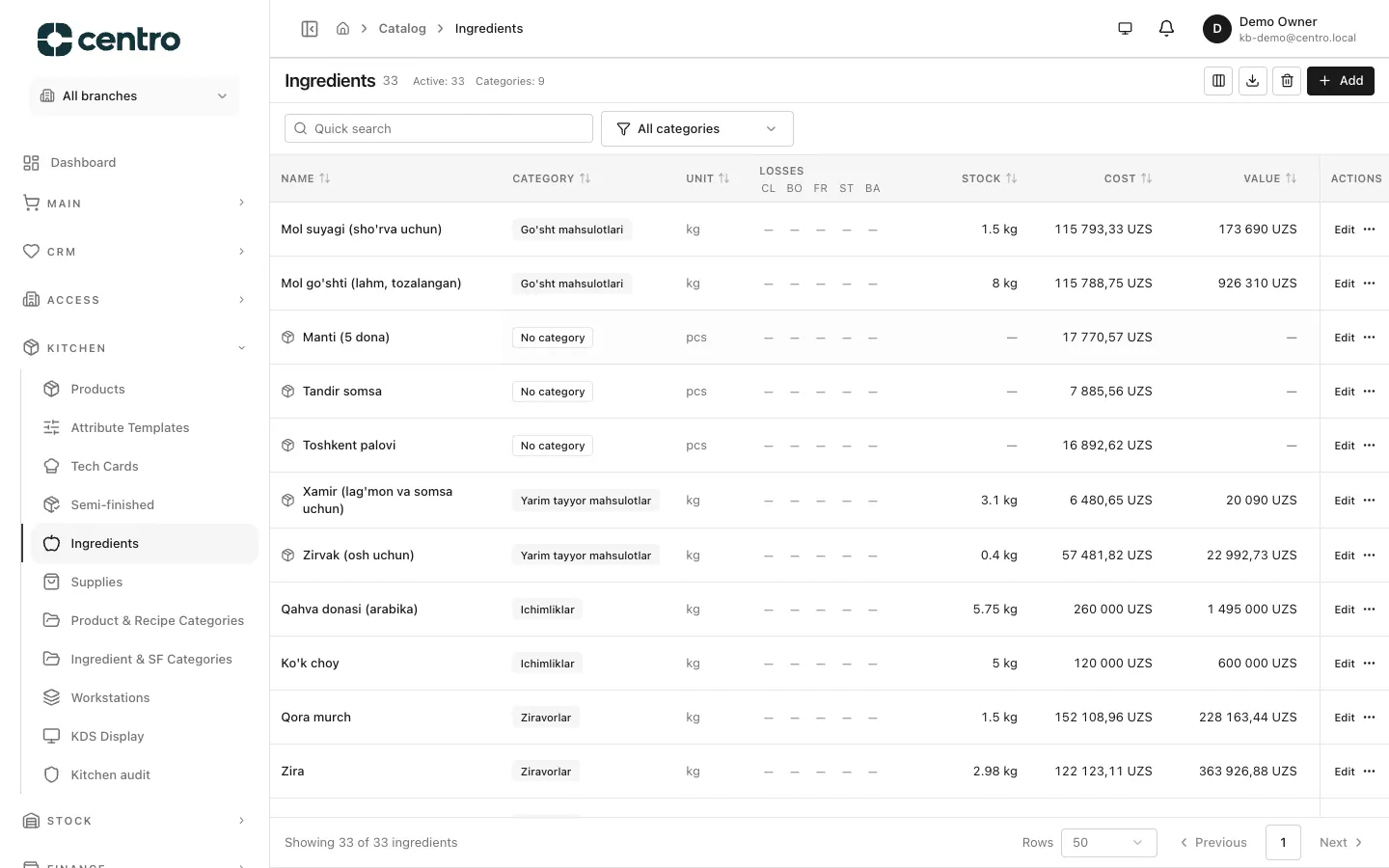
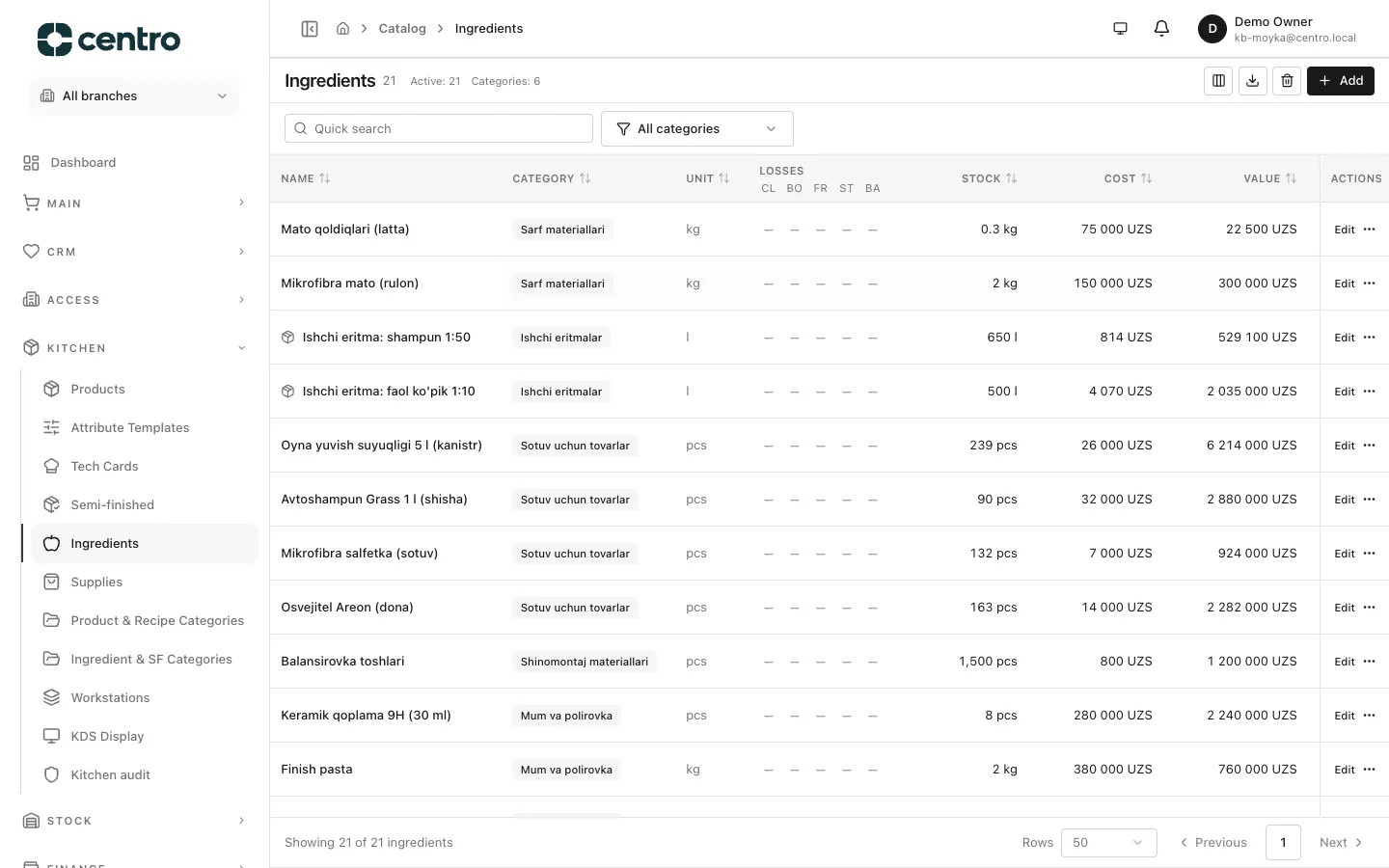
Columns
- «Unit»
- Only kg, l or pcs — stock is kept in this unit. Tech cards use g and ml; the system converts them to kg/l itself.
- «Losses»
- Five columns: cl — cleaning, bo — boiling, fr — frying, st — stewing, ba — baking.
- «Stock», «Cost», «Value»
- Stock across all warehouses, the weighted average cost (from receipts) and the stock value. Negative stock is red — a receipt is needed.
- Hidden columns
- The columns icon → «Show columns:» — turn on «Barcode», «Piece weight» and «Status»; «Reset to default» restores the original set. Statuses: «Active», «Inactive», «Discontinued», «Archived». The header shows the «Active:» and «Categories:» counters; the «All categories» filter narrows the list.
Adding and editing an ingredient #
Name, category, unit, minimum stock, density and processing losses.
- Click «Add».
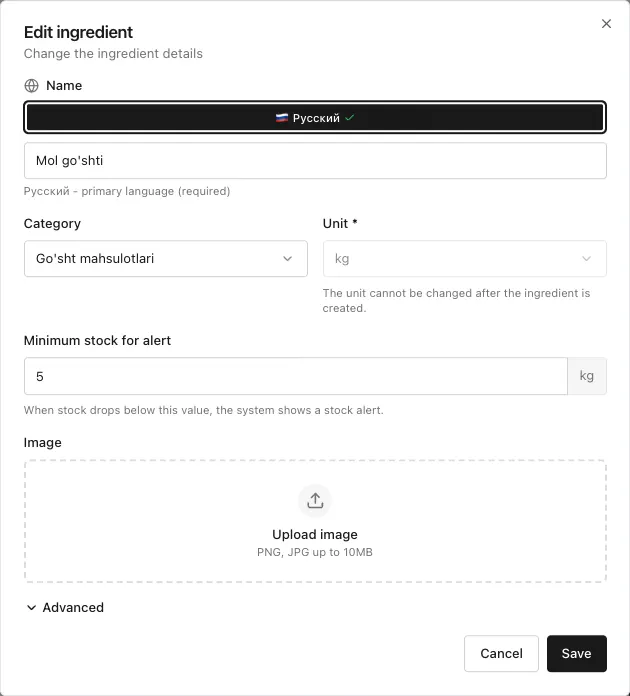
- Enter the name (required in the primary language), category and «Unit *».
- Fill in «Minimum stock for alert» — a stock warning appears when stock falls below it.
- Expand «Advanced»: barcode, loss percentages, liquid density and storage conditions. Click «Save».
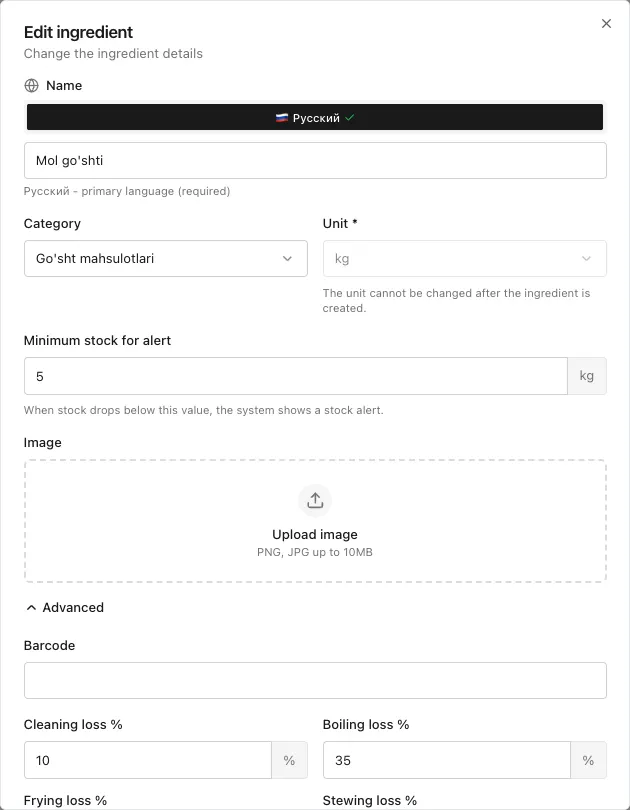
- «Cleaning loss %» … «Baking loss %»
- How many percent of weight is lost in processing. When a tech card ticks the method, gross uses this percentage: e.g. onion cleaning 16% → ~119 g gross for 100 g net.
- «Liquid density»
- g/ml — to compute the weight of an ingredient kept in litres (e.g. cottonseed oil 0.92). Usually 1.
- «Unit *»
- The unit cannot be changed after creation — stock and cost are tied to it.
Important: Stock and cost are not edited in the card: they change only through stock documents (receipt, write-off, inventory). An ingredient used in a tech card or an unfinished order cannot be deleted.
The «Suppliers» tab #
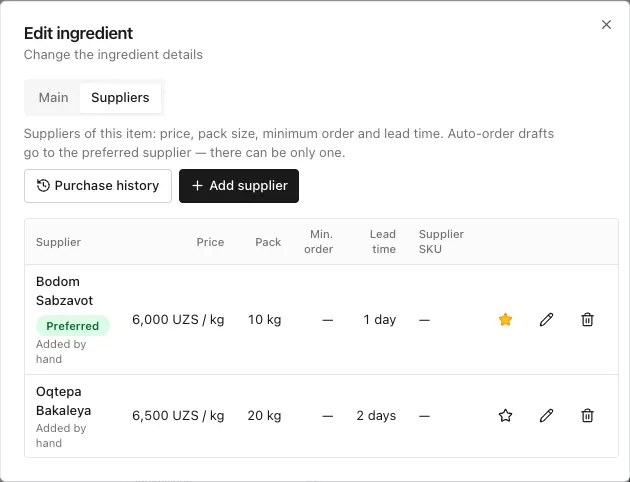
Who supplies the ingredient and on what terms: price, pack, minimum order, lead time and the preferred supplier for auto-order.
The edit dialog of an existing ingredient has two tabs: «Main» (the form described above) and «Suppliers». A new ingredient has no tabs — save it first. The «Suppliers» tab is visible when the role has the «Purchasing» section with at least «View»; adding, editing and removing need «Full access» (otherwise the list is read-only).
- On the ingredient’s row click «Edit» (or «…» → «Edit»).
- Go to the «Suppliers» tab and click «Add supplier».
- In the «New supplier of the item» form choose the supplier and fill in the terms (see below).
- Click «Save» — the supplier appears in the table.
Form fields
- «Supplier»
- Chosen only when adding; it cannot be changed later — remove the link and add another one. The same supplier cannot be added twice.
- «Unit price», «Currency»
- The price of one purchase unit (not negative). Currency is a three-letter code; empty means the organization’s currency. This price goes into auto-order drafts but does not change the ingredient’s cost price — cost comes from receipts.
- «Purchase unit»
- Empty means the item’s stock unit. You can use g instead of kg, ml instead of l: auto-order converts the quantity into this unit. If the unit cannot be converted, auto-order skips the item.
- «Pack size», «Minimum order»
- In the purchase unit, greater than zero. Auto-order rounds the quantity up to whole packs and raises it to the minimum order.
- «Lead time, days»
- A whole number from 0 to 365. Left empty, the lead time from the supplier card is used. The expected date of an auto-order draft is counted from it.
- «Supplier SKU»
- The code in the supplier’s catalog; copied to the auto-order draft line.
- «Preferred supplier»
- An item has only one preferred supplier — auto-order drafts go to it. The box is pre-ticked for the first supplier you add.
Table
- «Supplier»
- Name, the «Preferred» and «Inactive» badges and the source: «Added by hand», «From purchase history» or «From the supplier price list».
- «Price», «Pack», «Min. order», «Lead time», «Supplier SKU»
- The link’s terms; an empty field shows «—».
- Star, pencil, bin
- Star — «Make preferred» / «Remove preference» (one click; the previous preferred supplier loses the mark). Pencil — «Edit». Bin — «Remove» with a confirmation; if you remove the preferred supplier, auto-order skips the item until you choose another one.
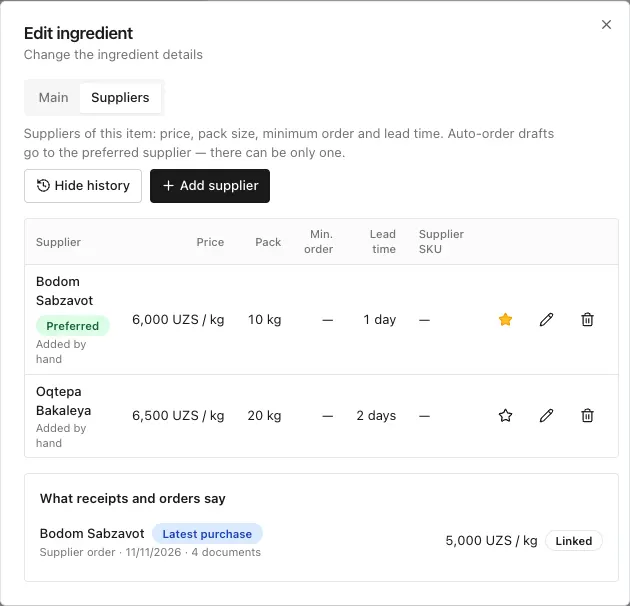
The «Purchase history» button opens the «What receipts and orders say» block: for every supplier the ingredient was bought from — the latest price (from posted receipts and orders past the draft stage), the source («Receipt» or «Supplier order»), the date and the number of documents. The supplier of the most recent purchase has the «Latest purchase» badge. A linked supplier shows «Linked», the others a «Link» button that opens the form already filled with the price, currency, unit and SKU. «Fill in from history» (shown when some suppliers are not linked) links them all at once, fills only empty prices of existing links and, when there is no preferred supplier, makes the supplier of the latest purchase preferred: «Suppliers added: N, prices filled: M».
Tip: This data feeds the «Auto-order» page (Stock group): when stock falls below the minimum, a draft goes to the preferred supplier with this price, pack and minimum order. To fill it in for all ingredients at once, use the «Suppliers from history» button on that page.
Export, import and trash #
Downloading ingredients to Excel/CSV, bulk adding from the template and restoring deleted ones.
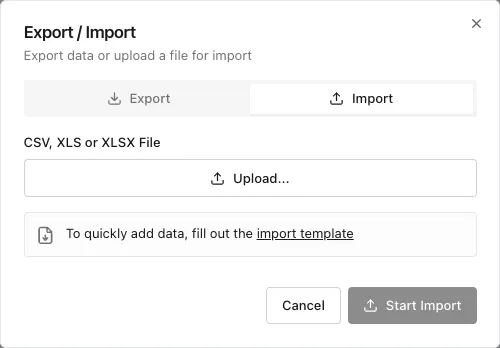
The export icon above the list opens the «Export / Import» dialog. «Export» downloads the ingredients loaded in the list to Excel or CSV; «Import» → «import template» gives an empty template. Column headers are in the interface language: «Name», «Barcode», «Category», «Unit», «Piece weight», «Cleaning loss, %», «Boiling loss, %», «Frying loss, %», «Stewing loss, %», «Baking loss, %». The import recognises a column by that header, by the Russian header of older files («Название», «Штрихкод», «Ед. измерения», «% потерь очистка»…) or by the English key (name, barcode, uom, lossesRaw…) — columns named otherwise are not read.
Import rules
- Each row creates a new «Active» ingredient; rows without a name are skipped, an existing name gives an error (it must not match an ingredient, packaging or supply). Import does not update existing ingredients.
- «Category» is matched to an existing category name (case-insensitive); if none matches, the ingredient is created without a category — create the categories first.
- «Unit»: kg, l, pcs or кг, л, шт (g and ml are accepted too — the ingredient is created in kg or l); empty means kg. Losses are in percent.
Tip: A deleted ingredient goes to the ingredient trash — restore it via the bin icon above the list (see the «Trash: restoring deleted records» section of the «Products» page). An ingredient used in a tech card, a prep item or an unfinished order cannot be deleted — the system shows the reason.