Promotions
Builder for discounts and special offers: 5 promotion types, applicability rules, schedule and promo code.
Open in the admin panel/crm/promotions A promotion is a discount rule: what is given (percent, amount, “buy X get Y”, combo price or a gift), on which items, to whom (segment, loyalty tier, venue), where (order channels) and when (dates, weekdays, hours). It can apply automatically or be activated by a promo code.
Promotion vs promo code vs coupon
- Promotion
- A discount rule with a set of conditions (items, channels, segments, schedule, limits). It can work automatically, with no code. A promo code can be linked to it.
- Promo code
- One shared text code the customer types in (e.g. SUMMER2024). It either carries its own discount (percent, amount, free delivery, free item) or is linked to a promotion and inherits its conditions. Many customers use the same code, within limits.
- Coupon / certificate
- Unique codes generated in a batch with a prefix; each code has its own status (active, used, expired, cancelled). A gift certificate is a face value with a balance that can be spent in parts; a coupon is a percent or amount discount. It can be bound to a specific customer and printed; it is also used as a reward in achievements and challenges.
How to open
- In the sidebar, expand the CRM group.
- Click Promotions.
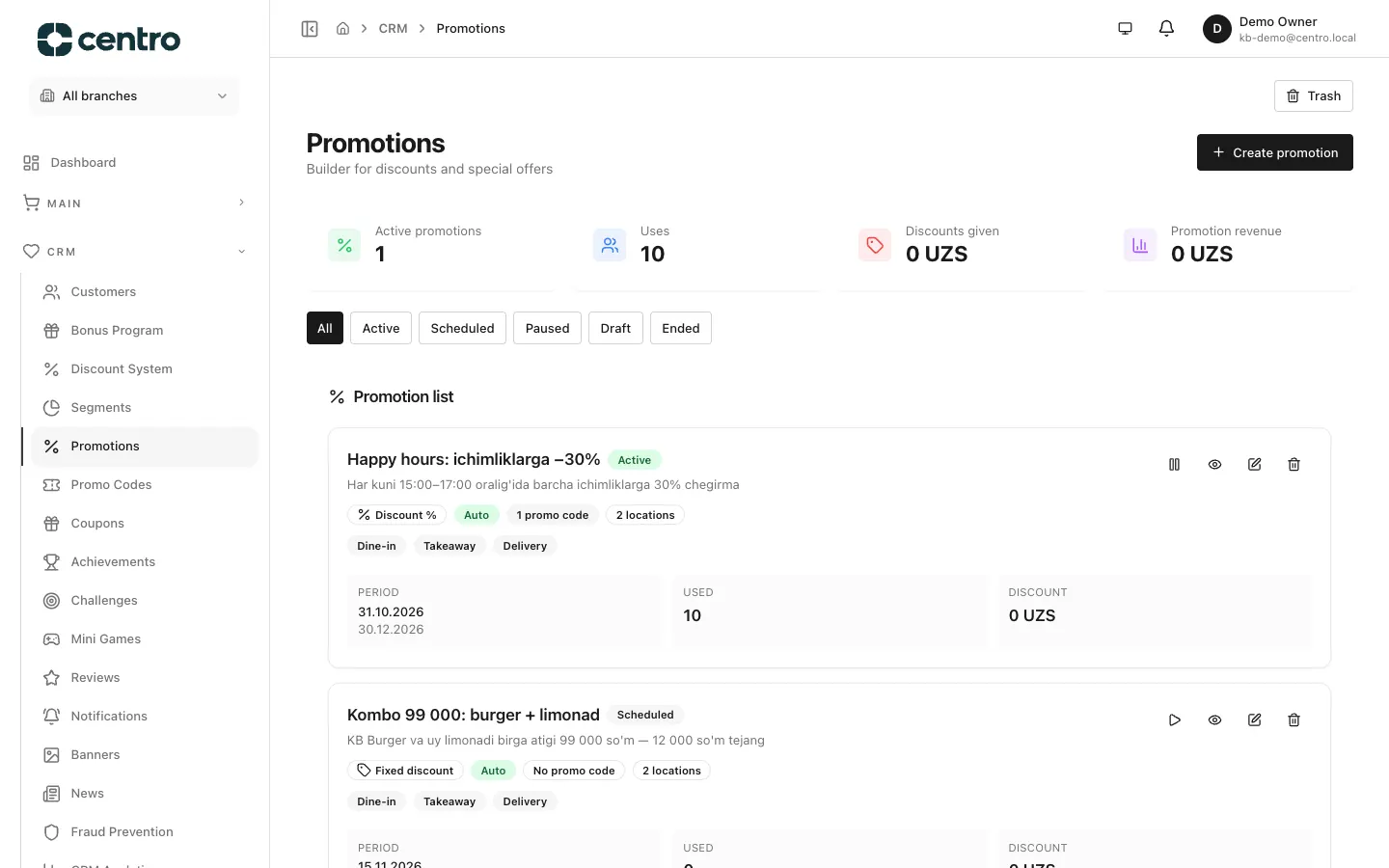
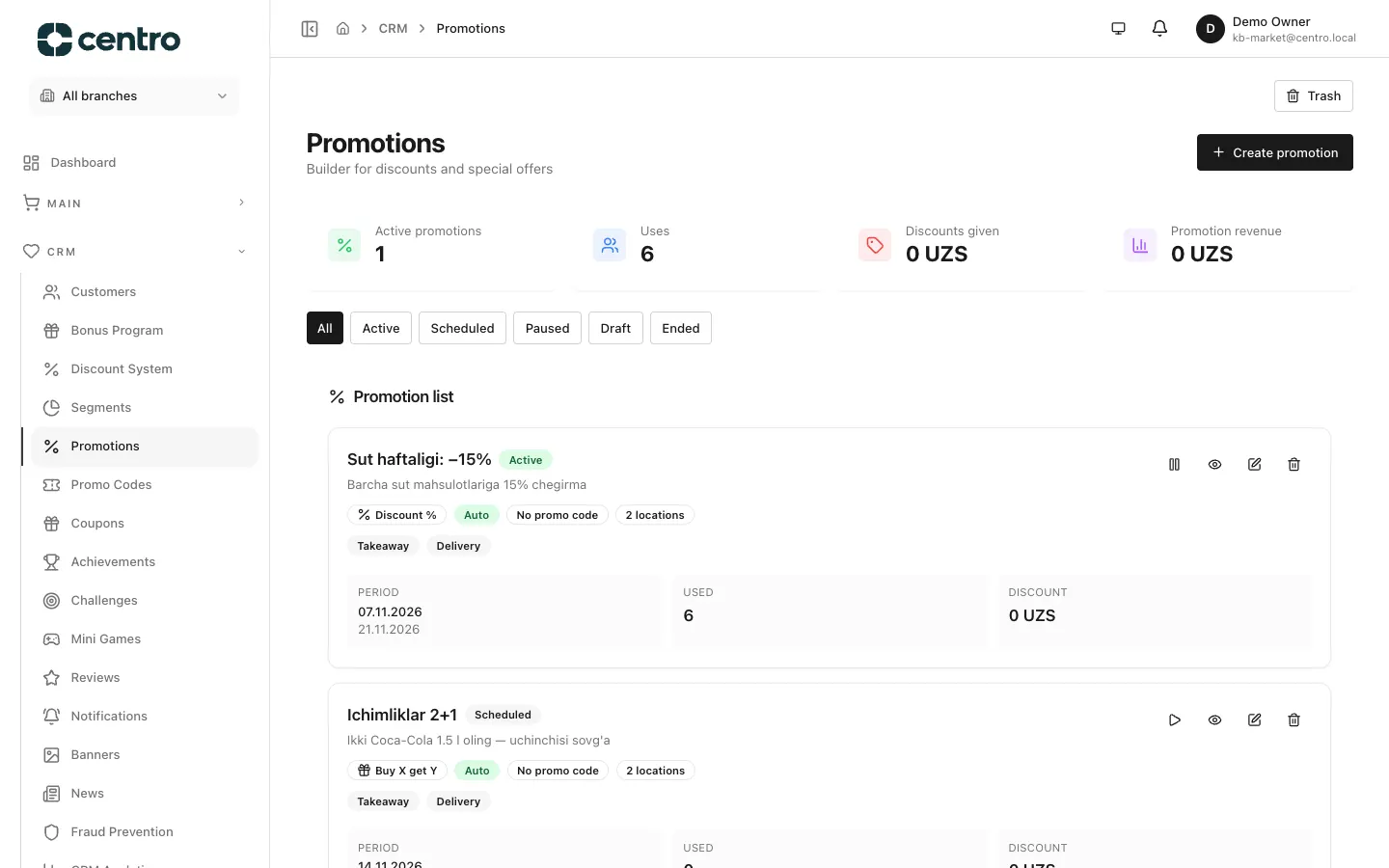
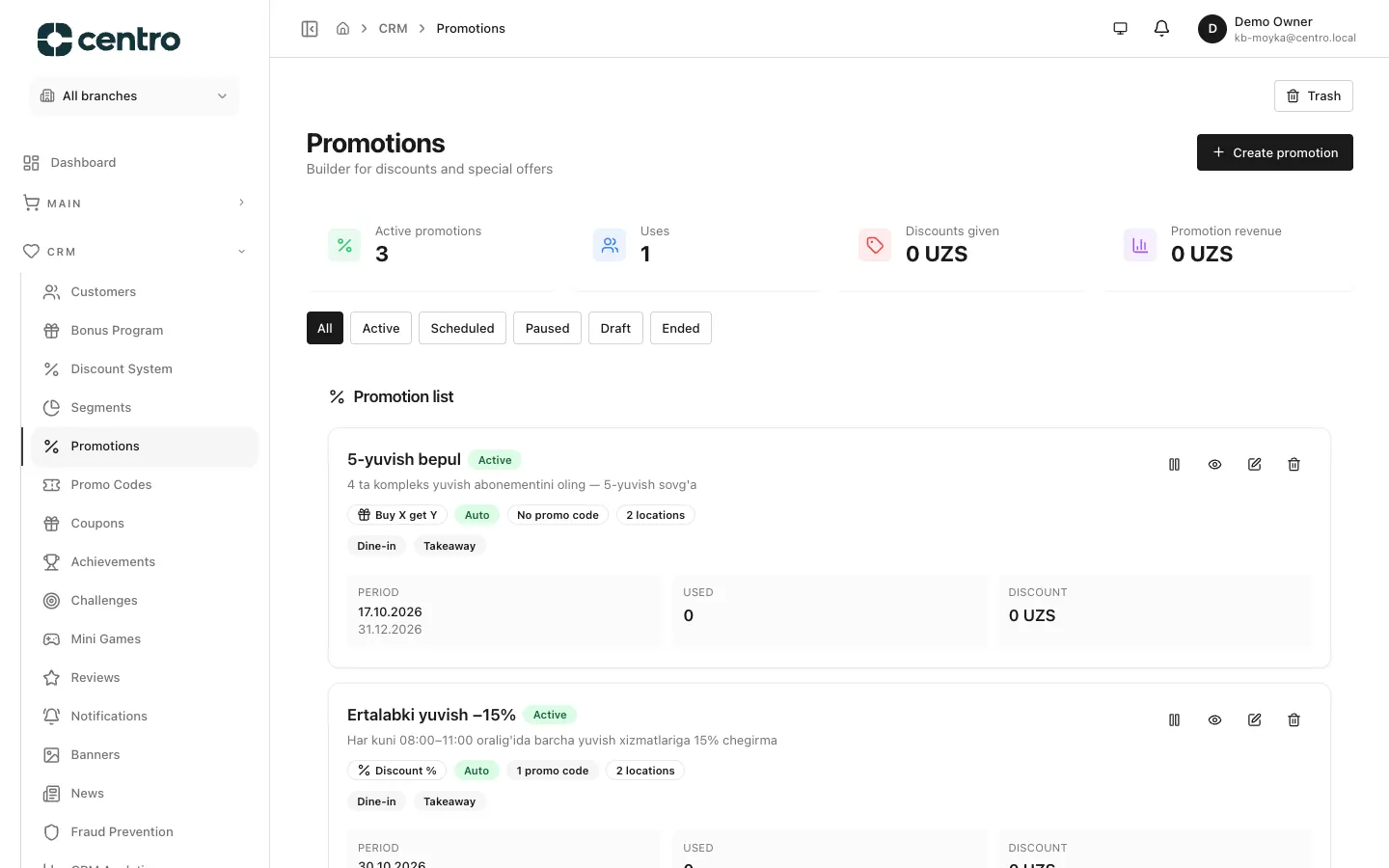
Promotion list #
Figures, status filter, promotion cards and how to manage them.
Summary cards
- «Active promotions»
- Number of active promotions.
- «Uses»
- How many times promotions were applied.
- «Discounts given»
- Total amount of discounts given.
- «Promotion revenue»
- Revenue of orders with promotions.
Tip: Card figures are calculated from the promotions on the current page of the list (with the selected filter). Dates and amounts are formatted for the interface language.
Filter and promotion card
- Status filter
- Buttons: «All», «Active», «Scheduled», «Paused», «Draft», «Ended». The selected filter is kept in the address bar.
- Badges
- Type (Discount %, Fixed discount, Buy X get Y, Combo, Free item); «Auto» or «Manual»; number of promo codes or «No promo code»; «All locations» or number of locations; channels (Dine-in, Takeaway, Delivery, Online, «All channels», Yandex Eats).
- «Period», «Used», «Discount»
- Start and end dates («No end date» — open-ended); uses / total limit; amount of discount given.
- Action icons
- Pause (on an active one) — pause; Play (on a paused or scheduled one) — start/resume; eye — details; pencil — edit; trash — delete (with confirmation).
Promotion statuses
- «Scheduled»
- A promotion whose start date is in the future is created in this status.
- «Active»
- If the start date is today or earlier, the promotion is active right after creation.
- «Paused»
- Stopped with the pause button; turned back on with Play.
- «Draft», «Ended»
- A draft is launched with the «Launch» button (Play icon) on the promotion page. Ended — the promotion period is over.
Creating a promotion (4-step wizard) #
«Promotion type» → «Configuration» → «Applicability» → «Finish».
In the list click «Create promotion». Under the title you see «Step N of 4»; the progress bar shows step names. «Next →» validates the current step and lists any errors. You can go back by clicking a completed step in the progress bar; forward only one step at a time, after validation.
Tip: Whatever you type is auto-saved as a draft in this browser: close the page and come back, and the wizard, including the current step, is restored. To start over, click «Clear draft» at the top of the page.
Step 1. «Promotion type» #
Pick a ready template or one of 5 types.
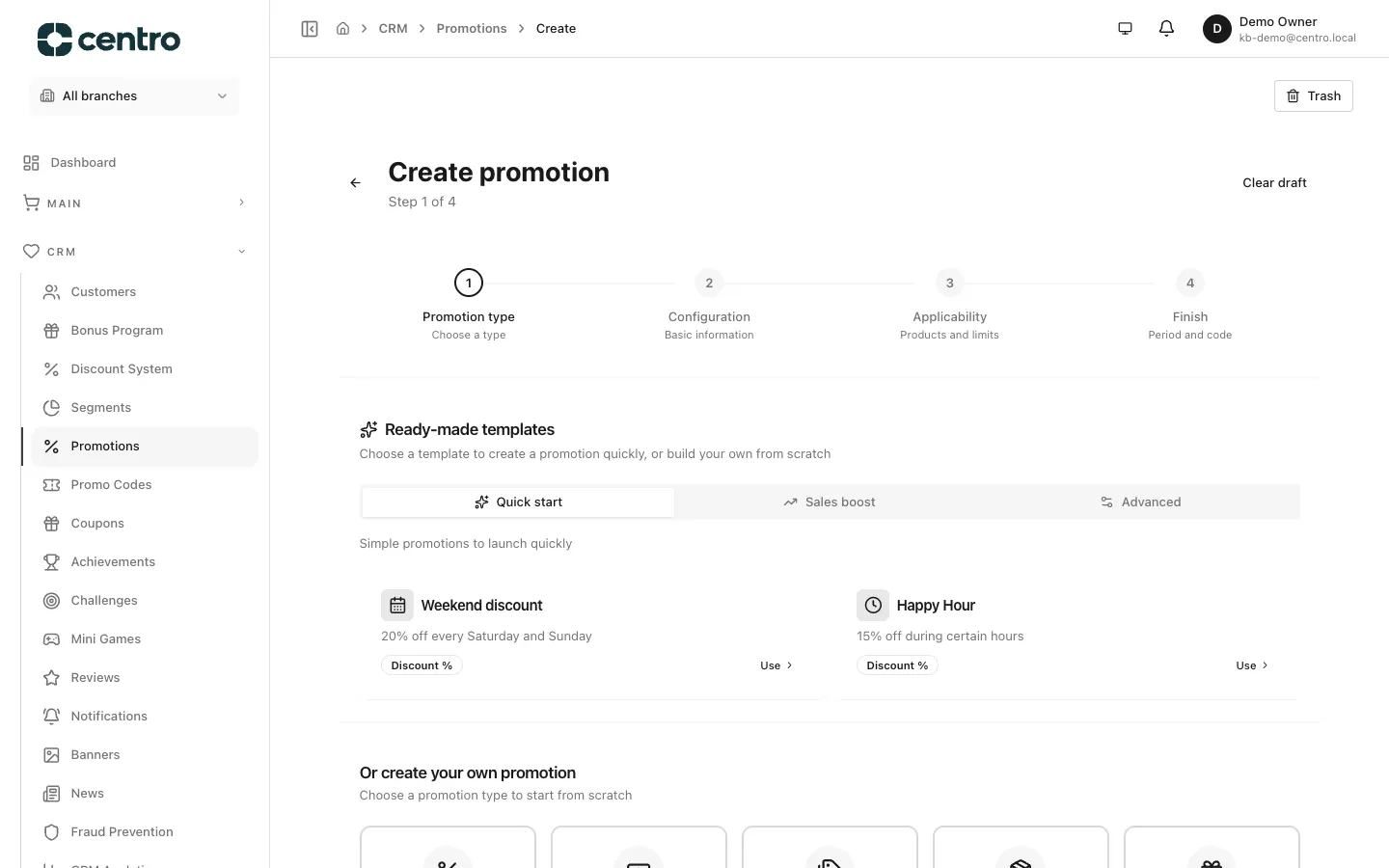
«Or create your own promotion» — types
- «Percentage discount»
- E.g. 20% off the whole menu.
- «Fixed amount discount»
- A fixed discount amount.
- «Buy X — get Y»
- E.g. 2+1 free.
- «Combo/Bundle»
- A set of several items for a special price.
- «Free item»
- A gift item when the condition is met.
The «Ready-made templates» block at the top has three tabs: «Quick start» (Weekend discount, Happy Hour), «Sales boost» (Buy 2, get 1 free, Volume discount, Combo bundle) and «Advanced» (Clearance sale, Business lunch, Seasonal promotion). A template pre-fills the name, description, discount value and, where relevant, weekdays or hours.
Tip: A template fills in the name and description in the current interface language: for example, the «Weekend discount» template gives the name «Weekend 20% off» in English and «Dam olish kunlari 20% chegirma» in Uzbek. The name must not match an existing promotion of the organization (case-insensitive) — change it on step 2 if needed.
Tip: As soon as you click a type card or a template, the wizard moves to step 2 automatically.
Step 2. «Configuration» #
Name, description, image, terms and the parameters of the chosen type.
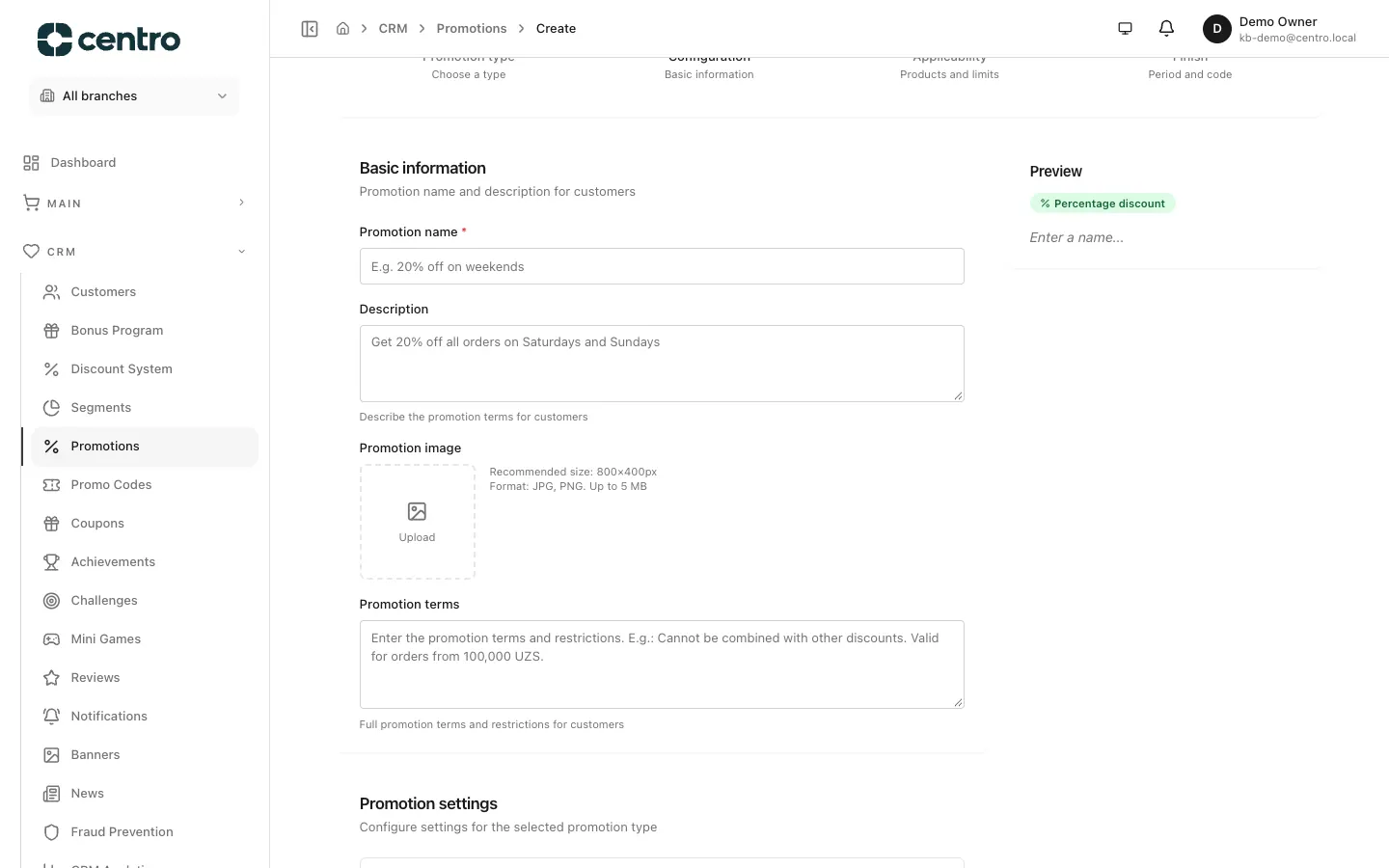
«Basic information»
- «Promotion name *»
- Required, up to 255 characters, must not match an existing promotion name («This name is already in use»).
- «Description»
- Promotion terms for customers.
- «Promotion image»
- JPG or PNG, up to 5 MB; recommended size 800×400px.
- «Promotion terms»
- Full text of terms and restrictions for customers.
«Promotion settings» — by type
- Percentage discount
- «Discount *» — 1 to 100%. Or turn on «Discount depends on quantity» and add «Discount tiers» (e.g. 1 pc → 10%, 2 → 20%, 3 → 50%; up to 10 tiers, unique quantities). «How to count quantity»: «Only the promotion's target products» or «All products in the order». The highest tier reached applies.
- Fixed amount discount
- «Discount *» — a fixed amount greater than 0.
- Buy X — get Y
- «Buy quantity *» and «Free quantity *», at least 1; «Discount on the reward»: 100% (free), 50%, 30% or 10%.
- Combo/Bundle
- «Bundle price *» — fixed price for the whole set (greater than 0).
- Free item
- «Number of gifts» — how many gift units to give (at least 1).
Step 3. «Applicability» #
Which items, which channels, who, and which limits.
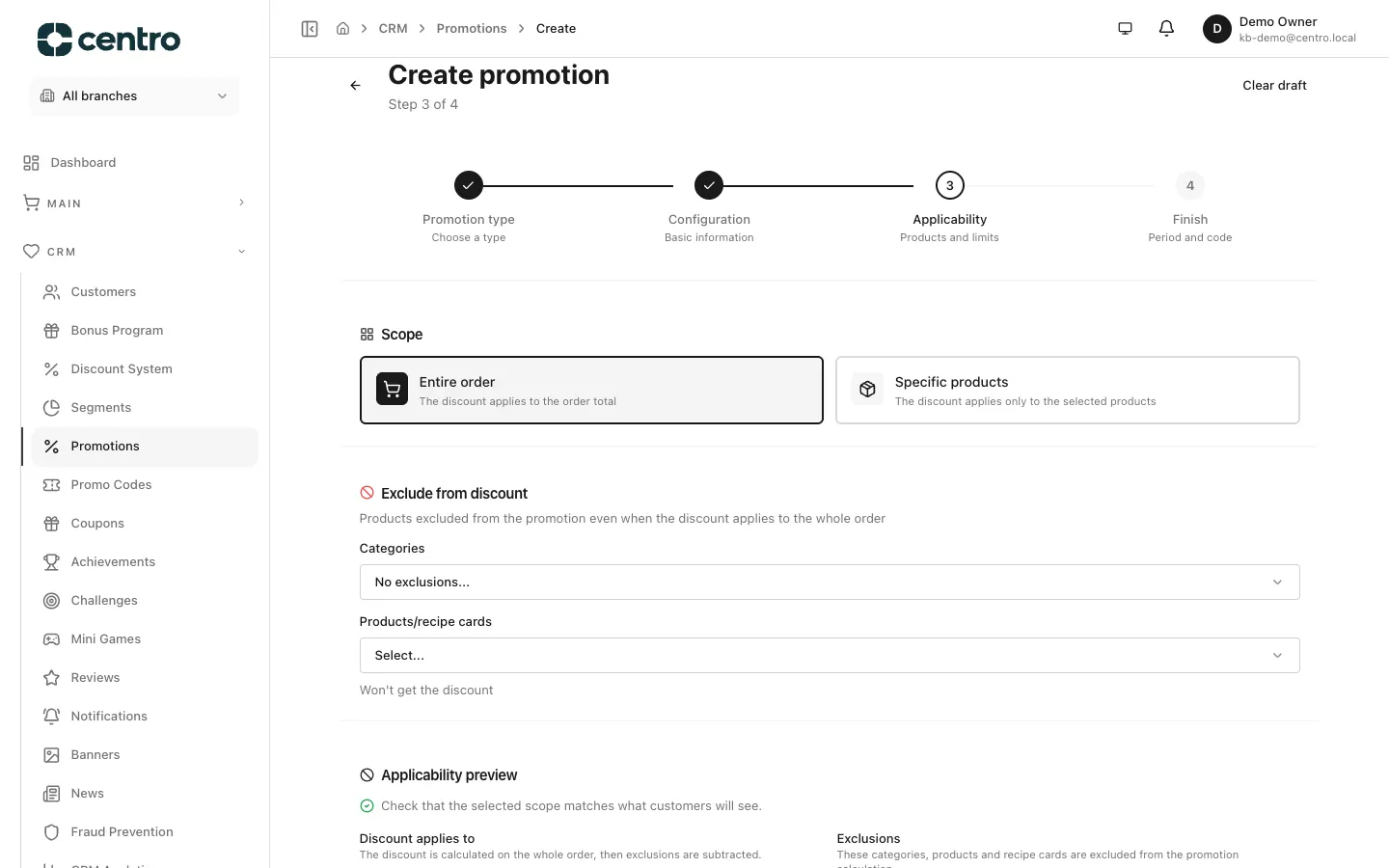
Items (depends on type)
- Percent / amount discount
- «Scope»: «Entire order» (the order total) or «Specific products» (selected ones only — at least one category, product or recipe card required). In «Entire order» mode, use «Exclude from discount» for categories and items that must not be discounted.
- Buy X — get Y
- «Products to buy (Buy X)» — at least one category, product or recipe card; «Reward products (Get Y)» — at least one product or recipe card.
- Combo/Bundle
- «Products in the combo bundle» — at least 2.
- Free item
- «Gift products» — at least 1. «Gift conditions» — which purchase triggers the gift; if empty, the gift is always given.
Tip: A store has no recipe cards: the «Products and recipe cards» pickers contain only categories and products.
Limits, channels and targeting
- «Limits»
- «Min. order amount» (all types except combo), «Discount cap» (percentage discount only), «Min. item count» (not for «Buy X — get Y»), «Total uses» (all customers together), «Per customer».
- «Sales channels»
- «Dine-in», «Delivery», «Takeaway», «Online». Empty means all internal channels. «Yandex Eats» is enabled separately and appears only if that order source is on in settings.
- «Customer targeting»
- «Customer segments», «Loyalty tiers», «Locations». If nothing is selected, the promotion applies to everyone.
- «Exclusions»
- For «Buy X — get Y» and «Free item»: categories and items that do not take part.
- «Applicability preview»
- Shows where the promotion will work with the chosen settings.
Step 4. «Finish» #
Period, schedule, promo code, priority and auto-apply.
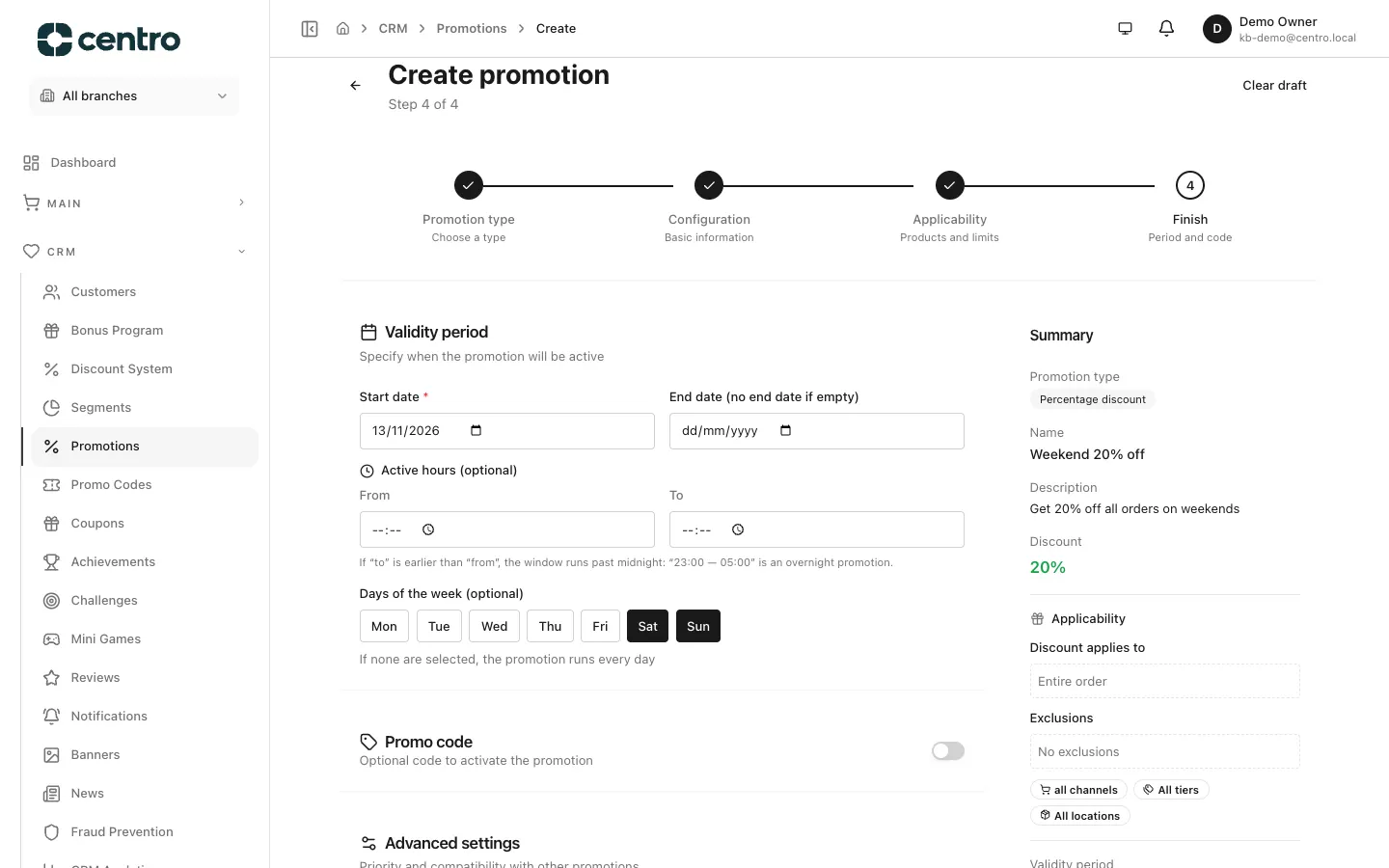
- «Validity period»
- «Start date *» — required; «End date (no end date if empty)» — not before the start. «Active hours (optional)» — «From» and «To»; if “To” is earlier than “From”, the window crosses midnight (23:00 — 05:00); they cannot be equal. «Days of the week (optional)» — Mon…Sun; none selected means every day.
- «Promo code»
- Turned on with the switch. «Code» — up to 50 characters, converted to upper case; «Generate» creates a random 8-character code. A promotion with a code works only when the code is entered; the code also appears in «Promo Codes».
- «Priority»
- From 1 (low) to 100 (high), default 50. Higher-priority promotions are applied first.
- «Apply automatically»
- On — the promotion applies by itself; off — it is manual («Manual»).
- «Combine with other promotions»
- Temporarily unavailable: only the single best discount is applied.
- «Summary»
- On the right: type, name, discount, period and promo code — to check before saving. Dates and amounts are shown in the interface language format.
Finishing
- Check the fields and click «Create promotion».
- After «Promotion created successfully» the promotion list opens.
Important: Auto-apply and promo code are mutually exclusive: turning one on turns the other off. An automatic promotion cannot require a code.
Important: There is no draft mode: with a start date of today or earlier the promotion becomes active right after creation (the page warns you). With a future date it is created as «Scheduled».
Tip: If the promotion was created but the promo code could not be saved (e.g. the code already exists), you see «Promotion created, promo code not saved». Fix the code and click «Save promo code» — the promotion is not created twice. Or click «Open promotion without promo code».
Promotion page #
Statistics, all settings, linked promo codes and status control.
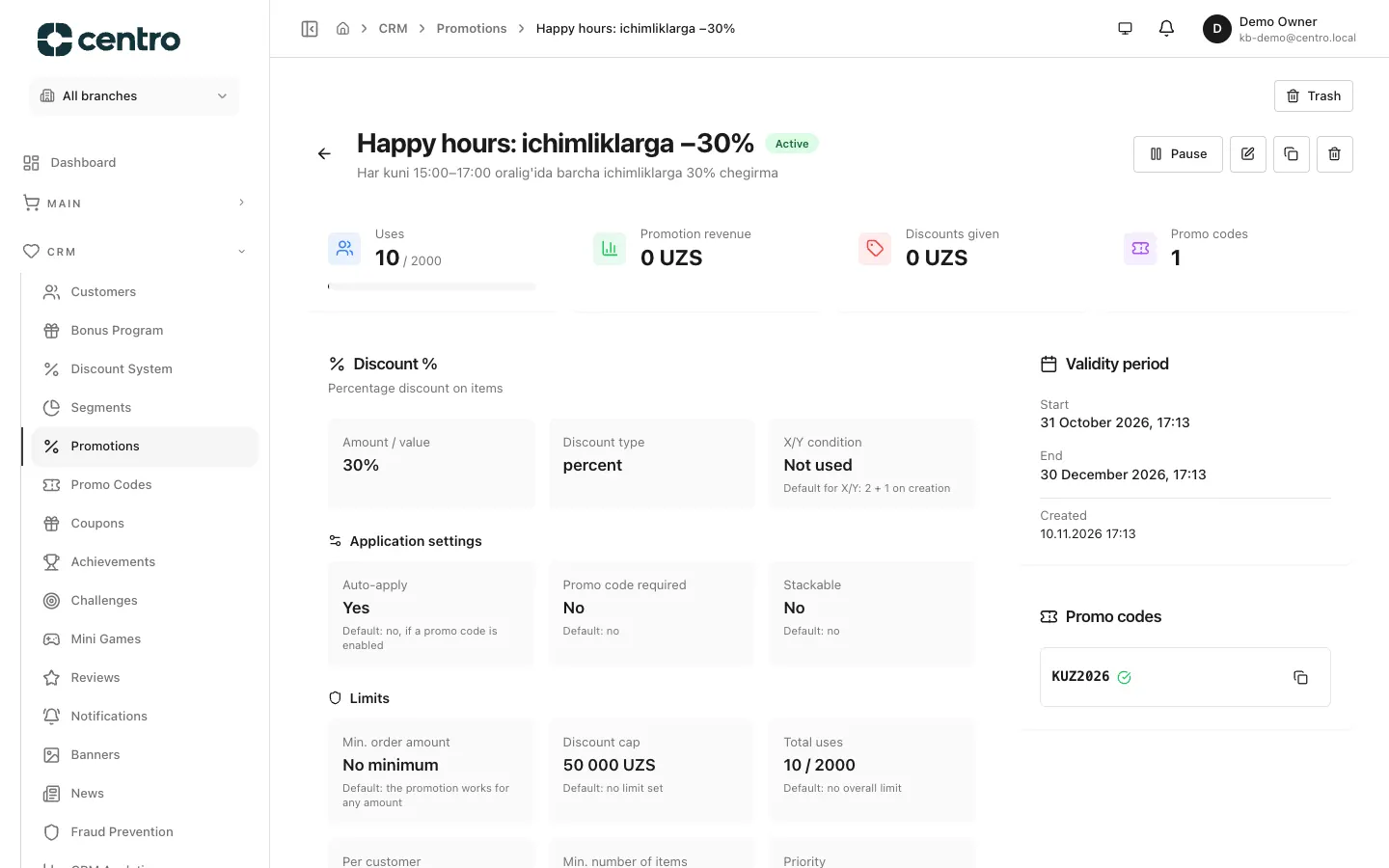
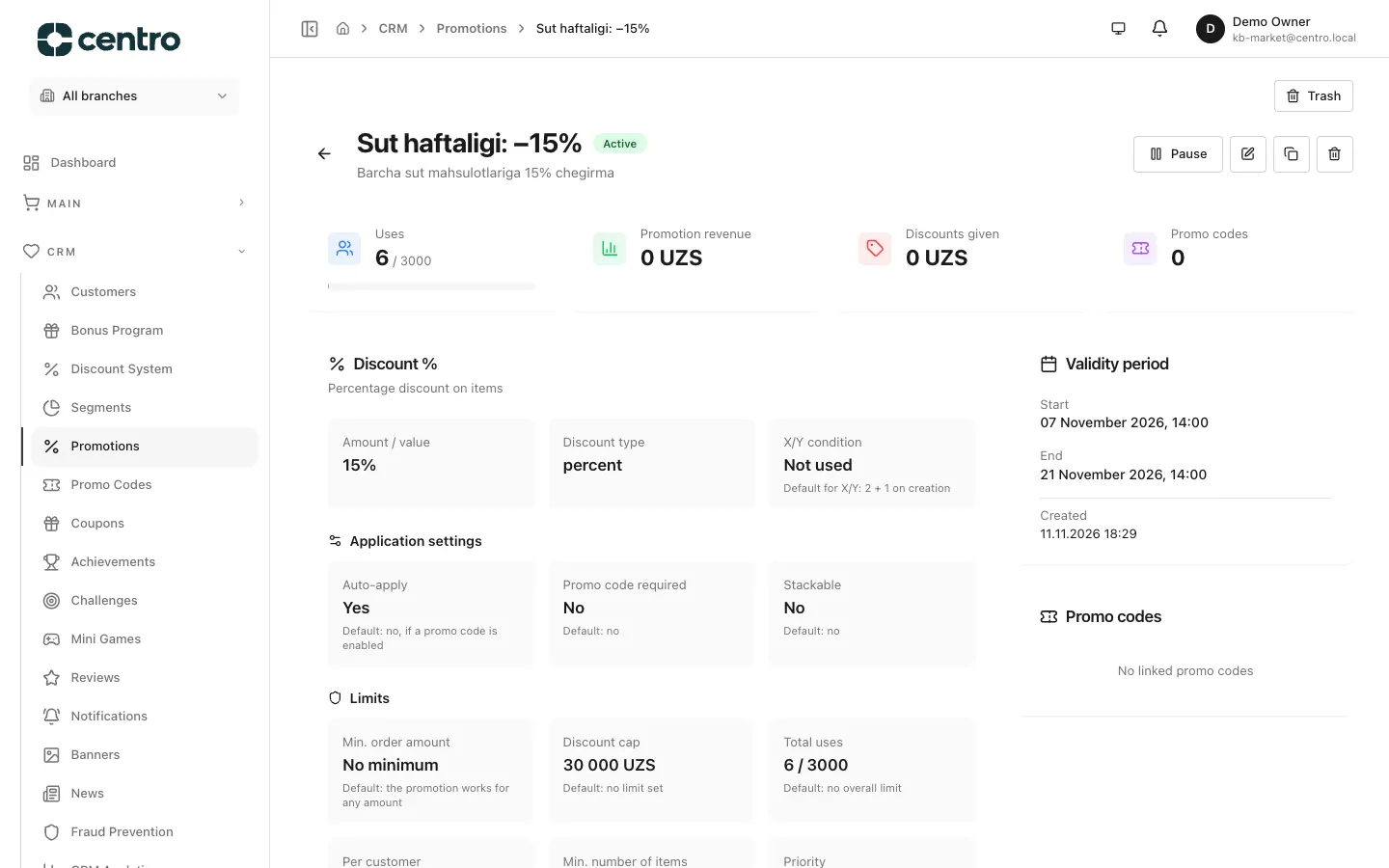
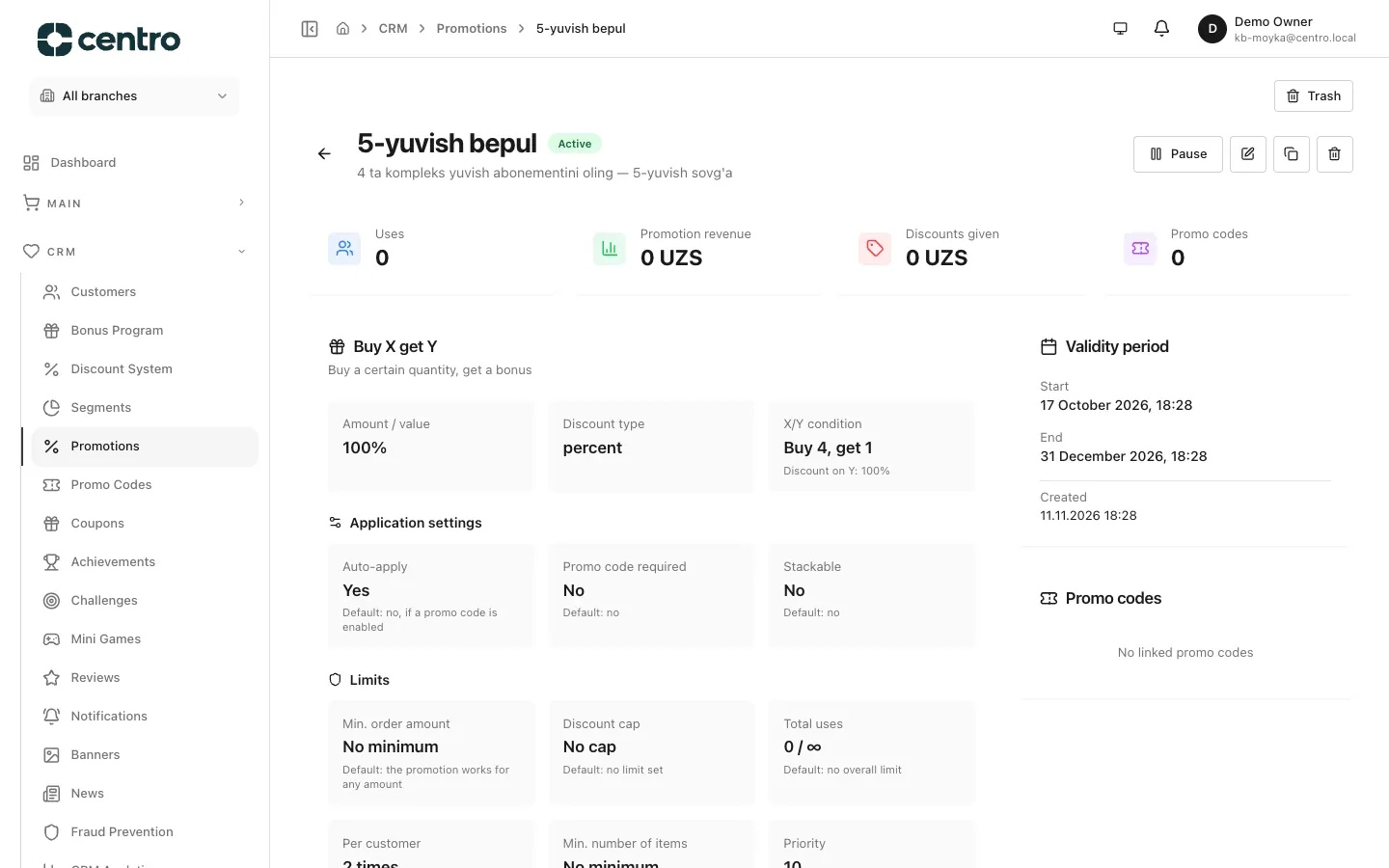
- Status buttons
- Active — «Pause»; paused — «Resume»; draft or scheduled — «Launch» (Play icon, launches the promotion). Next to them: icons «Edit», «Clone», «Delete».
- Figures
- «Uses», «Promotion revenue», «Discounts given», «Promo codes».
- Settings blocks
- Type and value («Amount / value», «Discount type», «X/Y condition»); «Application settings» (Auto-apply, Promo code required, Stackable); «Limits»; «Scope and exclusions» (trigger, reward, exclusions, branches); «Customers and channels» (channels, segments, loyalty tiers, weekdays, hours); «Validity period»; «Promo codes». Each value has a hint with its default.
Clone a promotion
- On the promotion page click the «Clone» icon.
- The «Clone promotion» wizard opens with all settings; a suffix in the interface language is appended to the name (in English, «(Copy)»), the start date is today and the end date is cleared.
- Rename it (a duplicate name will not pass validation), go through the steps and create it.
Editing a promotion #
«Edit promotion» — a 3-step wizard; the type cannot be changed.
- Click the pencil icon in the list or «Edit» on the promotion page.
- Steps: «Setup», «Applicability», «Finish» — the same as steps 2–4 of the create wizard.
- Click «Save changes» — after «Promotion updated successfully» the promotion page opens.
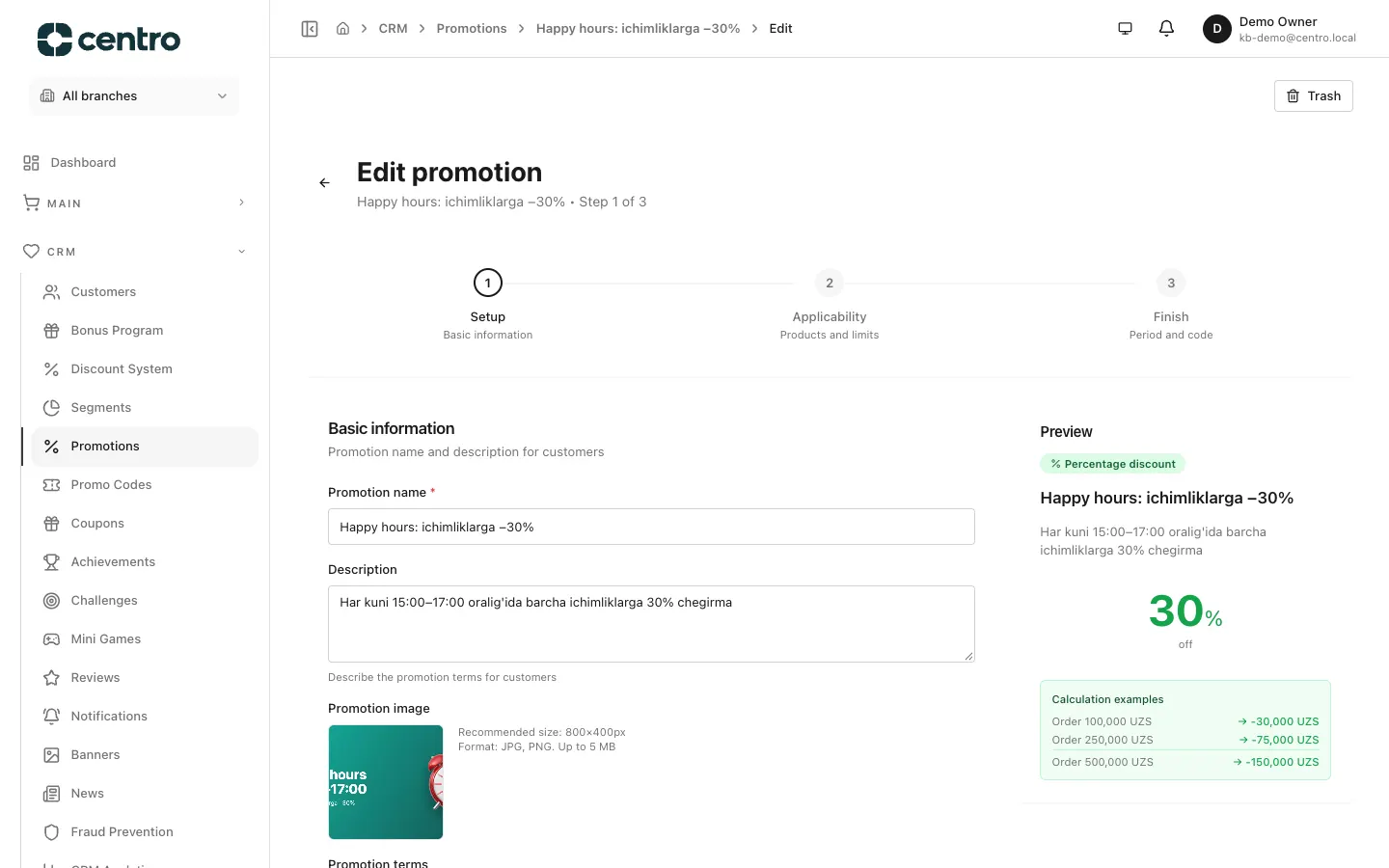
Under the title are the promotion name and «Step … of …»; click the step bar at the top to move between steps. Editing keeps no draft — leave the page without saving and the changes are lost. If no promo code is linked yet, you can create one right here on the «Finish» step; if the promo code cannot be saved, the promotion changes are still saved and «Failed to save promo code» appears — fix the code and save again.
Important: The promotion type cannot be changed when editing (there is no step 1). If a promo code is already linked, the code itself cannot be changed: create a new promo code in «Promo Codes» instead.
Tip: Legacy promotions of type «Points multiplier» open read-only: this type takes no part in discount calculation; points are configured in the bonus program.