Banners
Promo banners for the website and mobile app: create, view, edit, pause.
Open in the admin panel/crm/banners How to open
- Sidebar: CRM → Banners.
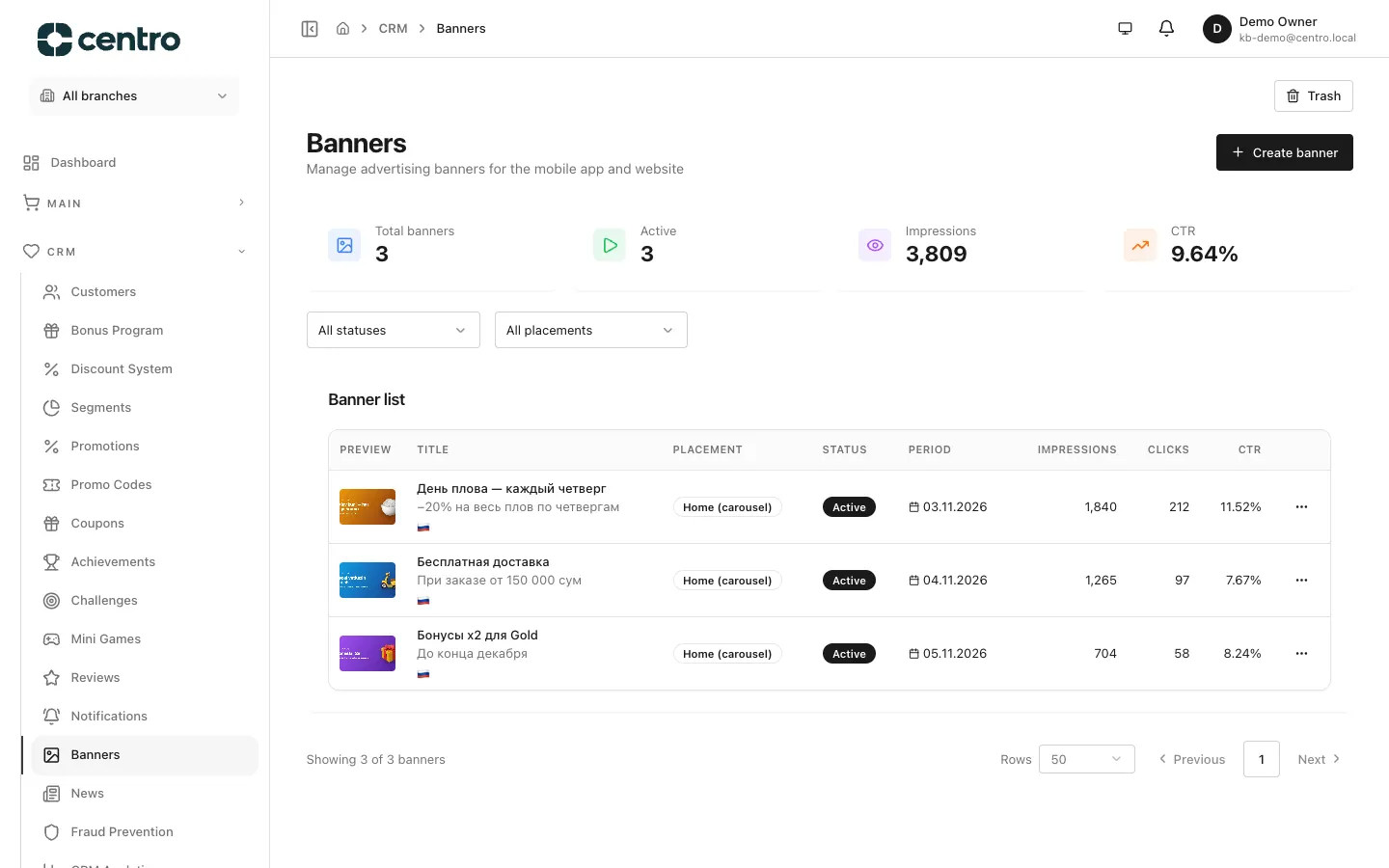
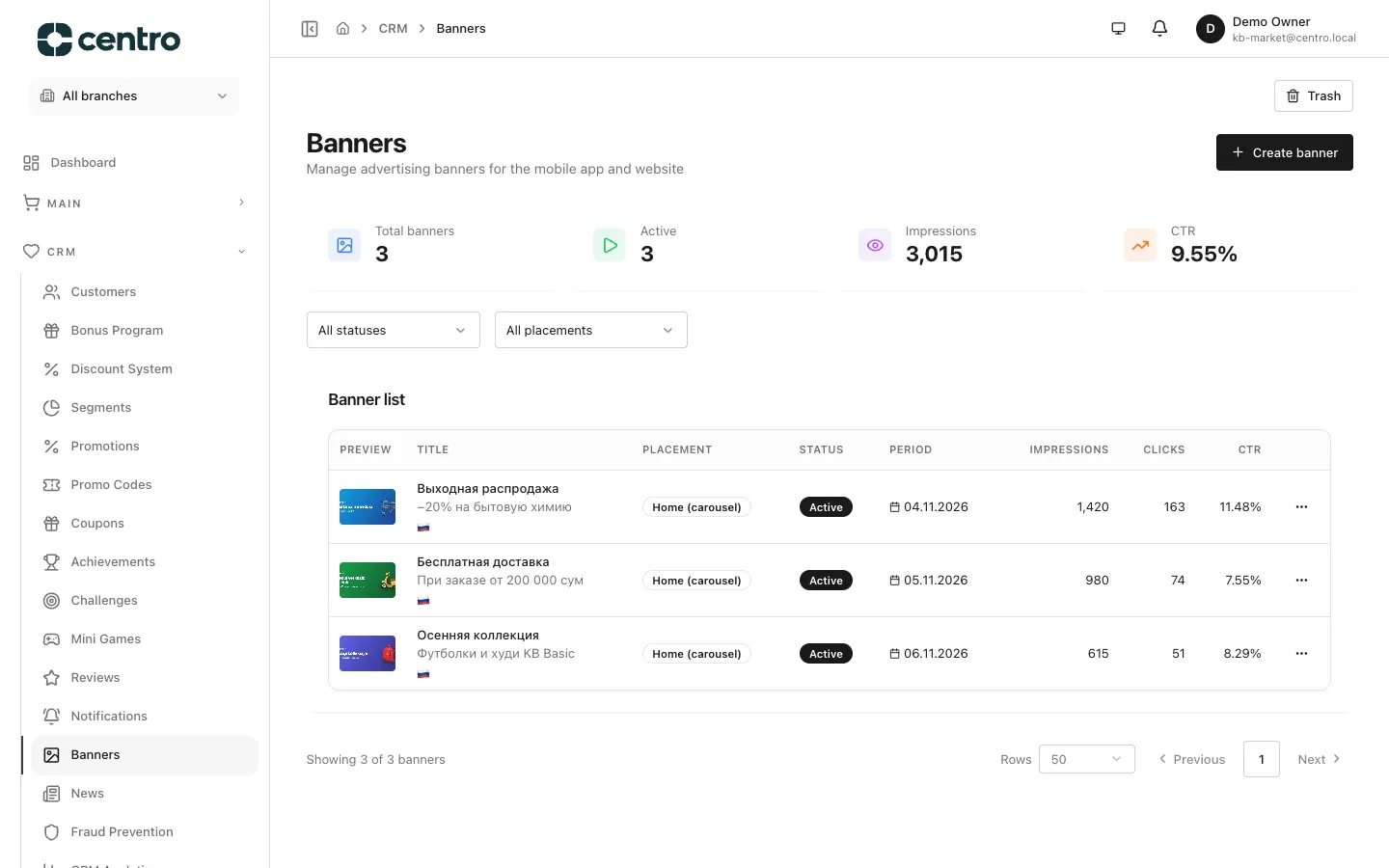
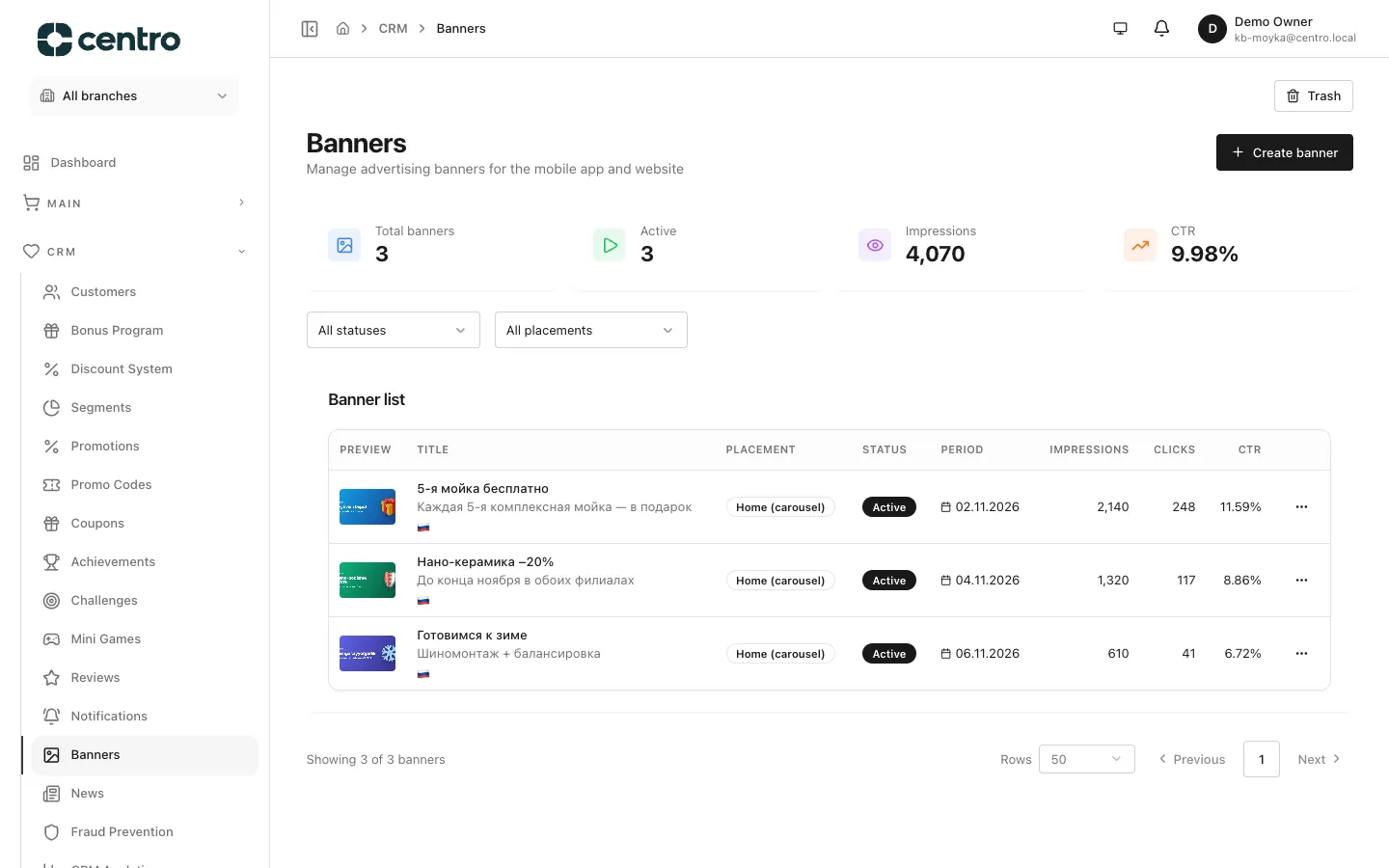
Important: The create/edit form has no placement, order or date fields. A new banner is created in the «Home (carousel)» position, starting today, with no end date and active immediately. Editing keeps these values; control the status with «Pause» / «Activate» in the list menu.
Creating a banner #
«New banner»: content, image/video, platforms and preview.
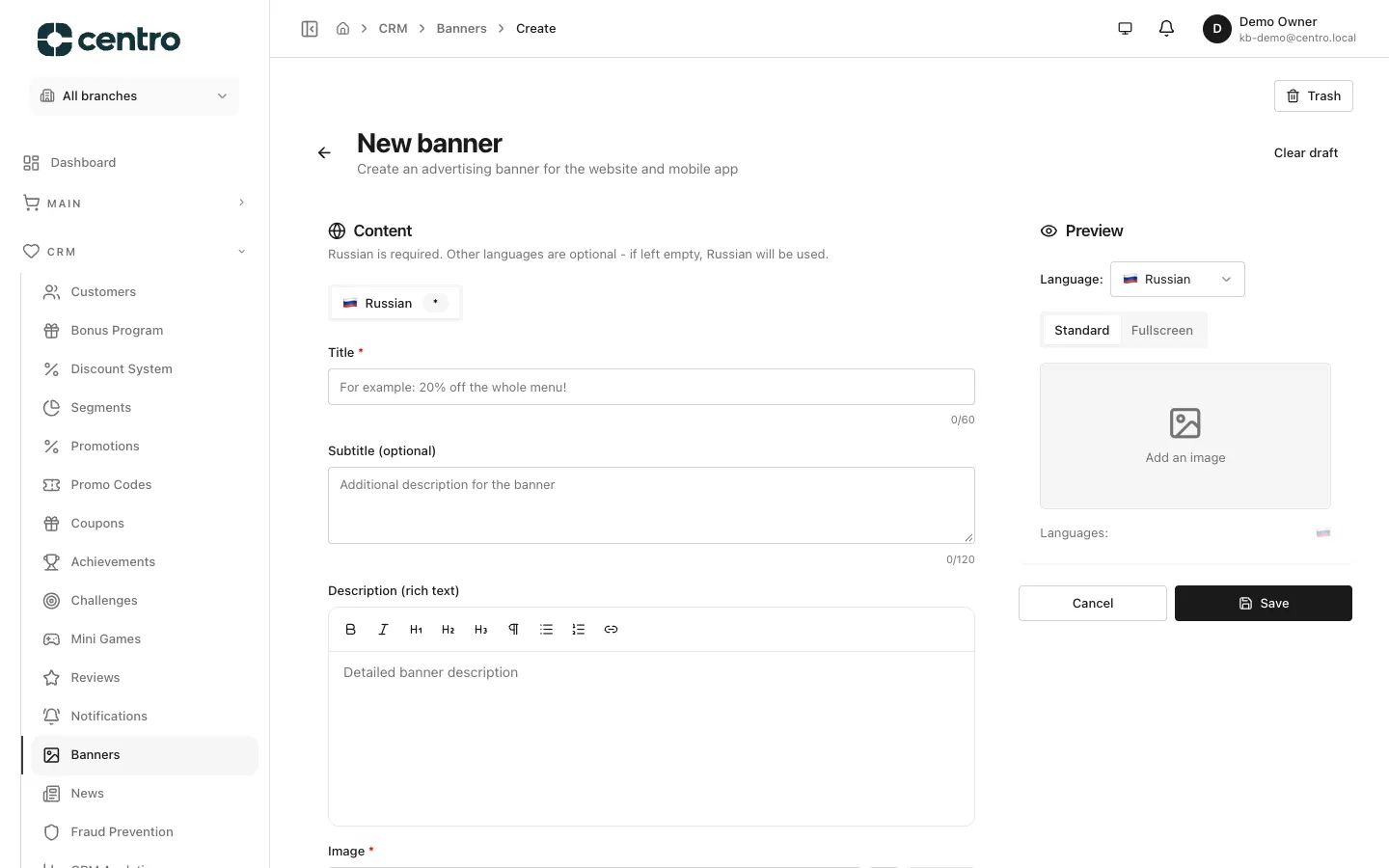
- Click «Create banner».
- On the main-language tab fill in «Title *» and «Image *».
- After upload, position the frame in the «Banner setup» dialog.
- Under «Platforms» tick «Website» and/or «Mobile app».
- Click «Save» — the banner goes live right away.
Tip: The form is kept as a browser draft; «Clear draft» resets it. Saving is blocked if a banner with the same title already exists.
Content #
Text fields per language.
- «Title»
- Up to 60 characters; required in the main language.
- «Subtitle (optional)»
- Up to 120 characters.
- «Description (rich text)»
- Detailed formatted description.
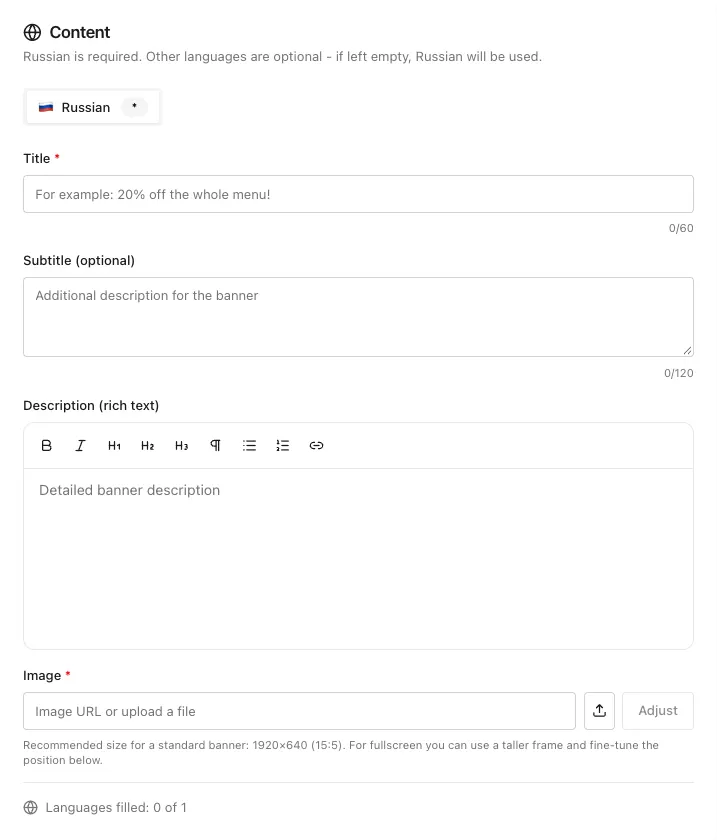
Tip: Other languages are optional: if empty, the main-language text and image are used.
Image and video #
File requirements, framing and video.
- «Image»
- A banner needs an image or a video — at least one (both is fine). URL or file: JPEG, PNG, GIF, WEBP; up to 5MB (GIF up to 10MB). Recommended 1920×640 (15:5). Other ratios are cropped on the website — you get a warning.
- «Adjust» / «Banner setup»
- Drag the image or video inside the frame for «Standard» and «Fullscreen», with «Horizontal» / «Vertical», «Zoom» and «Reset». The website applies exactly this zoom: 0% shows the whole frame. A 1920×640 file fills the frame exactly, so increase the zoom first to move it.
- «Video»
- MP4 or WebM, up to 30MB; horizontal 1920×640, up to 15 s recommended. On the website it loops muted; if there is also an image, it is the cover and what the mobile app shows. A video-only banner appears on the website only. «Phone video (optional)» — a separate video for phones.
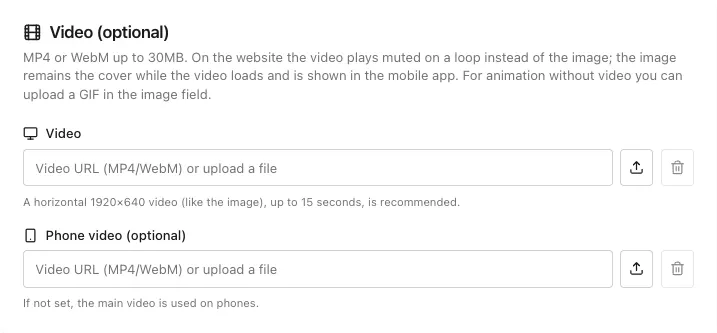
Tip: Keep important text inside the «Safe area» frame in the preview.
Platforms and preview #
Where the banner shows and how to check it.
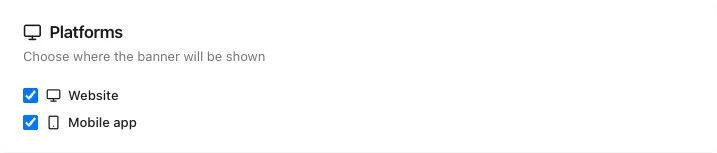
- «Platforms»
- «Website» and «Mobile app» — both ticked by default.
- «Preview»
- «Language:» picker, «Standard» / «Fullscreen» view, image size and the «(may be cropped)» note.
Banner details #
Stats, content per language, CTA, placement and schedule.
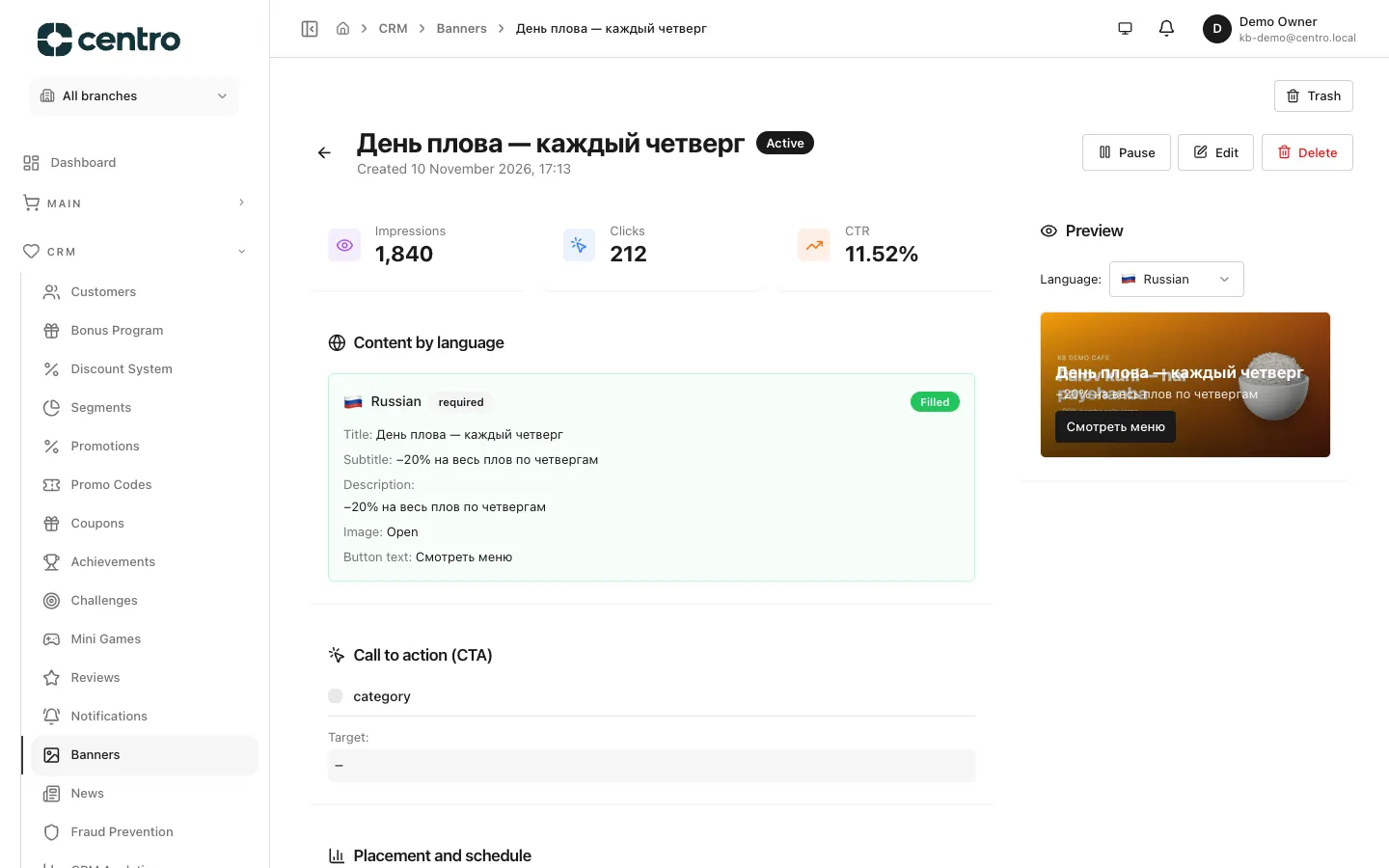
- «Impressions», «Clicks»
- Banner statistics.
- «Content by language»
- Per language: «Filled» / «Not filled», title, description, image link.
- «Call to action (CTA)»
- The button target («Target:»). CTA is not configurable in the form.
- «Placement and schedule»
- «Placement», «Recommended size», «Sort order», «Start date», «End date» («No end date»). Dates are written in the interface language.
- «Targeting», «Preview»
- «Targeting» — segments the banner is tied to (if any); «Preview» — how it looks in the chosen language.
The header has «Pause» / «Activate», «Edit» and «Delete» buttons.
Editing a banner #
The same fields as when creating.
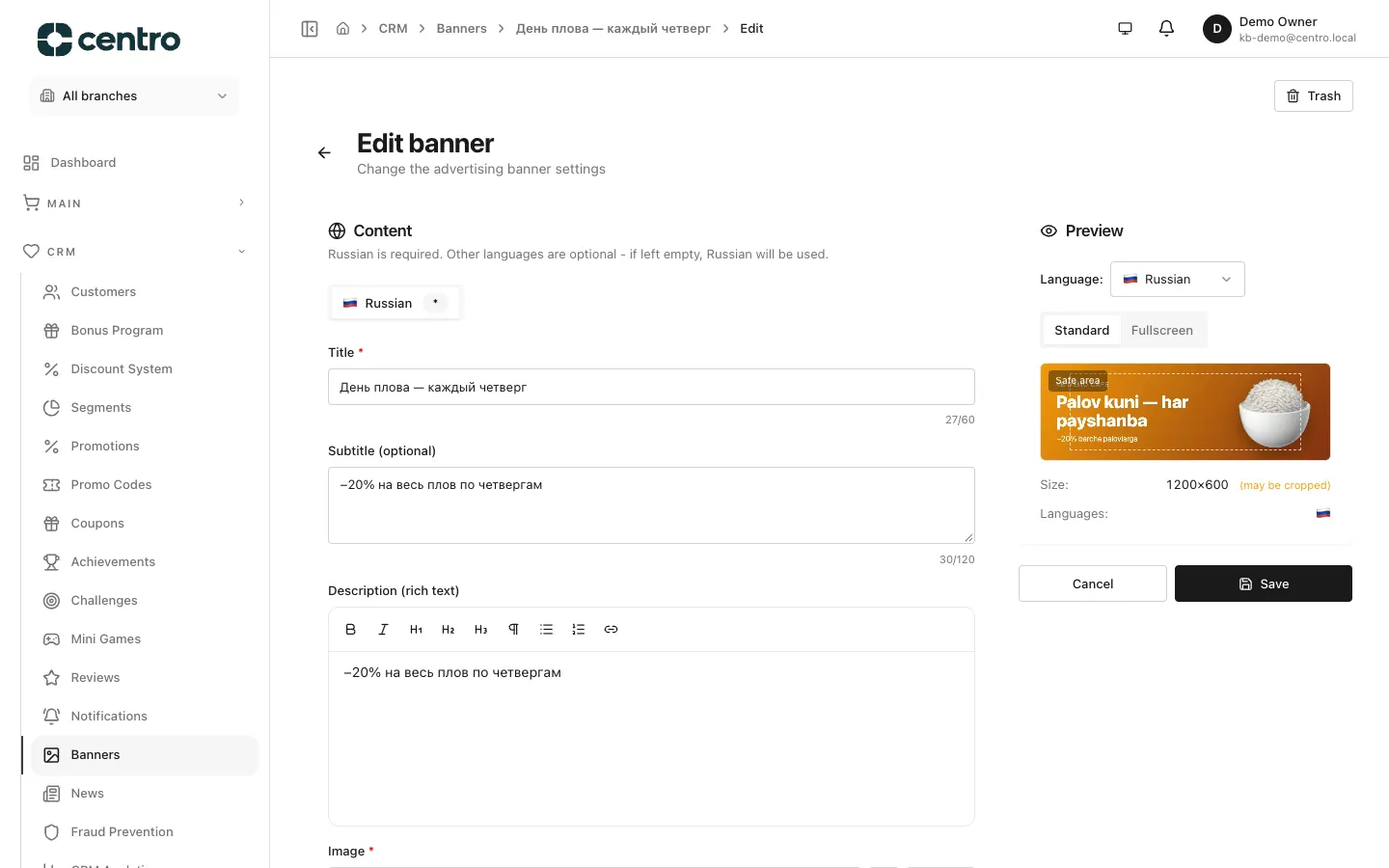
- Click «Edit» in the list menu or on the banner page.
- Change texts, image, video or platforms.
- Click «Save».
Tip: Editing keeps the placement, order, dates and status unchanged.