Achievements
Gamification badges: granted by a condition, for a challenge or manually, rewarded with points and a coupon.
Open in the admin panel/crm/achievements An achievement is a badge the customer sees in the app (name, description, icon, rarity). It is earned in one of three ways: automatically (a condition on orders, reviews or invited friends), as a challenge reward, or manually — an admin grants it from the achievement page. The reward can be points and/or a personal coupon. Each customer earns an achievement once.
How to open
- In the sidebar, expand the CRM group.
- Click Achievements.
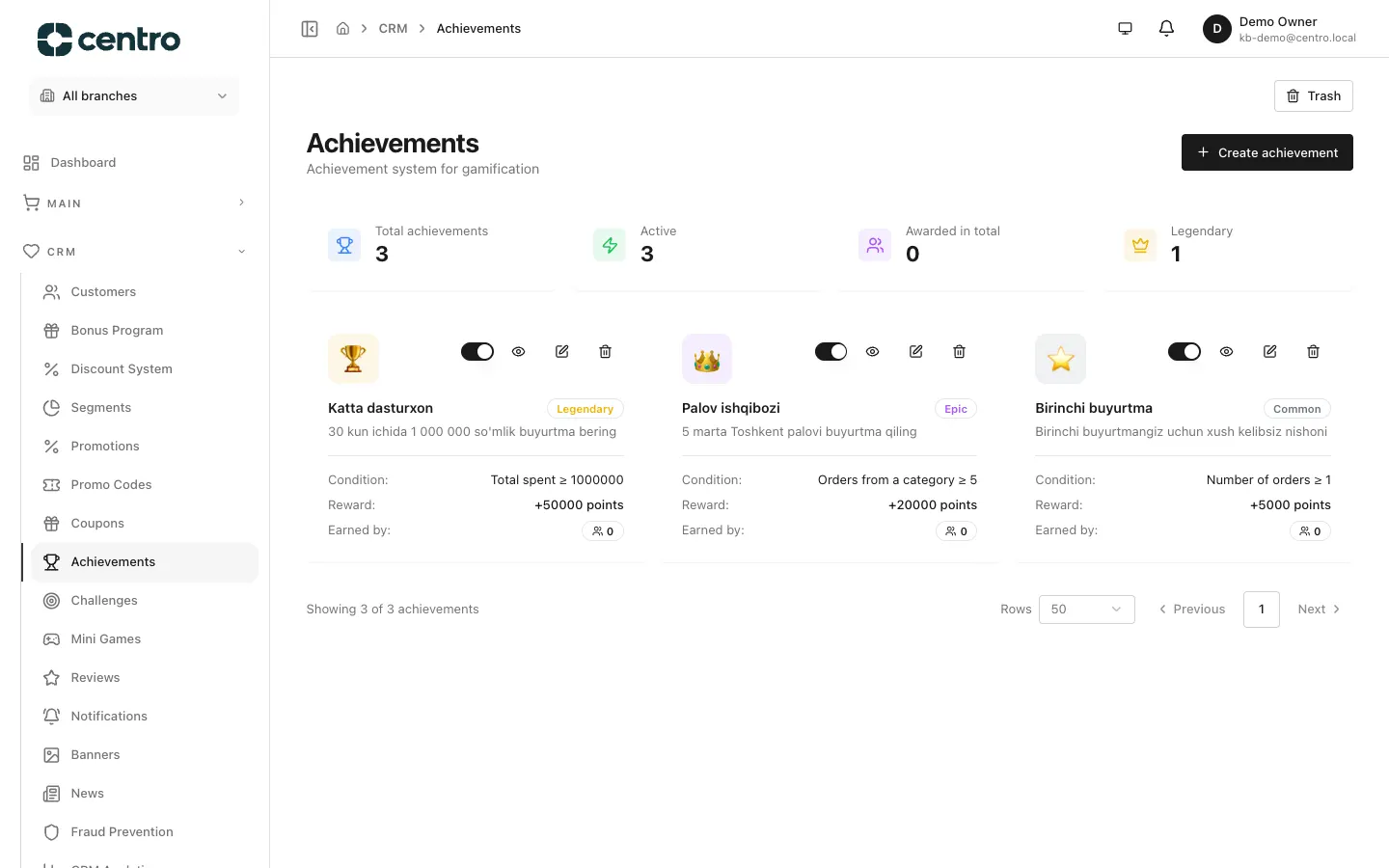
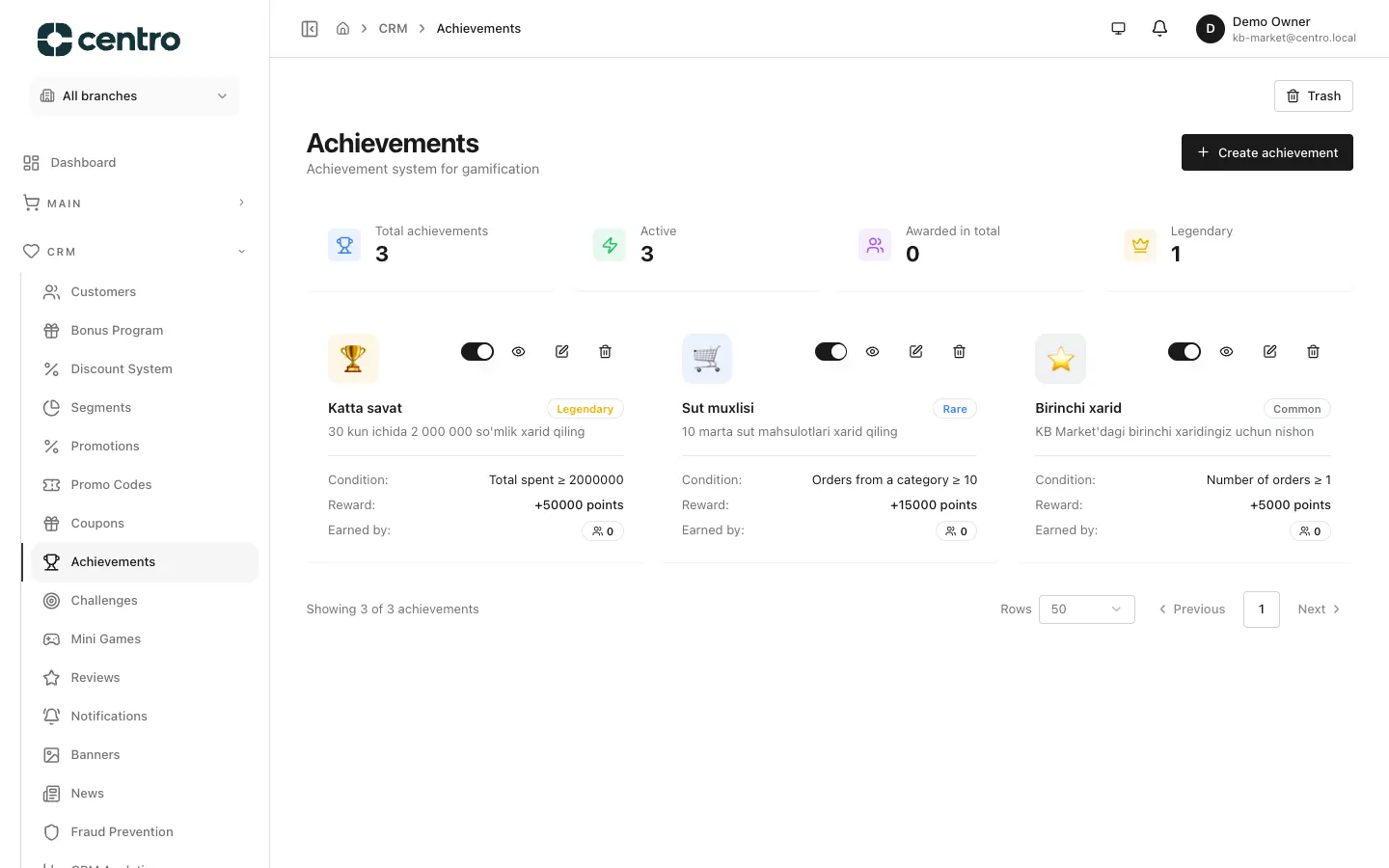
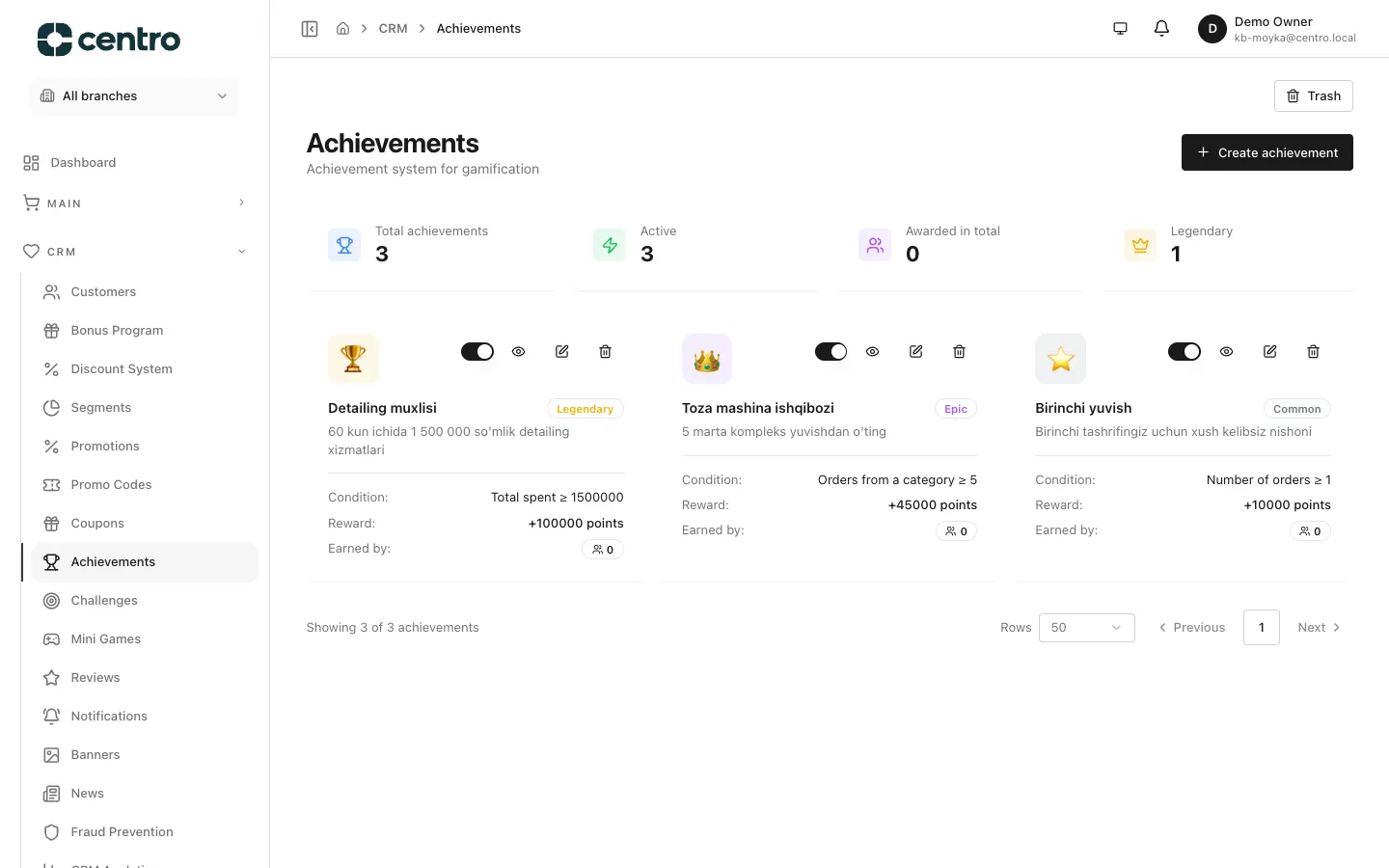
Achievement list #
Figures and achievement cards.
- Cards
- «Total achievements», «Active», «Awarded in total», «Legendary».
- Achievement card
- Icon, active switch, rarity (Common, Rare, Epic, Legendary), name and description; «Condition:» (for automatic ones) or «Mode:» (For a challenge / Manual); «Reward:»; «Earned by:» — how many customers earned it.
- Buttons
- Icon buttons (the name shows on hover): «Details» (the achievement page), «Edit», «Delete».
Creating an achievement #
The «New achievement» form: appearance, acquisition mode, condition, period, reward and notification.
- In the list click «Create achievement».
- Optionally pick a preset in «Templates»: First order, Regular customer, Big check, Big spender, Menu taster, Delivery fan, Ambassador, Critic.
- Enter the name and description; choose icon, rarity and acquisition mode.
- For automatic mode set the condition and period, then the reward and notification.
- Click «Save» — «Achievement created».
Tip: A template fills in the name and description in the current interface language — this is customer-facing data saved as entered, so review the text and fill in translations for the languages you need before saving.
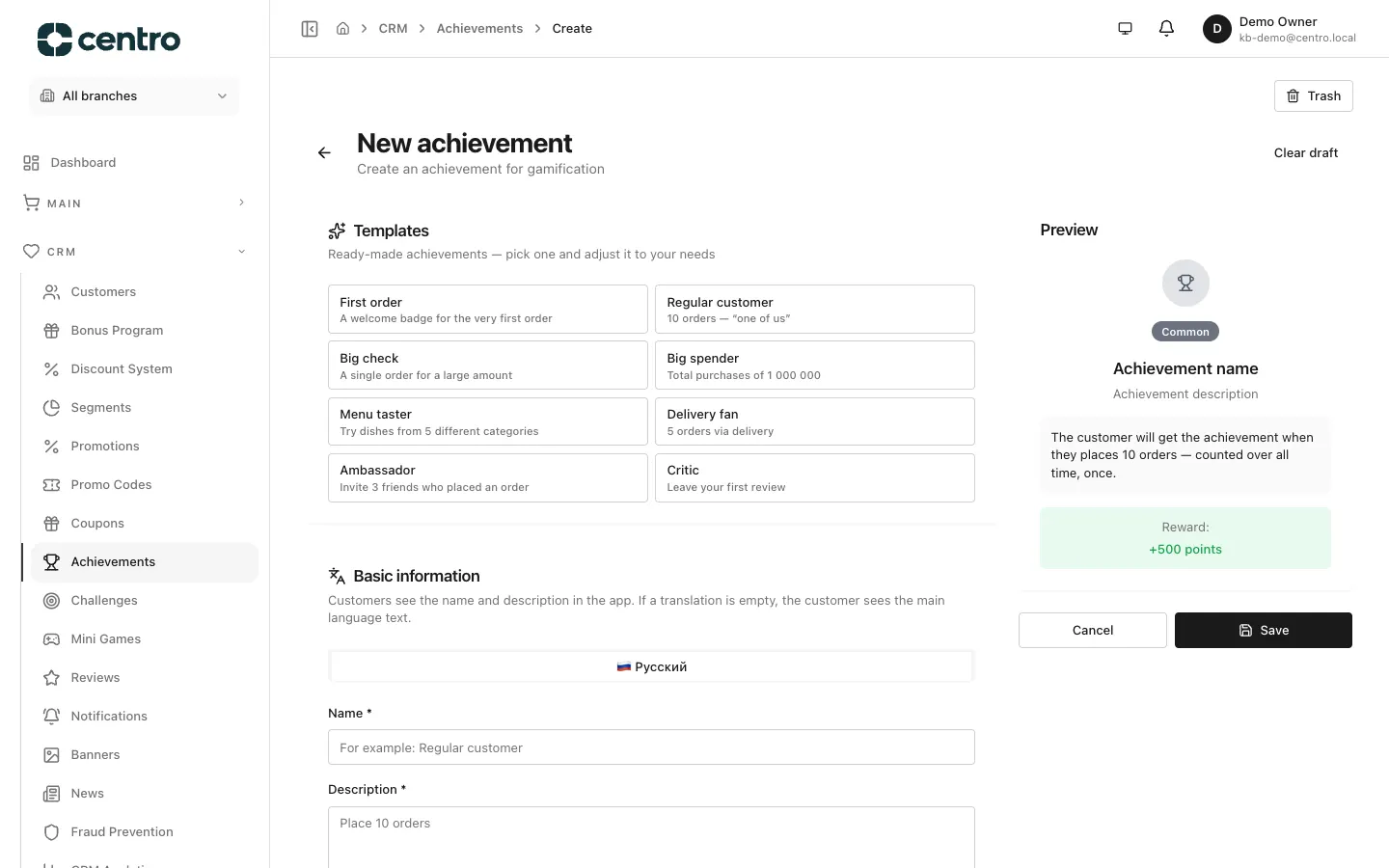
Main blocks
- «Basic information»
- Tabs per organization language. On the main language «Name *» (up to 255 chars) and «Description *» are required; an empty translation falls back to the main language.
- «Appearance»
- «Icon»: Trophy, Star, Medal, Crown, Cart, Gift. «Rarity»: Common, Rare, Epic, Legendary.
- «Acquisition mode»
- «Automatically» — when the condition is met; «For a challenge» — only as a challenge reward; «Manually» — an admin grants it from the page. Condition blocks are shown only in automatic mode.
- «Acquisition condition»
- «Event»: Completed order, Review left, Invited friend (signed up and made a first paid order). For orders, «What we count»: Number of orders, Order amount, Pieces of selected products (products or categories required), Different categories tried, Different products tried. «Target *» > 0. The form shows the condition as a sentence «The customer will get the achievement when they…».
- «Which orders count»
- Collapsible block for orders: «Minimum order amount» (0 = no minimum), «Amount basis» (Order total (after discount) / Before discount / Actually paid), whether to count orders with promo codes and coupons or paid with points, «Order type», «Order channel», «Locations», «The order must contain products from…».
- «Period»
- «All time», «Last N days» (old orders drop out of the window) or «Fixed period» («From» and/or «To»).
- «Reward»
- «Points» (500 by default; 0 = none) and/or «Coupon» — a template chosen from active coupons; a personal coupon is issued to the customer from it.
- «Acquisition notification»
- «Send a push when the achievement is earned». The text comes from the «Achievement unlocked» template of the Bonus program; «Custom text for this achievement» overrides it for this achievement.
- «Active»
- Whether the achievement can be earned.
Tip: To use an achievement as a challenge reward, create it in «For a challenge» mode and keep it active — the challenge form offers only such achievements.
Tip: Whatever you type is auto-saved as a draft in this browser: close the page and come back, and the achievement form is restored. To start over, click «Clear draft» at the top of the page.
Achievement page #
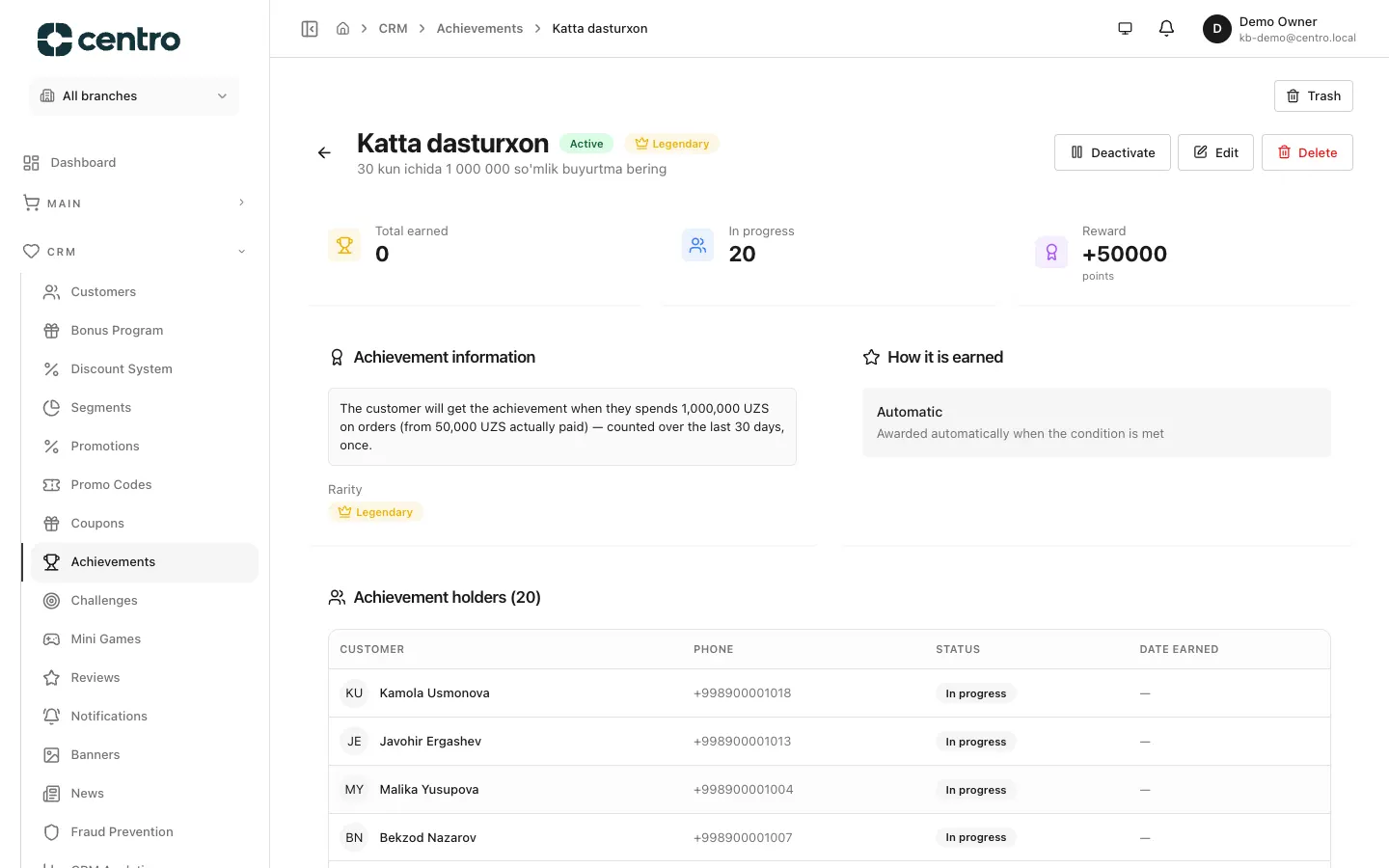
Statistics, holders, activation and manual granting.
- Buttons
- «Award to customer» (manual mode only), «Deactivate» / «Activate», «Edit», «Delete».
- Figures
- «Total earned», «In progress», «Reward» (points).
- Info blocks
- «Achievement information» (condition type, target, rarity) and «How it is earned».
- «Achievement holders (N)»
- Customer, Phone, Status (Earned / In progress), Date earned.
Grant manually
- On a manual-mode achievement page click «Award to customer».
- In the dialog, find the customer by name or phone and select them.
- The customer gets the achievement, the reward and a push (if enabled) — «Achievement awarded».
Tip: Deleting an achievement keeps customers’ history; the action cannot be undone.
Editing an achievement #
«Edit achievement» — the same form as for creation, without templates.
- Click «Edit» in the list or on the page.
- Change the fields (see the create section).
- «Save» — «Achievement updated», then the list opens.
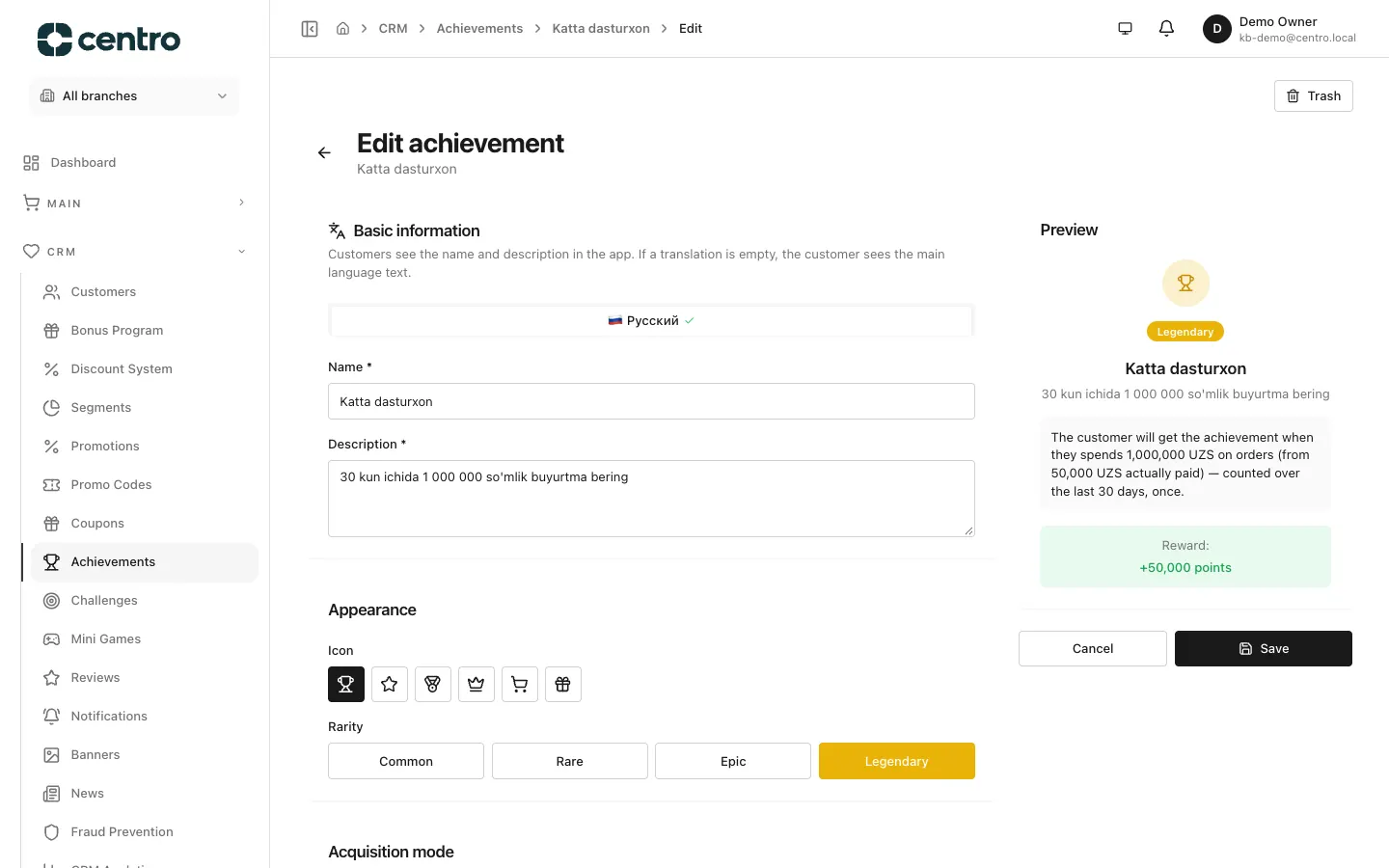
- Differences from creation: there is no «Templates» card and no draft is kept — leave without saving and the changes are lost.
- Saving changes only the achievement itself: achievements already earned and rewards already given are not recalculated; the new conditions apply to later orders, reviews and referrals.
- If the achievement was deleted, the page shows «Achievement not found».