Challenges
Time-limited goals: customers who reach the target within the period get points, an achievement or a coupon.
Open in the admin panel/crm/challenges A challenge is a task with fixed start and end dates (e.g. “10 orders in a week”). The goal is set by order count, total spent, specific items or categories. Those who complete it get a reward: points, an achievement (in «For a challenge» mode) and/or a coupon. Unlike an achievement, a challenge is time-limited and participants’ progress is tracked.
How to open
- In the sidebar, expand the CRM group.
- Click Challenges.
Challenge list #
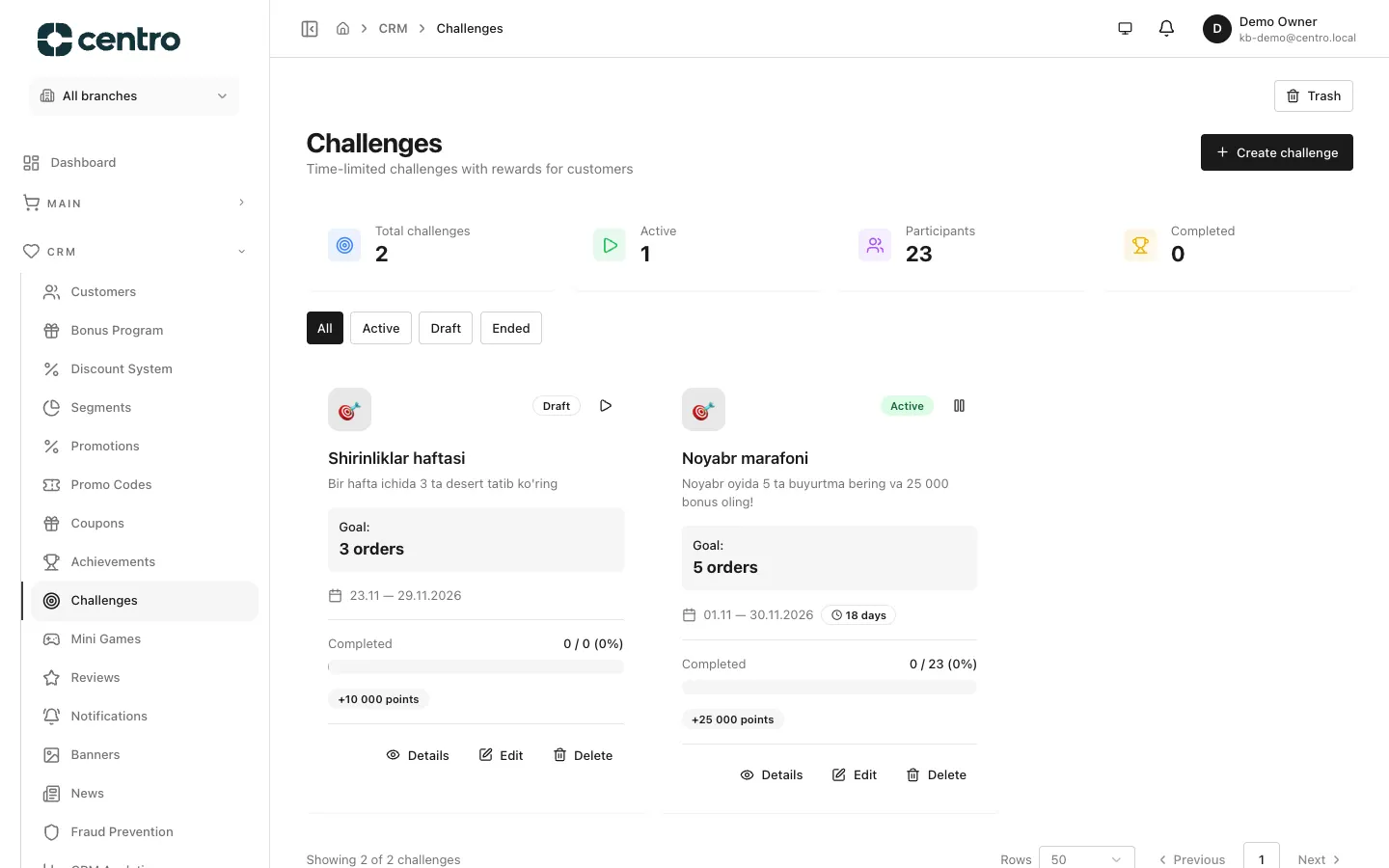
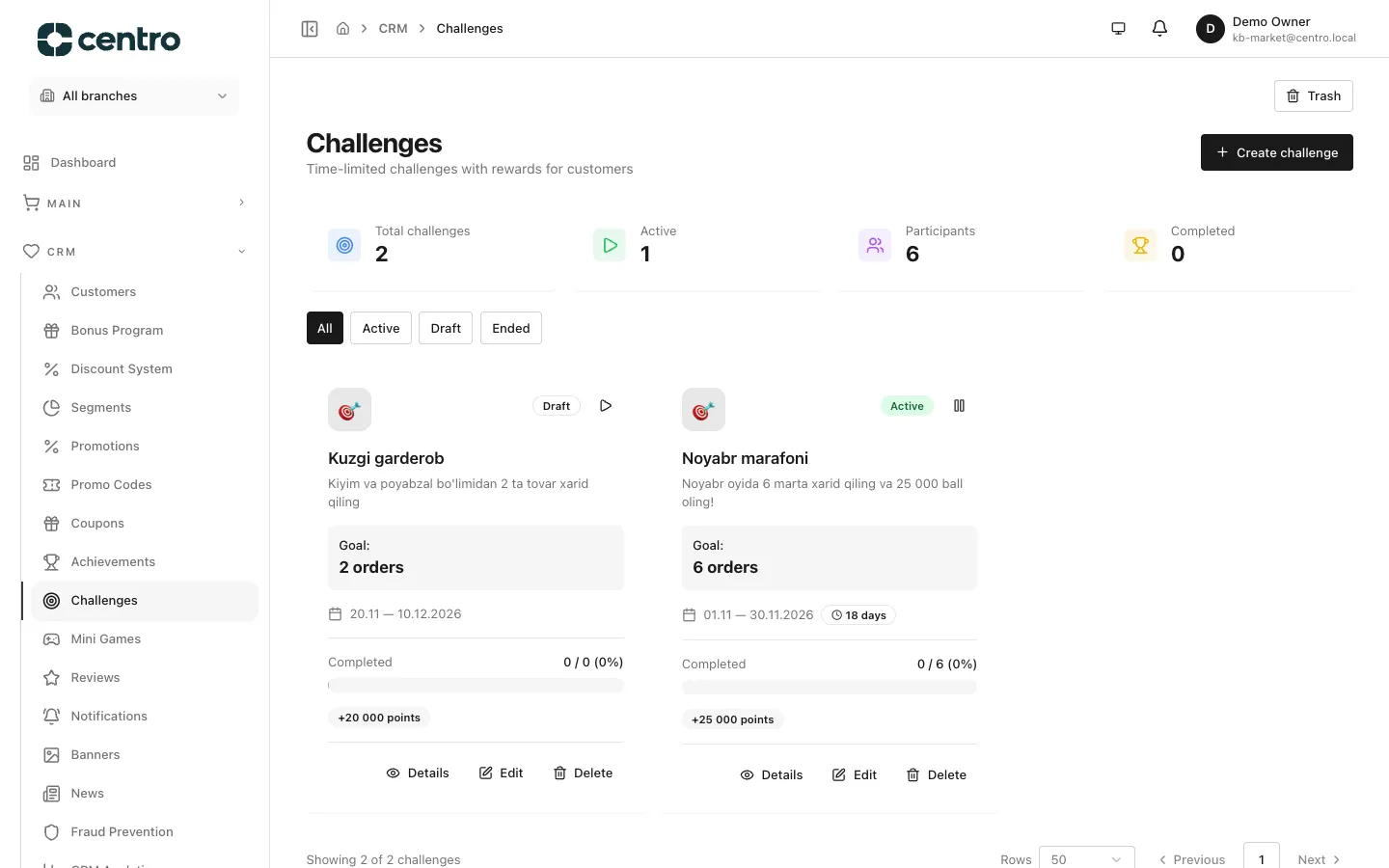
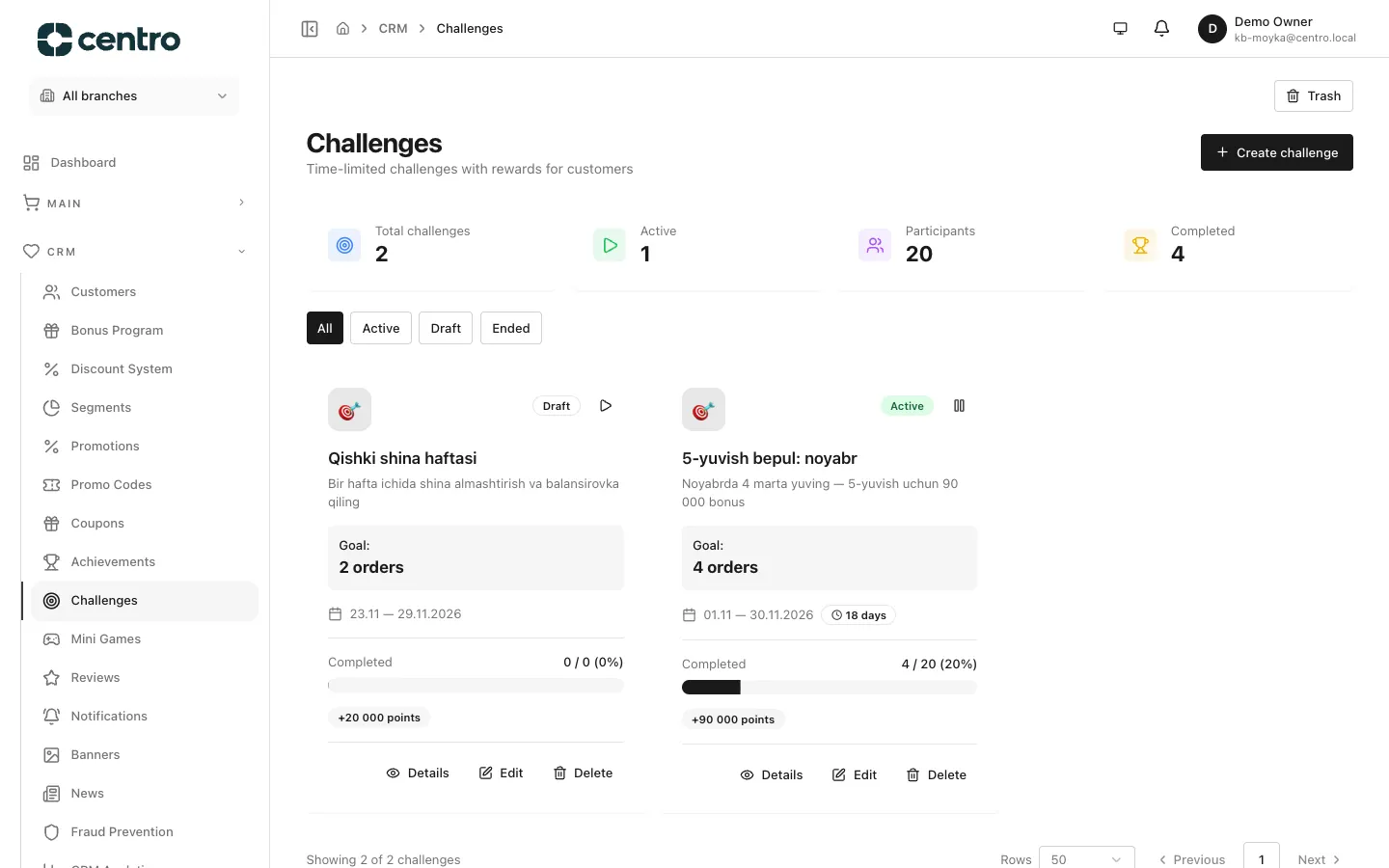
Figures, status filter and challenge cards.
- Cards
- «Total challenges», «Active», «Participants», «Completed».
- Status filter
- «All», «Active», «Draft», «Ended».
- Challenge card
- Status; Pause (returns an active one to draft) or Play (activates a draft); name and description; «Goal:»; dates and days left; «Completed» — completed / participants and percent; rewards; «Details», «Edit», «Delete».
Creating a challenge #
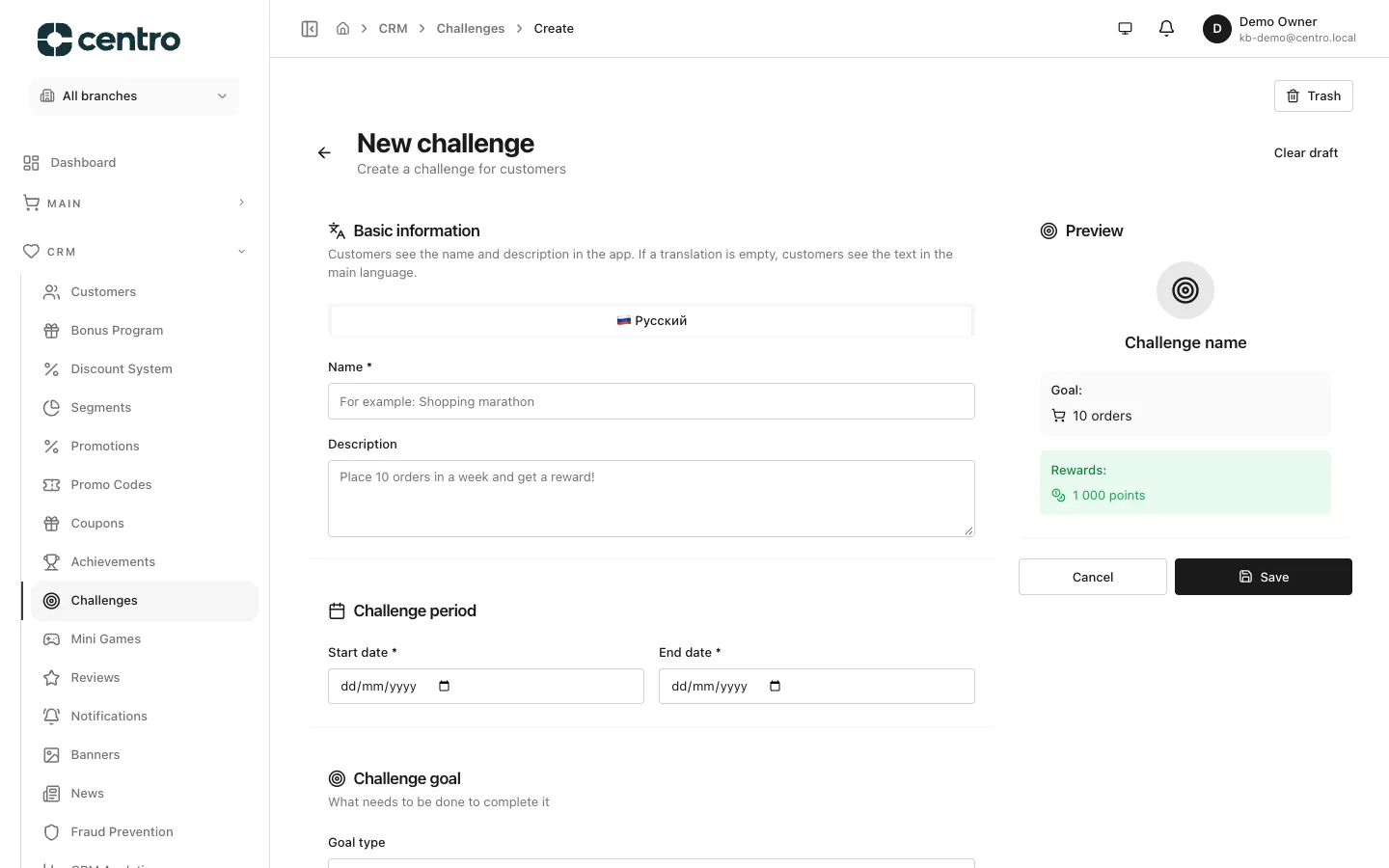
The «New challenge» form: period, goal, counting rules, rewards, notification.
- In the list click «Create challenge».
- Enter the name and description (per language), start and end dates.
- Choose the goal type and value, and items or categories if needed.
- Set the counting rules and rewards, click «Save».
- The challenge is created as «Draft» — start it with Play in the list or «Activate» on its page.
Fields
- «Basic information»
- Tabs per language; on the main language «Name *» is required and must be unique among challenges; «Description» is optional.
- «Challenge period»
- «Start date *» and «End date *» — both required; the end must be after the start.
- «Challenge goal»
- «Goal type»: Number of orders, Purchase amount, Specific products (tabs «Products» / «Recipe cards»; at least one), Orders from categories (at least one category). «Target value *» > 0.
- «Order qualifying conditions»
- «Minimum order amount» (0 = none, cannot be negative); «Count orders with promotions and promo codes» — when off, orders discounted by a promo code, promotion or coupon do not count; «Amount calculation basis»: Amount due (after discount) / Amount before discount / Actually paid.
- «Rewards»
- Types: «Points», «Achievement», «Coupon»; «Add reward» adds another (500 points by default). At most one achievement and one coupon per challenge. The achievement list shows only «For a challenge» ones; the coupon list shows active coupons.
- «Completion notification»
- «Send a push when the challenge is completed». The text comes from the «Challenge completed» template of the Bonus program; «Custom text for this challenge» overrides «Title» and «Text» per language.
Important: A reward achievement must be in «For a challenge» mode and active. If the list is empty, first create such an achievement in Achievements.
Tip: In a store the «Specific products» goal has only the «Products» button — «Recipe cards» is not shown.
Tip: Whatever you type is auto-saved as a draft in this browser: close the page and come back, and the challenge form is restored. To start over, click «Clear draft» at the top of the page.
Challenge page #
Statistics, overall progress, participants and status control.
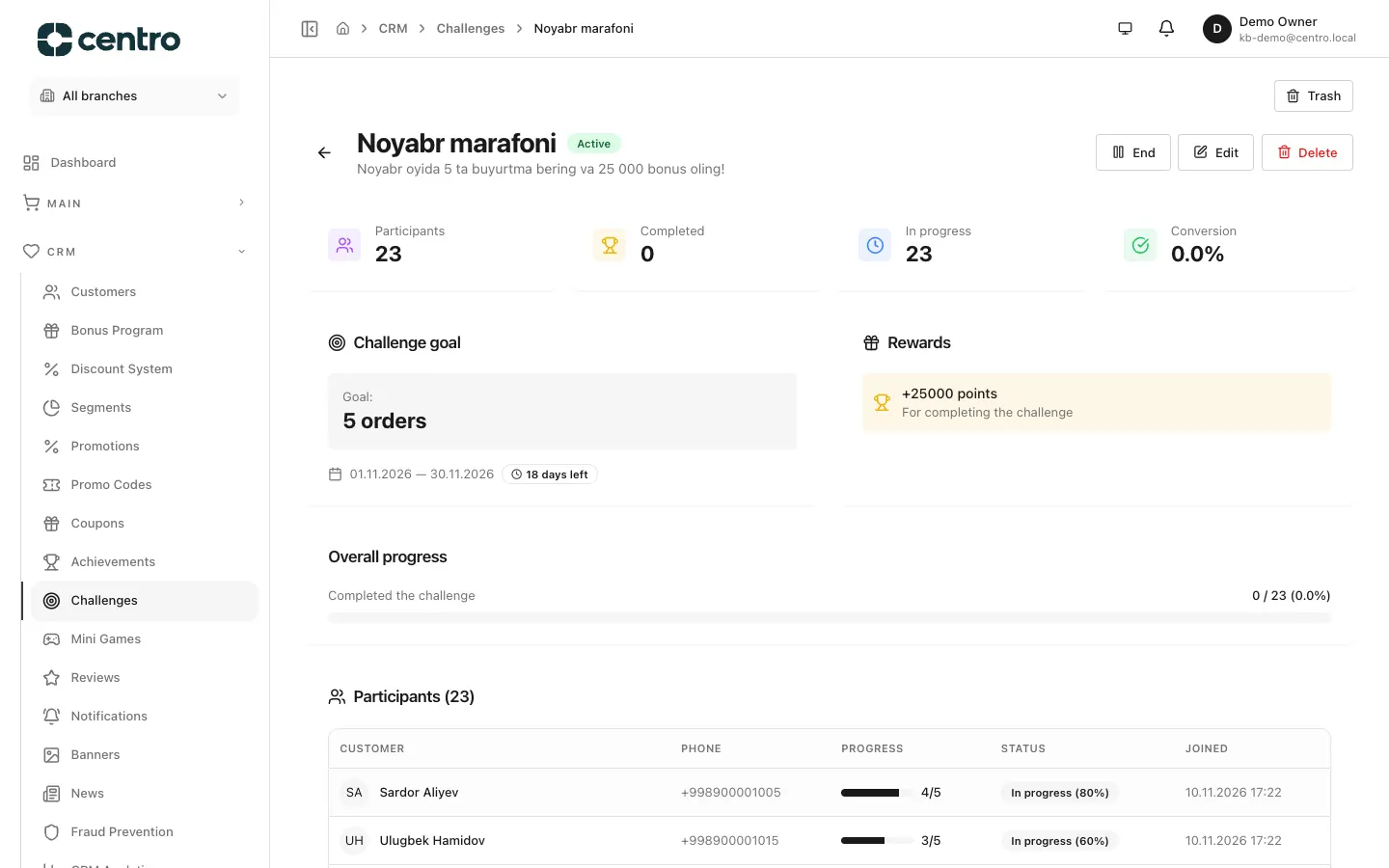
- Buttons
- Active — «End» (status becomes «Ended»); inactive — «Activate»; «Edit»; «Delete».
- Figures
- «Participants», «Completed», «In progress», «Conversion».
- Blocks
- «Challenge goal» (with days left), «Rewards», «Overall progress».
- «Participants (N)»
- Customer, Phone, Progress, Status (Completed / In progress (%)), Joined.
Important: Deleting a challenge is irreversible: the challenge and all participant data are removed for good. If you only need to stop it, use «End».
Editing a challenge #
«Edit challenge» — the same form as for creation.
- Click «Edit» in the list or on the page.
- Change the fields — validation rules are the same as when creating.
- «Save» — «Challenge saved».
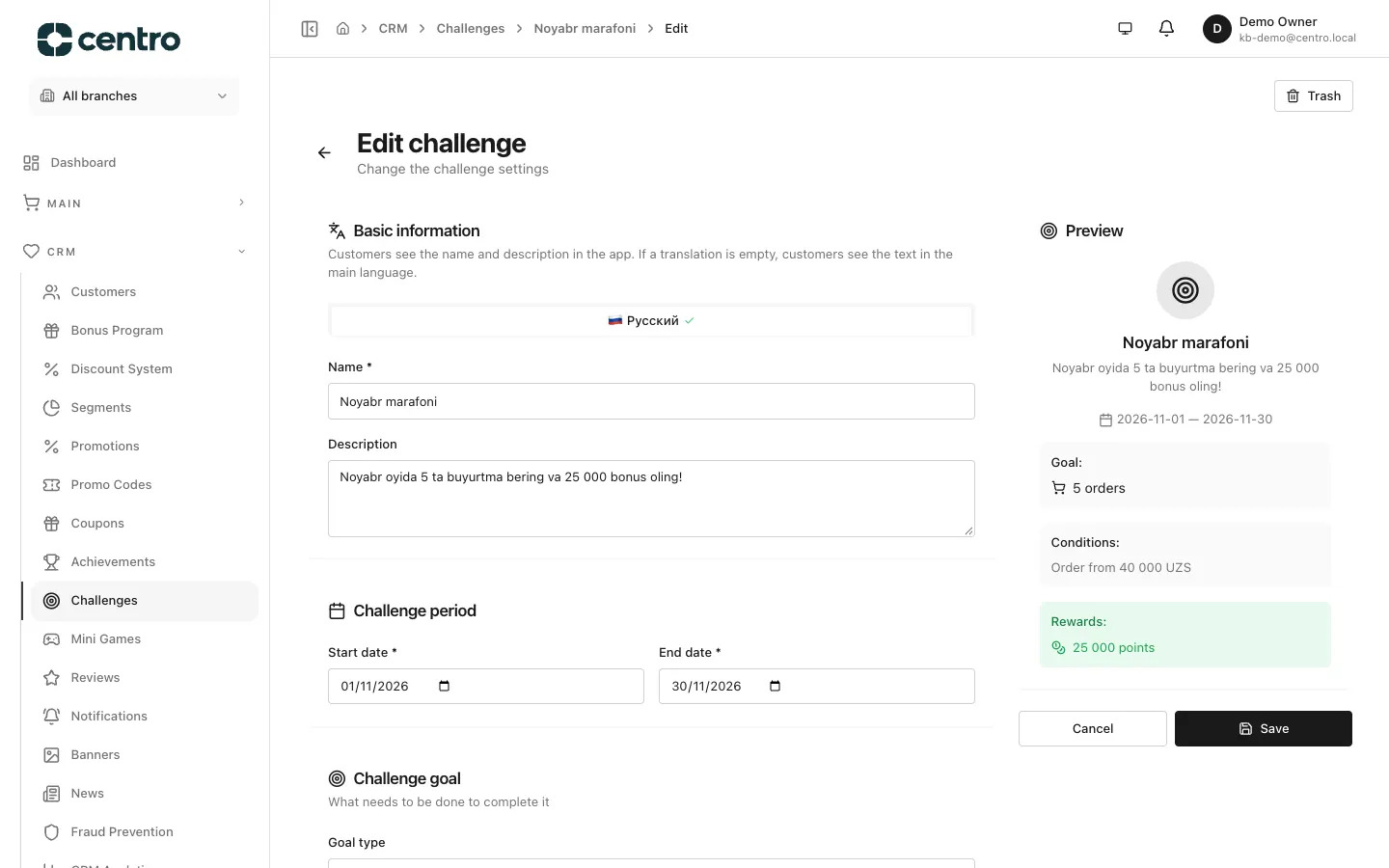
- The only differences from creation: no draft is kept (leave without saving and the changes are lost), and the challenge list opens after saving.
- An active challenge can be edited too. Saving changes only the challenge settings: participants’ accumulated progress is not recalculated, and the new goal and conditions apply to later orders. Keep this in mind before changing the period or the goal.