News
News and articles for the website and app, plus news sent via the Telegram bot.
Open in the admin panel/online-store/news Although the address is /online-store/news, the News item lives in the CRM group of the sidebar.
How to open
- Sidebar: CRM → News.
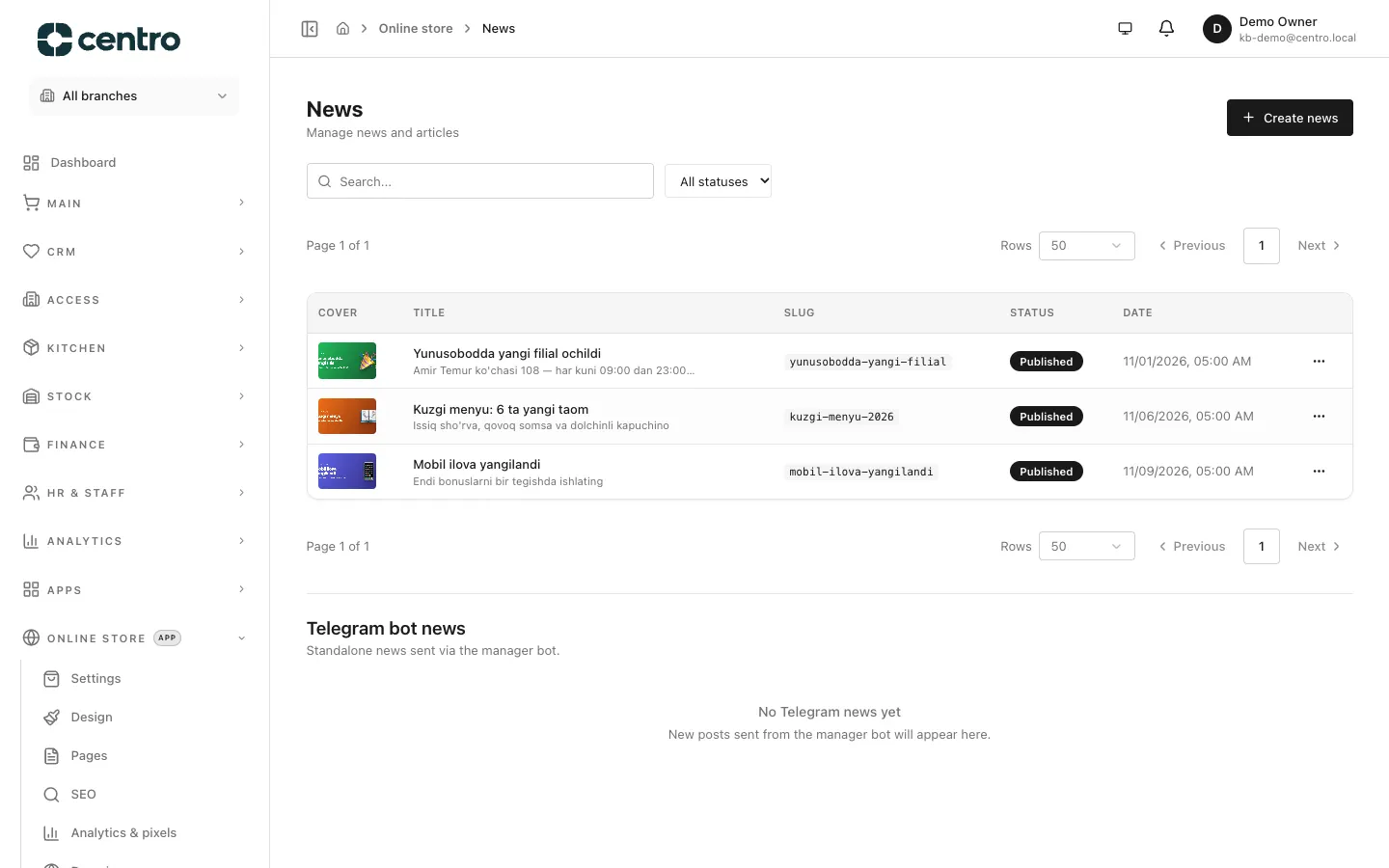
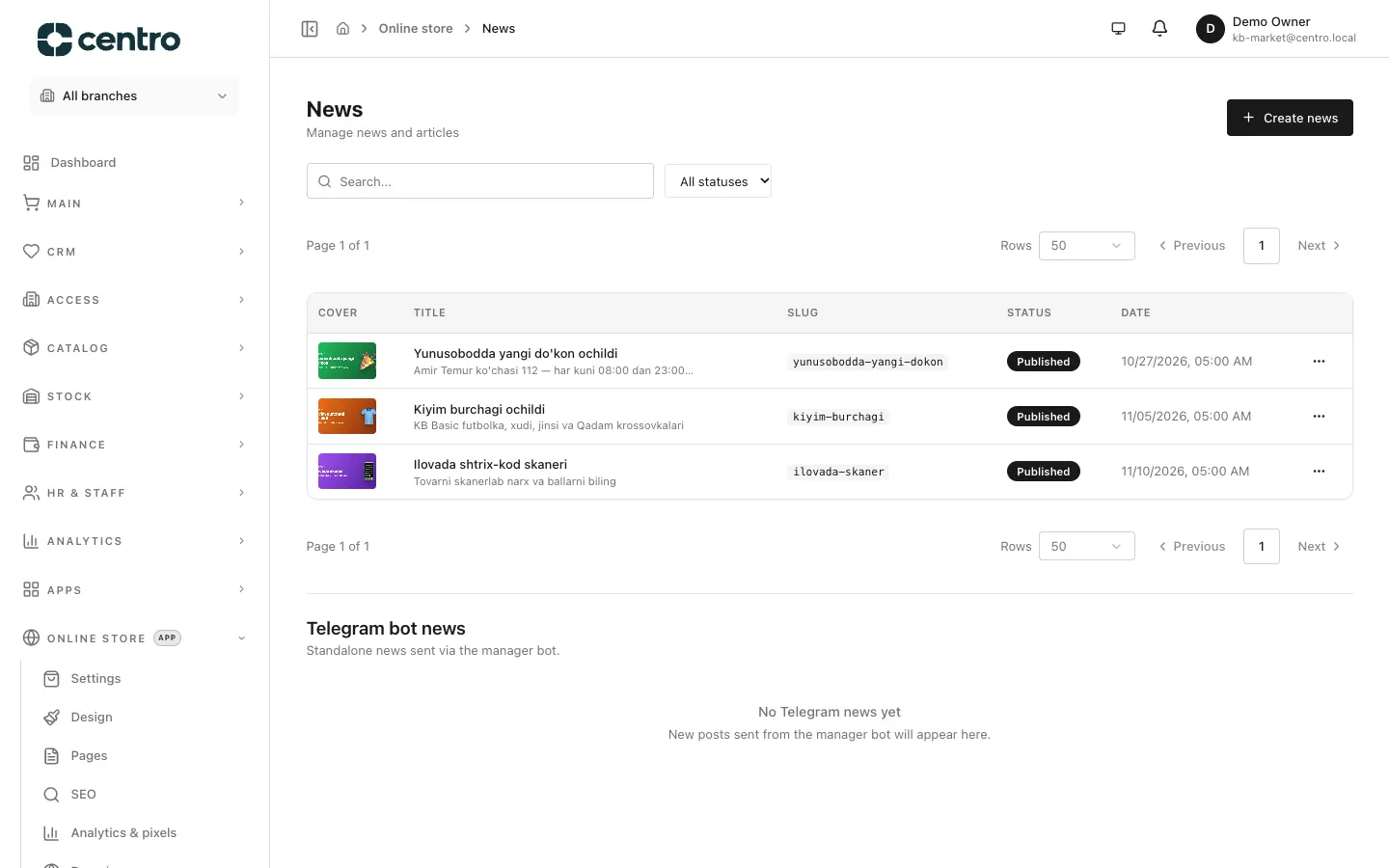
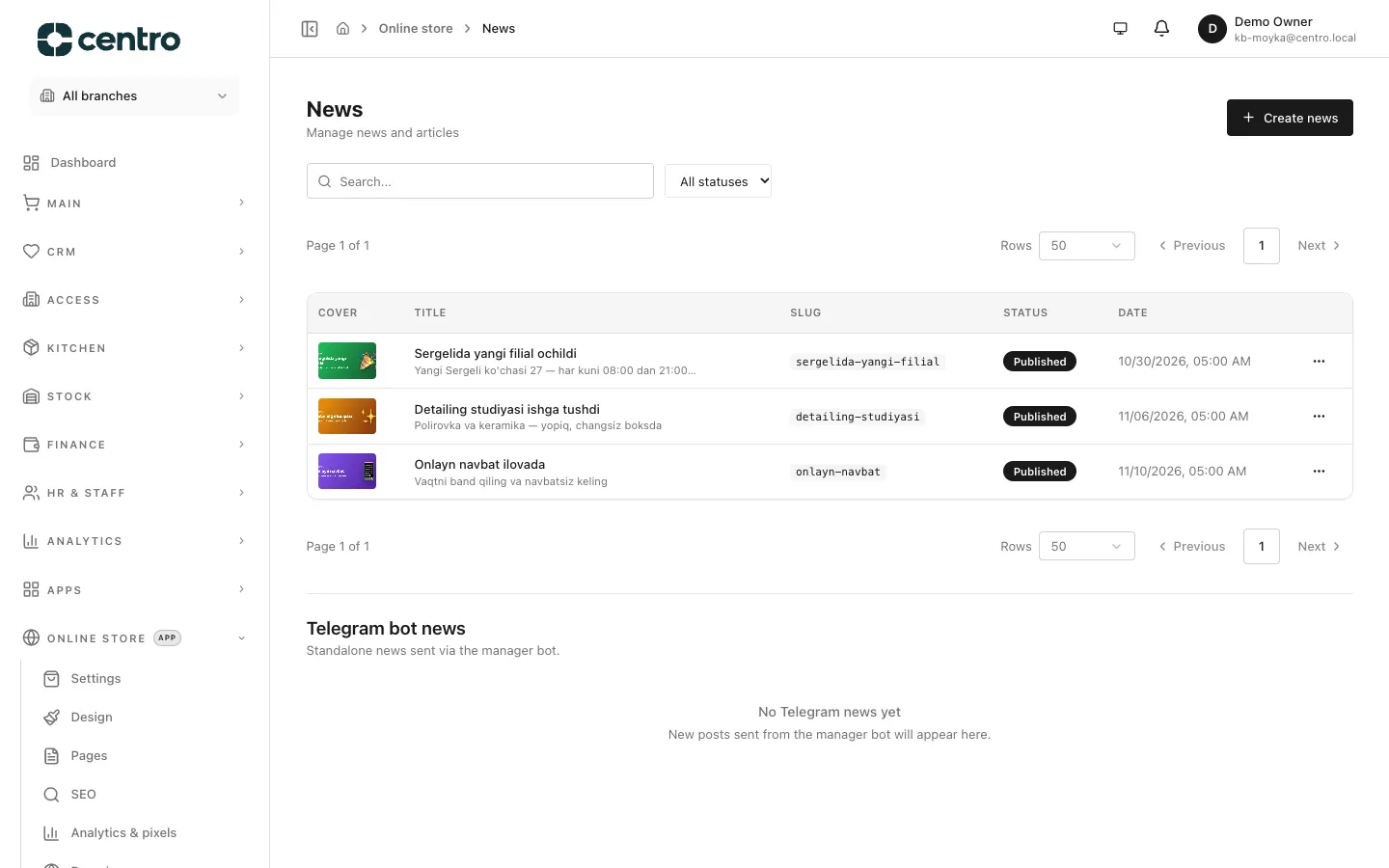
News list #
Search, status filter, columns and actions.
- «Search...», status
- «All statuses», «Published», «Draft», «Archive».
- Columns
- «Cover», «Title», «Slug», «Status», «Date» (publish or creation date).
- «⋯» menu
- «Edit», «Publish» or «Unpublish», «Delete».
Important: A news post without a cover, title or address (slug) cannot be published — the system tells you why.
Telegram bot news #
Separate news posts sent through the manager bot.
- Columns
- «Photo», «Title», «Recipients» (sent / total), «Status», «Date».
- «Status»
- «Sent», «Partial», «Failed», «Deleted», «In progress».
Important: The 🗑 button deletes the post from customers' chats; Telegram may not delete messages older than 48 hours.
Creating a news post #
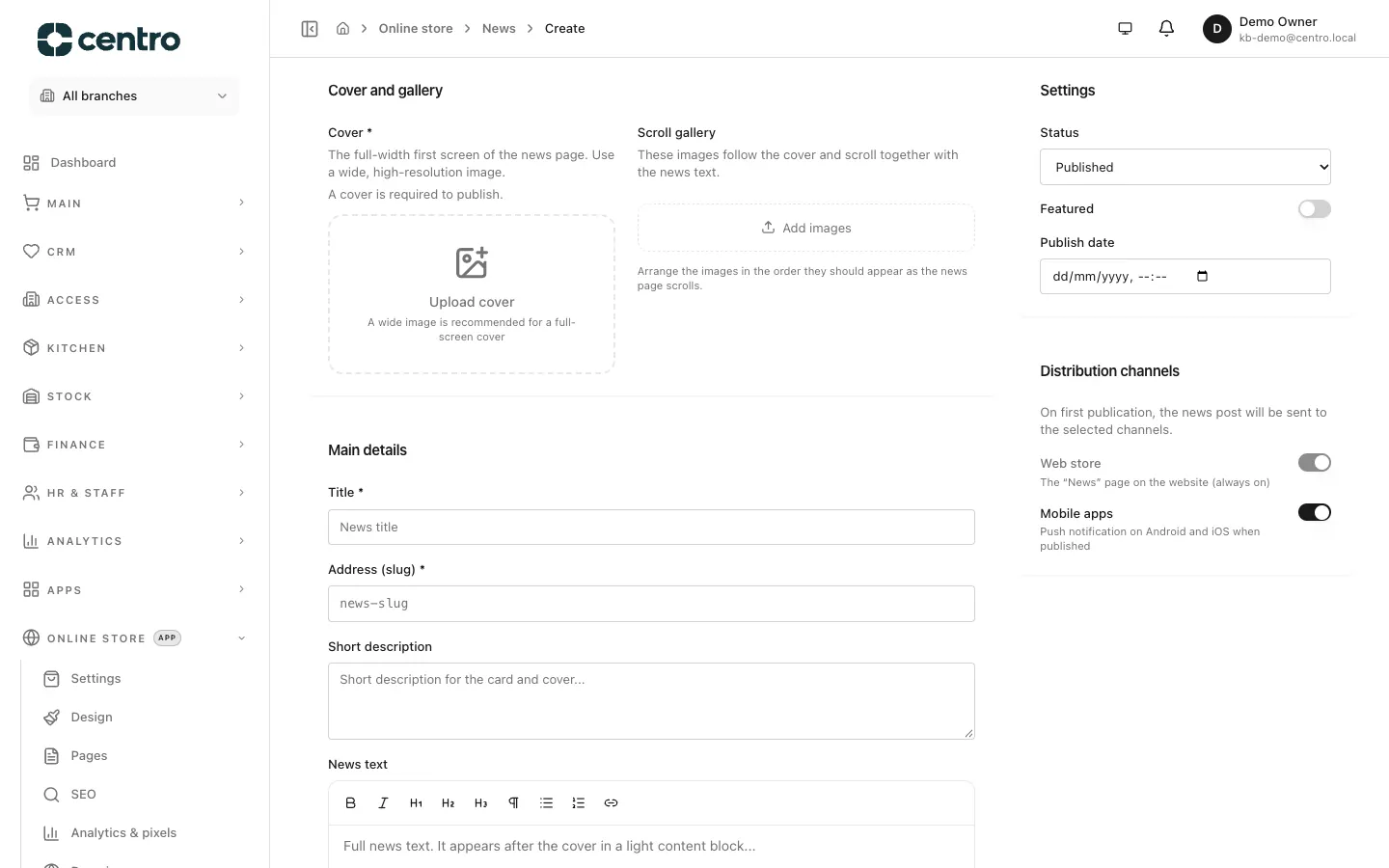
«New news post»: cover and gallery, text, SEO, status and channels.
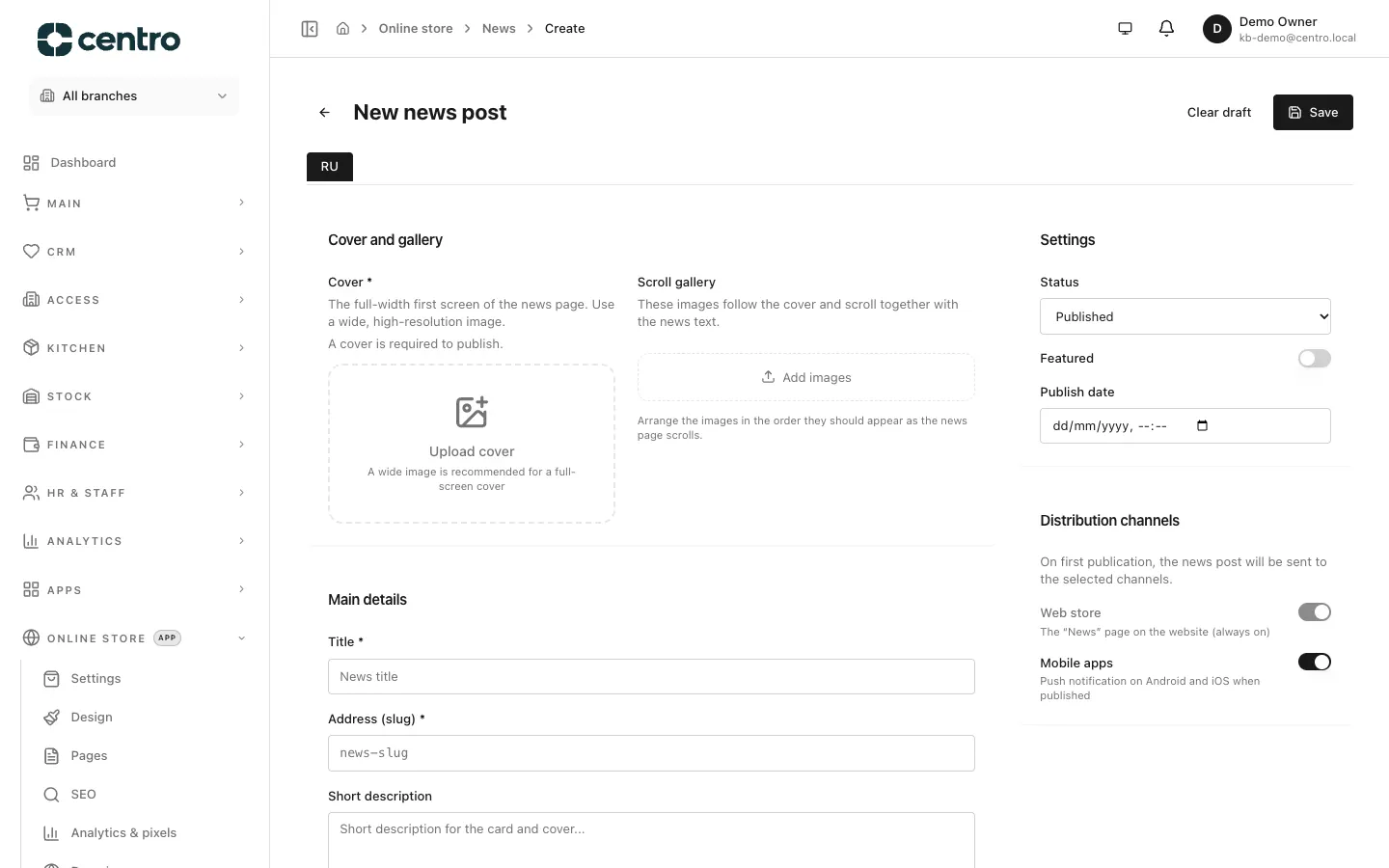
- Click «Create news».
- Upload a cover and enter «Title *» — «Address (slug) *» fills in automatically.
- Write the short description and text; add translations via the language buttons at the top if needed.
- Check «Settings» and «Distribution channels».
- Click «Save» (the same button is on the «You have unsaved changes» bar that appears at the bottom).
Important: A new post defaults to «Published» with the «Mobile apps» channel on — so saving publishes it right away and sends a push to Android and iOS. If you only want a draft, switch the status to «Draft» first.
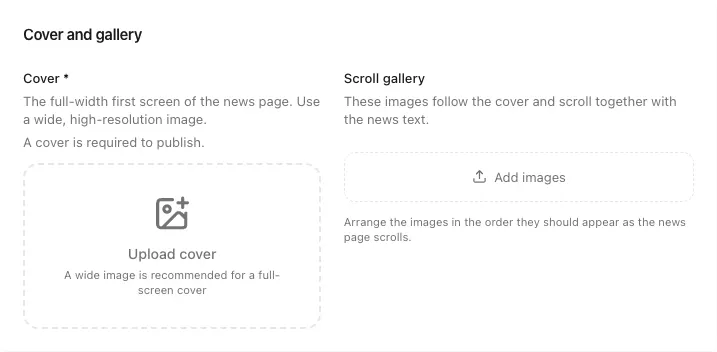
Cover and gallery #
Cover and scrolling images.
- «Cover»
- Full-width first screen of the news page; use a wide high-resolution image. Required for «Published».
- «Scroll gallery»
- «Add images» (multiple files); reorder with arrows; the «Cover» button makes an image the cover.
Main data and SEO #
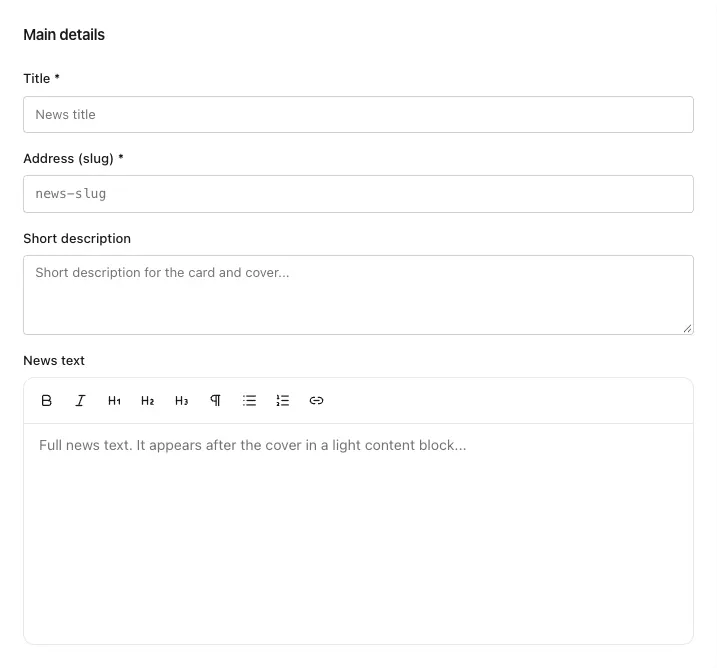
Title, slug, text, translations and SEO.
- «Title *»
- Required, in the main language.
- «Address (slug) *»
- Latin letters, digits, hyphen and underscore only; unique within the organization. After manual edits, «Auto» restores auto-generation.
- «Short description», «News text»
- Short text for the card and cover; the full text follows the cover.
- Language buttons
- Other languages have «Title (XX)», «Short description (XX)», «News text (XX)»; slug exists only in the main language.
- «SEO»
- «SEO title», «SEO description», «Keywords» (comma-separated).
Status and channels #
The «Settings» and «Distribution channels» blocks.
- «Status»
- «Published», «Draft», «Archive».
- «Featured»
- Mark the post as featured.
- «Publish date»
- Publish date and time.
- «Distribution channels»
- «Web store» — the website's news page (always on); «Mobile apps» — a push to Android and iOS on publish. The post goes to the selected channels on first publication.
Editing a news post #
«Edit news post» — the same form as for creating.
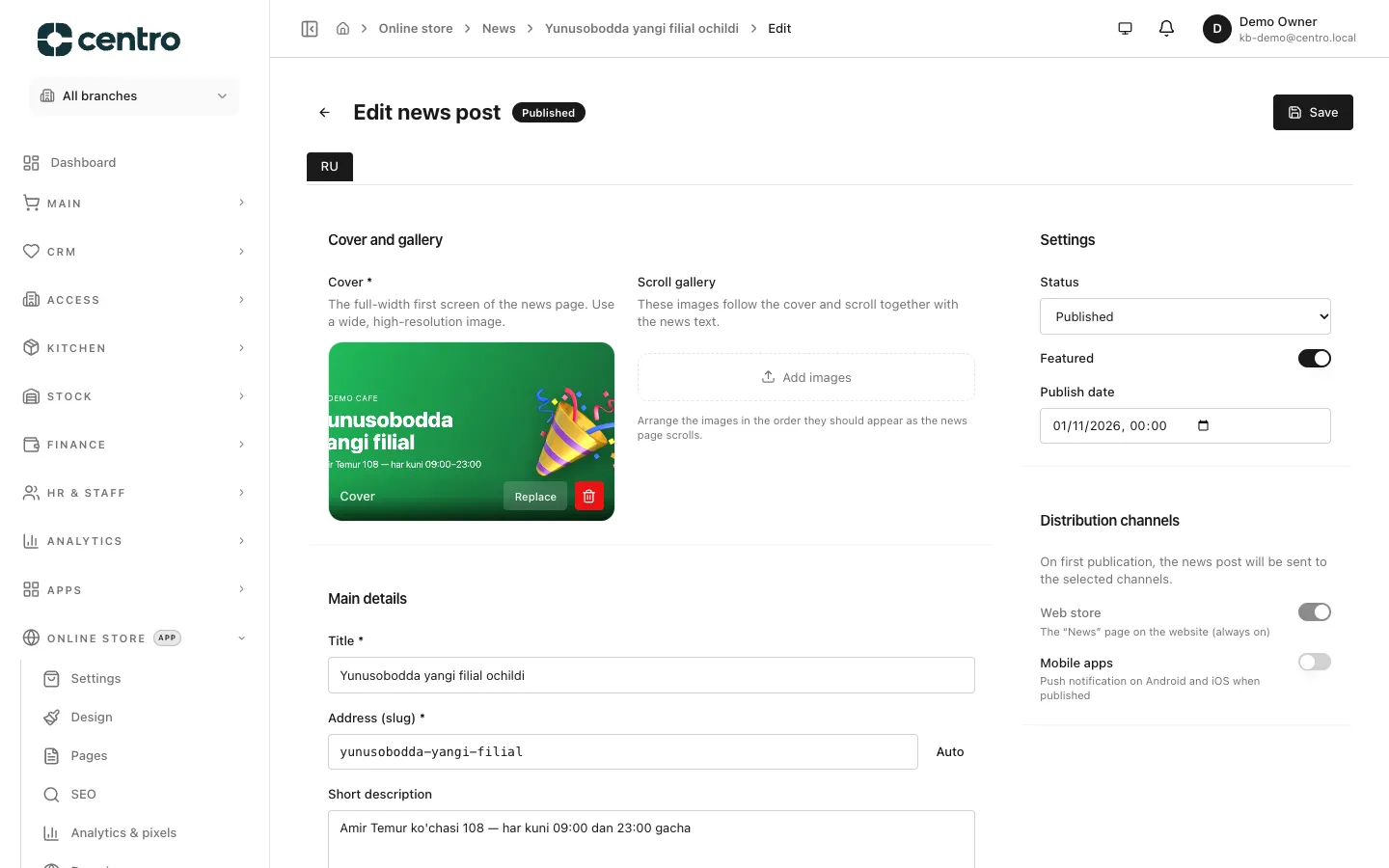
- Click the row in the list or «⋯» → «Edit».
- Make changes and click «Save».
Tip: An existing post keeps its previously saved channels.