Promo Codes
Shared codes the customer types in: with their own discount or linked to a promotion.
Open in the admin panel/crm/promo-codes The «Promo codes» page manages promo codes. A promo code is one text code that many customers use within limits. It can carry its own discount or be linked to a promotion via «Link to promotion (optional)» — then it inherits the promotion’s conditions. Codes created in the promotion wizard also appear here. If you need a unique code per customer, use Coupons instead.
How to open
- In the sidebar, expand the CRM group.
- Click Promo Codes.
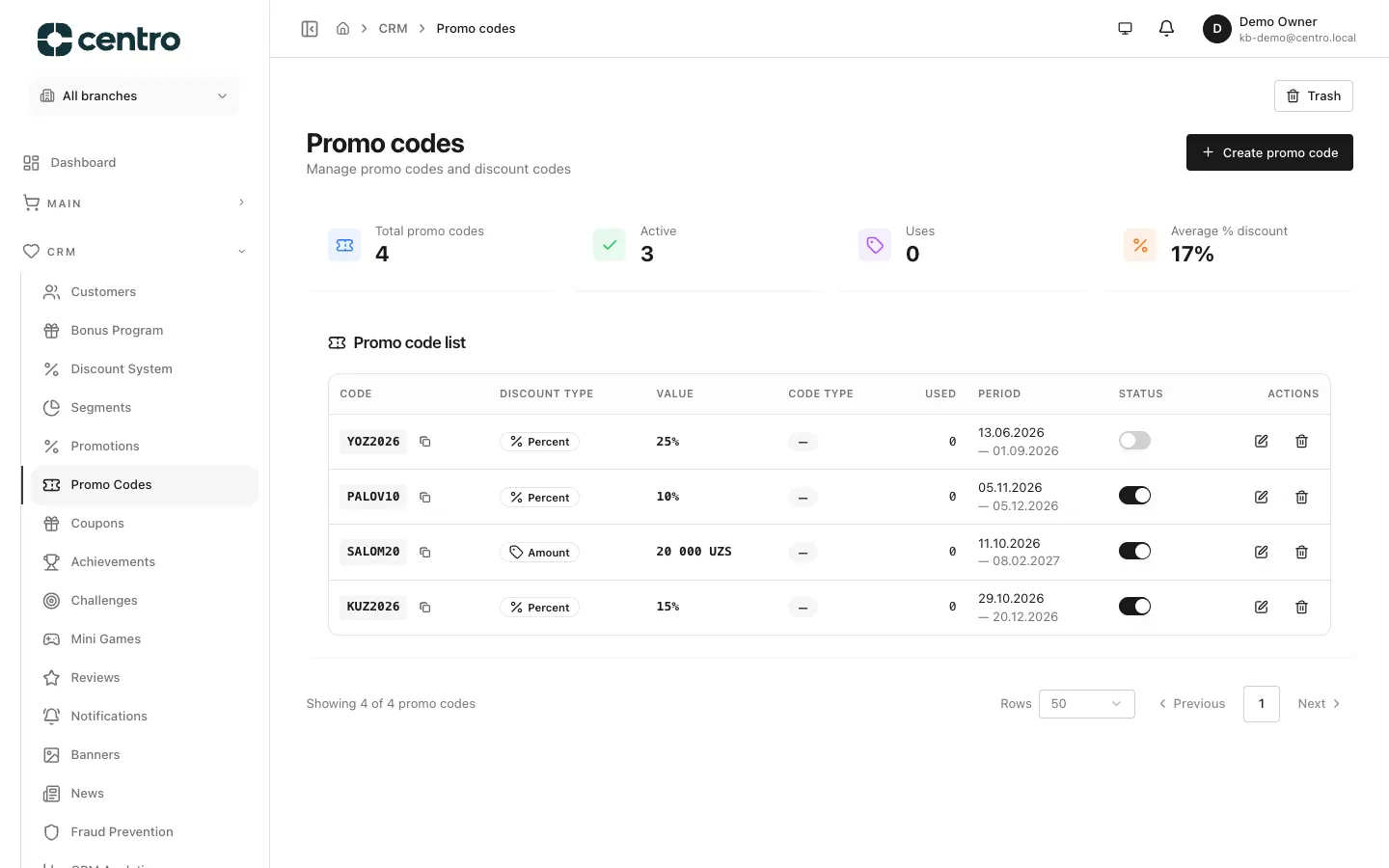
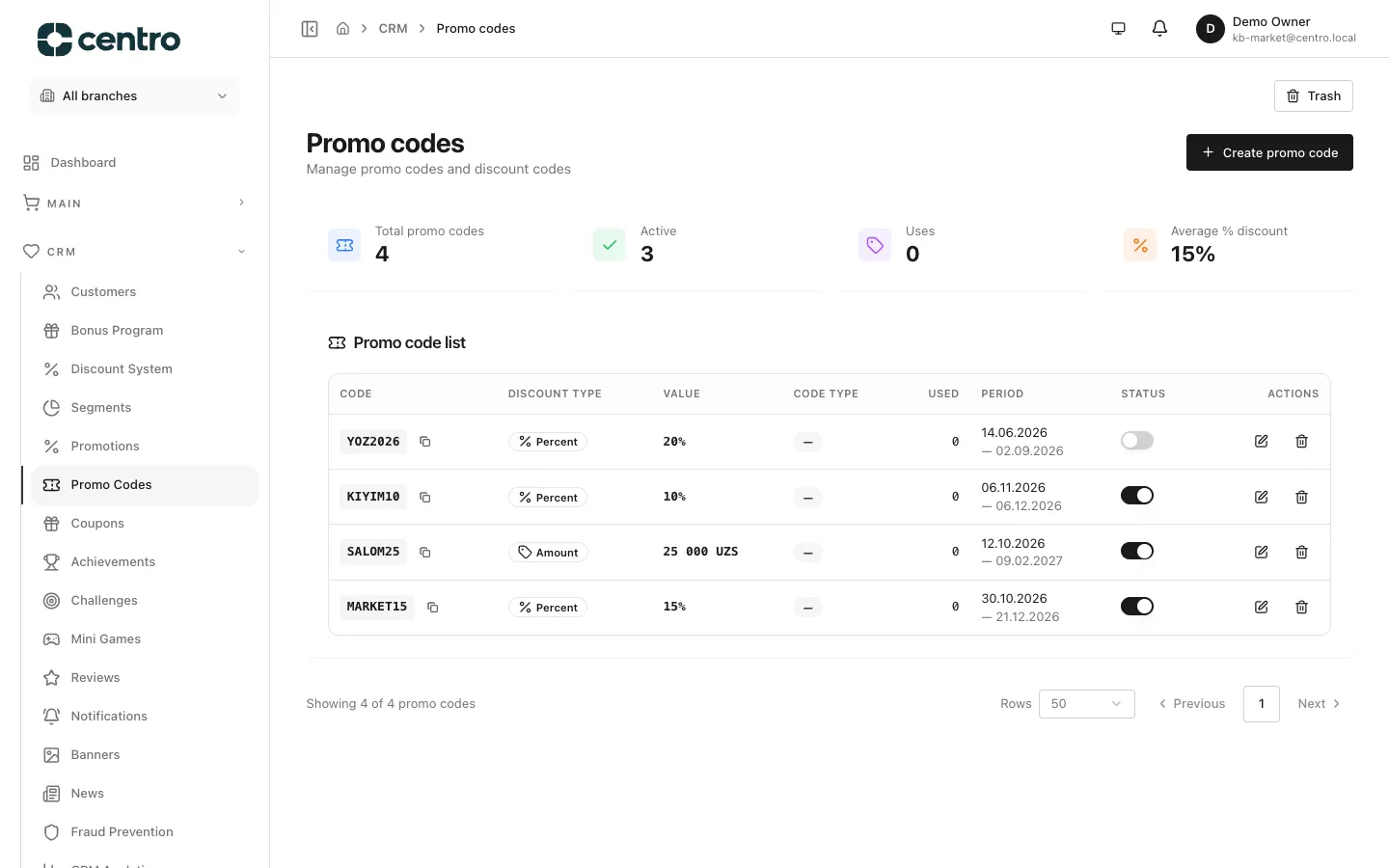
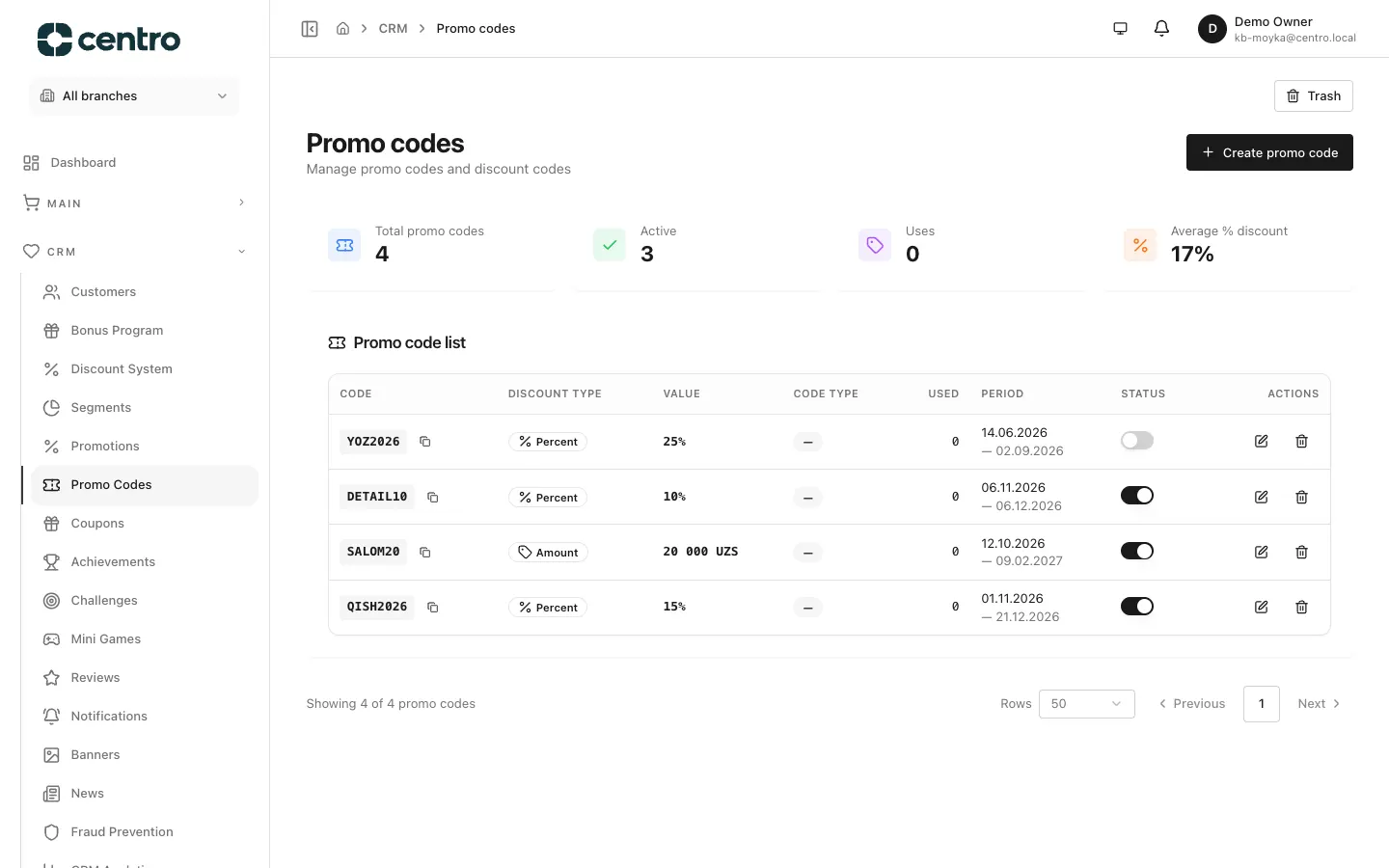
Promo code list #
Figures, table columns, turning codes on and off.
Cards
- «Total promo codes», «Active», «Uses»
- Total codes, active ones, total uses.
- «Average % discount»
- Average discount over percent codes only.
«Promo code list» columns
- «Code»
- The code, a copy button and the linked promotion («Promotion: …»).
- «Discount type»
- «Percent», «Amount», «Free delivery», «Free item».
- «Value»
- Percent or amount; «—» for free types.
- «Code type»
- «Single-use», «Multi-use», «Unlimited».
- «Used», «Period»
- Uses / limit; validity dates.
- «Status»
- A switch that turns the code on or off immediately («Promo code enabled» / «Promo code disabled»).
- «Actions»
- Pencil — edit, trash — delete (with confirmation).
Creating a promo code #
The «New promo code» form: code, discount, type and limits, period.
- In the list click «Create promo code».
- Type a code or click «Generate»; link it to a promotion if needed.
- Set the discount type and value, code type and limits.
- Set «Start date *», check the «Preview» on the right and click «Save».
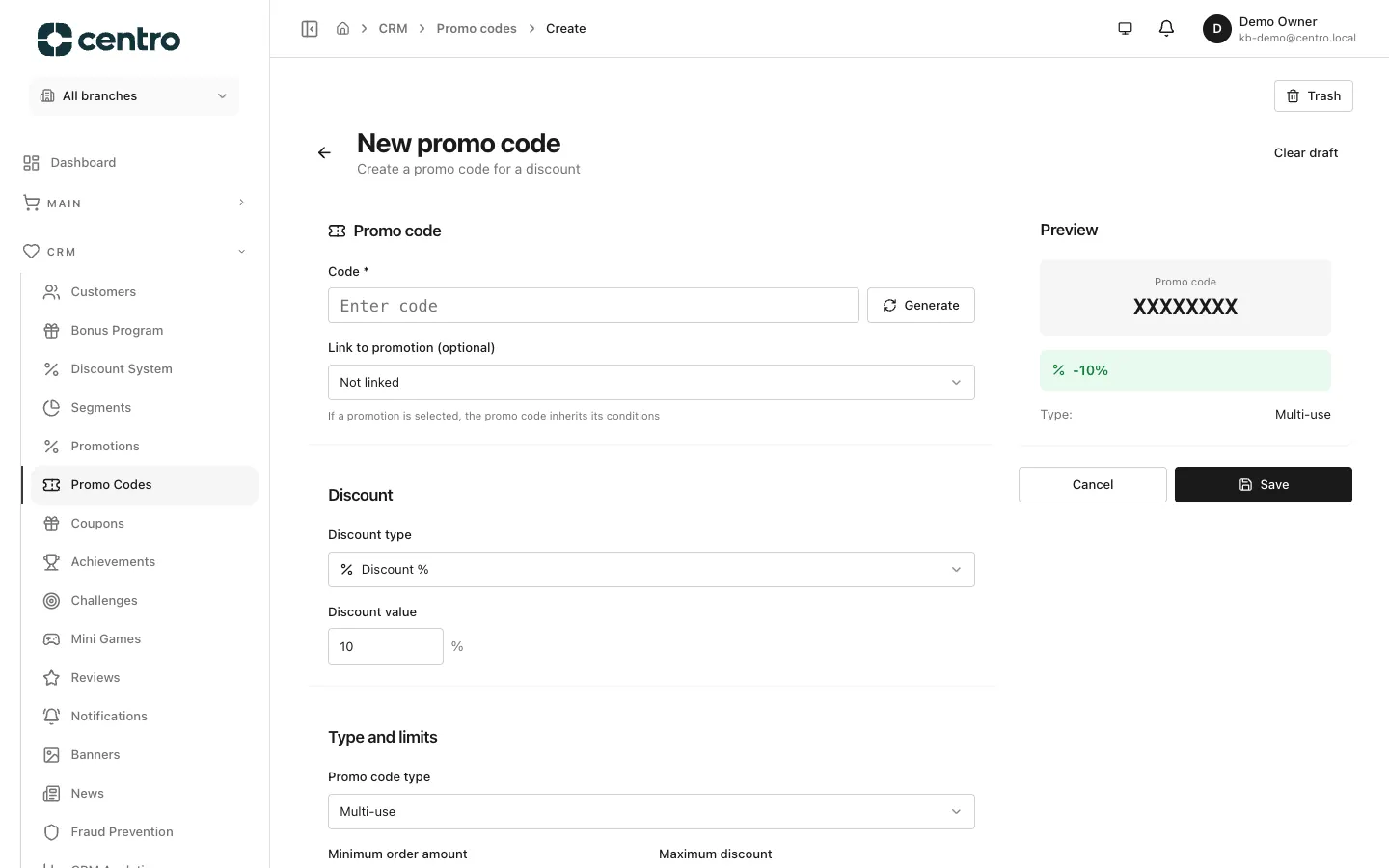
Fields
- «Code *»
- Required, up to 50 characters, must not match an existing code (case-insensitive). «Generate» makes an 8-character code without look-alike characters (0, O, 1, I).
- «Link to promotion (optional)»
- «Not linked» or a promotion. If a promotion is chosen, the code inherits its conditions.
- «Discount type», «Discount value»
- «Discount %» (max 100%), «Discount amount», «Free delivery», «Free item». A free item requires choosing the item.
- «Promo code type»
- «Single-use» — total limit 1; «Multi-use» — you set «Usage limit (total)»; «Unlimited» — no total limit. The type affects only the total limit.
- Limits
- «Minimum order amount», «Maximum discount», «Limit per customer» (independent of the total limit).
- «Active», «Requires sign-in»
- Whether the code can be used; only for signed-in customers.
- «Restrict by customer's order number»
- The code works only on the customer’s orders with the given sequence numbers («Order sequence numbers *», e.g. 1, 3, 5; up to 100). Only completed and delivered orders count; enabling it automatically requires sign-in.
- «Available for Yandex Eats»
- Shown only if the Yandex Eats order source is enabled.
- «Validity period»
- «Start date *» is required; «End date» must not be before the start.
Tip: For the «Free item» type you first pick the «Free item type»: «Recipe card» (default) or «Product», and then the item itself from that list.
Tip: A store has no recipe cards, so there is no «Free item type» field: for «Free item» you pick a catalog product straight away in «Select a product *».
Tip: Whatever you type is auto-saved as a draft in this browser: close the page and come back, and the promo code form is restored. To start over, click «Clear draft» at the top of the page.
Editing a promo code #
«Edit promo code»: everything except the code itself can change.
- In the list click the pencil icon in the code row.
- Change the fields you need. Unlike the create form, there is also a «Name» field; the right panel shows the status and «Used».
- Save — «Promo code updated successfully».
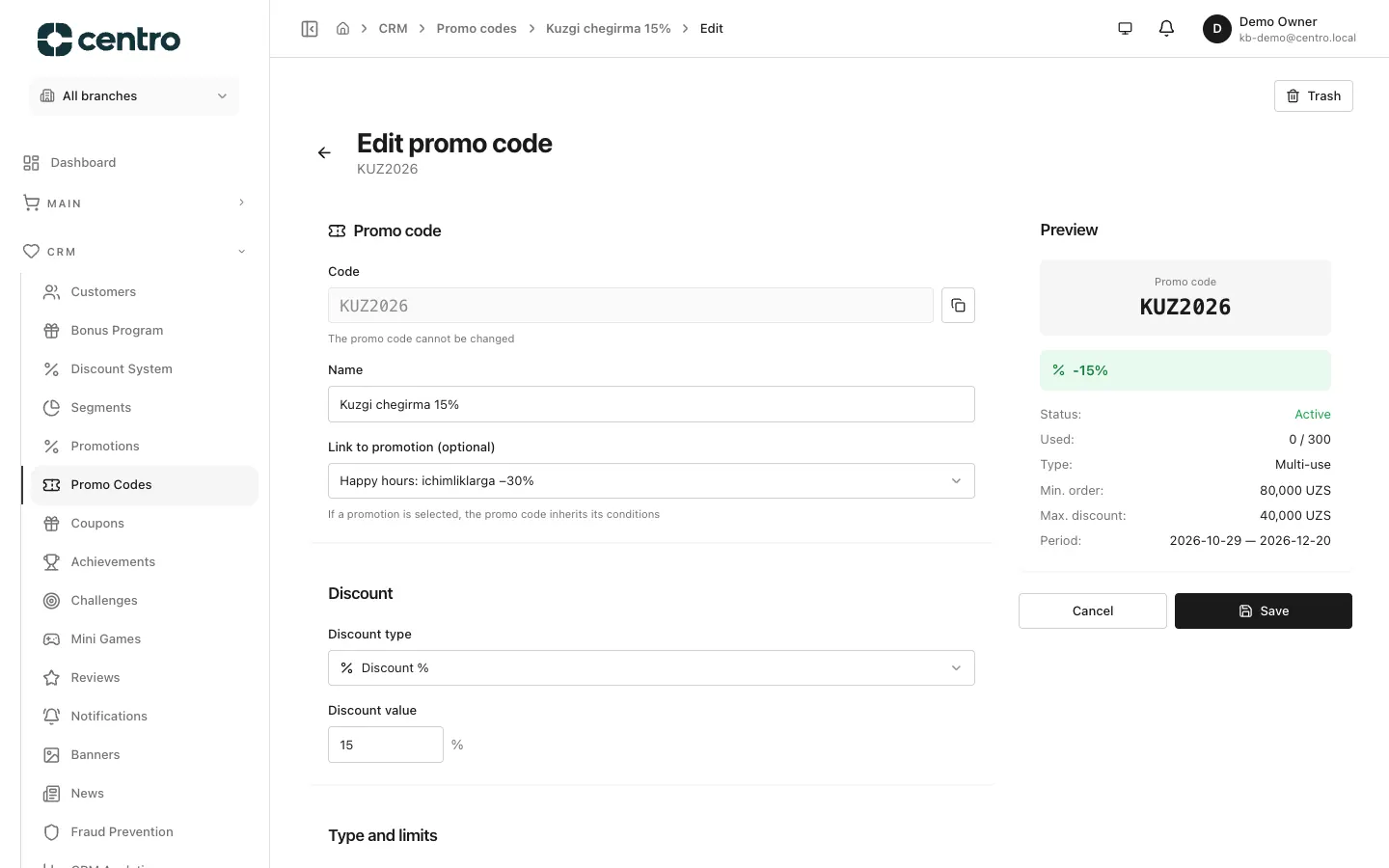
Important: The code itself cannot be changed («The promo code cannot be changed»). If you need a different code, create a new promo code.