TV Menu
The menu and promotions on a TV in the hall, at the till or in the window: screens, promo slides and a category schedule.
Open in the admin panel/apps/tv-menu/settings TV Menu is a full-screen menu in the browser of any Smart TV or set-top box: slides with dish photos and prices, promo slides for promotions and a QR code so guests can order from their phones. The menu comes from the online-store catalog, so the TV updates by itself when a price or the stop list changes. Settings: Apps → TV Menu (address /apps/tv-menu/settings).
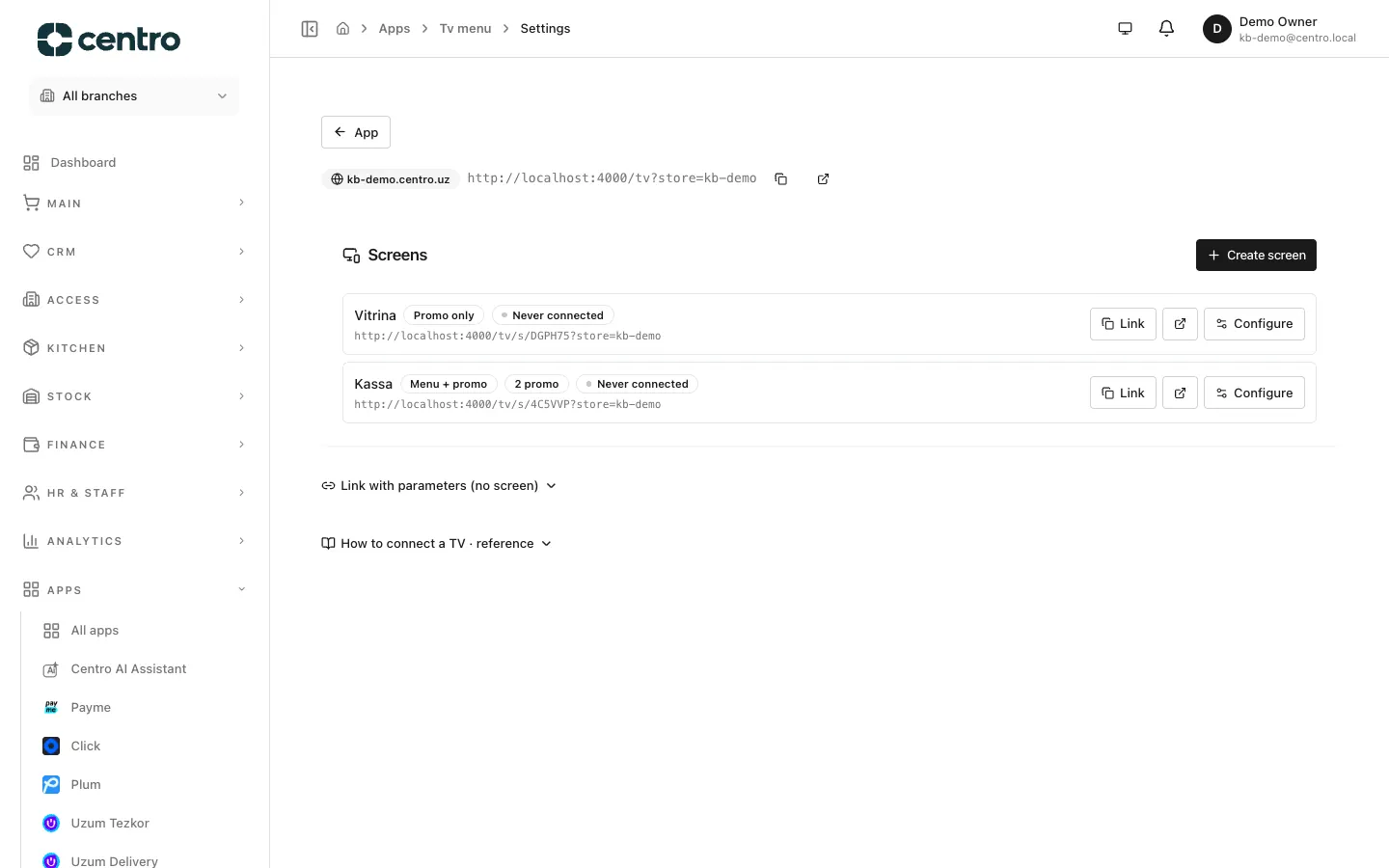
What is on the page
- The domain badge and the general «…/tv» link (copy, open).
- Screens — a named screen per TV and its settings window (promo slides live there too).
- Collapsed blocks: Link with parameters (no screen) and How to connect a TV · reference.
Creating and configuring a screen #
One window: name, what to show, slides, categories, language, speed, QR and the category schedule.
- In the «Screens» card press Create screen (for an existing one — Configure).
- Enter a name (e.g. «Checkout» or «Showcase») and choose «What to show» — the fields in the window depend on the mode.
- Pick the slides and categories, change the other options if needed.
- Press Create screen / Save — «Screen saved — the TV will update within a minute».
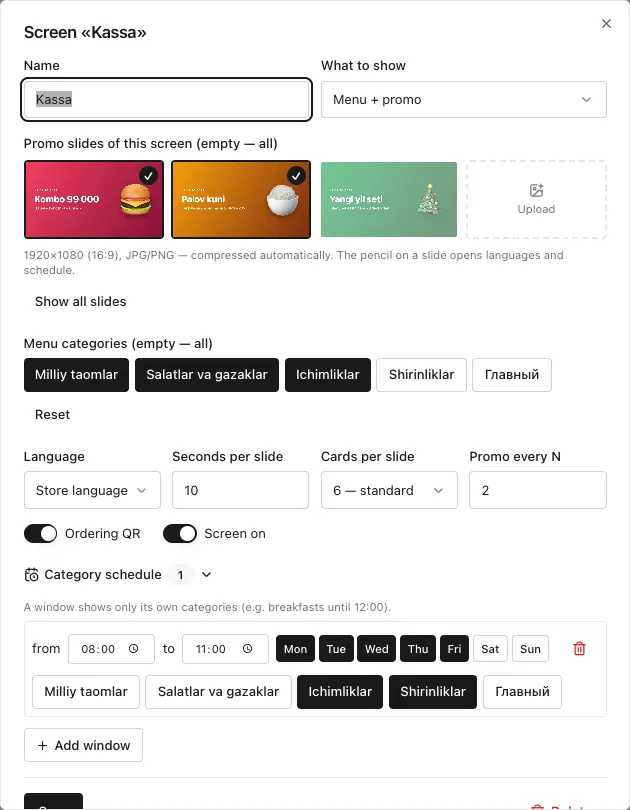
«What to show»
- «Menu + promo»
- Menu slides (by category, with photo and price) with promo slides inserted between them. The default mode.
- «Menu only»
- Menu only; the slide block is hidden.
- «Promo only»
- Full-screen promo slides in rotation; categories, cards per slide and the schedule are hidden.
- «Single promo slide»
- One slide, static. One slide must be picked in «Which slide to show». If the slide is hidden or deleted, the TV shows «Слайд недоступен» (slide unavailable).
Other fields
- «Name»
- Required; shown only in the admin panel.
- «Promo slides of this screen (empty — all)»
- Click a slide to select it (✓). If nothing is selected, the screen rotates all of the organization’s shown slides. «Show all slides» clears the selection. The «Upload» tile uploads a new image, creates a slide and attaches it to this screen at once; the pencil on a slide opens the slide editor.
- «Menu categories (empty — all)»
- Which categories to show; «Reset» — all. Every category gets its own slides, in the order of the categories.
- «Language»
- «Store language» or one of the online store’s languages. If the store has several languages, a guest can also switch the language with the button on the screen. The screen’s own labels (QR caption, empty menu, error messages) follow the same language — Uzbek, Russian, English or Arabic; Arabic runs right to left.
- «Seconds per slide», «Cards per slide»
- Rotation speed — 5 to 60 seconds (default 10). How many items per menu slide: 3 — extra large, 4 — large (2×2), 6 — standard, 9 — compact.
- «Promo every N»
- Only for «Menu + promo»: one promo after every N menu slides. 0 — the promos are spread evenly through the menu.
- «Ordering QR»
- A QR code in the corner of the screen that leads to the online store: a guest scans it and orders from the phone. Such visits are tagged with the source «tv» (utm_source=tv).
- «Screen on»
- When off, the link stops working — the TV shows «Экран не найден» (screen not found). Handy to pause a screen without deleting it.
«Category schedule»
- «Add window»
- A window is a time range («from» — «to»), weekdays (none selected — every day) and categories. During the window the screen shows only its categories (e.g. breakfasts until 12:00); outside the windows — the screen’s main categories. The bin deletes a window.
- Time and priority
- Times are Tashkent time. A window across midnight (22:00–02:00) works too. If windows overlap, the first one in the list wins. A window without categories shows the main ones.
Tip: Delete at the bottom of the window removes the screen completely and its link stops working. To pause it, use the «Screen on» switch. The «Screen settings were not saved…» error appears when the schedule or slide list is too long — reduce the windows or selected slides.
Promo slides #
1920×1080 images: upload, languages, display schedule, order and a single-slide link.
Slides are shared by the whole organization and managed from the screen window: the «Upload» tile adds a new slide, the pencil on a slide opens the slide editor. The image is 1920×1080 (16:9), JPG, PNG or WebP; it is compressed automatically before upload. Handy for promotions, combos, new dishes and holiday menus.
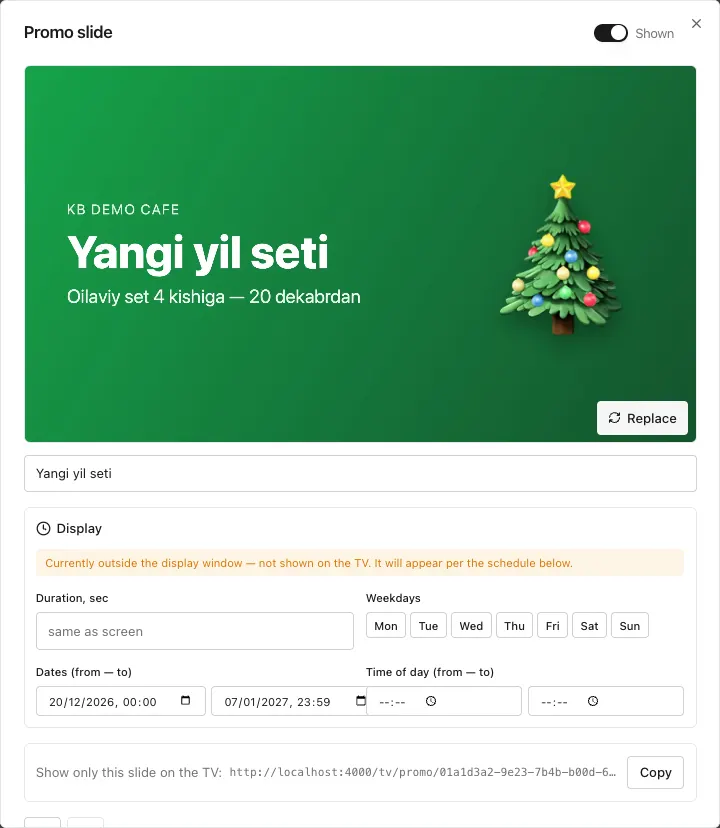
The slide editor
- «Shown» / «Hidden»
- The switch in the header. A hidden slide is not shown on any screen and carries a «Hidden» badge in the list.
- Image, «Replace», title
- «Replace» uploads a new image. «Title (optional)» is the slide caption. If the online store has several languages, language tabs appear: another language can get «Own photo for …» and its own title, otherwise the main language image is used («Same as …»).
- «Duration, sec»
- How many seconds this slide stays (3–300). Empty — same as the screen.
- «Weekdays», «Dates (from — to)», «Time of day (from — to)»
- When the slide is visible: the selected days (none — every day), the promotion dates and the time of day (may cross midnight). If it is outside the window right now, a yellow warning says «Currently outside the display window — not shown on the TV».
- «Show only this slide on the TV:»
- A screen-less link «…/tv/promo/<id>» and «Copy» — to show one slide statically.
- Arrows, «N of M», «Delete»
- The arrows move the slide up/down in the shared order (the order affects every screen). «Delete» removes the slide completely.
Important: The editor has no «Save» button: each field is saved as soon as you leave it, the switch and day buttons on click. The choice of slides for a screen, however, is saved with Save in the screen window.
Connecting a TV and the links #
Opening the link on a Smart TV or set-top box, the parameter link without a screen and the address reference.
How to connect a TV
- Open the screen link in the browser of the Smart TV or set-top box (Android TV / Mi Box — Chrome or TV Bro). No separate app is needed.
- Switch to full screen; turn off the TV screensaver if needed.
- After that leave the TV alone: prices, menu, slides and screen settings are picked up automatically every minute. Check that «Online» appears in the screen list.
What the TV shows
- The logo and name, menu slides by category: photo, name and price. The menu comes from the online-store catalog — what the store does not show, the TV does not show either.
- At the bottom — the slide progress bar and the ordering QR (if on); at the top — the language button (when there are several languages).
- In a store the TV shows catalog products by category — for a screen at the window or till, put promotions and new arrivals into promo slides.
- At a car wash the TV shows the service price list in the waiting area (services are sold as products); make packages and promotions into promo slides.
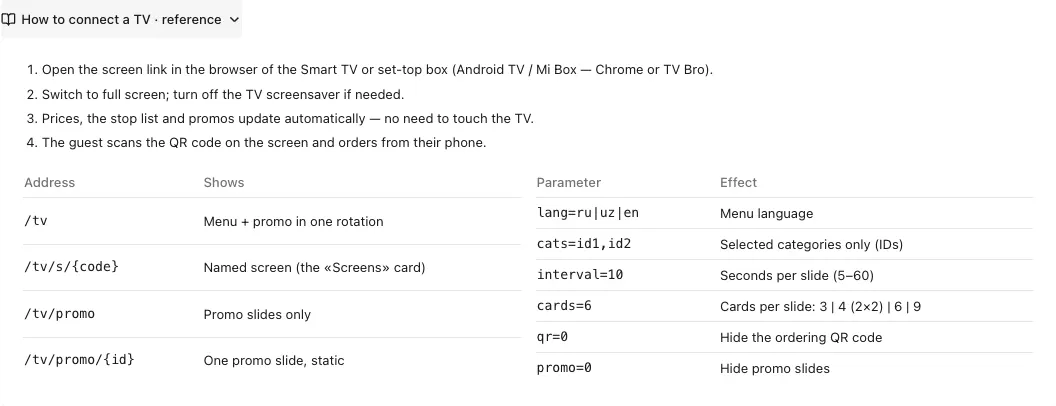
Addresses
- /tv
- The whole menu and all promo slides in one rotation (tuned with parameters).
- /tv/s/<code>
- A named screen — the recommended way: everything is managed from the admin panel.
- /tv/promo, /tv/promo/<id>
- Promo slides only; or one slide statically.
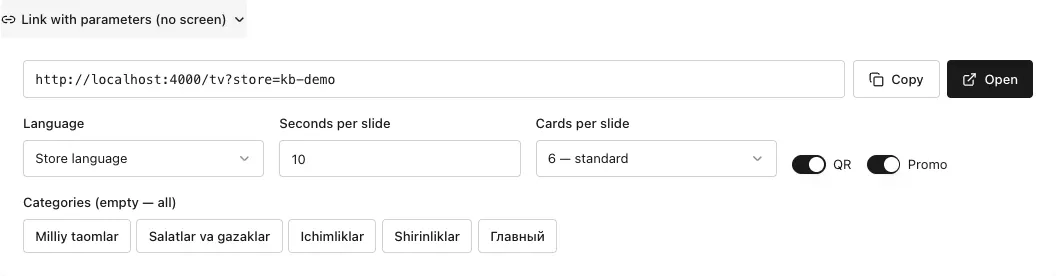
Link with parameters (no screen) is the older way: you pick the language, seconds, cards, QR, promo and categories, and they are written into the «…/tv?…» link (lang, interval, cards, qr=0, promo=0, cats). Nothing is saved; to change anything you have to type the new link on the TV again. That is why a named screen per TV is more convenient.