E-IMZO (digital signature)
Linking the organization’s digital signature certificate; the key stays on the user’s computer.
Open in the admin panel/apps/e-imzo/settings E-IMZO (ЭЦП) is a free UZINFOCOM app: it links the organization’s certificate to Centro for fiscalization, e-invoices (ESF) and Asl Belgisi. Signing happens in the local E-IMZO module on the computer; the Centro server never receives the key.
How to open
- Apps → All apps → «Finance» category → the «E-IMZO (ЭЦП)» card. The app is free: click «Connect» if needed.
- On the app page click «Configure». Until a certificate is linked and active, the catalog card shows «Connected», not «Active».
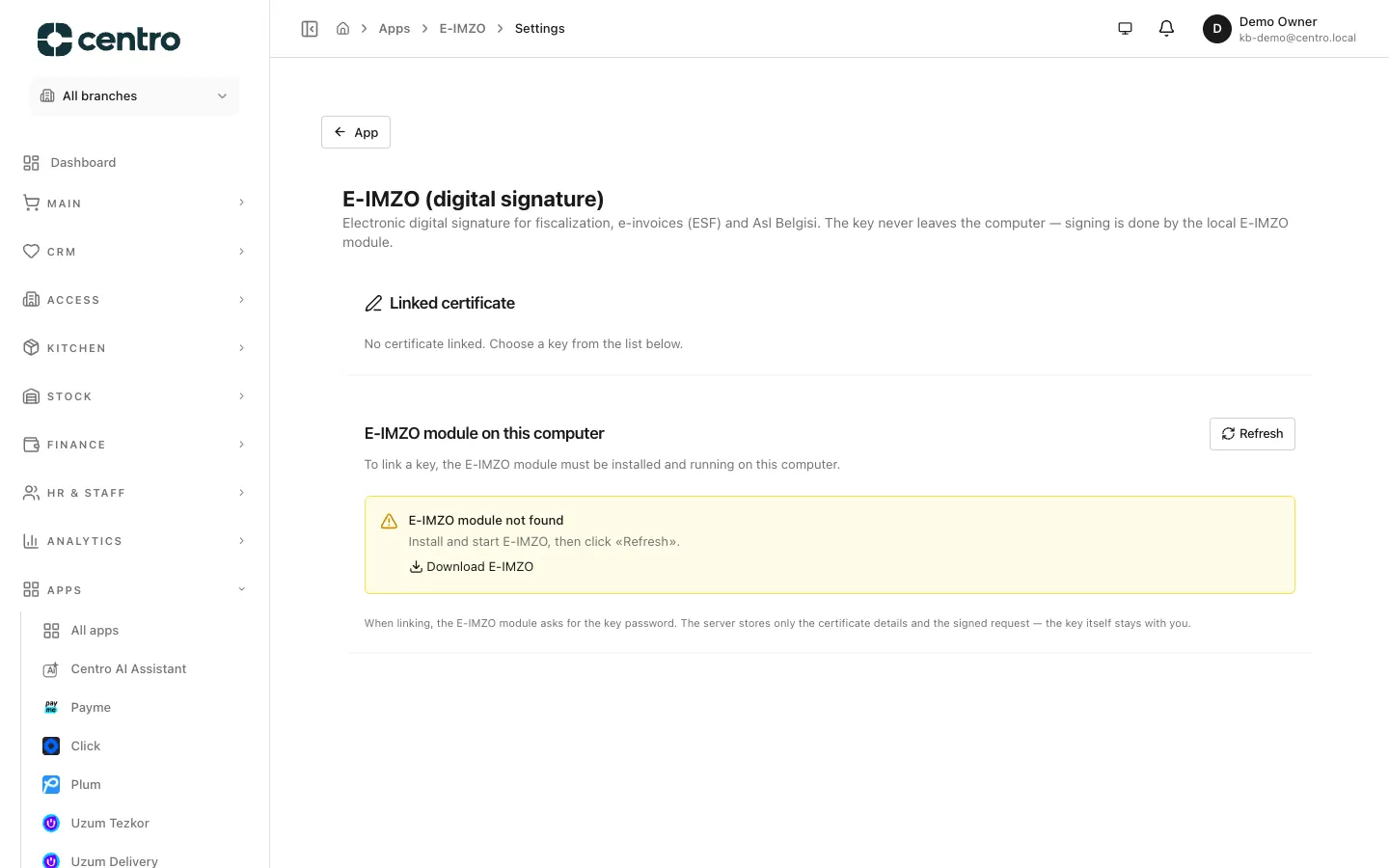
Page blocks
- «Linked certificate»
- The holder’s name, the «Active» / «Off» badge, «Organization», «TIN», «PINFL», «Serial number», «Valid until», the «Integration active» switch and «Unlink». Without a certificate: «No certificate linked. Choose a key from the list below.»
- «E-IMZO module on this computer»
- On opening, the page looks for the module («Checking the module…»): not found — a yellow warning and «Download E-IMZO»; found — the version and the list of keys from DSKEYS with «Link» buttons. «Refresh» repeats the check.
Tip: The module is checked on each computer separately: a staff member on another computer sees the linked certificate, but the list of keys appears only where the module is installed. Linking a certificate does not change how the till works — fiscal receipts are sent by the fiscalization app.
Linking a signature key #
Installing the E-IMZO module, choosing the key and signing with its password.
- Install and start the E-IMZO module on the computer that holds the key (the «Download E-IMZO» link opens e-imzo.uz).
- Copy the key file (.pfx) to the DSKEYS folder.
- Open the page on that computer and click «Refresh»: «Module running (version …)» and the list of keys (organization, TIN, «until …») appear.
- Click «Link» next to the key and enter the key password the module asks for. The server’s request is valid for 10 minutes.
- On success: «Signature certificate linked», the key gets the «Linked» badge, and the card above shows the certificate details and the «Active» badge.
Messages
- «E-IMZO module not found»
- The module is not installed or not running — start it and click «Refresh».
- «No signature keys found…»
- The module works but the DSKEYS folder has no key.
- «Could not open the signature key…»
- Usually a wrong key password.
- «The signing time has expired…» / «The signature failed verification…»
- The request expired or is damaged — click «Link» again.
- «Expired»
- An expired key cannot be linked — the «Link» button is disabled.
Tip: The key itself never leaves the computer: the server stores only the certificate details (holder, organization, TIN, PINFL, serial number, validity) and a hash of the signed request. One certificate per organization: linking another one replaces the previous one.
Enabling, disabling and unlinking #
The «Integration active» switch and the «Unlink» button.
- «Integration active»
- Temporarily turns the certificate off or on again without removing it («Integration enabled» / «Integration disabled»; badge «Active» / «Off»). It cannot be switched on without a certificate: «Link a signature certificate first.»
- «Unlink»
- Removes the certificate link at once («Certificate unlinked»). To restore it, sign with the key again.
Important: «Unlink» works without a confirmation — do not press it by accident.