Telegram Bot
A free app: customers open the online store as a Web App right inside Telegram and order; feedback and orders arrive in groups.
Open in the admin panel/apps/telegram-bot/settings How to turn on and open
- The app is free, but the plan must include the Online store (web_store): then «Telegram Bot» appears in the Apps catalog and the sidebar by itself. On the app page you can turn it off with «Disable app».
- In the sidebar click Apps → Telegram Bot — the bot settings open (the position needs access to «System settings»).
How to launch the bot
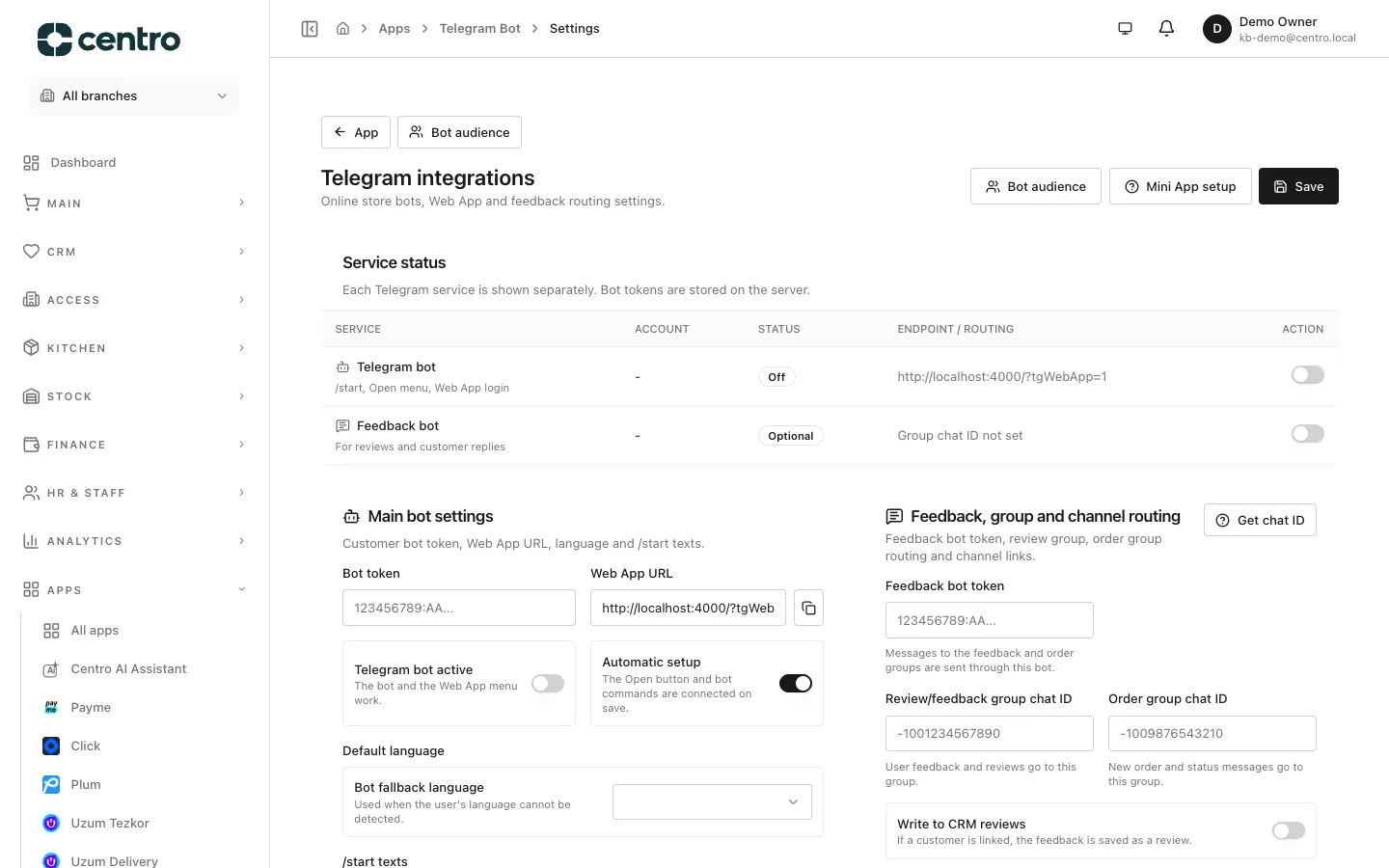
- Create a bot with @BotFather in Telegram and get its token (like 123456789:AA…).
- Paste it into «Bot token». «Web App URL» is the online store address (default: your-slug.centro.uz/?tgWebApp=1).
- Turn on «Telegram bot active» and keep «Automatic setup» — on save the Open button in the bot menu and the commands are connected.
- Choose the «Default language» and set the /start «Welcome text» for each language; empty means the default text. Save.
- Check: open the bot in Telegram and send /start — the Open button should open the store.
The «Service status» table
- Telegram bot
- The customer bot: @username, status («Active» — on and has a token) and the Web App address. The switch on the right turns the bot on/off.
- Feedback bot
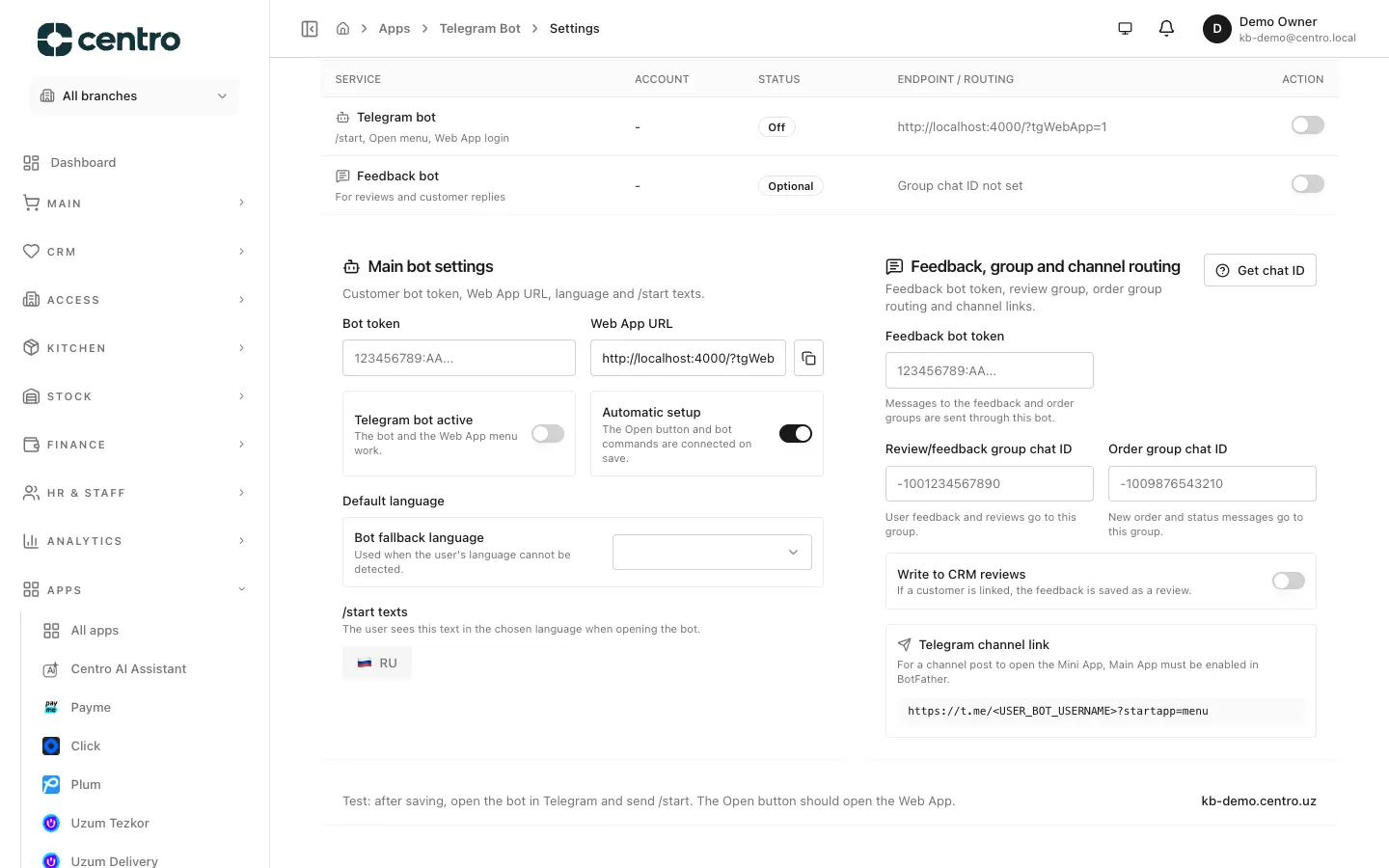
- Optional: for the review and order groups (topic below). The switch writes feedback to CRM reviews.
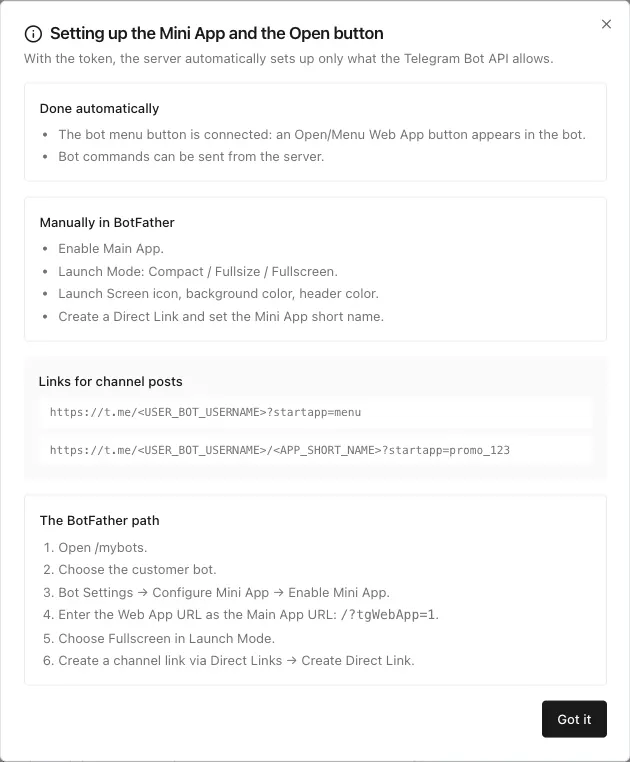
Tip: For a channel post to open the Mini App, enable Main App in BotFather (Bot Settings → Configure Mini App) and use the link from «Telegram channel link»: https://t.me/<bot>?startapp=menu.
Important: The token and group IDs are checked and linked with Telegram only on save. If the token is wrong or Telegram rejects the menu/webhook, a specific reason is shown — copy the whole token from @BotFather; the Web App address must start with https://.
For a restaurant: inside Telegram the customer opens the menu, picks dishes and orders — the order lands at the cash desk and in the kitchen like other online orders.
For a store: the Web App opens your online store catalog (with variants) — the customer picks products and orders without leaving Telegram.
For a car wash: the bot opens the list of services from the online store, and messages (feedback, orders) arrive in the groups. The bot itself has no vehicle plate or time-slot booking — that depends on the online store features.
The feedback bot and groups #
Telegram groups for reviews and orders: how to get the chat ID and what is sent there.
The second, optional bot — the feedback bot — forwards messages to your staff’s Telegram groups: customer feedback and reviews to one group, orders to another. One bot, two group chat IDs.
How to connect the groups
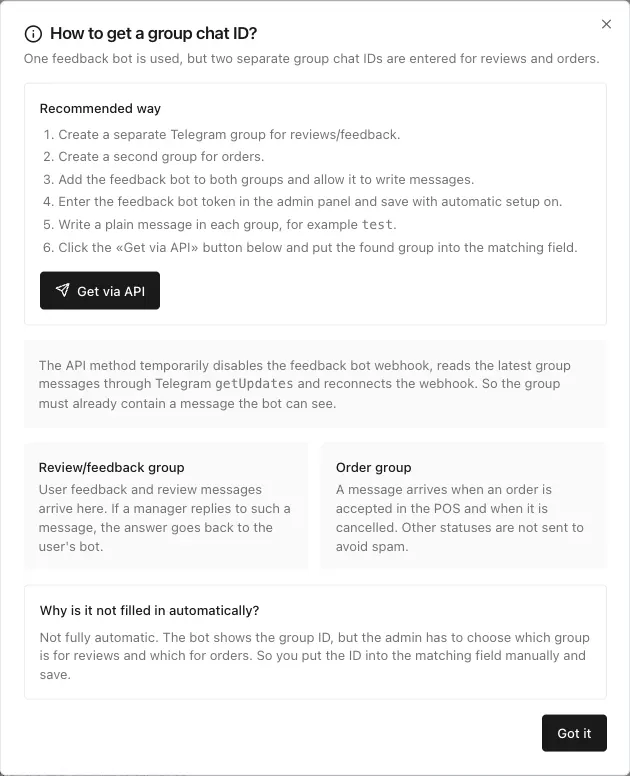
- Create two Telegram groups — for reviews and for orders — add the feedback bot to both and allow it to write.
- Enter the «Feedback bot token» and save with «Automatic setup» on.
- Write a plain message in each group (for example «test»), then click «Get chat ID» → «Get via API». Put the found group in place with «Use for reviews» or «Use for orders» and save.
- Review group
- Customer feedback and reviews arrive here. If a manager replies to a message, the answer goes back to the customer in the bot. With «Write to CRM reviews» on, a linked customer’s feedback also lands in CRM reviews.
- Order group
- A message arrives when an order is accepted at the POS and when it is cancelled; other statuses are not sent to avoid spam.
Tip: «Get via API» briefly disables the feedback bot webhook, reads the latest group messages and reconnects the webhook — so the group must already contain a message the bot can see. You choose which group is for reviews and which for orders.
Bot audience #
Who started the bot, who gets the news and who blocked the bot.
How to open
- Click «Bot audience» in the bot settings or on the app page.
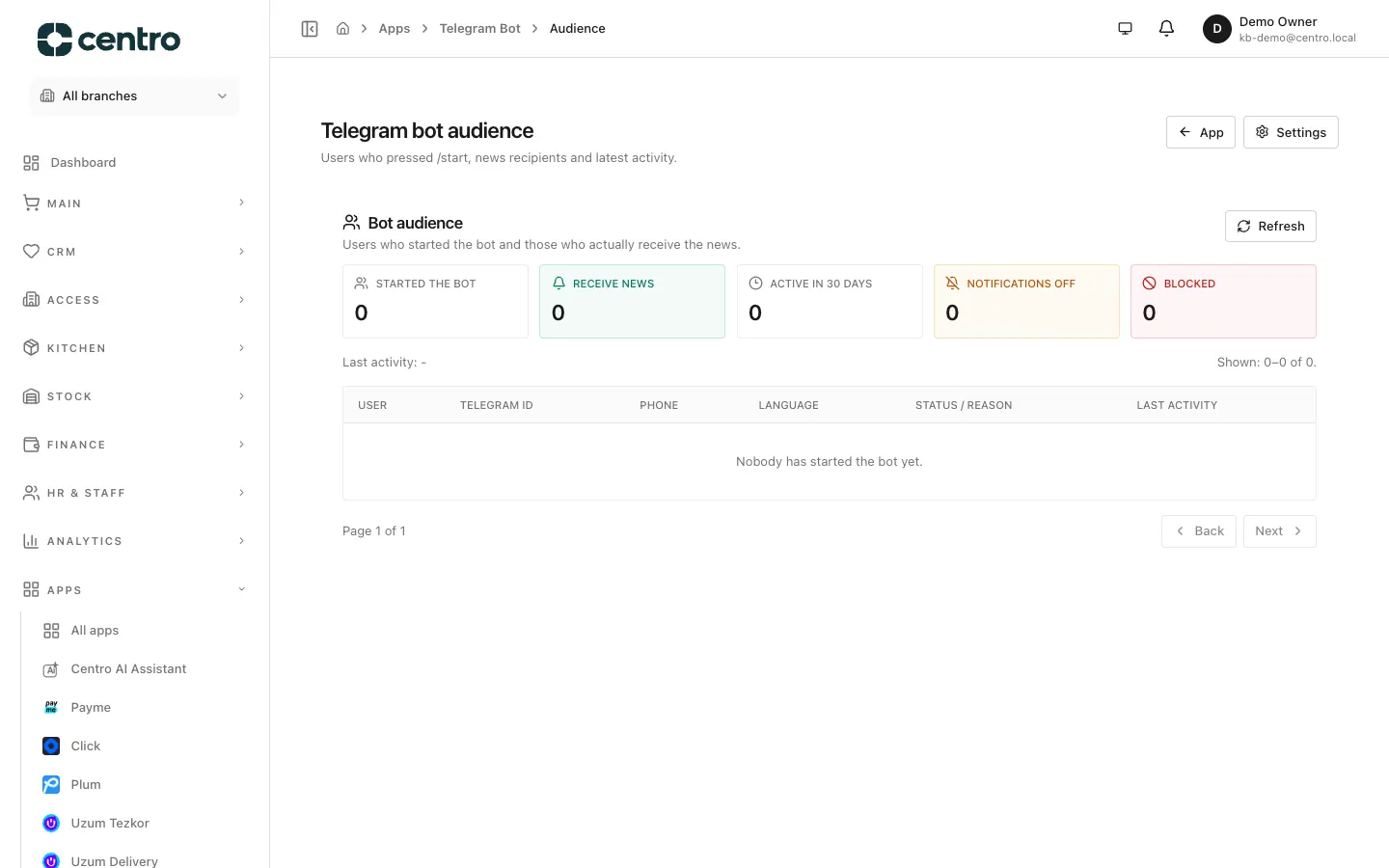
- Figures
- «Started the bot», «Receive news», «Active in 30 days», «Notifications off», «Blocked».
- Table
- User, phone, language, «Status / reason» (for example «Blocked the bot» — Telegram did not deliver the message) and last activity.
Tip: News (CRM → News) is delivered only to those who «Receive news» — not to users who blocked the bot or turned notifications off.