Centro AI Assistant
An AI assistant for documents, the catalog and deliveries: chat, AI approvals, operational control and tokens. An AI assistant that imports products and variants from price lists and invoices and prepares receipts and orders.
Open in the admin panel/apps/centro-ai-assistant How to open
- In the sidebar, expand the Apps group and click Centro AI Assistant.
The home page is a map of AI features: which AI modules are ready, which run in the background and which are still planned. At the top are the «Open chat», «AI control» and «AI approvals» buttons (the last one with tasks access in the position); below — three rules for every AI action: safe tools only, an audit of AI actions and human approval.
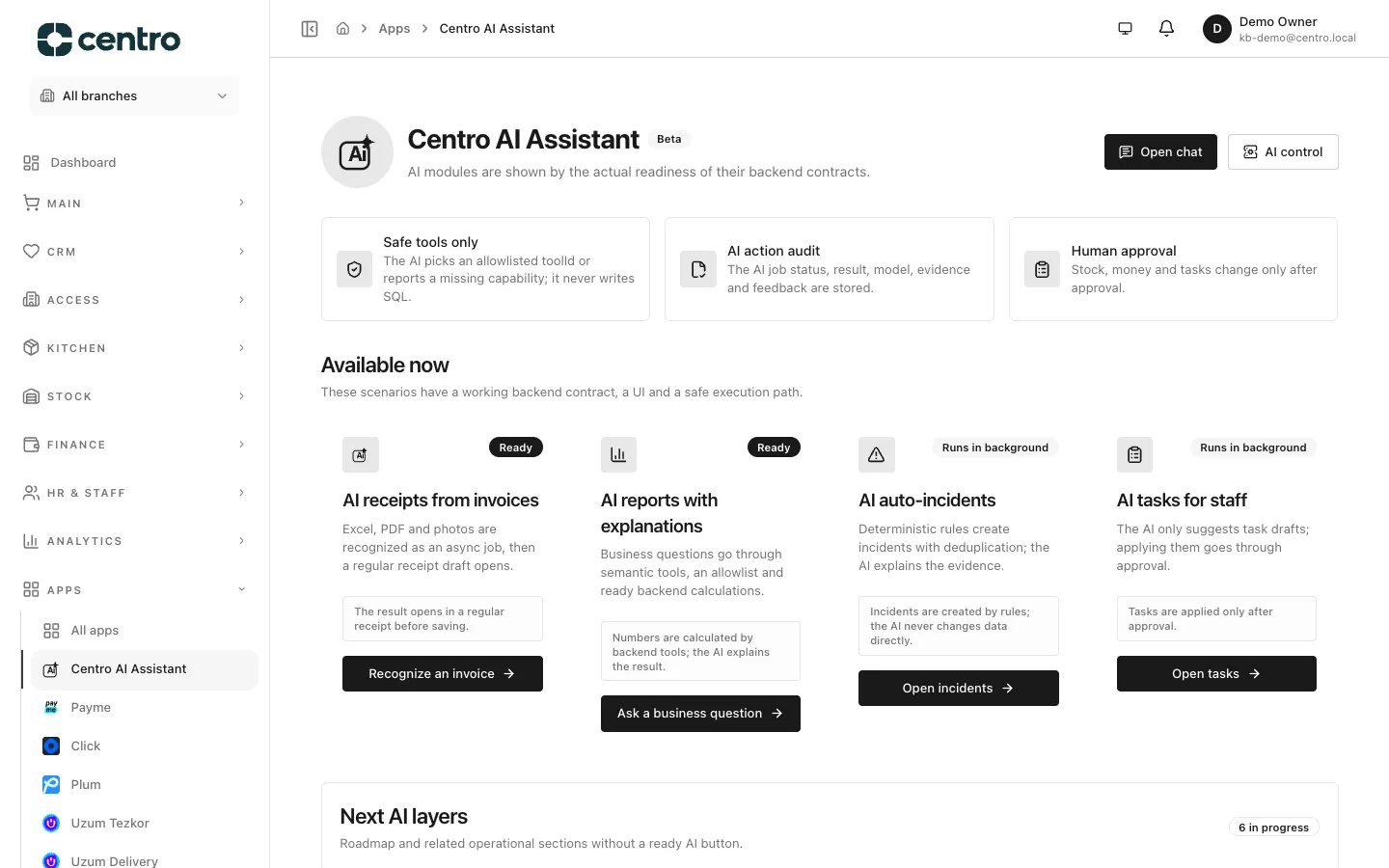
«Available now»
- «AI receipts from invoices»
- «Stock → AI invoices»: an Excel, PDF or photo is recognized and a regular receipt draft opens — you check it before saving.
- «AI reports with explanations»
- «Analytics → AI reports»: a business question — the server calculates, the AI explains.
- «AI auto-incidents» and «AI tasks for staff»
- Run in the background: rules create incidents, the AI suggests a task draft — it lands in «AI approvals».
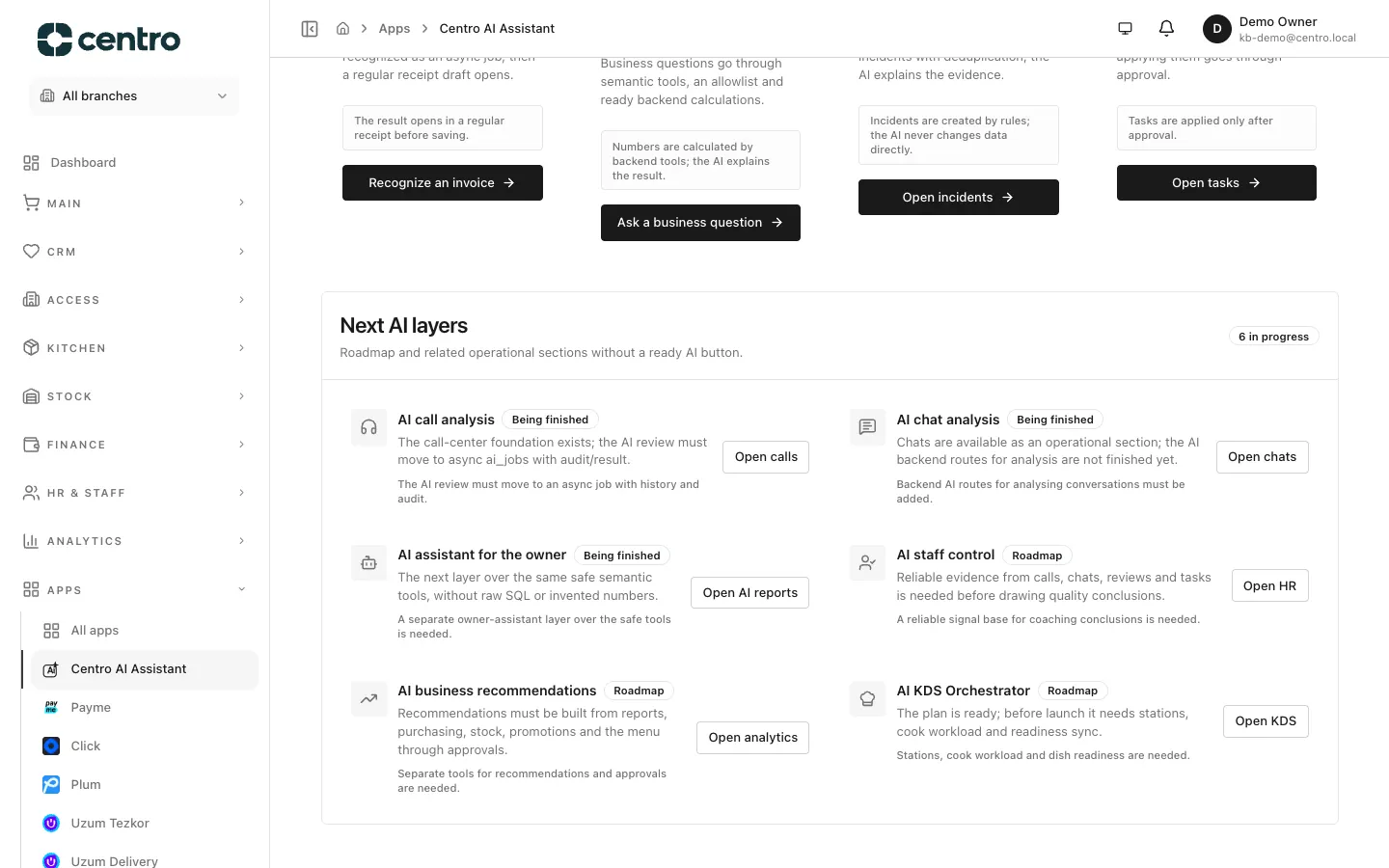
The «Next AI layers» block (click to expand) lists modules without a ready AI button yet: call and chat analysis, the owner assistant, staff control, business recommendations and the AI KDS Orchestrator. Their buttons only open the related regular section; the call-analysis row has a disabled «In development» button because telephony is not connected yet.
Tip: How to turn the section on — see «Connecting, tokens and payment» below and the Apps group topic on turning the section on.
Chat with the assistant #
Conversations, sending messages and files, following the work and checking the result.
How to open
- In the sidebar, expand the Apps group and click Centro AI Assistant.
- Click «Open chat».
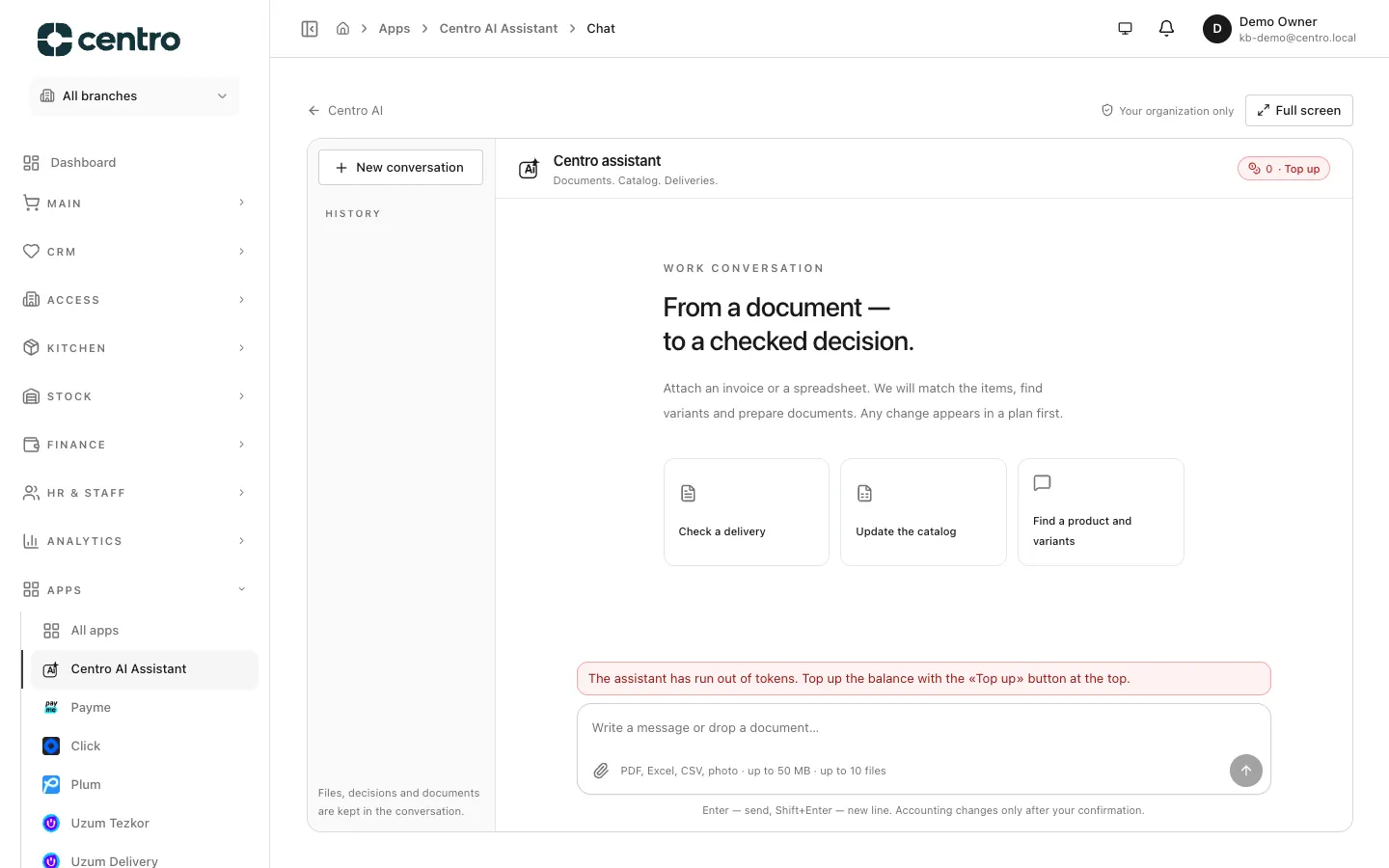
Parts of the screen
- Left column
- «New conversation» and «History» — your conversations (each employee sees only their own). On a narrow screen a history drop-down replaces it.
- Header
- «Centro assistant», the token balance chip and (in full screen) «Minimize».
- Above the chat
- «Centro AI» — back to the overview, «Your organization only» — a reminder that the assistant never sees other data, «Full screen» (Esc exits).
- Composer
- Enter sends, Shift+Enter adds a line; the paperclip attaches a file; while working the send button turns into «Stop». Below: accounting changes only after your confirmation.
How to start
- Click one of the prompts — «Check a delivery», «Update the catalog» or «Find a product and variants»: the text goes into the composer where you can edit it. Or describe the task in your own words.
- Attach an invoice or a spreadsheet if needed and send. The first message creates a new conversation (named after the start of the message).
- Follow the progress in the status line: «Working · 2:05», the last step (for example «Preparing product updates»), the number of steps and prepared plans. If the model takes longer than usual, an amber note appears — wait or stop; prepared plans are kept.
- Check the answer and plans and confirm the changes you want (topics below).
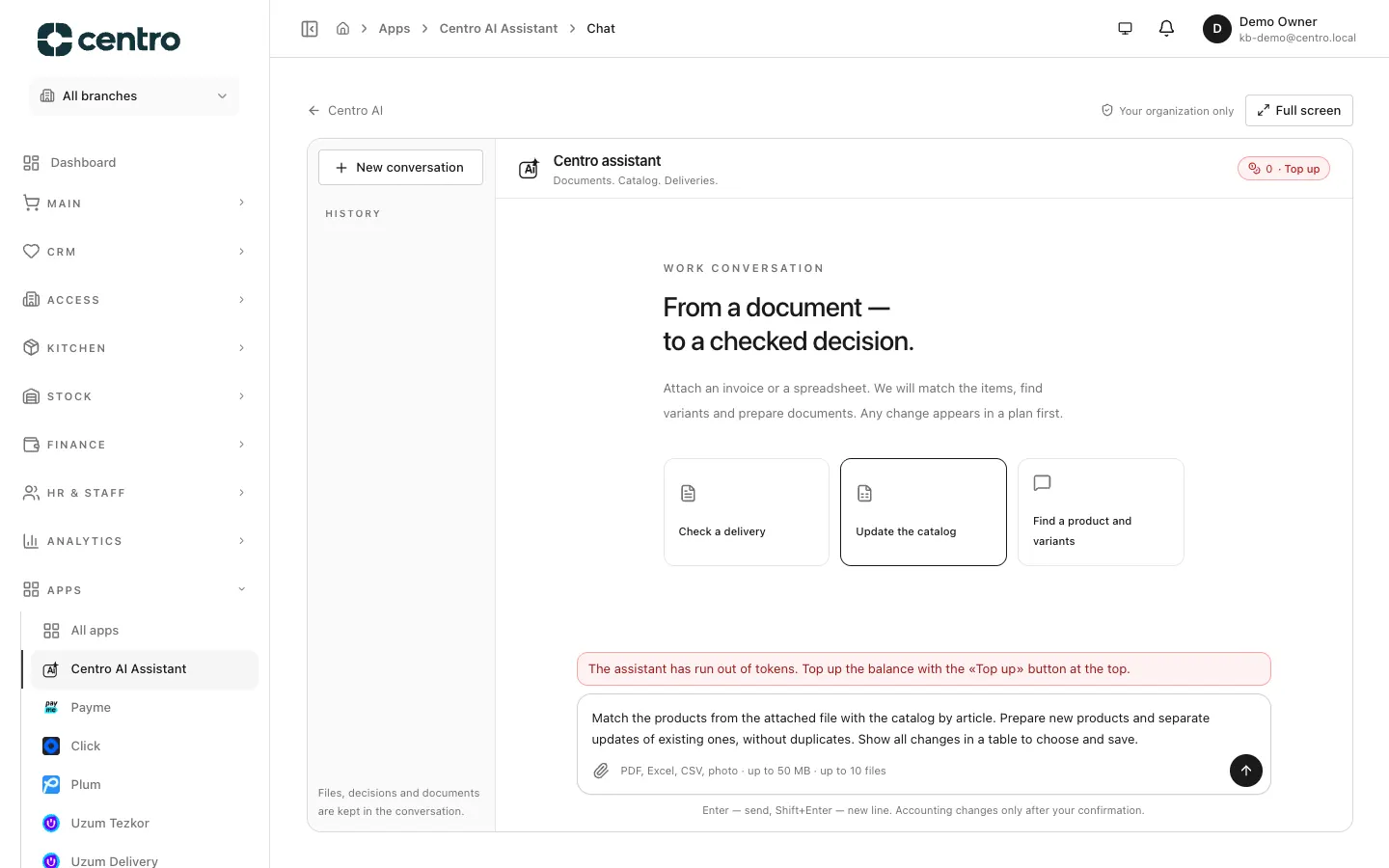
Tip: Files, plans, reports and save results stay in the conversation — you can reopen it from the history later and continue. Even if an answer breaks off («The answer to this request was not completed»), the prepared plans and their actual result are shown in the table.
Tip: A typical store request: «Match the products in the attached price list with the catalog by article and prepare the new ones with translations» or «Prepare a receipt from the invoice to the Main warehouse».
Tip: A typical car-wash request: «Check the chemicals supplier invoice against the order» or «Prepare a tech card for the “Full wash” service with shampoo and wax consumption».
Attaching files #
Which files are accepted, how they are checked and what the file cards say.
Rules
- Formats: PDF, XLSX, CSV, TSV, TXT, JPG, PNG. Old XLS is not accepted — save it as XLSX.
- Up to 50 MB per file, up to 10 files per message and 20 per conversation. Empty files and overly long names are rejected.
- Pick a file with the paperclip, drag it into the chat or paste it from the clipboard. The file waits in the browser and is uploaded only when you send.
- On the server every file is checked for viruses and hidden «instructions», its text is extracted, scans and photos are recognized. The message is sent only after all files are accepted — the model always sees every document.
- If a file fails, the message is not sent: the text and other files stay, the error shows on the card and in the notice. Sending again is safe.
States on the file card
- «Will be uploaded on send»
- Picked but not sent yet; remove it with ×.
- «Uploading 42%» → «Security check…»
- Bytes are uploading, then the server checks and reads the file (scans take longer).
- «PDF · 3 p.», «Spreadsheet», «Photo»
- The file was read and sits in the message; click it to download the original.
- «Could not be read» / «Not uploaded»
- The reason is written under the card (format, size, security, recognition).
Tip: The server splits a large document into parts and the assistant reads them in order — the status line shows «… · part 3 of 12» and a progress bar. The final answer says how many parts and rows were processed. If you send only a file (no text), the assistant briefly says what is in it and suggests what can be done — that request is sent in the interface language, so the answer comes in it too.
The change plan and confirmation #
Plans for receipts, orders, suppliers and warehouses: what to check, how to confirm or reject.
Every prepared action outside the catalog appears in the chat as a «Change plan» card: a short description, the changed fields («before → after»), source files, a table of items (quantity and amount) and the total. A plan that needs a decision is expanded; a processed one folds to its description.
How to confirm a plan
- Compare the items, quantities, currency and amount with the document.
- Tick «I have checked the items, quantities, currency and consequences of the operation.» — without it «Confirm» stays disabled.
- Click «Confirm». The status becomes «Done» and a link to the created document appears: «Open receipt», «Open order», «Open product» or «Open warehouse». Close an unneeded plan with «Reject».
Plan statuses
- «Decision needed»
- The plan is ready and has not expired.
- «Done» / «Rejected»
- You decided; a done plan links to its document.
- «Expired»
- The plan’s validity has passed — it cannot be confirmed. «Prepare again» asks the assistant to rebuild the same plan on current data (the request is sent in the interface language, and so is the answer).
- «Data changed»
- On confirmation the server refused the plan (for example such a record already exists or permissions changed) — the reason is shown; prepare the plan again. Confirming twice never creates a second document.
Tip: If a report is prepared (for example a delivery check), it appears in the chat as a card: download it with the «PDF» and «Excel» buttons. Reports change nothing.
Reviewing catalog changes Importing and reviewing products #
All catalog plans prepared by the assistant in one table: pick rows and save them at once.
Catalog plans (products, categories, modifiers, tech cards, ingredients) are not separate cards but one «Catalog changes» block. Its header shows the number of plans, the source file, «Saved: N» and «Awaiting decision: N».
Table columns
- «Item / changes»
- Name, article, price, «before → after» changes and the number of variants. «Details and variants: N» lists every variant: colour, size, barcode, quantity and price.
- «Action»
- «New product», «Product update», «New category», «New modifier group», «New tech card», «New ingredient»… Updates are highlighted in amber.
- «Result»
- «Under review», «Saved» (+ an «Open» link), «Rejected», «Expired» or «Not saved: data changed».
How to save
- Tick the rows you need (the header checkbox selects all available).
- Check «Selected: M of N. New products are created inactive.» at the bottom and click «Save selected (M)».
- Each row is saved separately: rows the server refuses are marked, the rest are still saved. Below it says «Saved: … of …».
- Check the new products in the catalog and activate them. For expired plans click «Prepare again».
Tip: For a price list with hundreds of products the assistant prepares plans in small batches (3 products or ~30 variants) and continues to the end of the document. If a brand or category is not found, it is created on save with the name from the document. After saving, check the cards and prices in «Catalog → Products».
Tip: On a tech card plan row «Details and composition: N» lists the ingredients; for modifiers — «Details and options: N». A saved tech card stays a draft — publish it in «Tech Cards».
What the assistant can and cannot do #
What it only reads, what it prepares for approval and what it never does; permissions and business-type differences.
The assistant is a chat that works with your organization’s data. It never saves anything by itself: every change is first prepared as a plan that you review and confirm. Numbers and calculations are done by the Centro server; the model only understands the text and drafts the plan.
Read only
- The organization profile: name, currency, time zone, catalog languages and the locations you may use.
- The catalog (products, variants, articles and barcodes, categories, modifiers, brands) and stock levels.
- Suppliers and settlements with them, supplier orders, receipts.
- Reports — through the allowed semantic reports (no raw SQL); a report can be downloaded as PDF or Excel.
- Tech cards and ingredients.
Prepares for approval
- New products and updates of existing ones: variants (colour, size, barcode), categories, modifiers, translations, sales channels, SEO and other menu fields. New products are created inactive.
- Tech cards (as drafts — you publish them yourself), ingredients and their categories.
- A new supplier, a supplier order (create, confirm, mark as sent), a receipt for an order, a receipt draft and its posting.
- A new warehouse — if there are none yet or you ask for one.
- Comparing an attached invoice with a supplier order (shortages and discrepancies) — this is only a report, nothing is written to the books.
Important: Never does: customer orders and sales, payments, cash, refunds, settlement allocations, venues, cash registers, prices outside the catalog, users, permissions and settings. The assistant refuses such requests and says they are done in the Centro interface by an authorized person. It never sees other organizations’ data, never runs SQL or code and ignores «instructions» inside documents.
Who may do what
- Owner
- Reads and prepares in every section and sees all locations.
- Other staff
- The assistant works only with the sections granted in the position: «View» — read, «Full» — prepare plans (catalog, tech cards, ingredients, purchasing, receipts, stock, suppliers, venues, reports…). With no section at all the assistant is unavailable. Permissions are re-read on every request.
- Buying tokens
- The owner or an employee with full access to «Billing».
Tip: For a restaurant: a receipt from a supplier invoice, new dishes and modifiers on the menu, translations, and tech cards (composition as net quantities, KDS steps, venue prices). A missing ingredient is first prepared as a separate plan — save it, then ask for the tech card. Tech cards are created as drafts: check them in «Tech Cards» and publish them yourself.
Tip: For a store the assistant is especially useful: importing hundreds of models from a supplier price list or invoice (Excel, PDF, photo) — one model by article = one product, its colours and sizes = variants with exact barcodes. If an article or barcode already exists, an update is prepared instead of a duplicate. The purchase price from the document is not written as the selling price — it is kept as an attribute. The starter prompts «Update the catalog» and «Find a product and variants» are made exactly for this.
Important: The store admin has no tech card or ingredient sections, so do not ask the assistant to prepare them — there is no page to check and publish them. Work with products, variants, categories, brands, suppliers, orders and receipts.
Tip: For a car wash: services sit in the catalog as products, so the assistant can prepare new services, their categories and translations. Chemicals (shampoo, wax, foam) and consumables are ingredients and stock: you can prepare a receipt from a supplier invoice, check stock levels and build a tech card for a service (consumption norms). Vehicles, customers and bookings are not available to the assistant — it does not work with orders or customers.
Connecting, tokens and payment #
The app is paid: the monthly fee includes tokens, extra packs can be bought; what happens when the balance runs out.
How to connect
- In the Apps → All apps catalog find the «Centro AI Assistant» card. It is a paid app (no trial); the price is on the card and in the add-on list in Billing → Plans — currently 29 USD a month including 3,000,000 tokens a month.
- Connect it and pay the invoice. After payment the app becomes active, Centro AI Assistant (and Analytics → AI reports) appear in the menu, and tokens are credited for every paid month.
- To see the menu item, the position needs access to the «System settings» section; the work inside the chat is limited by the section permissions described above.
Tokens
- What a token is
- The amount of text the model read and wrote (as counted by the provider). Every model step is charged from the balance; large files and long conversations cost more. Recognizing scanned PDFs and photos also uses tokens.
- Balance chip
- In the chat header with a coin icon: the available tokens («3 M», «850 K»). Hover shows available and used. Grey — enough; amber — less than 10% of a pack left; red — not enough even for one request (below 4,000 tokens). If you have the right, it also says «Top up» and the chip is clickable.
- Buying a pack
- In the «Top up assistant tokens» window choose the number of packs (1–50): a pack is currently 1,000,000 tokens for 10 USD + VAT. «Issue invoice» opens the payment page; tokens are credited when the invoice is paid. The remainder does not expire.
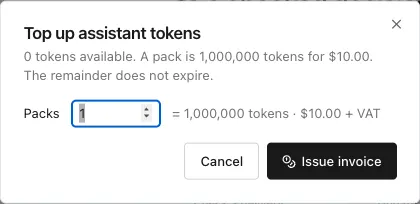
Important: If the app is not paid or the period has ended, the chat shows «The Centro AI Assistant app is not connected or its payment period has ended. The conversation history is kept.» and a «Connect» button; messages cannot be sent, but the history and documents are kept. If the period ends mid-conversation, the work stops at the next model step. When the tokens run out — «The assistant has run out of tokens.», and no request starts.
If the chat says «To send messages, connect the production Model Studio API…», the language model is not configured on the server — Centro support does this; it cannot be fixed in the organization settings. «File upload is temporarily unavailable…» means the file security scanner is down; text messages work, files work again once the scanner is back.
AI approvals #
The queue of AI task and RCA drafts: review, approve with a reason or reject.
How to open
- In the sidebar, expand the Apps group and click Centro AI Assistant.
- Click «AI approvals» (visible when the position has access to tasks).
Tip: An owner without an assigned position currently does not see the «AI approvals» button (nor «Open approvals» on the control page), although they have full rights. In that case open the page directly: type …/apps/centro-ai-assistant/approvals in the address bar — the page works.
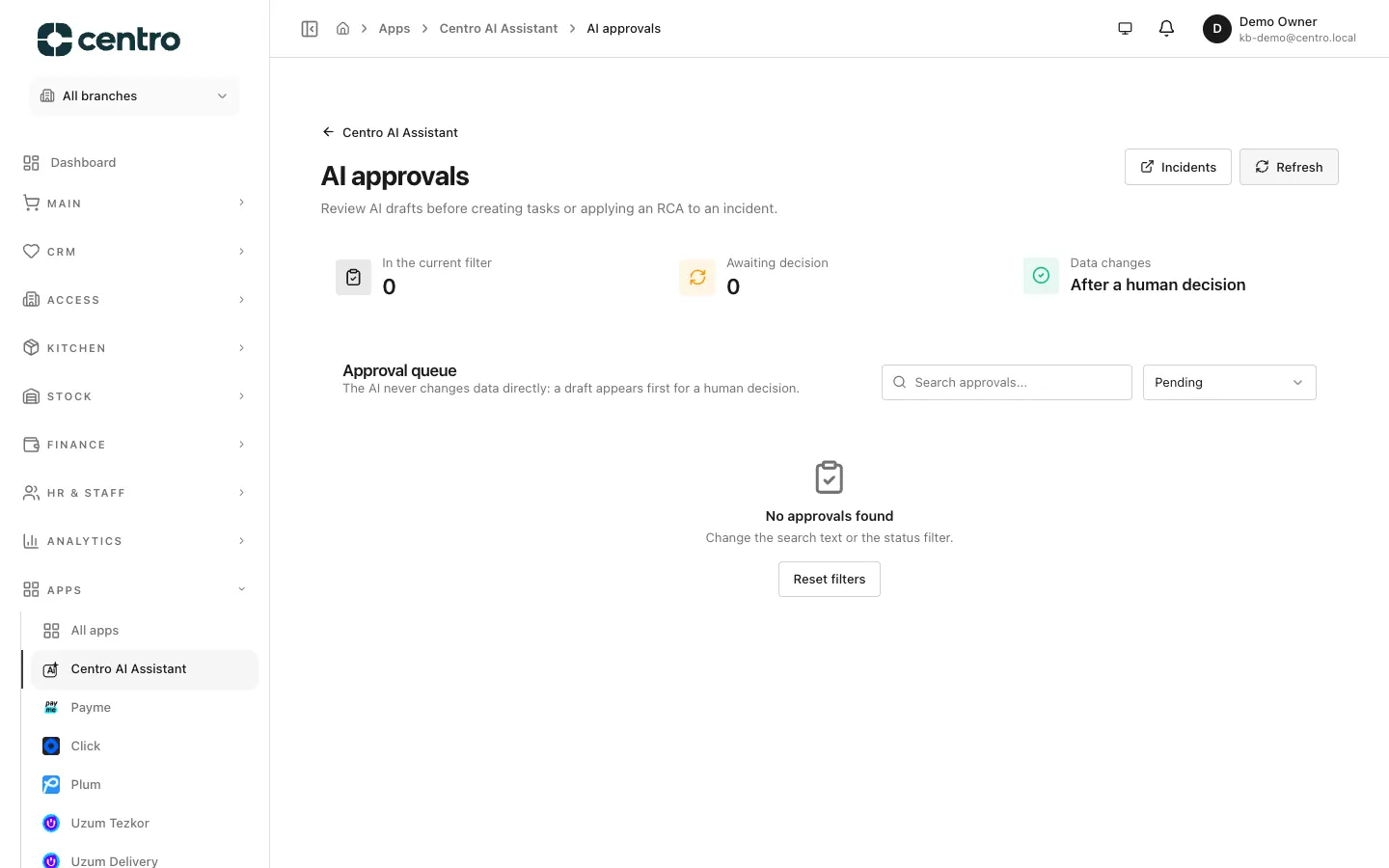
This is not where chat plans go, but the results of background AI jobs: a task draft for an employee about an incident and an RCA draft (root cause analysis) for a KDS incident. The AI creates nothing by itself — the task or RCA appears only after a human approves it here. The list refreshes every 30 seconds.
Cards, filters and columns
- «In the current filter» / «Awaiting decision»
- How many records match the filter and how many await a decision in total.
- Search and status
- Statuses: «Pending» (default), «Approved», «Rejected», «Expired», «Cancelled», «All».
- «Draft»
- Title, description and badges: priority, role (who gets it), due date, checklist items and evidence count.
- «Source»
- What the draft is based on: an incident, a stock lot, a financial transaction, a delivery, a review, an order…
How to review a draft
- Click «Review» on the row: the proposal, the source («Open source» jumps to the incident), the checklist and the evidence (for an RCA — the hypothesis, corrective and preventive actions, KDS facts) open.
- In «Approval reason» write what you checked (required, up to 1000 characters) and click «Create task» or «Apply RCA». The assignee is chosen by role and venue; if several match, the task is created unassigned.
- If not needed — «Reject» and give the reason: it is kept in the AI job history.
Important: A draft without evidence cannot be applied — the button is disabled. Deciding needs full access to the tasks section (for an RCA — incidents); with view access you can only read the draft.
AI operational control #
The health of background AI automation: errors, retries, pending approvals, escalations and process status.
How to open
- In the sidebar, expand the Apps group and click Centro AI Assistant.
- Click «AI control».
Page blocks
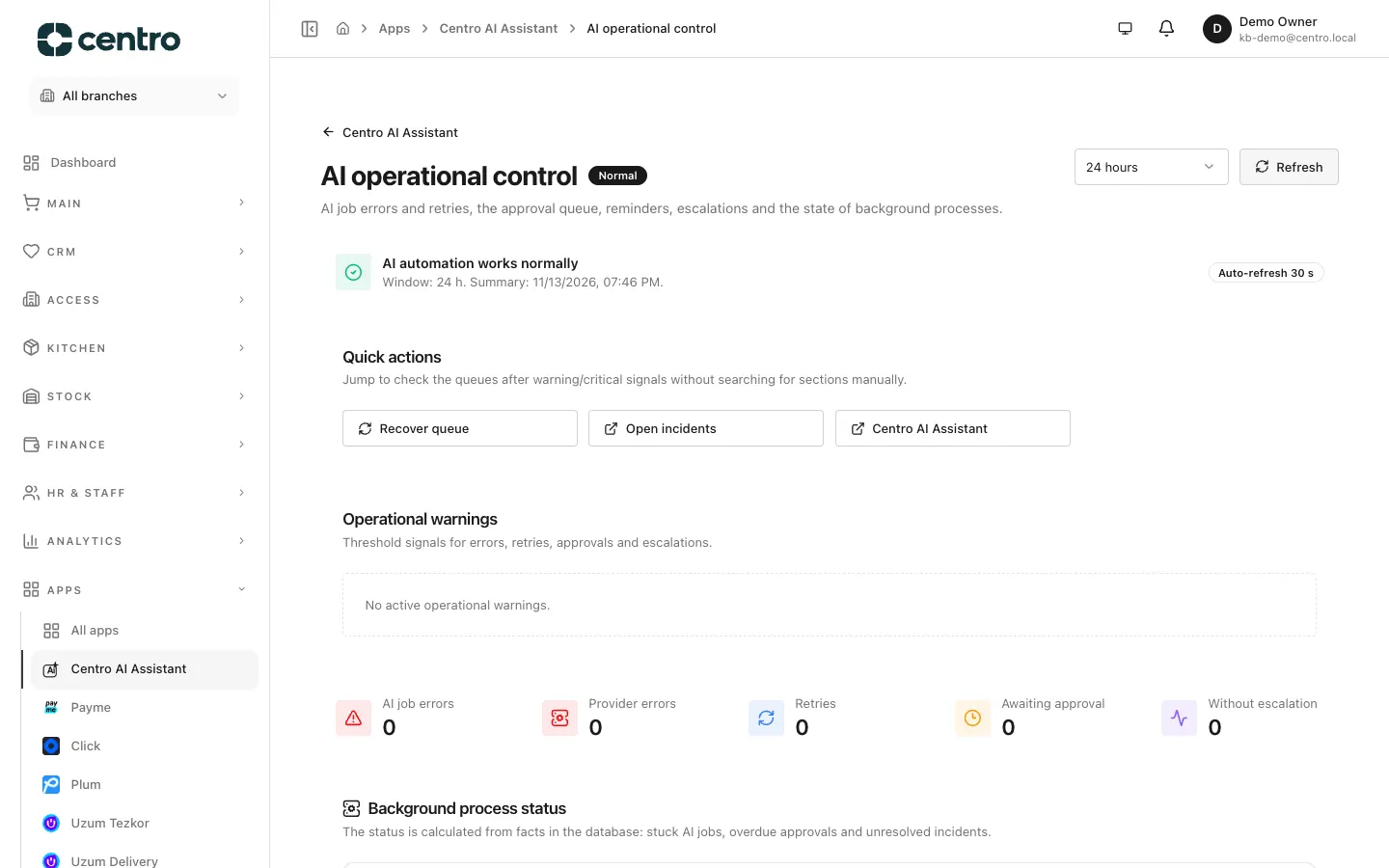
- Window and status
- «6 hours» … «7 days» — the period to count. Overall status: «Normal», «Attention» or «Critical»; the page refreshes every 30 seconds.
- «Quick actions»
- «Recover queue» (puts stuck AI jobs back in the queue; needs full access to incidents and tasks), «Open approvals», «Open incidents».
- «Operational warnings»
- Signals above a threshold: what happened, what to do and «metric: value / threshold».
- Five figures
- AI job errors, provider errors, retries, pending approvals and incidents without escalation.
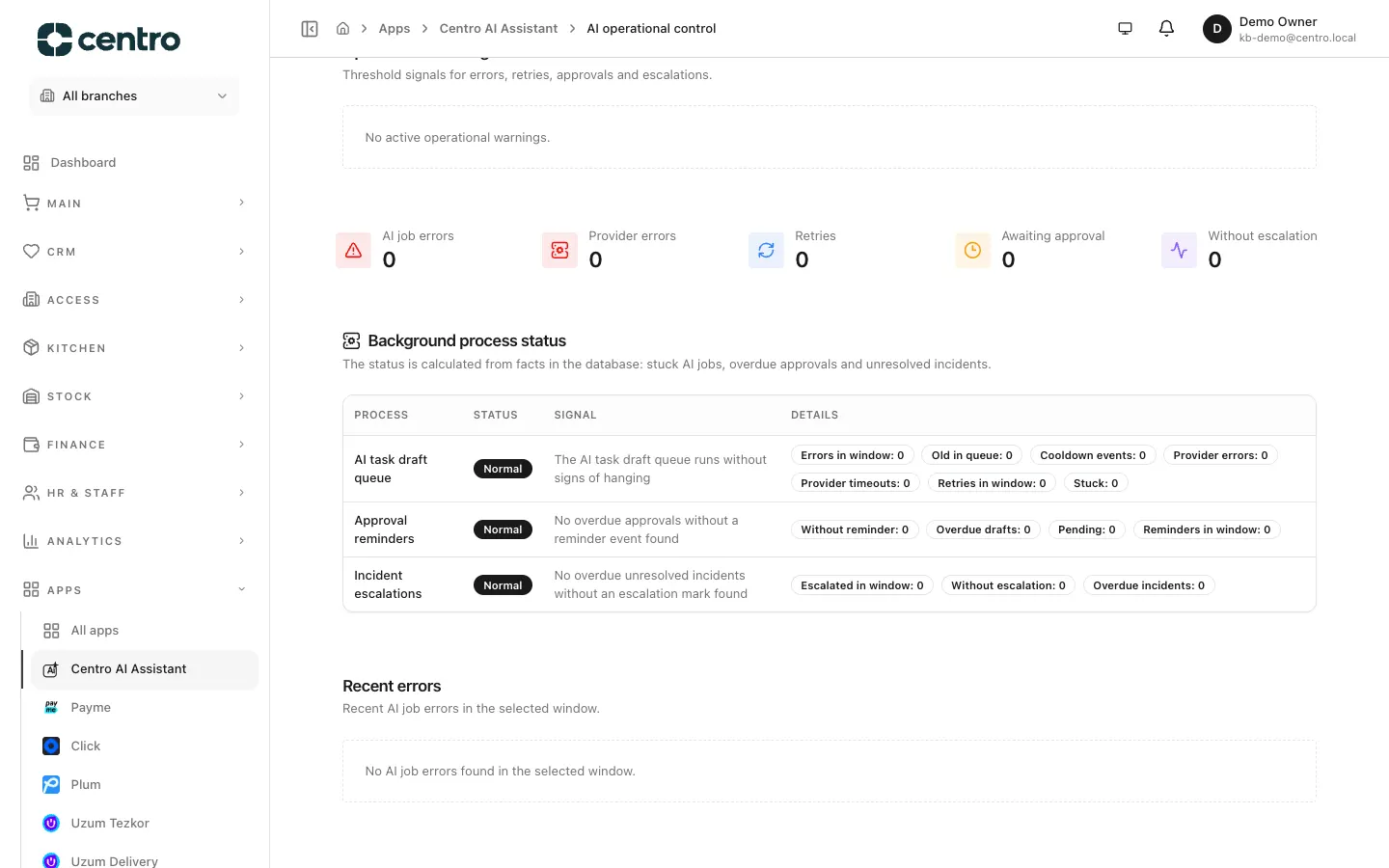
- «Background process status»
- Three processes: the AI task draft queue, approval reminders, incident escalations — status, signal and details from facts in the database.
- «Recent errors»
- Failed AI jobs in the period and their reasons (for example, the provider did not answer within 45 seconds).
Tip: The page needs view access to incidents. On «Critical» work through the pending approvals first; on provider errors do not raise limits — contact Centro support.