Fiscalization and marking
Fiscal receipts, marking operations, paid but not fiscalized orders and the violations log.
Open in the admin panel/sales/fiscal-reports The page header is «Fiscalization and marking» (path: «Sales › Fiscalization and marking»). It reports the results of fiscalization: what went to the tax system, what failed and which paid orders have no receipt. Four tabs: «Fiscal receipts», «Marking operations», «Paid, not fiscalized», «Violations log».
How to open
- In Apps → All apps, open the fiscalization app card and click «Configure» (the fiscalization settings page).
- Click the Fiscal receipts and reports button at the top right. The page has no item of its own in the sidebar.
Required access
- The «Sales and orders» section in the position: for the page itself and three of the tabs.
- For the «Paid, not fiscalized» tab, view access to Finance → Taxes as well.
- The fiscalization settings page itself (where the button is) requires access to system settings.
Tip: For a store: «Marking operations» are the messages sent to Asl Belgisi when marked goods are sold or returned. Marking itself is set up in «Settings → Marking».
«Fiscal receipts» and «Marking operations» #
Receipts sent to the tax system and marking operations sent to Asl Belgisi: statuses and resending.
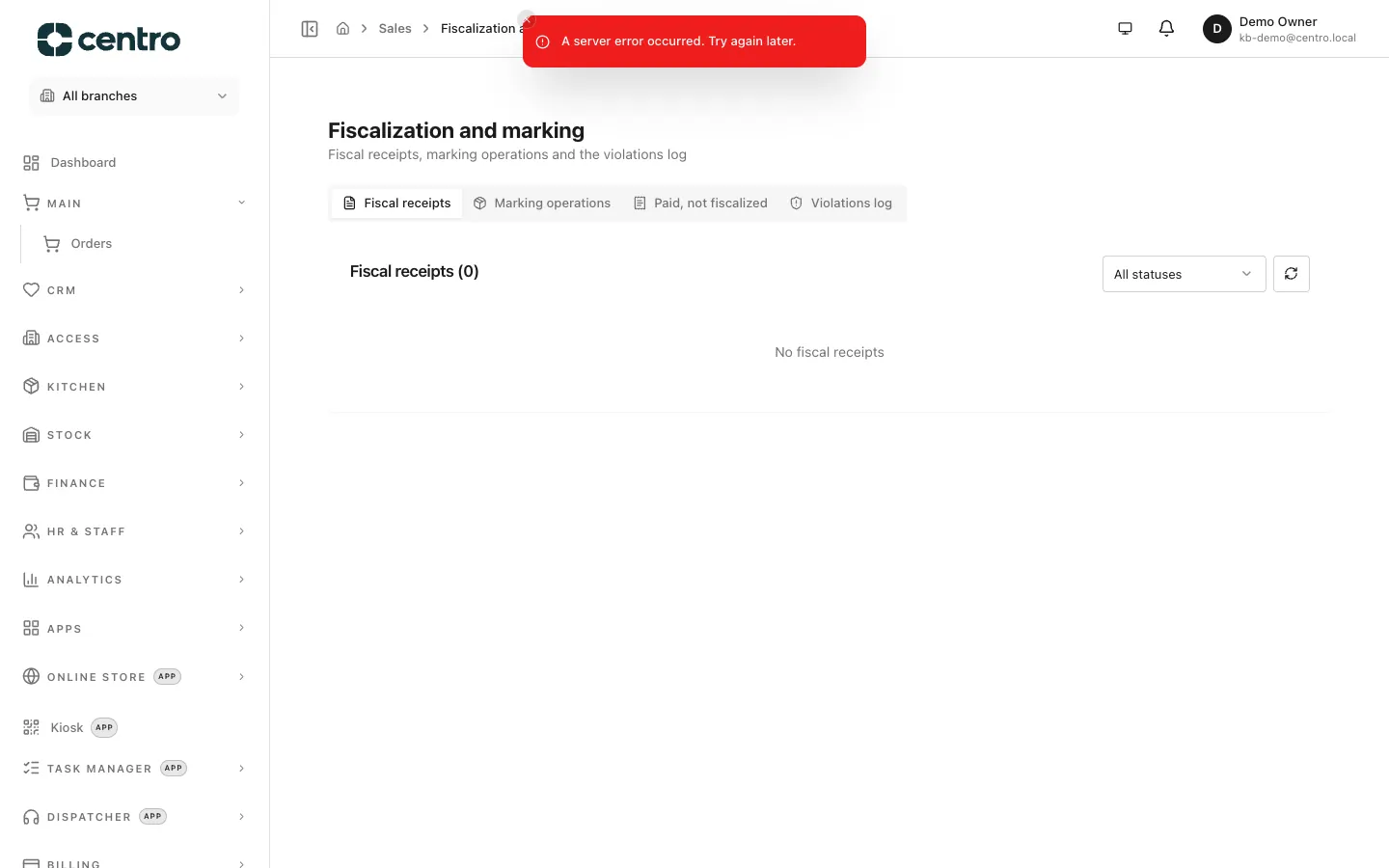
The «Fiscal receipts» tab
- Status filter
- «All statuses», «Fiscalized», «Queued», «Error», «Skipped». The heading shows «Fiscal receipts (N)», N being the total for the filter. «Refresh» reloads the list.
- Columns
- «Date», «Order» — the order number, «Type» («Sale» or «Refund»), «Status» (also «Sending» and «Cancelled»), «Fiscal No.» — the number issued by the tax system, «Actions».
- «Retry»
- Shown on receipts with the «Error» or «Queued» status. It queues the receipt for resending — it really is sent to the fiscal provider again.
- Pages
- 20 rows per page; use «Back» / «Next» to page through.
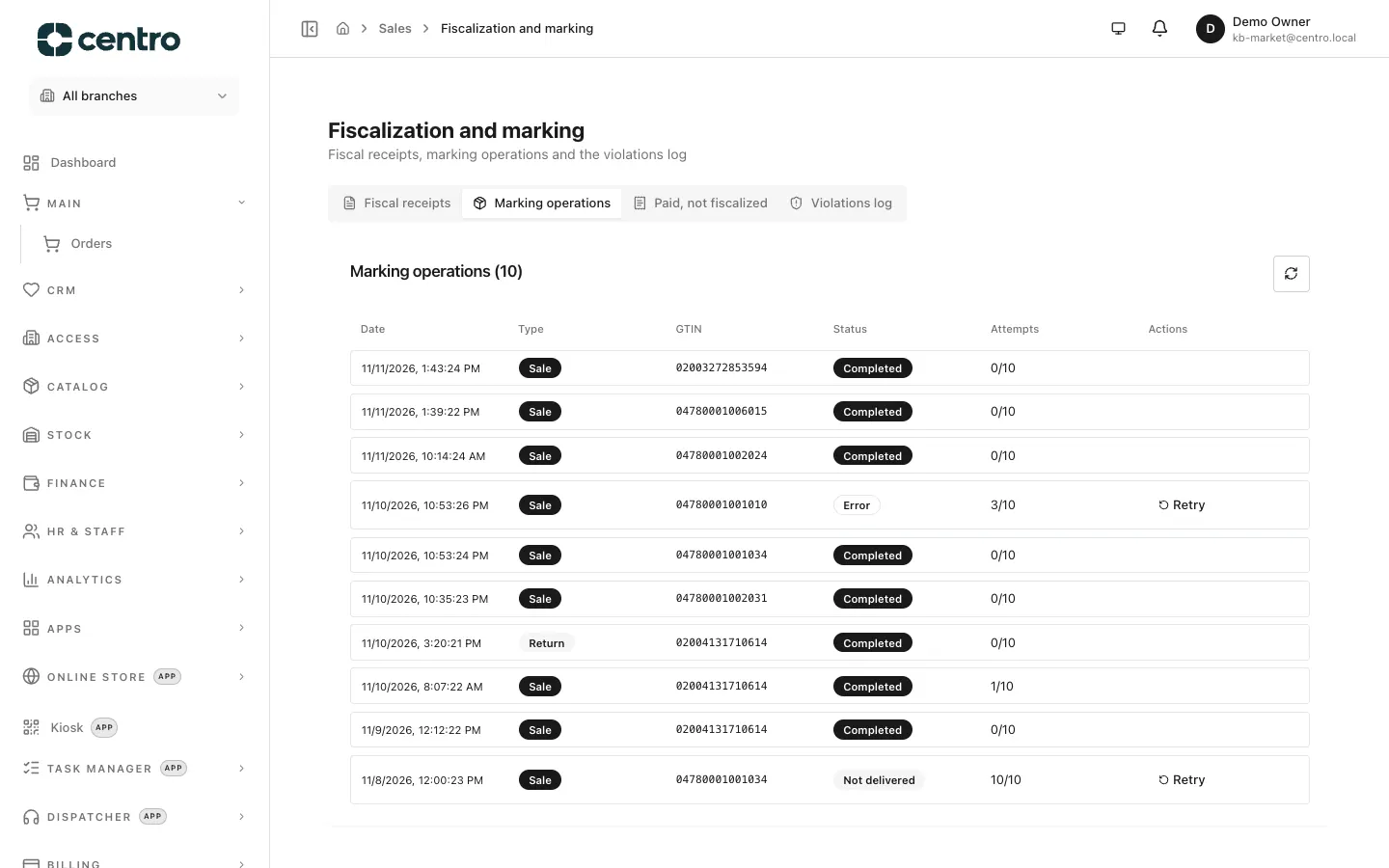
The «Marking operations» tab
- Columns
- «Date», «Type» («Sale» / «Return»), «GTIN» — the product code, «Status» («Completed», «Queued», «Sending», «Error», «Not delivered»), «Attempts» — attempts made / allowed (e.g. 2/5), «Actions». The heading is «Marking operations (N)», 20 per page.
- «Retry»
- Shown on operations with the «Error» or «Not delivered» status; it sends the operation to Asl Belgisi again.
Important: Press «Retry» only once the cause of the error is fixed (for example, the connection to the provider is back): the receipt or operation really is sent again.
«Paid, not fiscalized» #
The registry of orders closed by payment without a successful fiscal receipt, and a CSV for the accountant.
The registry is view-only: no button here fiscalizes an order and receipts are not «back-filled» automatically — what to do with these orders is decided by the accountant or tax specialist together with the fiscal provider. The tab lists orders only when fiscalization is connected (a provider is set up and the mode is not «Disabled»).
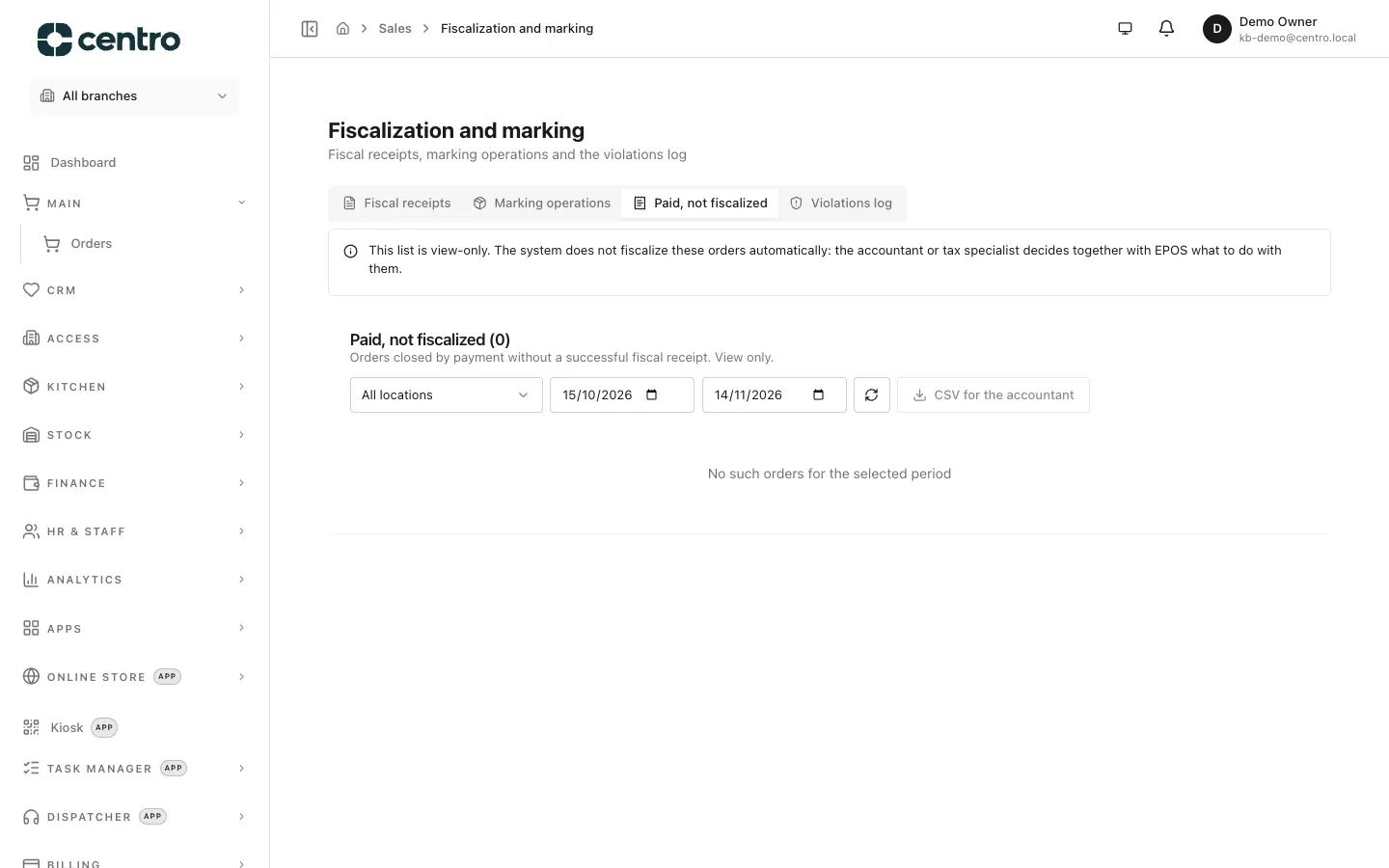
- Filters
- «All locations» or one location; payment date «from» (30 days ago by default) and «to» (today). «To» cannot be earlier than «from». The refresh button reloads the list.
- «CSV for the accountant»
- Downloads a CSV file with the whole filtered list (not just the current page). Disabled when the list is empty.
- Columns
- «Order», «Location», «Paid», «Amount», «Payment method», «Source» («online» or «offline sync» — the till worked offline and synced later), «State»: «queued: …», «receipt: …» (status of the latest receipt) or «no attempt». 50 per page.
Tip: To see this tab, the position also needs view access to Finance → Taxes. The tab works only in the web panel, not in the till app.
«Violations log» #
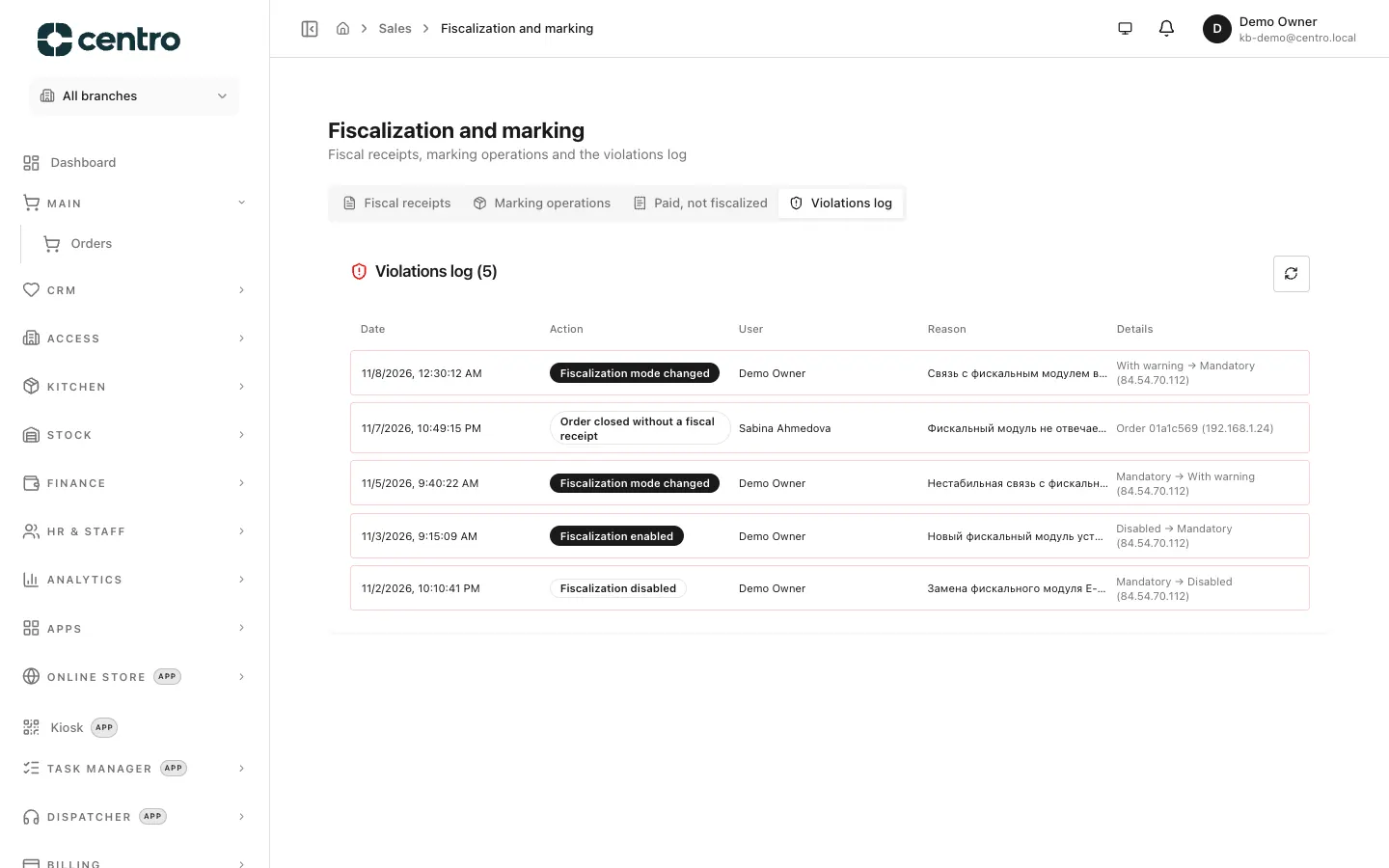
Who changed the fiscalization mode, when and why.
The log records changes of the fiscalization mode: switching off, switching back on, changing the mode (the reason is entered when the mode is changed — see «Fiscalization modes»). Columns: «Date», «Action» («Fiscalization disabled», «Fiscalization enabled», «Fiscalization mode changed», «Order closed without a fiscal receipt»), «User» — the employee’s name (the first 8 characters of the id if the employee isn’t found), «Reason», «Details» — old → new mode (for example, «With warning → Mandatory»), the IP address and, for an order closed without a receipt, its number. The heading is «Violations log (N)». With no entries — «No violations recorded».