Suppliers & carriers
The counterparty registry: details, terms, brands and assortment, advances and catalog import.
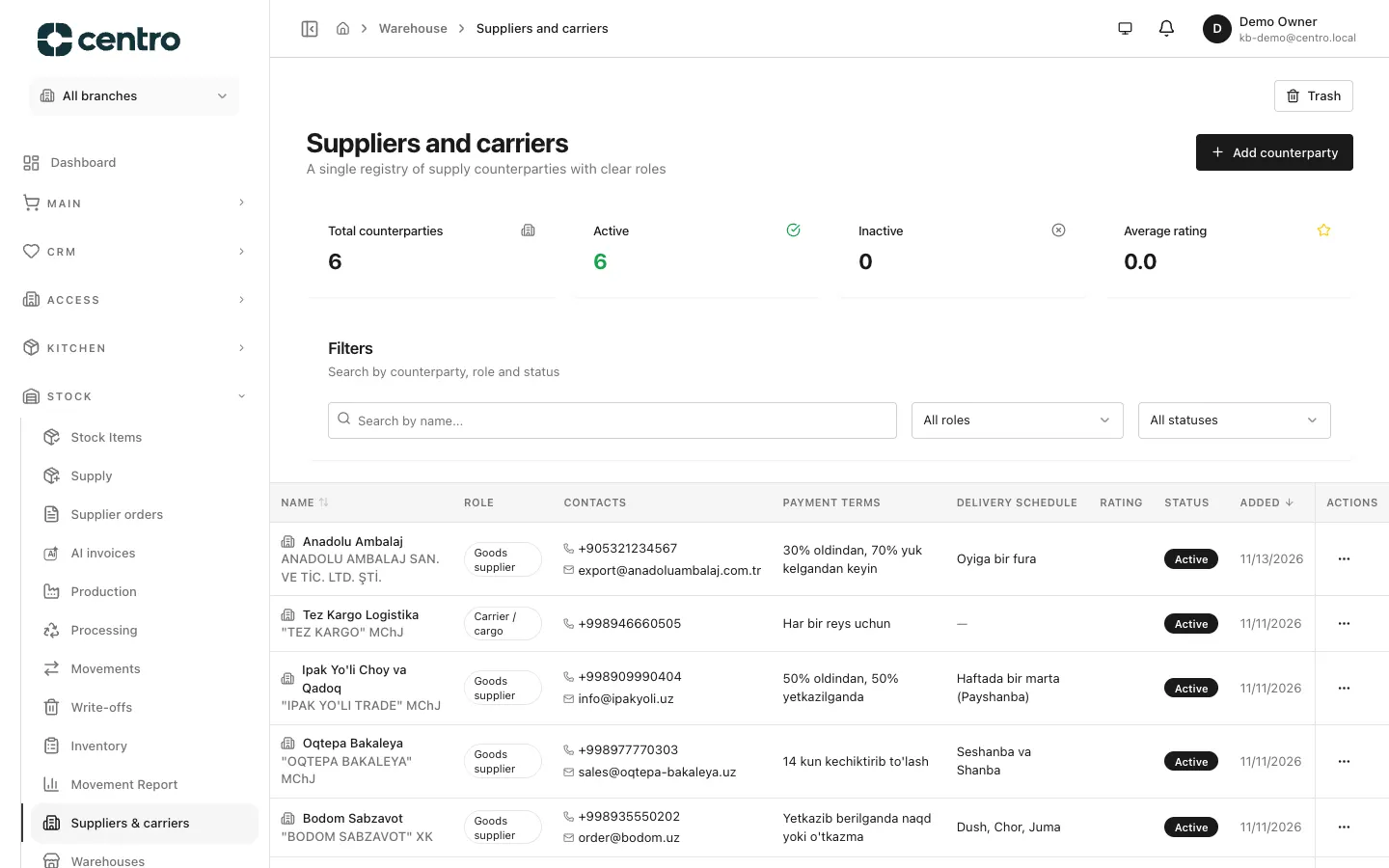
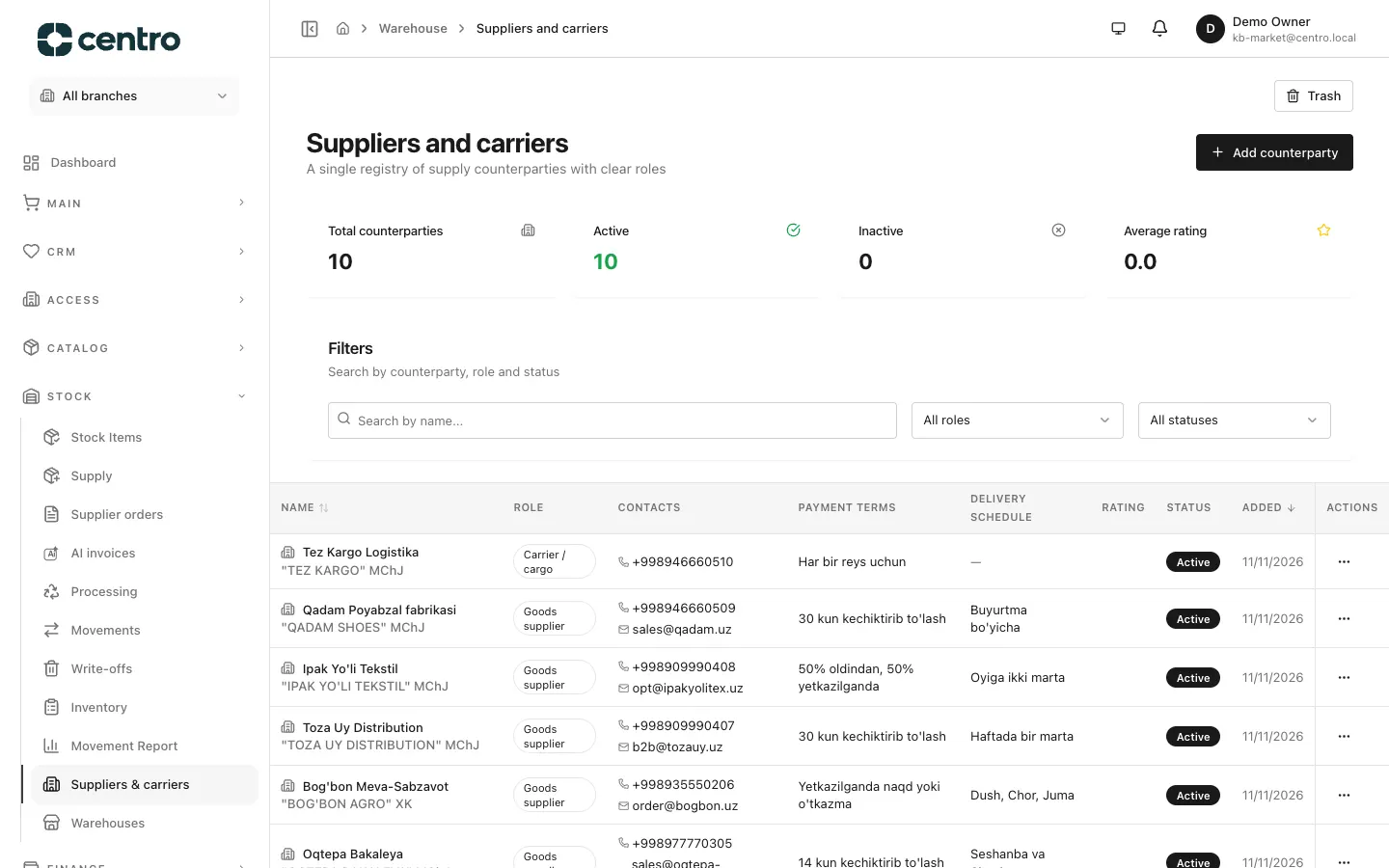
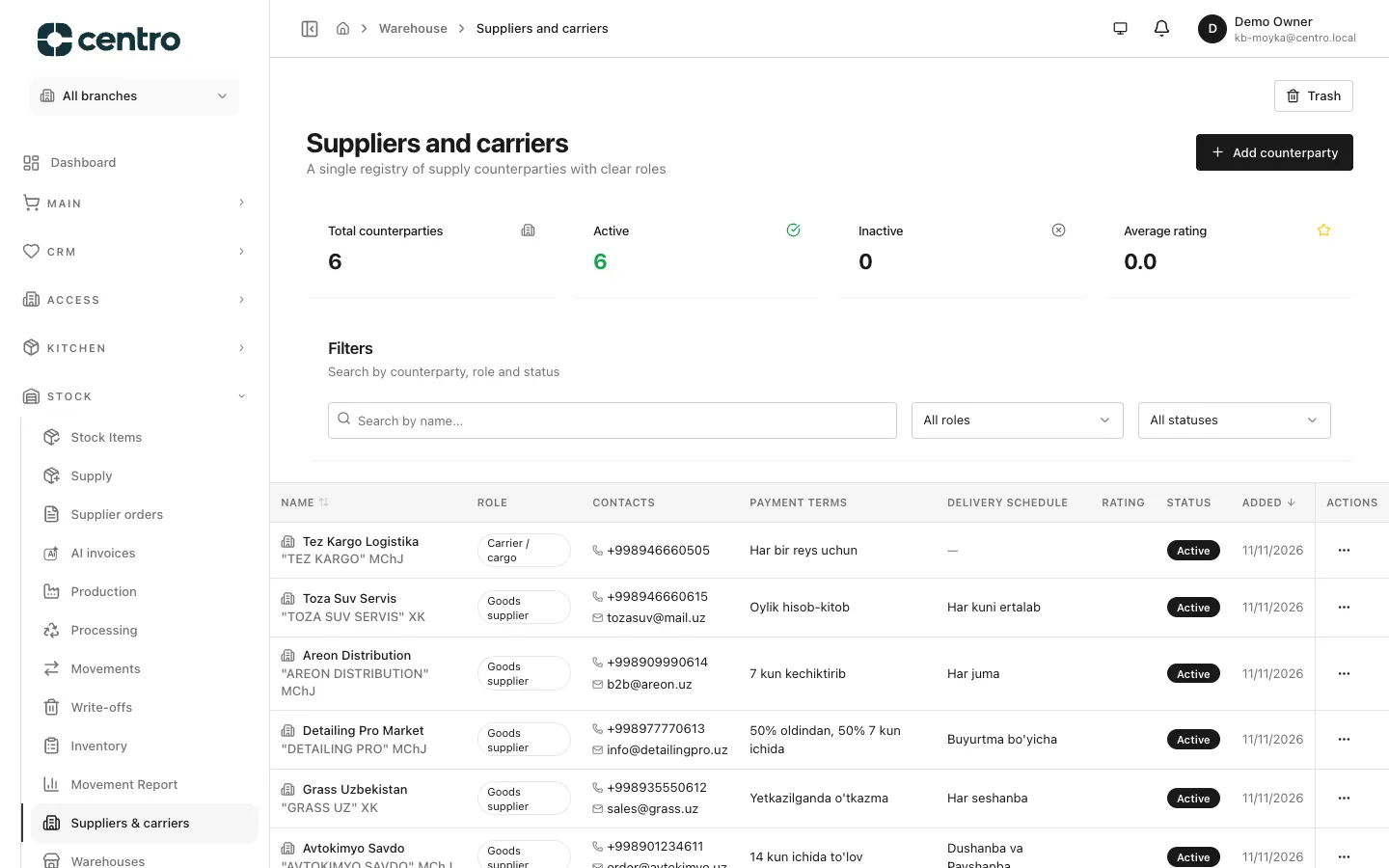
Open in the admin panel/stock/suppliers The page header is «Suppliers and carriers». Each counterparty has a role: a «Goods supplier» is selectable in receipts and orders, a «Carrier / cargo» as the recipient of cargo and delivery costs. One counterparty can hold both roles.
How to open
- In the sidebar, expand the Stock group.
- Click Suppliers & carriers.
- Stats
- «Total counterparties», «Active», «Inactive», «Average rating».
- «Filters»
- Search by name, «Role» («Goods suppliers», «Carriers / cargo») and «Status».
- Columns
- «Name», «Role», «Contacts», «Payment terms», «Delivery schedule», «Rating», «Status», «Added», «Actions» (view, edit, deactivate, delete).
Tip: Don’t delete a supplier you stopped working with — choose «Deactivate»: it disappears from new documents while the history of receipts and debts is kept.
Adding and editing a counterparty #
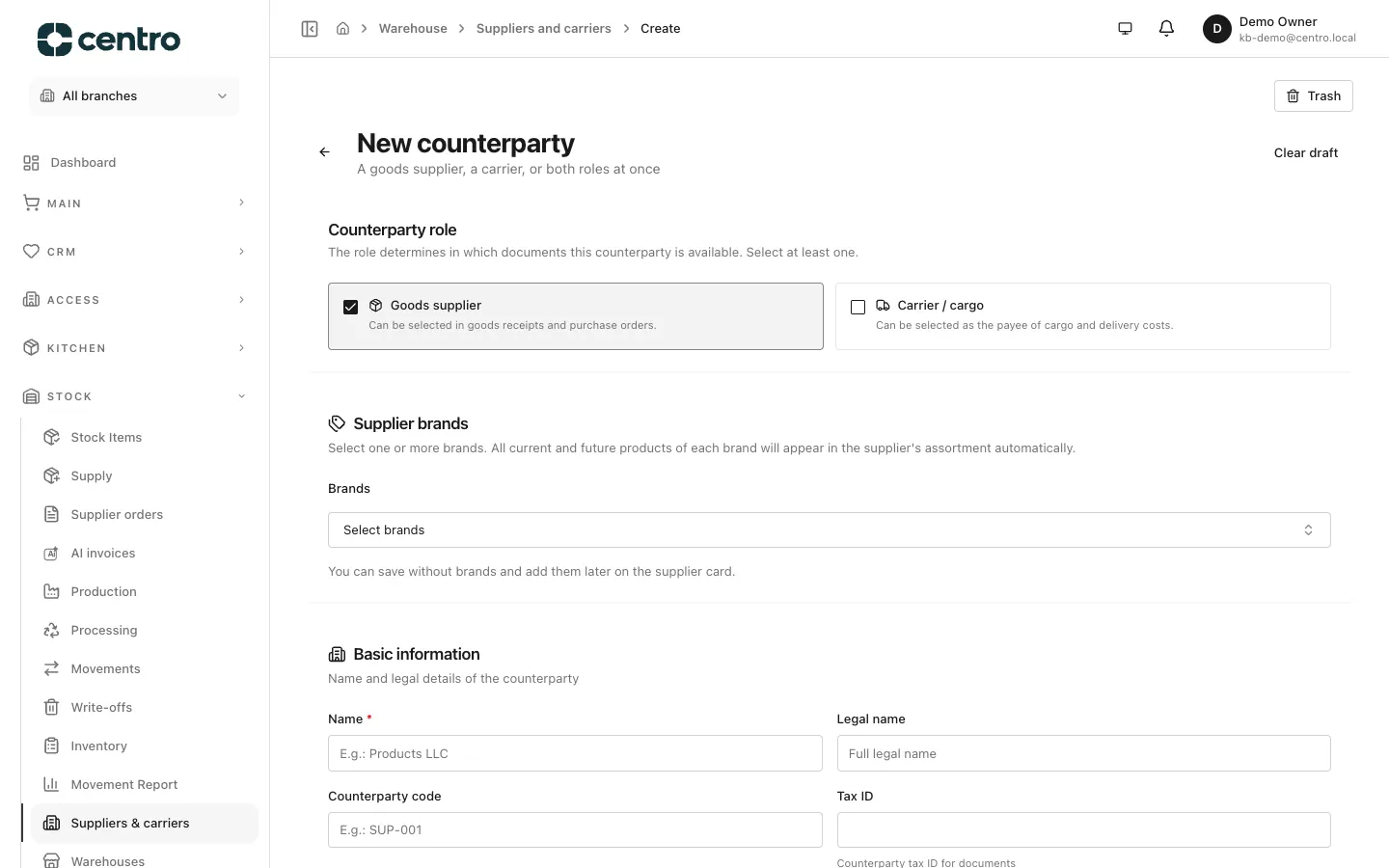
Role, basic information, contacts and terms of cooperation.
- «Counterparty role»
- «Goods supplier» and/or «Carrier / cargo» — at least one is required.
- «Supplier brands»
- On creation only: a chosen brand adds all its products to the supplier’s assortment («Whole brand, including new products»), or you pick products later.
- «Basic information»
- «Name» (required, no duplicates), «Legal name», «Counterparty code», «Tax ID», «Contact person».
- «Contact information»
- «Phone», «Email», «Website», «Address», «City». Phone and email are used when sending an order.
- «Terms of cooperation»
- «Payment terms», «Delivery schedule», «Lead time (days)», minimum order and credit limit.
Tip: «Add supplier» in the receipt or order form opens this same form and returns you to the document after saving.
Counterparty card, advances and reconciliation #
Details, brands, assortment, advances and the reconciliation statement.
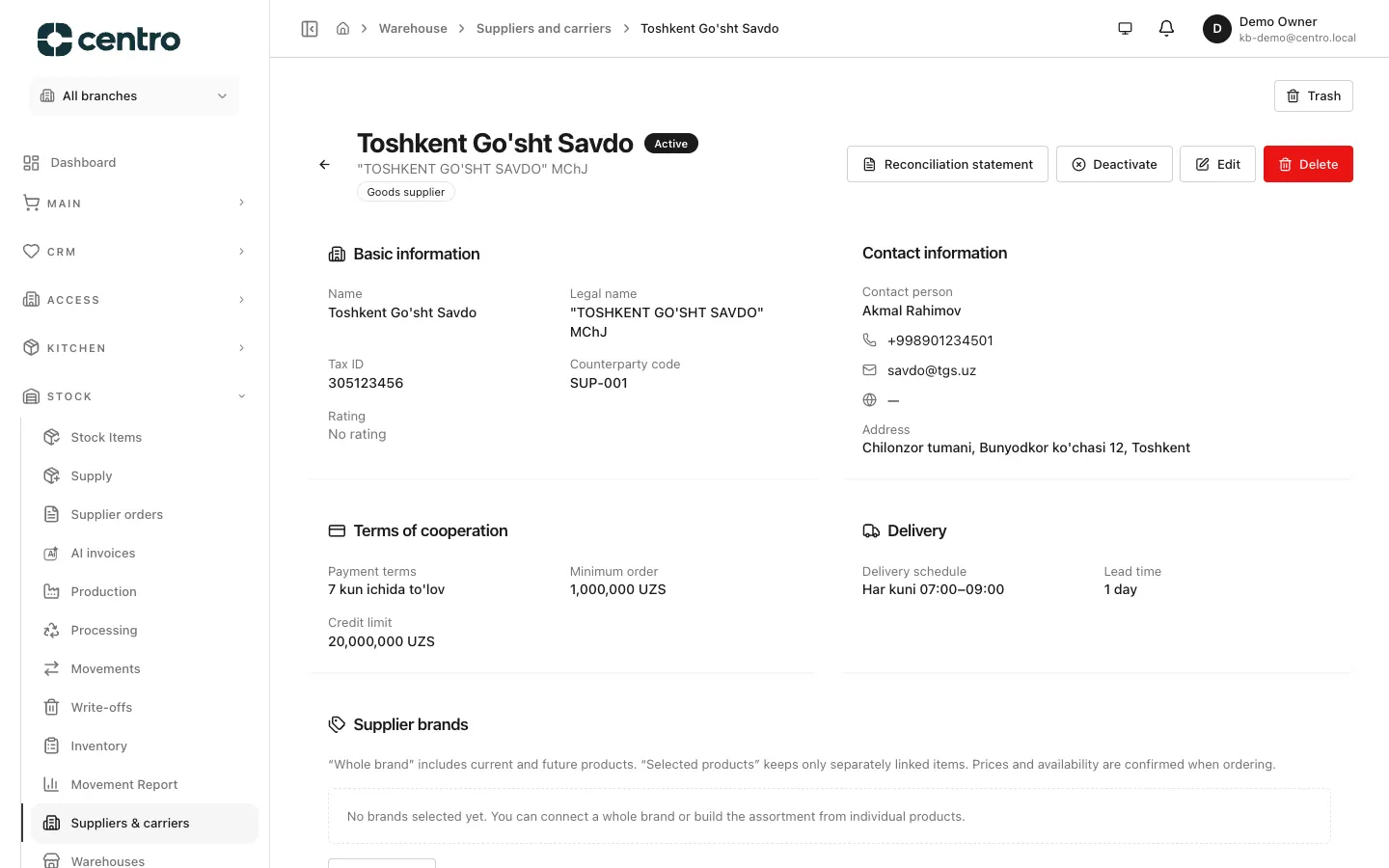
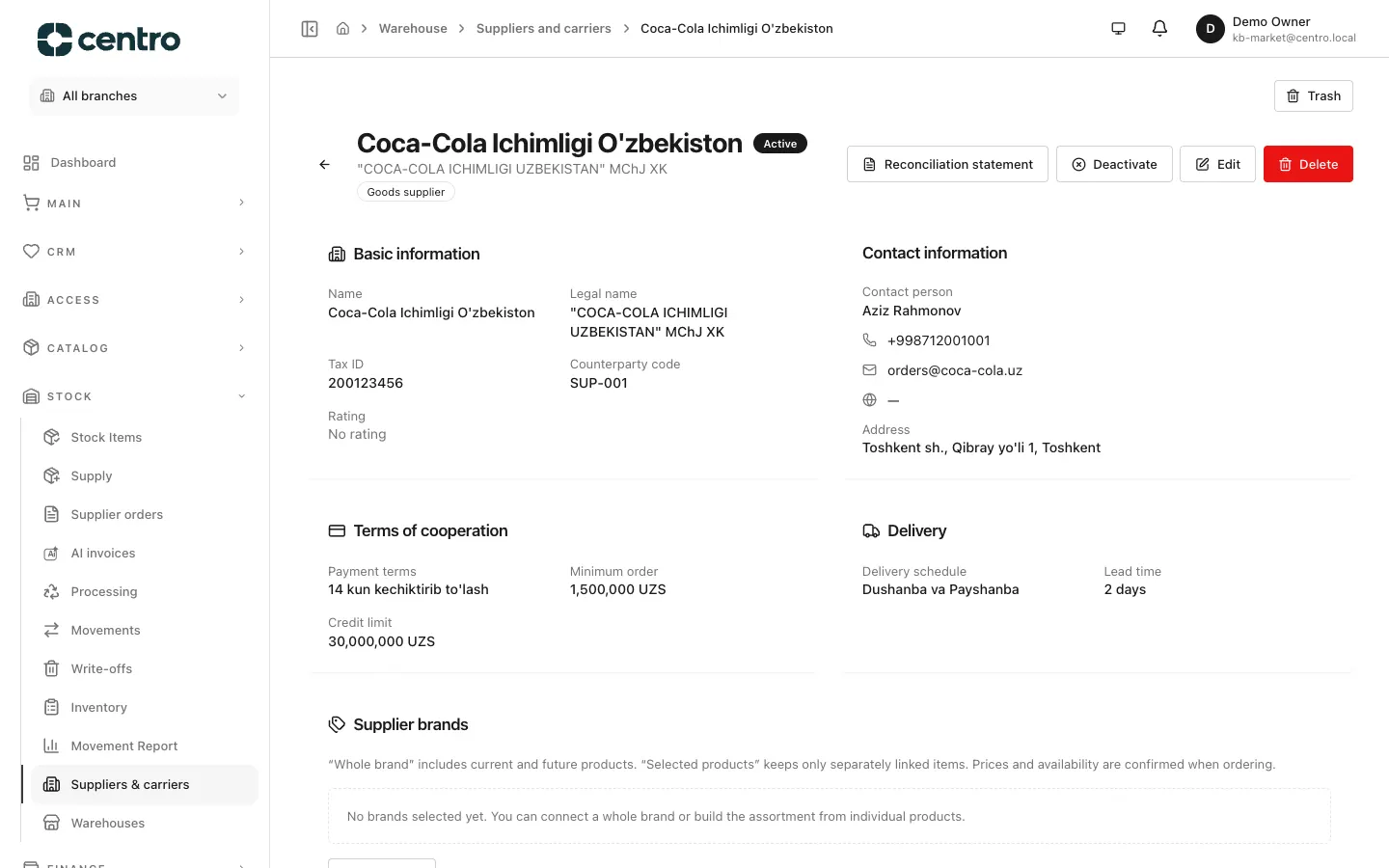
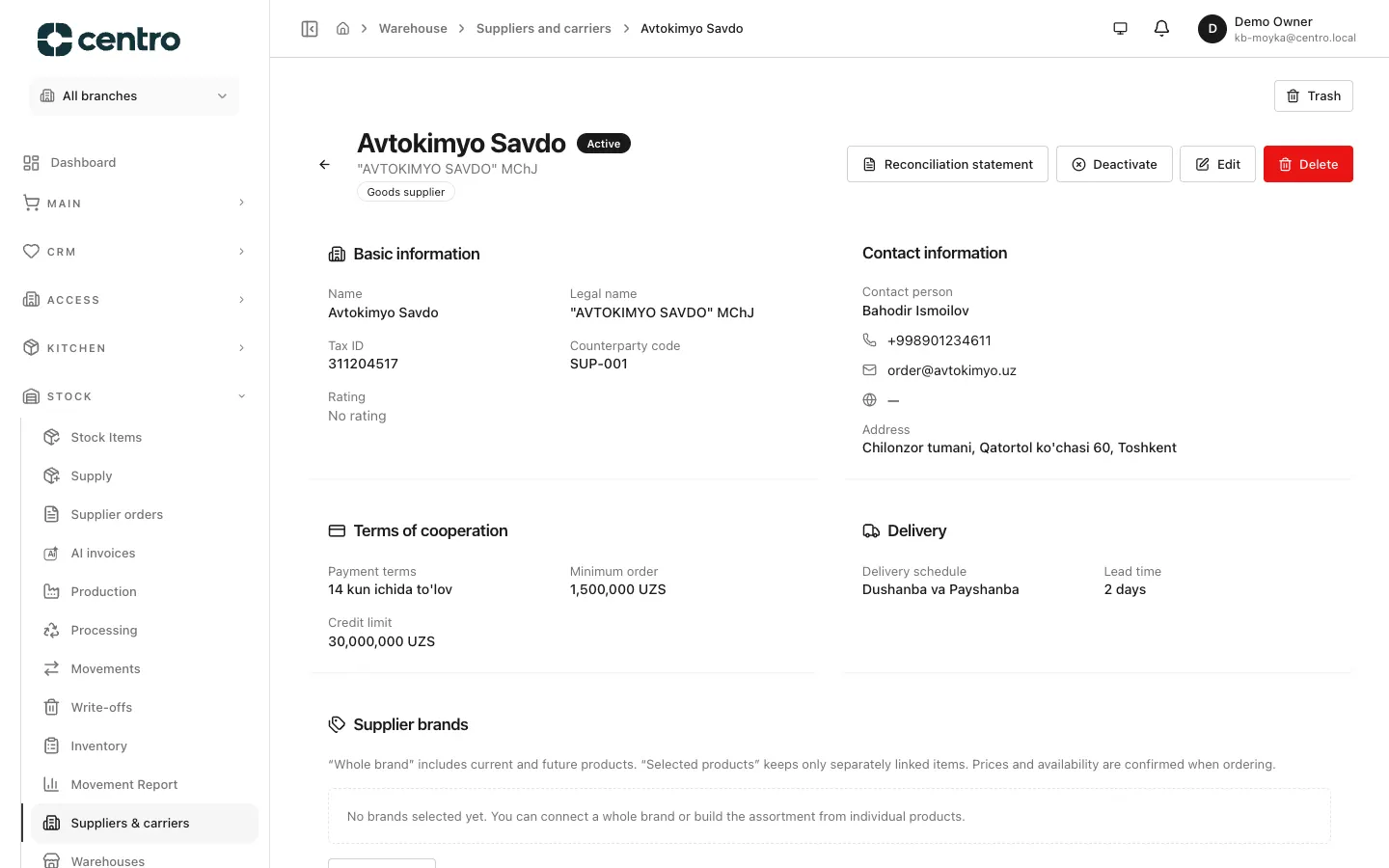
The header shows the name, status and roles, with the buttons «Reconciliation statement» (statement of settlements with the supplier), «Deactivate», «Edit», «Delete». Below: «Basic information», «Contact information», «Terms of cooperation», «Delivery», brands, assortment and advances.
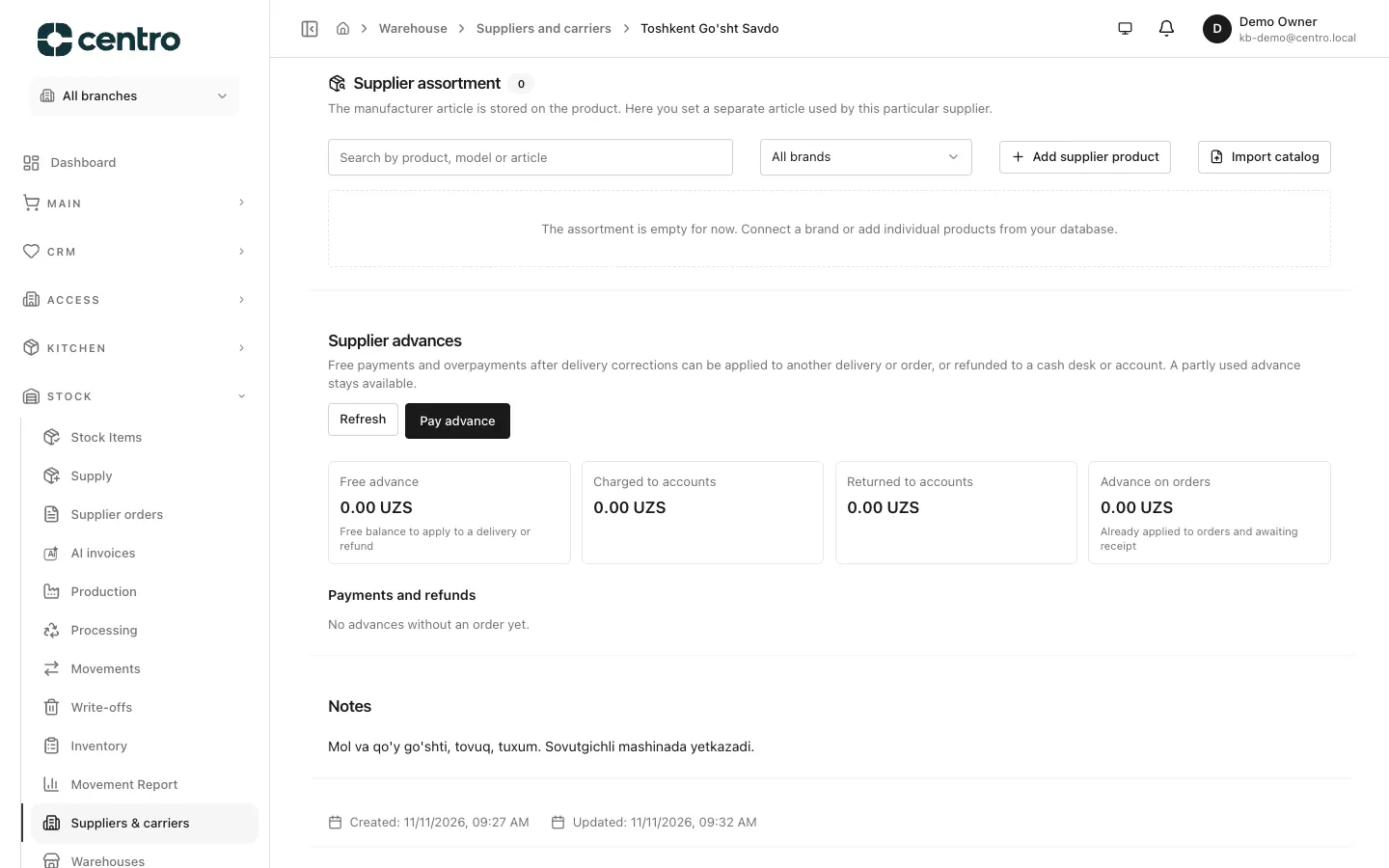
The «Supplier advances» block shows money paid without an order. «Pay advance» records a new advance; an existing one can be used via «Apply to order» or «Apply to delivery», and if the supplier returns the money you record a refund. Applying moves no money, it only reduces the debt.
Advances without an order: pay, apply, refund #
Paying a supplier without an order and later applying the money to an order or delivery, or refunding it.
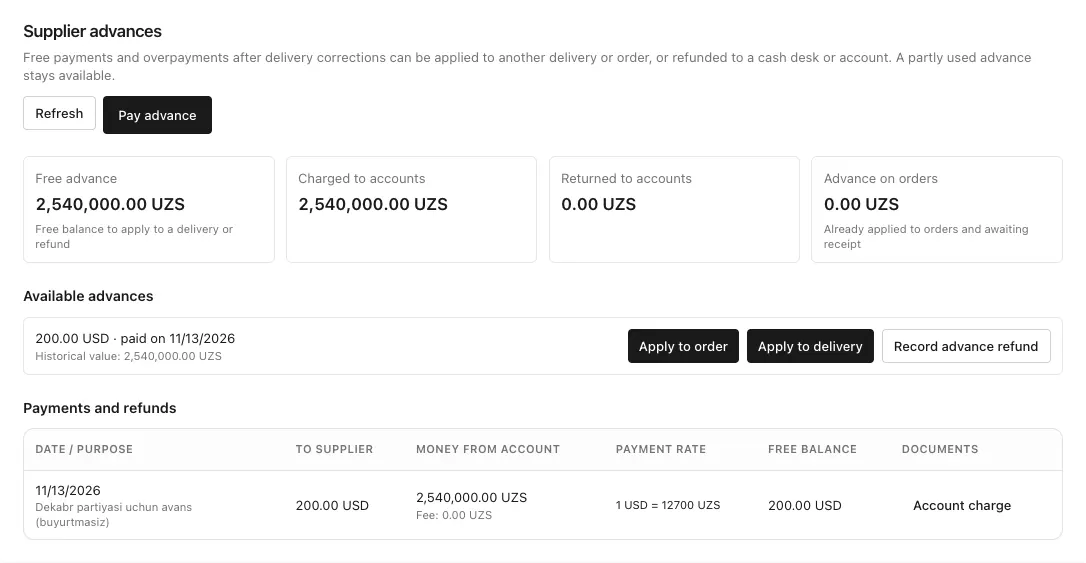
- «Free advance», «Charged to accounts», «Returned to accounts», «Advance on orders»
- In the organization currency: the free balance for applying or refunding, the total charged and refunded, and the advance already applied to orders and waiting for the goods.
- «Available advances»
- Each free advance: the amount in the advance currency, the payment date and the historical value. A partly used advance stays in the list with its balance. Overpayments after receipt corrections land here too.
- «Payments and refunds», «Applied to orders», «Advance on orders (awaiting receipt)»
- History: each payment (to the supplier, from the account, rate, free balance, «Account charge» link) and refund, which order an advance went to («Open order») and the advance sitting on orders whose goods have not arrived yet.
Pay an advance without an order
- On the card click «Pay advance» (or «Record advance without order» in the new order form).
- Choose which unit the advance belongs to: a branch (it can then be applied to orders of any of its warehouses) or a specific warehouse; the choice also decides the available accounts. Choose the «Advance currency» — it can only be applied to an order in the same currency.
- In the «Advance to supplier without an order» dialog fill in the amount, date, account, rate and fee and confirm in two steps, as for an order payment. The money leaves the account at once.
What you can do with an advance
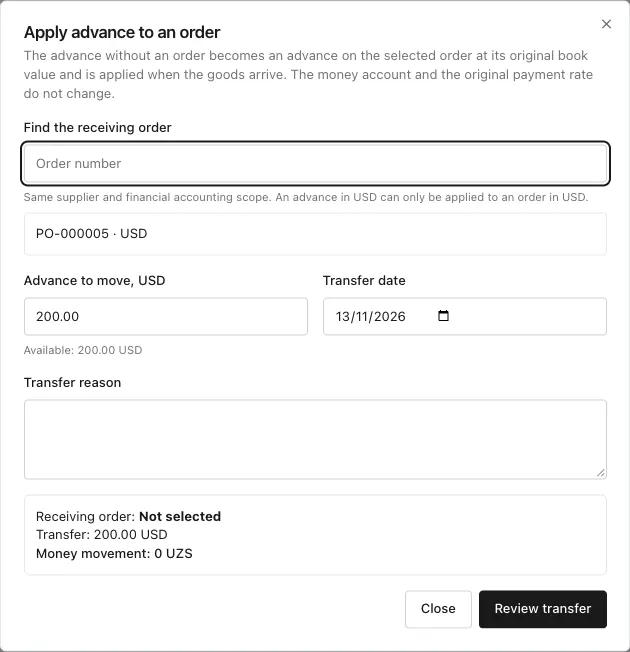
- «Apply to order» — find the order by number (same supplier and finance scope), enter the amount, date and reason. The advance becomes an order advance and is offset against the debt when the goods arrive; for an order in another currency an offset rate is asked.
- «Apply to delivery» — pick a posted receipt of this supplier by waybill number (the list shows the debt and the «other currency», «paid», «cancelled» marks). The offset reduces the receipt debt; the unused part stays an advance.
- «Record advance refund» — when the supplier has already returned the money: how much the advance decreases, how much actually arrived, the bank fee, the receiving account and the reason. The refund reduces the free advance and increases the account balance.
Tip: Offsets and transfers are also confirmed in two steps (review → «confirm without charge») and do not change the money account. The dialogs say so: «Money movement: 0».
Brands and assortment #
Which products the supplier sells and which price is filled into an order.
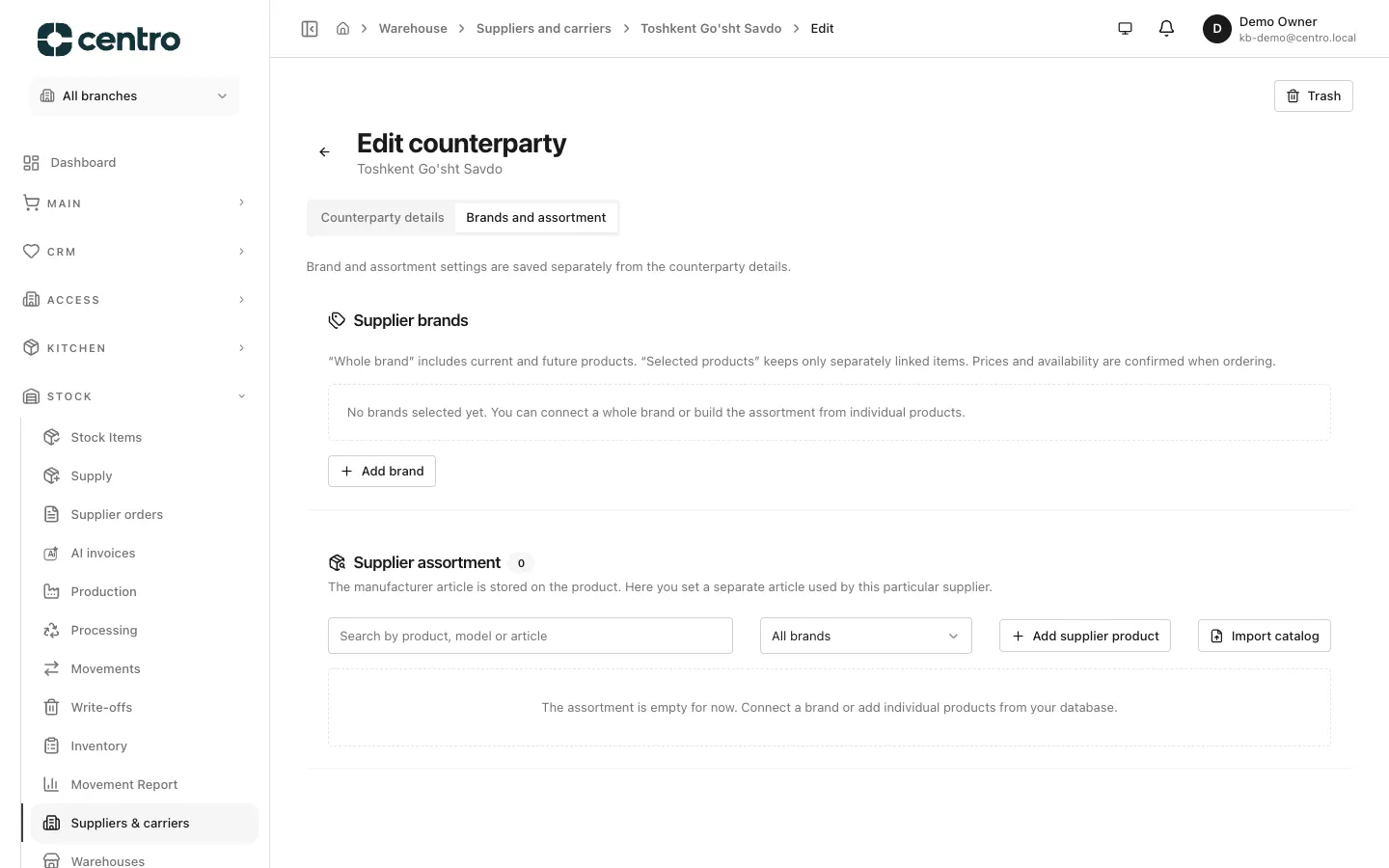
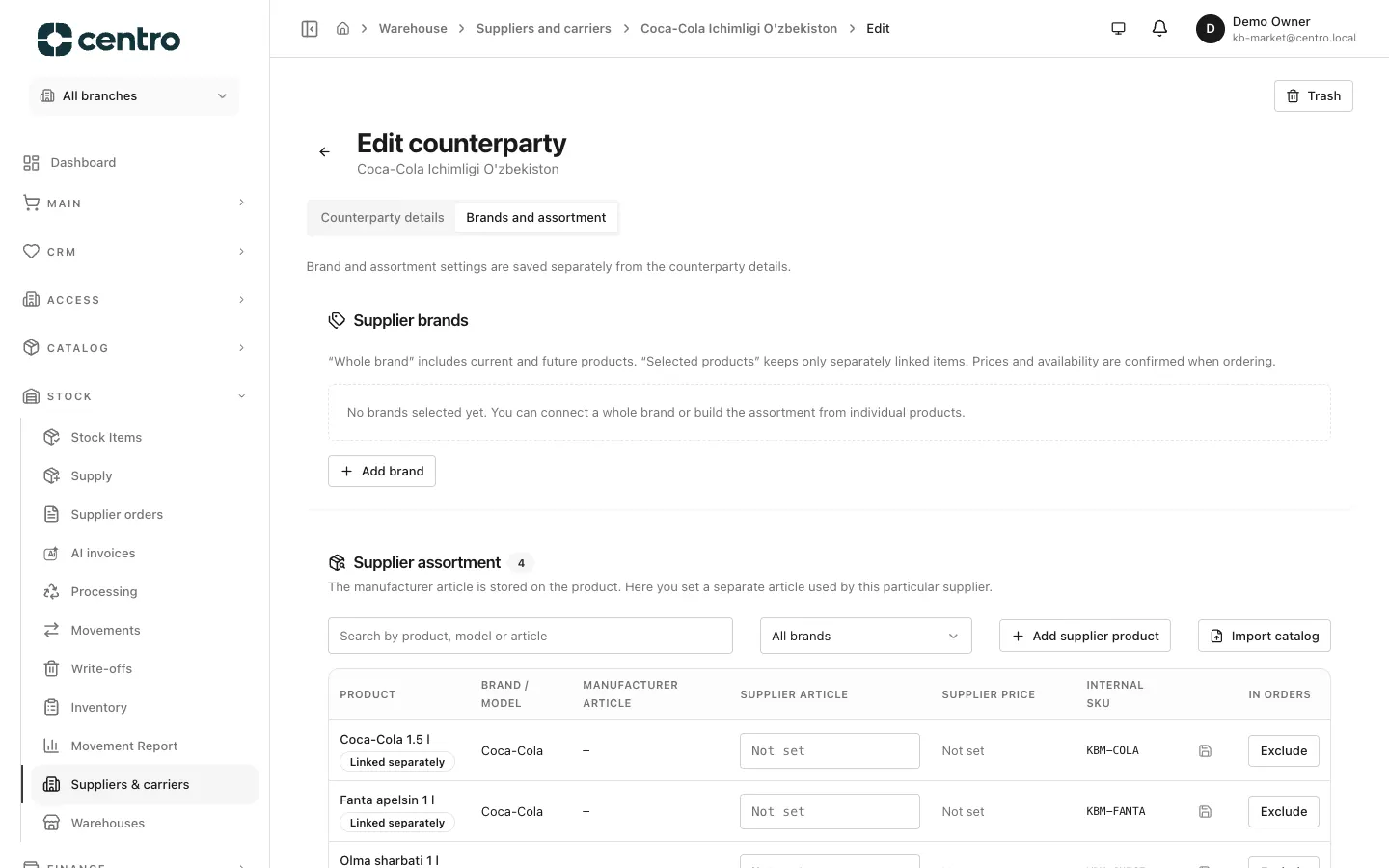
- On the card click «Edit» and open the «Brands and assortment» tab (only for the «Goods supplier» role). These settings are saved separately from the counterparty details.
- «Add brand» — pick the brand and mode: the whole brand (new products are added automatically) or selected products only.
- «Add supplier product» — find the product in your own base, set the variant, supplier SKU and supplier’s name for it.
- In the table you can edit the supplier SKU and exclude a product from orders in the «In orders» column.
Tip: For a store this is the handiest way: the brands are the same as on the «Catalog → Brands» page. If a distributor carries several brands, add each in “whole brand” mode — new models added to the catalog later will then show up in «2. Supplier assortment» of the order form automatically.
Catalog import #
Reading a supplier price list from PDF/Excel/CSV and adding it to the assortment.
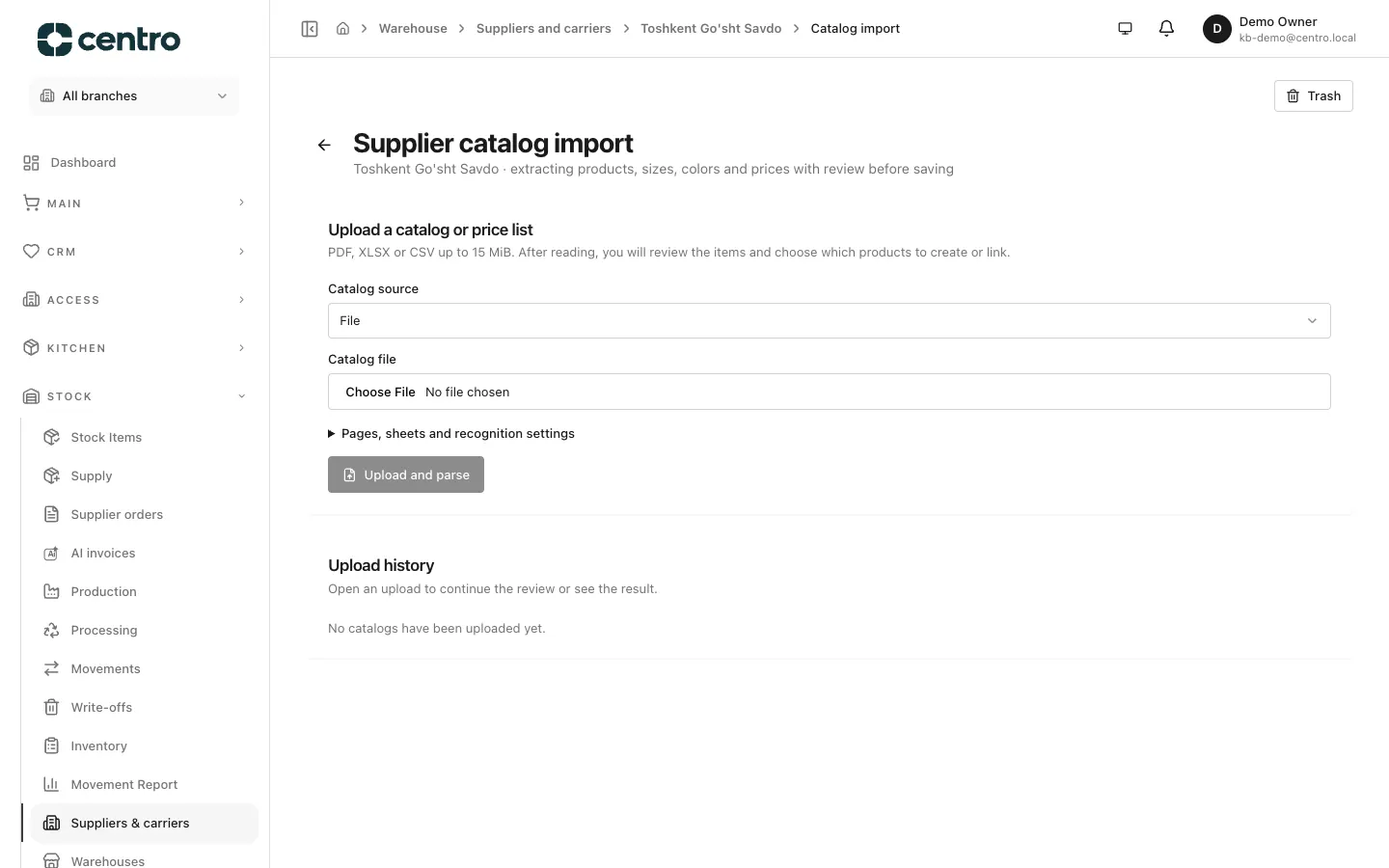
- In the assortment block click «Import catalog».
- In «Upload a catalog or price list» choose the source: a file (PDF, XLSX or CSV up to 15 MiB) or a public link. Optionally set pages, sheets, the header row and the default currency.
- Click «Upload and parse» and wait for the «Needs review» status.
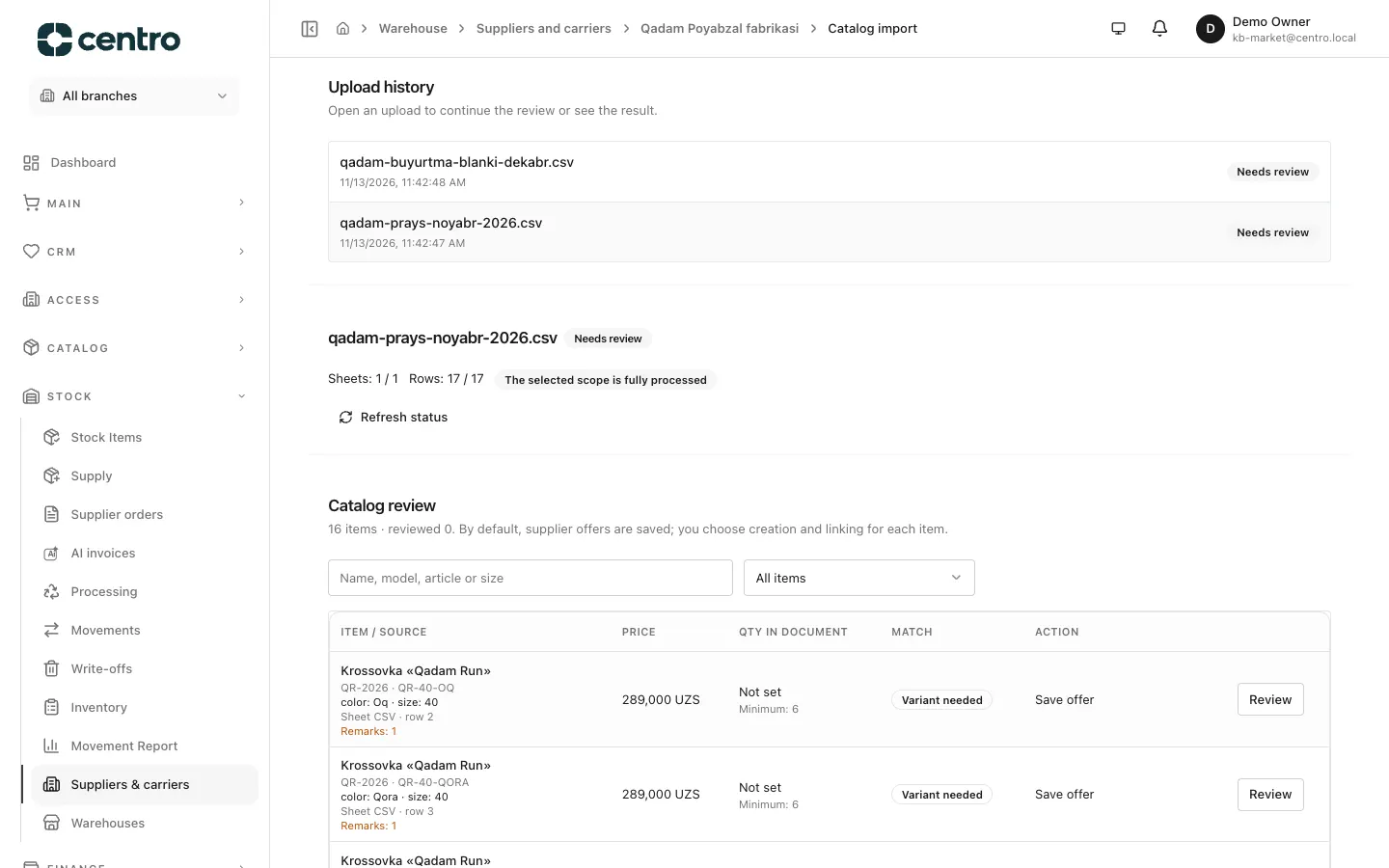
- In «Catalog review» open each item via «Review» and choose an action: keep the offer, link to a product, create a product or variant, or skip.
- Finally save the reviewed catalog. Saving changes no stock, orders or money — only the assortment and prices.
Upload settings
- File or «Public link»
- File: PDF, XLSX or CSV up to 15 MiB (save an old XLS as XLSX). Link: a public PDF, XLSX, CSV or product page without a login; up to 30 pages and 15 MiB in total per upload. Download a price list from a supplier portal and upload it as a file. Uploading the link again reads the current catalog.
- «Pages, sheets and recognition settings»
- PDF pages («1, 3-5», at most 30), workbook sheets (names separated by commas, at most 30), the «Header row» (empty — detect automatically) and, if the document has no currency, its three-letter code.
- «Document type»
- «Catalog or price list» — prices and product details. «Order form» — the supplier’s filled-in form with quantities: they show in the «Qty in document» column. In both cases the import only saves prices and the assortment — you enter the purchase quantity when creating the order.
- «Assign columns manually»
- For Excel/CSV: for each field type the column name or letter — name, brand, model, manufacturer and supplier article, barcode, price, currency, quantity in document, minimum quantity, unit, size, colour. At least one of name, article, model or barcode is required. When the columns are set explicitly, the table is read directly.
Review and save
- «Upload history»
- All uploads of the supplier with their status: «Queued», «Reading catalog», «Needs review», «Saved», «Processing error». Open an upload to continue the review or see the result; if you close the page while it is being read, you can return to it from the history.
- Match statuses
- «Product found», «Variant needed» (the product exists, the variant does not), «Several matches», «New product». Each row shows the source (page, sheet, row), price, quantity in document, minimum and the number of remarks. There is a search and an «All items / Reviewed» filter.
- The «Review item» dialog
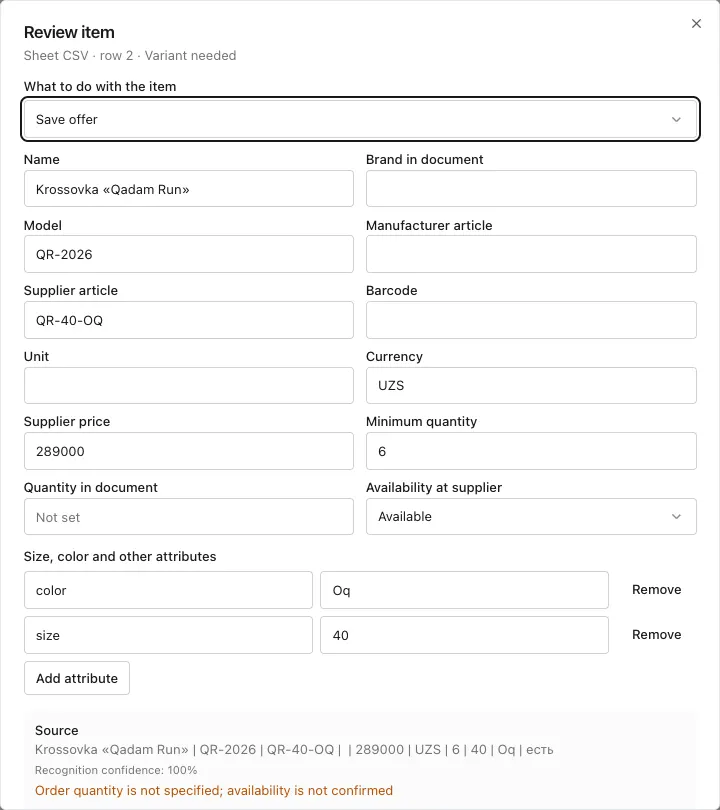
- «What to do with the item»: keep the offer, link to a product (pick the product and variant in your base), create a product (with brand and category) or a variant, skip. You can pick from «Possible matches». Fix the fields (name, articles, barcode, price, minimum, unit, currency), «Availability at supplier» and «Size, color and other attributes» («Add attribute»). «Combine variants into a product» — rows with the same group create one product with variants. «Recognition confidence: N%» — how reliably the row was read. Creating products and variants needs the catalog edit right.
- «Review and save»
- A summary: offers without a link, links to products, products and variants to create, skipped. Only the listed actions are performed. Saving is unavailable while the document is not fully processed; if name, brand or category differ inside a group — a warning.
- «Catalog saved»
- Counters (offers saved, products and variants created, linked, skipped) and buttons: «Open assortment», «Create purchase order» (a new order opens with this supplier) and «Continue working with offers» (reopens the saved upload for review). A warning about products previously excluded from the assortment may appear — bring them back on the supplier card.
Tip: Saved offers are used in the new order form: the product row shows the supplier price, minimum batch and availability, and the «Supplier offer as of the order date» is kept under the order line. PDFs and non-standard tables are recognized automatically — check every item before saving.