Supply
Receiving supplier goods into a warehouse: invoice, lines, prices, additional costs and the debt to the supplier.
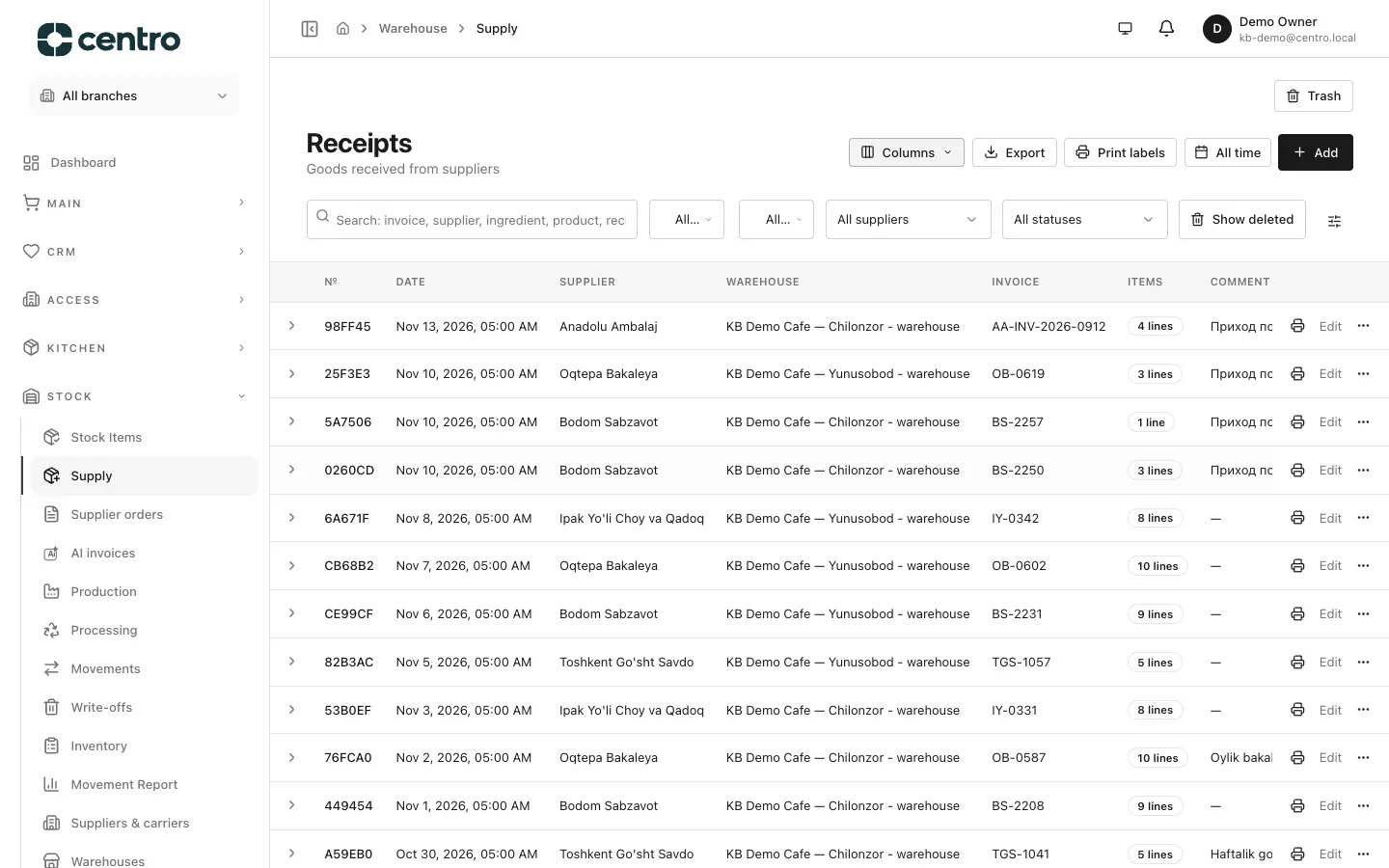
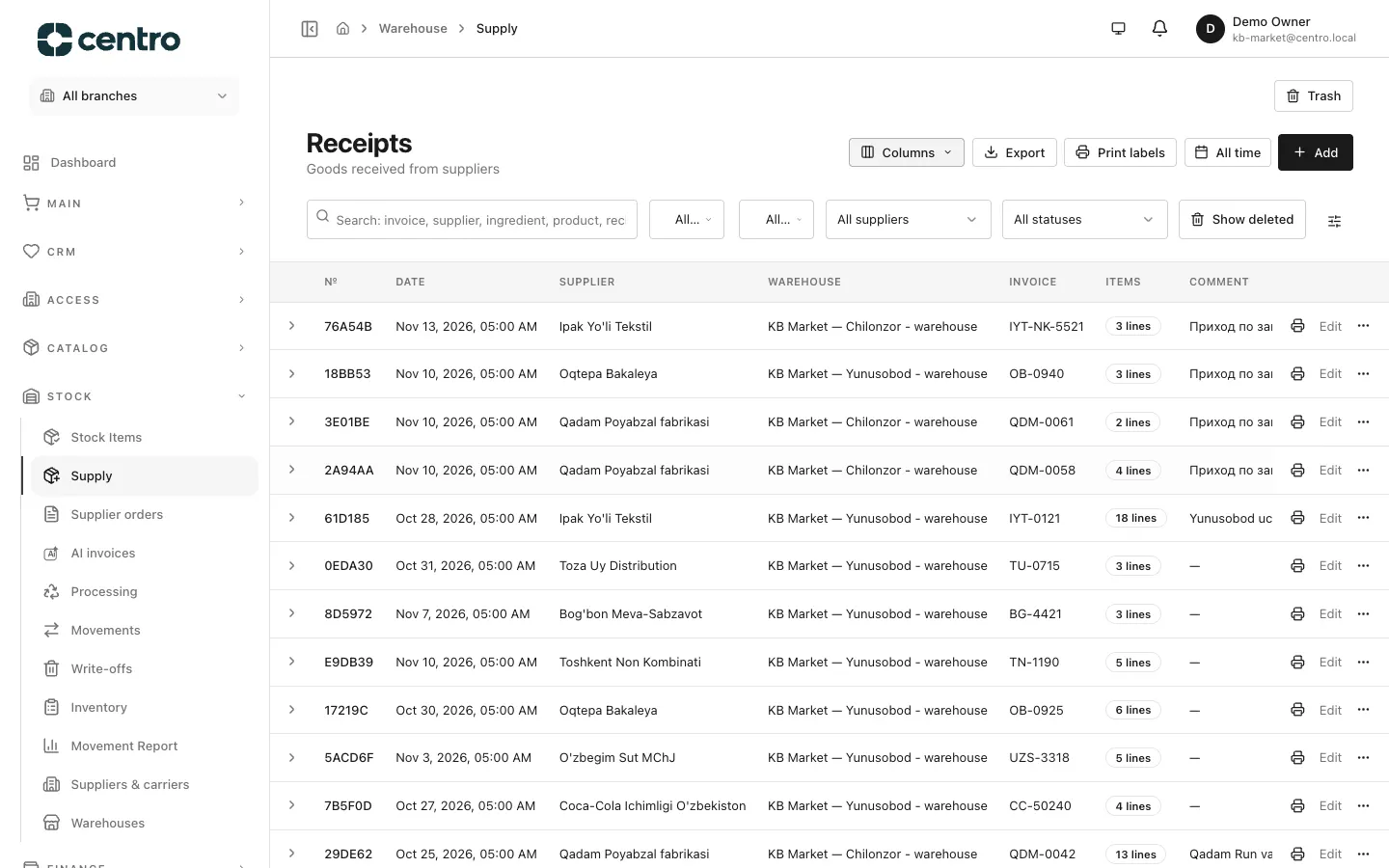
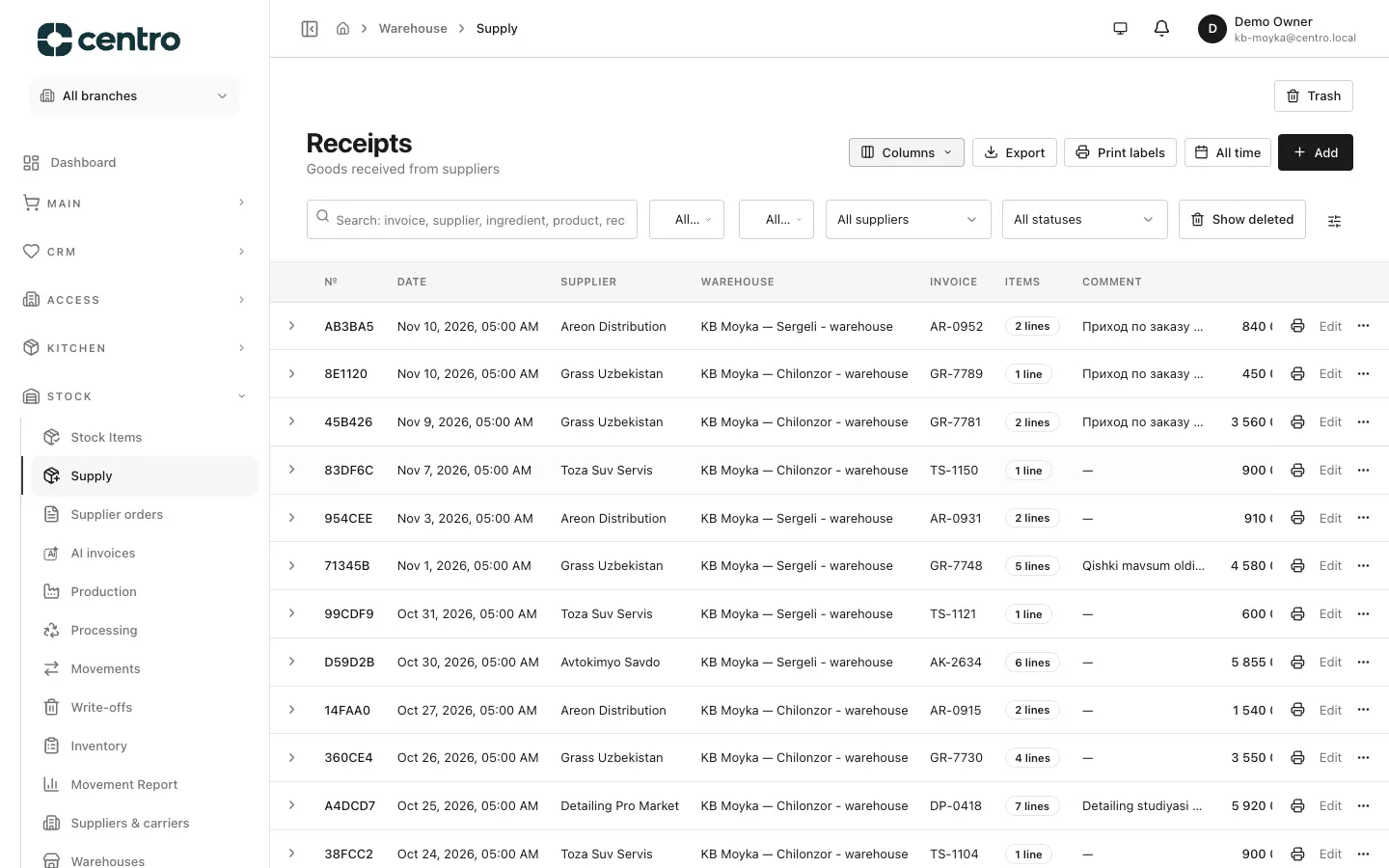
Open in the admin panel/stock/receipts The page header is «Receipts». Each receipt is one supplier invoice delivered to one warehouse. A posted receipt immediately adds the goods to stock, updates ingredient costs and creates a debt to the supplier in Finance → Payables.
How to open
- In the sidebar, expand the Stock group.
- Click Supply.
Receipt statuses
- «Draft» — saved but does not affect stock. Usually created when receiving against a purchase order.
- «Confirmed» — checked and ready to post.
- «Posted» — goods are in stock, the debt is created.
- «Deleted» — a deleted receipt; stock was rolled back automatically.
The receipt list #
Filters, columns, row expansion and actions.
Filters
- Search
- «Search: invoice, supplier, ingredient, product, recipe or batch» — also searches the lines inside a receipt.
- Branch and warehouse
- Two pickers: first the branch, then its warehouse.
- «All suppliers», «All statuses»
- Filter by supplier and by status.
- «Show deleted»
- Adds deleted receipts to the list.
- «More filters»
- The sliders icon: «Period» and «Reset filters».
Columns
- No., «Date», «Supplier», «Warehouse», «Invoice»
- No. — the last 6 characters of the receipt id; «Invoice» — the supplier invoice number.
- «Items», «Item qty»
- Number of lines («N lines») and total quantity.
- «Status», «Amount», «Payment», «Debt»
- Invoice amount, payment badge («Paid» / «Partial» / «Unpaid») and the remaining debt.
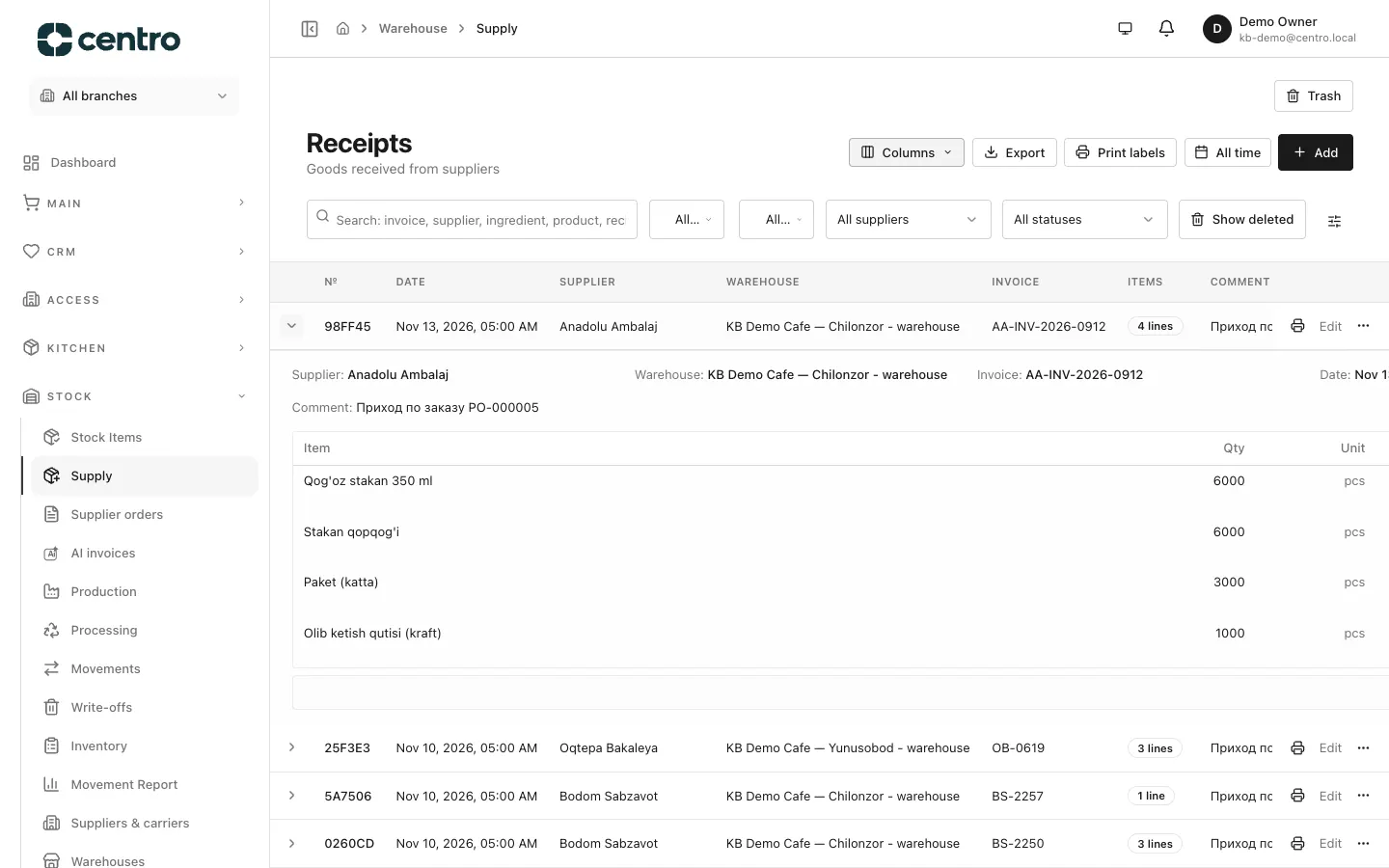
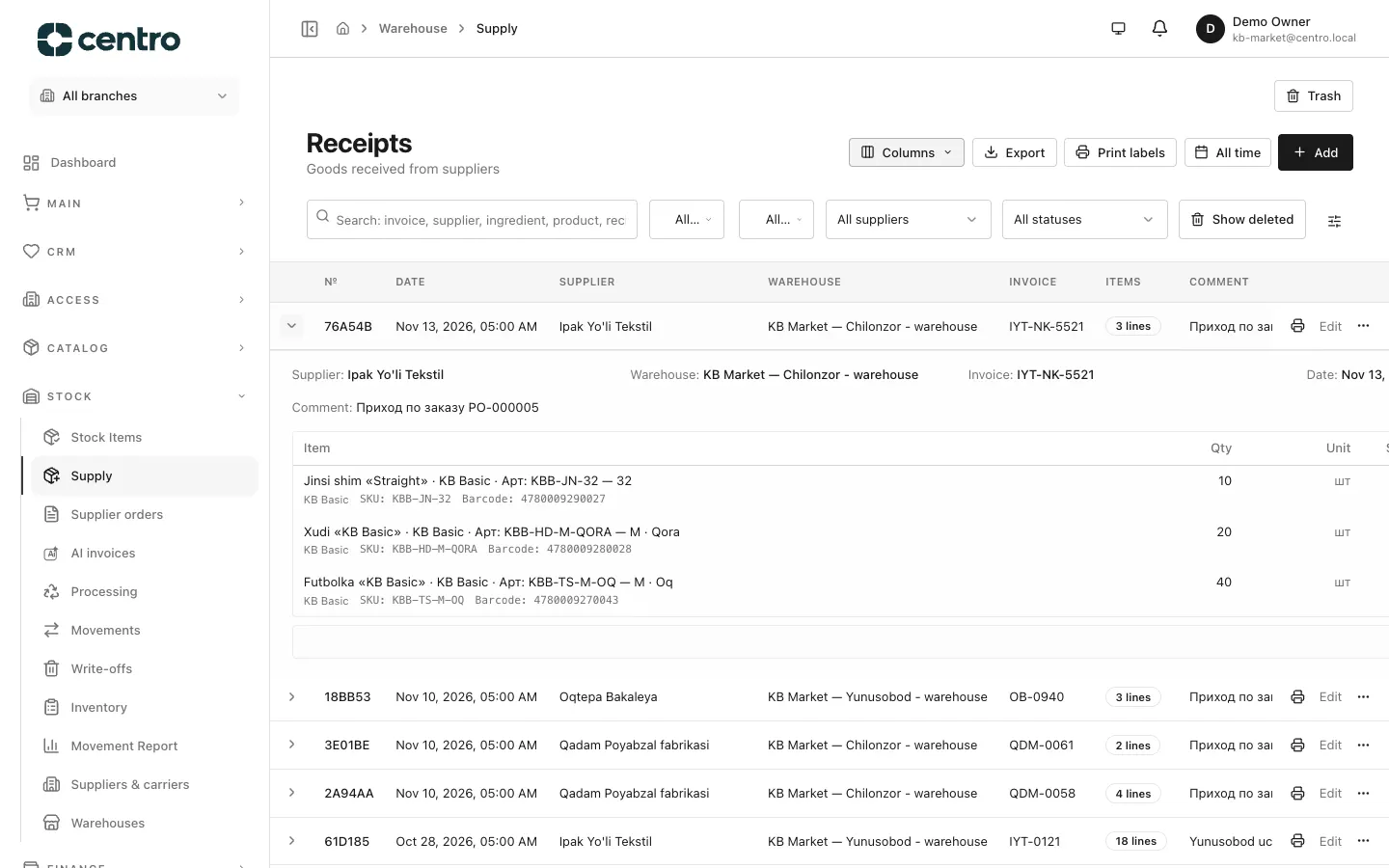
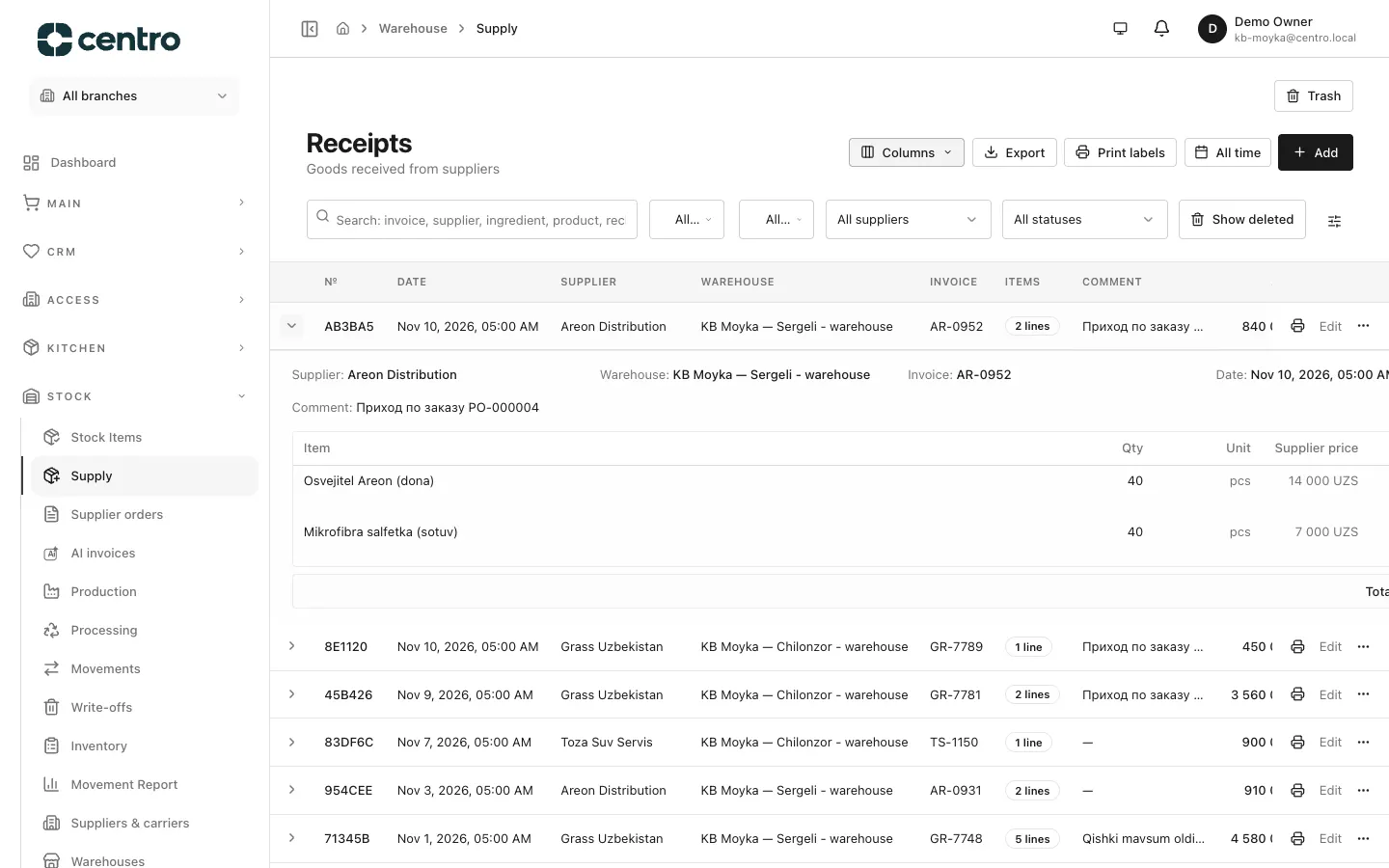
The arrow at the start of a row expands the receipt in place: its details and a lines table with price and invoice amount. At the end of the row: a printer (print labels from this receipt), «Edit» and the «…» menu with «Duplicate» (a new receipt with the same lines) and «Delete».
Important: Deleting a posted receipt automatically removes its goods from stock. If the goods were already sold or used, the balance may go negative. To fix a price or quantity, edit the receipt instead of deleting it.
A receipt that has additional-cost documents (cargo, customs) cannot be deleted — the system asks you to cancel them on the receipt card first; otherwise the cargo would vanish from the cost while the debt to the carrier stayed.
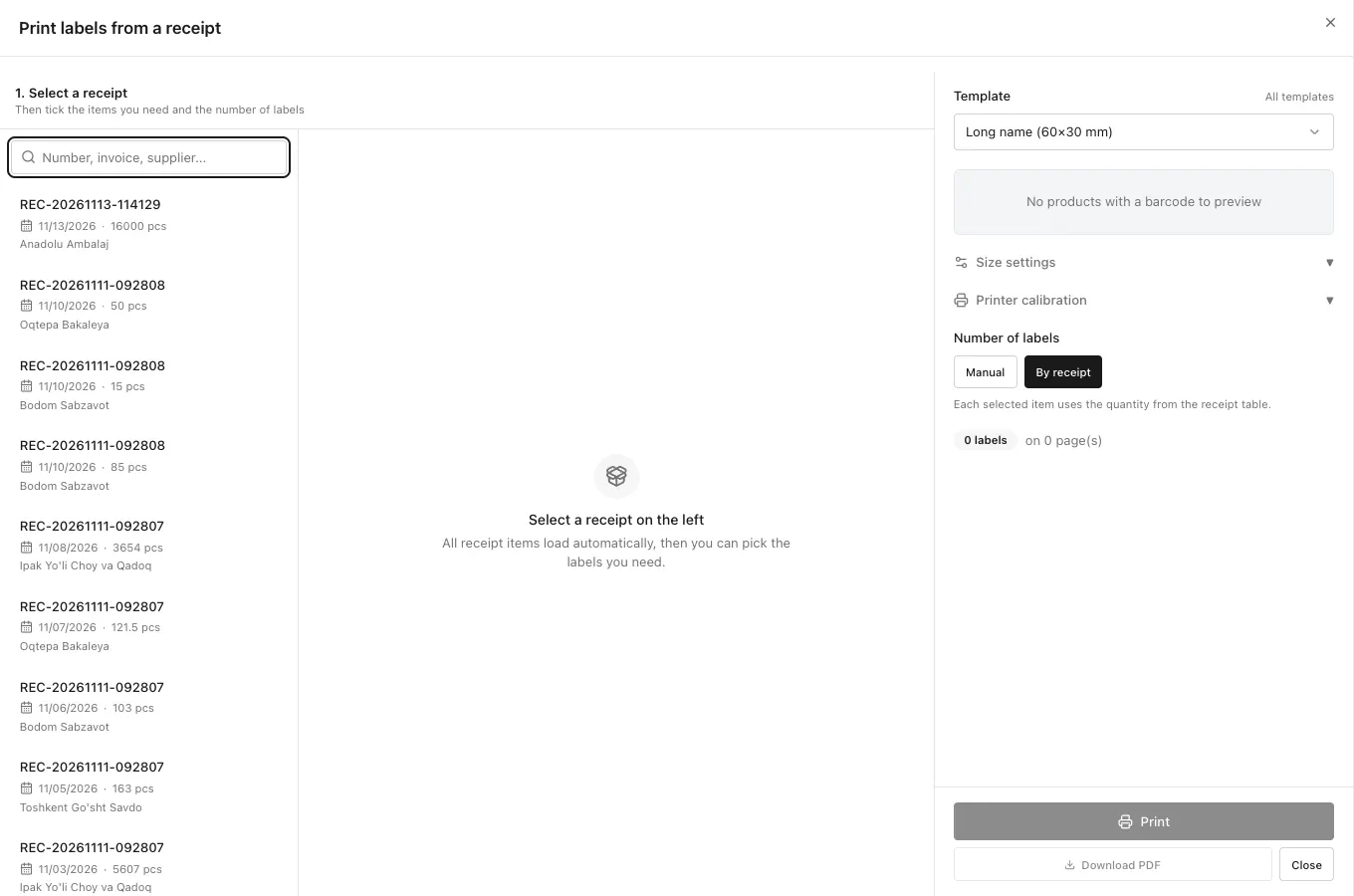
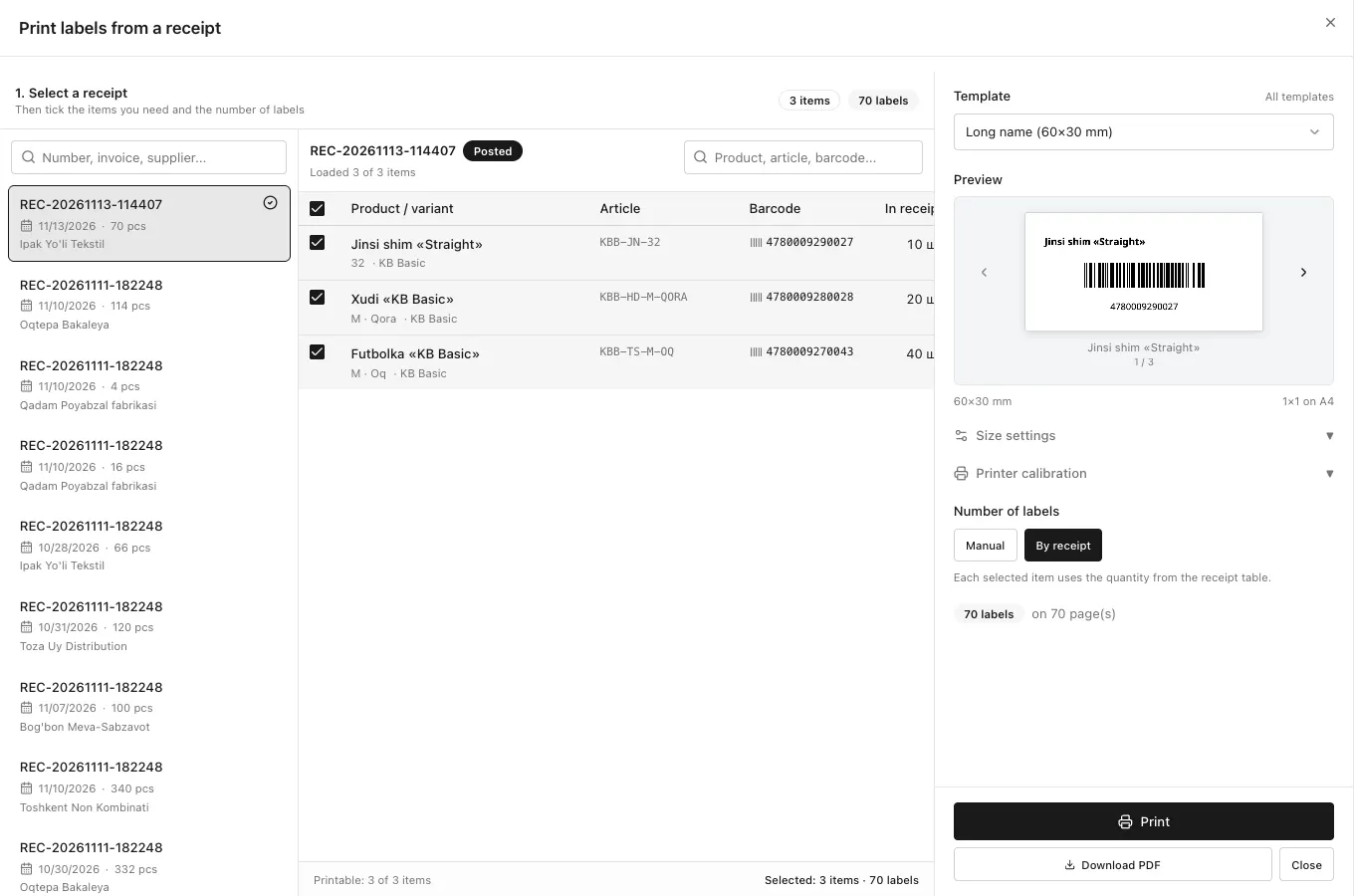
Print labels for the goods of a receipt
- Click «Print labels» in the list header (or the printer at the end of a row — «Print labels from this receipt»: the dialog opens with that receipt already chosen).
- In the «1. Select a receipt» column find the receipt (search by number, invoice or supplier) and click it — all its lines are loaded.
- Tick the lines you need: the table shows «Product / variant», «Article», «Barcode», «In receipt» and «Print» (number of labels). Lines without a barcode are not printed; ingredients and other non-catalog lines are marked «Not a catalog product».
- On the right choose the «Template» and the «Number of labels»: «By receipt» prints as many labels per line as arrived in the receipt, «Manual» lets you set the number yourself. Click «Print» or «Download PDF».
Tip: The template, size («Size settings») and «Printer calibration» are the same as for label printing on the Catalog → Products page — see that topic for details. Labels are most useful in a store: stick barcodes on newly received products and variants and scan them at the till.
Recording a new receipt #
Step by step: supplier, warehouse, lines, prices and saving.
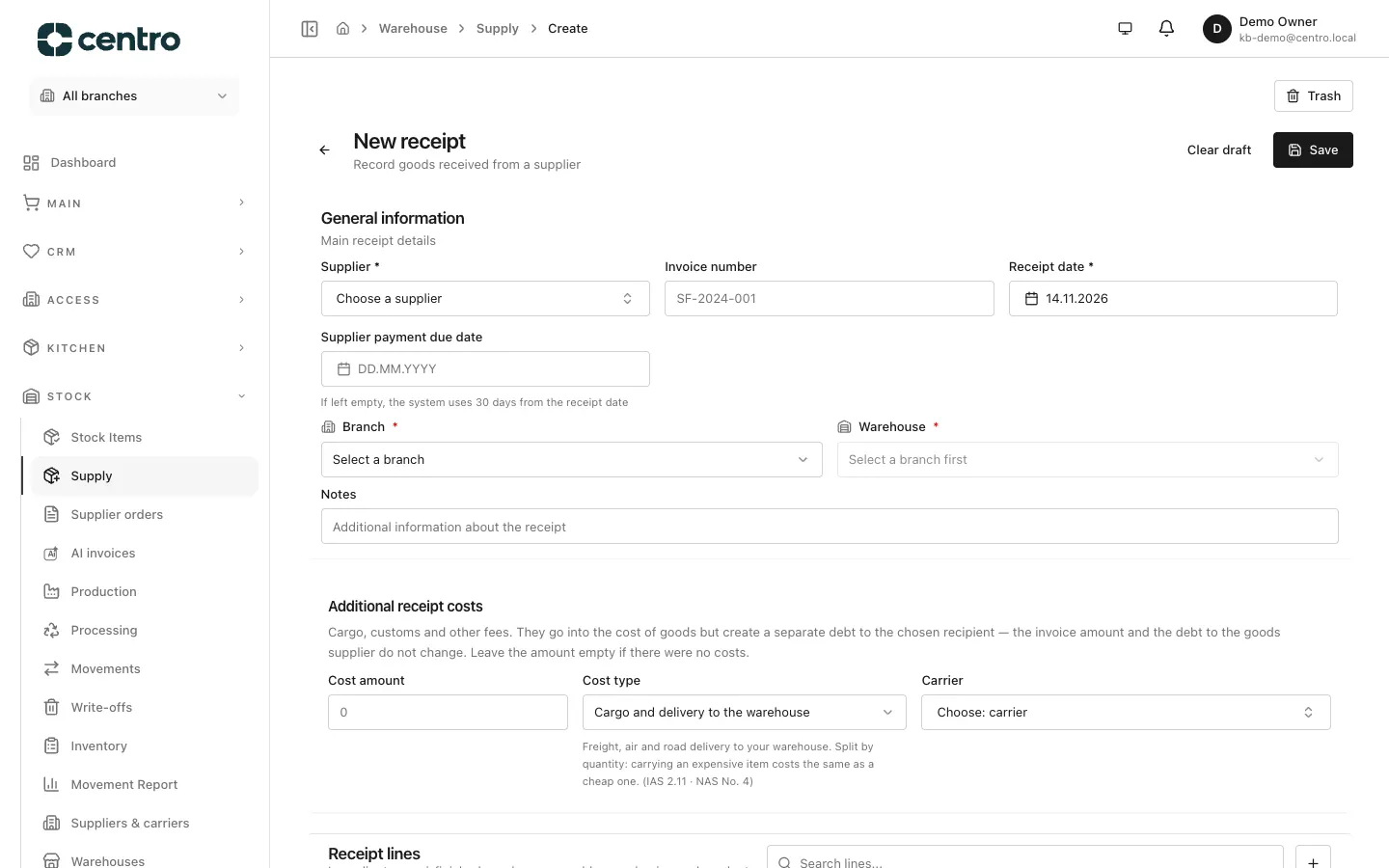
How to record a receipt
- On the «Receipts» page click «Add».
- Choose «Supplier *». Only active counterparties with the «Goods supplier» role are listed; you can create a new one right there with «Add supplier».
- Enter the supplier invoice number in «Invoice number» (e.g. TGS-1041) — it is handy later for search and reconciliation.
- Check «Receipt date *» (today by default) and set «Supplier payment due date» if needed. If left empty, the system uses 30 days from the receipt date.
- Choose the branch and warehouse — the goods go into exactly this warehouse.
- In the «Receipt lines» card press «+» and pick an item. The picker has the tabs «All», «Ingredients», «Semi-finished», «Consumables», «Packaging», «Products» and a search box.
- On each line enter «Qty *» and «Supplier price / unit *». Or the other way round: type the line total from the invoice into «Invoice amount» and the unit price is calculated for you.
- Compare the «Total:» at the bottom with the paper invoice and click «Save».
Important: «Save» on this form posts the receipt immediately: the goods go into stock and a debt to the supplier appears. There is no separate “confirm” step here. Draft receipts only come from receiving against a purchase order.
In a store the item picker has only two tabs — «All» and «Products»: there are no ingredient, semi-finished, consumable or packaging tabs. A product with variants (size, colour) is received per variant — add a separate line and quantity for each variant so that each size has the right balance.
Tip: For a car wash, chemistry (active foam, shampoo, wax) is on the «Ingredients» tab, microfibre cloths, sponges and polishing pads are under «Consumables», and ready goods sold at the till are under «Products». Receive concentrate in litres — service tech cards count in litres (ml) too.
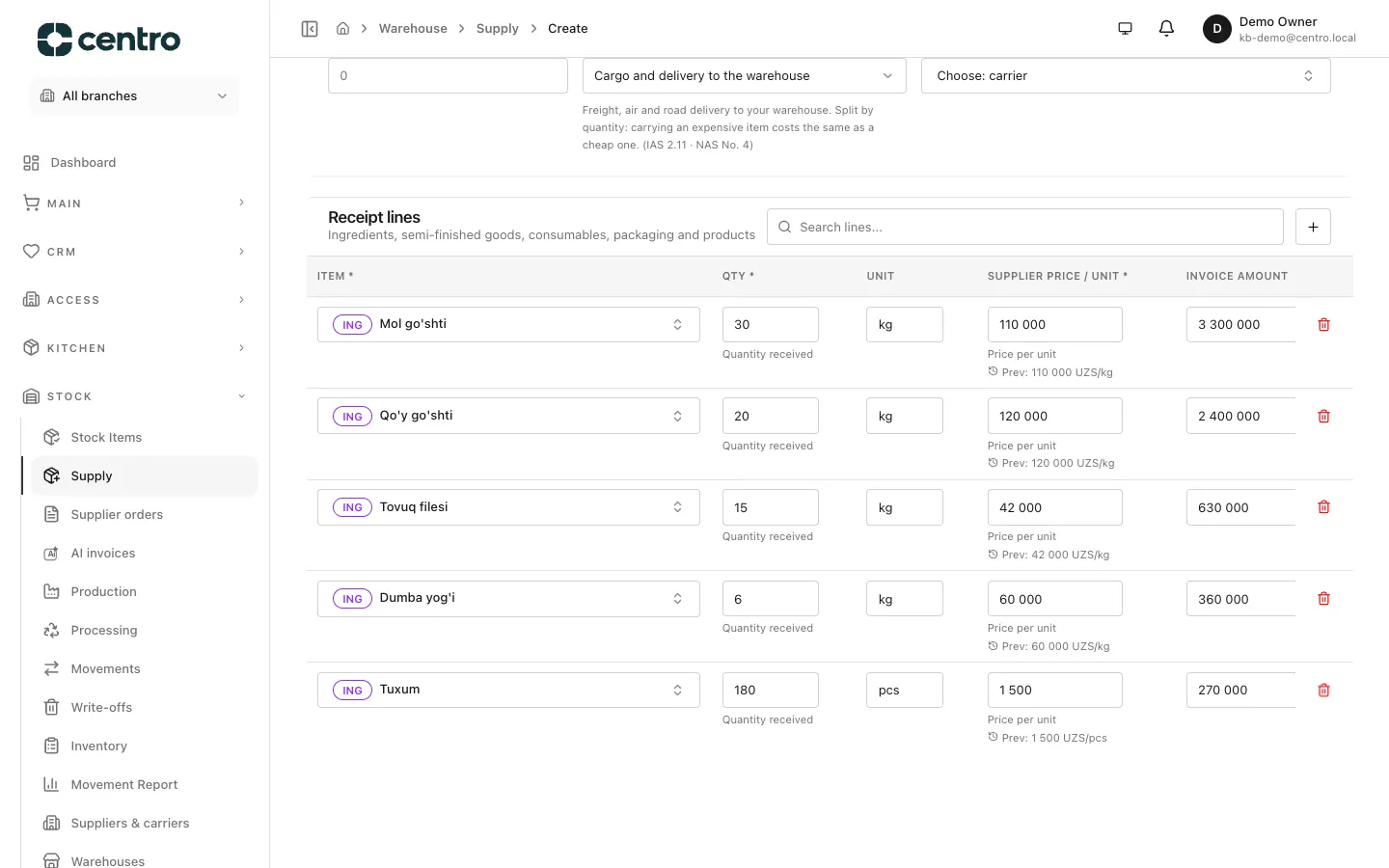
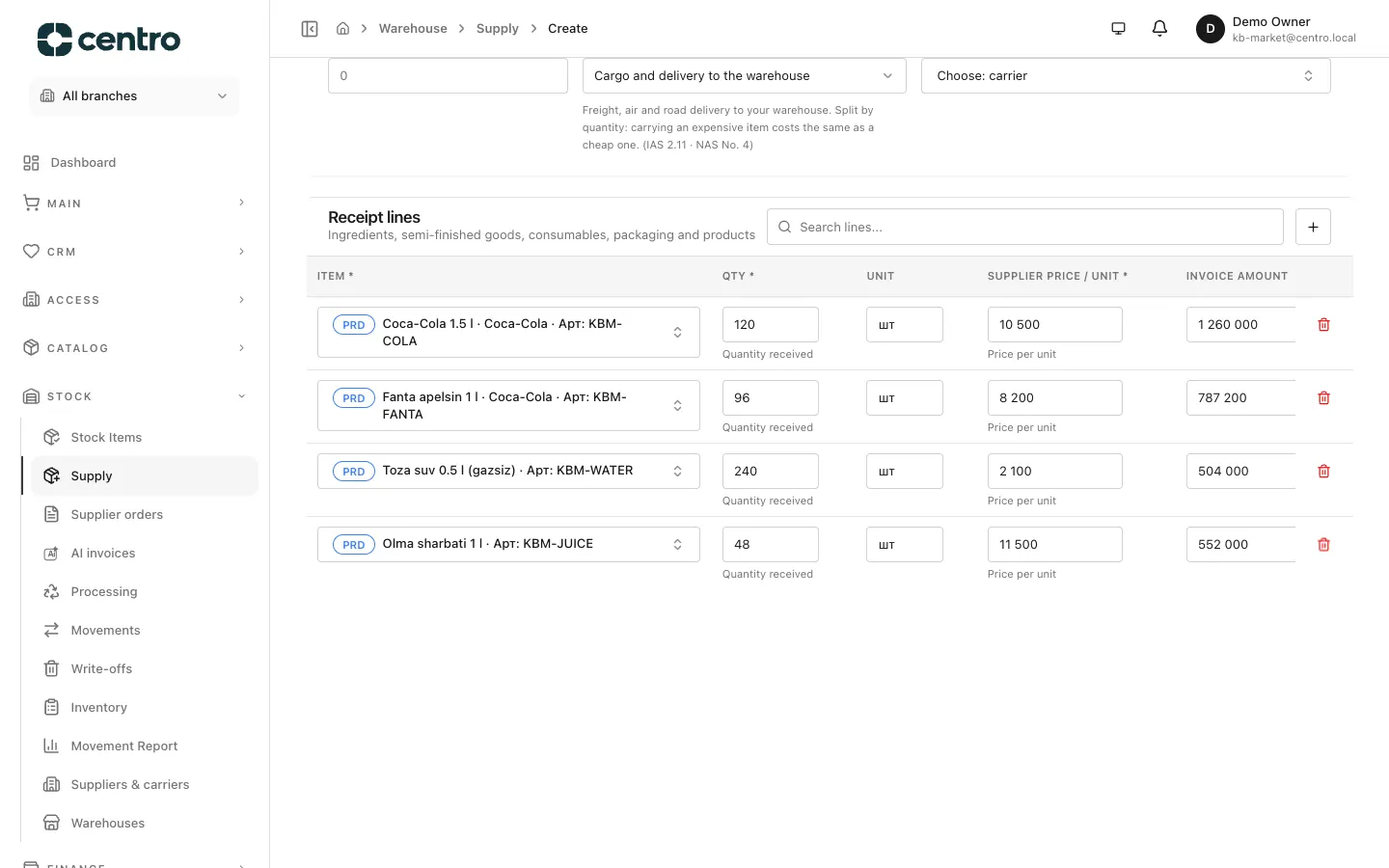
The lines table
- «Item *»
- An ingredient, semi-finished item, consumable, packaging or product. Products with variants are received per variant.
- «Supplier price / unit *»
- The previous price is shown under the cell — click it to fill it in.
- «Expiry date»
- Batch expiry; may be mandatory per organization settings. It feeds the alerts on the «Stock Items» page.
- «Marking»
- Only for marked products (marking is turned on in the product card); other lines show «—». Scan or type a DataMatrix code into «Scan code...» and press Enter: the code is added to the list and the line quantity becomes the number of codes («N codes»). The same code is never added twice; removing a code with × lowers the quantity too.
The «Additional receipt costs» card is optional: cargo, customs and other fees. Enter the «Cost amount», the «Cost type» and the recipient (a carrier or a supplier, depending on the type). The cost is spread into the cost of goods, while the invoice total and the debt to the goods supplier stay unchanged. Leave the amount empty if there were no extra costs.
Who is paid and how
- «Paid ourselves — no counterparty»
- The first item of the recipient list: the organization paid the money itself (e.g. a customs fee). Some cost types (customs, non-refundable taxes) pick it automatically. Such a cost can only be «Paid from an account» — «A debt cannot be left without an external counterparty».
- «Settlement»
- Appears once an amount is entered: «Paid from an account» (the money is charged at once, no debt) or «Leave a debt to the recipient» (appears as a line in accounts payable).
- «Charge account»
- Only for «Paid from an account», required: a till, safe or bank account — the money is charged to it once.
- «Pay by»
- Only when you leave a debt: the date by which the recipient must be paid. Payables uses it to flag overdue debts.
- Three boxes at the bottom
- «Owed to goods supplier» (the invoice total), «Will be charged to the account» or «Separate debt to the recipient» (the cost amount) and «Total cost of goods» — they show before saving where each amount will go.
Important: The cost is posted as a separate document right after the receipt is saved. If it fails (e.g. no active cost type or an unsuitable account), the receipt is still saved and a warning appears — add the cost on the receipt card with «Add cost».
Tip: The form draft is saved in the browser automatically — nothing is lost if you close the page. Click «Clear draft» to start over. For a delivery similar to a previous one use «Duplicate» in the list.
The receipt card #
Details, debt to the supplier, additional costs, lines and posting a draft.
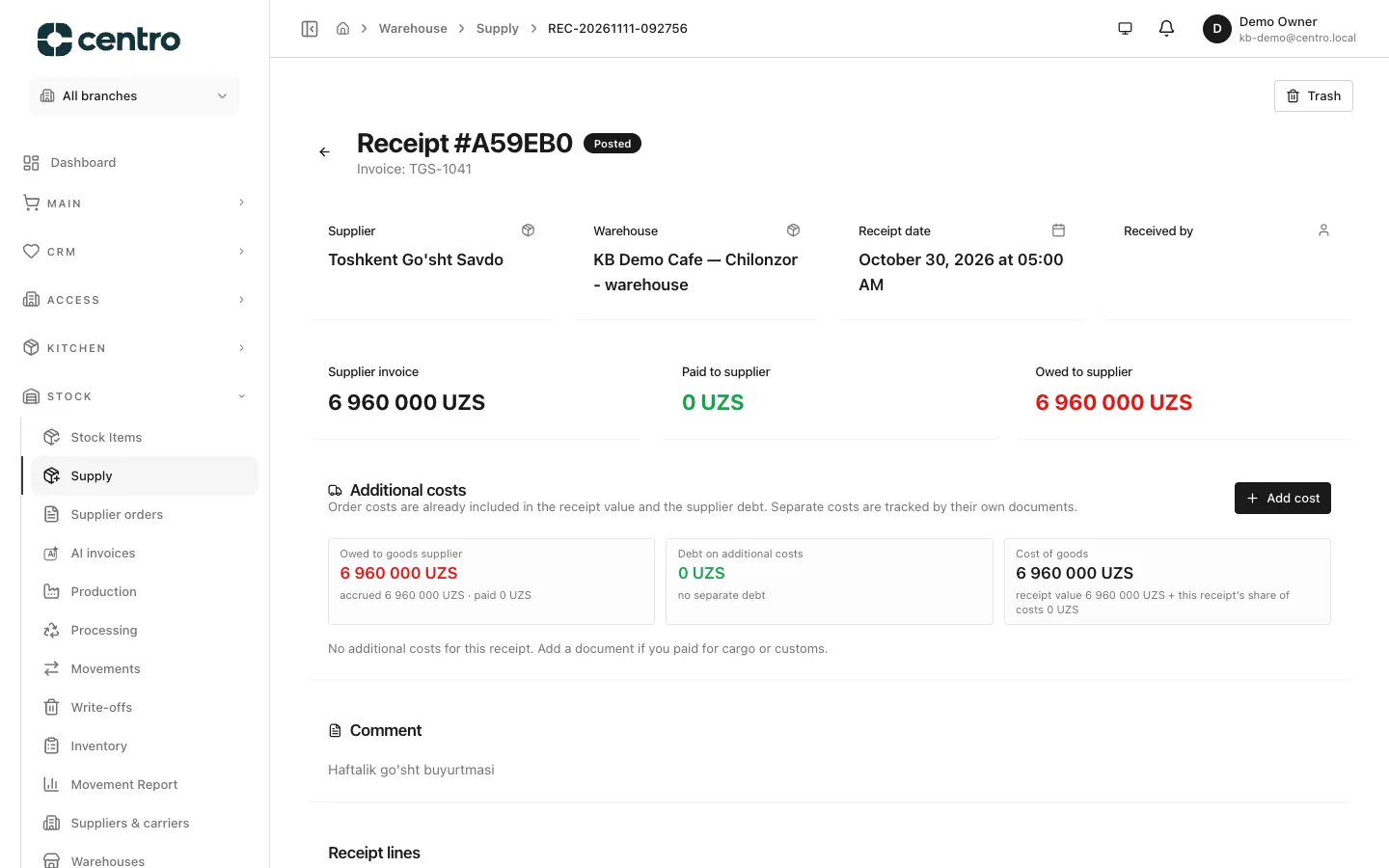
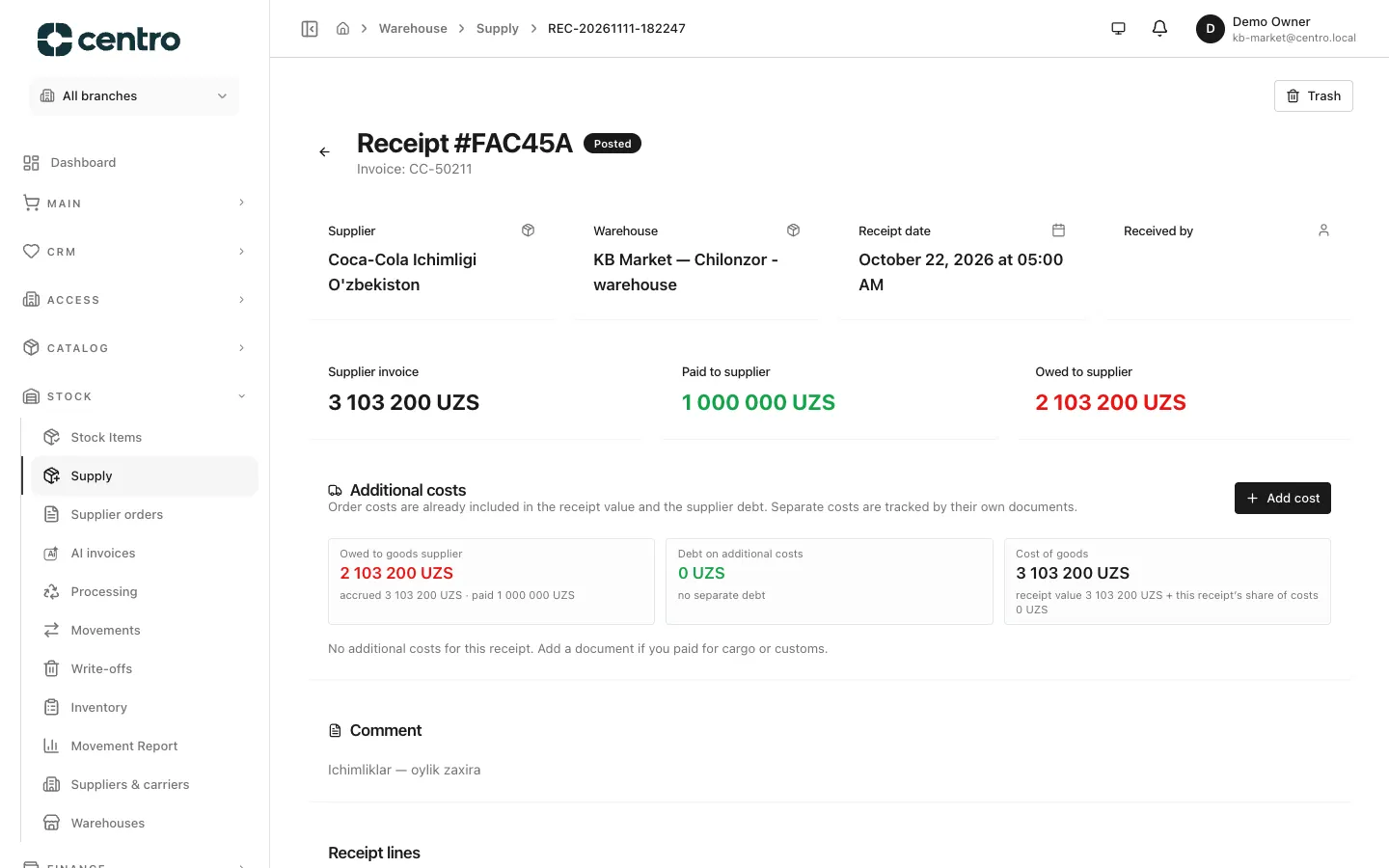
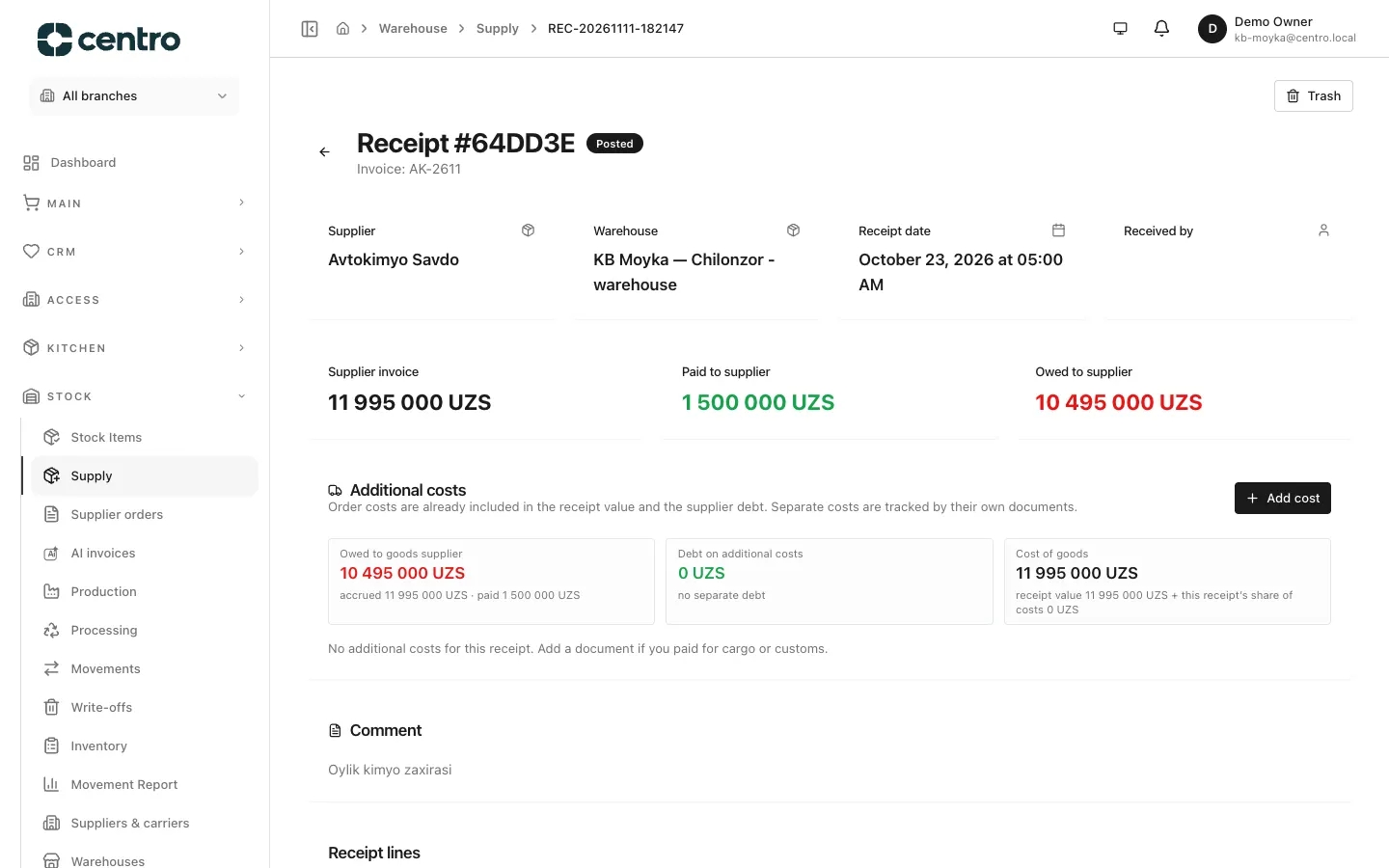
- Header
- «Receipt #…», the status badge and the invoice number. A receipt created from a purchase order also links to «Order PO-…».
- «Supplier invoice», «Paid to supplier», «Owed to supplier»
- Invoice total, the paid part and the remaining debt. Supplier payments are entered in Finance or on the purchase order card.
- «Additional costs»
- Cargo, customs and other cost documents, the debt on them and their share in the cost of goods. Documents that arrive after posting are added here with «Add cost» — see «Additional cost documents» below.
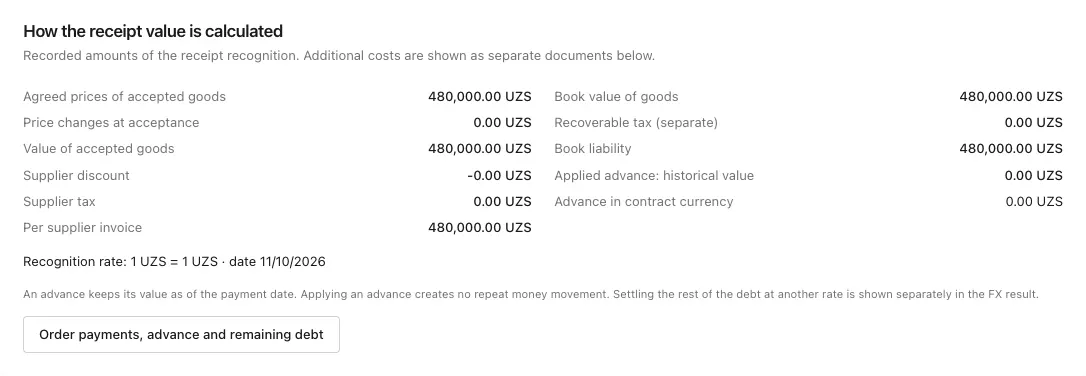
«How the receipt value is calculated». A receipt accepted against a purchase order (draft or posted) shows this block above «Additional costs». The left column is in the supplier currency: «Agreed prices of accepted goods», «Price changes at acceptance», «Value of accepted goods», discount, tax and «Per supplier invoice». The right column is in the accounting currency: «Book value of goods» (the value the goods entered stock at), «Recoverable tax (separate)», «Book liability», the applied or available advance (at its historical value on the payment date) and «Advance in contract currency». Below them are the recognition rate and date.
- On a draft the advance offset is preliminary: the final offset of the available advance happens on posting and does not charge money again.
- For such a receipt the prices and totals in the «Receipt lines» table are in the accounting currency; the supplier-currency amount and the rate are in this block.
- The «Order payments, advance and remaining debt» button opens the money section of the purchase order card — payments and advances are handled there.
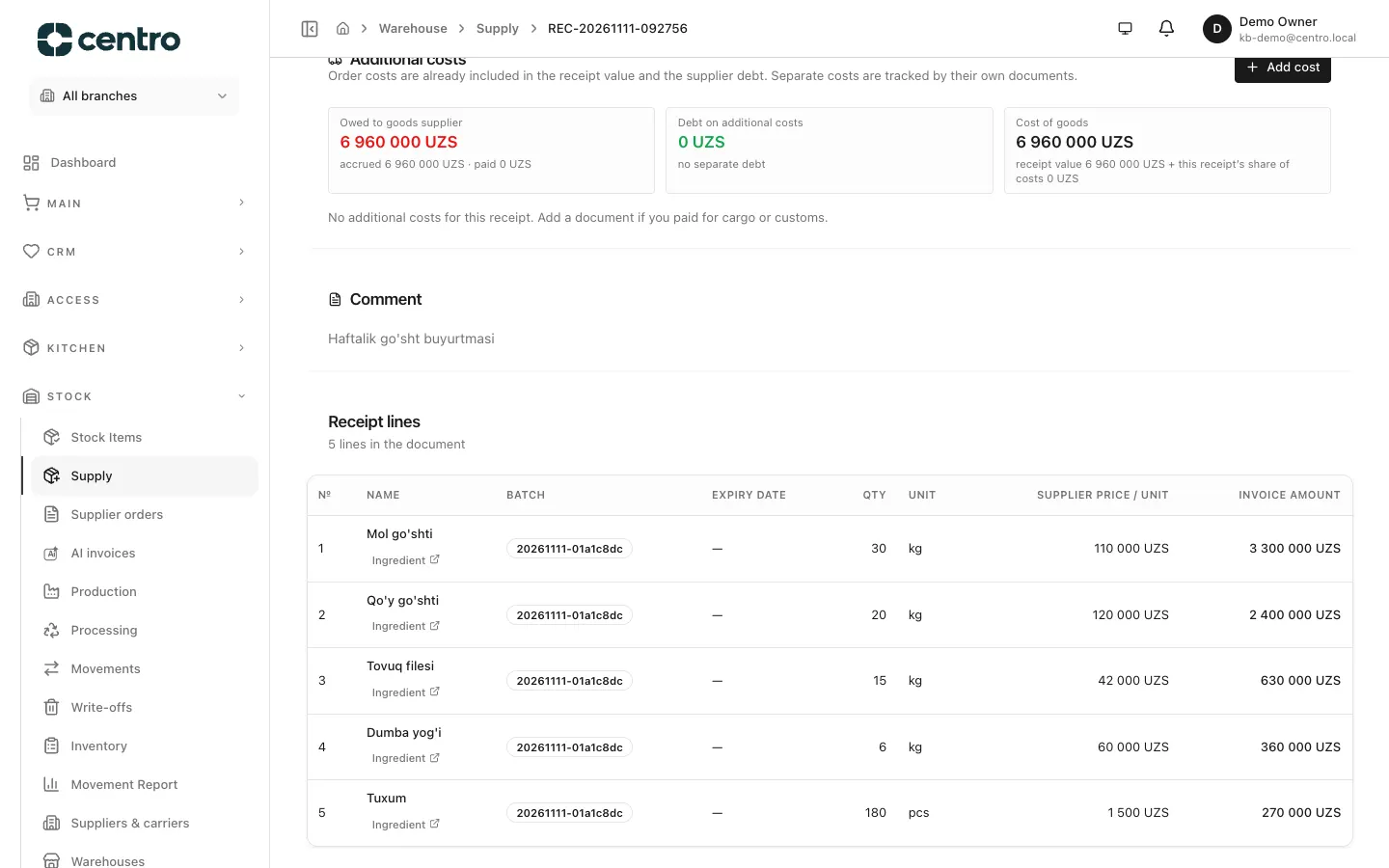
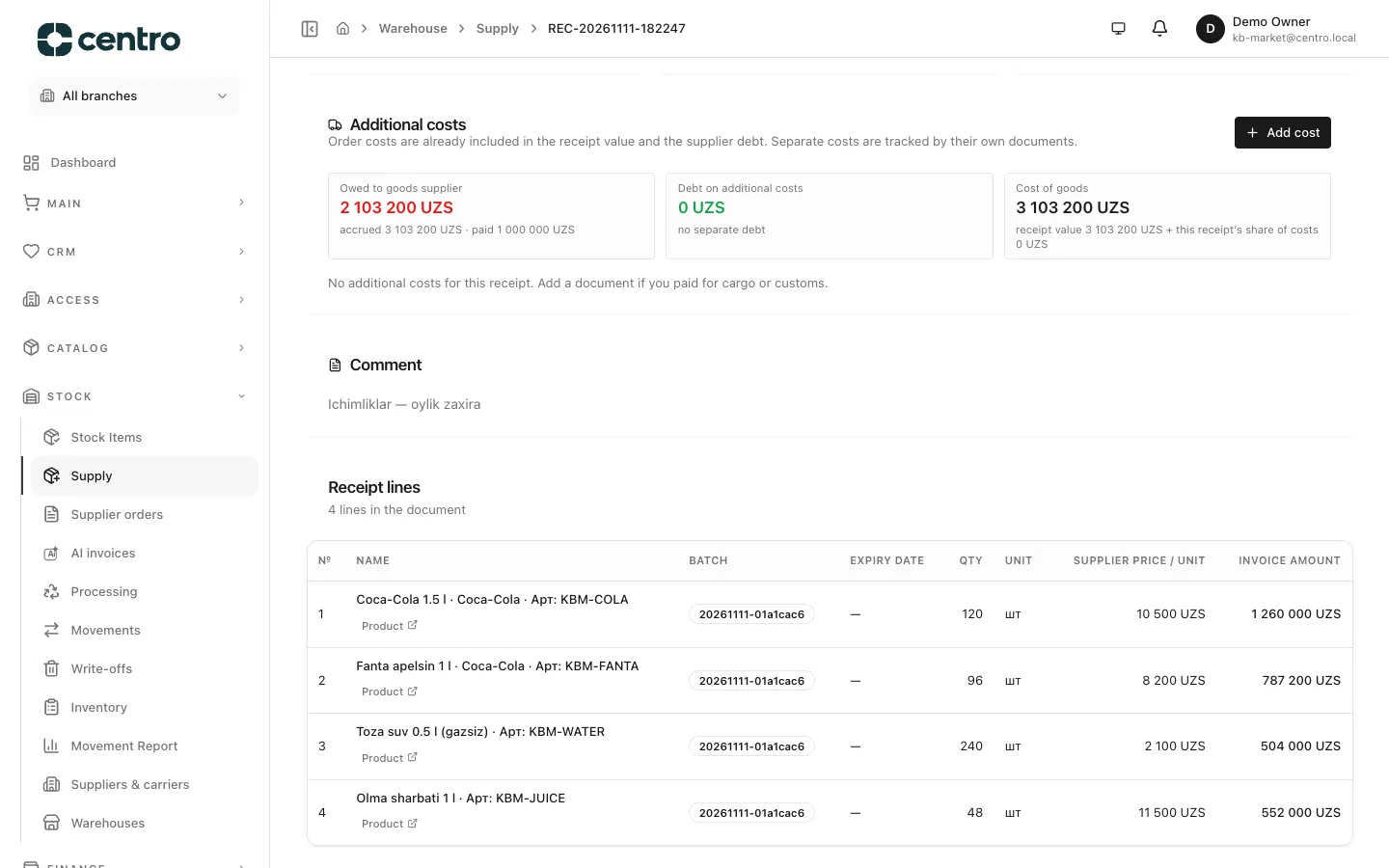
The «Receipt lines» table shows each line’s batch number, expiry date, quantity, price and invoice amount. Links next to an item open its product or ingredient card in the catalog in a new tab.
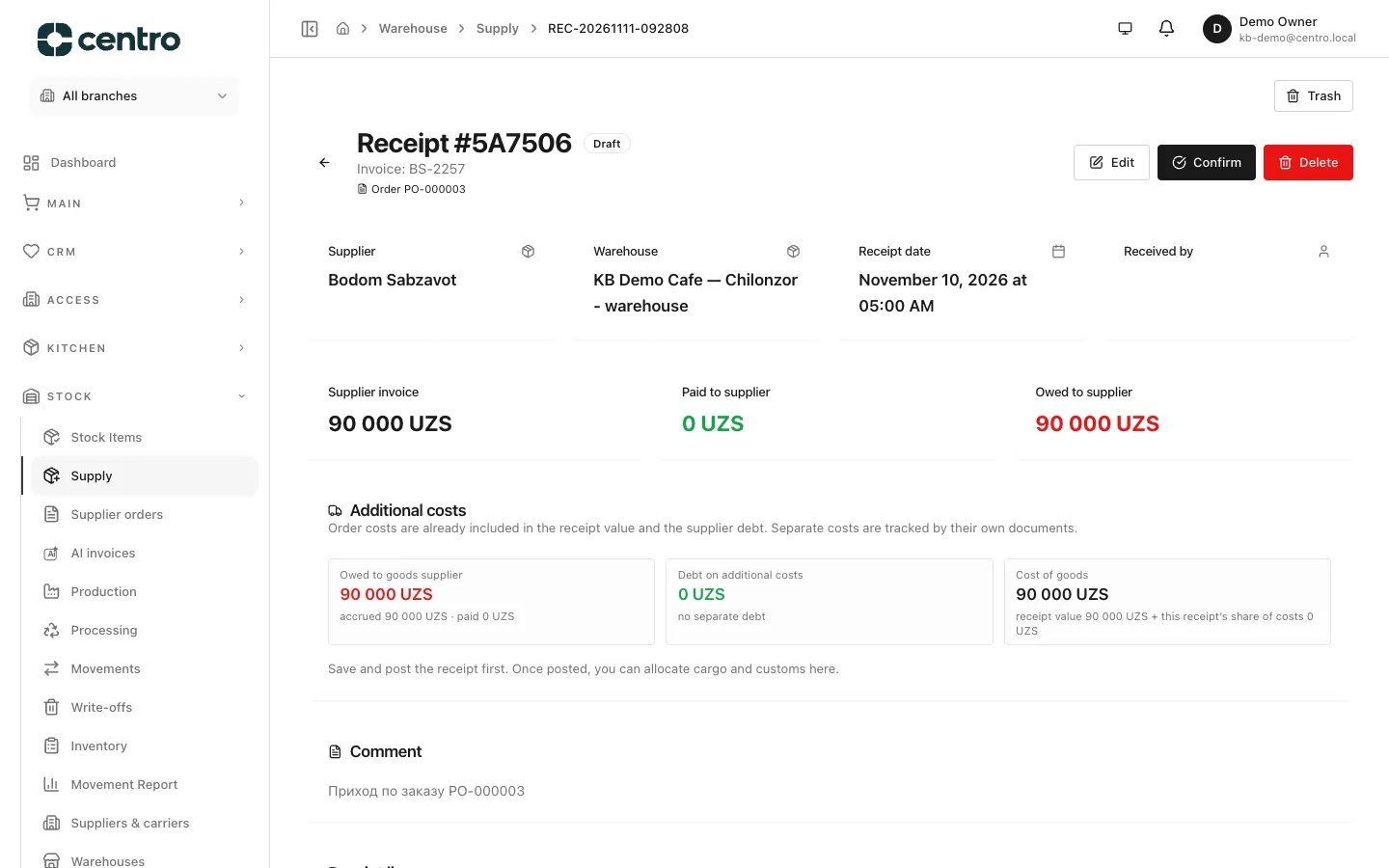
Post a draft
- Open the draft receipt (usually created with «Create receipt» from a purchase order).
- Fix quantities and prices via «Edit» if needed.
- Click «Confirm», then «Post» — the goods go into stock and the order becomes partially or fully received.
Tip: A posted receipt can be corrected too — through «Receipt correction» (see «Editing a receipt» below).
Additional cost documents #
Cargo, customs and other fees: how they are spread into the cost, who is owed, how to cancel a document and record a refund.
The «Additional costs» block on the receipt card holds everything paid on top of the goods price: cargo, customs, certificates, insurance. Each cost is a separate document (number ДР-…): it raises the cost of goods but does not change the supplier invoice or the debt to the supplier; any debt is recorded to the cost recipient — a carrier or another counterparty. A document can only be added to a posted receipt; a draft shows «Save and post the receipt first…».
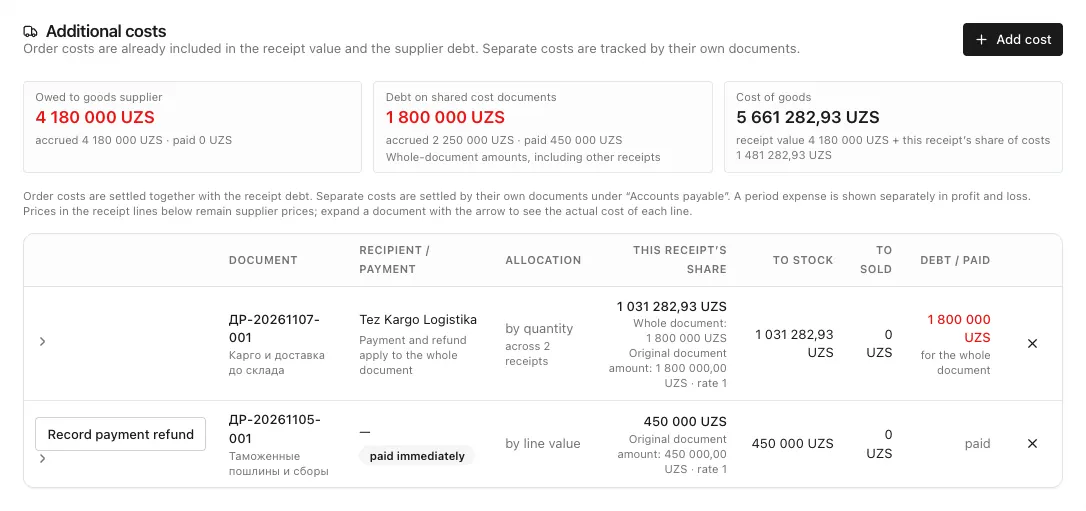
The three boxes on top
- «Owed to goods supplier»
- The remaining debt on the invoice, with «accrued … · paid …» below. Cost lines of the purchase order are already part of this debt.
- «Debt on additional costs» / «Debt on shared cost documents»
- The open debt on separate cost documents. When a document is spread over several receipts the box is called «shared» and shows whole-document amounts (including the other receipts). If everything was paid at once — «no separate debt».
- «Cost of goods»
- The receipt value plus this receipt’s share of the costs. This is the amount that goes into the batch cost and then into the cost of sales.
The documents table
- «Document», «Recipient / payment»
- The document number and cost type («· cancelled» when cancelled), the recipient and badges: «paid immediately»; «Payment and refund apply to the whole document» (a document spread over several receipts); «part of the order» + a link to the order — the cost was a line of the purchase order and its debt is in the supplier invoice.
- «Allocation»
- The basis: «by quantity» (an equal share per unit — for cargo) or «by line value» (more for expensive lines — for customs); for several receipts — «across N receipts».
- «This receipt’s share»
- The part of the document amount that falls on this receipt. Below it «Whole document: …» and «Original document amount: … · rate …» (matters for a foreign-currency cost). A period expense shows «—» and a «Period expense» badge.
- «To stock» / «To sold»
- Which part of the share went into the batch still in stock and which part was added to the cost of goods already sold. When the cost arrives after the sale, «To sold» is above zero and the block shows «… went into stock on hand, and … was added to the cost of goods already sold».
- «Debt / paid»
- The open debt (in red), «paid», «in supplier invoice» (an order cost) or «cancelled». A document’s debt is paid as a separate line in Finance → Payables.
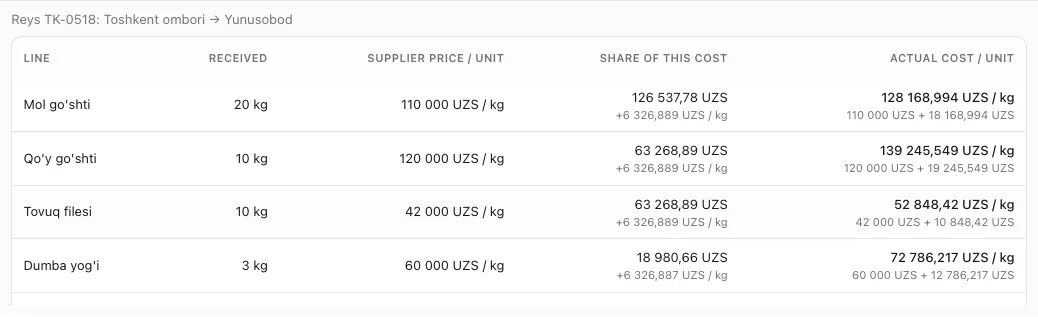
The arrow at the start of a row («Show breakdown») reveals the document note, recorded refunds (with a «Cash receipt» link) and the lines table: «Received», «Supplier price / unit», «Share of this cost» (total and «+…» per unit) and «Actual cost / unit» — the supplier price plus the per-unit part of all cost documents of this receipt. Prices in the receipt lines table stay supplier prices.
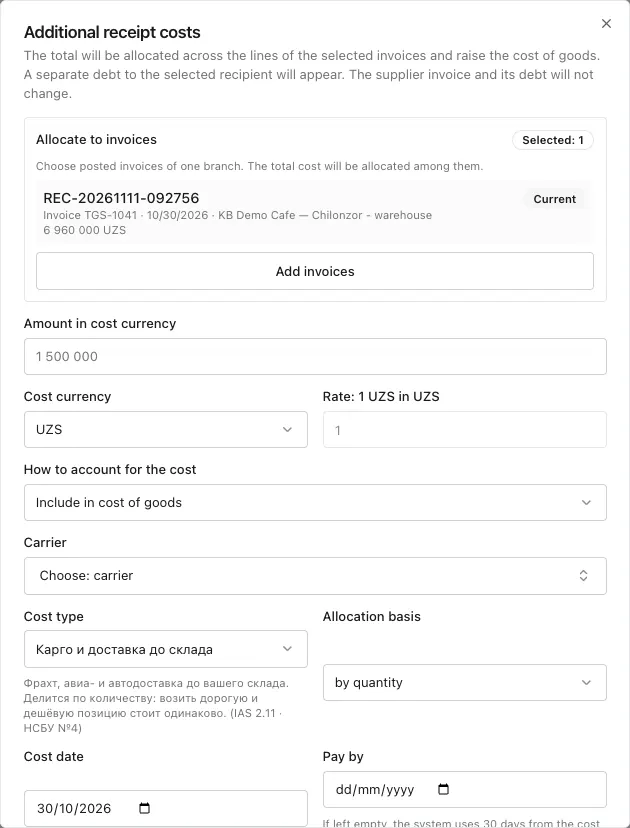
Add cargo or customs later
- On a posted receipt click «Add cost».
- «Allocate to invoices»: the current receipt is already selected. If one container or trip brought several invoices, add the others with «Add invoices» — posted ones of the same branch only; the total is spread between them.
- Enter the «Amount in cost currency» and the «Cost currency». If it differs from the organization currency, fill in «Rate: 1 … in …»; a foreign-currency cost is recorded only as a debt to the recipient — the actual payment, rate and fee are entered later from payables.
- Choose the «Cost type» (e.g. «Карго и доставка до склада», «Таможенные пошлины и сборы»). The type fills in «How to account for the cost», the «Allocation basis» and the recipient kind, and shows its explanation and standard reference. The list of types is kept in Finance → Operations → Expense settings; if no type is active, the dialog says so.
- «How to account for the cost»: «Include in cost of goods» (the amount is spread over the lines) or «Period expense — separate from inventory» (shown separately in profit and loss; no basis is chosen and the button becomes «Record period expense»).
- Choose the recipient: a carrier or a supplier depending on the type (missing? «Add carrier» / «Add supplier» — after creating it the dialog comes back filled in) or «Paid ourselves — no counterparty».
- Set the «Cost date» (the receipt date by default) and, if you leave a debt, «Pay by»: if empty, the system uses 30 days from the cost date.
- «Settlement»: «Leave a debt to the recipient» (a separate line in settlements) or «Already paid from an account» — then choose the «Payment account» and the money is charged at once. A cost without a counterparty can only be paid from an account.
- If needed, fill in the «Cash flow category» (for the payment and the account movement) and the «Note» (invoice, container or trip number). Check the summary at the bottom («One cost document · invoices: …») and click «Allocate».
Limits
- Paying from an account at once or recording a refund needs «Full access» on the «Finance → Payables» row of the position.
- If part of the batch has already been moved to another warehouse or written off, the cost can neither be posted nor cancelled automatically — the system asks for a correcting document.
- On a receipt with cost documents, editing locks the supplier, warehouse, prices and lines, and deletion is refused — cancel the documents first.
Cancel a document
- Click × («Cancel document») at the end of the document row. An order cost has no such button — it is cancelled only together with un-posting the receipt.
- Confirm in the «Cancel document?» dialog: the batch cost returns to its value without this document and the separate debt on the cost is voided. A shared document is cancelled for all its receipts at once.
Important: If the account payment of the document is already reconciled with a statement, remove the reconciliation before cancelling. If the money came back, record the refund first.
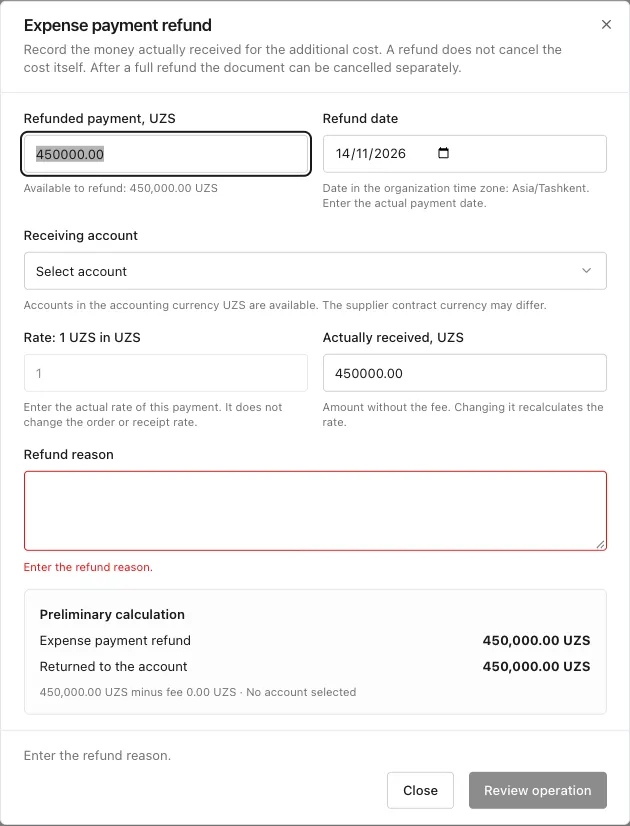
If the payment was refunded. A document paid from an account has a «Record payment refund» button in its row (while there is an amount left to refund). In the dialog enter the «Refunded payment» (the maximum is shown below the field), «Refund date», «Receiving account», «Actually received» (without fees) and the required «Refund reason», check the «Preliminary calculation» and click «Review operation». A refund does not cancel the cost itself: the money comes into the account and the refund line appears under «Show breakdown»; after a full refund the document can be cancelled separately.
Tip: Enter customs paid from the till or safe as «Paid ourselves — no counterparty» and «Already paid from an account» — no debt to close later. For cargo the carrier will invoice later, «Leave a debt to the recipient» with «Pay by» is handier.
Editing a receipt #
A draft is edited like the ordinary form; a posted receipt goes through «Receipt correction», which recalculates stock and debt.
The «Edit receipt #…» page opens from three places: «Edit» in a list row, the pencil next to a line in an expanded row («Open line in receipt» — the page scrolls to that line and highlights it) and «Edit» on the card of a receipt that is not posted yet. How it works depends on the receipt status.
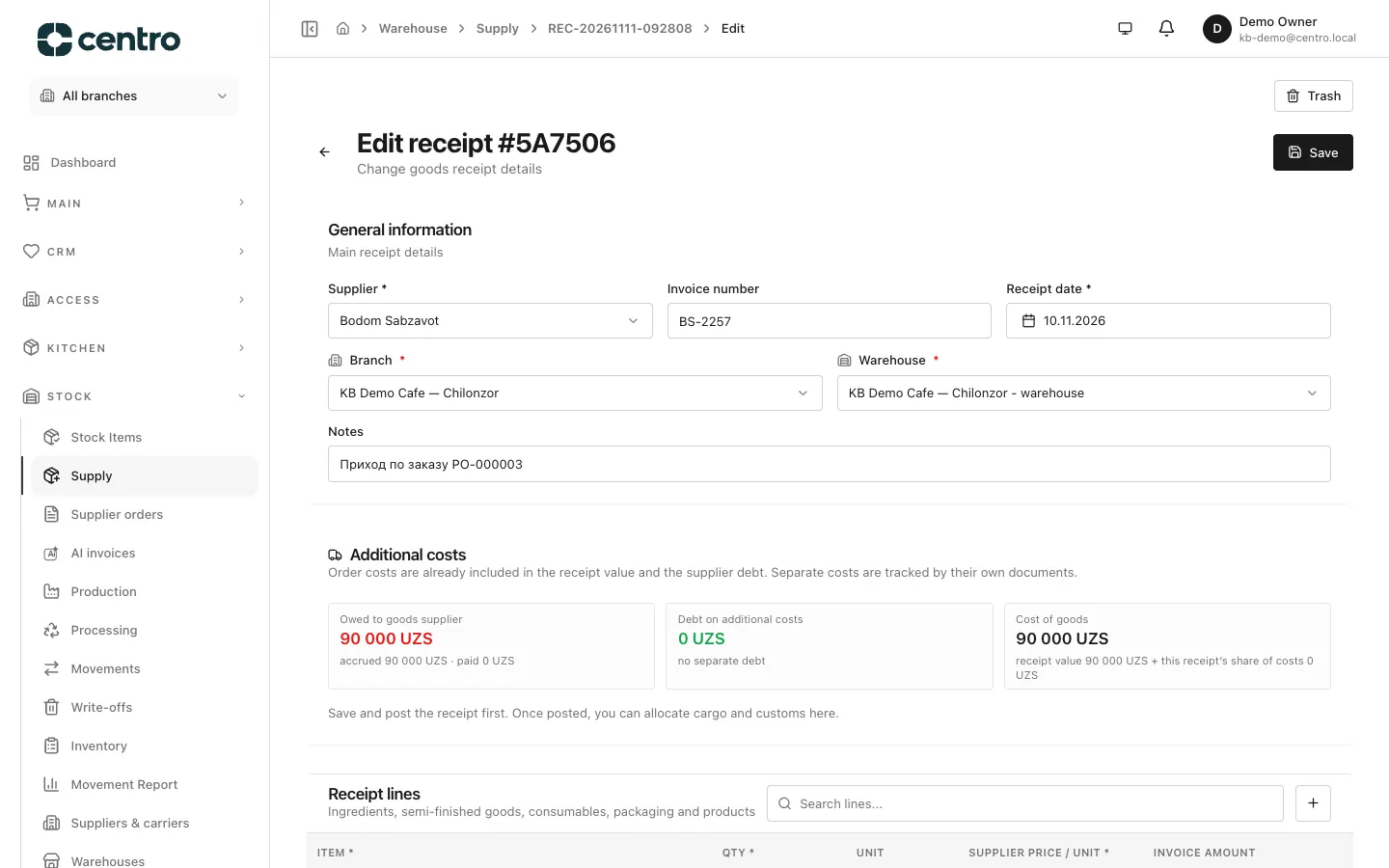
Draft. The form is the same as «New receipt» (supplier, invoice number, date, venue, warehouse, lines, prices). «Save» stores the changes and opens the list but does not post the receipt — it stays a draft; to put the goods into stock press «Confirm» and «Post» on the card. No browser draft of the form is kept while editing.
Important: If additional costs are already included in the receipt’s cost, the form is locked with a warning: to change the supplier, warehouse, prices or lines, first cancel the posted documents in the «Additional costs» block — the system restores the cost and voids the related debt.
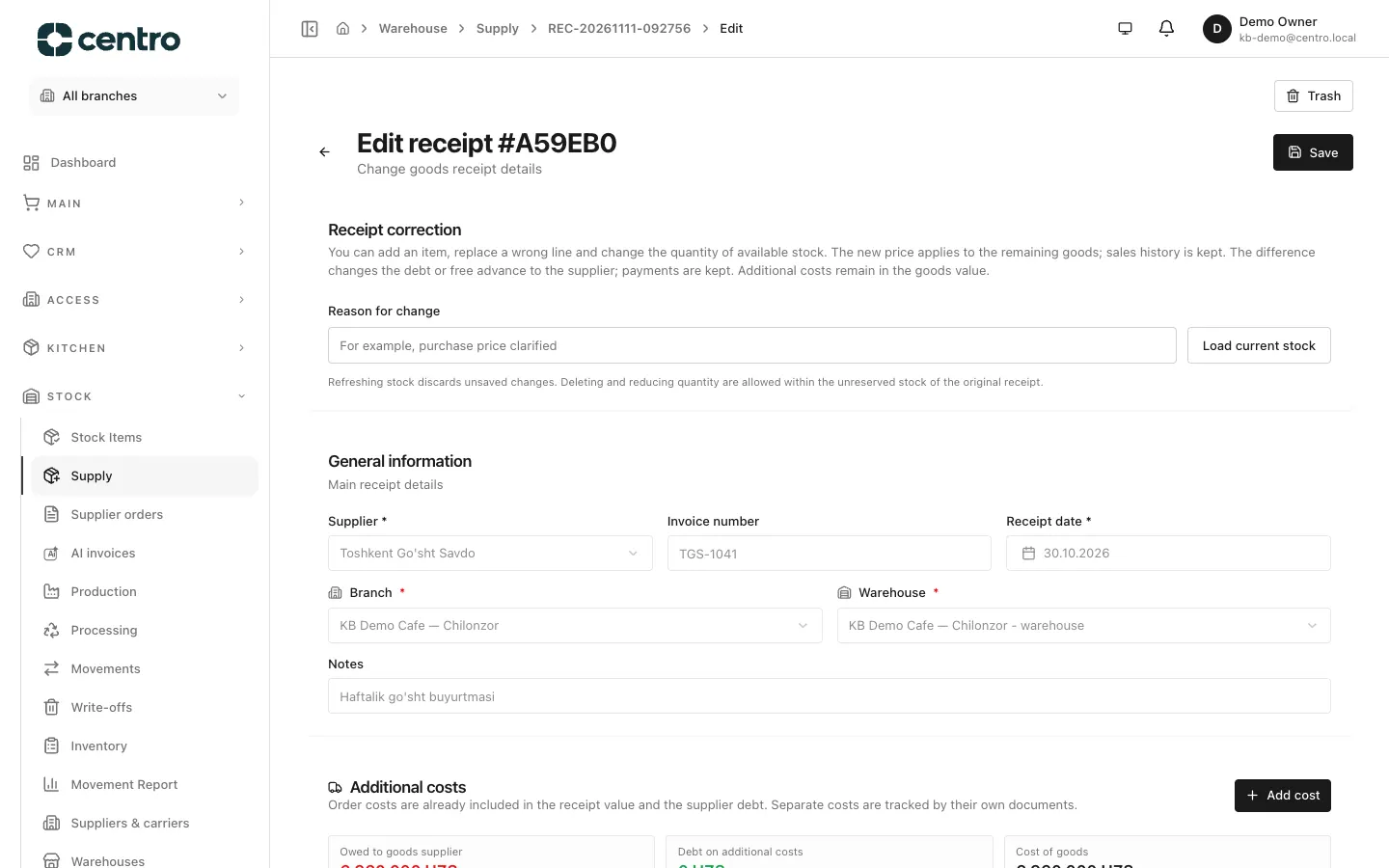
Posted receipt. The goods are already in stock and may have been sold, so the page opens in correction mode. The supplier, invoice number, date, venue, warehouse and notes cannot change. In the lines you can add a product, replace a wrong line, change the quantity of the available stock and fix the price. The new price applies to the goods that remain and the sales history is kept; the difference changes the debt to the supplier or the free advance, payments are kept; additional costs stay in the value of the goods.
Correct a posted receipt
- Fill in «Reason for change» (for example, the purchase price was clarified) — it goes into the change history.
- If the page has been open for a while or goods were sold meanwhile, press «Load current stock». Refreshing discards unsaved changes.
- Fix the lines. Under each price is the line balance: «Received: … · Sold: …», «Returned: … · Remaining: …», and if any, «Transferred / written off: …» and «Reserved: …». You can lower a quantity or delete a line only within the unreserved remaining stock; a line with nothing left shows «No stock left to correct the price».
- Press «Save» — «Receipt, stock and supplier settlements updated.», then the list opens. If nothing changed — «Contents, quantity and price did not change.»
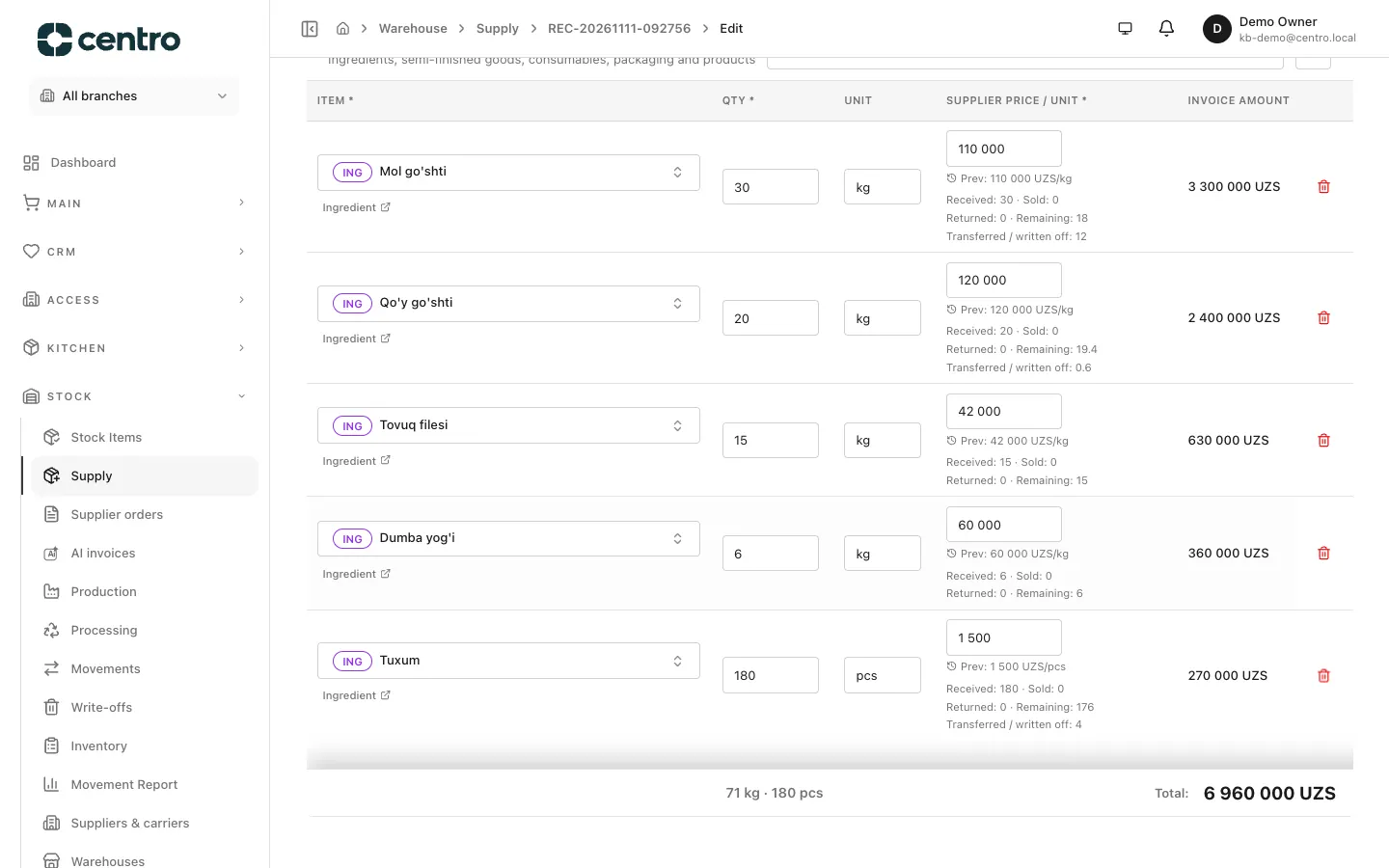
- Correcting needs «Full access» on the «Finance → Payables» row of the position; otherwise «Full access to supplier payments is required to change cost and debt.» is shown and the lines are locked.
- The expiry date of existing lines cannot be changed in a correction.
- «Change history (N)» lists each correction: the date, the amount difference, the employee and how quantity and price changed on each line.
- If the connection drops and saving is not confirmed, the button turns into «Retry saving»: pressing it again sends the same correction and will not create it twice.