Processing
Breaking one raw material down into several products (e.g. trimming meat): the input cost is spread across the outputs and the losses are visible. Turning products and variants into other products (e.g. breaking a box into single units or assembling a gift set): the cost of the input items is spread across the outputs.
Open in the admin panel/stock/processing The page header is «Processing», with the store subtitle «Transforming products and variants with cost allocation». Unlike production (which stores don't have at all) no tech card is needed: you state one or more input items from the warehouse and what they turned into (outputs). For example, a box of milk (12 pcs) is split into 12 separate bottles for sale, or a shampoo and a shower gel are assembled into a «Gift set». Both inputs and outputs are catalog products and variants only.
The page header is «Processing». Unlike production there is no tech card — you state one input (raw material from the warehouse) and what it turned into (outputs). For example, 10 kg of bone-in beef gave 8 kg of trimmed meat and 1.5 kg of bones; the remaining 0.5 kg is loss.
How to open
- In the sidebar, expand the Stock group.
- Click Processing.
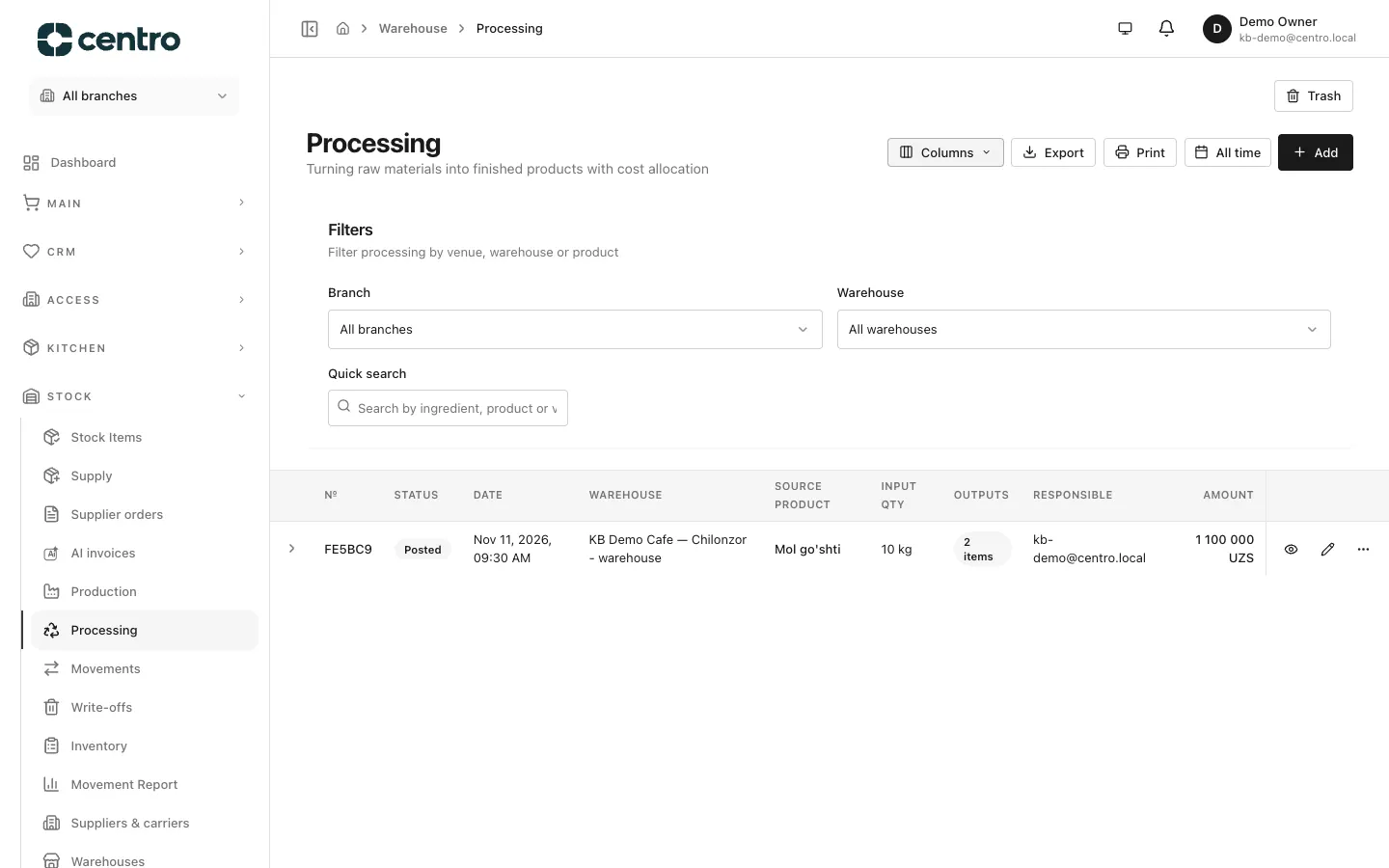
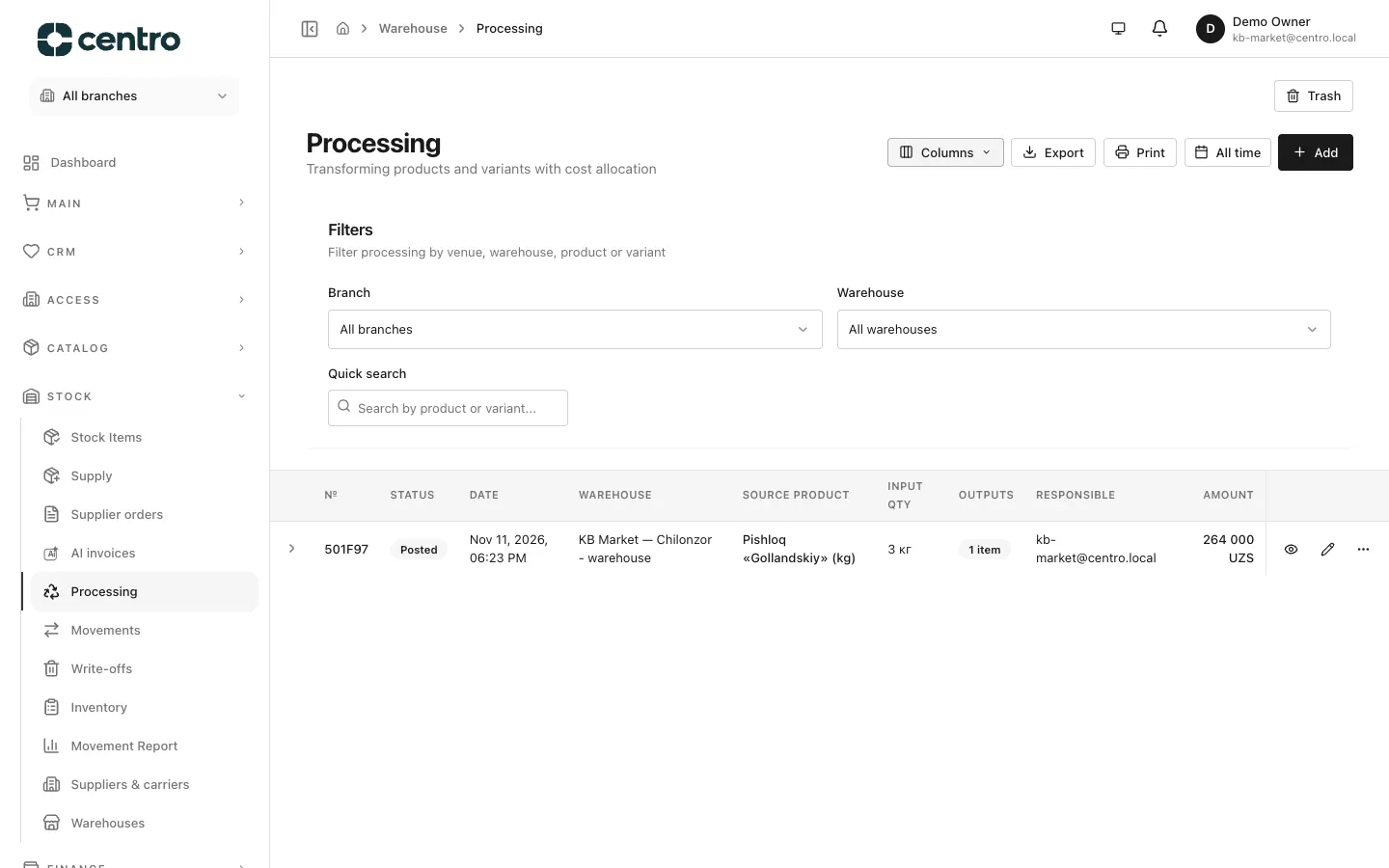
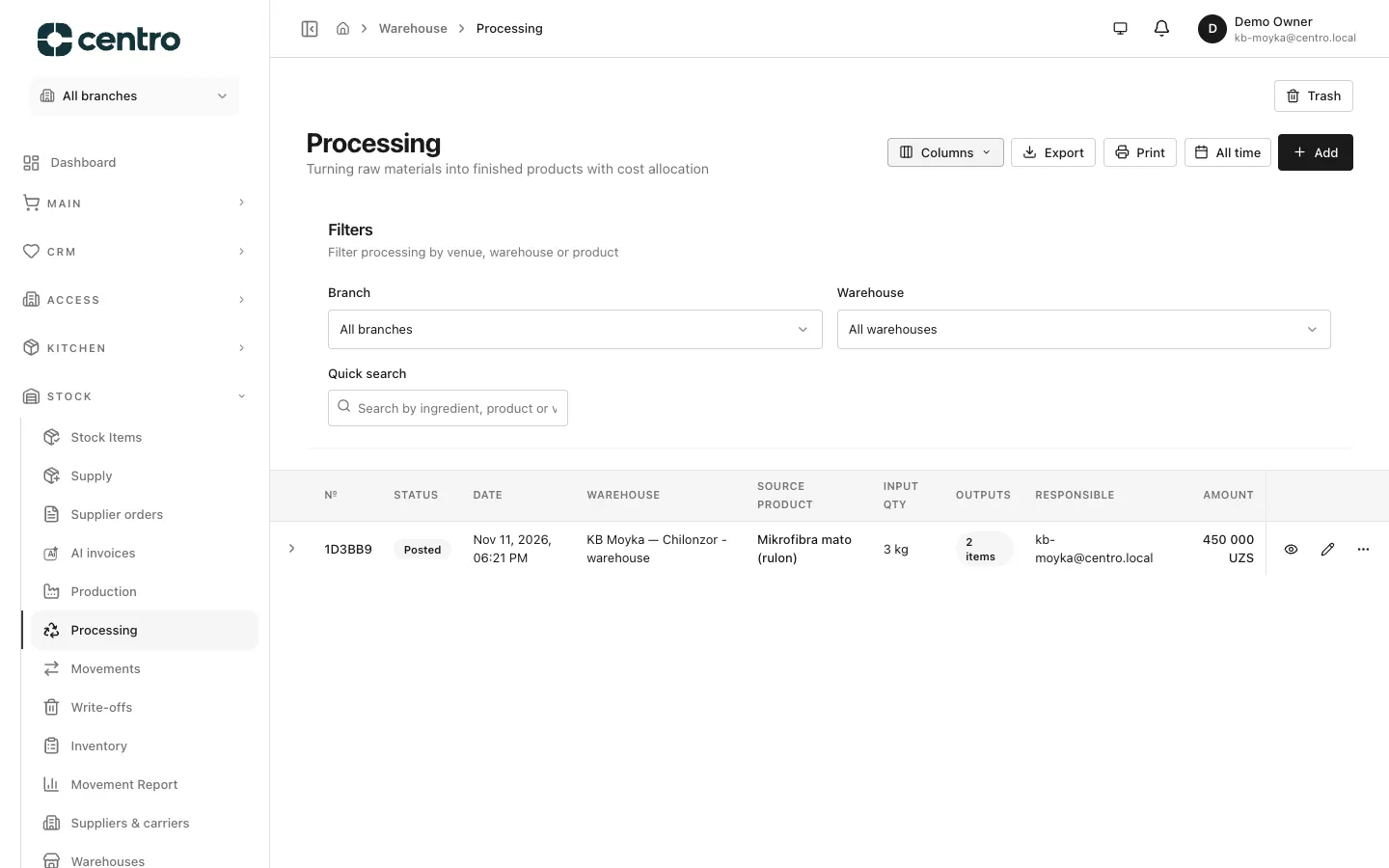
List columns
- «Status»
- «Draft» — stock untouched; «Posted» — the input was written off and the outputs added; «Cancelled».
- «Source product», «Input qty»
- Which raw material and how much went into processing.
- «Outputs», «Amount»
- Number of outputs and the input cost. The chevron expands the «Input:» and «Output:» details.
Tip: Row actions: the eye opens the document, the pencil edits it, and the ⋯ menu has «Copy» (creates a draft copy and opens it for editing) and «Delete».
Exporting and printing the list
- «Export»
- Opens the «Export Data» dialog: choose «Excel (.xlsx)» or «CSV (.csv)» and click «Start Export». The file contains all documents matching the current filters and search, not just the visible page; if nothing matches, a message says so. The «import template» link downloads an empty file with the same columns — this page has no import.
- «Print»
- Opens the browser print dialog — the list on the current page goes to paper or PDF.
Creating a processing #
Input (warehouse product), outputs, cost allocation and «Save and post».
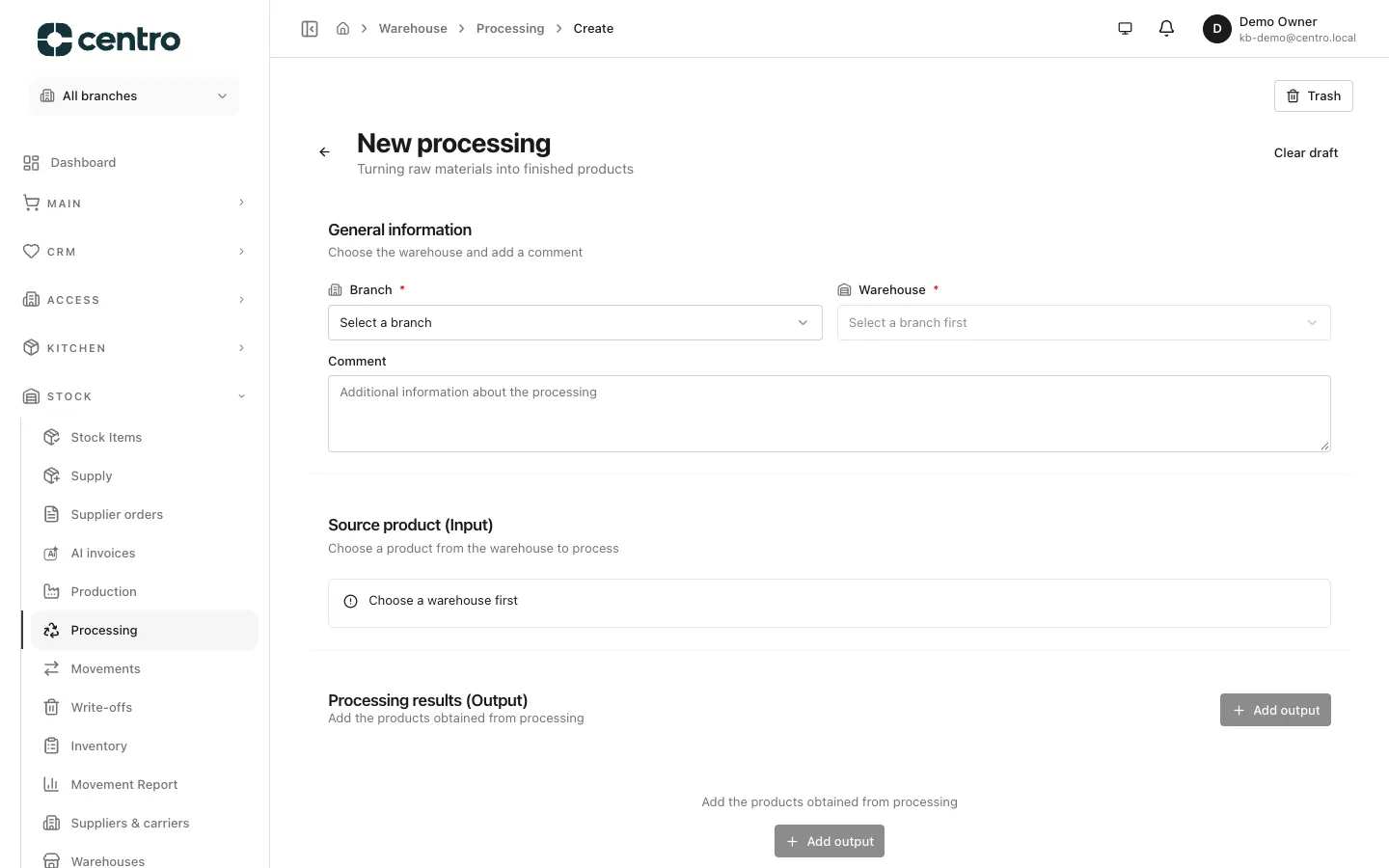
Breaking a box into units (example)
- In the list, click «Add».
- In the «General information» card, choose the venue and warehouse (both required) — the input table stays locked until a warehouse is chosen.
- In the «Input items» table pick the box (product or variant) in the «Warehouse item *» column and enter «Qty *». Need another item (e.g. for a set)? Click «Add input».
- Each line takes its cost from the warehouse average cost; «Total input cost:» is shown under the table.
- In the «Processing results (Output)» card click «Add output» and choose the single-unit product with a quantity of 12 — the whole cost of the box moves to it.
- Click «Save and post».
Tip: In a store the summary line shows only cost and percentages — there are no «Input, kg:», «Output, kg:» or «Difference, kg:» rows — and the output picker lists products only (no ingredients).
Trimming meat (example)
- In the list, click «Add».
- In the «General information» card, choose the venue and warehouse (both required).
- In the «Source product (Input)» card, pick «Mol go'shti» in «Warehouse product *» and enter 10 in «Quantity *». The «Available: X» link fills in the whole balance.
- «Unit cost» is filled in automatically from the warehouse average cost; «Total input cost» = quantity × cost.
- In the «Processing results (Output)» card, click «Add output»: 8 kg of trimmed meat and 1.5 kg of bones (tick «Waste» for the bones).
- Check the summary line: «Difference, kg:» shows the 0.5 kg loss.
- Click «Save and post».
Tip: If no unit cost is found. When the product has no average cost (e.g. stock without a receipt), «Unit cost» is empty and shows «No unit cost found, click «Enter»». Click «Enter», type the price and click «Done» — the hint changes to «Manual unit cost for this processing». The same way («Change») you can correct an automatic price — for this document only; the warehouse average cost does not change.
Outputs table
- «Item *»
- Any catalog ingredient or product — even one with no stock yet.
- «Qty *», «Unit»
- Output quantity; the unit comes from the item card. The quantity from the previous processing is shown as a hint.
- «Amount», «Price/unit», «%»
- The share of the input cost assigned to this output. Until you edit amounts by hand, the cost is spread automatically in proportion to quantity.
- «Expiry», «Waste»
- Expiry date of the output batch and the waste flag (highlighted in the document and on the flow diagram).
Important: The output total must equal the input total. If they differ, a «Difference between input and output» warning appears — click «Distribute by quantity» or fix the amounts by hand.
What posting does
- The input quantity is written off the warehouse at actual cost (earliest-expiry batches first).
- Each output is added to stock at its share of the cost; the batch number is today's date and the expiry comes from the «Expiry» column. Lines marked «Waste» are added to stock too.
- Costs of dependent tech cards are recalculated — the trimmed meat now carries its real price.
Tip: If the waste (bones, fat) is not needed, write it off via «Write-offs» after posting — otherwise it stays in stock.
Tip: At a car wash processing helps e.g. when a canister is decanted into bottles for sale: the input is 20 l of «Avtoshampun konsentrat», the outputs are 1-litre bottles sold at the till. The canister cost is spread over the bottles.
Processing document #
Flow diagram, input and output tables, posting, copy and delete.
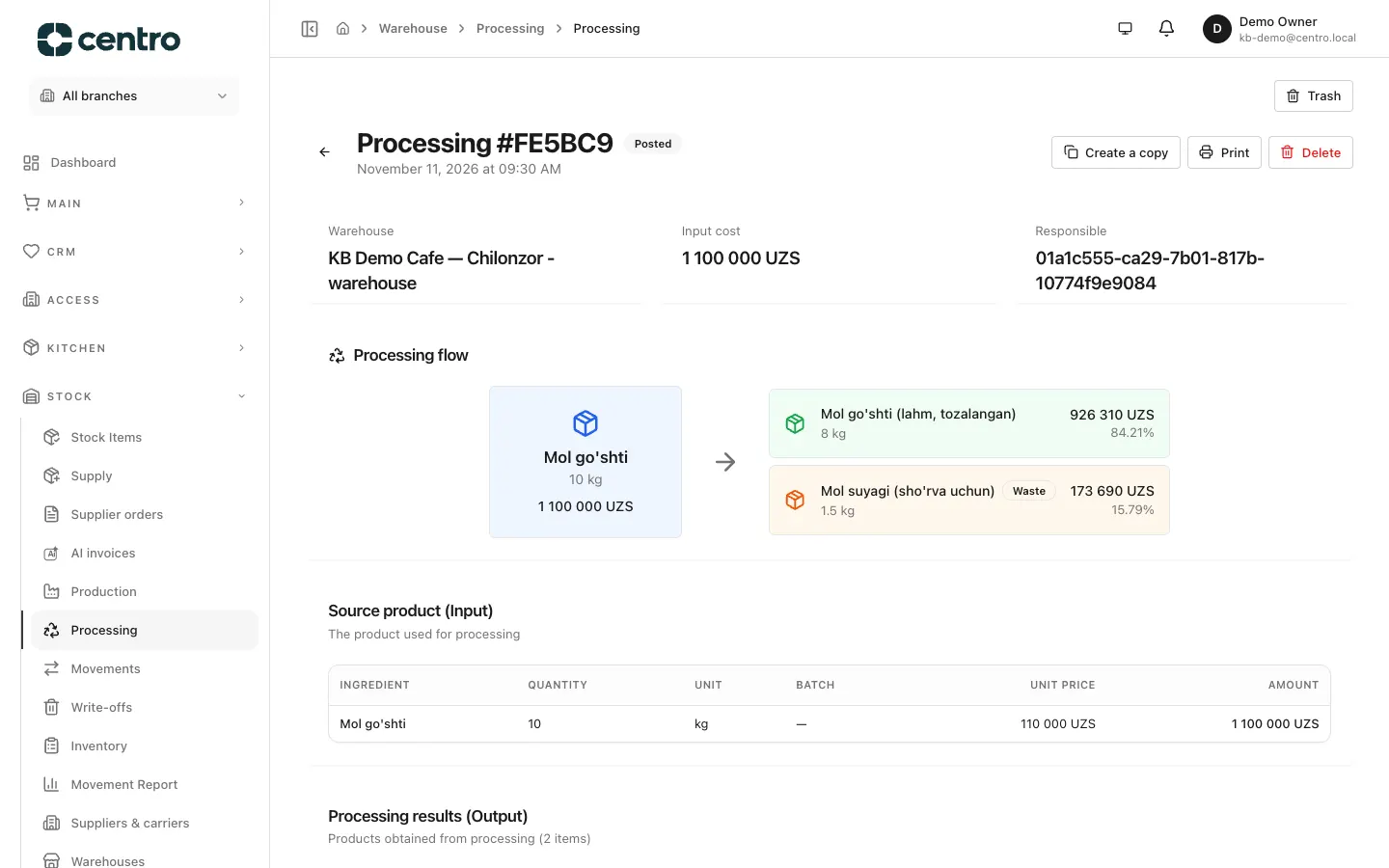
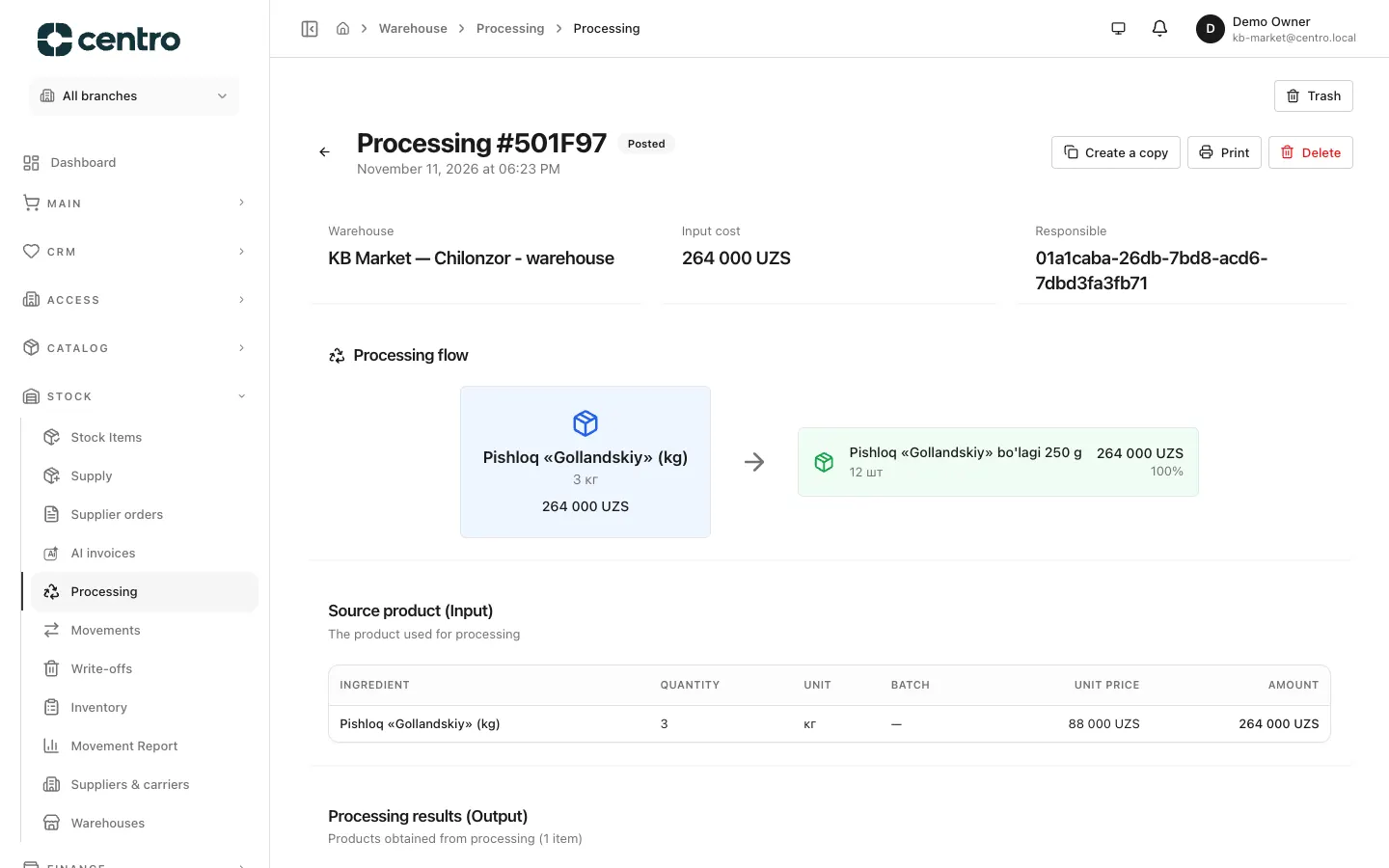
- Summary cards
- «Warehouse», «Input cost», «Responsible».
- «Processing flow»
- Arrows from the input box to the output boxes; waste is marked «Waste».
- Tables
- «Source product (Input)» — ingredient, quantity, batch, unit price, amount; «Processing results (Output)» — expiry, %, amount, unit price, type; «Total output:» at the bottom.
Buttons
- On a draft — «Edit» and «Post»; on a posted document — «Create a copy».
- «Print» and «Delete». When you delete a posted document, the dialog lists the rollback: the raw material returns to stock and the outputs are written off. A draft is deleted without touching stock.
Important: If you open a posted document for editing, the «The processing is already posted» screen appears. «Reverse posting and edit» rolls the movements back (raw material returns, outputs are written off) and turns the document into a draft; after editing, post it again.