AI invoices
Reads the lines from a photo, PDF or Excel invoice automatically and opens a ready receipt form.
Open in the admin panel/stock/ai-invoices The AI never posts stock by itself: it only reads the invoice, you match the lines to the catalog, and then a ready receipt form opens for you to check and save.
How to open
- In the sidebar, expand the Stock group.
- Click AI invoices.
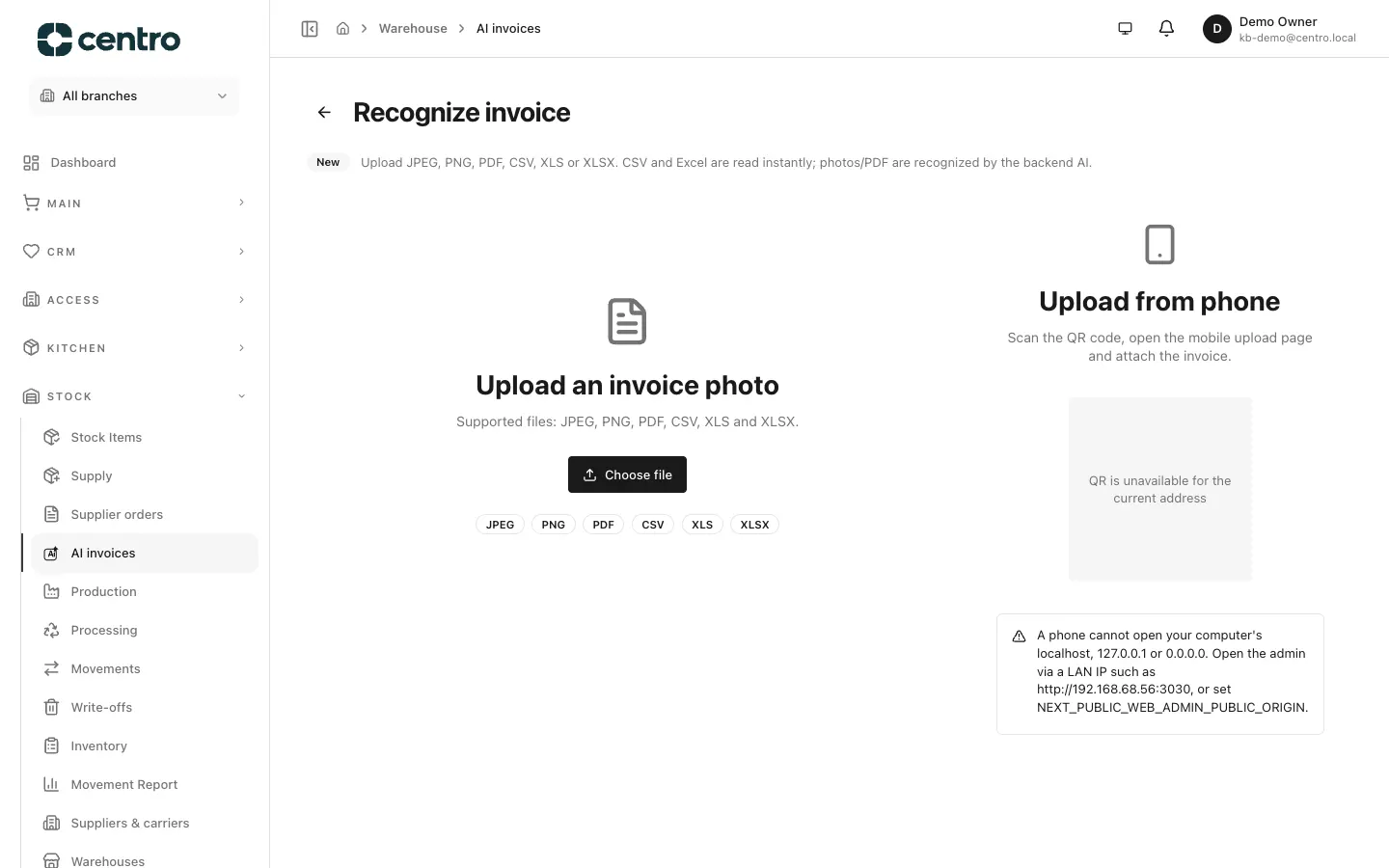
How to recognize an invoice
- Click «Choose file» and pick a JPEG, PNG, PDF, CSV, XLS or XLSX (up to 15 MB). Or scan the QR code with a phone and photograph the invoice from it.
- In «Recognition parameters» choose the branch and warehouse, the «Supplier hint» and currency, then click «Recognize».
- After a few seconds the lines table opens: name, quantity, price and total. Exact catalog matches are linked automatically.
- For each line pick the type («Raw material / ingredient», «Product» or «Tech card / finished product») and the catalog item. If it is missing — «Create in catalog».
- When the counter at the bottom shows all lines matched, click «Open in receipt» — the receipt form opens pre-filled. Check it and click «Save».
Tip: If the invoice is in another currency (e.g. USD), the system asks for a conversion coefficient — every price is multiplied by it. «Without conversion» writes the prices as they are.
Important: Use a sharp, well-lit photo. Photograph a very large invoice in parts. Products created via «Create in catalog» are inactive and a tech card is a draft with no ingredients — fill them in later.
In a store the line type list has only «Product» («Raw material / ingredient» and «Tech card / finished product» are hidden), so every line starts as «Product» — you only pick the catalog product or variant. «Create in catalog» adds a new inactive product: complete it later in «Catalog → Products» and activate it.