Stock Items
How much raw material, product and packaging sits in each warehouse, at what cost, in which batches and with which expiry dates. How much of each product and variant sits in each warehouse, at what cost, in which batches and with which expiry dates. How much car-care chemistry, consumables and retail goods sit in each warehouse, at what cost, in which batches and with which expiry dates.
Open in the admin panel/stock/items In a store the rows are products and their variants (e.g. every size and colour of a T-shirt is its own row): store-type organizations have no ingredients, semi-finished items or tech cards. Stock grows with receipts, and every sale at the till immediately reduces the sold product or variant.
A car wash stores mostly car-care chemistry and consumables: active foam, shampoo concentrate, wax, polishing pastes, microfibre cloths and sponges — they are kept as ingredients. The tech card of a service (e.g. «Kuzov yuvish») says how much product one wash uses, so selling the service writes the chemistry off automatically. Ready goods sold at the till (air fresheners, cloths) appear here too.
The page header is «Stock levels» with the number of items next to it. Nothing is typed in here: stock is calculated automatically from receipts, sales, production, transfers, write-offs and stocktakes. Each row is one item in one warehouse, so an ingredient stored in two branch warehouses shows up as two rows.
How to open
- In the sidebar, expand the Stock group.
- Click Stock Items.
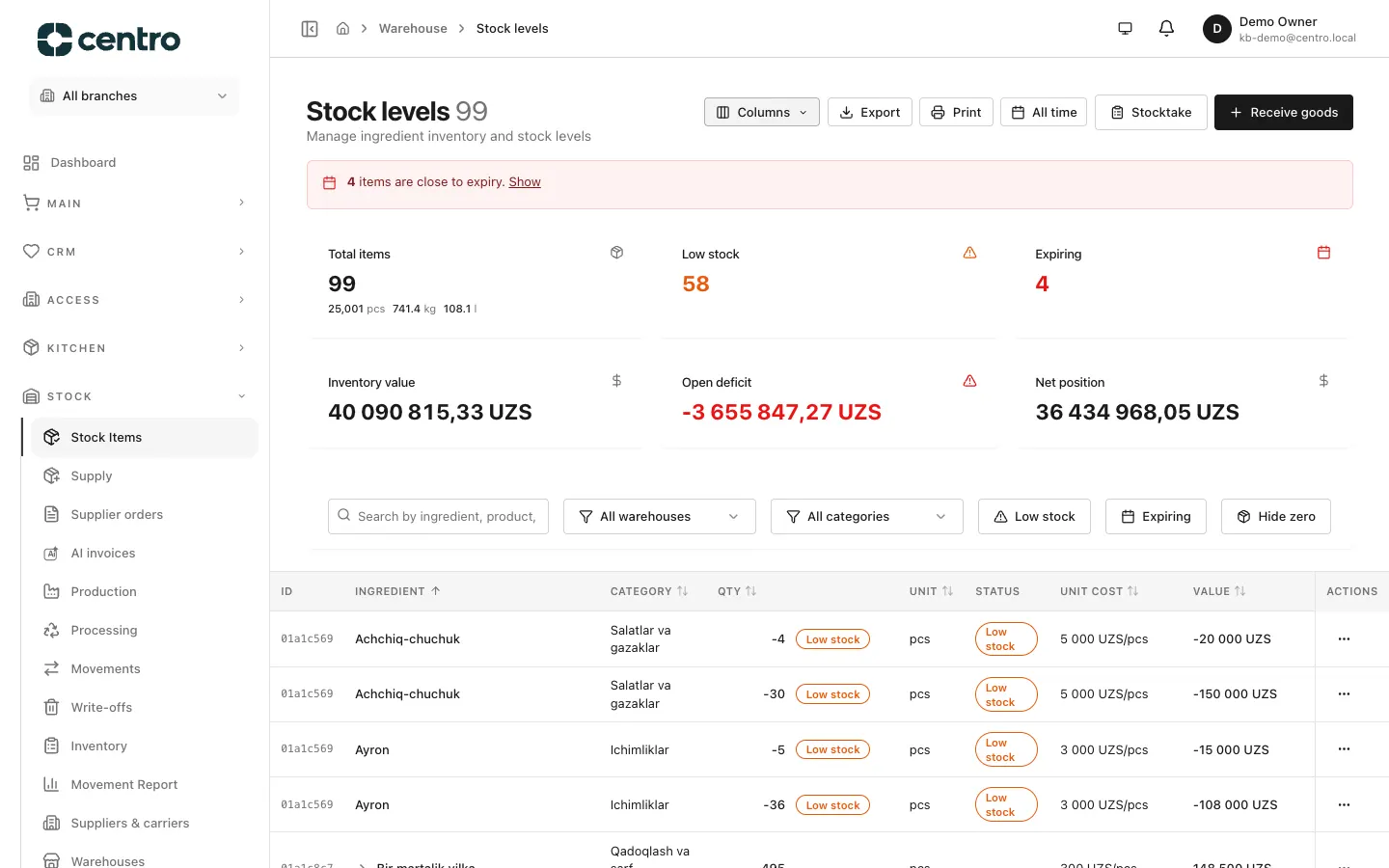
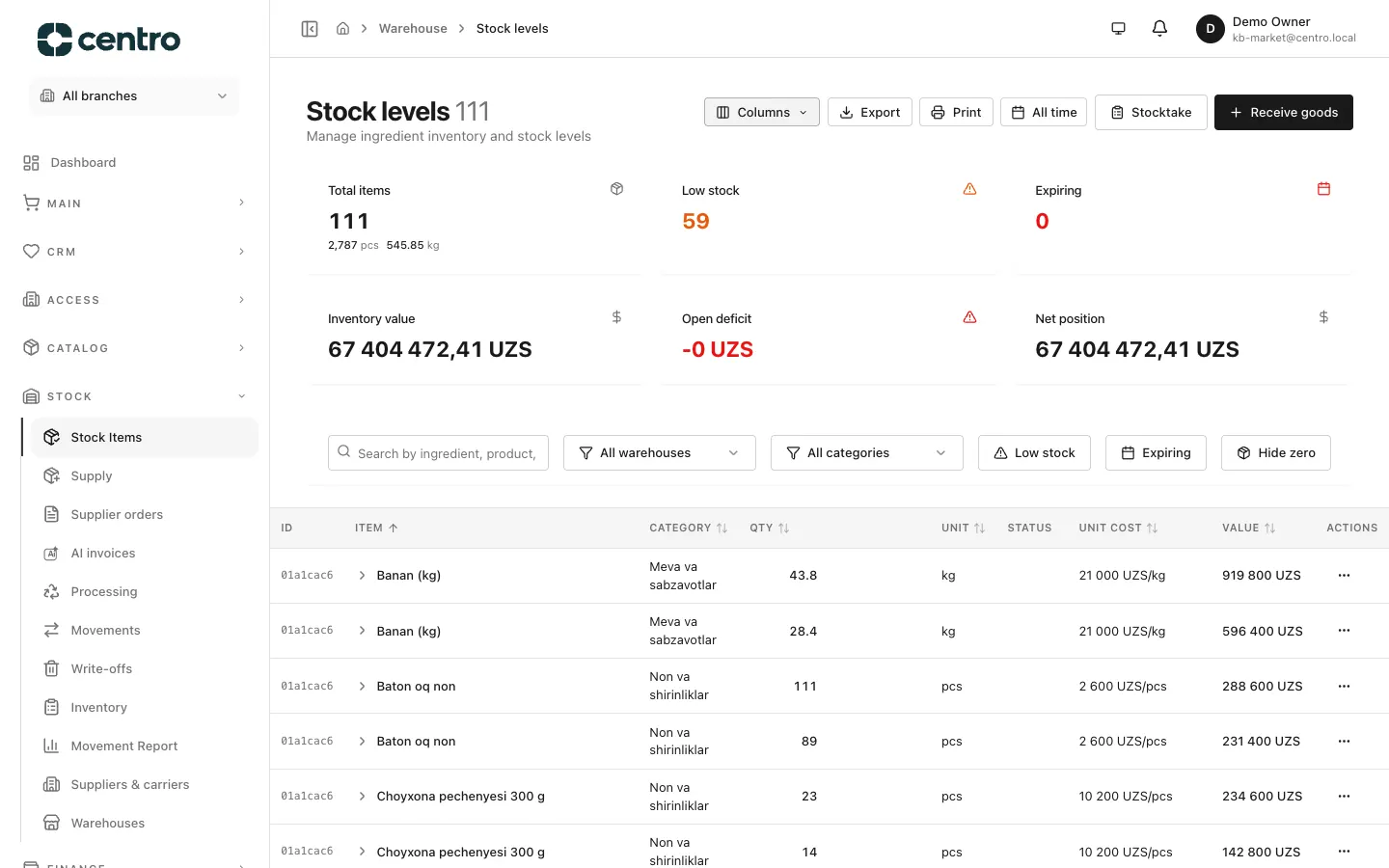
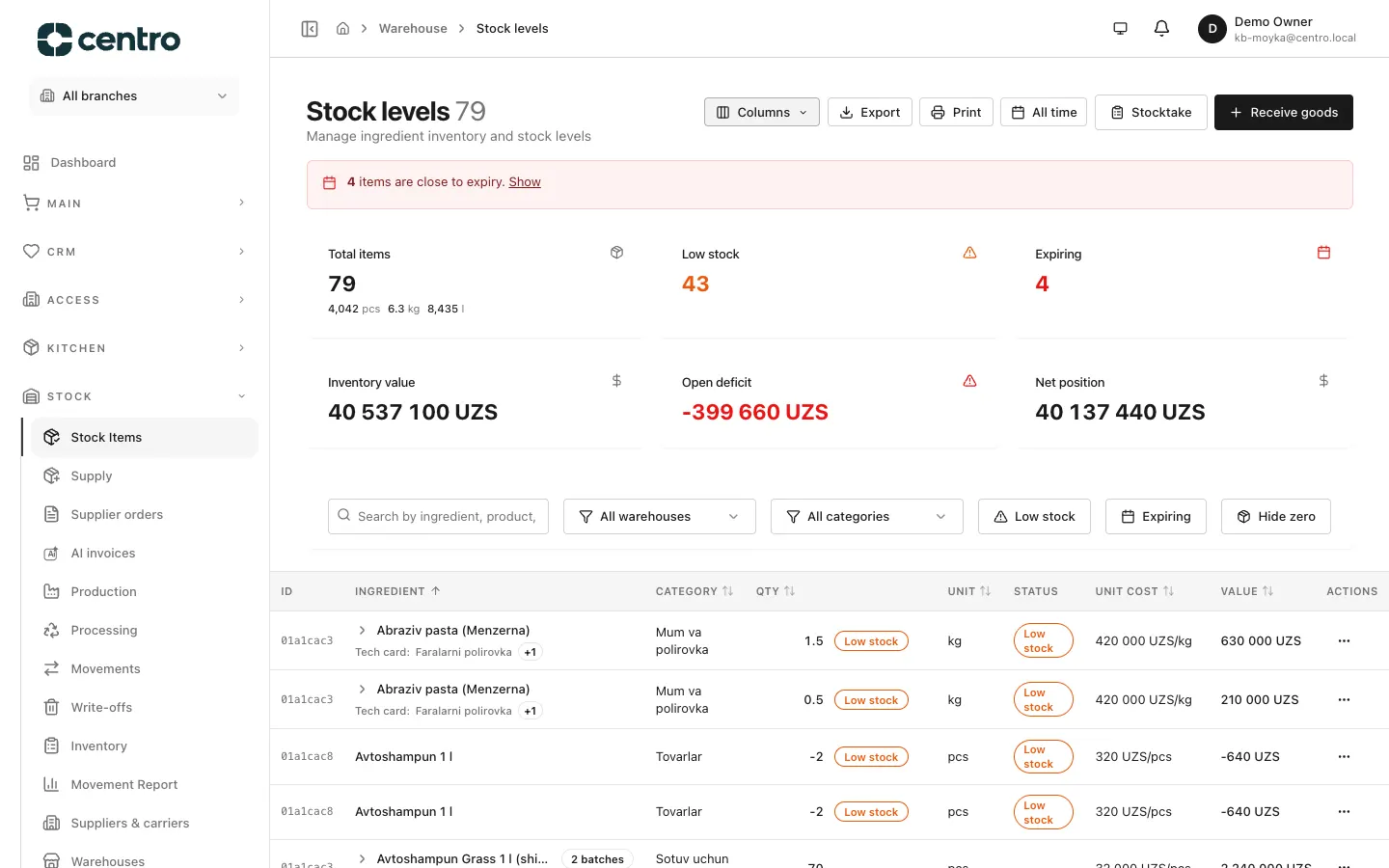
Header buttons
- «Columns»
- Shows or hides table columns (e.g. ID or unit cost).
- «Export»
- Downloads all stock rows matching the current filters to an Excel or CSV file.
- «Print»
- Prints the page via the browser.
- Period
- Defaults to «All time». Picking a period limits the list to stock of that period.
- «Stocktake»
- Opens a new stocktake.
- «Receive goods»
- Opens the new receipt form (see the «Supply» section below).
Stat cards
- «Total items»
- Number of rows matching the filter; below it the total quantity per unit (pcs, kg, l; grams and millilitres are converted to kg and l).
- «Low stock» / «Expiring»
- How many items are running out and how many are close to expiry.
- «Inventory value»
- Value of positive stock at cost.
- «Open deficit»
- Value of items that went negative (e.g. dishes were sold before the raw-material receipt was entered).
- «Net position»
- Inventory value minus the open deficit.
Important: A negative balance (red value) means the system wrote the material off before its receipt was entered. Enter the missing receipt first — the deficit closes and the cost is recalculated.
Filters and alerts #
Choosing a warehouse, searching, and isolating low-stock and expiring items.
- Search
- «Search by ingredient, product, tech card or batch...» — by name, tech card name or batch number.
- «All warehouses»
- Pick one or more warehouses to see only their stock. Nothing selected means all warehouses.
- «All categories»
- Filter by ingredient category (e.g. «Sabzavotlar»).
- «Low stock»
- Only items that are running out.
- «Expiring»
- Only items close to their expiry date.
- «Hide zero» / «Show zero»
- Zero-stock rows are shown by default; the button hides them.

Two alerts can appear at the top: «… items have low stock.» and «… items are close to expiry.». Their «Show» link turns on the matching filter. The stock alert is based on the reorder point of the warehouse item, the expiry alert on the expiry dates of batches.
Important: The «All categories» filter works on ingredient categories. A store has no ingredients, so the list is empty — «No categories» (the table’s «Category» column still shows the product category). Find a product with the search box (name or batch) or narrow by warehouse.
Tip: For a car wash the «All categories» filter lists your ingredient categories (e.g. «Avtokimyo», «Mum va polirovka», «Sarf materiallari») — handy for checking chemistry levels before you reorder.
Tip: Filters are stored in the page address — send the link to a colleague and they will see the same selection.
The stock table #
Columns, status badges, batches and row actions.
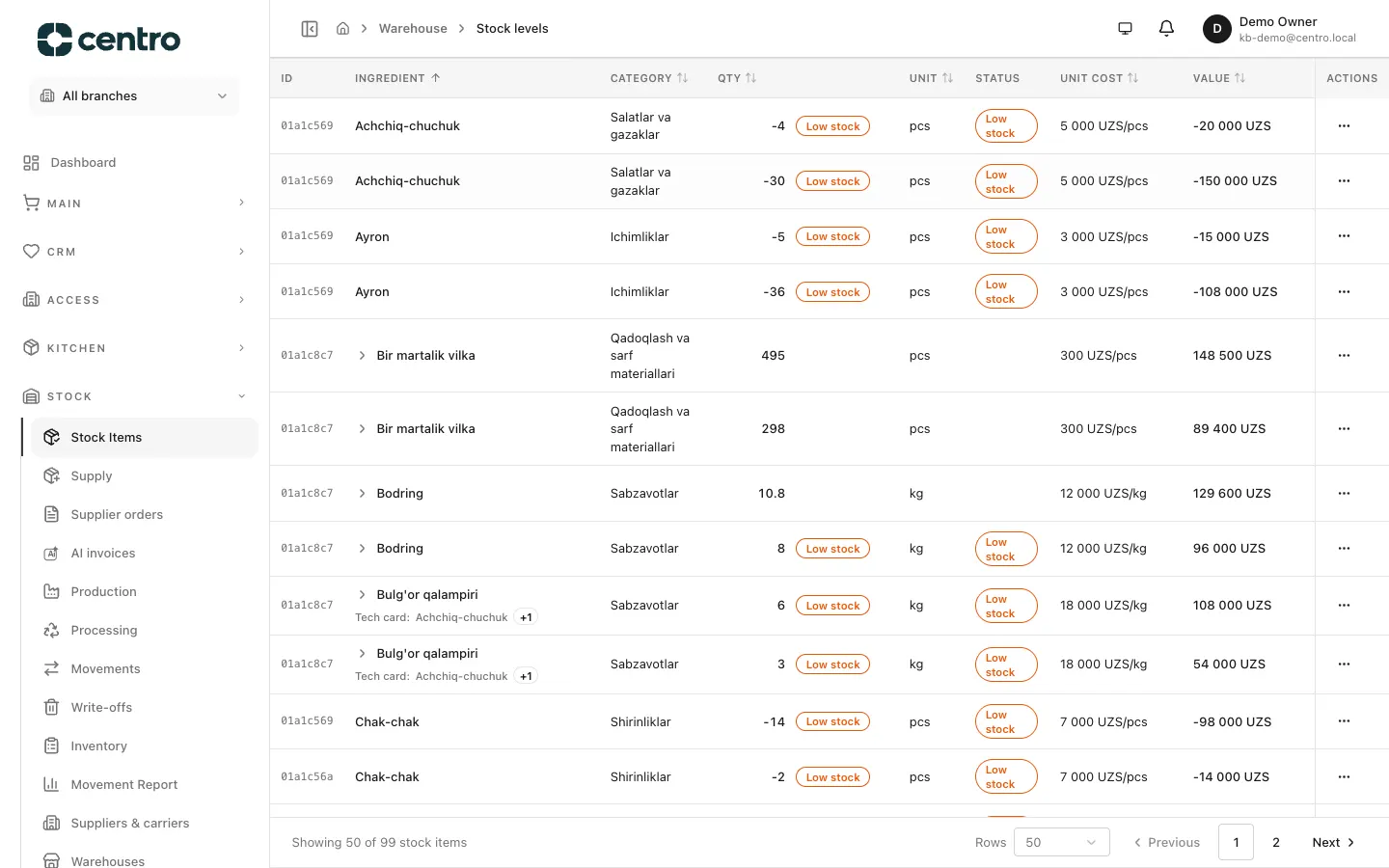
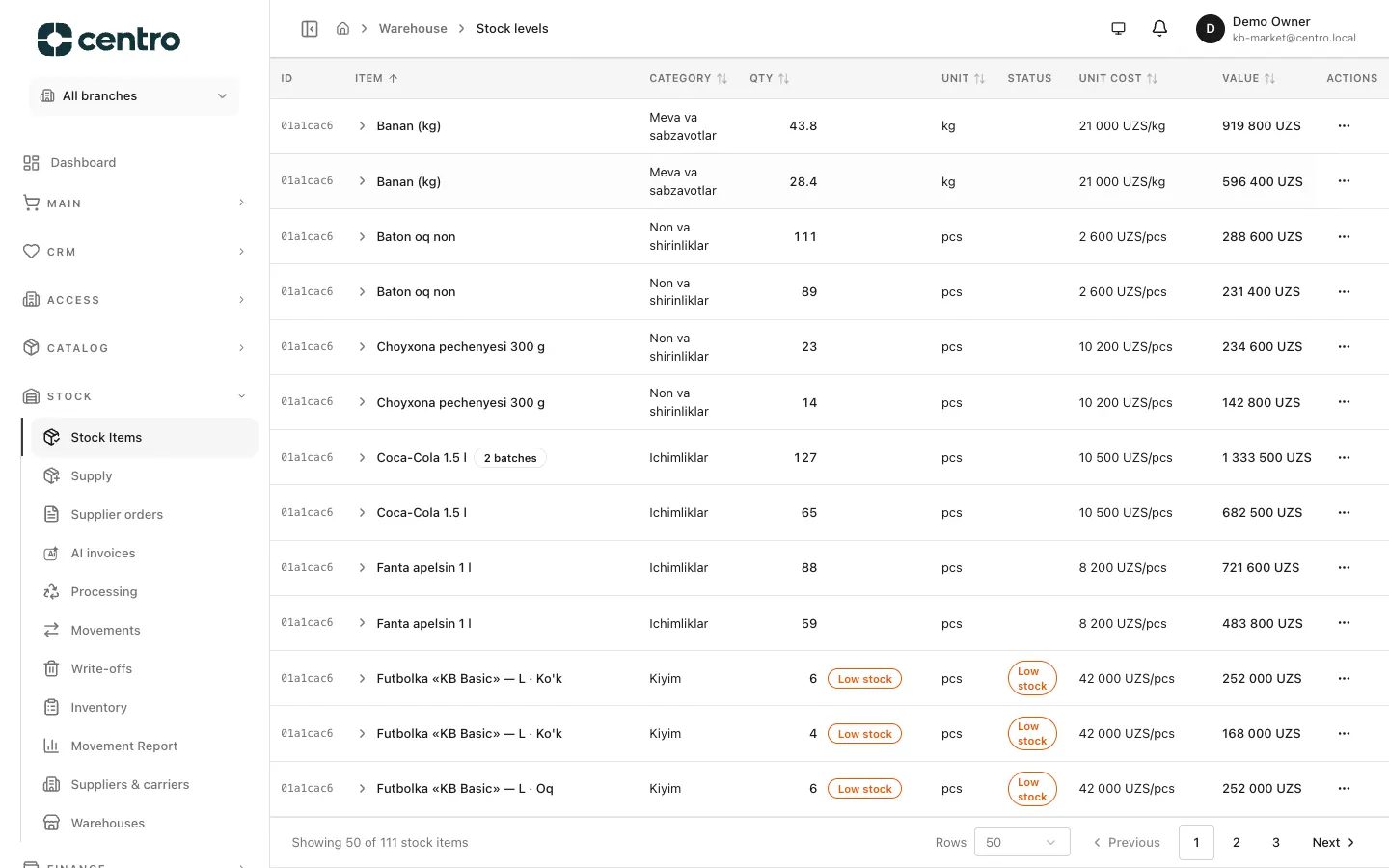
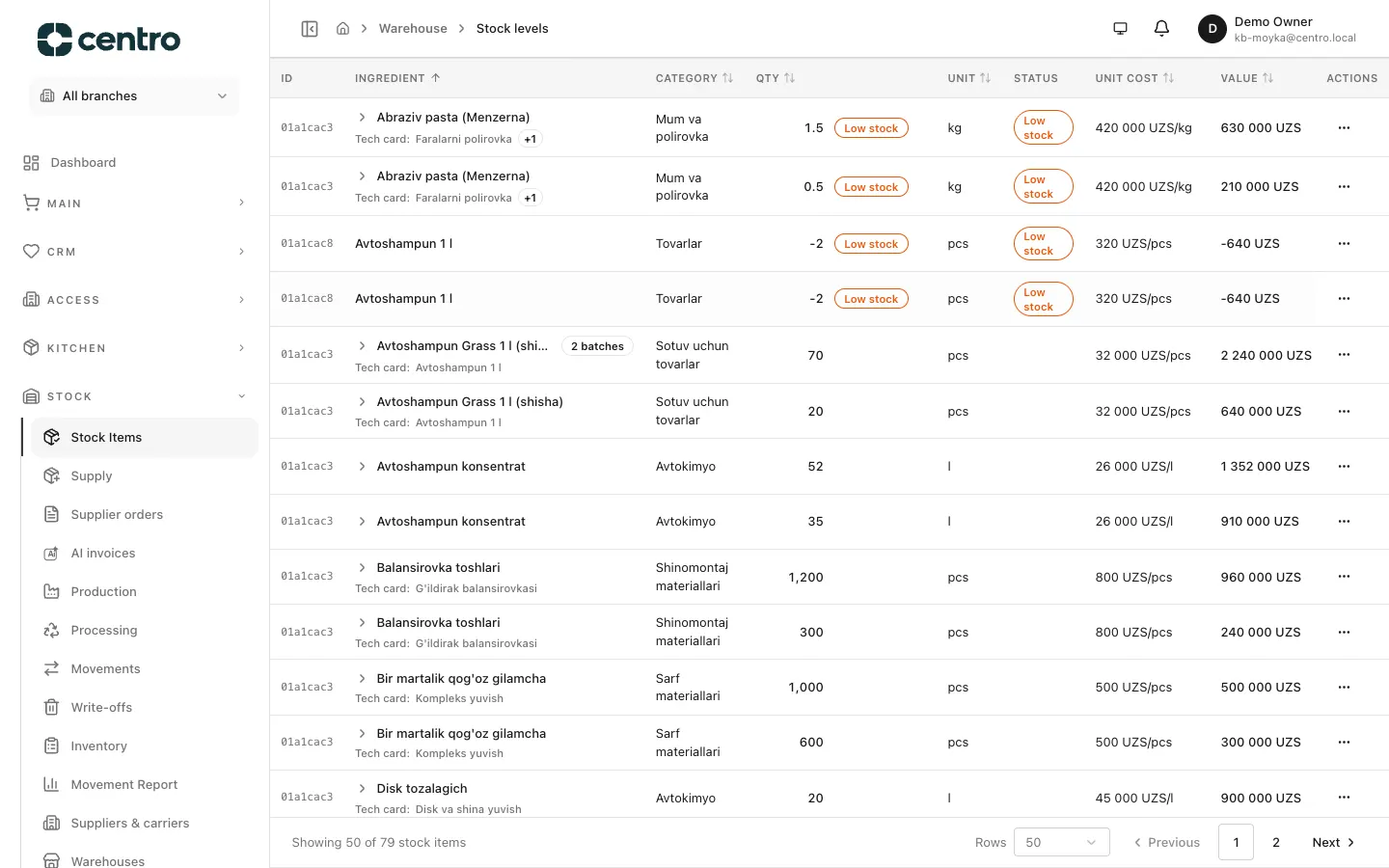
- «Ingredient»
- Item name. If it is used in tech cards, «Tech card:» and the first one (+N others) appear below. With several batches you see a «N batches» badge and an expand arrow.
- «Category», «Qty», «Unit»
- Category, current balance and unit of measure (kg, l, pcs).
- «Batch», «Expiry date»
- Batch number (assigned on receipt) and expiry. Under 7 days — orange «Expires in …d», under 3 — red, past — «Expired».
- «Status»
- Balance 0 — «Out of stock», under 10 units — «Low stock».
- «Unit cost», «Value»
- Unit cost (average, from receipts) and total value of the balance.
Tip: In a store the first column is still called «Ingredient», but it holds the product or variant name; there is no «Tech card:» line. Every variant of a product is its own row with its own balance.
The «…» menu at the end of a row has «Transfer» (opens the transfer form with this item preselected) and «Write off» (opens the write-off form). Pagination and the rows-per-page selector are below the table.