Auto-order
When stock falls below its minimum, a draft order to the preferred supplier is created; switched on separately for each warehouse.
Open in the admin panel/purchasing/auto-order The page header is «Auto-order». Auto-order creates drafts only: nothing is sent to a supplier or confirmed automatically. Every draft opens on the ordinary «Supplier orders» page — you check it, correct it and send it yourself. Initially auto-order is off for every warehouse.
How to open
- In the sidebar, expand the Stock group.
- Click Auto-order. The «Auto-order» button on the «Purchasing analytics» page leads here too.
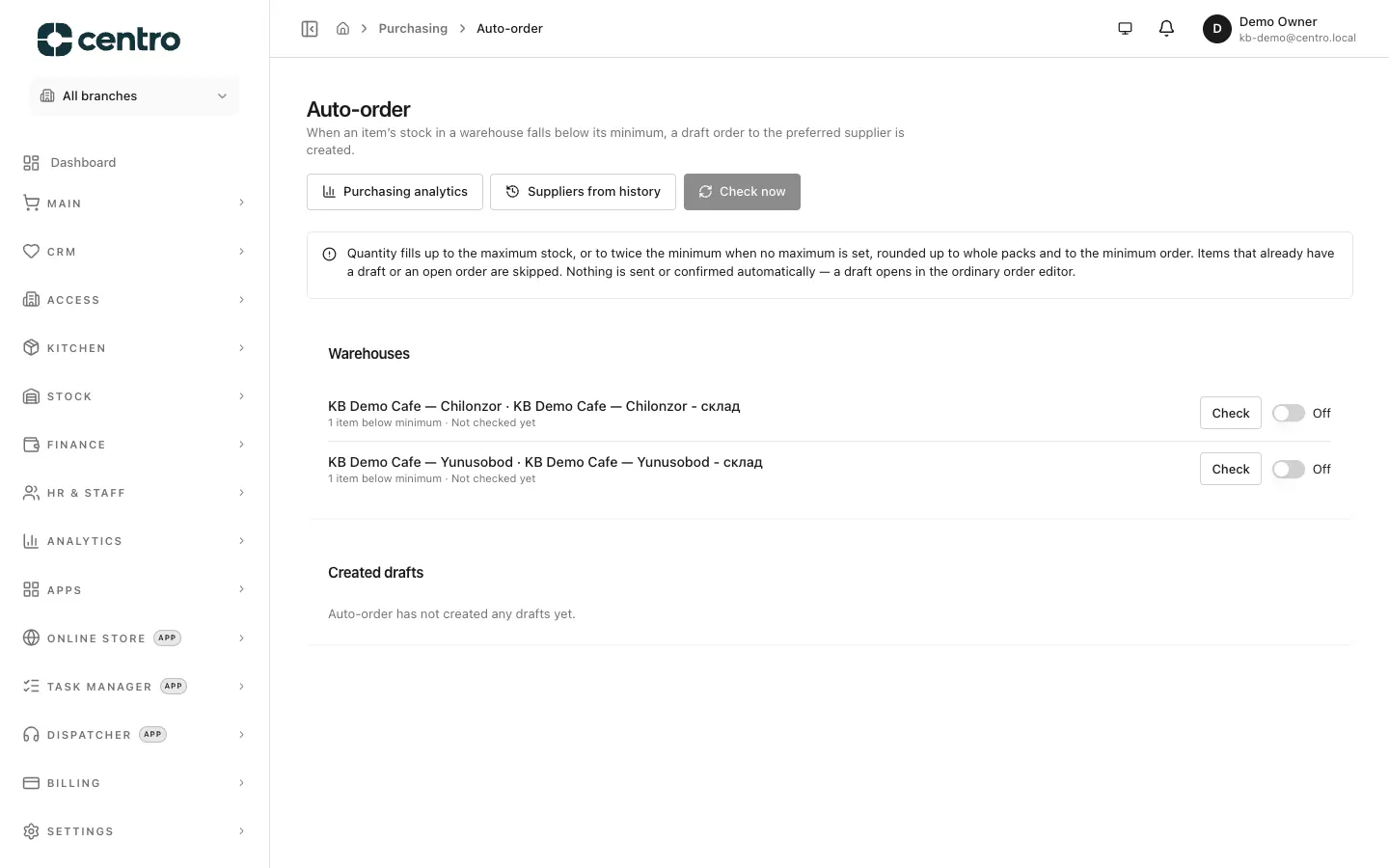
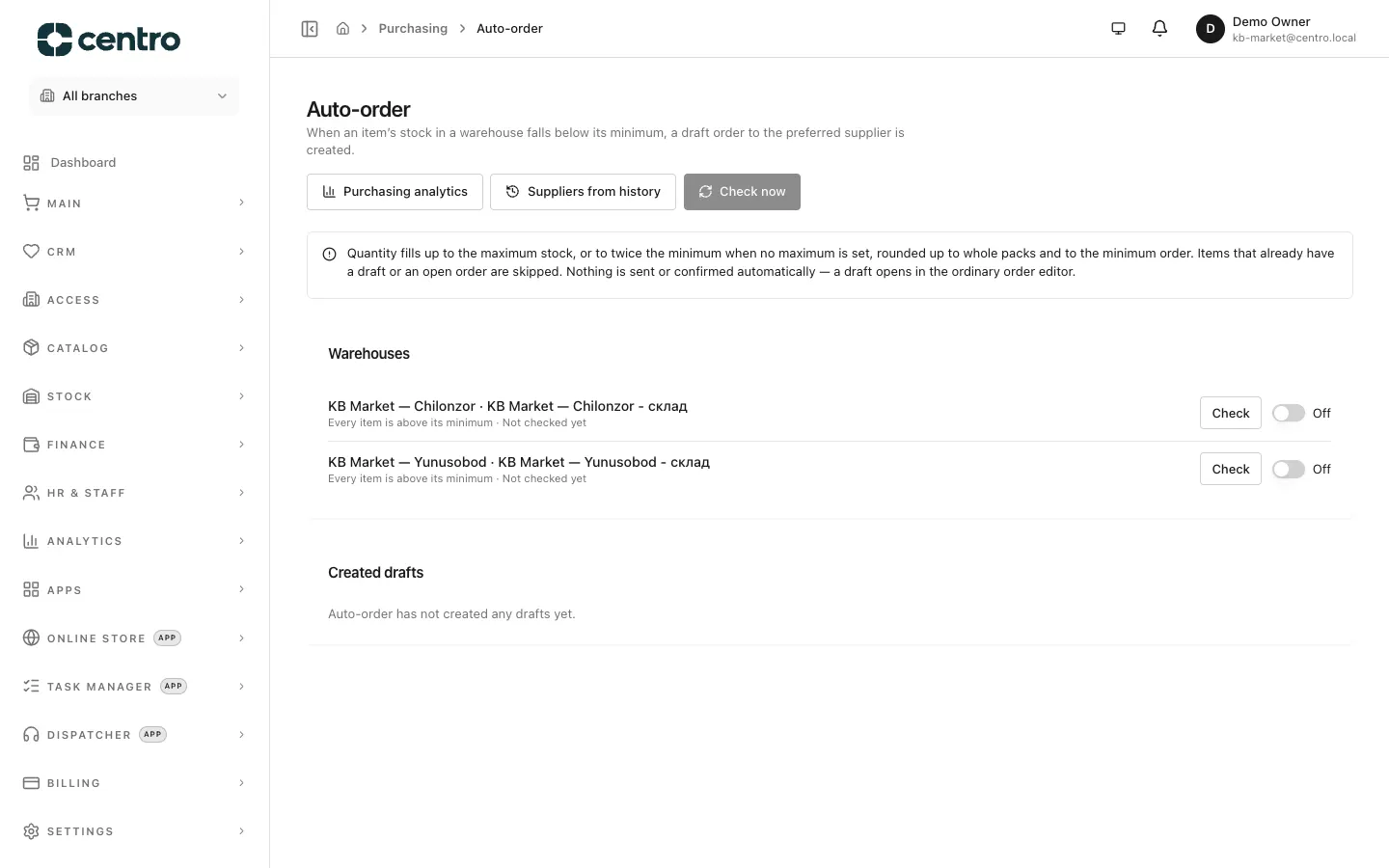
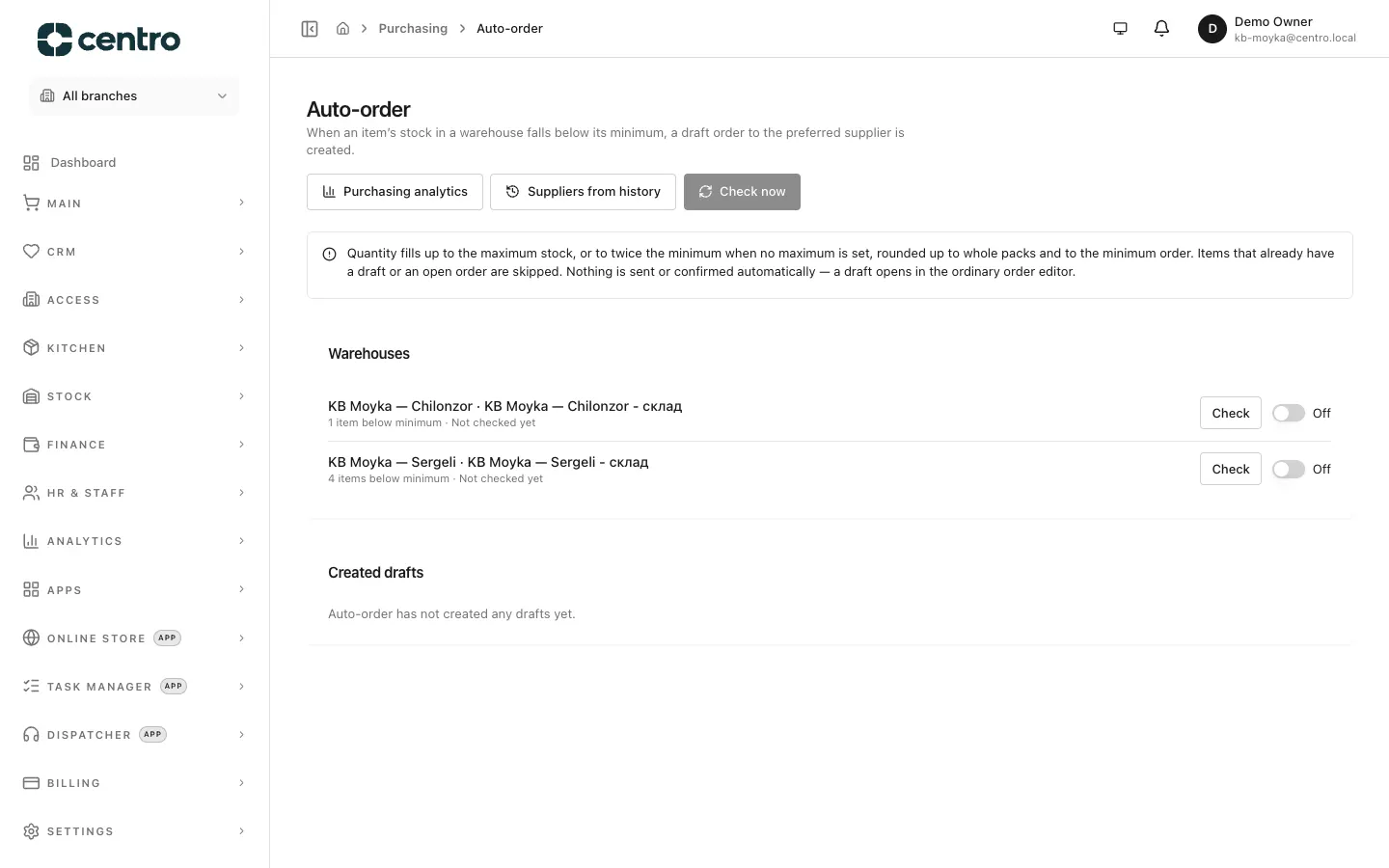
Setting up auto-order
- Give items a preferred supplier: on the «Suppliers» tab of the ingredient dialog (the star) or for the whole organization at once with the «Suppliers from history» button on this page.
- Fill in «Minimum stock for alert» on the ingredient card — auto-order does not see an item without a minimum.
- In the «Warehouses» card turn on the switch of the warehouse — its status becomes «On».
- Wait for the scheduled check (every 30 minutes by default) or press «Check» / «Check now» to check right away.
How the order is calculated
- Which items
- Items whose available stock in the warehouse is strictly below the minimum. The minimum is the warehouse item’s own threshold, or the ingredient’s «Minimum stock for alert» when there is none. Items without a minimum are not considered.
- How much to order
- Up to the maximum stock, or to twice the minimum when no maximum is set, minus the current stock (negative stock counts as zero). The quantity is converted into the purchase unit, rounded up to whole packs and raised to the minimum order if it is below it. Example: minimum 10 kg, stock 4 kg, no maximum → 20 − 4 = 16 kg; with 5 kg packs — 20 kg.
- To whom and at what price
- To the item’s preferred supplier. One draft per supplier (and currency) for each warehouse. Price, currency and article come from the supplier link; without a price the line gets 0 and the «no price» mark. Expected date = today + the longest lead time among the lines (from the link, or from the supplier card when the link has none).
- What is skipped
- An item that already has a draft or an open order (not fully received and not cancelled) at this warehouse. That is why repeated checks never create the same order twice.
Buttons
- «Check now»
- Checks every warehouse with auto-order on right away. While no warehouse is on, the button is disabled.
- «Check» (on a warehouse row)
- Checks only this warehouse — even when its switch is off. The result appears in a toast: «N drafts created», «No new drafts needed», «No new drafts, items skipped: N» or «A check of this warehouse is already running…».
- «Suppliers from history»
- For the whole organization: links every item to all suppliers it was bought from (posted receipts and orders past the draft stage) with the latest price, and an item without a preferred supplier gets the supplier of its most recent purchase as preferred. Existing links keep their terms, only an empty price is filled; pressing it again changes nothing. Result: «Suppliers added: N, preferred chosen: M».
The «Warehouses» card
- Name
- Warehouses that hold stock; a branch warehouse is shown as «Branch · Warehouse».
- «N items below minimum»
- How many items are below their minimum now (or «Every item is above its minimum»). Then — «Checked {time}, drafts: N» or «Not checked yet».
- Skip reasons
- Items that did not get a line in the last check (the first 5, the rest as «and N more»): «no preferred supplier», «supplier is inactive», «a draft or an open order already exists», «the purchase unit does not convert to the stock unit», «nothing to order».
- Switch «On» / «Off»
- Turns the scheduled check of this warehouse on or off («Auto-order is on» / «Auto-order is off»).
The «Created drafts» card
- «Order»
- The order number is a link that opens the order page; under it is the order’s current status (e.g. «Draft», later «Sent»).
- «Supplier», «Warehouse», «Total»
- To whom, for which warehouse and the order’s current total.
- «Items»
- Each line: name — quantity and unit, in brackets «stock X with minimum Y» (at the time of creation), without a price — «no price».
- «Created»
- Date and time, with «Scheduled» or «Manual check» below. The 50 most recent drafts are shown.
Tip: If a draft is not needed, cancel or delete it on the order page. But if stock is still below the minimum, the next check creates a new draft — in that case turn off the warehouse’s auto-order or correct the ingredient’s minimum.
Tip: If you check a warehouse whose switch was never touched with «Check», its «Not checked yet» line stays — see the result in the toast and in «Created drafts».
Important: In a store, products have no minimum-stock field in the admin panel, and auto-order only takes items that have a minimum. So the store’s warehouses usually show «Every item is above its minimum» and no drafts are created. Supplier links of products come from «Suppliers from history» and the supplier price-list import.
Important: Access: to see the page the role needs the «Purchasing» section with «View»; the switches and the «Check», «Check now» and «Suppliers from history» buttons work only with «Full access». On the new plans (base + modules) auto-order needs the same module as «Supplier orders»; without it the page cannot load the settings and the scheduled check does not run either.