Production
Producing semi-finished items and finished goods from a tech card or composition: ingredients are written off the warehouse and the output is added to the same warehouse.
Open in the admin panel/stock/production The page header is «Production». This is where you record everything the kitchen prepares in advance: e.g. zirvak for plov, dough for lagman or a whole kazan of plov. Every document is posted immediately: the ingredients of the composition are written off the warehouse and the output is added to the same warehouse at its actual cost.
How to open
- In the sidebar, expand the Stock group.
- Click Production.
Tip: For a car wash, production is handy for working solutions: e.g. 50 l of active-foam solution are mixed from concentrate and water. The solution is kept as a semi-finished item with the «Producible» flag, the document writes off the concentrate and water, and service tech cards consume the ready solution — so the cost of one wash is exact.
What can be produced
- Semi-finished item (e.g. «Zirvak (osh uchun)») — its composition and yield are set on the semi-finished items page; the «Producible» flag must be on.
- Finished product — a dish whose producible tech card is linked to a product (e.g. «Toshkent palovi»). After production, sales deduct the ready-made stock instead of the tech-card ingredients.
- Product variant — when the tech card is linked to a specific variant (e.g. a large/small portion).
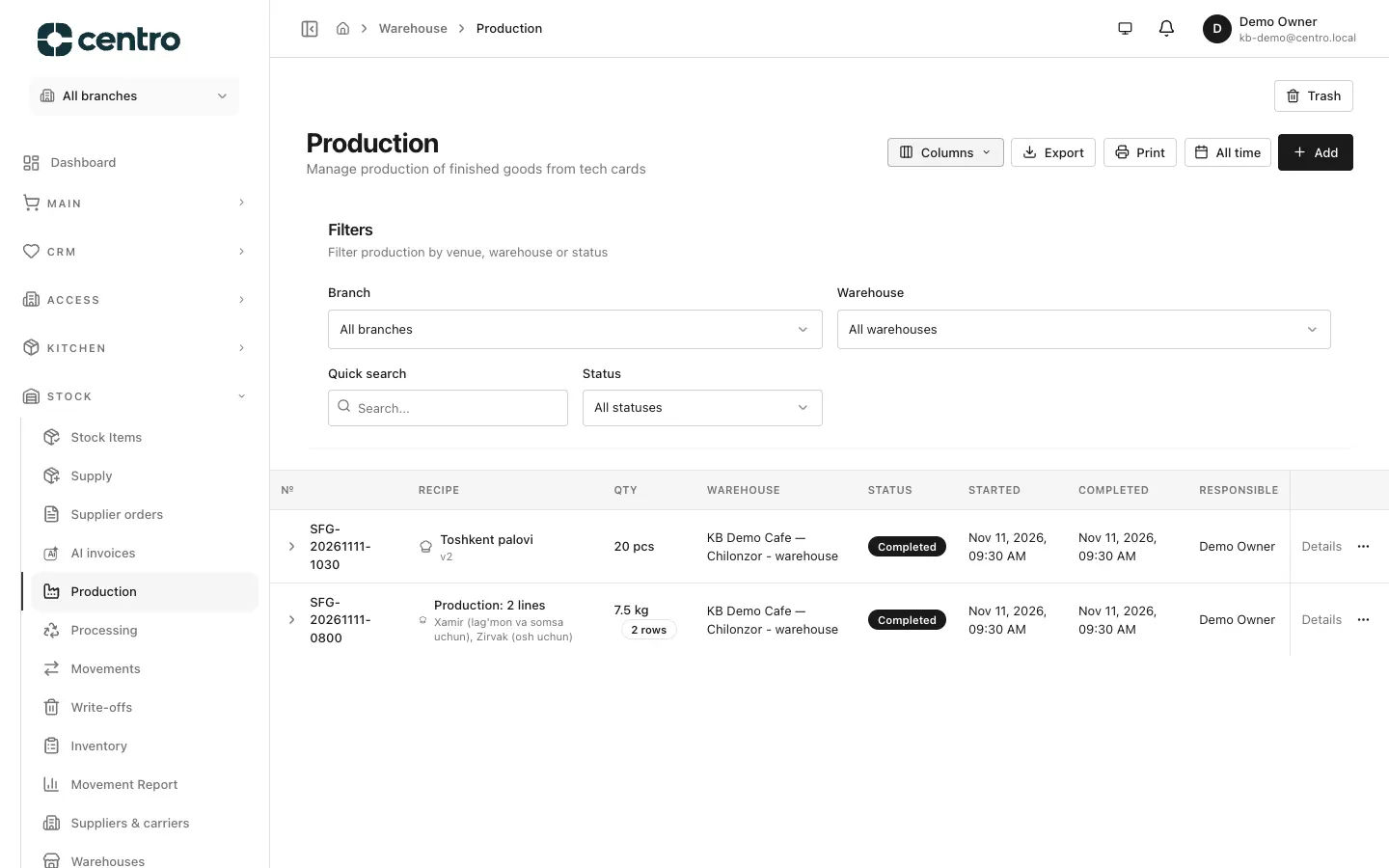
List columns
- «No.»
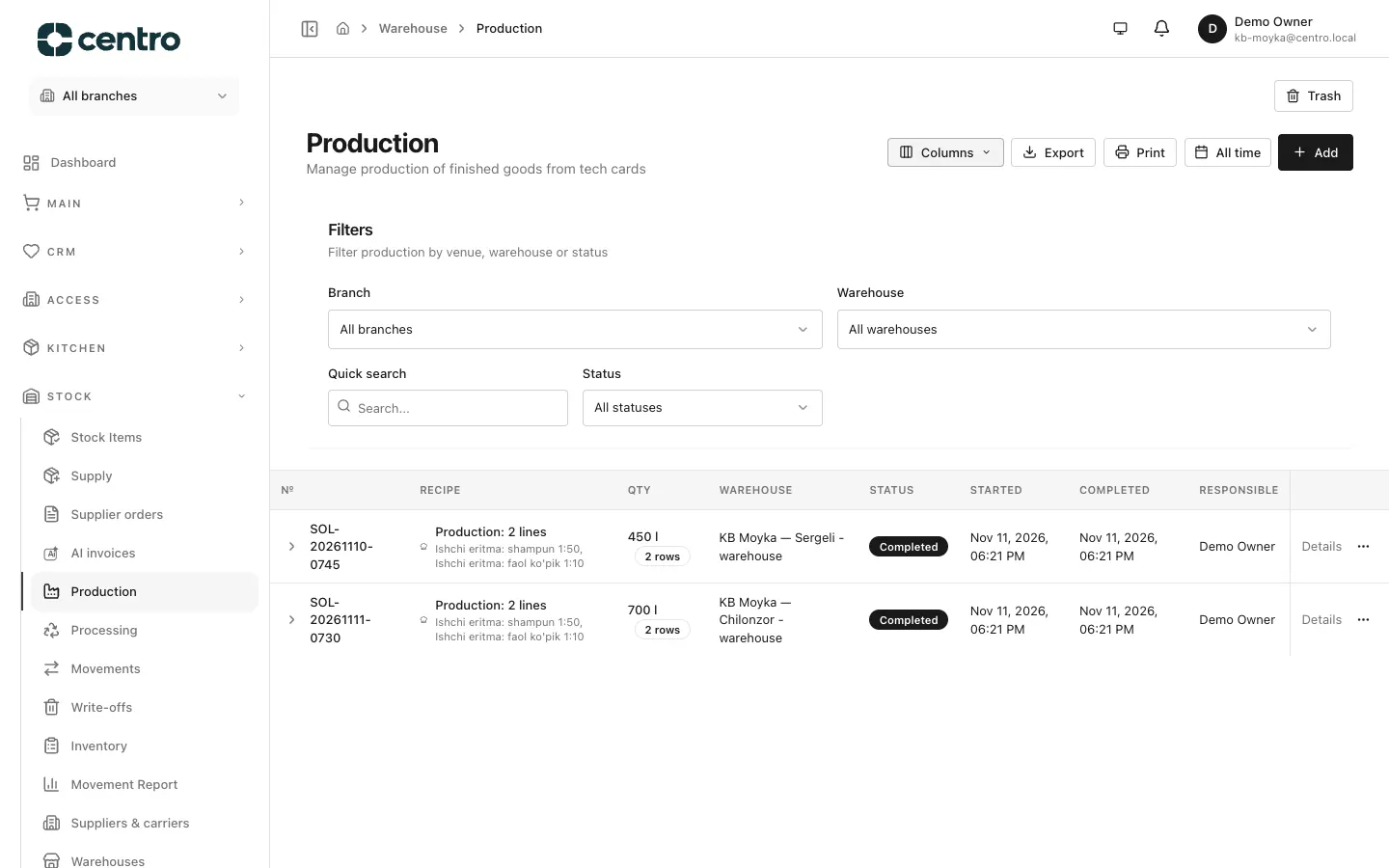
- The document's batch number (e.g. SFG-20261111-0800). When a document has several lines, a «N rows» badge is shown; the chevron expands the line table («Item», «Qty», «Best before», «Status»).
- «Recipe», «Qty», «Warehouse»
- What was produced, how much and on which warehouse.
- «Status»
- «Completed» — the output is in stock; «Cancelled» — the movements were rolled back. A document whose lines have different statuses shows «Mixed».
- «Started», «Completed», «Responsible»
- Timestamps and the employee who created the document. Use «Columns» to choose which columns are shown.
Filters
- Venue and warehouse
- Shows only the documents of the selected venue/warehouse.
- «Quick search»
- Searches by number, batch, recipe, output, unit, status and producer.
- «Status» and period
- Filter by status (default «All statuses») and the date range in the page header.
Exporting and printing the list
- «Export»
- Opens the «Export Data» dialog: choose «Excel (.xlsx)» or «CSV (.csv)» and click «Start Export». The file contains all documents matching the current filters and search, not just the visible page; if nothing matches, a message says so. The «import template» link downloads an empty file with the same columns — this page has no import.
- «Print»
- Opens the browser print dialog — the list on the current page goes to paper or PDF.
- Row menu: «Print document», «Export document»
- For a single document: its card opens and the print dialog appears at once, or its lines are downloaded as CSV — the same as the «Print» and «Export» buttons on the card.
Creating a production #
«Add» → items, quantity, warehouse and shelf life → «Create production».
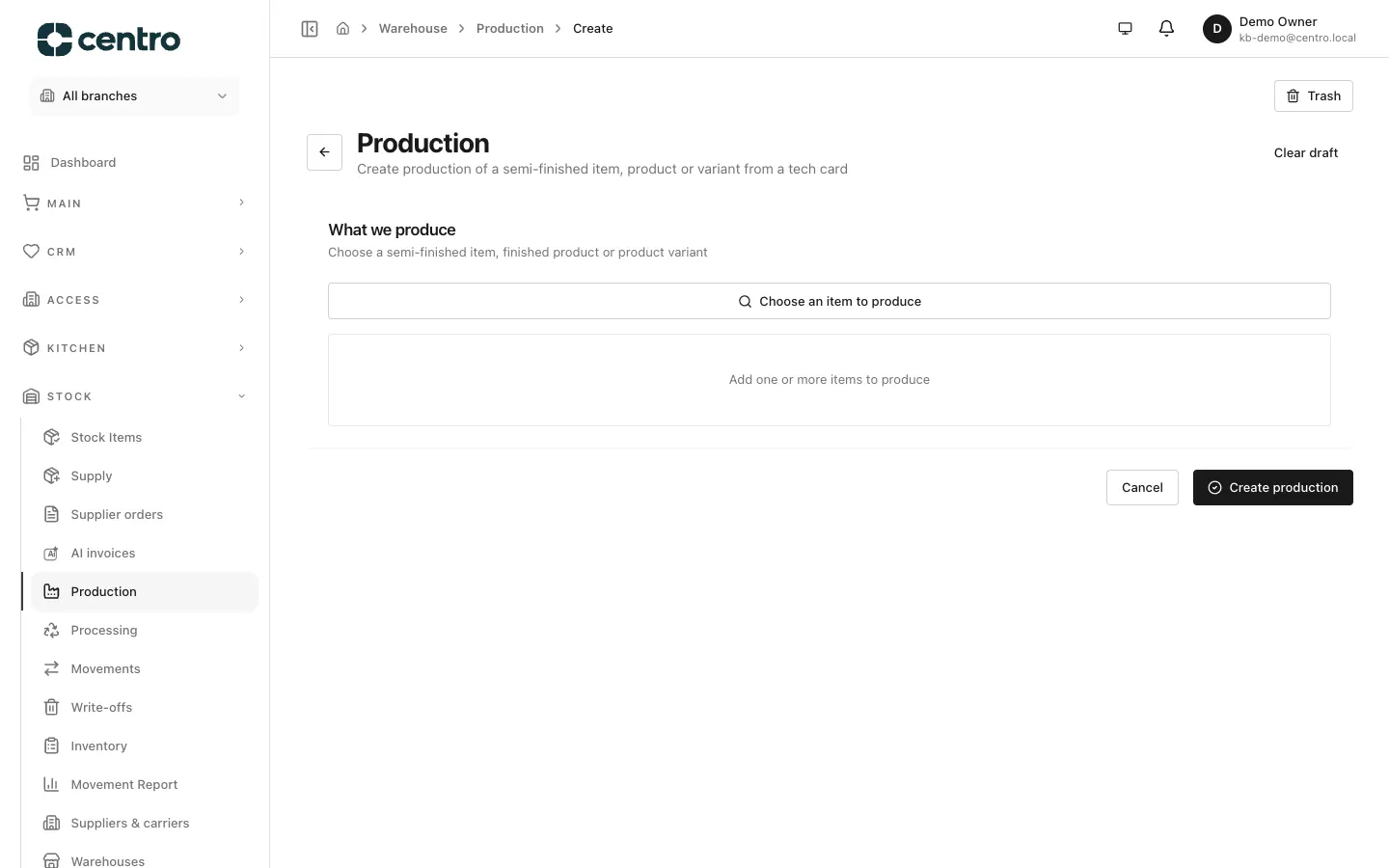
Produce zirvak (example)
- In the list, click «Add».
- In the «What we produce» card, click «Choose an item to produce» and pick the item in the list that opens (e.g. «Zirvak (osh uchun)» on the «Semi-finished» tab).
- Enter the quantity in the line (e.g. 5 kg). The unit can be switched kg↔g or l↔ml — when it differs from the stock unit, the line shows «To stock: …».
- In the «Production settings» card, choose the venue and warehouse and check the shelf life.
- In the «Composition (ingredients)» card, check availability: each ingredient shows «Required» and «In stock».
- Click «Create production».
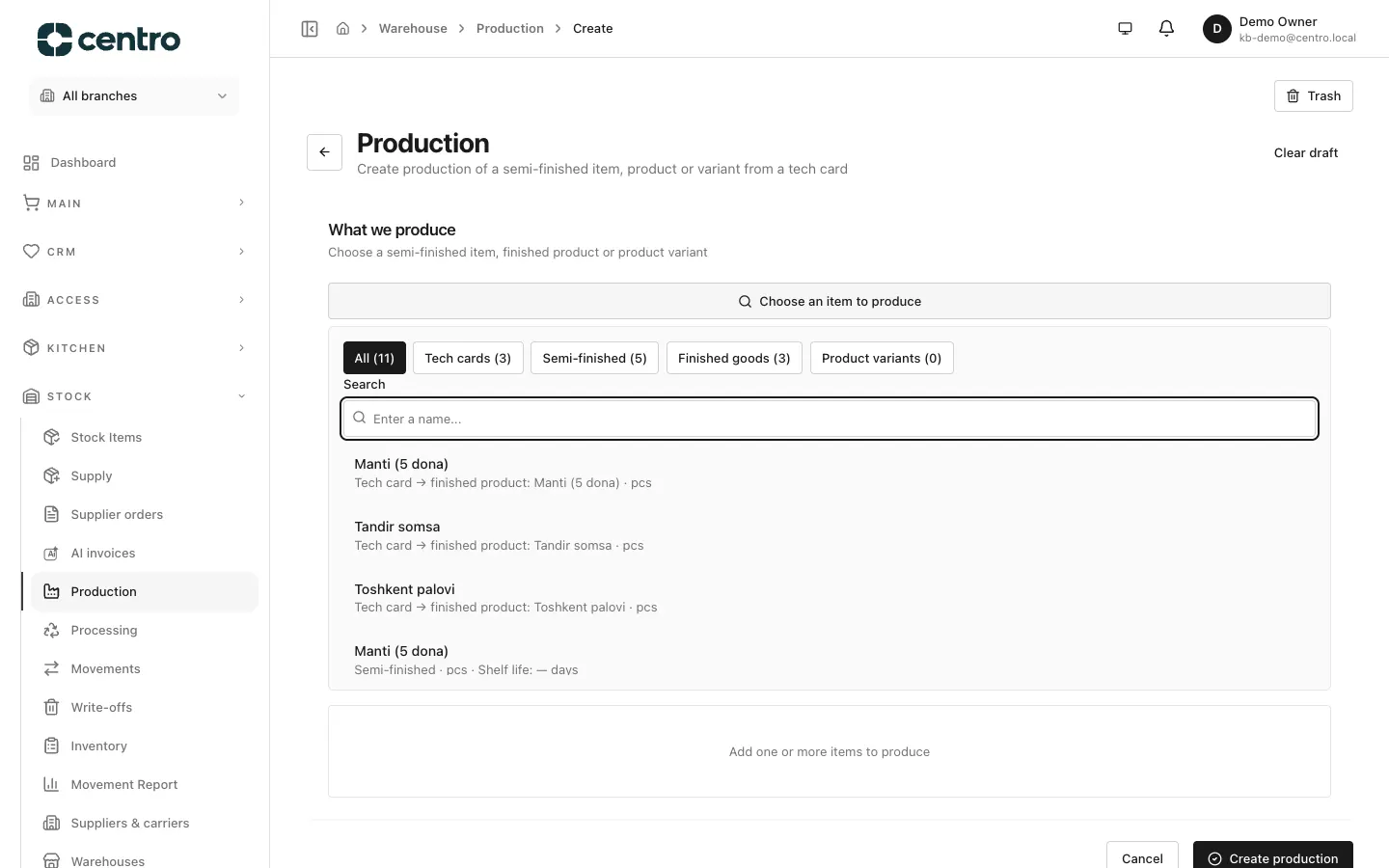
Form fields
- Picker tabs
- «All», «Tech cards», «Semi-finished», «Finished goods», «Product variants». Only producible items that have a composition are listed.
- Lines table
- «Item», «Qty», «Unit», «Shelf life» (days, per line), «Composition» (number of items or «No composition»), «Remove». One document can hold several items.
- «Common shelf life (days)»
- Default is 3 days. «Apply to all» copies it to every line. Expiry date = today + the number of days; it is stored on the batch and used for FEFO consumption.
- «Batch number»
- Generated automatically (like SFG-YYYYMMDD-HHMM); the button generates a new one.
- «Composition (ingredients)»
- Ingredients calculated as composition × quantity: «Required», «In stock» and a status of «OK» or «Low». Semi-finished ingredients are marked «SF».
What happens on save
- For each line the composition ingredients are written off the selected warehouse — earliest-expiry batches first, at their actual cost.
- The output is added to the same warehouse: unit cost = total ingredient cost ÷ output quantity, expiry = today + shelf-life days.
- The document is created straight away as «Completed» — there are no separate «start» and «finish» steps.
Important: If ingredients are short, the warning «Not enough ingredients in stock to produce the specified quantity» appears and saving is blocked. If you turn on «Produce anyway», the missing quantity is written off as well and the stock goes negative — record the receipt afterwards.
Tip: The form is kept as a draft in the browser and restored when you come back. Clear it with «Clear draft».
Production document #
«Details» — document header, outputs, ingredient usage and cost.
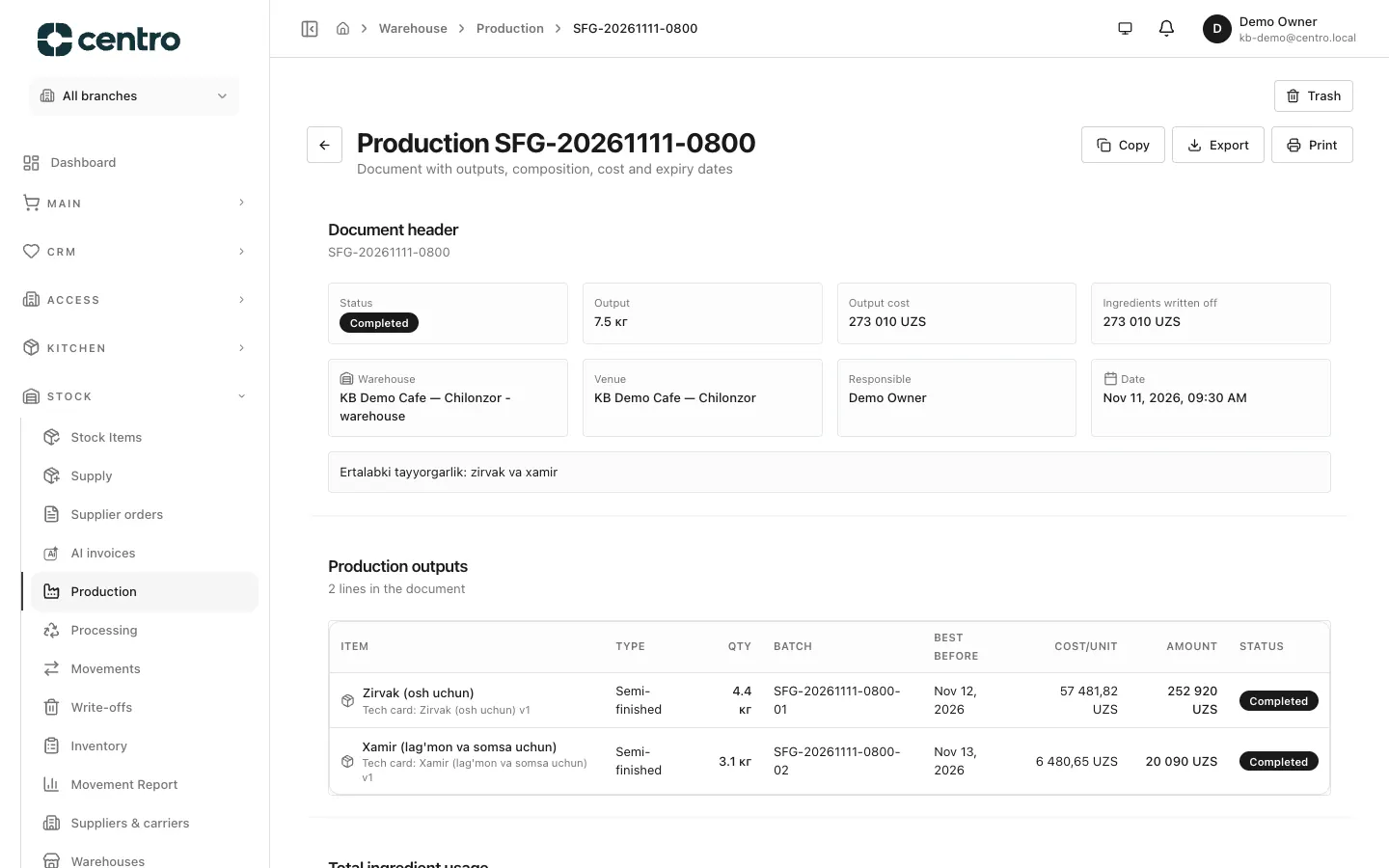
- «Document header»
- «Status», «Output», «Output cost», «Ingredients written off», «Warehouse», «Venue», «Responsible», «Date».
- «Production outputs»
- Per line: item, type, quantity, batch, «Best before», «Cost/unit», amount and status.
- «Total ingredient usage»
- Ingredients written off by all lines of the document; below it, the composition of each line in its own card.
Tip: Buttons at the top: «Copy» (a new form with the same lines), «Export» (CSV) and «Print».
Fixing a mistake: cancel and copy #
A production can't be edited — cancel it and create a copy.
Important: «Production can't be changed after it's created». The edit link takes you back to the document itself.
- In the list, open the row ⋯ menu and choose «Cancel document». After you confirm, the movements of the whole document are rolled back in one operation: the ingredients return to the warehouse and the output is written off.
- In the menu of the cancelled document click «Restore as new» (on other documents it is «Copy document»): the form opens with the same lines.
- Fix the quantity and click «Create production».
Tip: «Delete document» removes the document completely; the stock movements of completed lines are reversed first. To keep the history, cancelling is usually better.