Write-offs
Writing off spoiled, damaged, stolen or marketing-used goods with a reason, and approving write-off requests from returns.
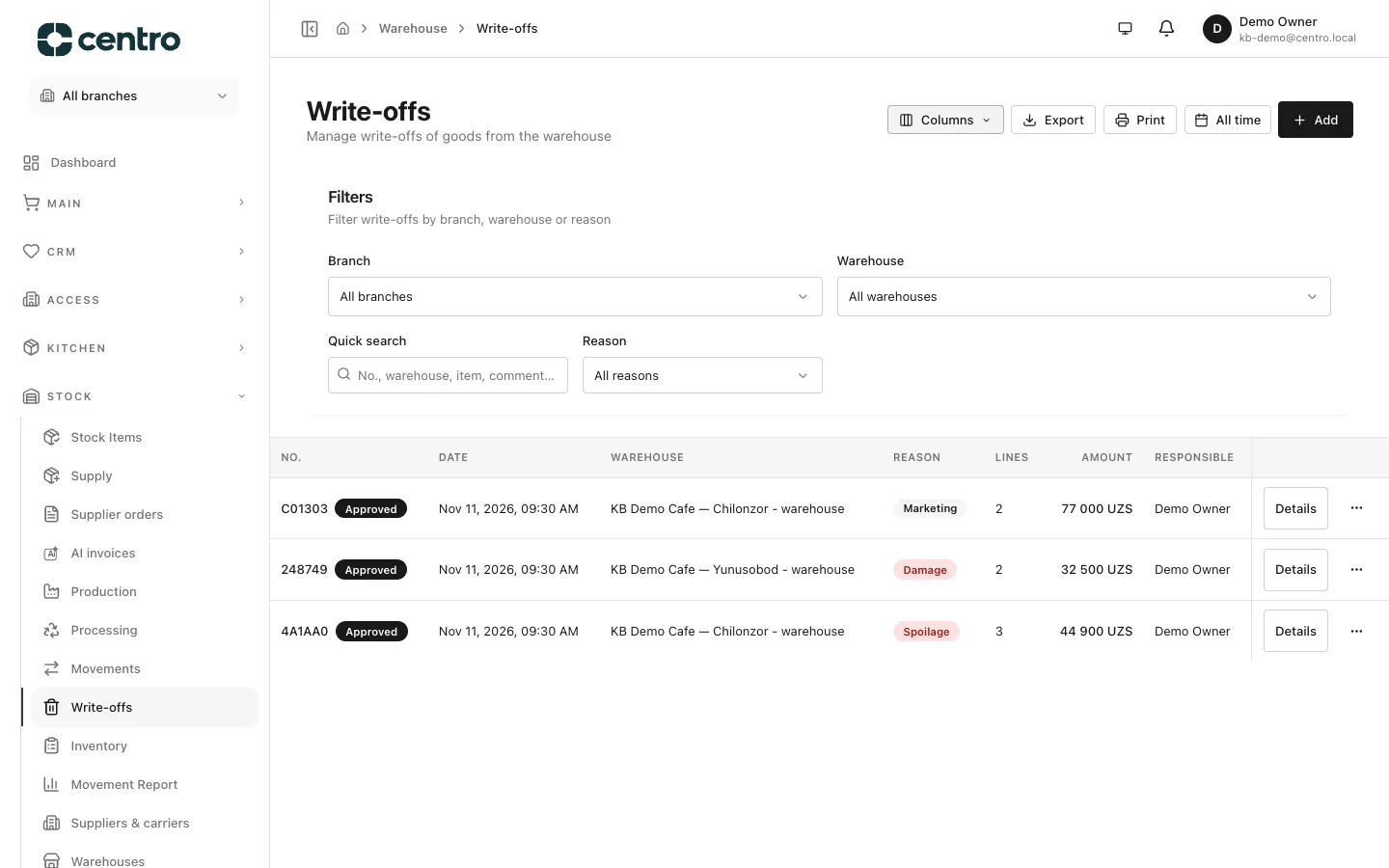
Open in the admin panel/stock/write-offs The page header is «Write-offs». Each write-off removes goods from the warehouse at the current cost and records the loss amount, which shows up in reports and profit calculations.
How to open
- In the sidebar, expand the Stock group.
- Click Write-offs.
Reasons
- «Spoilage»
- Expired or spoiled product (the default reason).
- «Damage»
- Broken, spilled, crushed.
- «Marketing»
- Tastings, complimentary items for guests, photo shoots.
- «QA incident»
- A quality-control incident (complaint, inspection).
- «Theft», «Other»
- Losses and other cases — put the details in the comment.
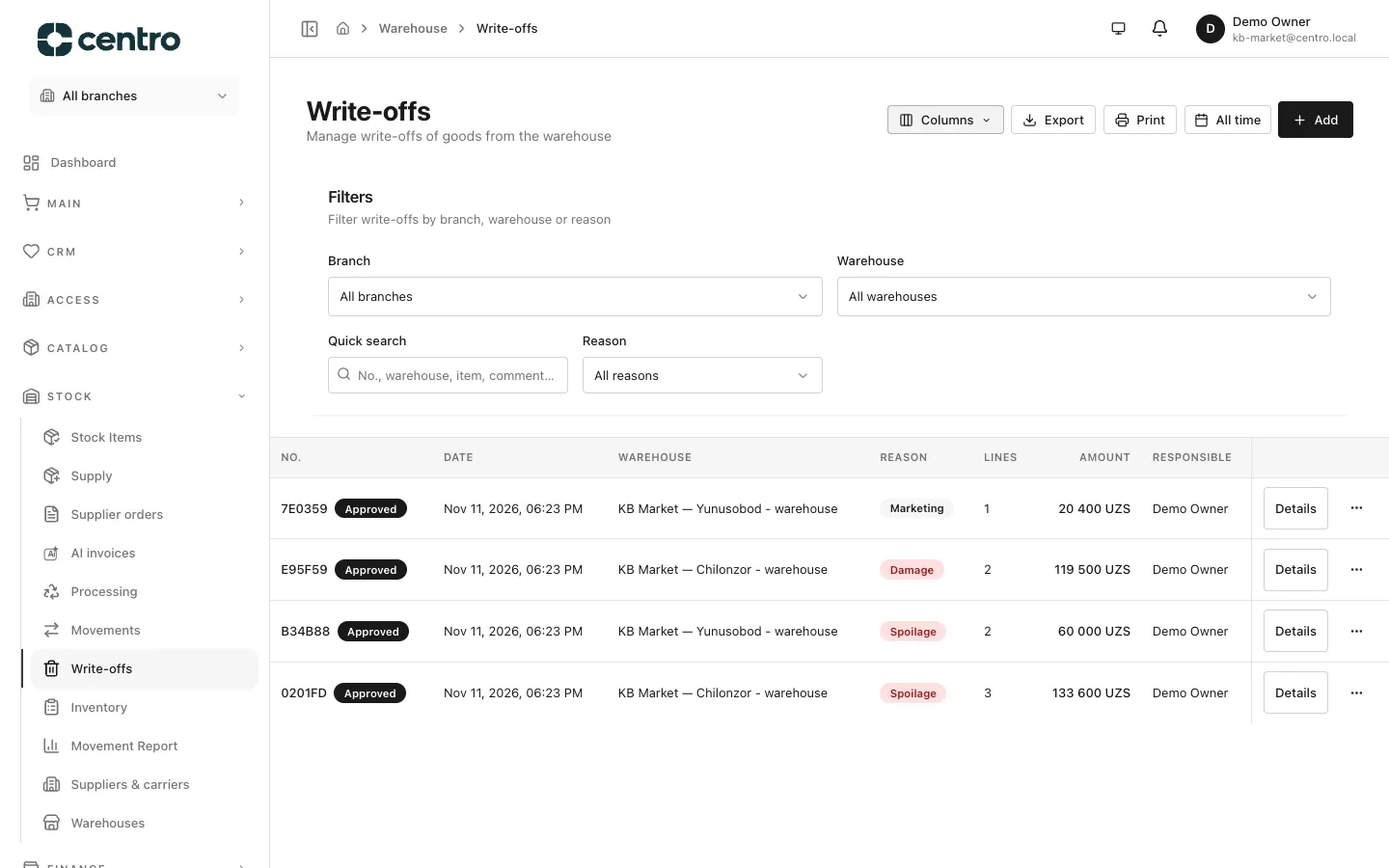
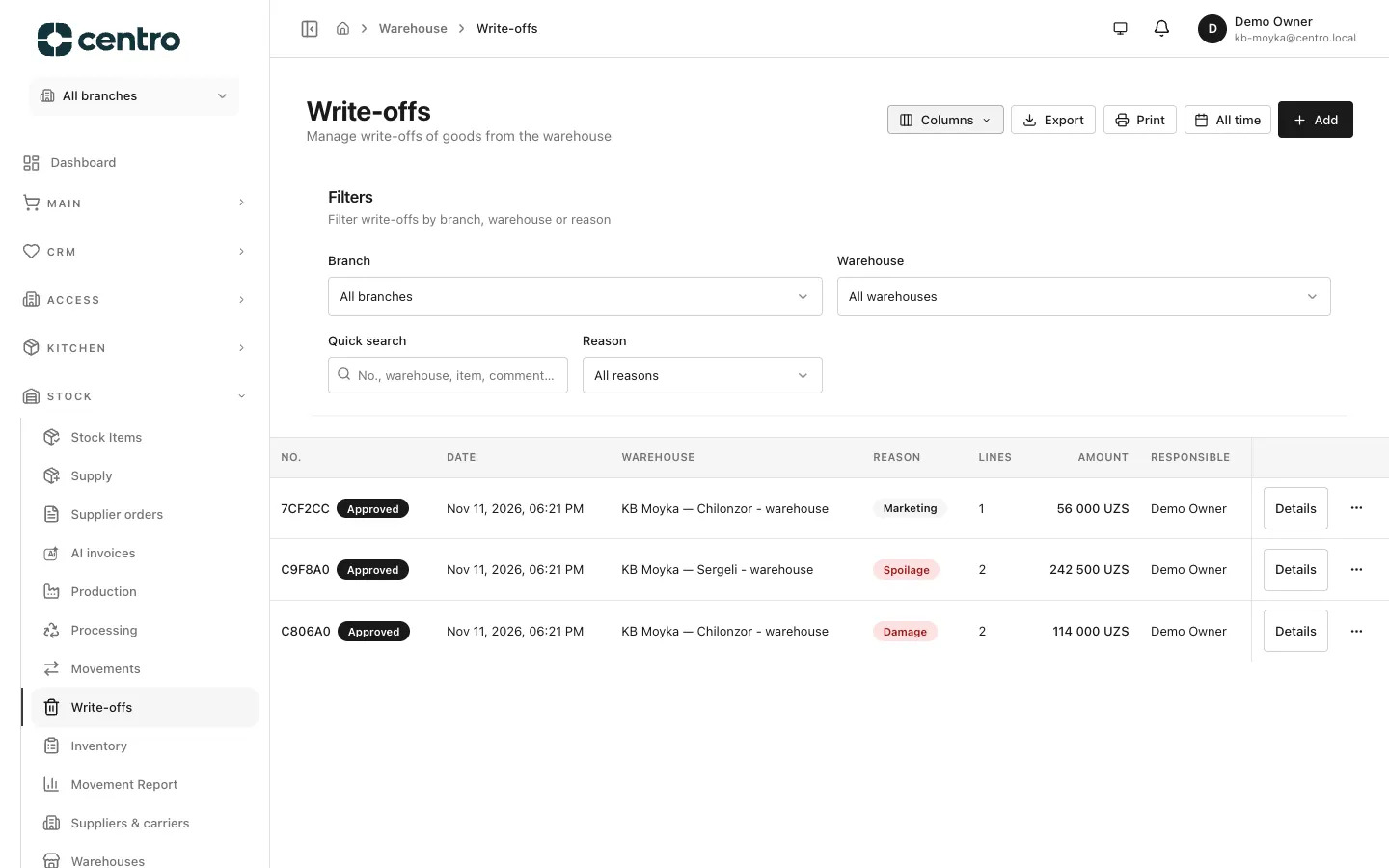
Tip: Filter the list by venue/warehouse, «Quick search» and «Reason». Columns: No., date, warehouse, reason, lines, amount, responsible (comment via «Columns»). Each row has «Details» and a ⋯ menu: «Approve», «Edit», «Copy», cancel or «Restore».
Exporting and printing the list
- «Export»
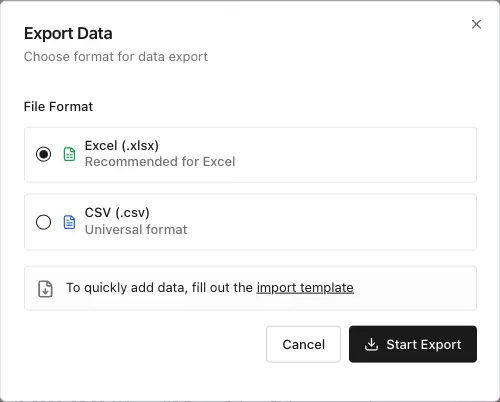
- Opens the «Export Data» dialog: choose «Excel (.xlsx)» or «CSV (.csv)» and click «Start Export». The file contains all documents matching the current filters and search, not just the visible page; if nothing matches, a message says so. The «import template» link downloads an empty file with the same columns — this page has no import.
- «Print»
- Opens the browser print dialog — the list on the current page goes to paper or PDF.
Creating a write-off #
Warehouse, reason, lines and quantity → «Save».
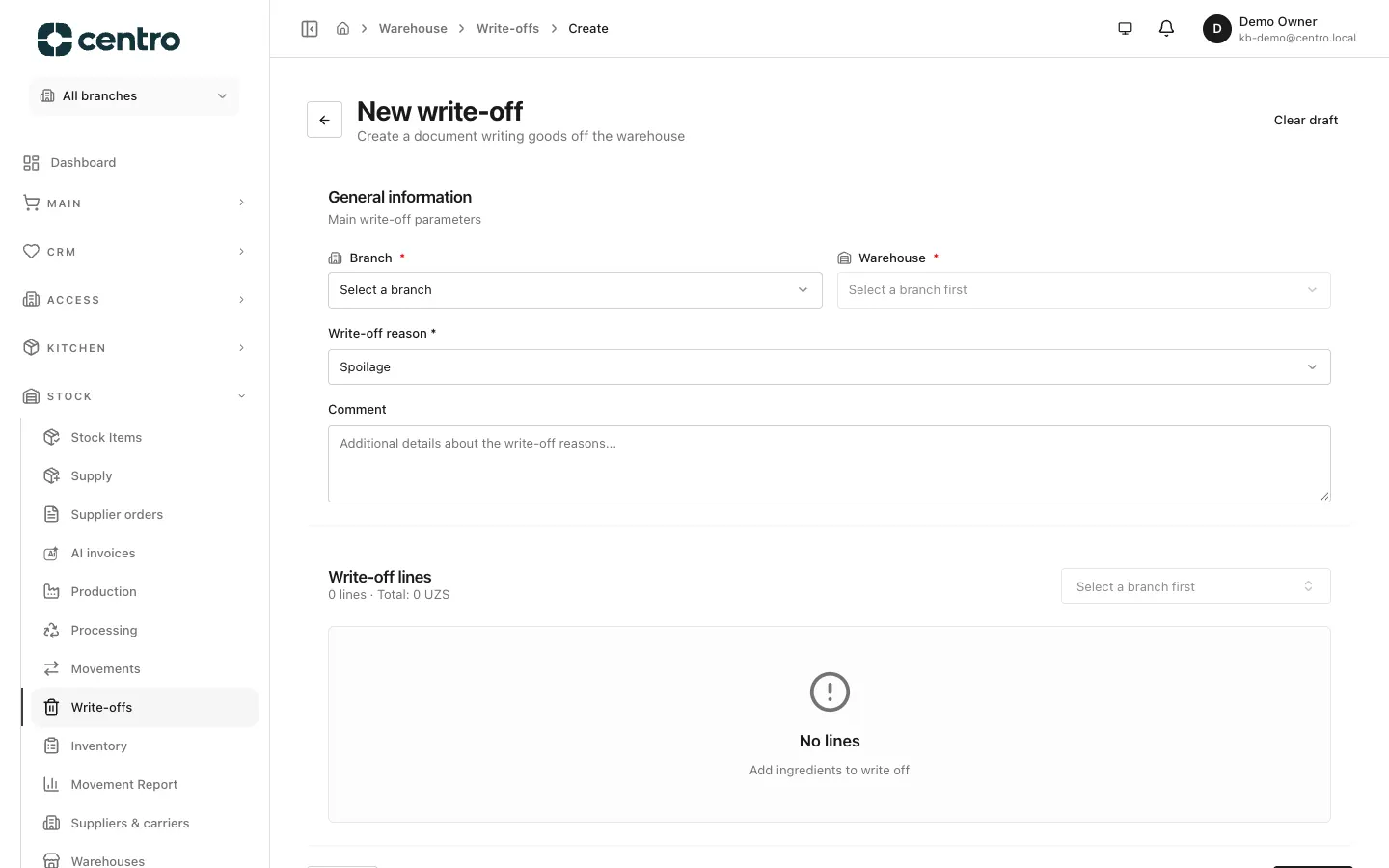
- In the list, click «Add».
- In the «General information» card, choose the venue, warehouse and «Write-off reason *», and add a comment (e.g. «The fridge was off»).
- In the «Write-off lines» card, add items via «Select an item» and enter the quantity (to 0.001).
- Check the «In stock» column — it turns red when the quantity exceeds the balance. «Total to write off:» is shown at the bottom.
- Click «Save».
Important: A write-off created in the admin panel is «Approved» straight away and reduces stock at the current cost — no separate approval is needed.
Tip: The form is kept as a draft (cleared with «Clear draft»). «Copy» opens a new form with the same lines and reason.
Tip: In a store the item picker shows only products and variants (no type tabs). Typical reasons: «Spoilage» — expired food, «Damage» — broken or torn goods, «Theft» — goods missing at a count.
Editing a write-off #
Correcting a manually created write-off: the old lines go back to the warehouse and the new ones are written off again.
Open it from the ⋯ menu in the list or with «Edit» on the document page (the button exists only on a manually created, not cancelled document). The «Edit write-off» page shows the document number under the title and the same cards as the create form: «General information» (venue, warehouse, reason, comment) and «Write-off lines» (new lines via «Add item»). The button is «Save changes».
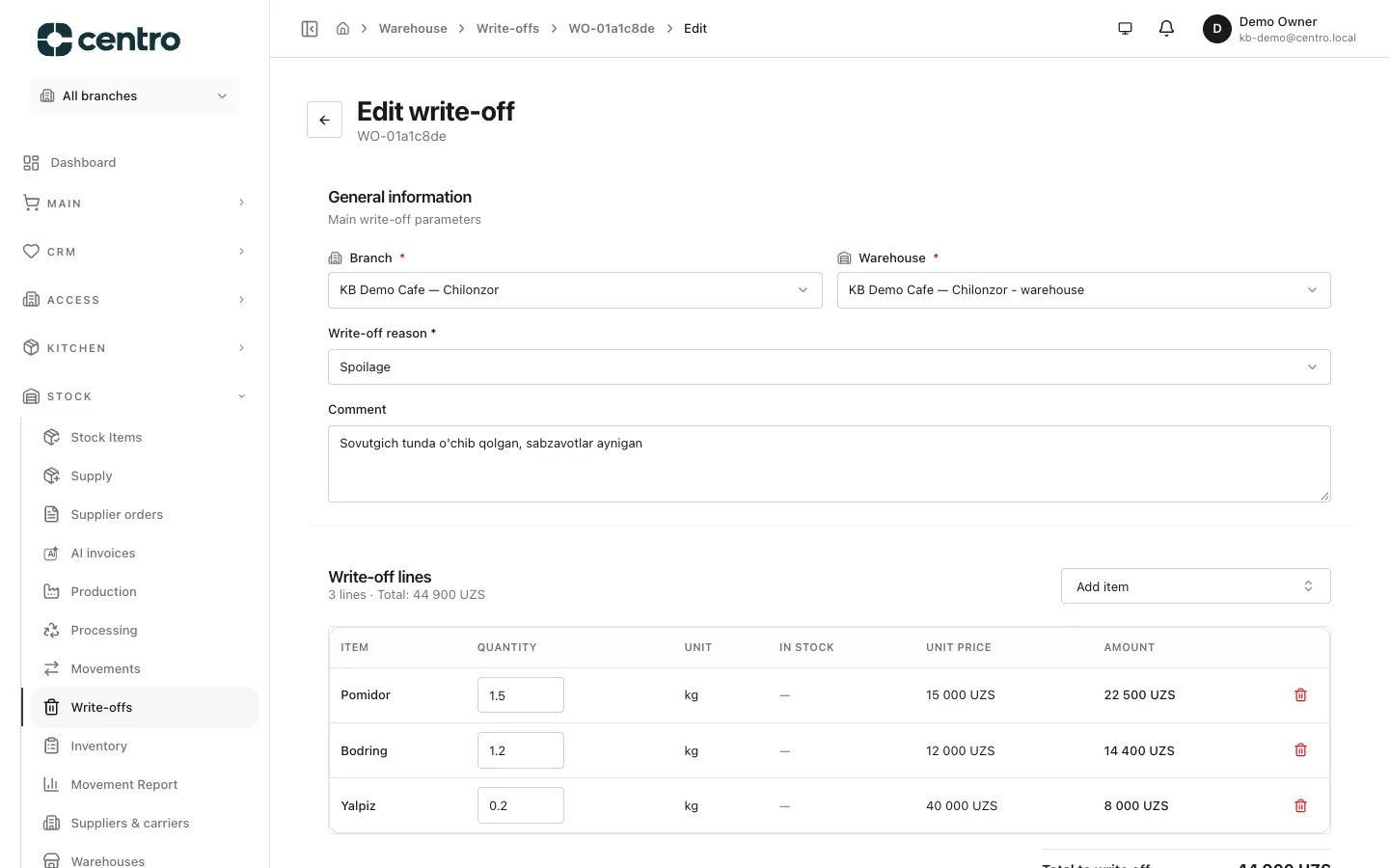
On saving, the system returns the document’s old lines to the warehouse and writes off the new composition again at the current cost; the document number and status stay, the loss amount is recalculated and the change is recorded in the «Action log». If you change the warehouse, the stock is reduced in the new warehouse. If there is not enough stock, saving fails and the lines above the balance are highlighted.
- If you open a request linked to an order, the page shows «The request is linked to an order»: its contents are fixed by the return or cancellation, and it can only be approved or rejected.
- A cancelled write-off cannot be saved: «The write-off is cancelled and can't be changed. Restore it in the write-offs list first.»
- Lines loaded from the document show «—» in the «In stock» column; the balance is shown only for newly added lines.
Requests and approval #
«Request — awaiting approval» documents that come from returns and cancellations.
When the cashier records a receipt return, an order cancellation or the disposal of a returned dish, the system creates a request automatically (reason «Other»). The source is shown in its name, e.g. «Receipt return No. …» or «Order cancellation No. …».
Review a request
- Click «Details» on the request row: the «Write-off source» card shows the order link, customer, register and cashier.
- If the goods really are unusable, click «Approve» — the lines are written off the warehouse once at the current cost.
- If the goods can be sold again, click «Reject request» — it stays in the log as «Cancelled».
Effect on stock
- If the sale already consumed the goods (a cooked dish), approval only records the loss — stock does not change again. The confirmation dialog says so.
- «Cancel write-off» returns the stock of an approved document to the warehouse; the document stays in the log as «Cancelled».
- «Restore» returns the document to its previous status; stock changes only if the document had reduced it before. A restored request waits for a decision again.
Important: Requests linked to an order can't be edited or copied («The request is linked to an order»). A cancelled write-off can't be edited either — restore it first.
Write-off document #
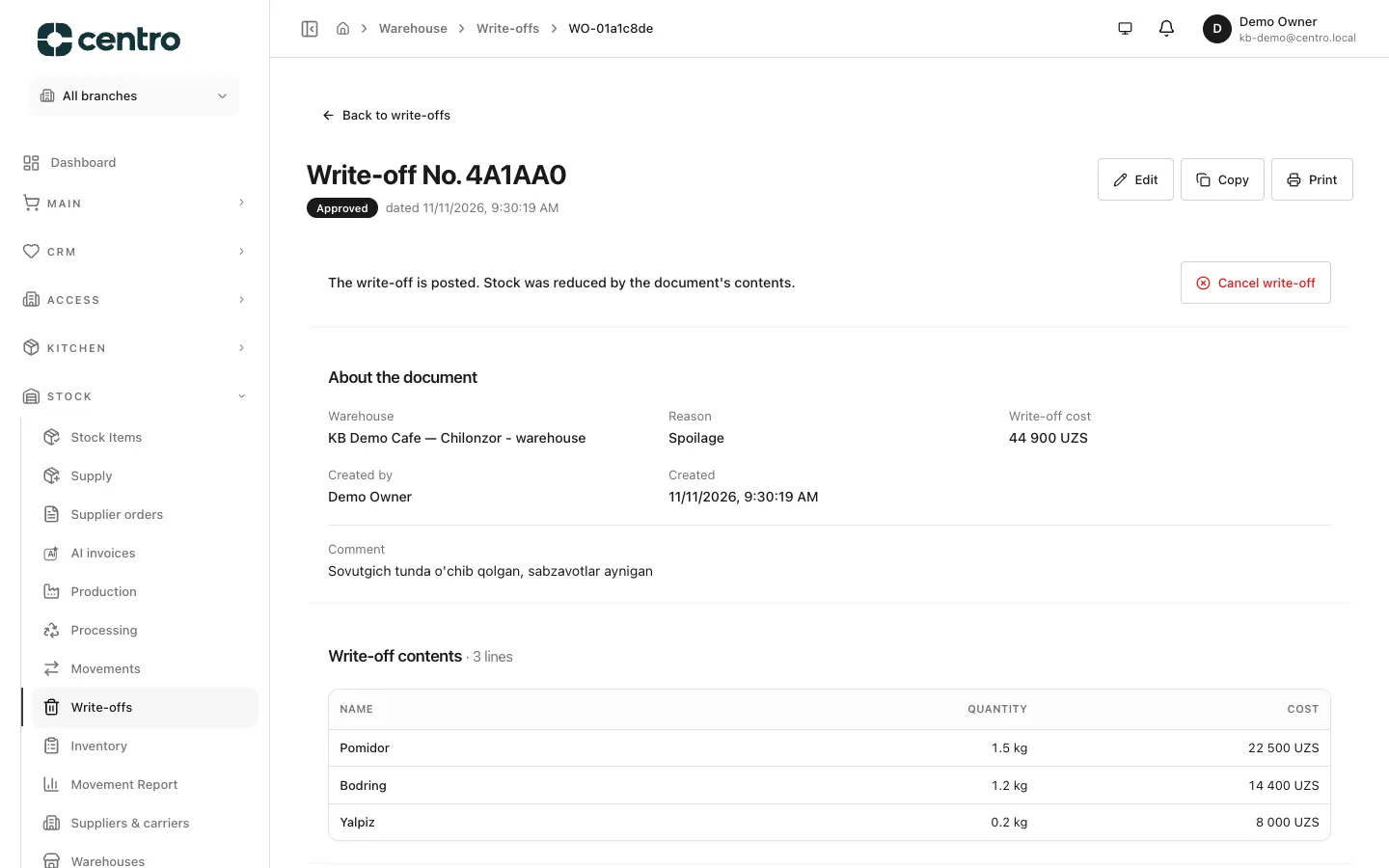
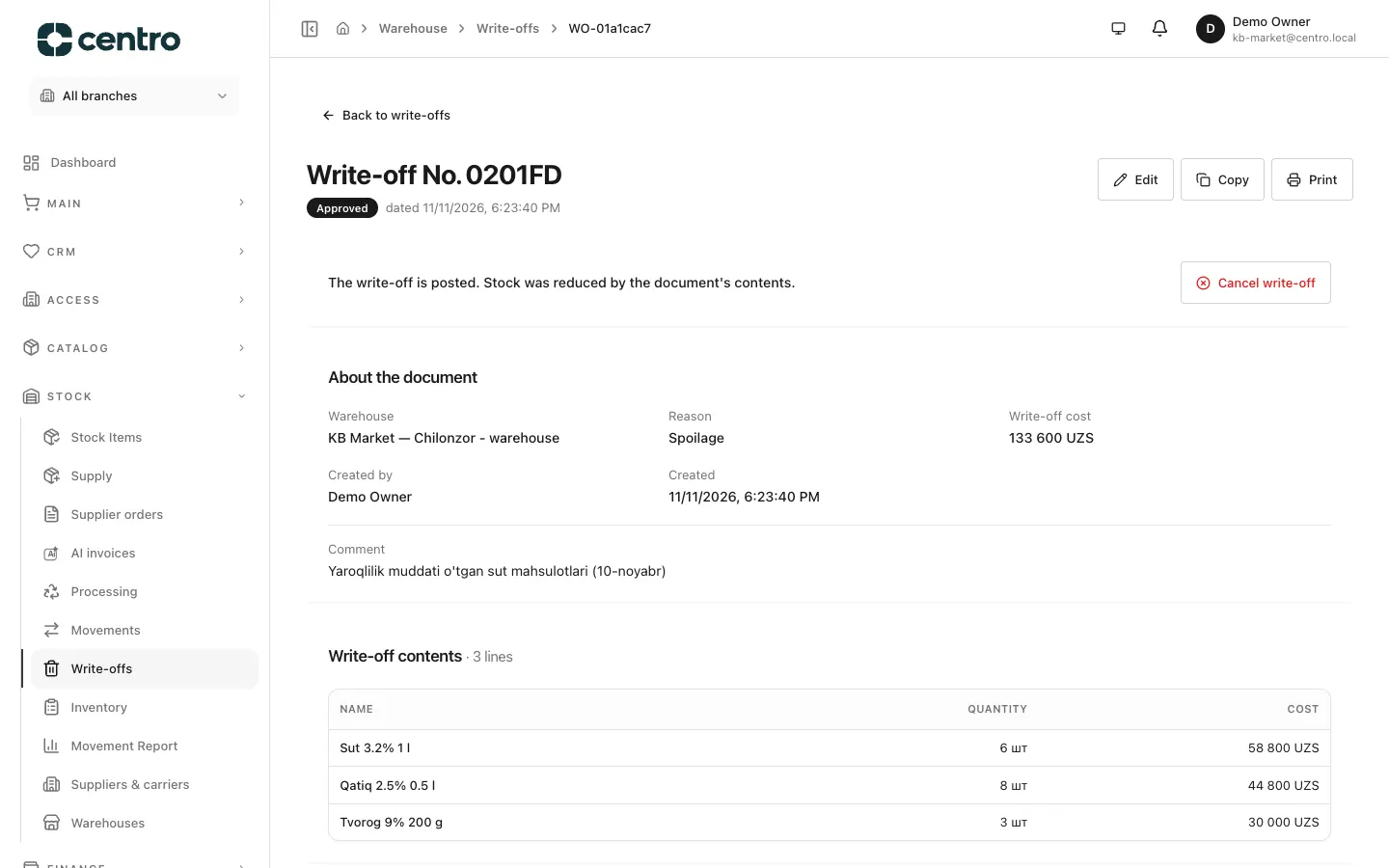
About the document, source, contents and action log.
- «About the document»
- Warehouse, reason, «Write-off cost», «Created by», creation date, «Approved by» and approval date, comment.
- «Write-off contents»
- Lines, quantity, unit price and amount.
- «Action log»
- Who created, approved, edited, cancelled or restored the document and when.