Warehouses
Creating warehouses, linking them to a venue and choosing the write-off rule (FIFO/FEFO).
Open in the admin panel/access/warehouses The page header is «Warehouses». All stock documents (receipts, production, write-offs, stocktakes) belong to a warehouse. Each venue gets its own warehouse automatically when it is created; extra warehouses (e.g. a bar or a central store) are created here.
How to open
- In the sidebar, expand the Stock group.
- Click Warehouses.
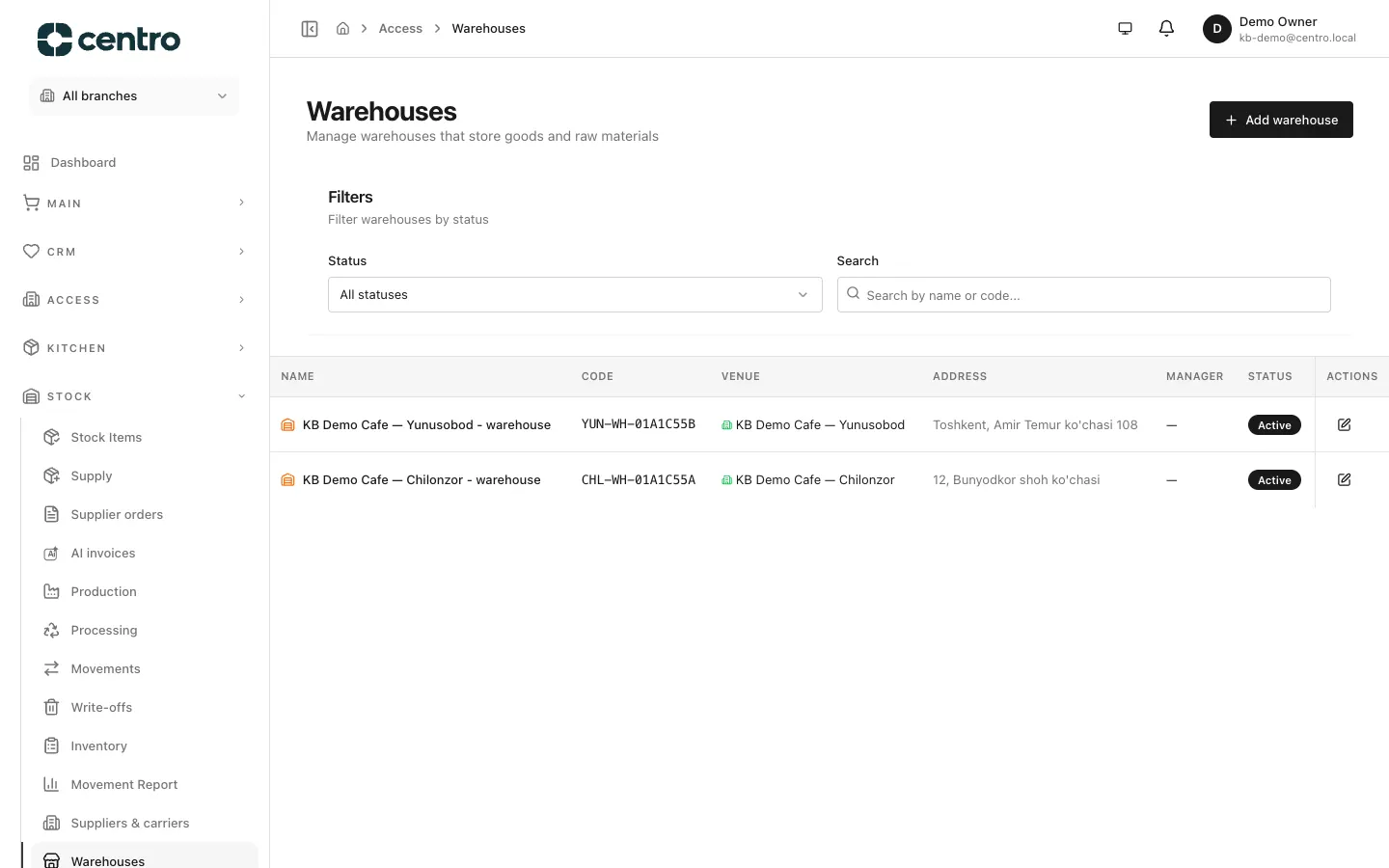
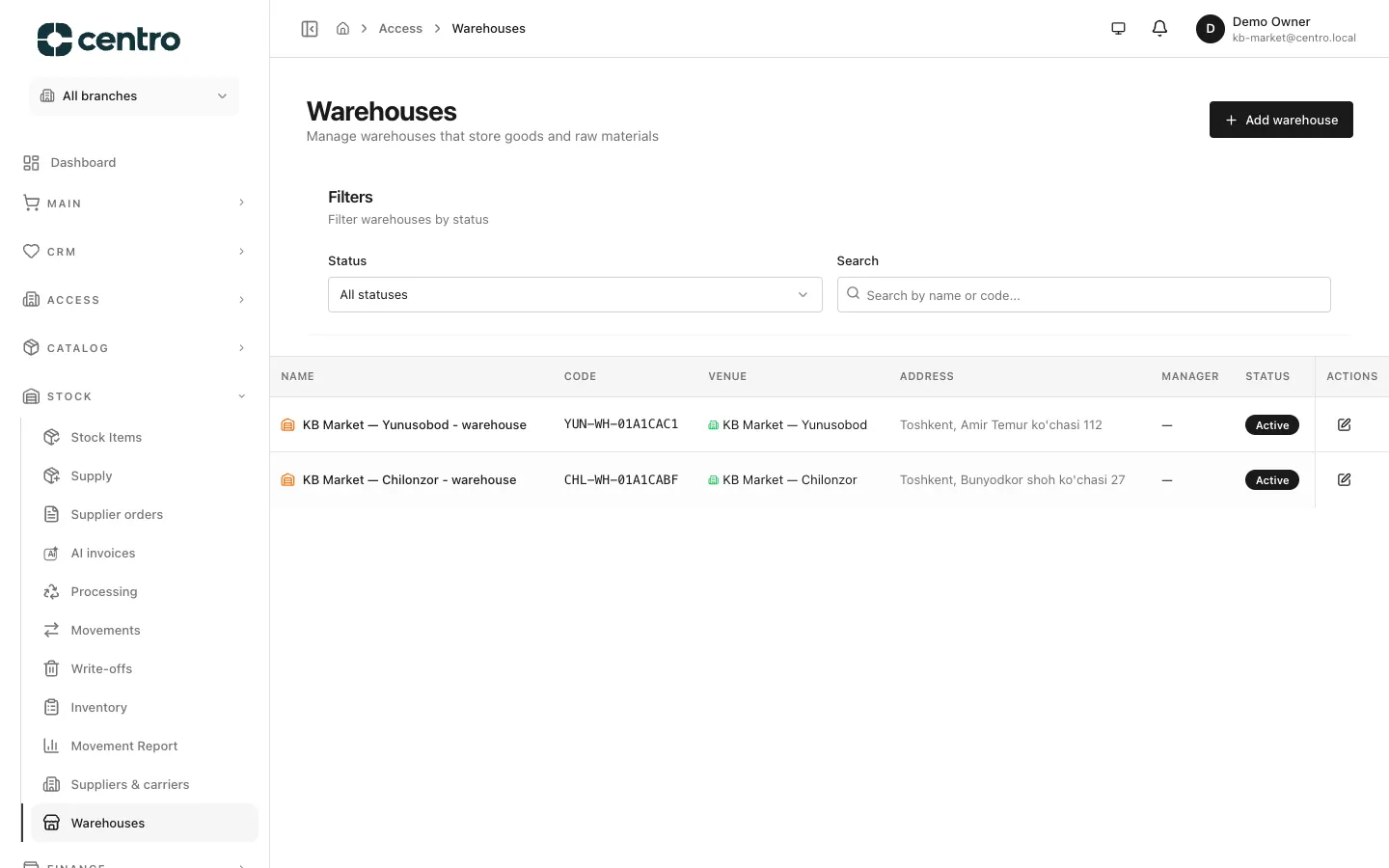
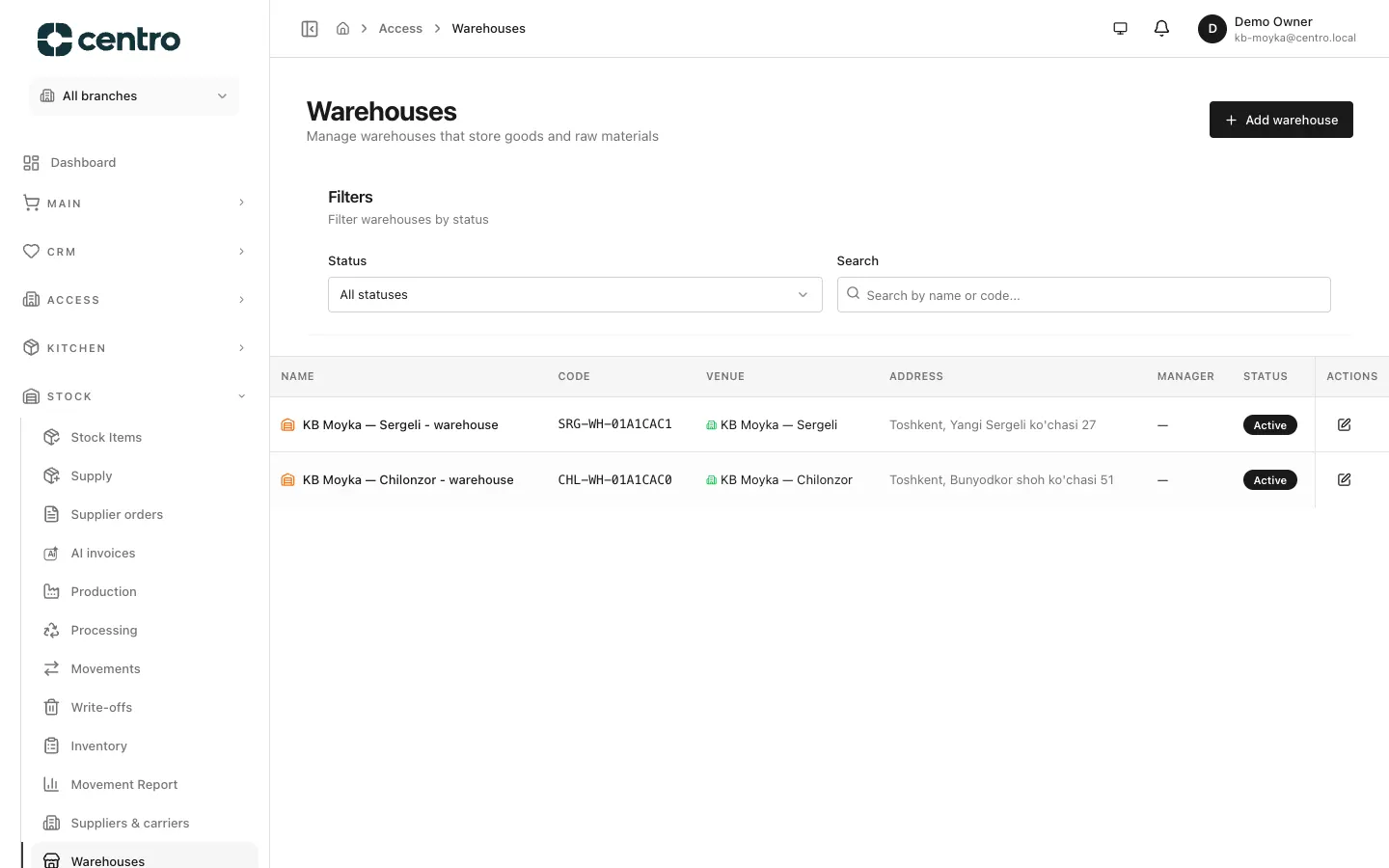
The list
- Columns
- «Name», «Code», «Venue» (linked venue), «Address», «Manager», «Status», «Actions» (pencil — edit). A ★ marks the default warehouse.
- Filters
- «Status» («Active», «Inactive», «Archived») and «Search» by name or code.
Creating a warehouse and linking it to a venue #
«Add warehouse» → name, code, venue, write-off rule → «Create».
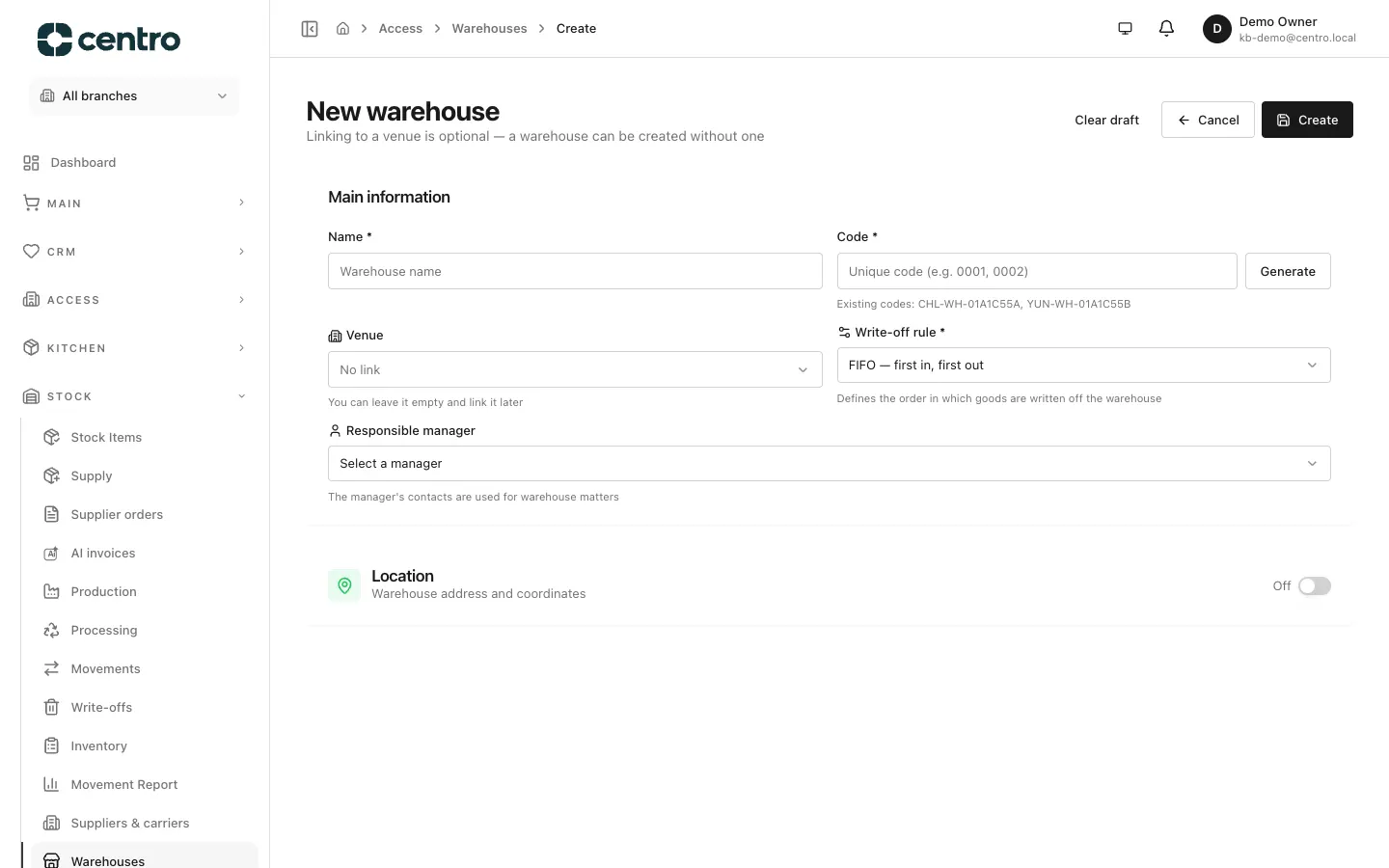
- Click «Add warehouse».
- Enter the «Name *» (e.g. «Markaziy ombor»). Two warehouses can't share a name.
- Type a unique code into «Code *» or click «Generate» to get the next free 4-digit code. Codes already in use are listed under the field.
- In «Venue», choose the venue the warehouse belongs to (or leave «No link» — you can link it later).
- Choose the «Write-off rule *» and, if needed, fill in «Responsible manager» and «Location» (from the map).
- Click «Create».
Write-off rule
- FIFO
- «First in — first out»: sales and write-offs consume the oldest batches first.
- FEFO
- «First to expire — first out»: batches with the nearest expiry date go first. Recommended for kitchen warehouses with perishables.
Tip: What linking to a venue does: when you pick a venue in stock documents, the warehouse list shows the warehouses linked to it. An unlinked warehouse does not appear under a venue.
Tip: For a store: FEFO for goods with an expiry date (food, cosmetics), FIFO for clothing and shoes. If there is a stock room besides the sales floor, make it a separate warehouse and record moving goods to the floor as a transfer.
Editing a warehouse #
Changing details, relinking to another venue and deactivating a warehouse.
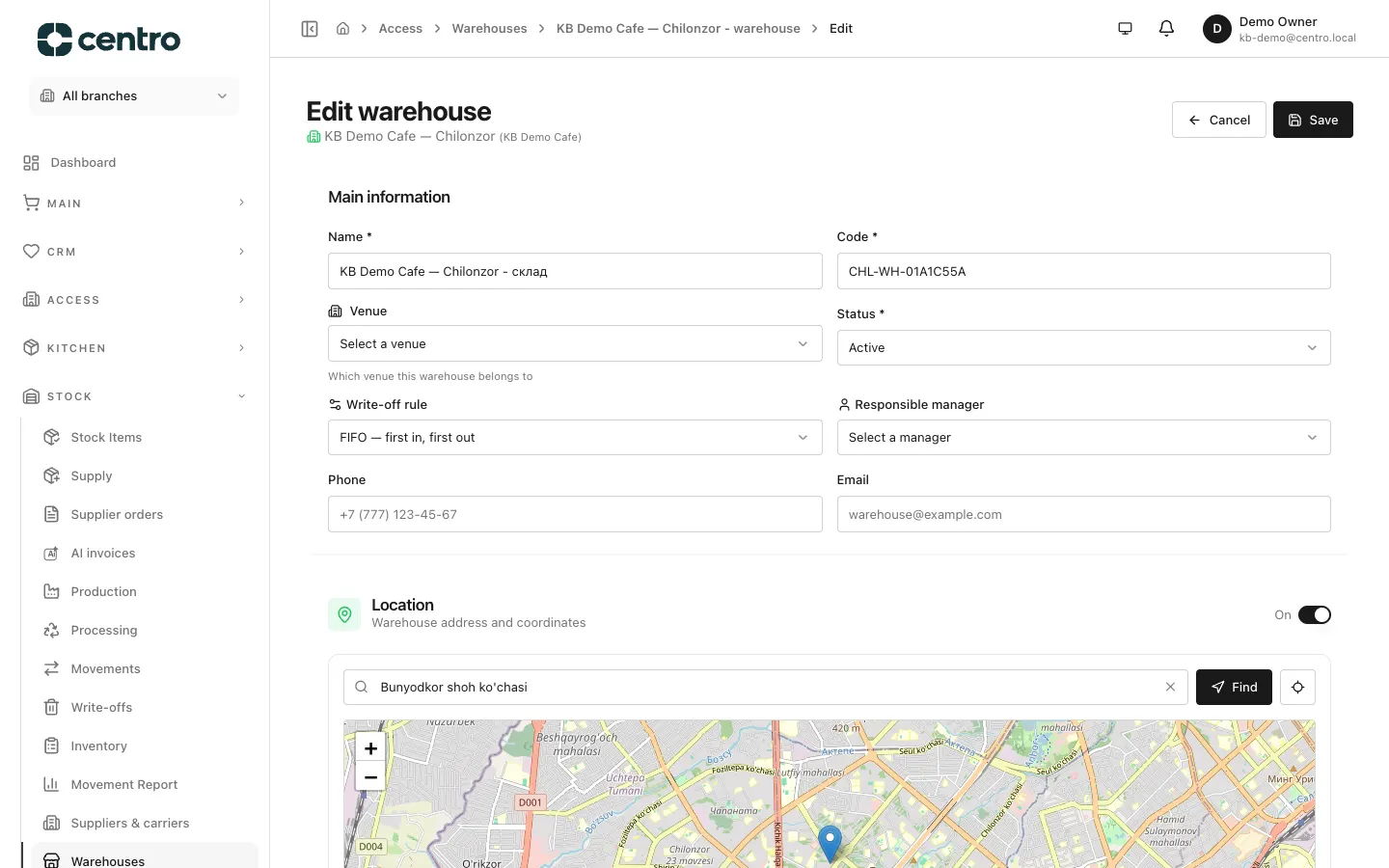
The pencil in the list opens the «Edit warehouse» page. On top of the create-form fields you get «Status *», «Phone» and «Email»; «Venue» lets you move the warehouse to another venue. Save with «Save».
Important: A warehouse can't be deleted in the interface — to stop using it, set «Status *» to «Inactive» or «Archived». If it still holds stock, transfer or write it off first.