Financial Accounts
Cash desks, safes, terminals and e-wallets — where the money is and how much.
Open in the admin panel/finance/financial-accounts A financial account is any “wallet” holding money: a register cash drawer, a safe, a card terminal, a Payme or Click wallet. Every sale, expense, supplier payment and transfer is posted to some account, so the balances on this page are the most precise answer to how much money the cafe has right now. Bank accounts live on a separate «Bank Accounts» page.
How to open
- In the sidebar, expand the Finance group.
- Click Financial Accounts.
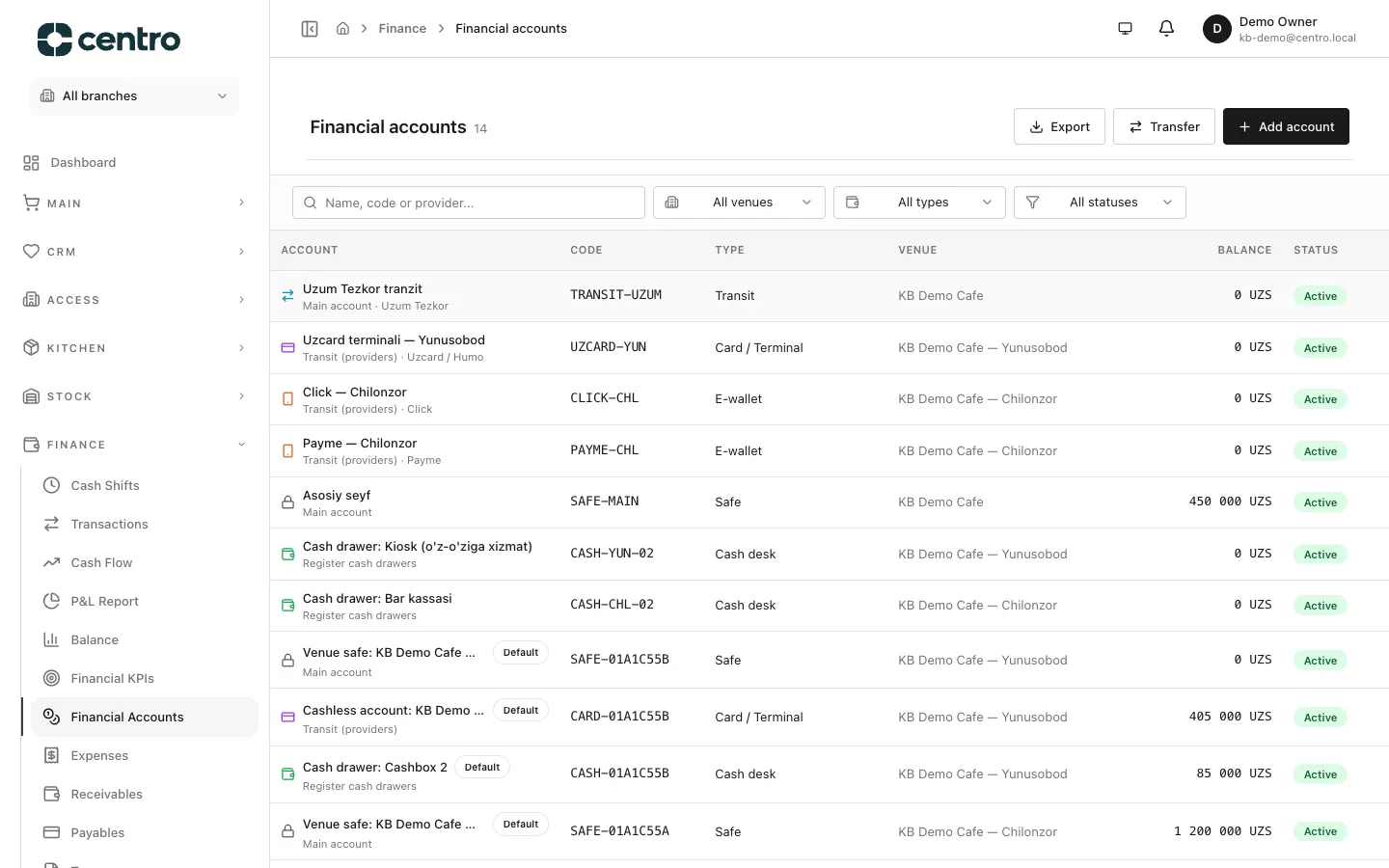
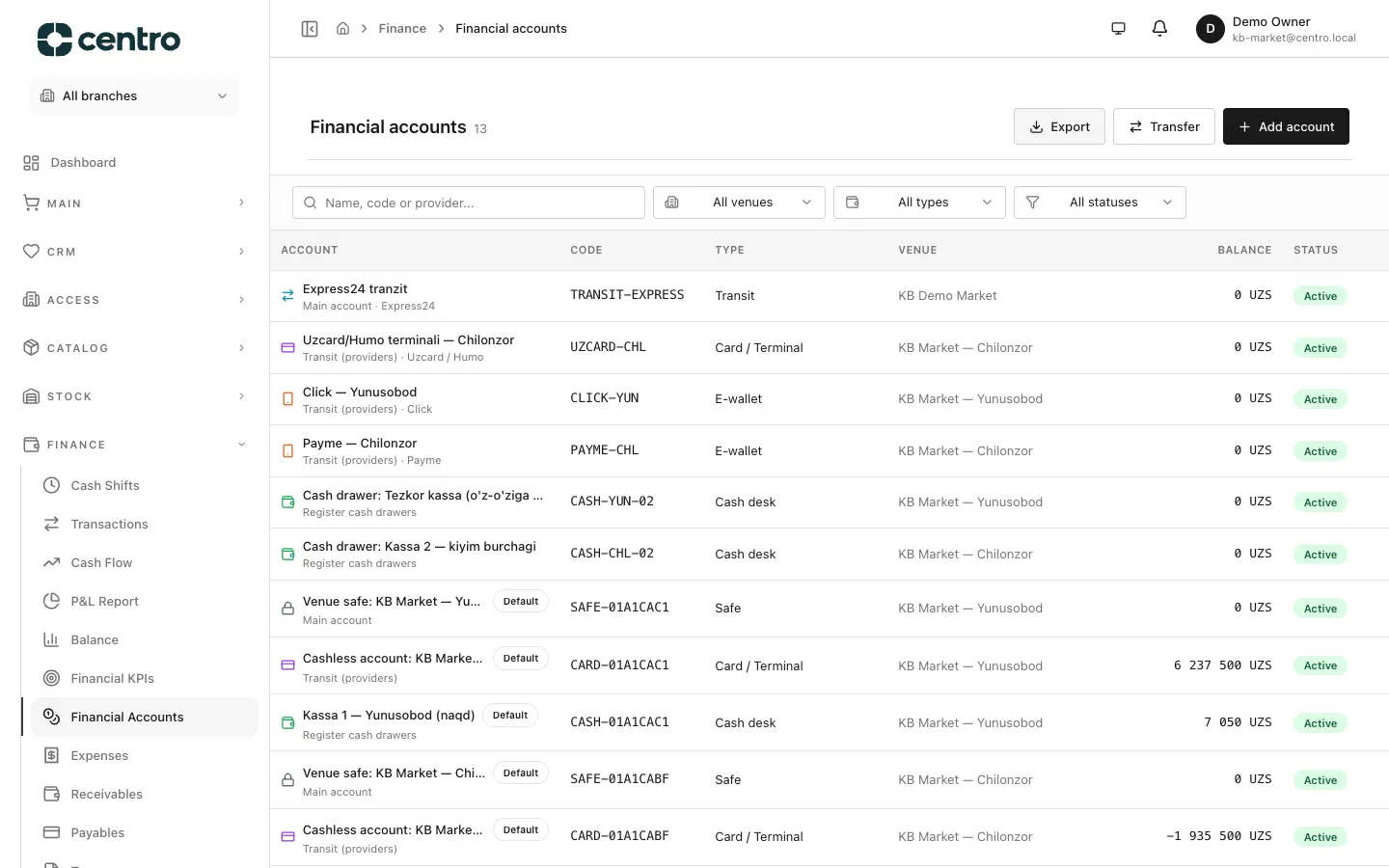
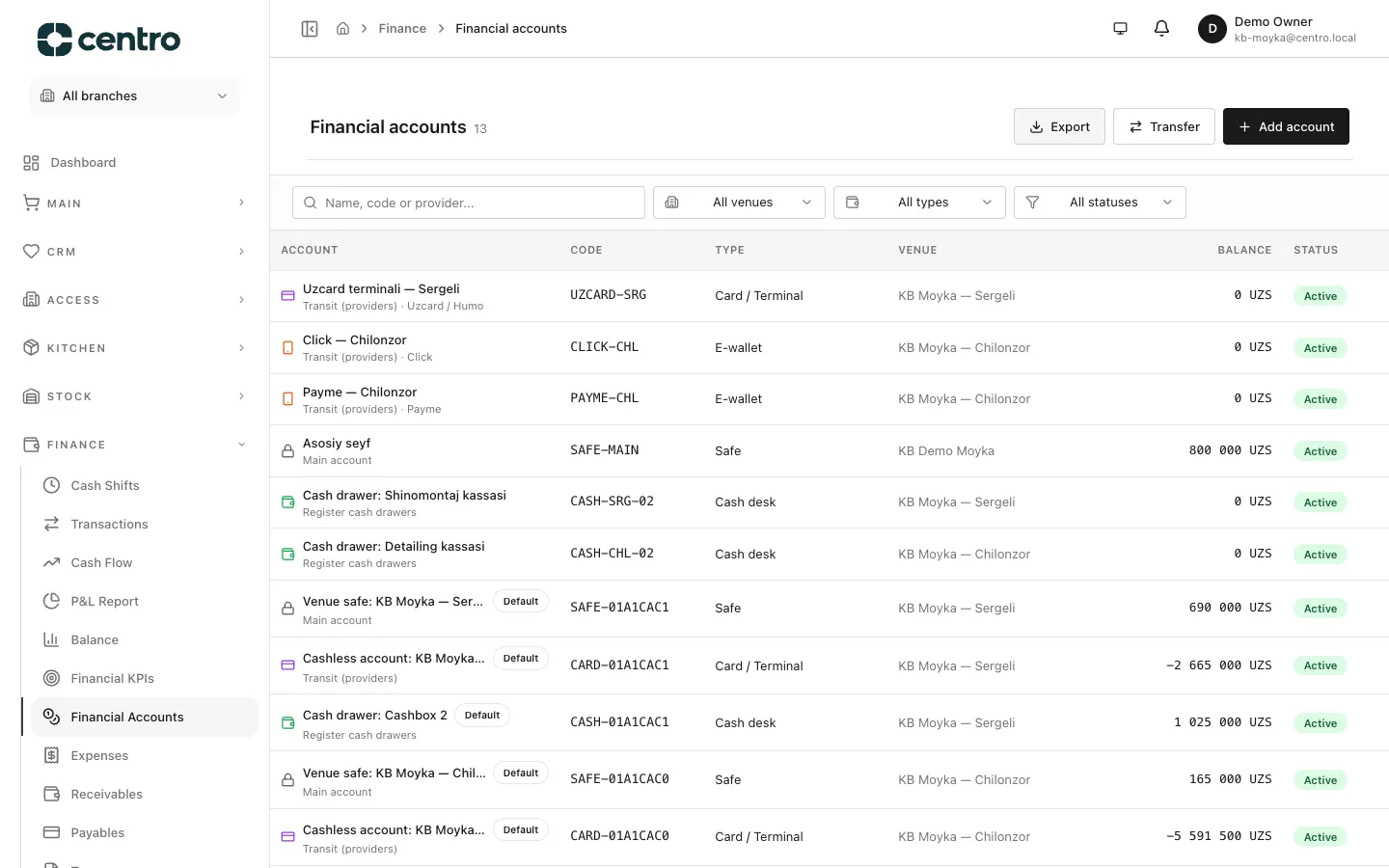
Table columns
- «Account»
- Type icon, name, the «Default» badge (for a default account), and below — group and provider.
- «Code»
- The unique account code.
- «Type»
- Cash desk, card/terminal, e-wallet, safe or transit.
- «Venue»
- The branch the account is bound to; for an organization account — the organization name.
- «Balance»
- The current balance: opening balance plus all inflows minus all outflows.
- «Status»
- «Active» or «Inactive». An inactive account is not offered in transfer and payment dialogs.
- «Actions»
- Pencil — edit, arrow — open the account card.
Filters
- Search
- By name, code or provider («Name, code or provider...»).
- «All venues»
- The shared venue choice of the Finance section: the branch chosen here stays selected on the other finance pages too.
- «All types»
- Only accounts of one type.
- «All statuses»
- «Active» or «Inactive».
Tip: When a search, type or status is set, a «Reset filters» (✕) button appears next to them. If all accounts fit on one page, the newest are on top; otherwise the list is alphabetical. The «Export» button saves the visible list with its groups to Excel or CSV.
Account types and groups #
What each account type means, which accounts are created automatically and what the «Default account» is for.
Account types (the «Type» column)
- «Cash desk»
- The cash drawer of a register. Cash sales of the shift, change and expenses paid from the till land here.
- «Card / Terminal»
- Card payments (POS terminal, Uzcard/Humo). The money goes to the bank but is tracked on a separate transit account.
- «E-wallet»
- Payment systems such as Payme, Click, Uzum. Put the system name into «Provider» — it is shown in the list under the account name.
- «Safe»
- Where cash is kept after collecting it from the registers: a venue safe or the organization’s main safe.
- «Transit»
- An intermediate account for money “in transit”: for example an aggregator payout (Uzum Tezkor, Yandex Eda) that has not reached the bank yet.
Under each account name the table shows its group: «Main account» — safes and transit accounts, «Register cash drawers» — cash desks, «Transit (providers)» — cards and e-wallets. The same groups go into the «Group» column of the export file.
Accounts created automatically
- For every cash register — «Денежный ящик: <register name>» (when the register is created).
- For every venue — «Безналичный счёт: <venue>» and «Сейф заведения: <venue>».
- The server creates these names in Russian and they look the same in every language; rename them via editing if you like.
Tip: The «Default account» flag (the «Default» badge) marks the account the system picks automatically among accounts of the same venue and type. For example, a cash sale goes to the default cash account and a card payment to the default card account.
Creating and editing an account #
The fields of the «Add account» dialog and what cannot be changed after creation.
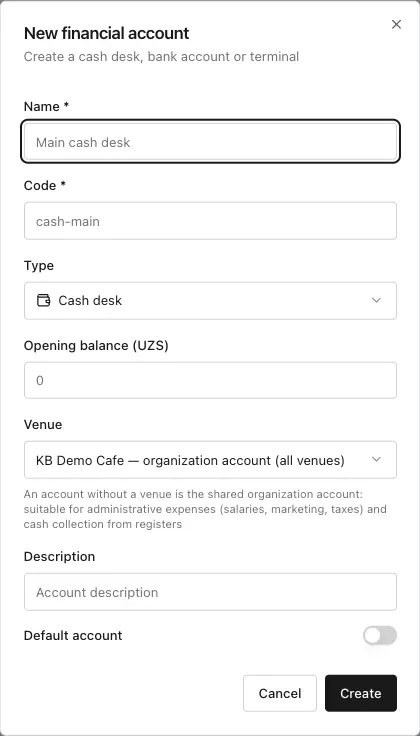
How to create an account
- Click «Add account» in the page header.
- Fill in «Name» and «Code» and choose the «Type».
- If the account already holds money, enter the «Opening balance».
- Choose the «Venue» or keep the organization account option.
- Click «Create» — the account appears at the top of the list.
Dialog fields
- «Name *»
- The name shown in lists and payment dialogs, e.g. «Asosiy seyf» or «Payme — Chilonzor». Required.
- «Code *»
- A short code unique within the organization (e.g. PAYME-CHL). A duplicate shows «An account with this code already exists».
- «Type»
- Cash desk, card/terminal, e-wallet, safe or transit. Chosen only on creation. Bank accounts are not managed here but on the «Bank Accounts» page.
- «Opening balance»
- The balance at the moment the account is opened, in the organization currency. Entered only on creation; afterwards the balance changes only through transactions.
- «Venue»
- Which branch the account belongs to. The «— organization account (all venues)» option makes it shared: handy for administrative expenses (salaries, marketing, taxes) and cash collection from registers. In payment dialogs such accounts carry the suffix «— Organization account».
- «Description»
- An optional internal note.
- «Terminal ID» and «Provider»
- Only for the «Card / Terminal» and «E-wallet» types. The provider (Click, Payme, Uzcard / Humo…) is also searchable.
- «Default account»
- When on, the account becomes the one picked automatically for this venue and type.
To edit, click the pencil in the row. The «Edit account» dialog has no «Type» or «Opening balance» fields — they cannot be changed. The currency is always the organization currency.
Important: An account with an opening balance or transactions cannot be moved to another venue, and the account of an active register cannot be disabled or moved — the server refuses (the message comes in Russian). Create a new account and move the money with «Transfer». Accounts cannot be deleted at all: their history is kept for audit.
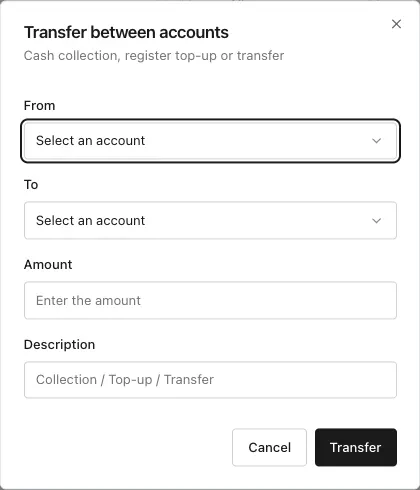
Transfer between accounts #
Cash collection, register top-up or moving money from one account to another.
How to collect a register into the safe
- Click «Transfer» in the header.
- In «From», pick the register — its current balance is shown in brackets.
- In «To», pick the safe (the account chosen in «From» is not listed here).
- Enter the «Amount» in whole units and, if needed, a «Description», e.g. «Inkassatsiya: Chilonzor kassasi → seyf».
- Click «Transfer» — both balances change at once.
Things to keep in mind
- Only active accounts are listed; bank accounts do not appear in this dialog.
- You cannot transfer to the same account, the amount must be above 0, and the server rejects an amount larger than the balance.
- If «Description» is empty, the transaction automatically gets «Перевод между счетами» (stored in Russian).
- The transfer shows in the history of both accounts: as an outflow in one and an inflow in the other, with the transfer icon.
Account card and transaction history #
Every inflow and outflow of the account with the balance after each transaction.
Click a row of the list (or the arrow on the right) to open the account card. At the top: name, code and provider, on the right the «Current balance». Below: «Transaction history» with a date filter («All time» by default).
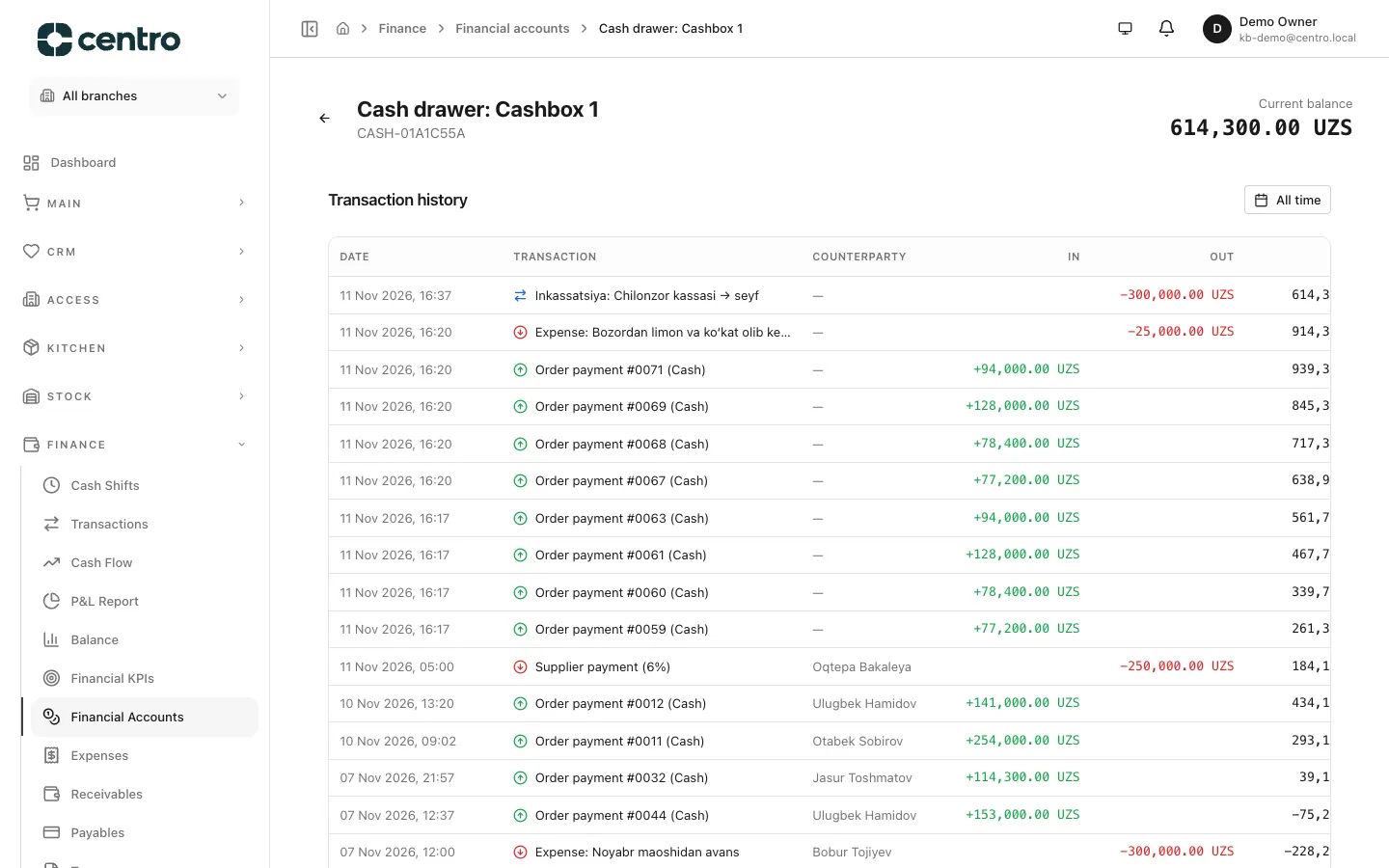
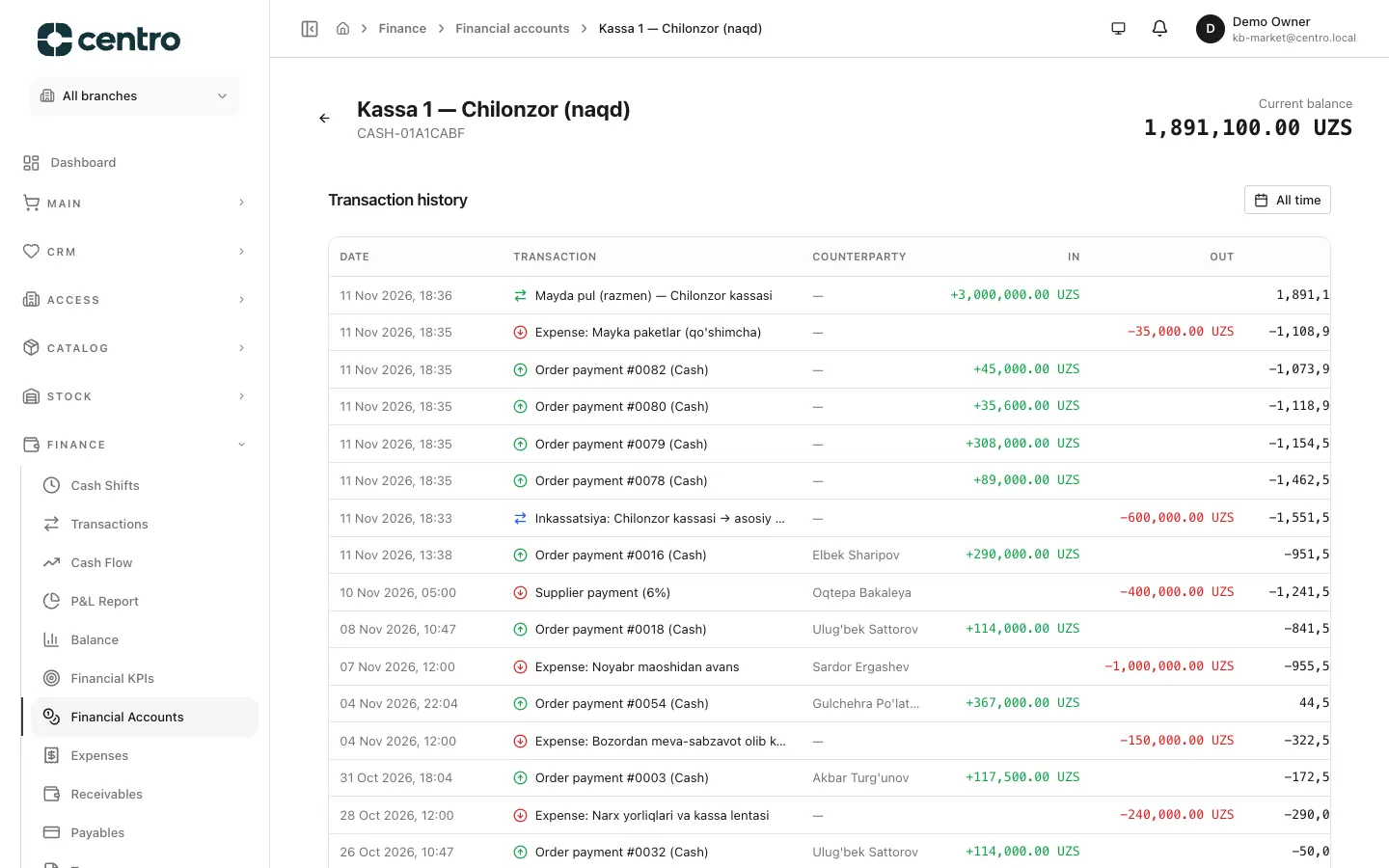
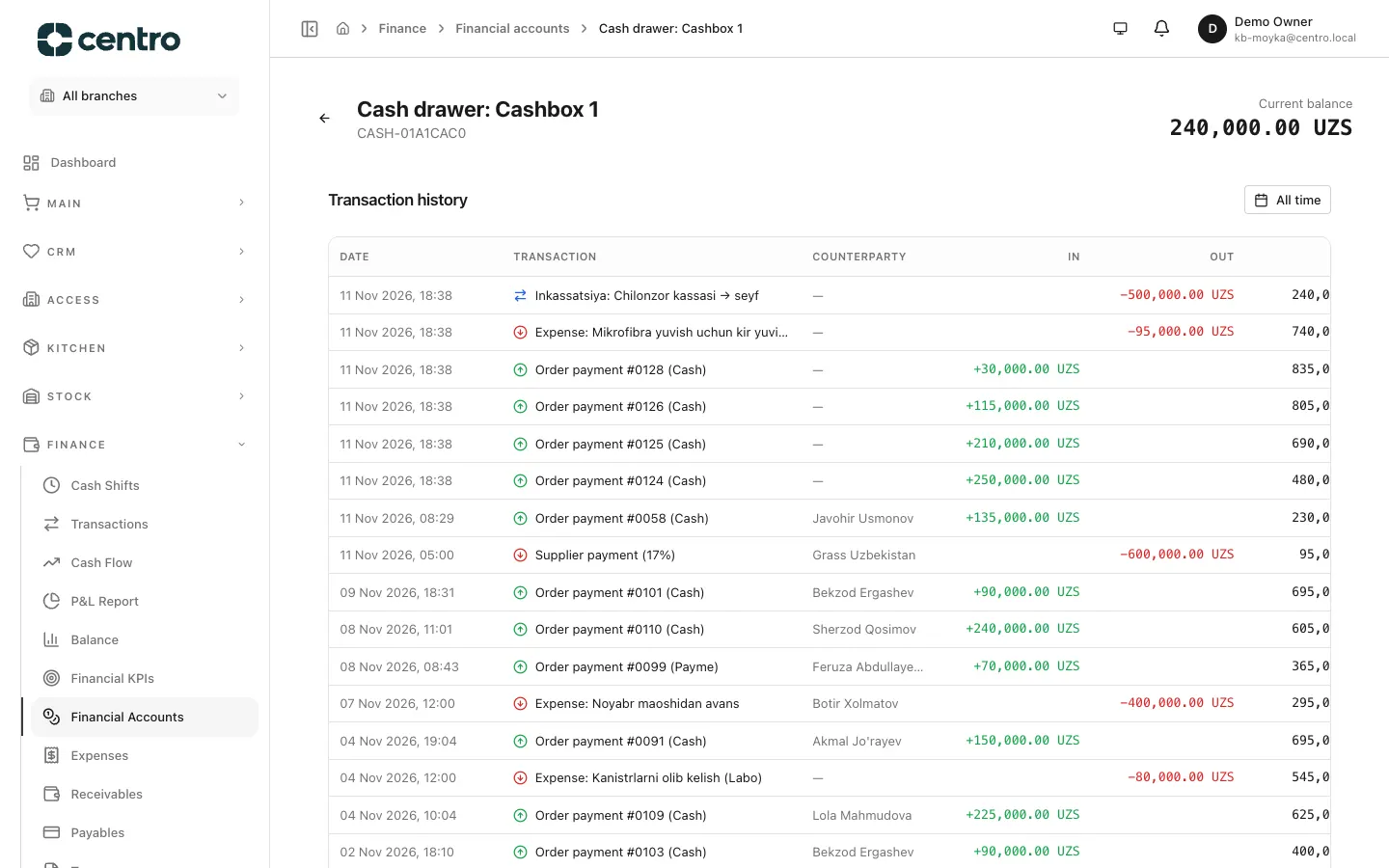
Table columns
- «Date»
- Date and time of the transaction.
- «Transaction»
- The transaction description, or the source type when there is none (order, supply receipt, expense, supplier payment…). Green arrow — inflow, red — outflow, double arrow — transfer. An unconfirmed transaction carries the «Pending» badge.
- «Counterparty»
- Customer, supplier or employee, if the transaction has one.
- «In» / «Out»
- How much the money on the account went up or down.
- «Balance»
- The account balance after this transaction. The server computes it before the date filter and paging, so it stays correct in a filtered list. A dash means the historical balance is not available for this transaction or your access rights.
Tip: Cash payment links in supplier documents open the account card on that transaction: it is shown in the «Transaction from a supplier document» card and highlighted in the table. There are 50 transactions per page; use «Back» / «Next».