Cash shifts
Opening and closing cash shifts, the X report, expected cash in the drawer, reconciliation with the actual balance and shift details.
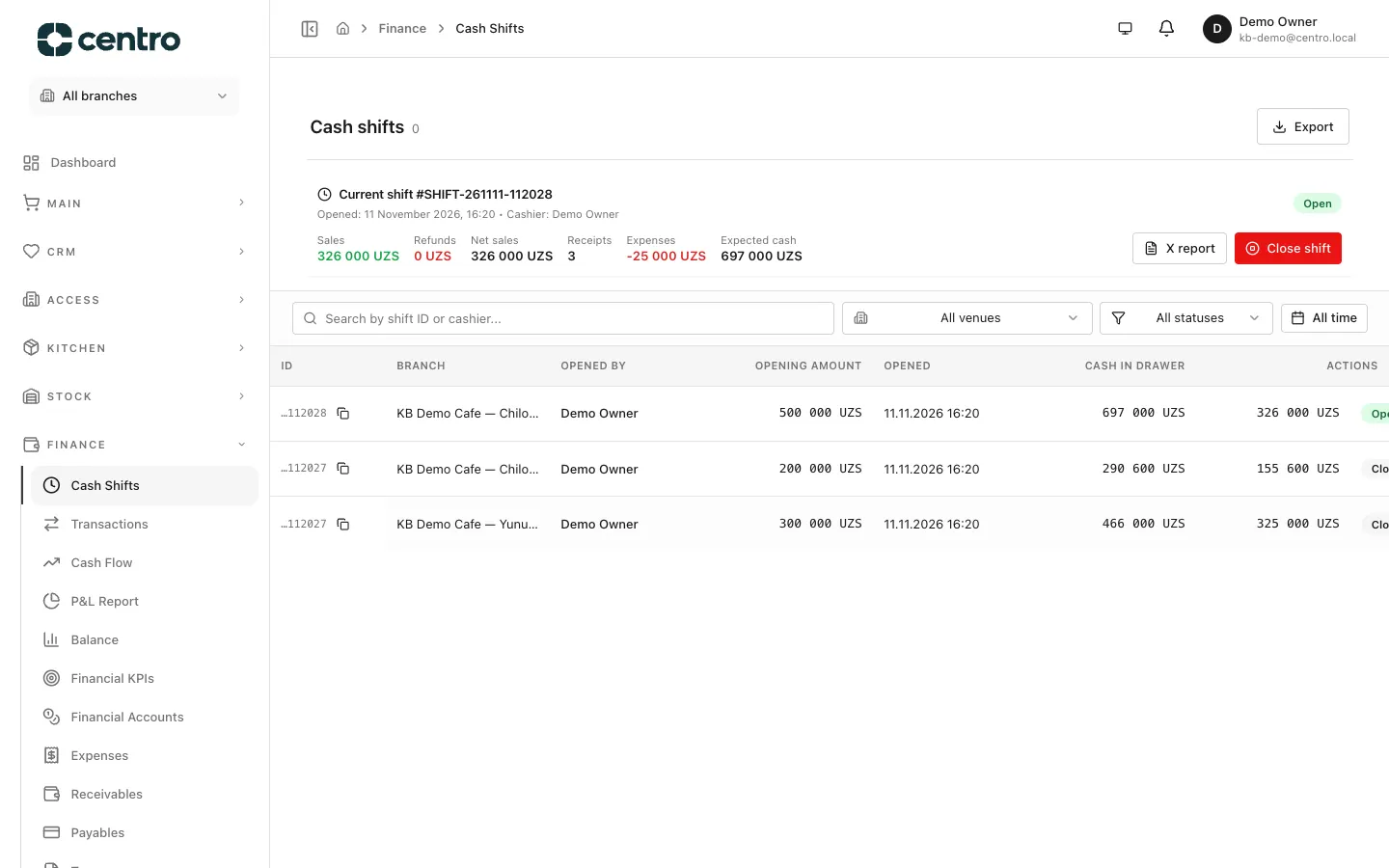
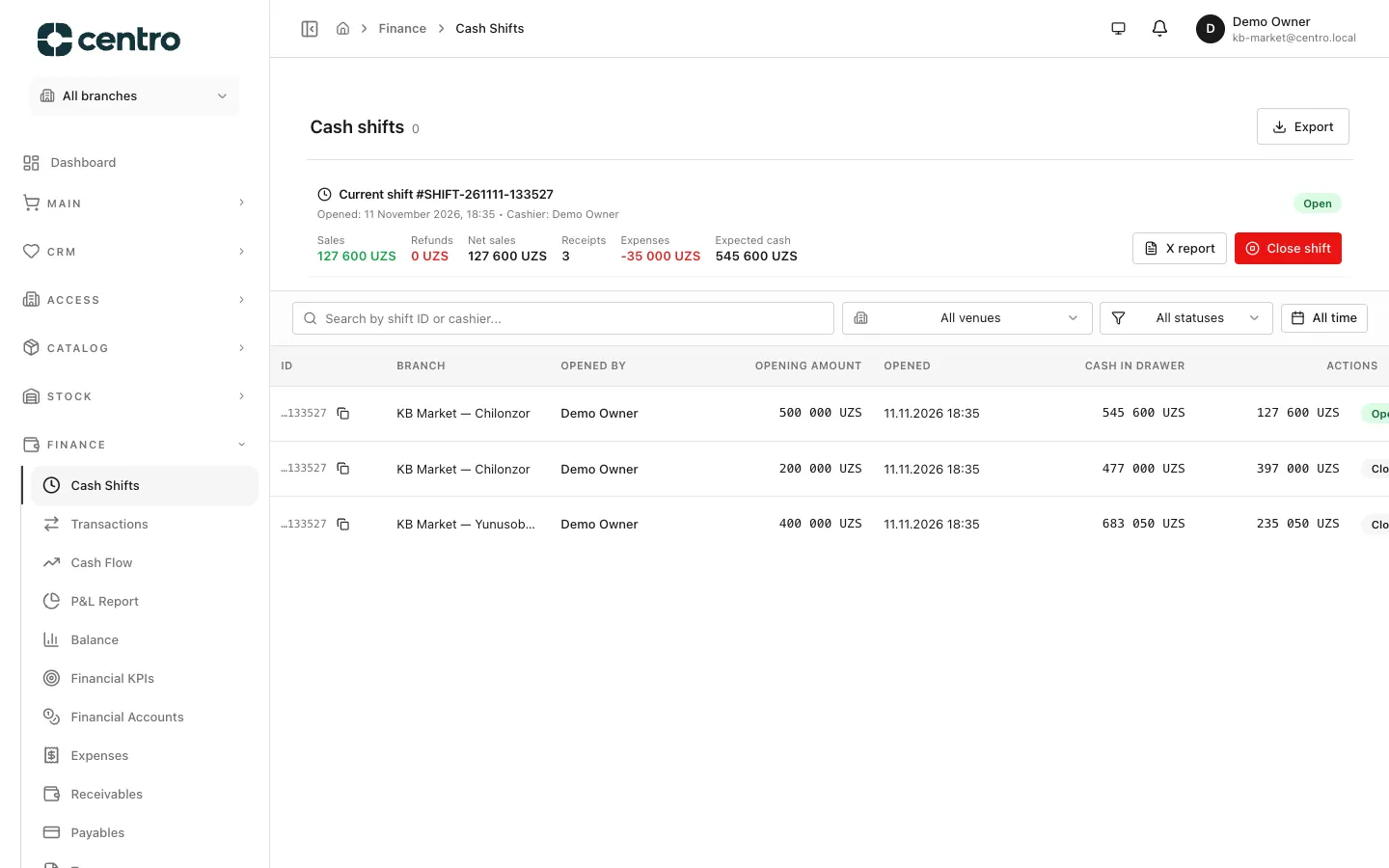
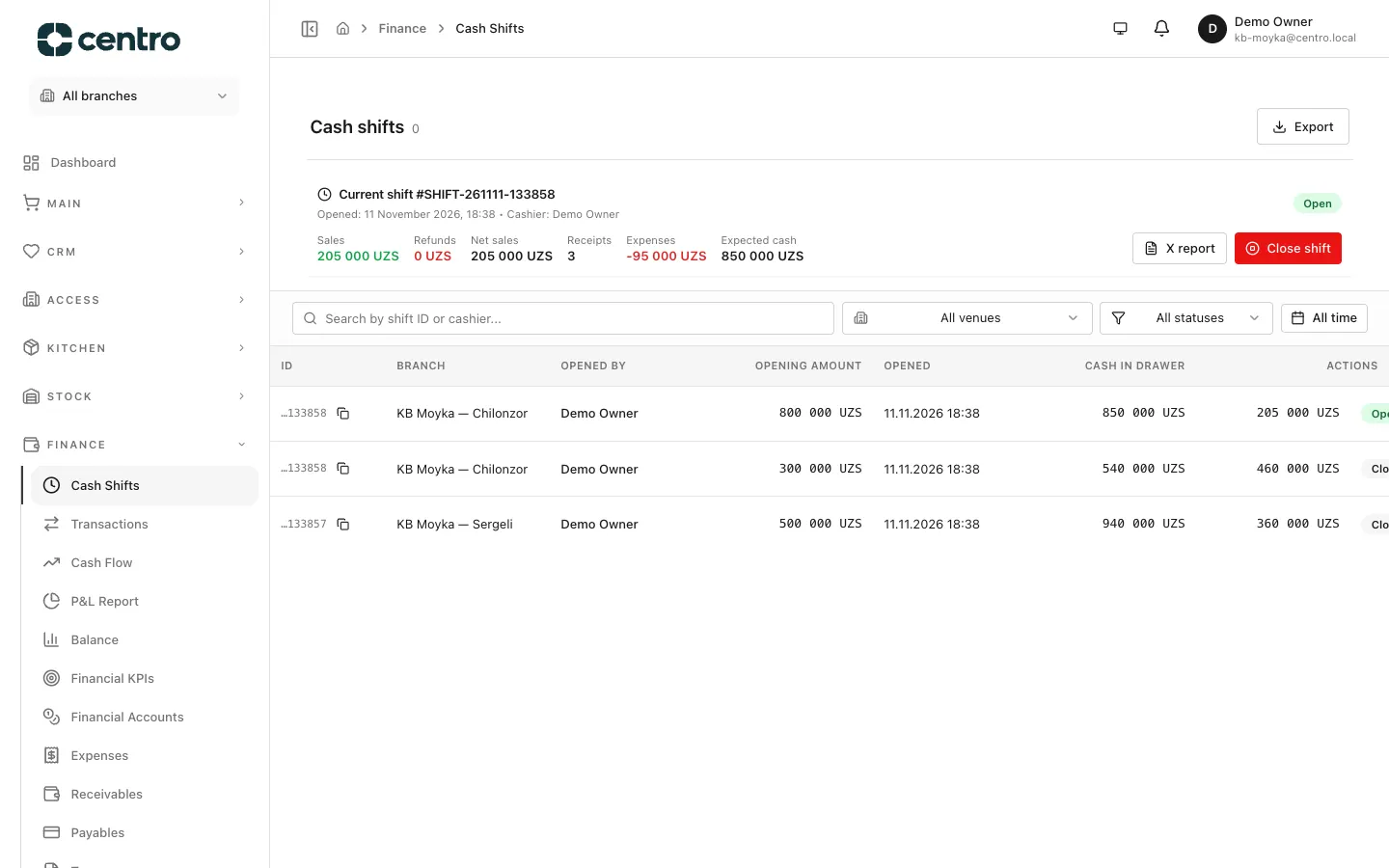
Open in the admin panel/finance/shifts A cash shift is the working period of one register from opening to closing. While the shift is open, the orders, payments, cash-ins and cash-outs of that register are attached to it. At closing the cashier enters the actual cash, the system compares it with the expected balance and stores the discrepancy.
How to open the page
- In the left menu open Finance.
- Click Cash shifts.
Shift statuses
- «Open» (or «Active») — the shift is running, sales are recorded into it.
- «Opening» / «Closing» — a short intermediate state while the register finishes the operation.
- «Closed» — the shift is closed, the actual balance and the discrepancy are stored.
- «Reconciling» / «Reconciled» — the shift is going through or has passed financial reconciliation.
Tip: The venue picker is shared by the whole Finance section: pick a branch here and the other finance reports open for the same branch.
The shift list and filters #
Search, venue, status and period filters, table columns and export.
Filters
- Search
- «Search by shift ID or cashier...» — by the shift number or the cashier name.
- «All venues»
- Keeps the shifts of one branch (the selection is shared by the Finance section).
- «All statuses»
- «Open», «Closed» or «Reconciled».
- Period
- By the shift opening date; the default is all time.
- «Reset»
- Appears when any filter is set and clears all of them. Filters are kept in the address bar, so the link can be shared.
Columns
- ID
- The last 6 characters of the shift number. A click copies the full number.
- «Branch», «Opened by»
- The register’s branch and the employee who opened the shift.
- «Opening amount»
- The cash entered at opening.
- «Opened»
- Opening date and time.
- «Cash in drawer»
- For an open shift — the expected cash that should be in the drawer now; for a closed one — the actual balance the cashier counted.
- «Sales»
- Net sales of the shift (all payment methods).
- «Status», «Actions»
- An open shift has a red button to close it; the arrow opens the shift details.
Tip: The export button downloads the shifts visible with the current filters to Excel or CSV: opening balance, sales, refunds, cash and card, expected and actual balance, discrepancy, receipt count and status.
The current shift and the X report #
The open-shift card: key figures, payment methods and the interim report.
When the list contains an open shift, a «Current shift #…» card appears above the table: opening time, cashier and status.

- «Sales», «Refunds», «Net sales»
- Revenue of the shift; net sales = sales − refunds.
- «Receipts»
- The number of orders attached to the shift.
- «Expenses»
- Expenses paid out of the drawer during the shift.
- «Expected cash»
- The cash that should be in the drawer now (the calculation is below, in «Shift details»).
- «Cash», «Cards», QR
- Net revenue per payment method.
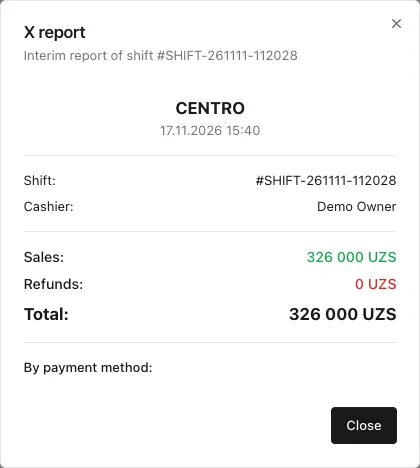
The «X report» button opens an interim report without closing the shift: shift number, cashier, sales, refunds, «Total:», orders closed without payment (if any) and the breakdown by payment method. It can be taken any number of times during the shift.
Opening a shift #
Choosing the register and entering the opening cash.
- Click «Open shift» in the header.
- Choose the register in «Register». If the branch has a single register it is selected automatically.
- «Opening balance (cash)» — the cash in the drawer at the start of the shift (empty = 0).
- Click «Open shift».
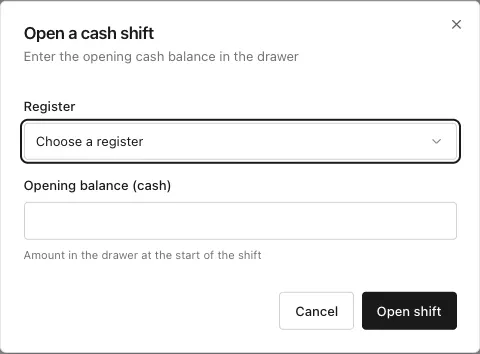
Restrictions
- A register can have only one open shift at a time — otherwise «A shift is already open on this register».
- A self-service register (kiosk) cannot open a shift.
- The register must belong to a venue, not to a warehouse.
Tip: The «Open shift» button is shown when the list has no open shift. If one branch already has an open shift and you need one on another register, set the status filter to «Closed» or pick another branch — the button appears. Shifts are normally opened on the POS itself; this page is the administrator’s fallback.
Closing a shift and the discrepancy #
Entering the actual cash, comparing it with the expected balance, shortage or surplus.
- Click «Close shift» on the current-shift card or in the table row.
- The dialog shows «Expected balance:» — the cash calculated by the system.
- Count the money in the drawer and enter it in «Actual balance (cash)».
- Click «Close shift».
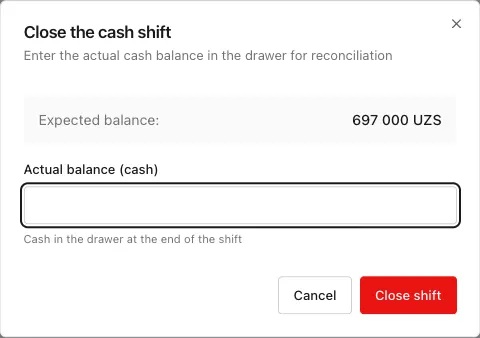
Discrepancy = actual balance − expected balance. A negative discrepancy is a shortage (less money in the drawer), a positive one is a surplus. It is shown in red in the «Reconciliation» block of the shift details; zero is shown in green.
Important: You cannot close the shift with 0 if the expected cash is above 0 — that usually means the field was left empty. A negative balance is not accepted either.
Shift details #
Sales, revenue structure, refunds, expenses, debts and how the expected cash is calculated.
The arrow in a table row opens the «Shift …» dialog. At the top — branch, who opened the shift, register, opening and closing time. Blocks are shown only when they have data.
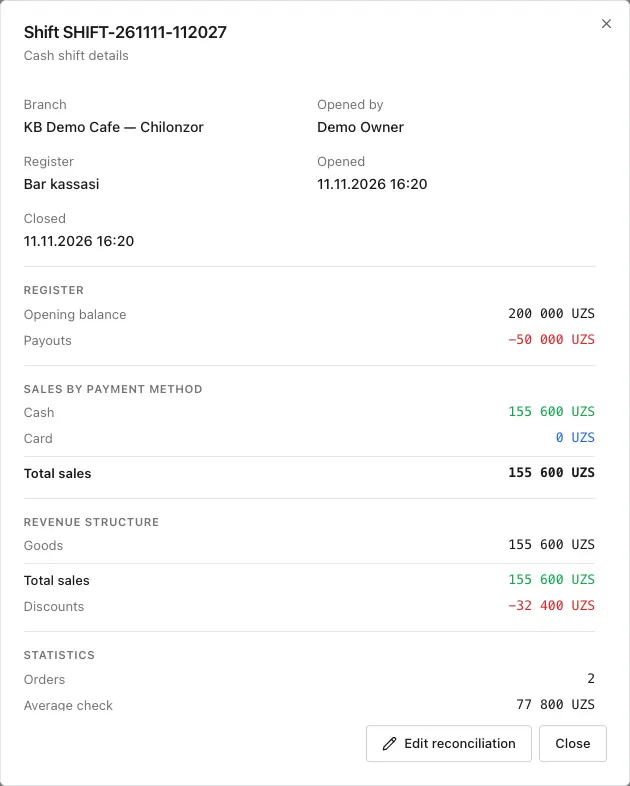
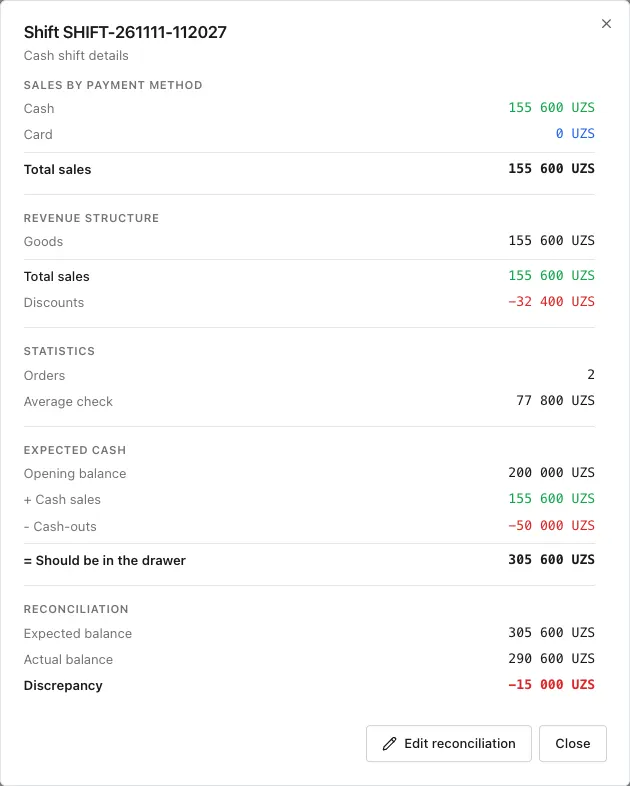
Blocks
- «Register»
- «Opening balance», «Cash-ins» (cash put into the drawer) and «Payouts» (cash taken out).
- «Sales by payment method»
- Cash, card, Payme, Click, Uzum, «On credit», Yandex Eats, «Other» and «Total sales». With credit sales, «Total order volume» = sales + credit. The «On credit» row expands to show the customers.
- «Revenue structure»
- «Goods» = total sales − delivery − service charge; «Service charge», «Delivery», «Discounts», «Bonuses (points)». Delivery and service are already inside sales and are not added again.
- «Refunds»
- Number and amount of refunds. A refund made on another day is counted in the shift where the money was paid out.
- «Expenses», «Debt repayments», «Debts and deposits»
- Count and amount; «Show all» opens the full register (see below).
- «Closed without payment»
- Orders closed without payment: goods are written off but they are not part of sales or expected cash.
- «Statistics»
- Order count and «Average check» = (sales + credit sales) ÷ number of orders.
- «Reconciliation»
- Closed shifts only: «Expected balance», «Actual balance» and «Discrepancy».
How «Expected cash» is calculated
- «Opening balance»
- «+ Cash sales» — cash payments only
- «+ Cash-ins» and «+ Debt repayments» (in cash)
- «- Cash-outs», «- Expenses», «- Refunds» (in cash)
- «= Should be in the drawer» — the server computes the total; card and other cashless payments do not go into the drawer.
Important: Any expense created at this venue while the shift is open and not tied to another register or shift is subtracted from this shift’s expected cash — even if it was paid from a bank account. For example, entering the rent in Finance → Expenses during a shift creates a «shortage» in the drawer. Enter large cashless expenses outside the shift or take this into account when closing.
Expense, debt and deposit registers #
The «Show all» buttons in the shift details: who, to whom, when and why.
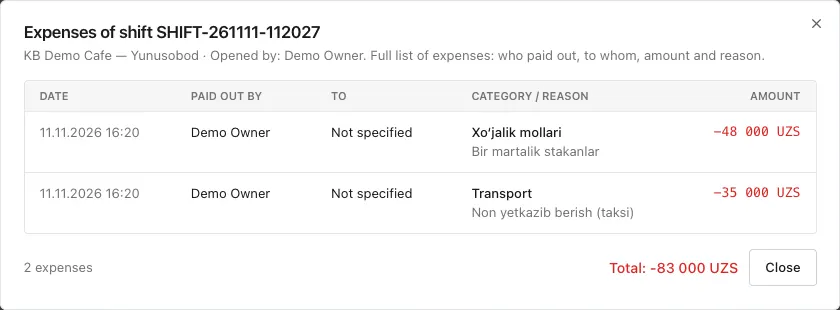
- «Expenses of shift …»
- «Date», «Paid out by», «To», «Category / reason», «Amount»; at the bottom the expense count and «Total:».
- «Debts and deposits of shift …»
- Three sections: «Credit sales» (cashier, customer, order), «Debt repayments (cash to the drawer)» (accepted by, method) and «Customer deposit operations» (top-up, payment from deposit, return to deposit, cash payout). The customer name links to the CRM card.
Tip: Paying from a deposit and returning to a deposit create no new cash movement — they do not affect the expected cash and are listed in the register for audit only.
Correcting the reconciliation #
Changing the actual balance of a closed shift with a reason.
- Open the details of a closed shift and click «Edit reconciliation».
- The dialog shows «Expected balance:», «Current actual:» and «Current discrepancy:».
- Enter «New actual balance (cash)» — «New discrepancy:» is recalculated immediately.
- Fill in «Reason for correction» (for example, 0 was entered by mistake at closing) and click «Save».
Important: A correction does not change the expected balance — only the actual amount entered by the cashier and the discrepancy. Enter the money that was really counted: the discrepancy is kept in the shift history and goes into the export.