Receivables
Who owes you money: customers who ate on credit, corporate catering and aggregators (Yandex Eats, Uzum Tezkor). Debt age, repayments and the reconciliation statement. Who owes you money: shoppers who bought on credit, wholesale customers and aggregators. Debt age, repayments and the reconciliation statement. Who owes you money: customers who took services on credit — most often corporate fleets and taxi companies that pay at month end. Debt age, repayments and the reconciliation statement.
Open in the admin panel/finance/receivables The page header is «Accounts receivable» with the number of rows next to it. New debt is not created here by hand: a customer row appears when an order is paid on credit (the «debt» payment method) at the POS or in the admin panel, and an aggregator row is created automatically from a Yandex Eats or Uzum Tezkor order. Here you track the debt, record repayments and print a reconciliation statement for the customer.
How to open
- In the sidebar, expand the Finance group.
- Click Receivables.
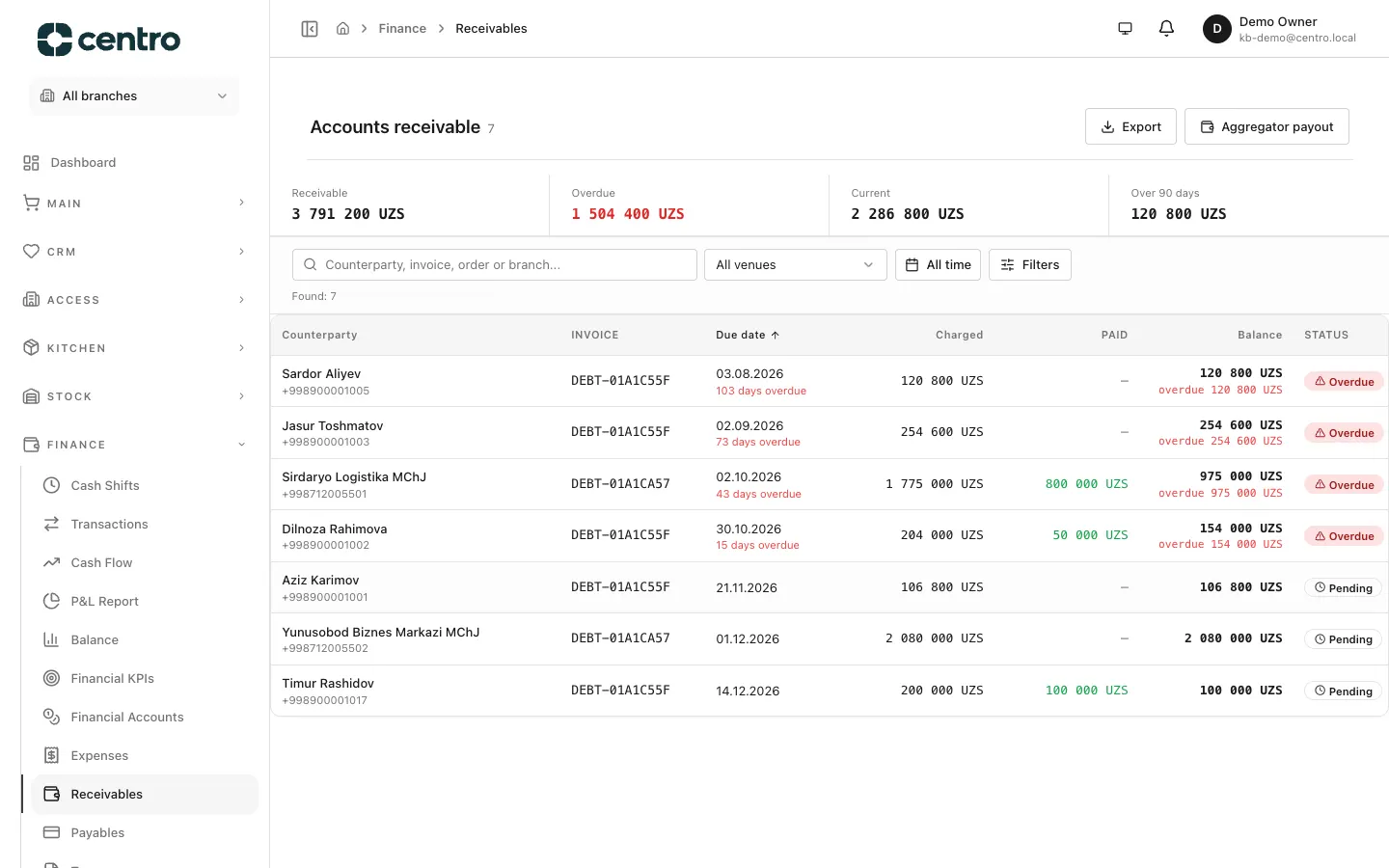
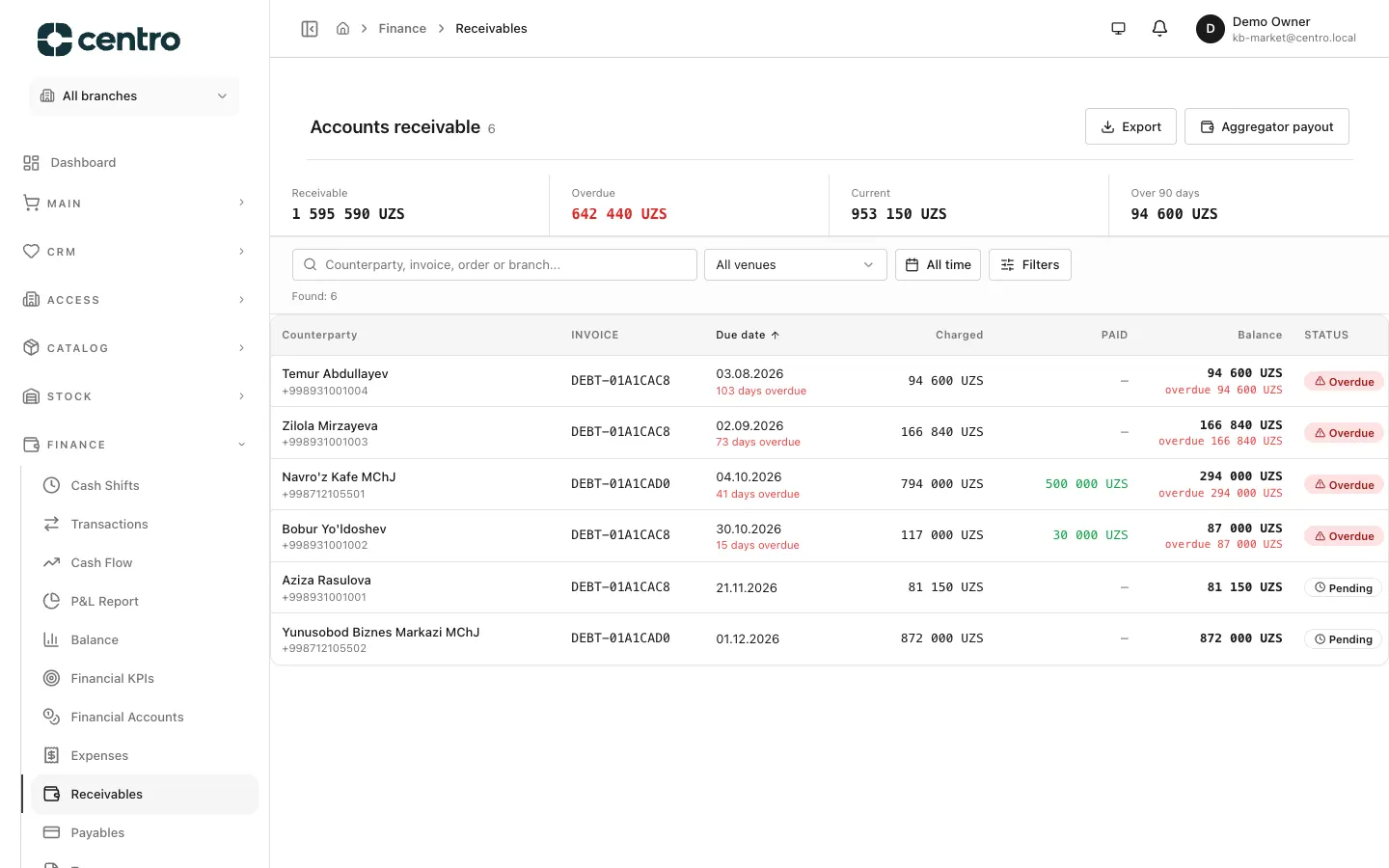
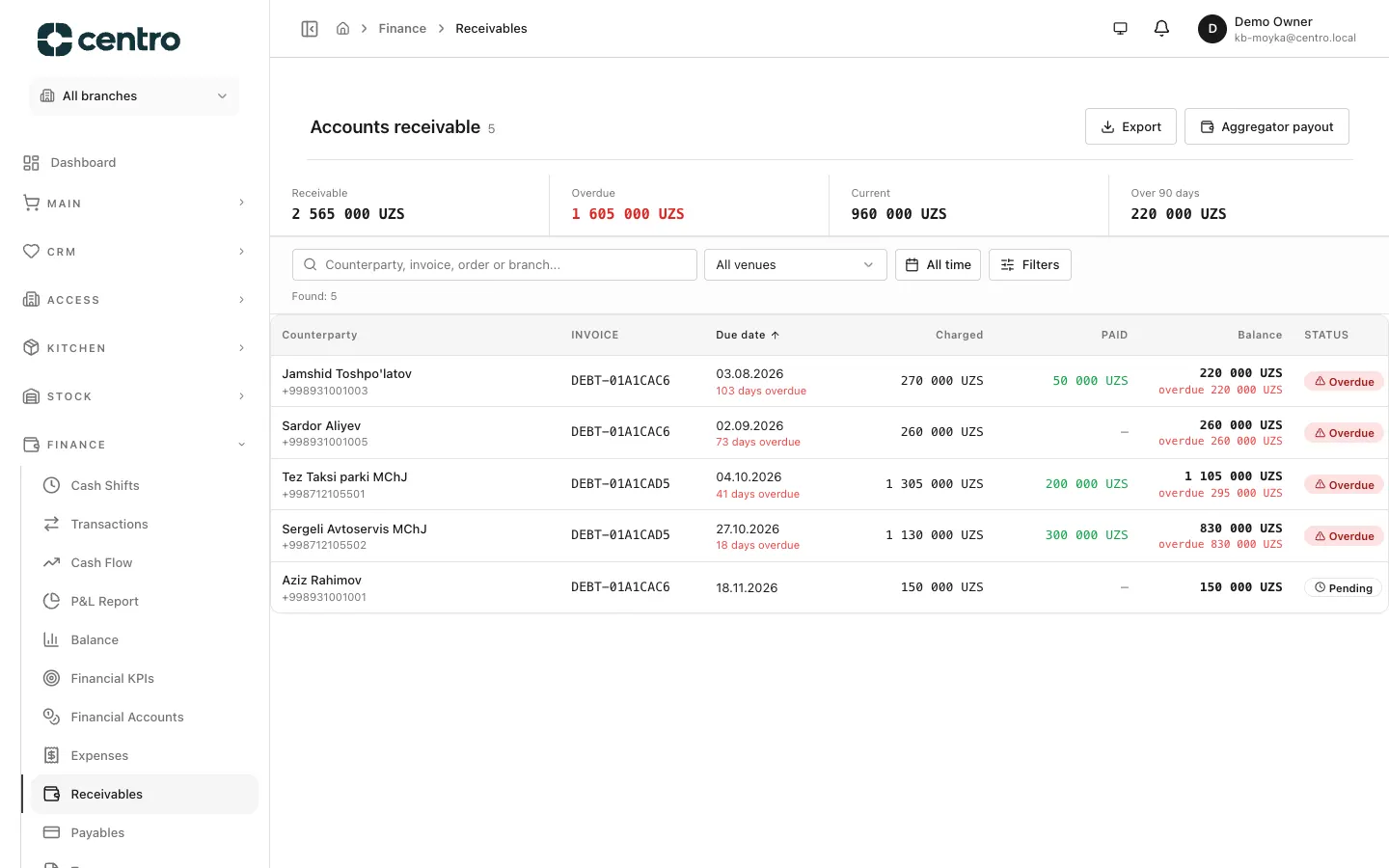
Indicators at the top
- «Receivable»
- The sum of balances of all open debts under the current filters. If a period is selected, the label becomes «Receivable as of …» and shows the balance on the last day of the period.
- «Overdue»
- The part whose due date has already passed: the sum of the 1–30, 31–60, 61–90 and 90+ day debt-age buckets.
- «Current»
- Debts that are not yet due — not a problem yet.
- «Over 90 days»
- The riskiest bucket: debt more than 90 days past due. The chance of collecting it is low.
Toolbar
- Search
- Searches by counterparty name, invoice number, order or branch.
- «All venues»
- Limits the list to one branch’s debts. The choice is remembered for the whole Finance section.
- Period
- The default is «All time», i.e. debts open today. If you pick a period, the page switches to «snapshot» mode: the balance is calculated for the last day of the period and the «Paid» column shows only payments inside the period; the «Actions» column is hidden in this mode.
- «Filters»
- Opens the extra filters panel (see below). The number of active filters is shown on the button; «Reset» clears them all. Under the search you see «Found: N» and badges of the active filters.
- Export
- Exports all rows under the current filters (not just the visible page) to the «Receivable invoices» sheet: counterparty, phone, type, branch, channel, dates, amounts, status.
Table columns
- «Counterparty»
- Customer or aggregator name. A customer name is a link: clicking it opens the reconciliation statement. The phone is shown underneath (click to call). An aggregator row shows the «Aggregator» badge, the channel (takeaway / delivery) and the branch.
- «Invoice»
- For a customer — DEBT-… (all debts of one customer are combined into one row). For an aggregator — YDX-… or UZM-… plus the order number (each order is a separate row).
- «Due date»
- For a customer — the earliest due date entered when paying on credit (if none, +30 days from the sale). For an aggregator — +7 days from the order. If the date has passed, «N days overdue» appears in red underneath.
- «Charged»
- How much was taken on credit in total: balance + already paid. For an aggregator — the amount receivable after commission.
- «Paid»
- Payments received to repay the debt. In period mode — only those inside the period; hover to see the total paid up to that date.
- «Balance»
- The part that is still unpaid. Its overdue share is shown underneath as «overdue …».
- «Status»
- «Pending» — not yet due; «Overdue» — part of the debt is past due; «Partial», «Paid», «Written off» — mostly for aggregator rows. A customer who has fully repaid disappears from the list.
- «Actions»
- The «Payment» button opens the payment dialog. Paid and written-off rows have no button.
The line under the table shows the totals «Charged», «Paid» and «Balance» for all filtered rows, regardless of pagination.
Tip: By default the table is sorted by due date ascending: the oldest debtors are on top. Clicking the «Counterparty», «Due date», «Charged» and «Balance» headers changes the sort.
Debt age and calculations #
How debt is split into buckets and where the numbers come from.
- Customer debt comes from the customer’s debt ledger: every credit sale (+), payment (−), correction and refund. Balance = all increases − all decreases.
- The overdue part is credit sales with a past due date minus all payments and decreases: a payment closes the oldest (overdue) debt first.
- Age buckets: «Current» (not yet due), 1–30, 31–60, 61–90 and over 90 days — by the number of days since the due date.
- Aggregator debt is per order: order total − commission = receivable; balance = receivable − what the aggregator has already paid out.
- The indicators at the top use the same filters as the table except the «Debt age» filter — otherwise the other buckets would drop to zero.
Important: To sell to a customer on credit, debt and a limit must be enabled in their CRM card (or a global debt policy in the organization settings). Otherwise the POS will not accept a «debt» payment.
More filters #
Counterparty type, aggregator, status, due date, debt age and sorting.
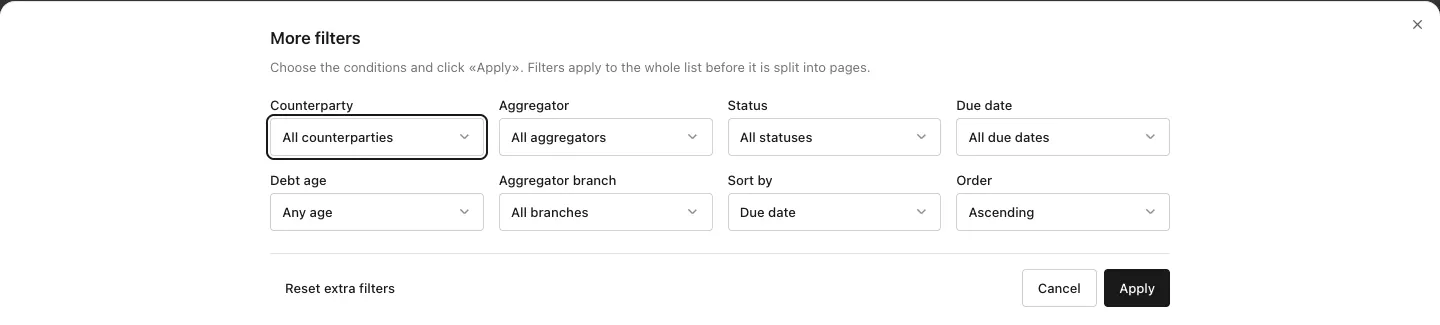
- «Counterparty»
- «All counterparties», «Customers» or «Aggregators».
- «Aggregator»
- Yandex Eats or Uzum Tezkor. Choosing one switches the counterparty to «Aggregators» automatically.
- «Status»
- Pending, Partial, Overdue, Paid, Written off.
- «Due date»
- «All due dates», «Overdue», «This week», «This month», «Next 30 days» — to plan whose money to expect.
- «Debt age»
- Keeps a single age bucket: current, 1–30, 31–60, 61–90 or over 90 days.
- «Aggregator branch»
- Limits aggregator debts to one branch.
- «Sort by» and «Order»
- By due date, charged, balance or counterparty, ascending or descending.
Tip: Filters and the page number are written into the browser address — send the link to a colleague and they will see the same list.
Recording a payment #
Repaying a customer’s debt in full or in part.
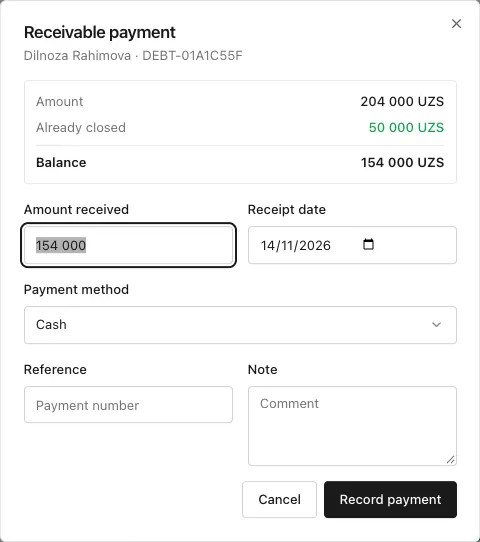
- In the row you need, click «Payment» (or «Record payment» in the reconciliation statement).
- «Amount received» is prefilled with the whole balance; for a partial payment, reduce it — «Remaining: …» appears below.
- «Receipt date» — the day the money actually arrived (it can be backdated).
- «Payment method»: Cash, Terminal, Payme, Click or Bank transfer.
- Optional: «Reference» (e.g. the payment order number) and «Note».
- Click «Record payment».
Important: The amount must be greater than 0 and not more than the balance — otherwise you get «The amount exceeds the receivable balance». If the customer overpaid, handle it in the «Debt» tab of the customer card.
For an aggregator row the dialog is called «Aggregator payout»: it shows the orders total and the commission, the method is always bank transfer, and you can choose the «Receiving account» (cashless accounts: card, e-wallet, bank, transit). Left on «Automatic», the branch’s default CARD account is used.
Reconciliation statement #
What the customer took and how much they paid — with a running balance, ready to print.
Click the customer’s name in the table — the «Reconciliation statement — <name>» panel opens on the right. Aggregators have no statement.
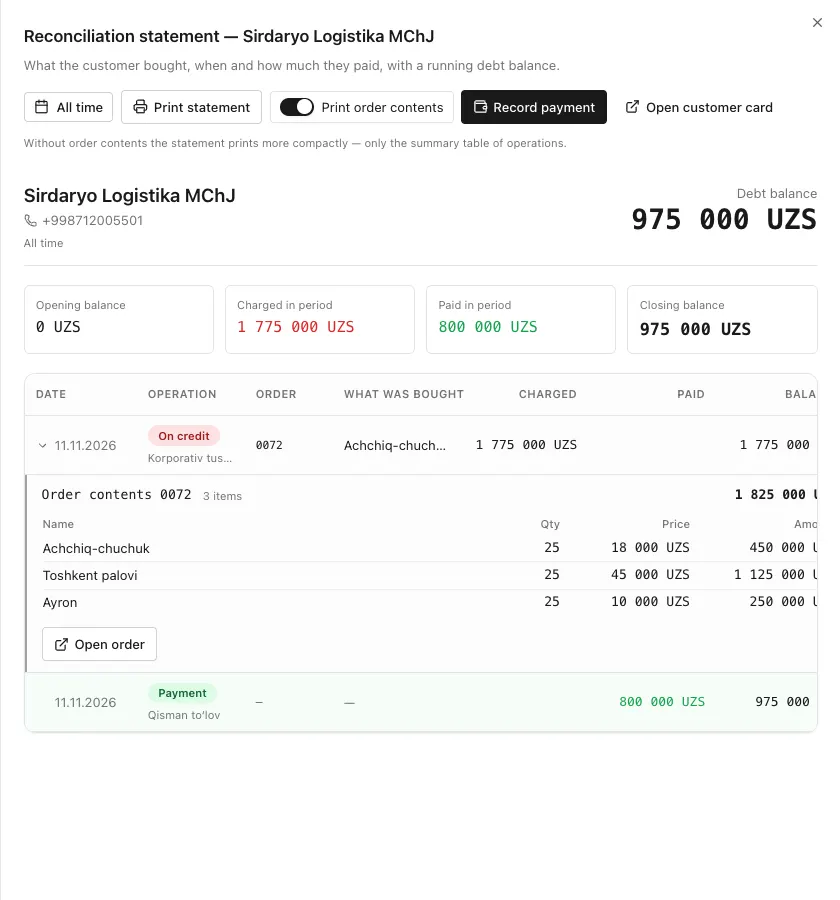
- Period
- The default is «All time». If you choose a period, the opening balance shows the debt at the start of the period.
- Four tiles
- «Opening balance» + «Charged in period» − «Paid in period» = «Closing balance». «Debt balance» at the top right equals the closing balance.
- Operations table
- Each row is the date, operation («On credit», «Payment», «Correction», «Refund»…), order number, what was bought, charged, paid and the running balance. Clicking the order number opens the order; clicking the row expands the order contents (name, qty, price, amount).
- «Print statement»
- Prints an A4 document: organization name, «Statement of mutual settlements», counterparty, period, summary, operations and signature lines for both parties. The PDF file name contains the customer and period.
- «Print order contents»
- Turned off, the statement prints more compactly — without order contents, only the operations table. It does not affect the screen.
- «Record payment» / «Open customer card»
- Goes to the payment dialog or to the customer’s CRM card.
Tip: The total in the order contents uses line prices before discounts, while «Charged» is the actual amount put on credit (after discounts). If they differ, a discount was applied to the order.
Aggregator payout #
Close a branch’s debts in one go with the money the aggregator transferred for a period.
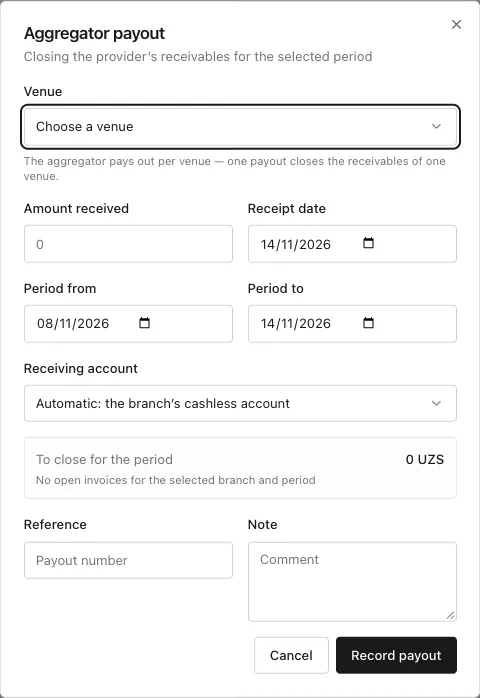
- Click «Aggregator payout» in the page header.
- «Venue» — choose the branch with open aggregator receivables (the open amount is shown in the list). The aggregator pays each venue separately.
- «Amount received» and «Receipt date» — the amount and date from the bank statement.
- «Period from» / «Period to» — which orders the payout covers (default — the last 7 days).
- «Receiving account» — the cashless account the money went to, or «Automatic».
- Check the grey block: «To close for the period», number of invoices, amount and commission. Then click «Record payout».
Important: If the amount received exceeds the balance for the period, a warning appears: the difference will be recorded as a payout discrepancy. First check that the period and branch are right.
Tip: This dialog records the payout for Yandex Eats. Record money for an Uzum Tezkor order with the «Payment» button in that order’s row.