Payables
Debts to suppliers and extra-cost recipients: whom, for which document, how much and by when to pay, recording a payment and the reconciliation statement.
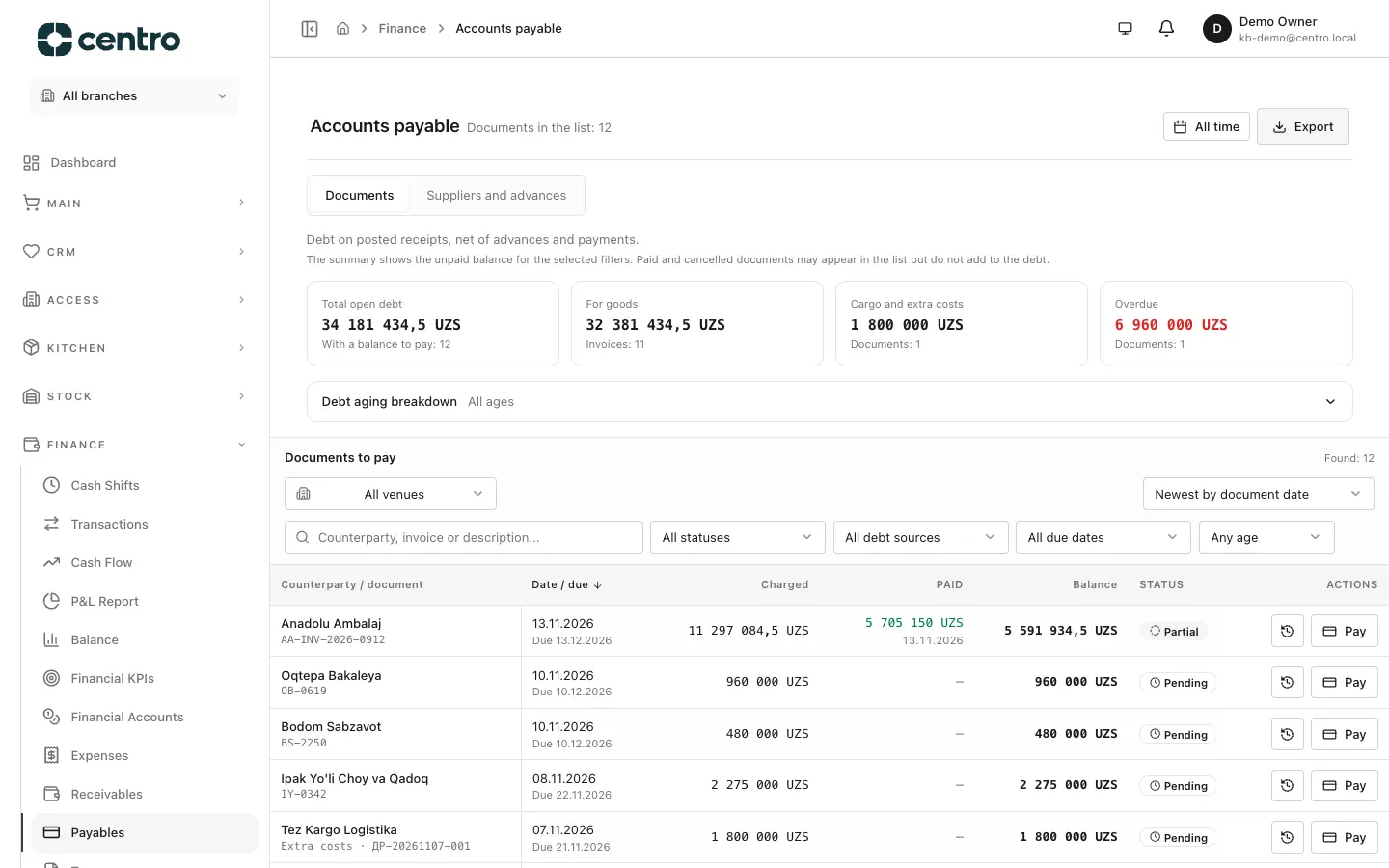
Open in the admin panel/finance/payables The page header is «Accounts payable». Nothing is created here by hand: every row (a document to pay) appears automatically when a stock receipt is posted or an extra cost (cargo, delivery, customs) is added to a receipt. The due date comes from the supplier’s payment terms. On this page you pay the debt, see its history and print the reconciliation statement with the counterparty.
How to open
- In the sidebar, expand the Finance group.
- Click Payables.
The page has two tabs
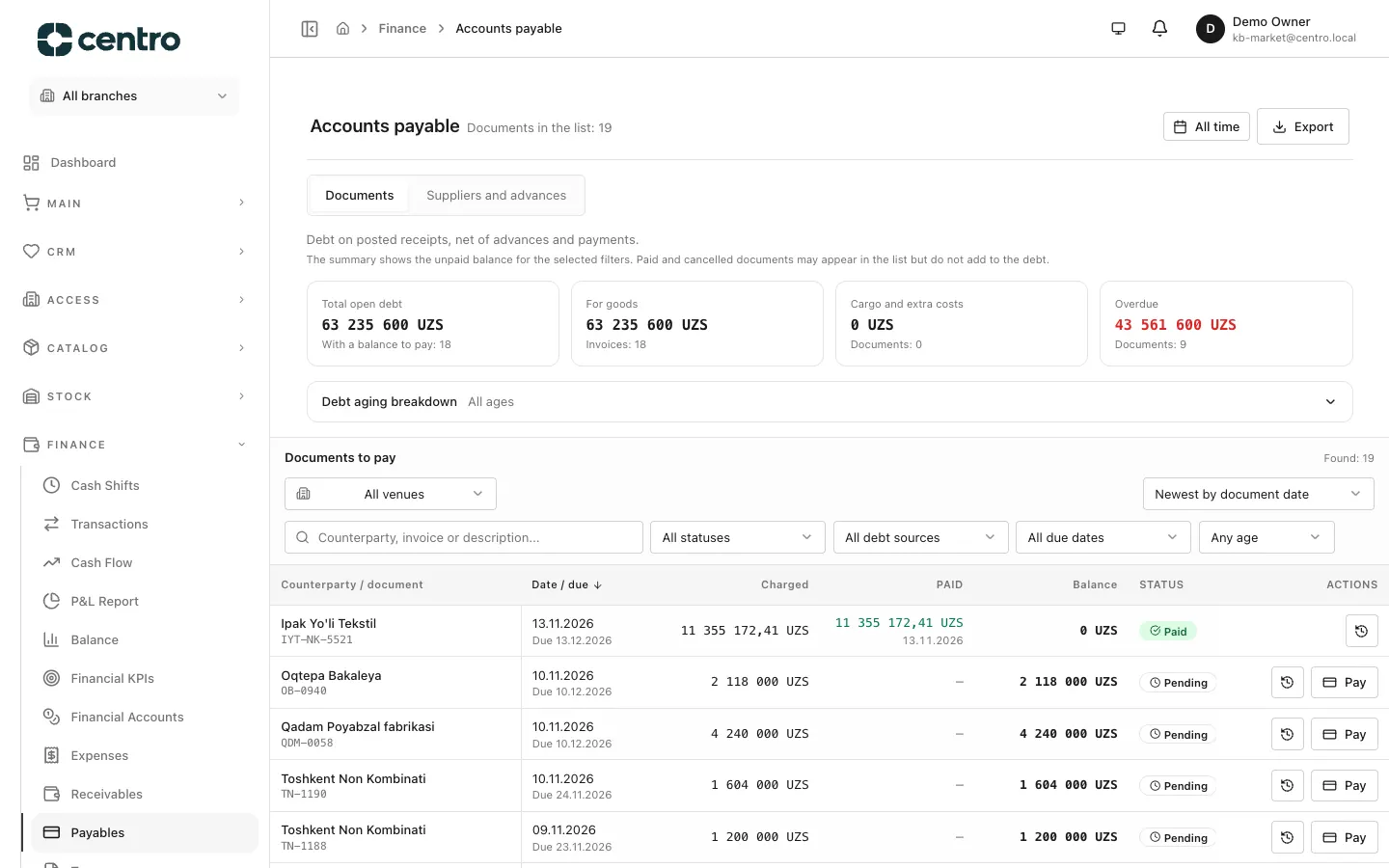
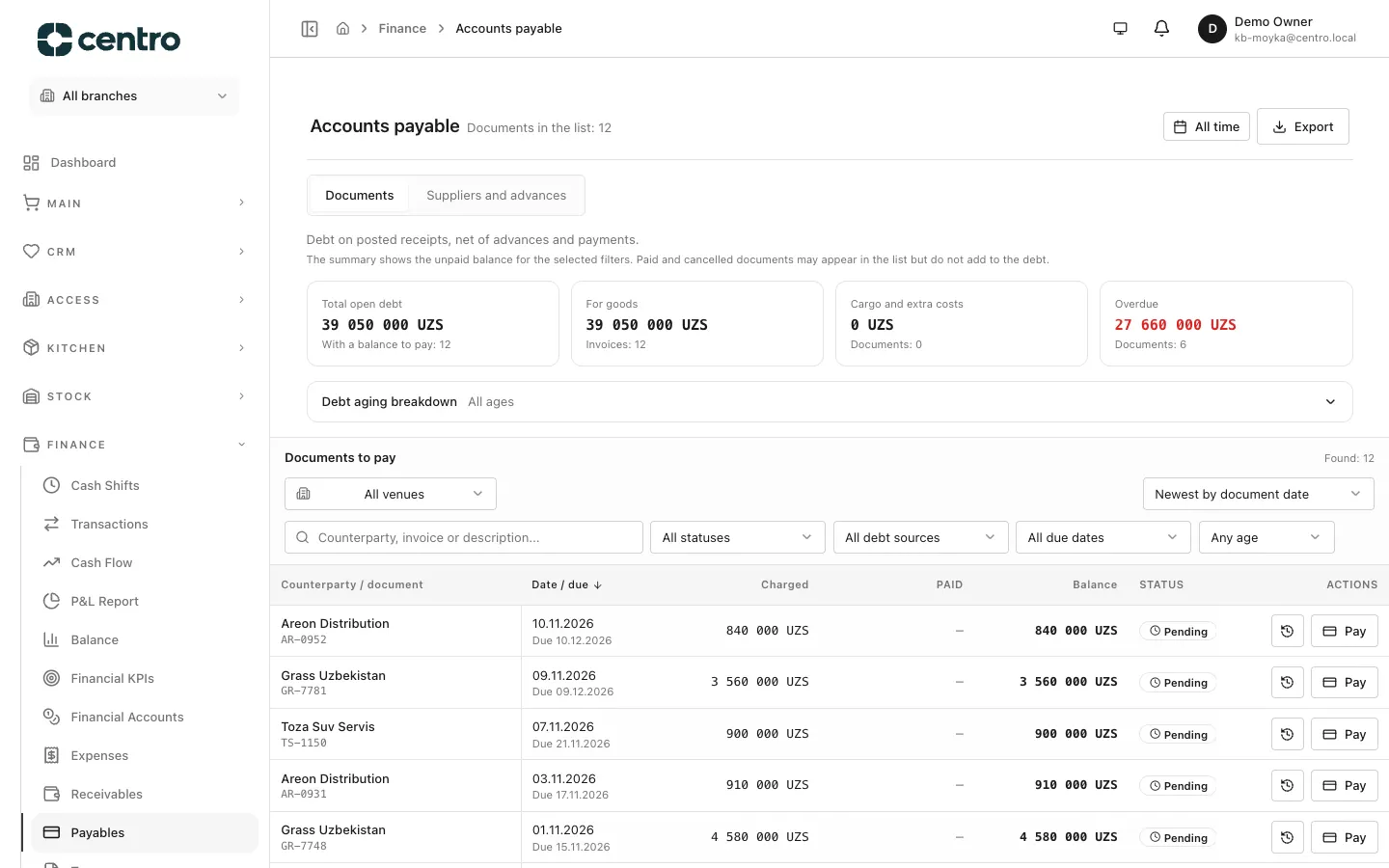
- «Documents» — every receipt or extra cost as its own row: charged, paid, balance, due date and status. Payments are recorded here.
- «Suppliers and advances» — a roll-up per supplier: debt, free advance and prepayments on expected orders.
Tip: The branch selector in the top-left corner (and the «All venues» list above the table) limits the whole page to one branch. The paying account must belong to that branch as well.
Documents: summary, aging and table #
How open debt is calculated, what the aging breakdown shows and what the filters do.
Next to the header you see «Documents in the list: N». The summary adds up only open documents — with a balance above zero and not «Paid» or «Cancelled». Paid and cancelled documents stay in the list (for history) but do not add to the debt. The summary follows the table filters.
Summary cards
- Total open debt
- The sum of balances of all open documents; below it — «With a balance to pay: N».
- For goods
- Balance on goods receipts only, and the number of invoices.
- Cargo and extra costs
- Debt to the carrier, forwarder and other extra-cost recipients — it is not added to the goods supplier’s debt.
- Overdue
- The balance of open documents whose due date is before today, and their count.
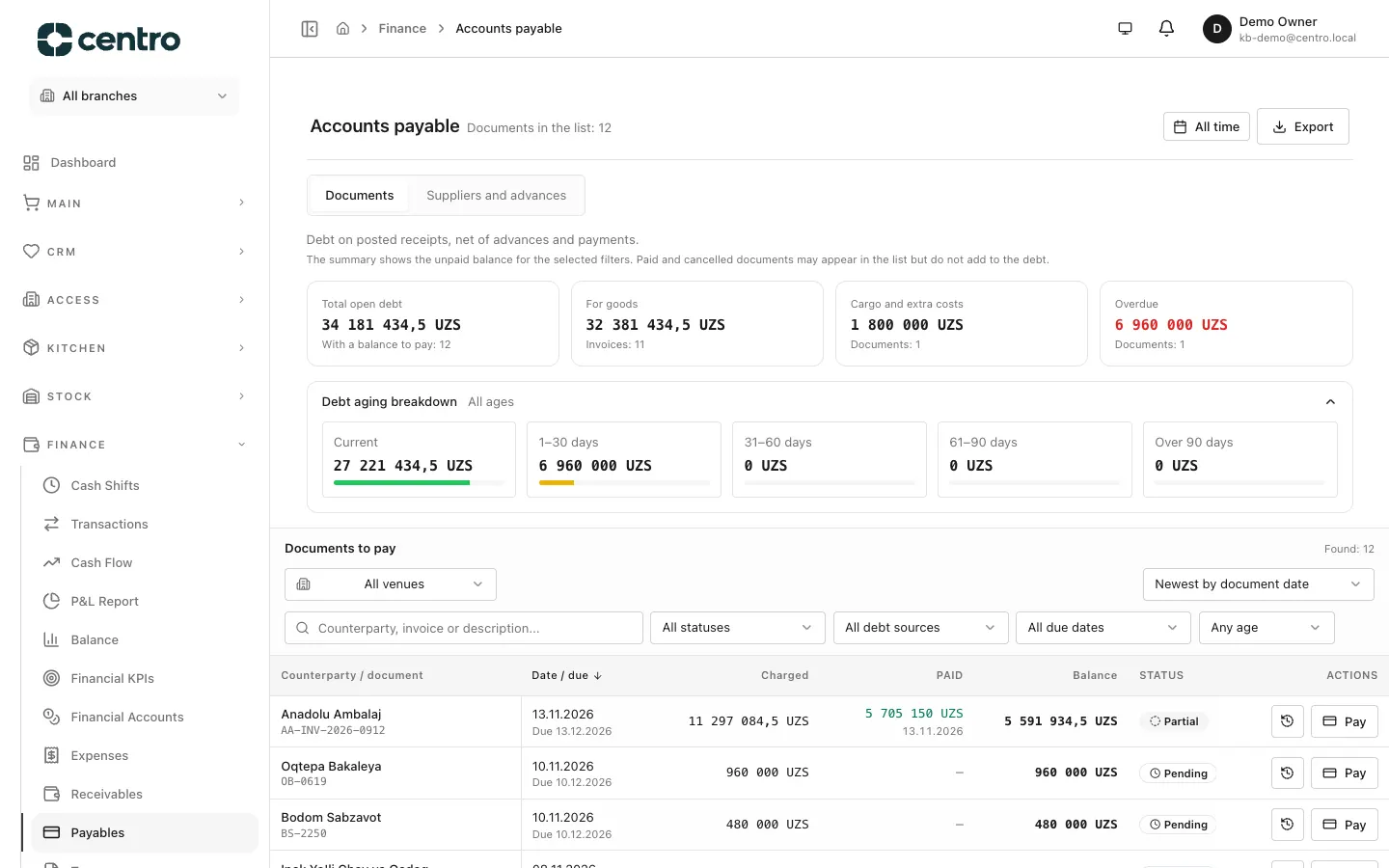
The «Debt aging breakdown» opens on click. Open debt is split into five groups by how many days have passed since the due date: «Current» (not yet due or due today), «1–30 days», «31–60 days», «61–90 days», «Over 90 days». The bar length is the group’s share of all open debt. Clicking a group card keeps only that group’s open documents in the table; clicking again removes the filter.
Filters and order
- All time
- The period next to the header: a filter by document (receipt) date.
- All venues
- Limits documents to the branch whose warehouse received them.
- Counterparty, invoice or description...
- Search by supplier name, its invoice number (for example BS-2208) or description.
- All statuses
- «Pending» — not paid yet, «Partial» — partly paid, «Overdue», «Paid», «Cancelled».
- All debt sources
- «Goods receipts» or «Cargo and extra costs».
- All due dates
- By due date: «Overdue», «This week», «This month», «Next 30 days».
- Any age
- The same filter as the aging groups (picked from a list).
- Newest by document date
- Order: by date, last payment, due date, balance, amount or counterparty name. Clicking column headers sorts too.
Table columns
- Counterparty / document
- Supplier name (click opens the reconciliation statement) and its invoice number. Extra costs are prefixed with «Extra costs ·».
- Date / due
- Receipt date, below it «Due …»; when overdue — a red «N days overdue».
- Charged
- The full document amount.
- Paid
- How much has been paid and the date of the last payment.
- Balance
- Charged minus paid — what is still to be paid.
- Actions
- Clock icon — «Payment and adjustment history»; «Pay» — record a payment (only on an open document and with full access to «Payables»).
Below the table are totals for the filtered documents: «Charged:», «Paid:», «Balance:». The «Export» button downloads the whole filtered set (not just the visible page) to Excel/CSV: counterparty, type, invoice, dates, amounts and status.
Important: «No bills to pay» is not always an error: goods entered through an opening-balance import create no liabilities. «Could not load payables», however, is a connection failure, not an absence of debt — press «Retry».
Recording a payment #
How to record a payment to a supplier: from which account and for how much, partial payment and cancelling a payment.
Pay a document
- In the row, click «Pay».
- The «Invoice payment» dialog shows charged, already paid and «Balance to pay».
- «Payment amount» — the full balance is pre-filled; enter less and you see «Partial payment. Remaining: …». «Full amount» restores the balance.
- Choose the «Paying account» — a cash drawer, card or safe; the list shows each account’s balance.
- Click «Pay». The balance drops, the status becomes «Partial» or «Paid», and the money is taken from the chosen account.
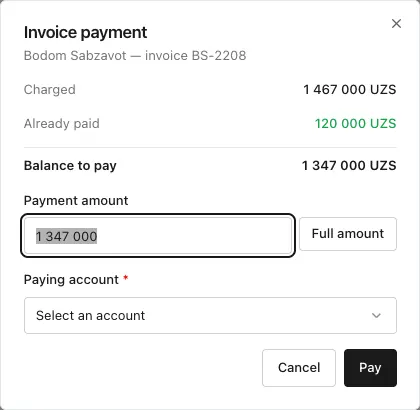
What the dialog checks
- The amount must be above 0 and not above the balance («More than the invoice balance»).
- Only active accounts in the organization currency are listed; if there are none — «No active paying accounts in …».
- If the account lacks money you get a yellow warning «The account has … — the balance will go negative», but the payment is still recorded.
- The backend requires the account to belong to the same branch as the debt, so the branch is shown next to the account name.
Tip: For documents from goods received through a supplier order (they carry currency terms), «Pay» opens a different dialog — «Payable payment»: it takes the amount in the order currency and in the account currency separately, with a rate and a fee. It is the same payment dialog as in «Stock → Supplier orders».
The clock icon («Payment and adjustment history») shows all payments, advance offsets, FX differences and reversals for the document. The history stays available after full payment.
Important: A wrong payment cannot be deleted — cancel it in the reconciliation statement with «Cancel payment». The money returns to the original account, the amount reappears in the debt, and the original payment stays in the history together with a «Payment reversal» line.
Reconciliation statement #
What was charged by the counterparty and how much was paid, with a running balance; printing and cancelling a payment.
Click a supplier name in the table or on the «Suppliers and advances» tab — the «Reconciliation statement — <name>» panel opens on the right. At the top: the period (default «All time»), «Print statement», the «Print receipt lines» switch, «Record payment» (pays the open document with the earliest due date) and «Open counterparty card».
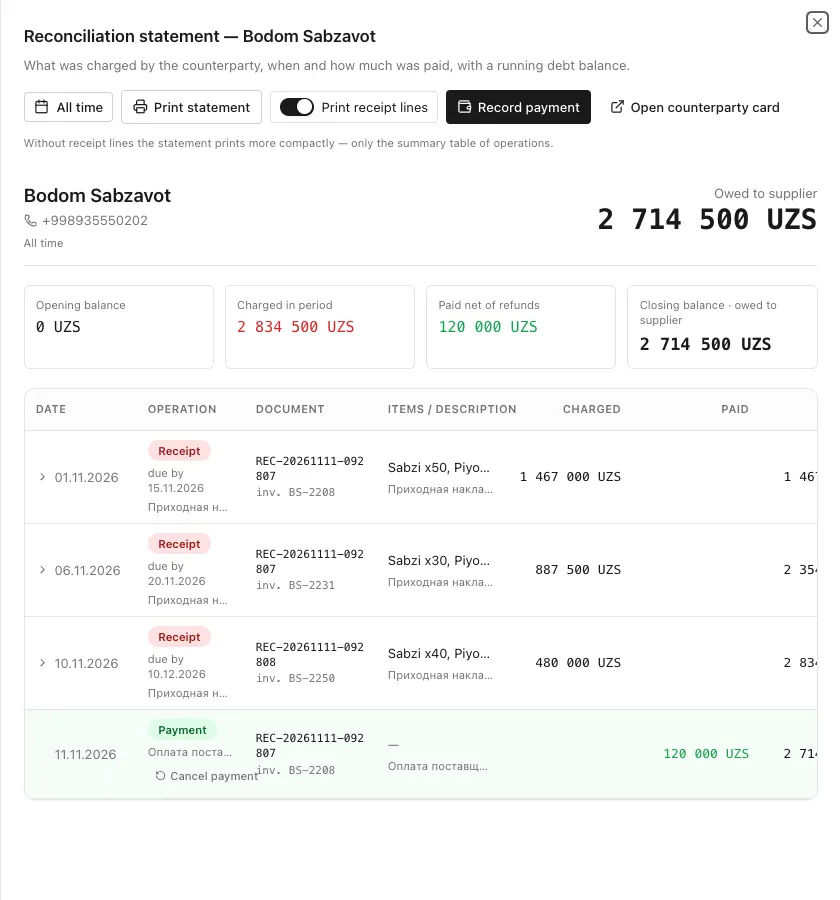
Statement figures
- Opening balance
- The debt at the start of the period (or an advance, marked «· advance»).
- Charged in period
- Receipts, corrections and extra costs within the period.
- Paid net of refunds
- Payments minus cancelled payments and returned advances.
- Closing balance
- Opening + charged − paid. Positive — «Owed to supplier», negative — «Advance with supplier», zero — «Settled».
Each operation in the table has «Date», «Operation» (Receipt, Correction, Payment, Payment reversal, Advance applied, FX difference, etc.), «Document» (our receipt number; click opens the receipt), «Items / description», «Charged», «Paid» and a running «Balance». Clicking a receipt row expands its lines (name, quantity, price, amount).
Tip: «Print statement» prints only the statement itself on A4: organization and counterparty details, period, summary, operations and signature places for both parties. With long invoices, switch off «Print receipt lines» to get a compact statement.
Suppliers and advances #
Debt, free advance and prepayments on expected orders per supplier.
«Supplier debt and advances» shows current balances across all dates (no period filter). Advances and debt are shown separately: an advance does not close a debt by itself; offsetting is done in the supplier’s settlements. Summary amounts are in the accounting currency, orders in their original currency.
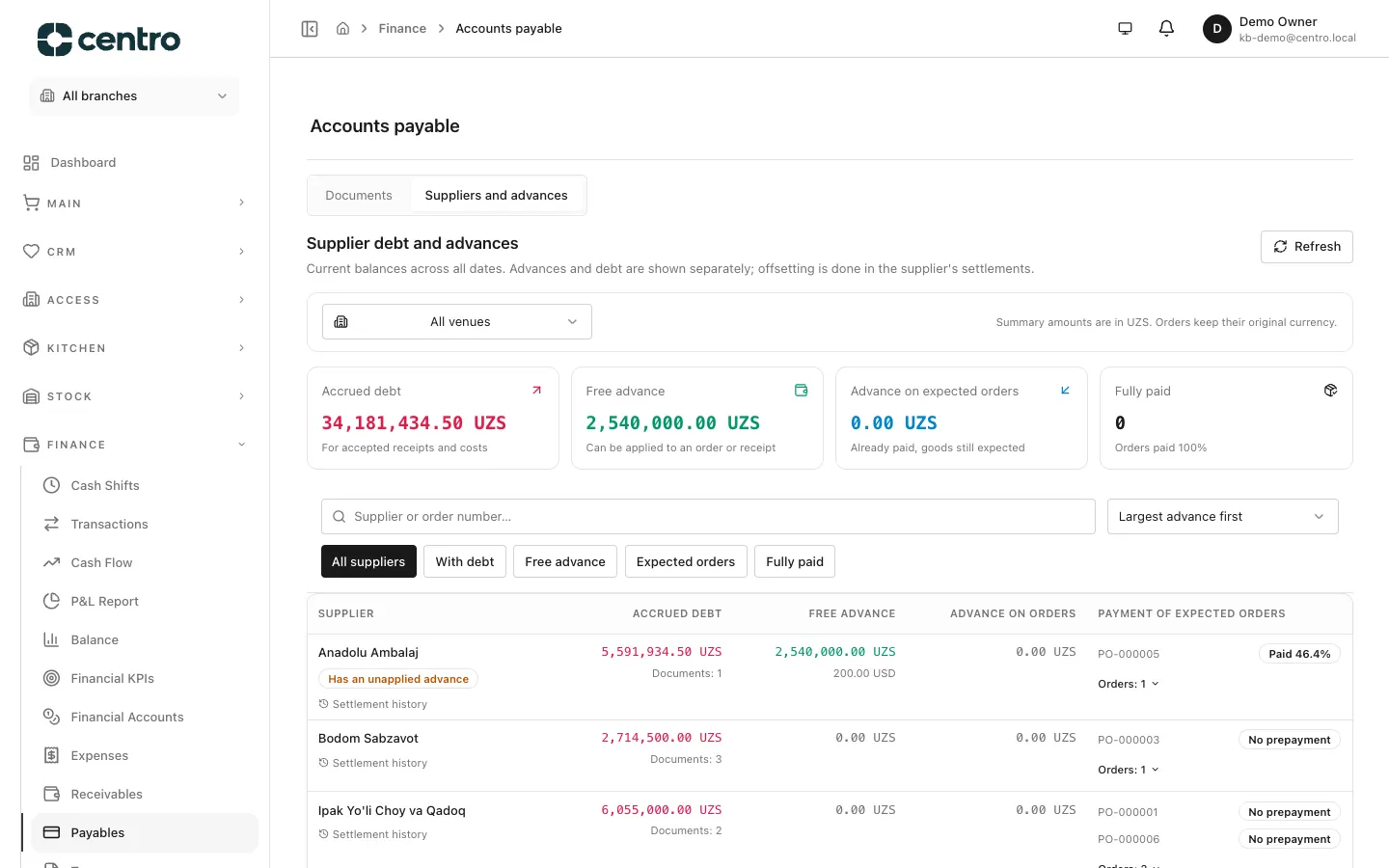
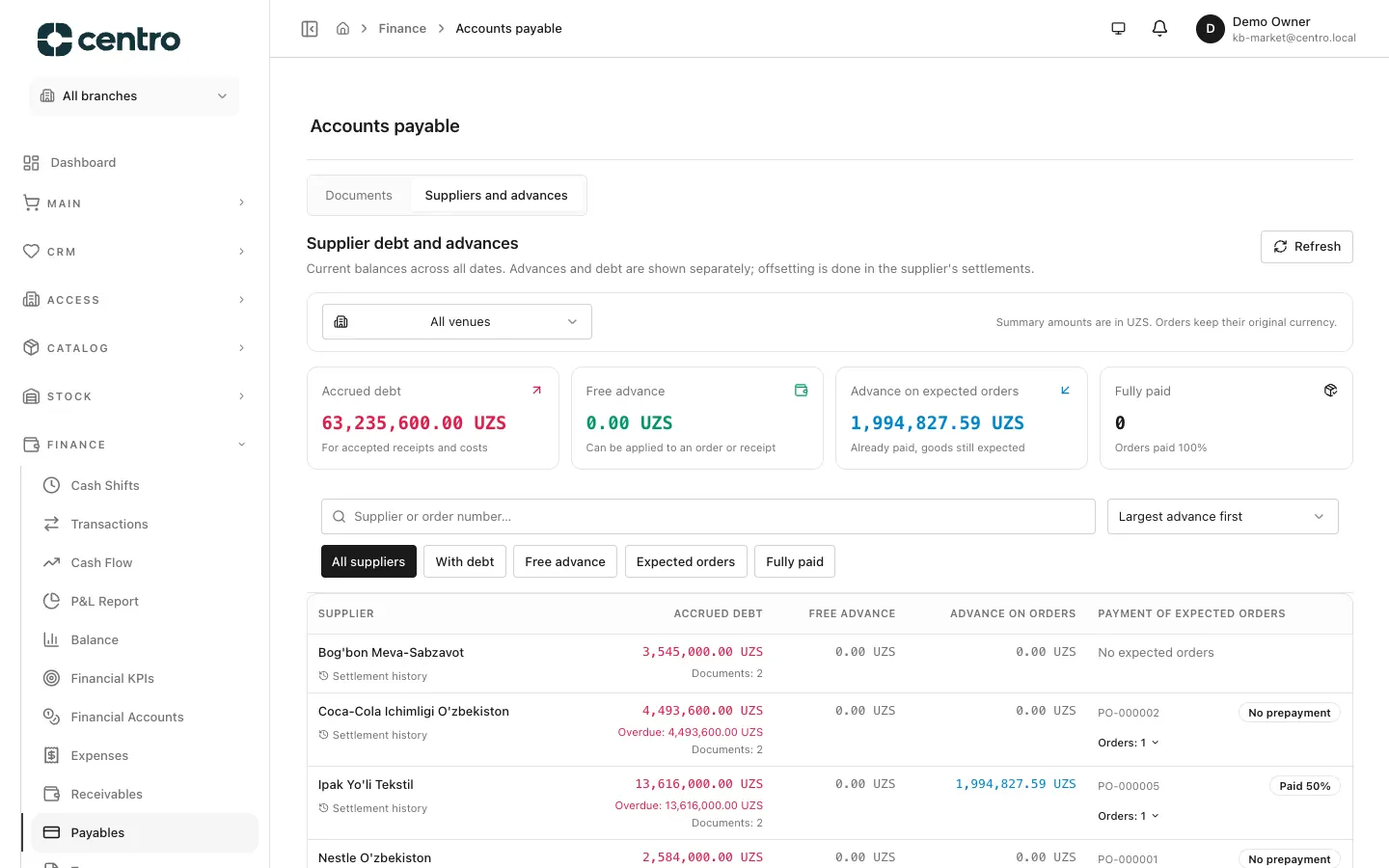
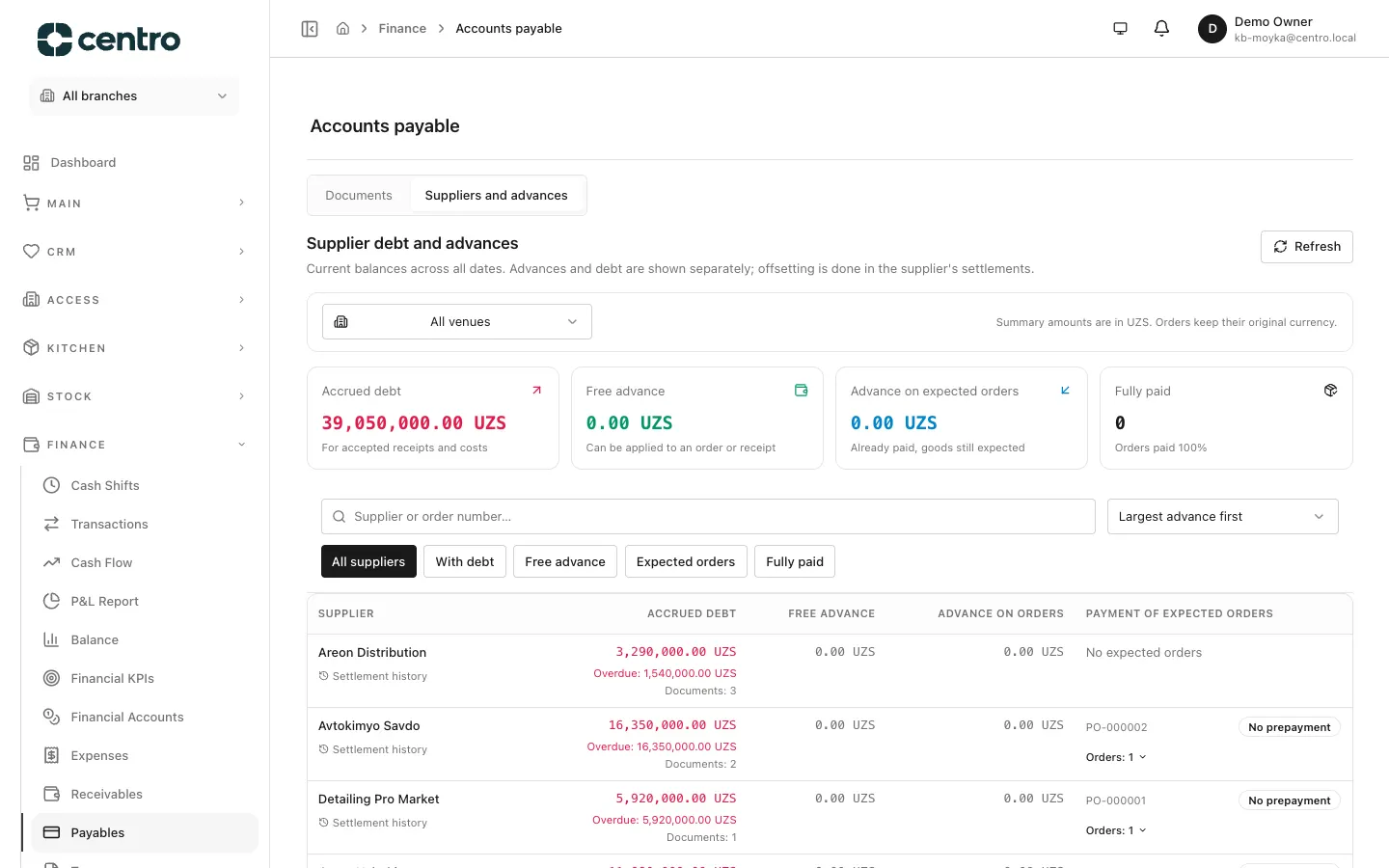
Cards (click to filter)
- Accrued debt
- The unpaid amount for accepted receipts and costs.
- Free advance
- Money given to the supplier and not yet applied to any order or receipt.
- Advance on expected orders
- Prepayment on orders whose goods have not arrived yet.
- Fully paid
- The number of orders paid 100%.
The table has «Supplier» (name and «Settlement history» open the reconciliation statement; a debt with a free advance shows «Has an unapplied advance»), «Accrued debt» (with the overdue part and the number of documents), «Free advance», «Advance on orders» and «Payment of expected orders» (each order’s payment percent; «Orders: N» expands total, paid and remaining).
Tip: Applying a free advance to a debt or giving a supplier an advance without an order is done on the supplier card («Stock → Suppliers & carriers») — this tab only displays.