Balance sheet
Assets, liabilities and equity of the organization: the ledger (opening balances, adjustments, reversals) and operational balances in the system.
Open in the admin panel/finance/balance-sheet The page has two views. «Opening balances and ledger» — accounting entries you confirmed: the balance there always follows debit = credit. «Balances in the system» — current amounts collected automatically from registers, stock and settlements; a source for reconciliation.
How to open the page
- In the left menu open Finance.
- Click Balance.
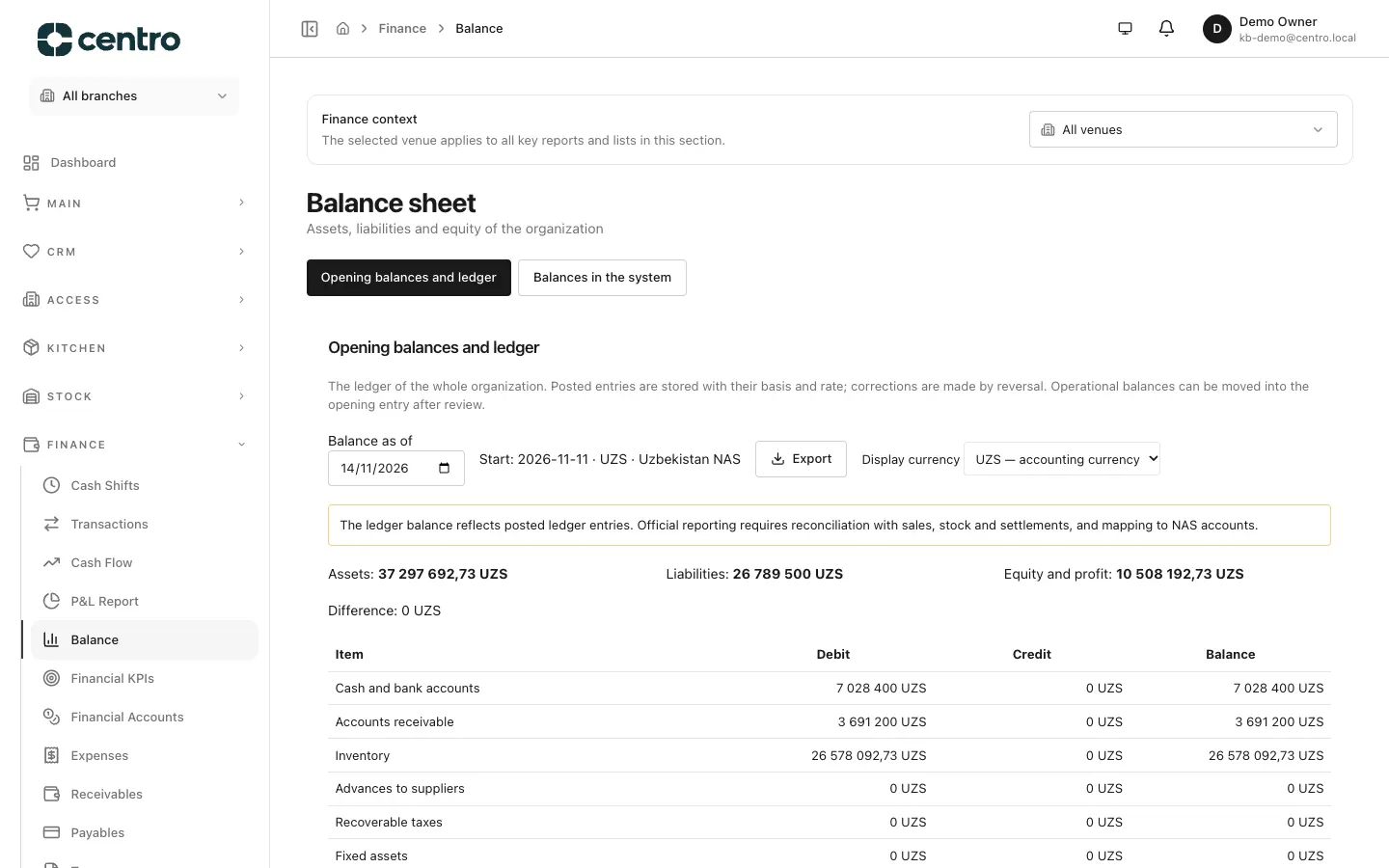
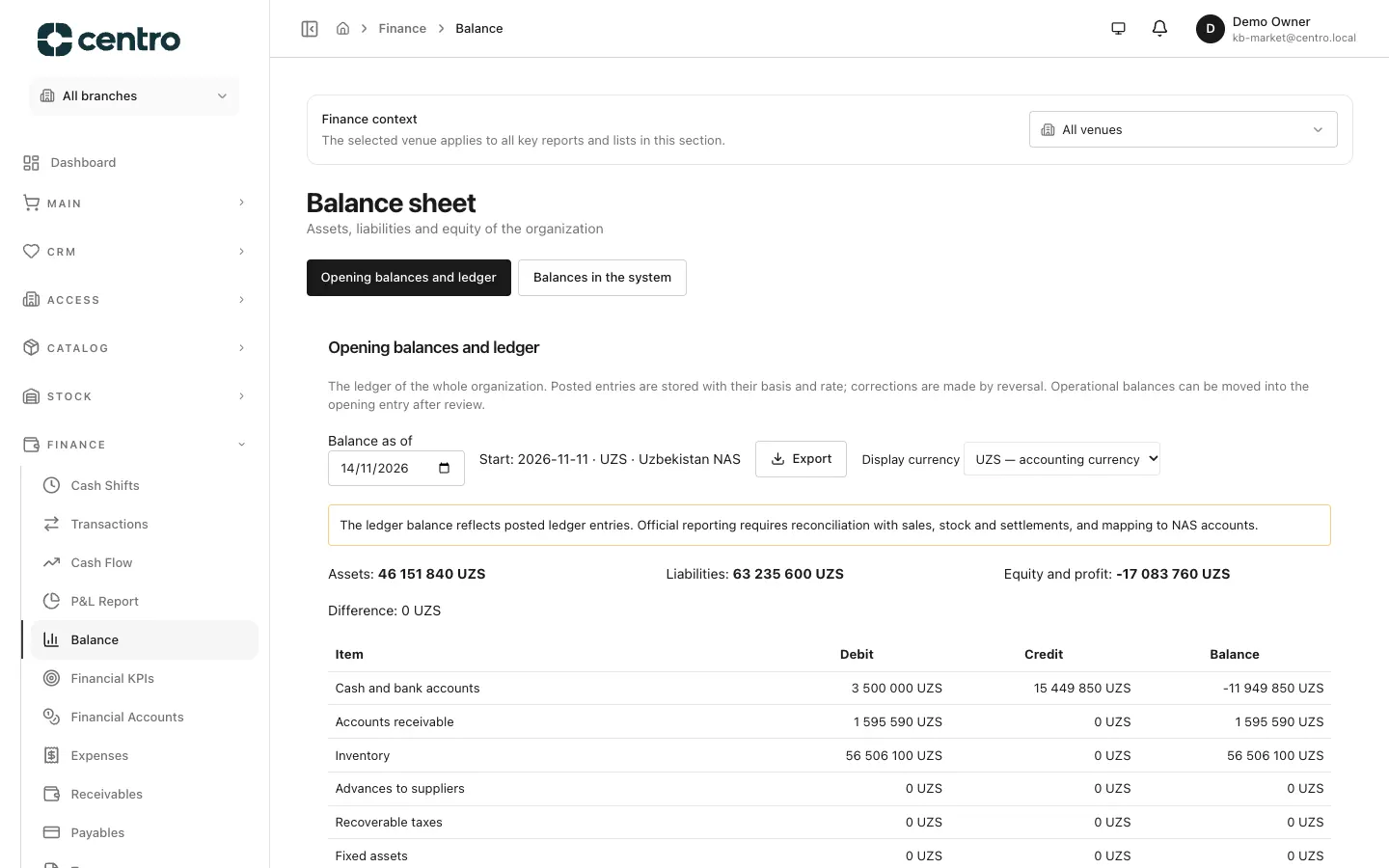
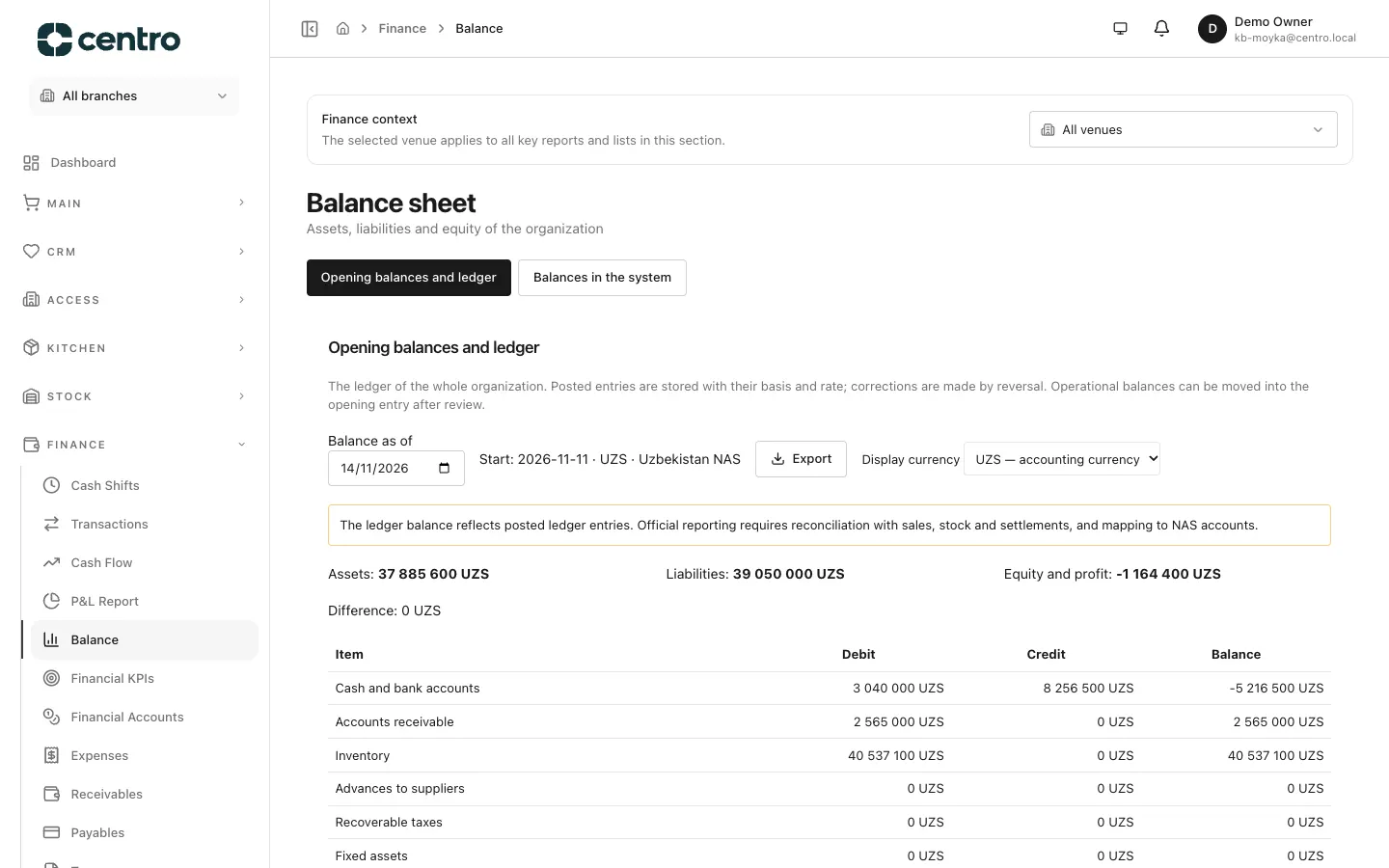
Important: The ledger is kept for the whole organization. With a venue selected you will see «Select the whole organization to work with the ledger.» — choose «All venues».
Starting accounting #
First run: the accounting start date and currency.
- In «Opening balances and ledger» set the «Accounting start date» (today by default).
- «Accounting currency» is the organization currency; it cannot be changed here.
- Click «Start accounting». The balance date, the standard (Uzbekistan NAS) and an empty chart of accounts appear.
Tip: «Fill in current balances» only works when the start date is today. If you start from a past date, enter the confirmed balances manually.
Reading the balance #
Assets, liabilities, equity and the difference; the items table.
- «Balance as of»
- Entries posted up to this date are included (you cannot pick a date before the start).
- «Assets:»
- The balance of asset items: debit − credit.
- «Liabilities:»
- Liability items: credit − debit.
- «Equity and profit:»
- Equity items + (period income − period expenses).
- «Difference:»
- Assets − Liabilities − Equity. In a correctly kept ledger it is 0.
The table shows «Debit», «Credit» and «Balance» for each item. The note in the yellow frame: the ledger balance reflects posted entries only; official reporting needs reconciliation with sales, stock and settlements and mapping to NAS accounts. «Export» produces a «Ledger balance» sheet.
Display currency #
Viewing the report in another currency: where the rate comes from and how to set it.
The «Display currency» list contains the organization’s accounting currency (marked «— accounting currency») plus UZS, USD, EUR, RUB, KZT, GBP and CNY. When another currency is chosen, amounts are converted for display only at the rate saved for the report date (or the latest one before it) — the original accounting amounts do not change.

Setting the rate manually
- Pick the currency in «Display currency».
- If it says «No rate for … or earlier», click «Set rate».
- Enter the rate in the «1 UZS = …» field and click «Save for the organization».
Important: A saved rate is stored for that date for the whole organization and is reused by other reports. The button is visible only to users who may edit the chart of accounts.
New entry and reversal #
Entering opening balances and adjustments, fixing a mistake with a reversal.
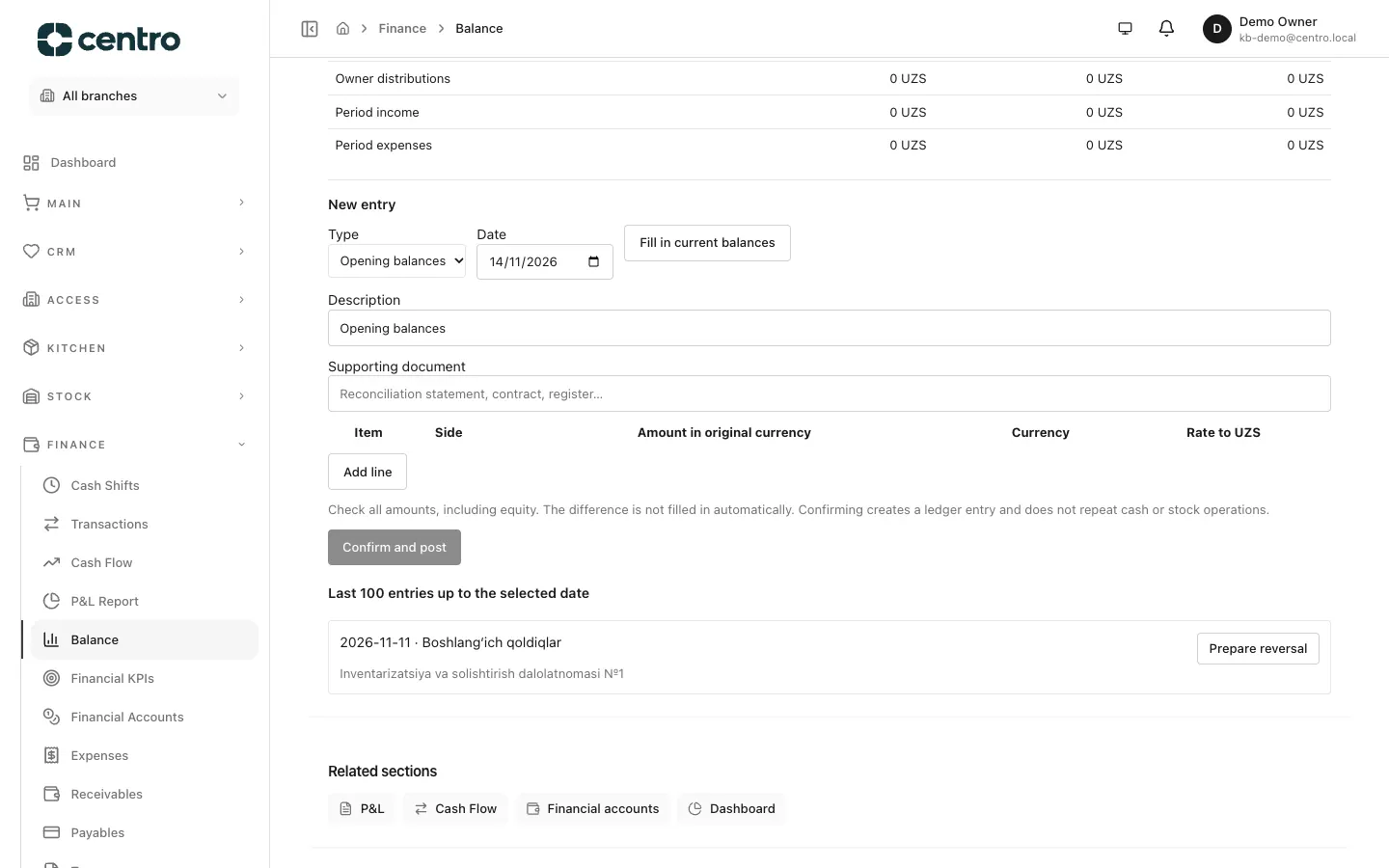
How to post an entry
- «Type»: «Opening balances» or «Adjustment». The «Date» cannot be before the start.
- For opening balances click «Fill in current balances» — the system fills cash, inventory, receivable and payable lines. Check them and add a capital line.
- Fill in «Description» and «Supporting document» (e.g. a reconciliation statement) — both are required. «Description» is prefilled with the kind in the interface language («Opening balances», «Adjustment», «Reversal: …» for a reversal) — change it if needed.
- Add lines with «Add line»: item, «Side» (Debit/Credit), «Amount in original currency» (up to 2 decimals), «Currency» and «Rate to …» (up to 10 decimals).
- Click «Confirm and post». At least two lines are needed and debit must equal credit.
Important: The difference is not filled in automatically and a posted entry cannot be edited. If there is a mistake, click «Prepare reversal» in «Last 100 entries…»: the form is filled with the lines on the opposite side (they cannot be changed); enter the supporting document and post. An entry never repeats cash or stock operations.
Tip: The entry form and reversals are visible only to users allowed to edit the chart of accounts.
Balances in the system #
Operational assets and liabilities collected automatically from registers, stock and settlements.
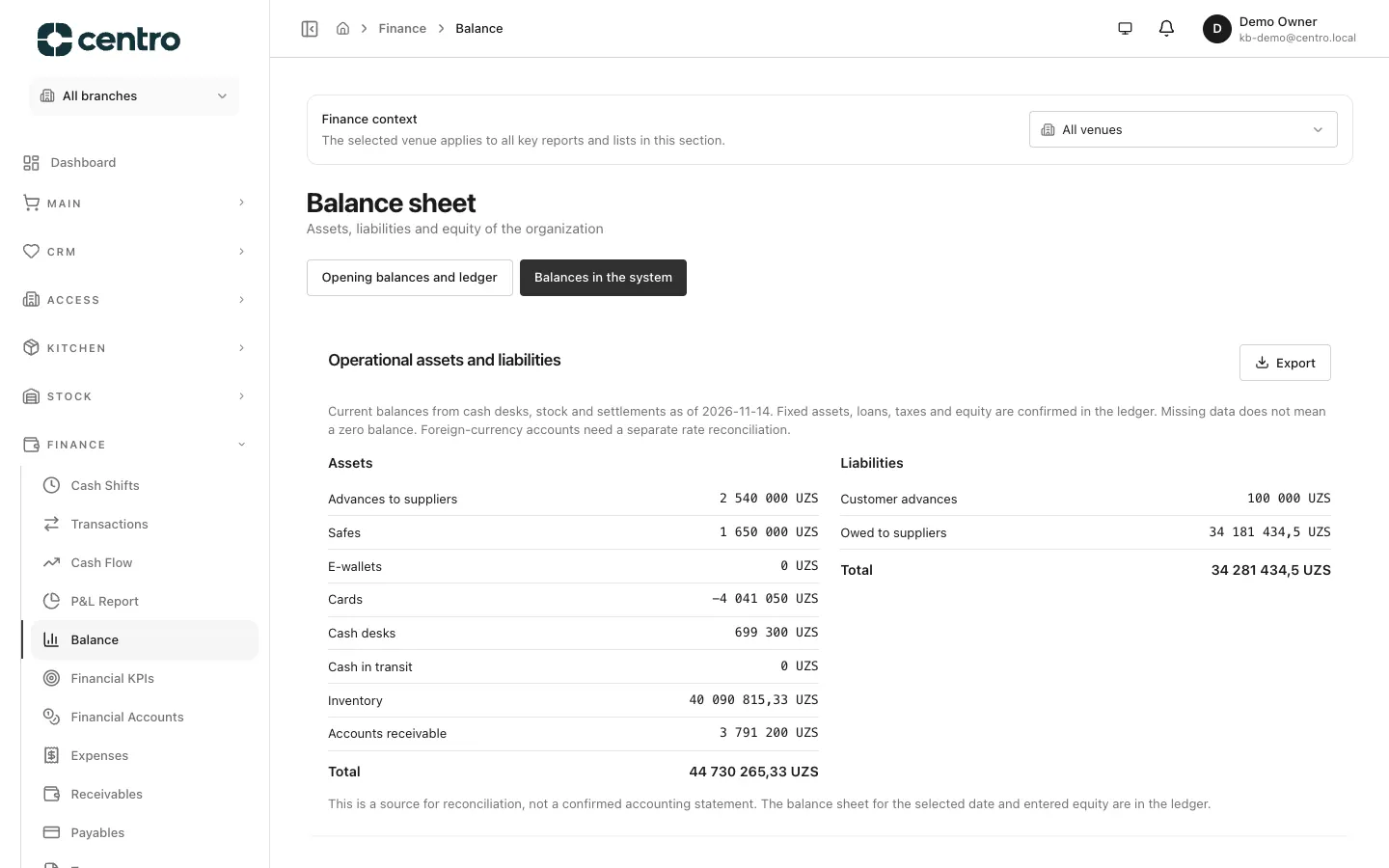
- «Assets»
- «Cash desks», «Safes», «Bank accounts», «Cards», «E-wallets», «Cash in transit» (by financial account type), «Inventory» (stock value), «Accounts receivable», «Advances to suppliers», «Recoverable purchase tax».
- «Liabilities»
- «Owed to suppliers» and «Customer advances» (deposits).
Tip: This view also works for a selected venue. Fixed assets, loans, taxes and equity are not here — they are confirmed in the ledger. Missing data does not mean a zero balance. «Fill in current balances» in the ledger takes exactly these amounts.