Finance overview
One page with the current month at a glance: revenue, expenses, profit, cash flow, open shifts, what needs attention, Prime Cost and debts.
Open in the admin panel/finance The Finance page is a short summary of the whole section: the key figures from the 1st of the month to today and links to the detailed pages. Nothing is edited here — every card opens its own report.
How to open the page
- This page has no item of its own in the sidebar. Open any finance page (for example Finance → Cash Shifts) and click Finance in the breadcrumb trail at the top (after the house icon).
- Or at the bottom of the P&L Report, Financial KPIs and Balance pages click Dashboard in the «Related sections» card.
- Or in Apps → All apps click the «Finance» module card.
Top of the page
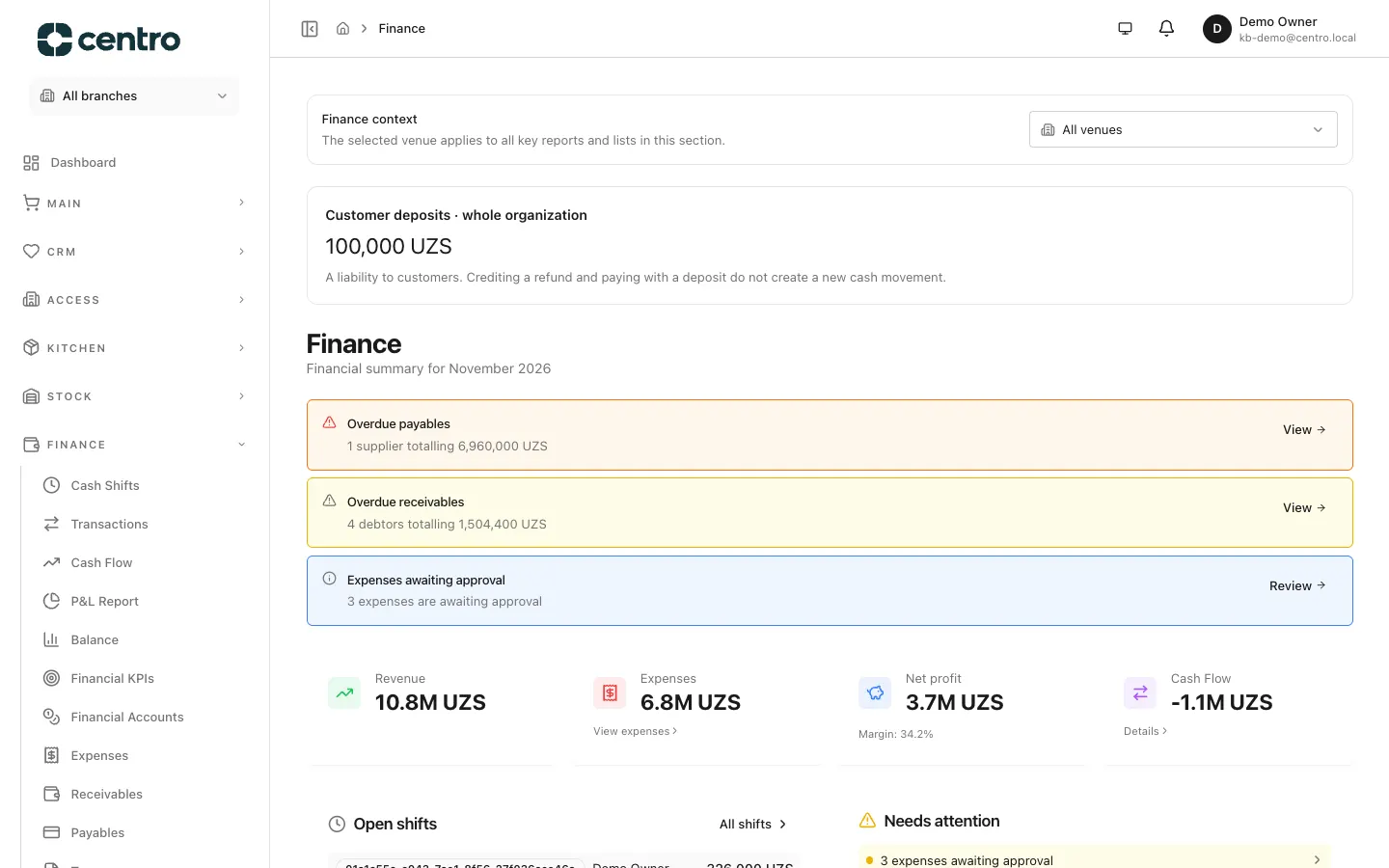
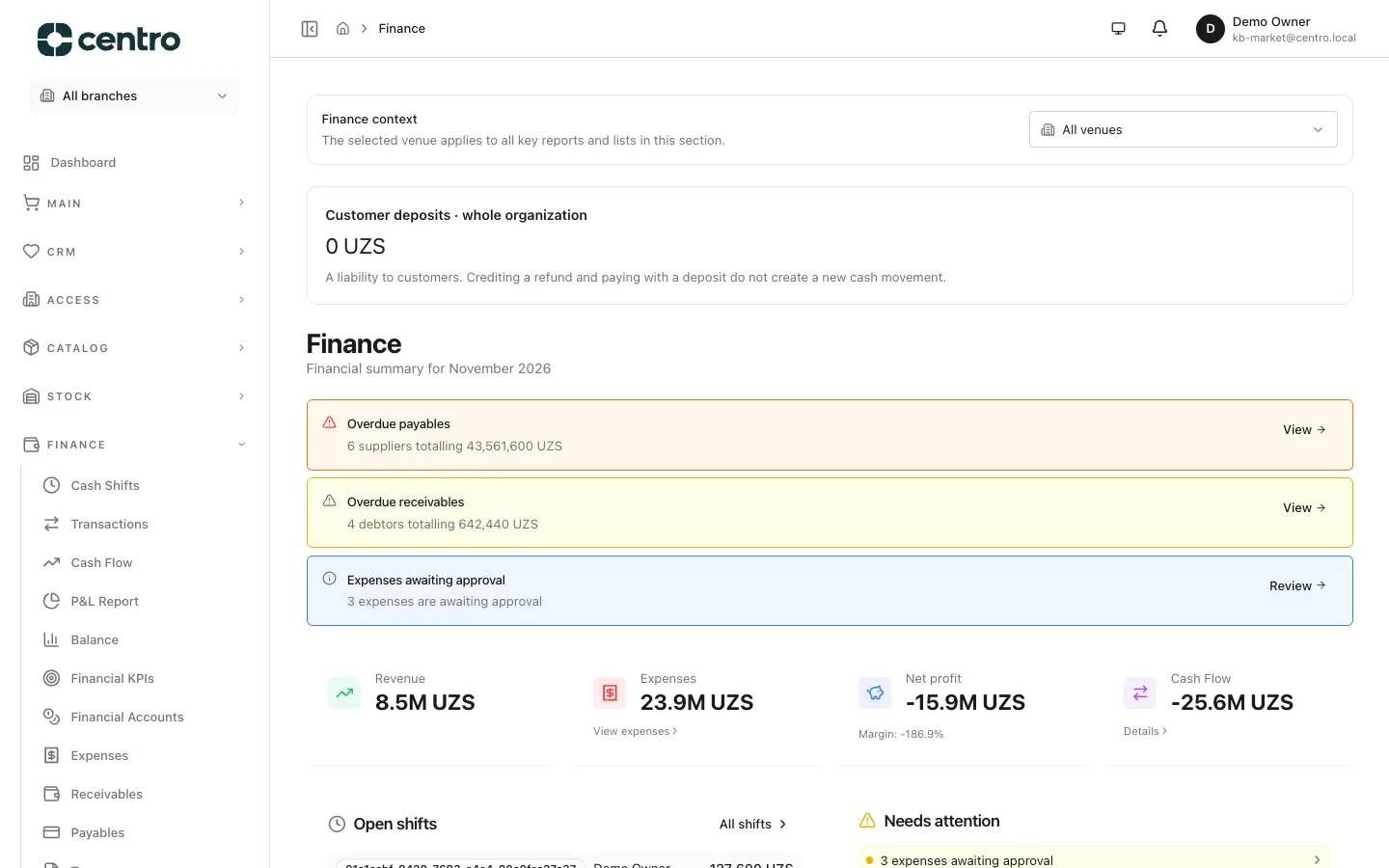
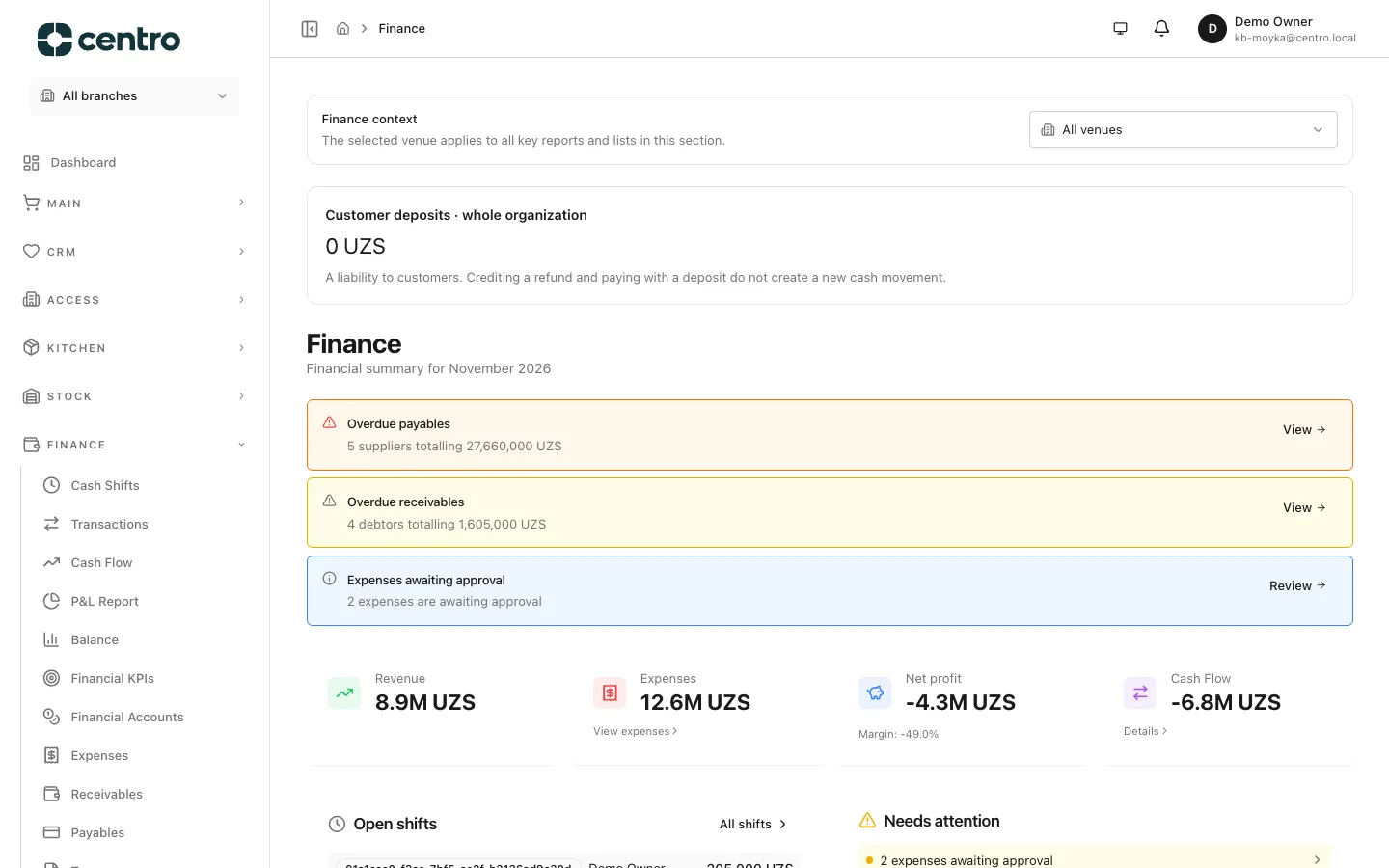
- «Finance context»
- «All venues» is the whole organization, a specific venue shows only its figures. The choice is remembered for the whole Finance section.
- «Customer deposits · whole organization»
- The money held on customer deposits — the organization’s liability to customers. It does not depend on the venue choice.
The four month cards
- «Revenue»
- Net sales (after discounts and bonuses) — the same as in the P&L report.
- «Expenses»
- Cost of goods plus operating expenses. «View expenses» opens Finance → Transactions.
- «Net profit»
- Net profit from the P&L; below it «Margin: …%» — net profit as a share of revenue. A loss is shown with a minus sign.
- «Cash Flow»
- Money that came in during the month minus money that went out. «Details» opens Finance → Cash Flow.
Tip: The period cannot be changed here: it is always the current month from the 1st to today. Amounts are compact (K = thousands, M = millions). For exact figures and another period open the report itself from the card’s link.
Tip: The page is available together with the Finance group (see «How to turn the section on»). Every card loads its own data: if the position has no access to the matching section (P&L, shifts, payables…), that card stays empty or shows «Failed to load».
Alerts and open shifts #
The banners at the top, the «Needs attention» card and «Open shifts» — what they mean and where they lead.
Up to 5 coloured banners appear under the page title. They are calculated from the same data as the rest of the page: unapproved expenses, overdue debts and (if there are budgets) budget execution. When everything is fine there are no banners.
Banners
- «Overdue payables»
- How many suppliers have overdue payments and for what amount. «View» opens Finance → Payables.
- «Overdue receivables»
- How many debtor customers are overdue and for what amount. «View» opens Finance → Receivables.
- «Expenses awaiting approval»
- How many expenses are not approved yet (any date). «Review» opens Finance → Transactions.
- «Budget exceeded» / «Warning: budget»
- An approved budget is more than 100% (or 90%) used. Budgets cannot be created in the panel yet, so these banners do not appear.



The «Needs attention» card
- «… expenses awaiting approval»
- Clicking the row opens Finance → Transactions; pick the unapproved ones there with the status filter.
- «Overdue payables: …»
- The total of all supplier debts overdue by 1 day or more (compact: K = thousands, M = millions). Click to open Finance → Payables.
- «Overdue receivables: …»
- The same for overdue customer debts; opens Receivables.
The card shows up to 4 rows. If there is nothing — «All good!». A red dot is an overdue debt, a yellow one is expenses waiting for approval.
The «Open shifts» card
- Row
- Up to 3 cash shifts that are open right now: the register identifier (badge), the cashier and net sales since the shift opened.
- «All shifts»
- Opens Finance → Cash Shifts, where shifts are opened, closed and reconciled.
Tip: If a venue is selected in «Finance context», the banners, the card and the shifts are calculated for that venue only.
Budgets, Prime Cost and debts #
The lower part of the page: «Budget execution», «Prime Cost», «Debts» and the «Quick access» tiles.
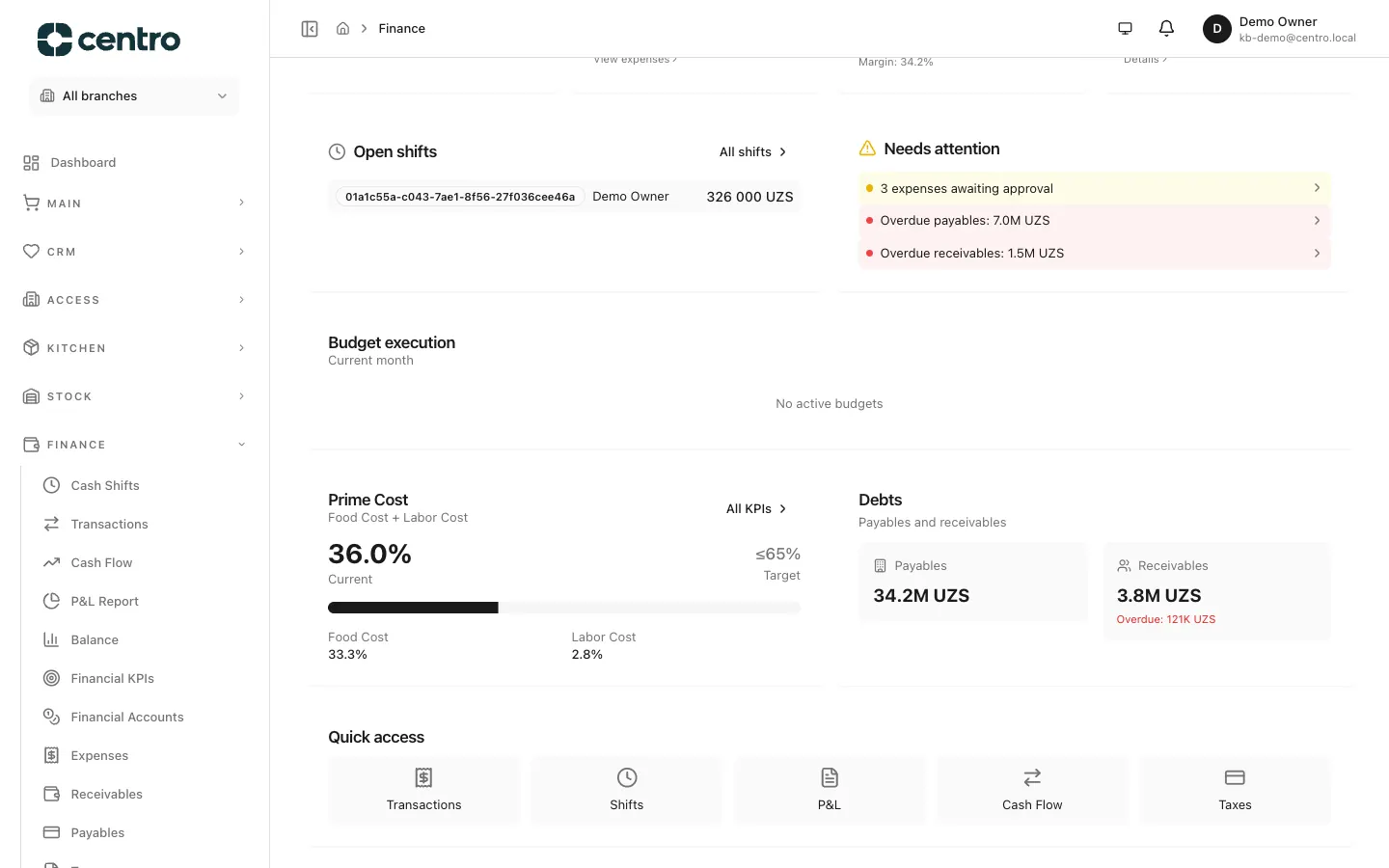
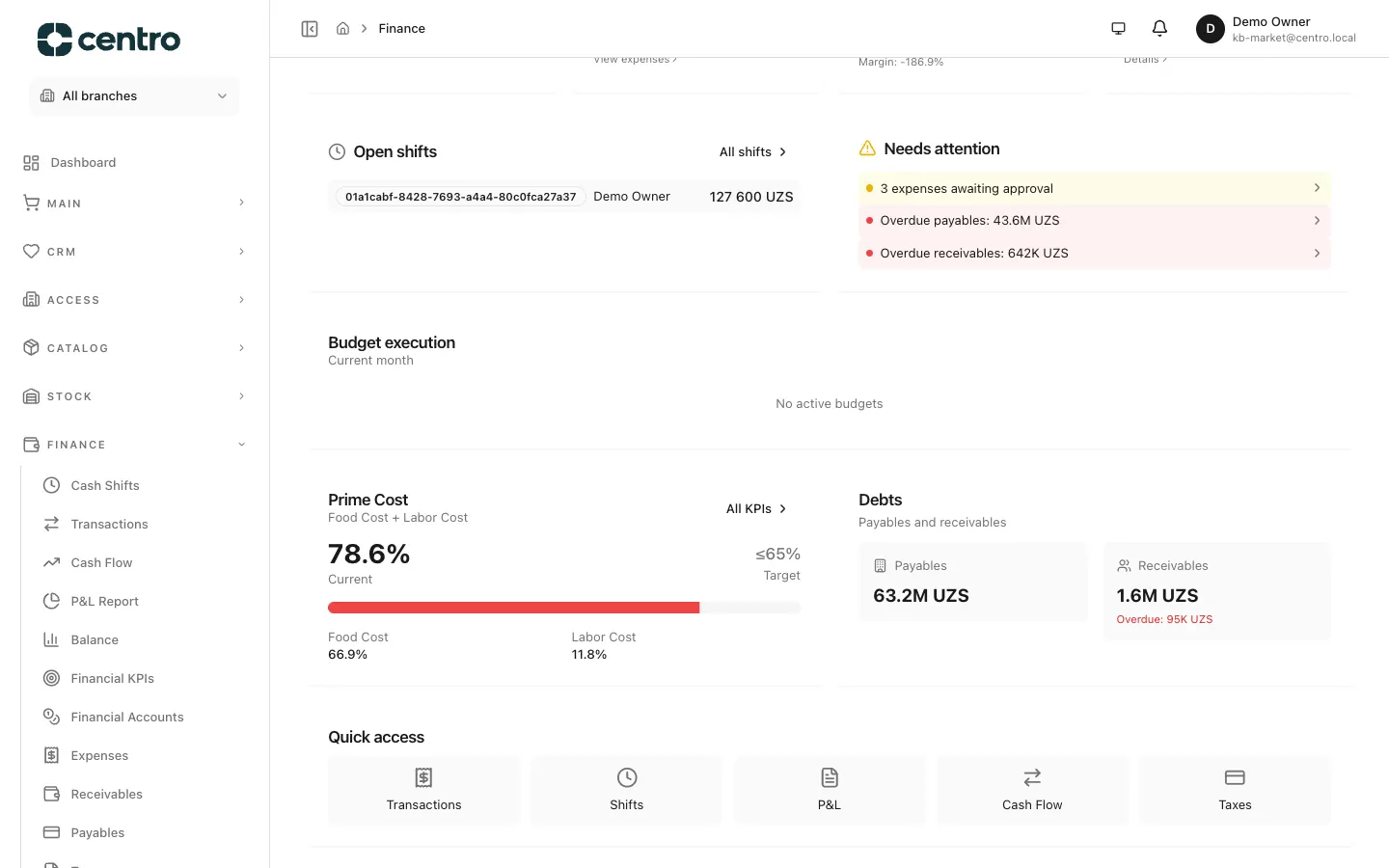
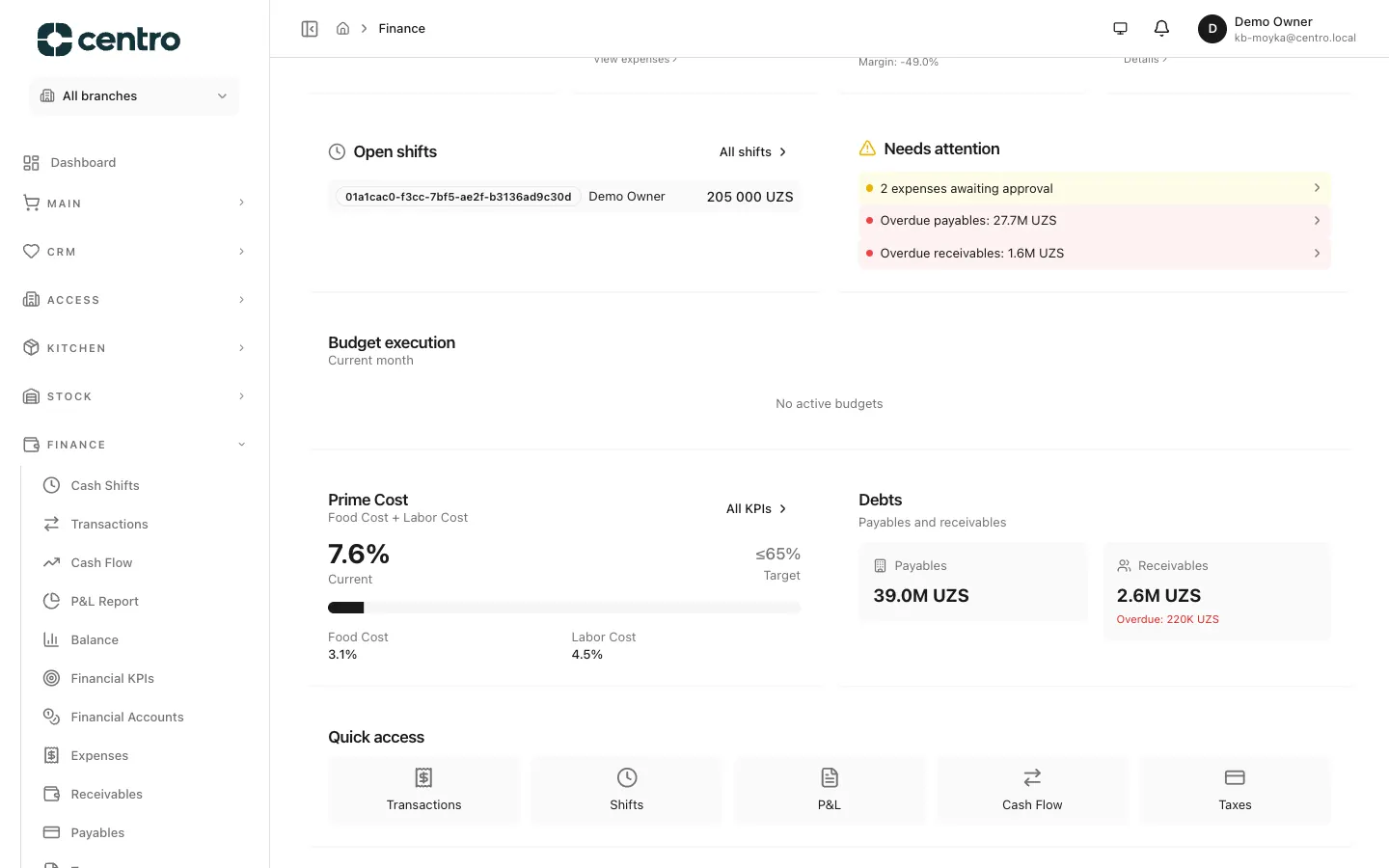
- «Budget execution»
- The place for budget planning: a percentage, «Actual» and «Plan» per budget. Budget planning is still being developed — budgets cannot be created in the panel, so the card shows «No active budgets».
- «Prime Cost»
- «Food Cost» (cost of goods) plus «Labor Cost» (staff costs) as a percentage of revenue for the current month. «Current» is the value now, «Target» is ≤65%. Above 65% the bar turns red. «All KPIs» opens Finance → Financial KPIs.
- «Payables»
- All open debts to suppliers. The red «Overdue: …» line is only the part overdue by more than 90 days. Click to open Finance → Payables.
- «Receivables»
- All open customer debts; the red line is the part overdue by more than 90 days. Click to open Finance → Receivables.
- «Quick access»
- Five tiles — «Transactions», «Shifts», «P&L», «Cash Flow» and «Taxes» — open the matching pages.
Tip: Prime Cost has a single threshold here — 65%. The «Prime cost analysis» card in the P&L report uses its own scale (≤ 60% green, 60–70% yellow), so the colours may differ.
Tip: In a store «Food Cost» is the stock cost of the goods sold (each unit at the cost of its batch). The names are the same for every business type.
Tip: For a car wash «Food Cost» is the cost of chemistry and consumables written off by service tech cards and of goods sold at the till. «Labor Cost» includes expenses of salary categories.