Finance alerts
Cash gaps, overdue debts and budget overruns — checked automatically against your thresholds.
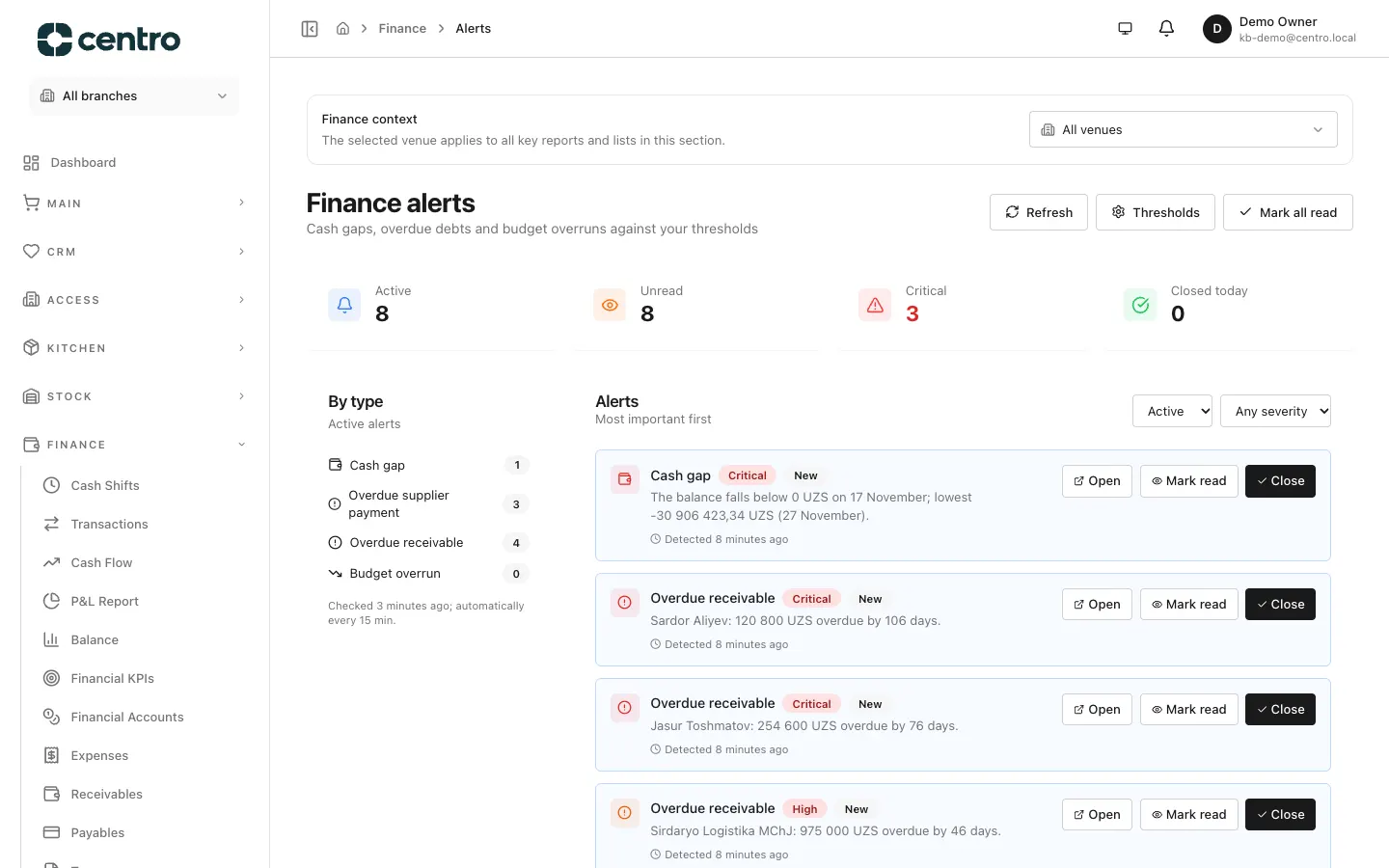
Open in the admin panel/finance/alerts Centro checks your finances against your thresholds and creates an alert when it finds a problem. The check runs when the page is opened (at most once a minute) and in the background every 15 minutes; background checks start after the organization first opened the page or saved thresholds. The time of the last check is on the «By type» card: «Checked …; automatically every 15 min.»
How to open
- In the sidebar, expand the Finance group.
- Click Alerts.
Cards
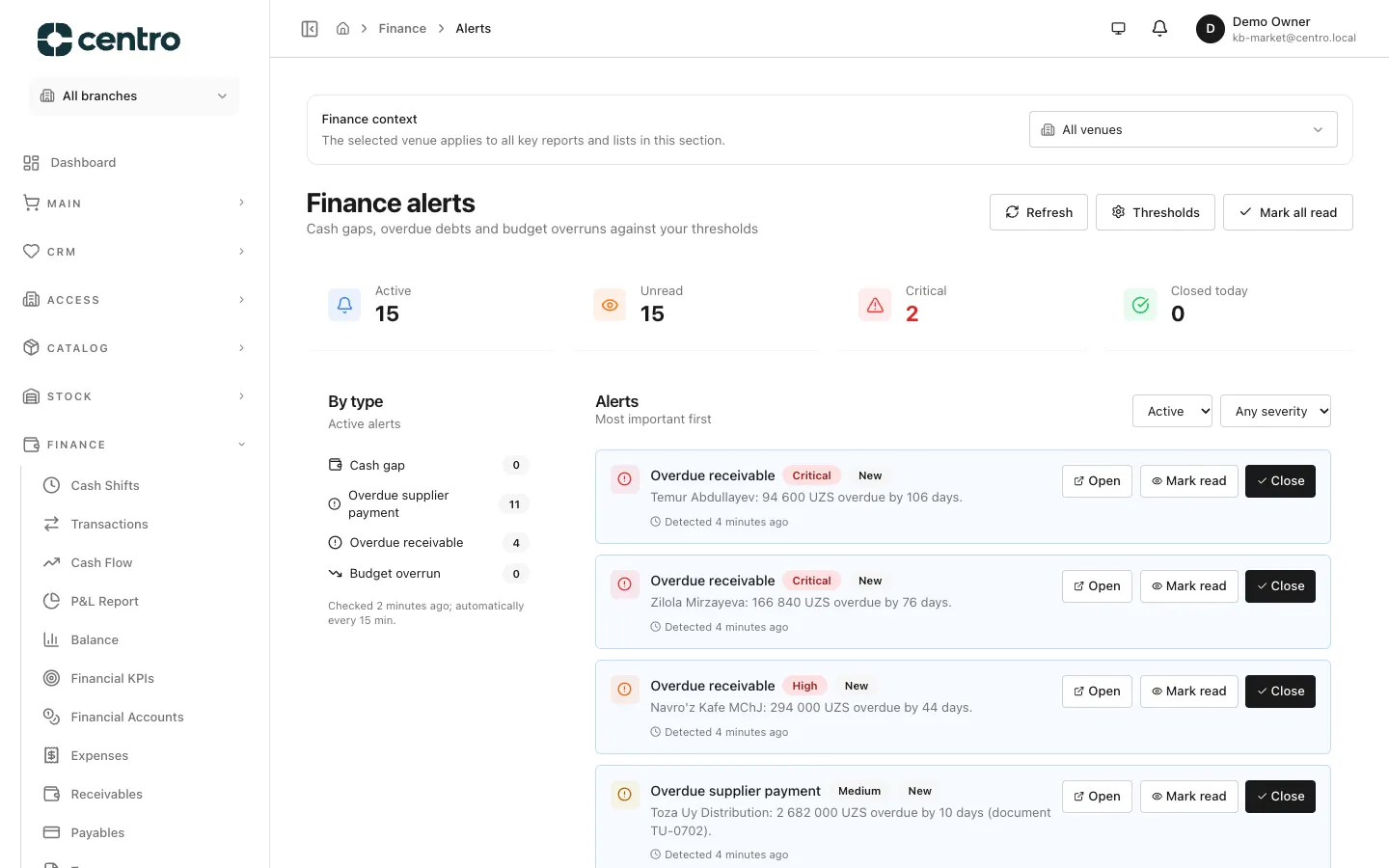
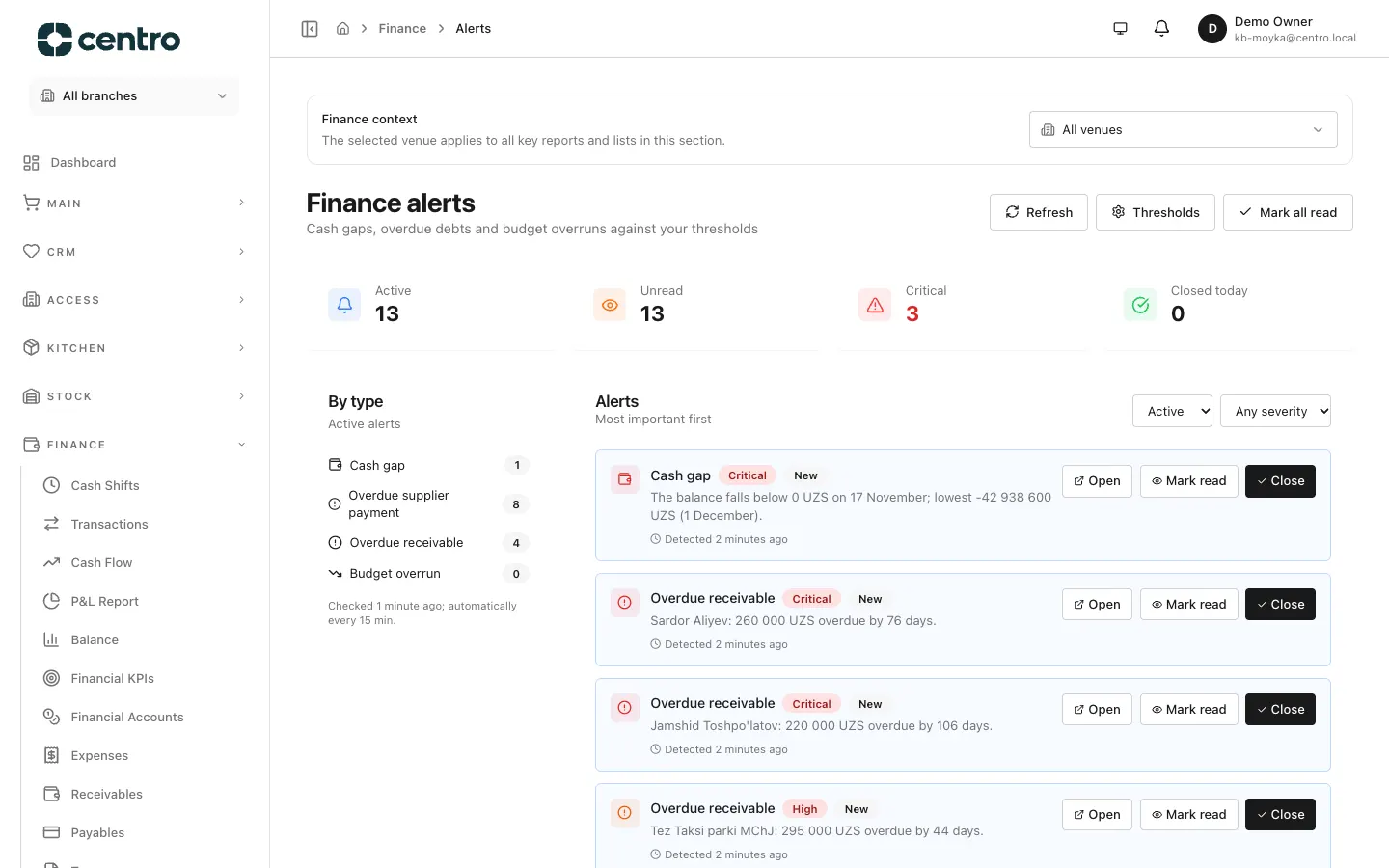
- «Active»
- How many alerts are not closed right now.
- «Unread»
- Those nobody has marked as read yet.
- «Critical»
- Active alerts of the highest severity.
- «Closed today»
- Closed by hand or resolved by themselves today.
The alert list
- Filters
- Status: «Active» (default), «Closed», «All»; severity: «Any severity», «Critical», «High», «Medium», «Low».
- An alert row
- Type, severity badge, «New» when unread, the detail text and «Detected …». Unread alerts have a blue background.
- «Open»
- Goes to the page with the problem (Forecasting, Payables or Receivables).
- «Mark read» / «Mark all read»
- Removes the «New» mark from one or all alerts.
- «Close»
- Closes the alert by hand («Closed»).
Tip: An alert closed by hand does not reopen while its condition lasts; a new case (a new cash gap, another overdue document, a customer who paid and fell overdue again) creates a new alert. When the problem goes away (for example, the debt is paid) the alert closes by itself as «Resolved», and reopens if the problem comes back.
Important: Viewing needs view access to the «Financial KPIs» section; «Mark read», «Close» and «Mark all read» appear only with full access. An employee assigned to venues sees only their venues’ alerts (an organization-wide cash gap is not shown to them).
Tip: The «Finance context» block at the top of the page is shared by the whole Finance section: «All venues» means the whole organization, a specific venue means only its data.
Alert types and severity #
Cash gap, overdue payables and receivables, budget overrun — when they are created, how severity is set and where «Open» leads.
- «Cash gap»
- The projected balance falls below «Minimum balance» within the set number of days. Text: when it falls and the lowest amount. Severity: «Critical» — the balance goes negative and the threshold is crossed within 7 days; «High» — one of the two; otherwise «Medium». «Open» leads to Forecasting.
- «Overdue supplier payment»
- A separate alert for every unpaid supplier document: counterparty, amount, days overdue and document number. «Open» leads to Payables.
- «Overdue receivable»
- One per customer debt; an aggregator’s overdue orders are grouped into one alert per aggregator and venue. «Open» leads to Receivables.
- «Budget overrun»
- An approved budget line is spent beyond its limit plus the allowed overrun. Budget planning is not available in the panel yet, so this type does not fire for now.
For overdue payables and receivables the severity depends on the days overdue: up to 7 — «Low», 8–30 — «Medium», 31–60 — «High», more than 60 — «Critical». The most important alerts are at the top of the list.
Alert thresholds #
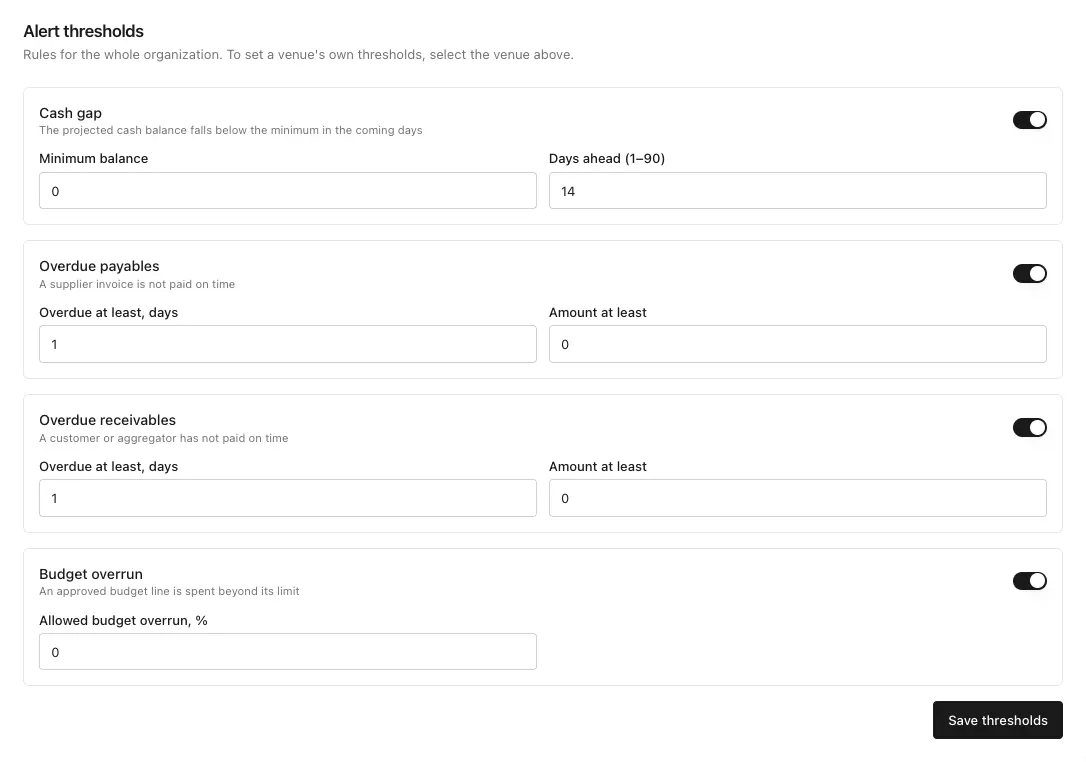
The «Thresholds» panel: turning the four rules on and off, their limits, organization and venue rules.
How to change the thresholds
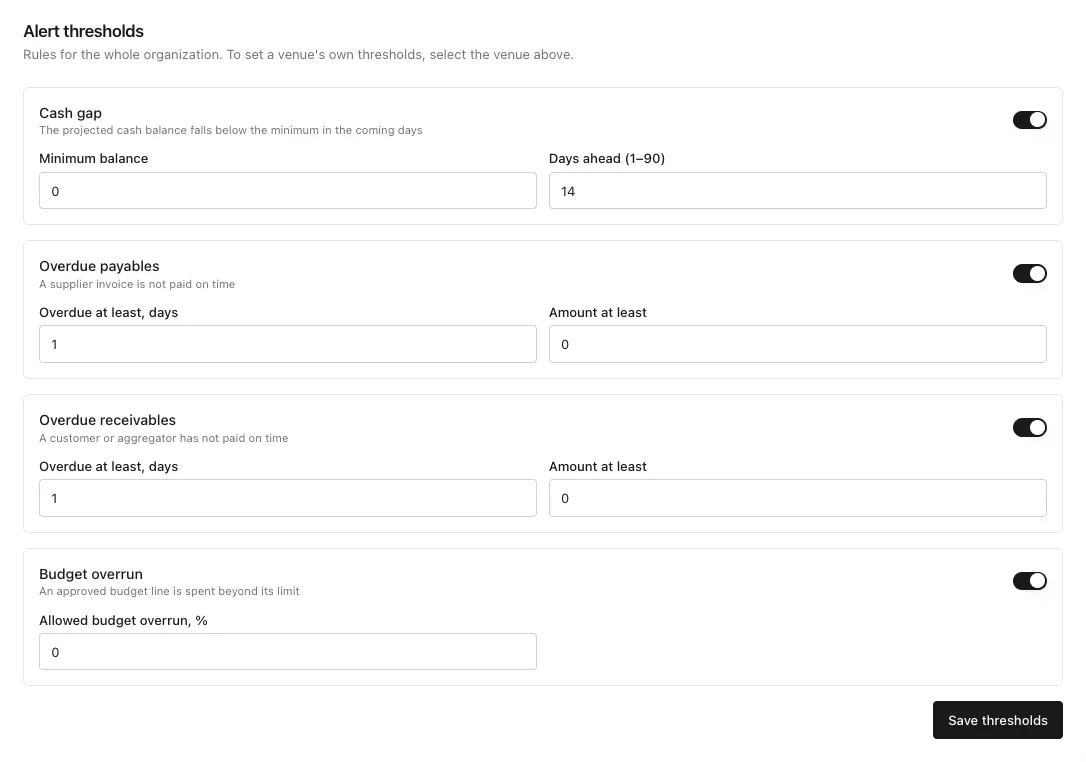
- Click «Thresholds» in the header — the «Alert thresholds» panel opens.
- Turn the rule on or off with its switch and fill in its fields.
- Click «Save thresholds». The rules are checked right away — «Thresholds saved and checked».
Rules and fields
- «Cash gap»
- «Minimum balance» (may be negative) and «Days ahead (1–90)». Default: below 0 within 14 days.
- «Overdue payables» / «Overdue receivables»
- «Overdue at least, days» (1–365) and «Amount at least». Default: from 1 day, any amount.
- «Budget overrun»
- «Allowed budget overrun, %». Default: 0% (any spend above the limit).
With «All venues» selected in «Finance context», the panel changes the organization’s rules. With a specific venue selected, it edits that venue’s own thresholds, which are checked together with the organization’s rules. Venue rules stay off until saved. In a new organization all four rules are on with the default thresholds.
Important: Only an employee with full access to the «Financial KPIs» section can save thresholds; others can only view the panel. Organization rules need access to the whole organization: an employee assigned to venues sees «Select one of your venues to set its thresholds.»