Cash shift
Opening and closing a shift, cash in and out, X and Z reports, the sales report.
A shift is the register’s working day: it opens with a starting cash amount, collects the sales and cash movements of the day and closes with a cash count. A shift belongs to the register: it stays open when cashiers change. Opening, closing and cash in/out work only while connected to the server.
Opening a shift #
Open the shift and enter the opening cash balance.
How to do it
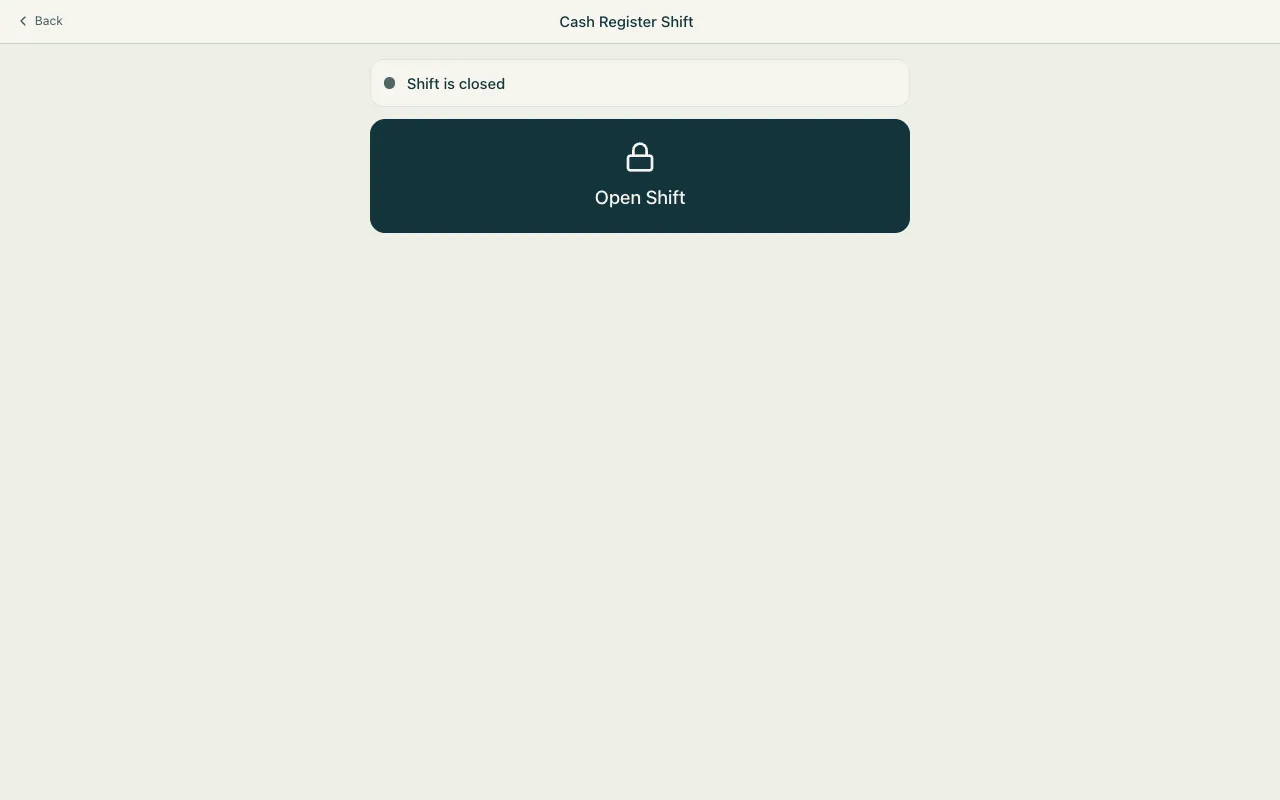
- If no shift is open after the PIN, the «Cash Register Shift» screen opens by itself (status «Shift is closed»). At any other time: Functions → Cash Register Shift.
- Press Open Shift.
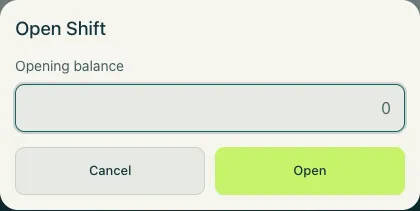
- In the «Open Shift» window type the cash that is in the drawer at the start of the shift into «Opening balance» (empty counts as 0).
- Press Open. The status changes to «Shift is open». To start selling press Back — the orders screen opens.
Good to know
- You cannot sell without an open shift: the orders, terminal and payment screens send you back to the shift screen.
- Opening a shift needs a server connection. Without one the register says so and does not keep the request — press again once connected.
- Enter the opening balance accurately: with a cash payment the change is limited to the cash expected in the drawer. With a balance of 0 you cannot record change on the first cash sales.
Important: While the shift is closed, Back on the shift screen signs out of the register completely — the register login and password are then needed again.
Cash in and cash out #
Record change put into the drawer or money taken out of it.
How to do it
- Open Functions → Cash Register Shift.
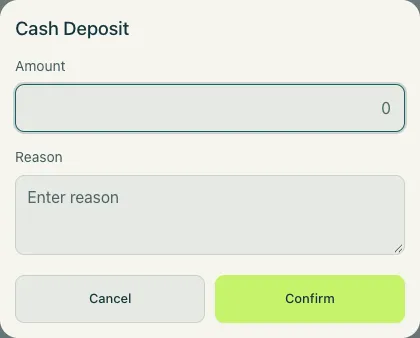
- Press Deposit to put money in or Withdraw to take money out.
- Fill in «Amount» (above zero) and «Reason» (free text) — both are required.
- Press Confirm. The operation appears under «Cash Operations» with its reason, time and amount and changes the expected cash.
Good to know
- Cash in and cash out work only while connected to the server.
- The register does not compare a withdrawal with the cash in the drawer — count the amount yourself.
What the shift screen shows #
Sales, returns, expenses and the expected cash of the open shift.
The open-shift screen shows the cashier, the opening time, the duration and the opening balance. The summary blocks below them are shown in Russian.
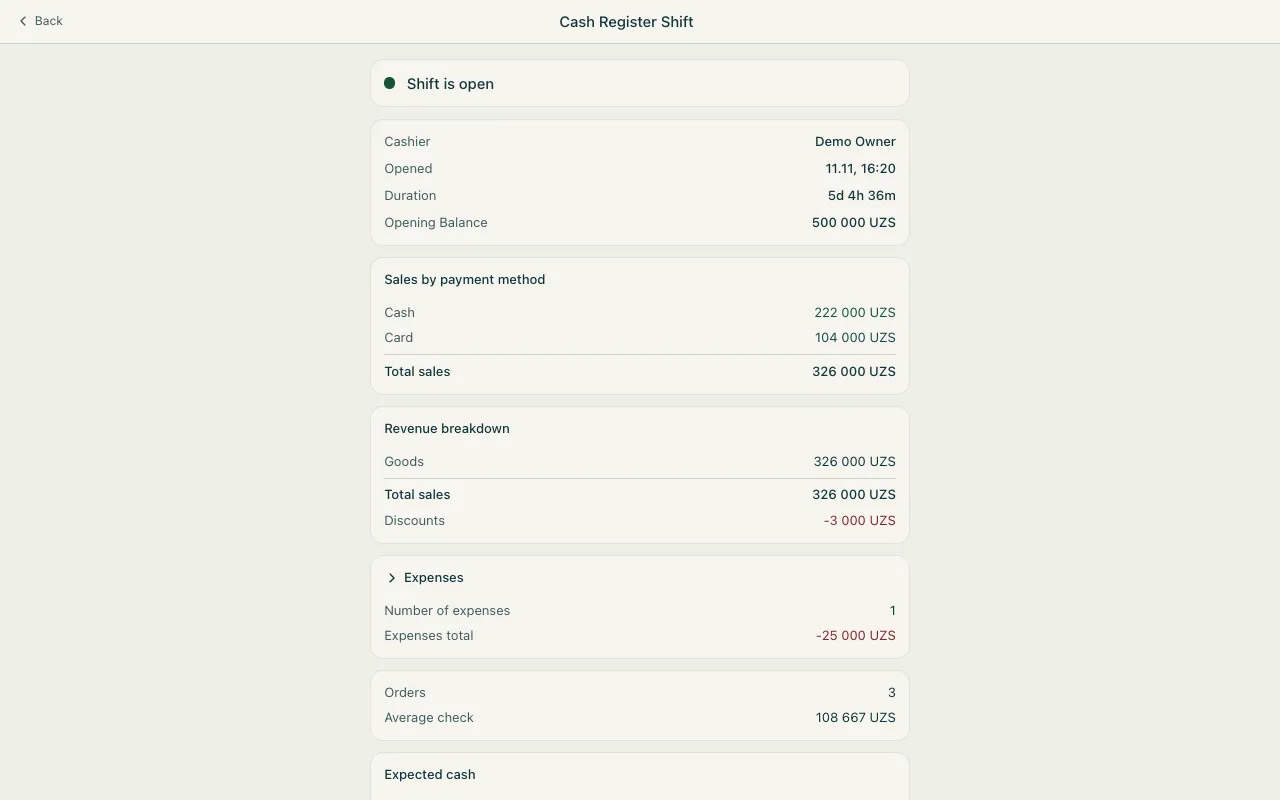
- «Продажи по способу оплаты» (sales by payment method)
- Cash, card, online payments, «В долг» (on credit) and the sales total.
- «Возвраты», «Расходы», «Погашение долгов»
- Returns, expenses paid from the register and customer debt repayments; the expense and repayment lists expand.
- «Ожидаемая касса» (expected cash)
- How much cash should be in the drawer: opening balance + cash sales + cash in − cash out + debt repayments − expenses. This is the figure you compare against when closing the shift.
Tip: A yellow box «Оплат сохранено на кассе: N» means those payments are saved on the register but have not reached the server yet. They are sent automatically once the connection is back.
X report #
An interim shift report without closing the shift.
How to do it
- Open Functions → Cash Register Shift.
- Press X-отчёт (X report). If the venue is set up that way, the register asks for the admin password.
- The report prints on the receipt printer and «X-report printed» appears. The shift stays open.
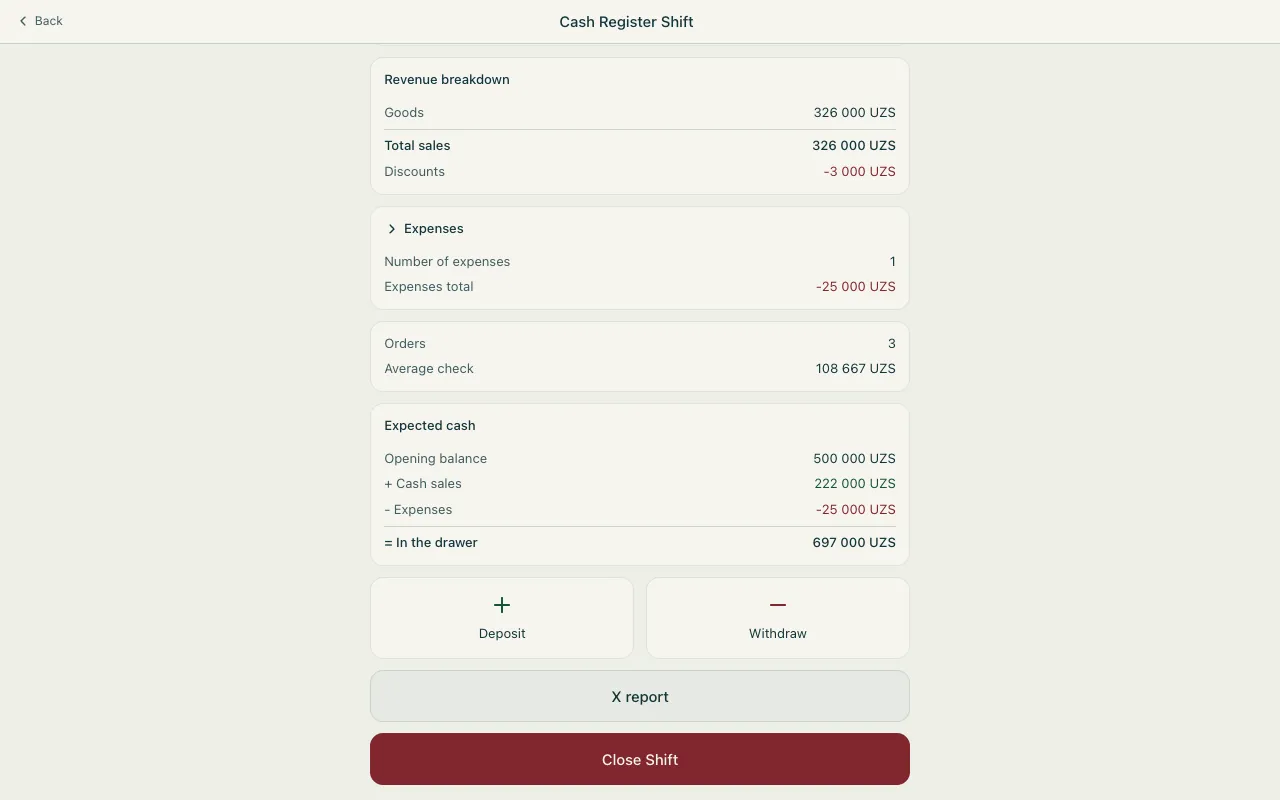
The X report is not shown on screen — it is only printed. It has the same sections as the shift screen and ends with the «В КАССЕ» (cash in drawer) figure.
Closing the shift and the Z report #
Count the cash, check the difference and get the Z report.
How to do it
- Check the orders list: finish open and unpaid orders. The register does not check them when closing the shift.
- Open Functions → Cash Register Shift and press the red Close Shift button.
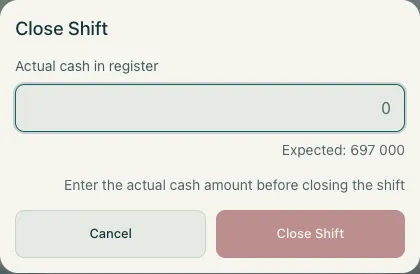
- Count the cash in the drawer and type it into «Actual cash in register». Under the field «Expected: …» shows what the register expects.
- If the difference is large (at least 100,000 or 5 % of the expected amount), the register shows it and asks you to confirm: recount, and if the amount is right press Close Shift once more.
- Enter the admin password if it is asked. The shift closes and the Z report prints by itself on the receipt printer («Z-report printed»).
Good to know
- The button is disabled until an amount is typed. You cannot close with 0 while the expected cash is above zero.
- Closing a shift needs a server connection.
- If some payments have not been sent to the server yet, the register warns you: the shift closes and the documents are sent when the connection returns. Do not switch the register off or clear the cache in that case.
- The Z report prints only at closing; the register has no reprint button for it. It adds the counted cash and the difference to the X report sections.
- After closing, the register stays on the shift screen and does not sign out. A new shift is opened the next day.
Sales report #
A report for the chosen dates: sales, payment methods and cashiers.
How to do it
- Press Functions → Report. Enter the admin password if it is asked.
- In the «Составить отчёт» (build report) window choose the period: «Начиная с» (from) and «Заканчивая» (to). If needed pick a cashier in «Кассир» and tick «Продажи по товарам» (sales by item).
- Press Составить отчёт. The report shows sales, the number of orders, the average check, discounts, a cashier table, payment methods, expenses and the «В кассе должно быть» (cash that should be in the drawer) block.
- To print press Print — a preview opens first, then the report goes to the receipt printer.
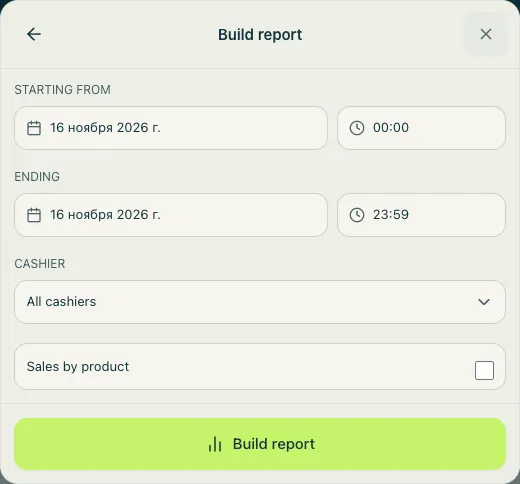
Tip: The report is built by dates: the hours and minutes in the period fields are not taken into account.