Sending to the kitchen and statuses Sending to work and statuses
Sending items to the kitchen, following readiness and moving an order through its statuses.
Items do not reach the kitchen just by being added to the check: the cashier sends them. The order then moves through its statuses — preparing, ready, handed over or delivered — and is paid at the end.
Tip: In a car wash the button is called На мойку (N) (to the wash) — everything else works the same. See «Car wash specifics».
Sending items to the kitchen #
Which button sends, what is printed and how to add to an order already sent.
How to do it
- Add items in the terminal. The На кухню (N) (to the kitchen) button appears under the check; N is the number of lines changed since the last send.
- Press it. «Kitchen accepted the order.» appears; the items reach the kitchen screen and tickets print on the printers of the configured stations.
- You stay in the terminal. If you add or remove items later, the button appears again — press it to send the changes.
Good to know
- Only changes go to the kitchen: new items and removed ones. A removed item is printed on the next send as «ОТМЕНА» (cancelled).
- The status line under the check: «Waiting for the kitchen…» → «Kitchen accepted». If «Kitchen did not confirm: …» appears, use the icons next to it to resend («Resend») or print the ticket («Print chit»).
- If the POS payment timing is set to prepayment, the register opens payment first and sends the order to the kitchen by itself after it is paid.
- Sending also works offline: the ticket prints and the command is queued with «Send saved; waiting for synchronization.».
Order statuses and how to move them #
Which statuses an order goes through and where the cashier presses the next step.
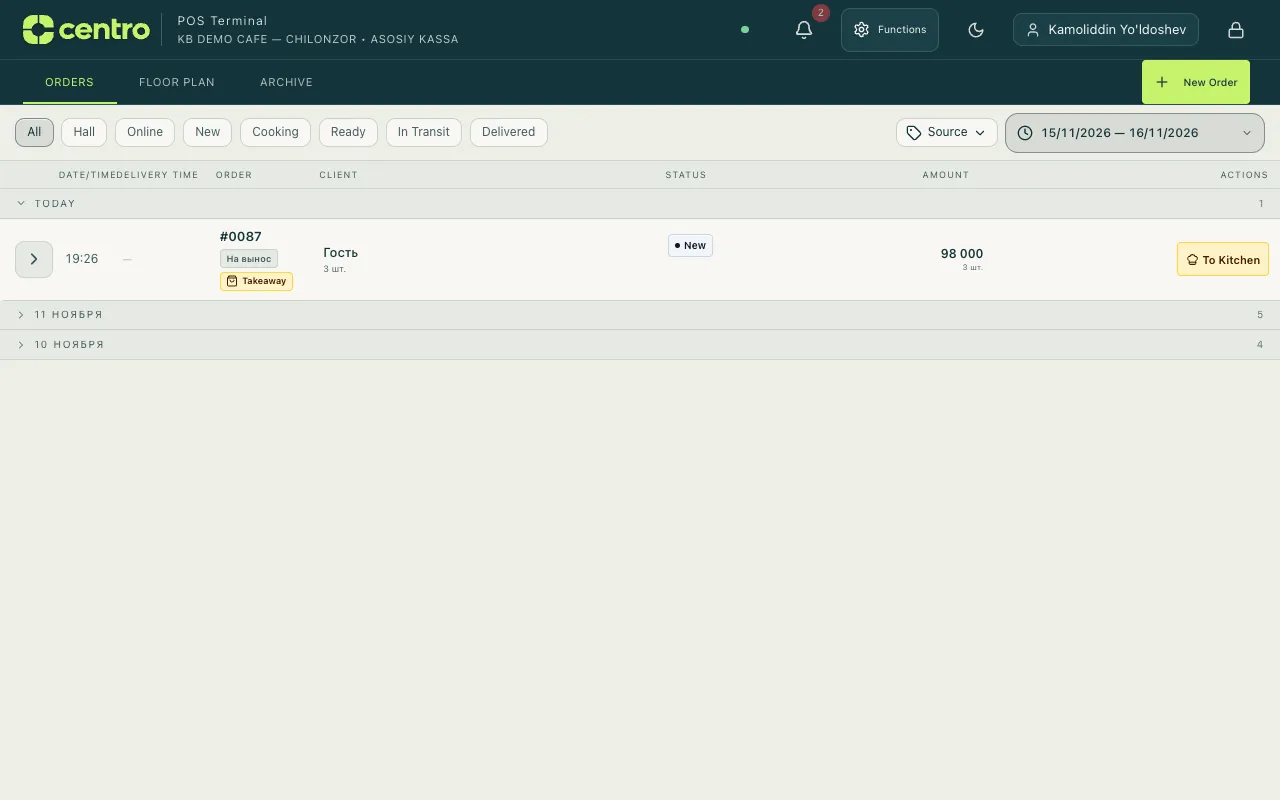
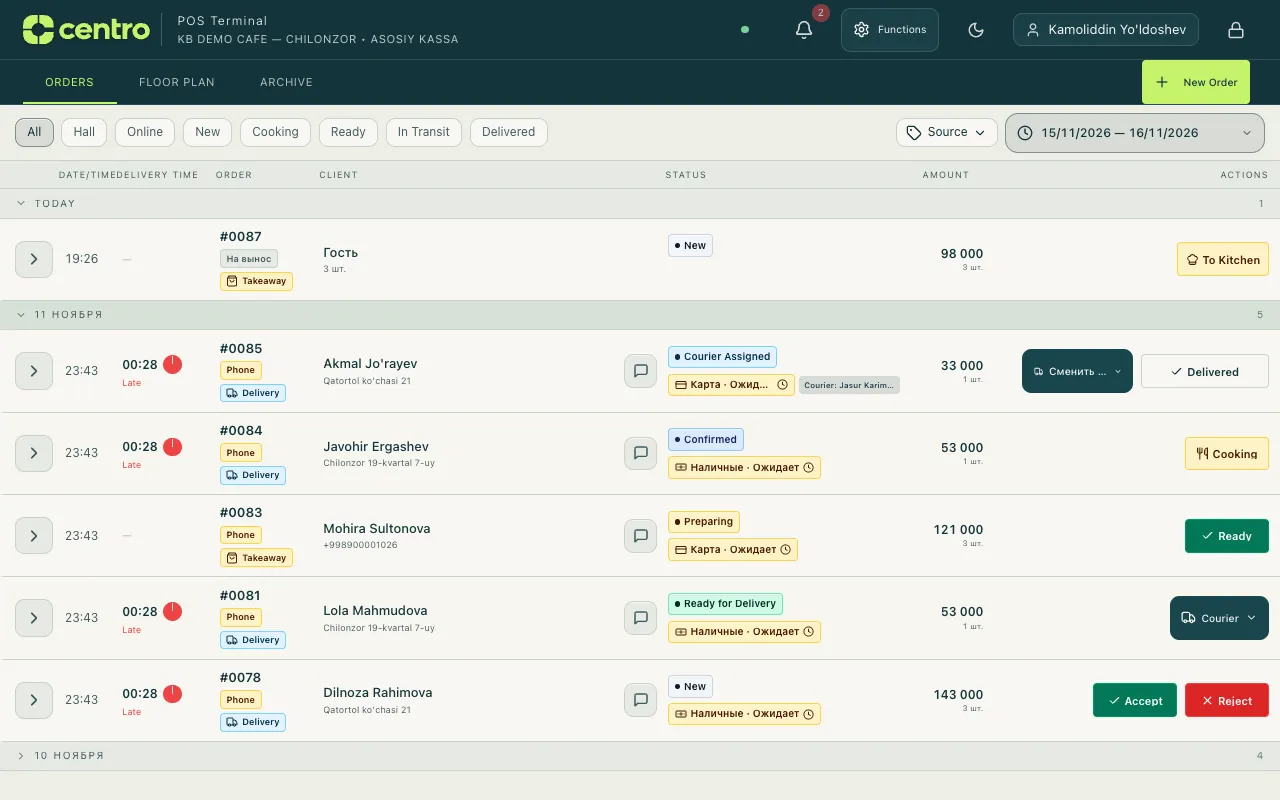
A status belongs to the whole order — the register does not show statuses of single dishes. It is a badge in the orders list and updates by itself when readiness is marked on the kitchen screen. The next-step button is the same in two places: on the row in the list and under the check in the terminal.
Statuses
- «New»
- The order exists but has not been sent to the kitchen. Button: To Kitchen.
- «Preparing»
- The kitchen is working. When it is done press Ready (or the kitchen marks it on its screen).
- «Ready» / «Ready for Pickup»
- Dine-in and takeaway: if unpaid the button is Pay and opens the payment screen; if paid it is Picked Up or Complete. Delivery: Courier opens the courier picker.
- «Courier Assigned» → «On the Way» → «Delivered»
- The delivery chain. When the courier has delivered press Delivered, then Pay or Complete.
- «Completed» / «Cancelled»
- The order is closed. Paid and completed orders leave the active list for the archive.
Good to know
- Payment is shown by a separate second badge («Оплачено» — paid, «Частично оплачено» — partly paid, and so on) — there is no «paid» status.
- By default Pay becomes active only when the order is ready; before that the hint «Payment becomes available once the order is ready» is shown. This depends on the payment-timing setting in Settings → Parameters → «Orders».
- Kitchen details: press the chevron at the start of a row in the list — the «Кухня» (kitchen) block in the expanded part shows the state, the number of ready items and the time.