Working without internet
What works offline, how synchronization goes and what «pending sync» means.
If the internet drops the register keeps working: the main operations — an order, sending to the kitchen, cash and card payment — are saved on the register itself and sent to the server automatically when the connection returns. Not everything works offline, though — the exact list is below.
How to tell whether you are connected #
What the coloured dot in the header means.
The register has no separate «working offline» banner. The only sign is the coloured dot in the header of the orders and terminal screens; hovering over it shows a hint.

- Green
- «Connected to the server» — everything has been sent.
- Yellow
- «Local work is waiting to sync» — some operations are saved on the register and have not reached the server yet, or are being sent right now.
- Red
- «No server connection» — or, when connected, «Operations await review»: some operations were not sent and need checking (see «When synchronization fails»).
Tip: Tapping the dot rechecks the connection at once. If there is none, «No server connection. Orders are kept and will be sent automatically.» appears.
What works offline and what does not #
Which operations are available offline and which need the server.
Works offline
- Creating and changing dine-in and takeaway orders — they are saved on the register and queued.
- Sending to the kitchen: the ticket prints and the command is queued.
- Payment: cash, a card method not tied to an online service, and sale on debt. Once taken, «Payment accepted. The data will be sent automatically.» appears and the receipt prints.
- Creating a new customer (queued) and searching among the customers stored on the register.
- Signing in by PIN — only for the employee who last signed in online on this register.
Needs a server connection
- The register login with login and password.
- Opening and closing a shift, cash in and cash out.
- A delivery order for your own couriers and a table order from a reservation.
- Payme, Click and other online payments, paying by deposit and by certificate.
- Promo codes and promotions; closing a check fully covered by bonuses.
- Cancelling an order, closing without payment, returning items.
- Expenses, the sales report (only a previously loaded report is shown), incoming online orders.
- Adding an item whose stock is reserved (a store with «Reserve stock in the order» switched on).
Important: A shift cannot be opened without internet, and you cannot sell without an open shift. Start the working day while connected: sign in and open the shift — after that you can keep selling even if the connection drops.
The menu and prices are the last copy loaded on this register; they refresh by themselves when the connection returns. An order created offline gets a local number from the register. Another register sees such an order only after it has been sent to the server.
Synchronization and the «Pending sync» state #
How operations made offline reach the server.
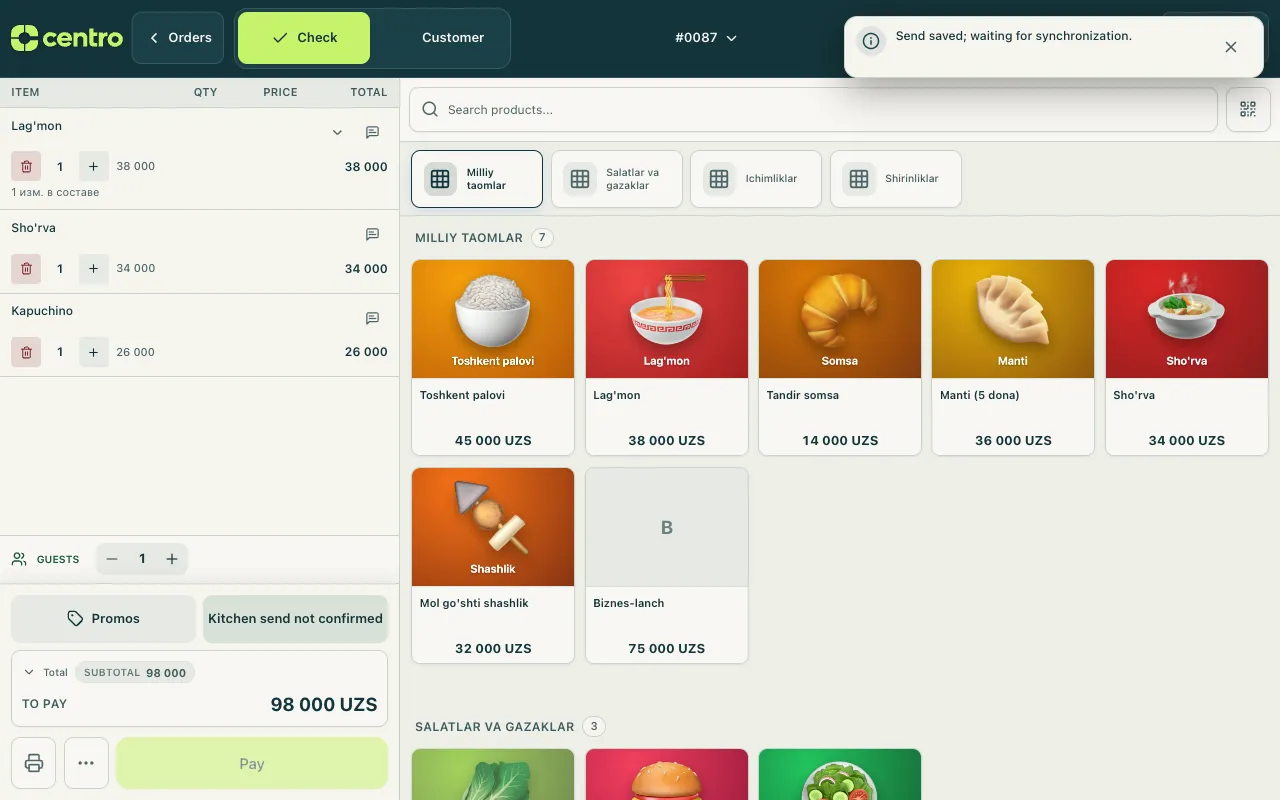
Every operation made offline is kept in a queue on the register’s disk. «Pending sync» means the operation has been done and saved on the register but the server has not confirmed it yet: a payment taken offline, for example, stays in this state until the server confirms it.
Where you see it
- The dot in the header is yellow.
- In the orders list the payment badge reads «… · Ожидает синх.» (pending sync) and «Pending sync» replaces the pay button.
- «Waiting to sync» replaces the send-to-kitchen button.
- The shift screen shows a yellow «Оплат сохранено на кассе: N» (payments saved on the register) box.
Good to know
- Synchronization is automatic: the register keeps checking the connection, sends the queue as soon as it is back and refreshes the list. There is no «sync» button for the cashier — nothing has to be pressed.
- The queue is sent only while the app is open. It is stored on disk and survives an app restart, but do not switch the register off at the end of the shift until the dot is green.
- If you signed in by PIN while offline, the register resumes the session by itself when the connection returns. If it cannot, the PIN screen appears titled «Server connection restored»: type your PIN — the queue is kept and orders do not have to be entered again.
Important: While there are unsent operations do not press Functions → Clear cache: it deletes the queue — that is, the orders and payments that have not reached the server.
When synchronization fails #
What the cashier sees when the server refuses a queued operation, and what to do.
Usually the queue goes through without trouble. But the server may refuse an operation — for example if the order was changed elsewhere in the meantime. The register retries a few times and then stops. No window pops up; you learn about it from the signs below.
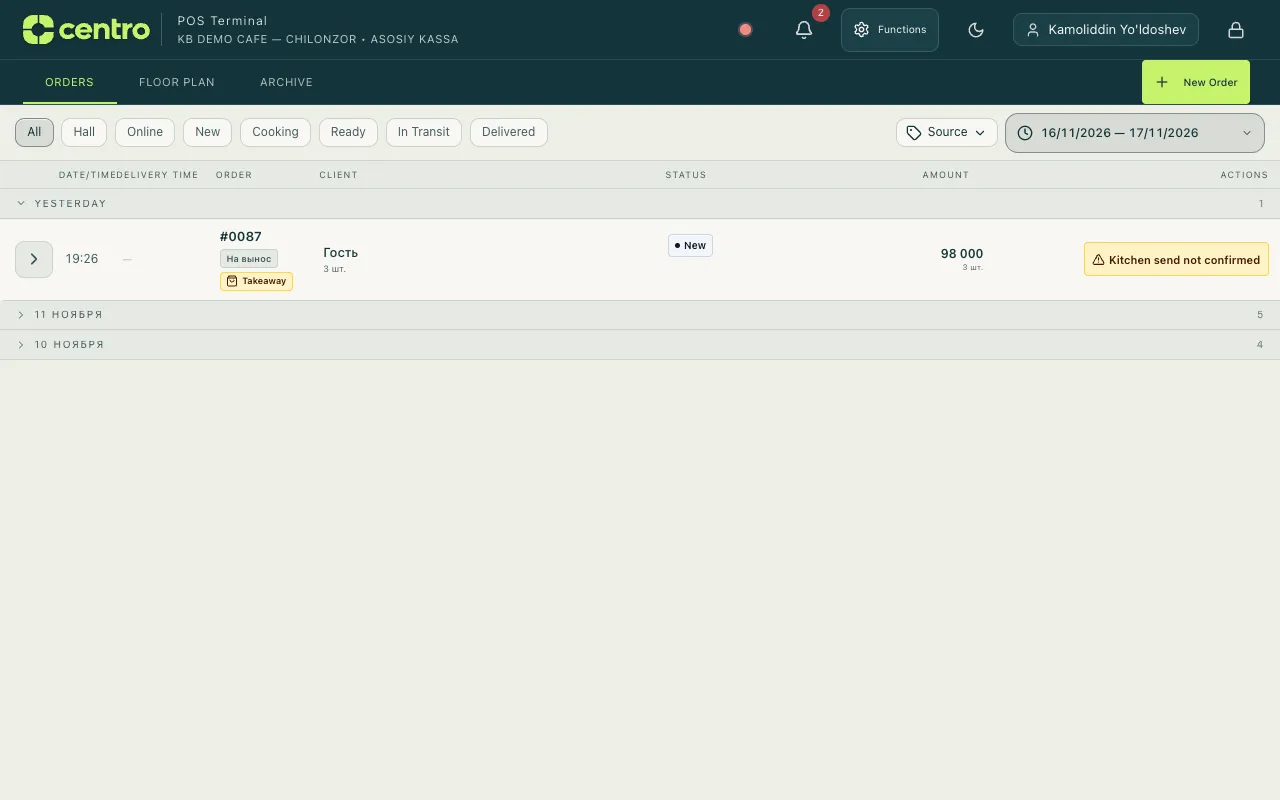
- You are connected, yet the dot is red and its hint reads «Operations await review».
- The order’s row shows a warning button «Kitchen send not confirmed» instead of the send-to-kitchen button.
- A banner in Russian may appear at the top: «Синхронизация на паузе» (synchronization paused) or «Статус оплаты неясен» (payment status unclear).
What to do
- Do not enter the order again and do not repeat the payment — the data is saved on the register.
- Do not close the register and do not clear the cache.
- Contact your administrator or Centro support: such operations are reviewed and resolved on a service diagnostics screen that an administrator or a support specialist works with.