Payment
Cash, card, QR (Payme, Click), split payment, sale on debt, the receipt and problem payments.
Payment is taken on a separate screen. Many of its labels are shown in Russian in every language; this guide quotes them in Russian with a translation in brackets.
The payment screen #
How to get to payment, how the screen is laid out and where the payment methods come from.
How to do it
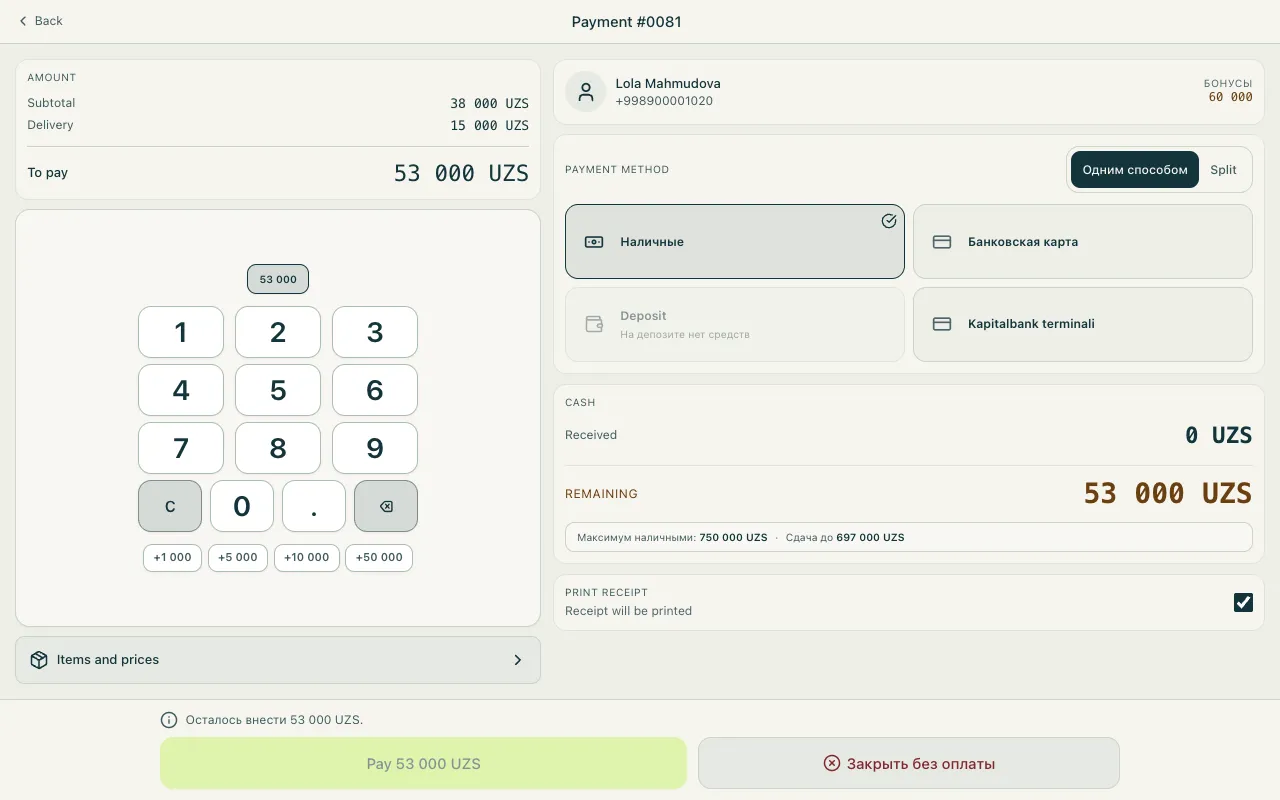
- In the terminal press Pay under the check, or press Pay on the order’s row in the orders list.
- The «Payment #…» screen opens. On the left are the amounts («Amount»: subtotal, discount, bonuses, VAT, delivery, service, «To pay») and the numpad. On the right are the customer card and «Payment method» with the method tiles.
- Choose the method, check the amount and press Pay {amount} at the bottom.
- A fully paid order is closed and the register returns to the orders list.
What payment requires
- A shift must be open.
- By default the order must have reached «ready»; otherwise the register says «Заказ ещё не готов к оплате…» (the order is not ready for payment yet). With prepayment timing and for store sales this does not apply.
- For delivery the address and the delivery fee must be confirmed.
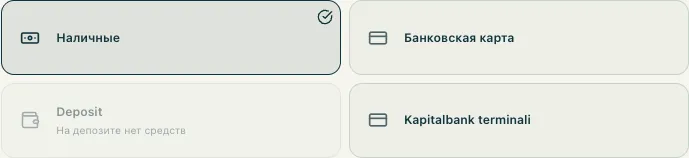
The list of payment methods comes from the admin panel: tiles carry the names given there, and only methods that are active and shown on the POS appear. Online methods (Payme, Click) appear only when the matching app is connected.
Cash and change #
Enter the amount received and see the change.
How to do it
- On the payment screen choose the cash tile.
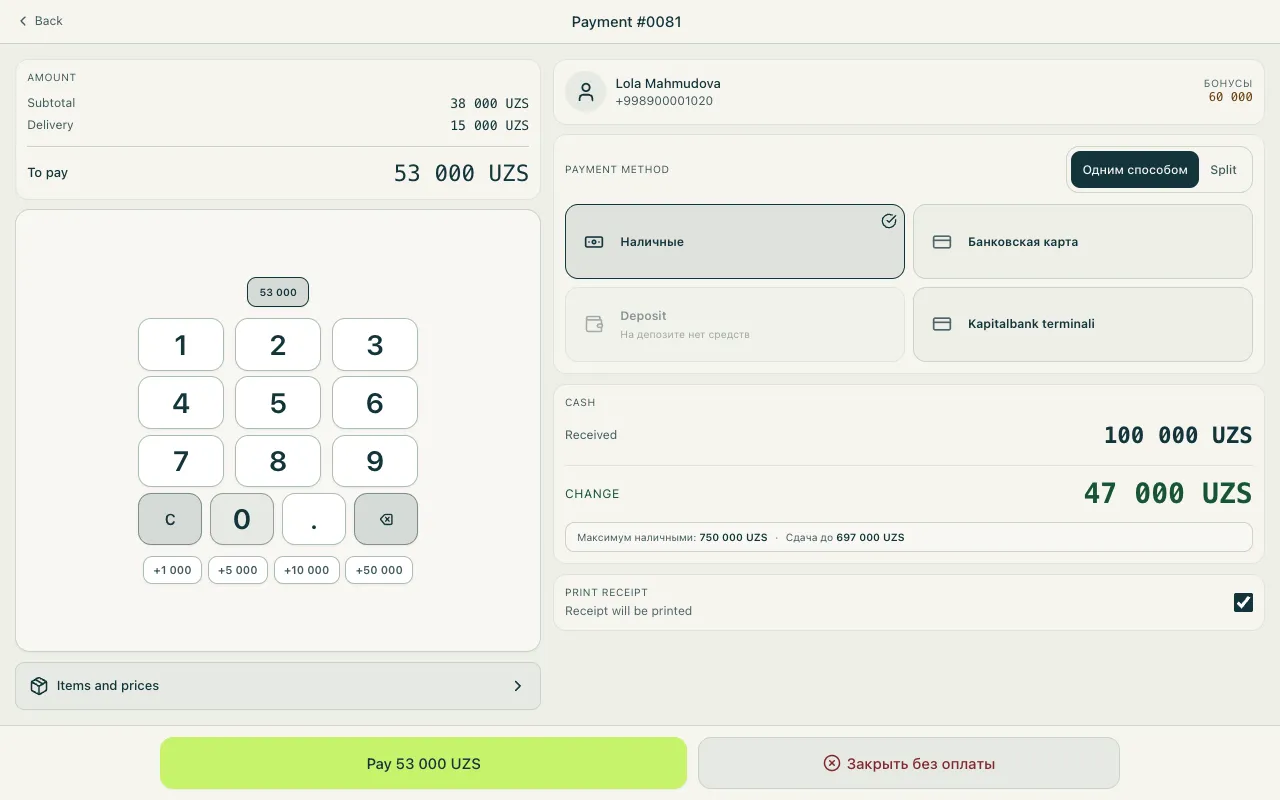
- Enter what the customer hands over: with the numpad or the quick-amount buttons (the exact amount and rounded-up values).
- The panel shows «Received» and under it «Change»; if the amount is not enough it shows «Remaining».
- Press the pay button and hand the customer the change.
Good to know
- Change is limited to the cash expected in the drawer: the panel shows «Максимум наличными: … · Сдача до …» (cash maximum · change up to). If you type more, the register lowers the amount and tells you.
- The cash drawer does not open by itself on payment — open it with Functions → Cash drawer.
- Cash is accepted offline too.
Card (bank terminal) #
A card payment is run on the bank terminal and recorded on the register.
How to do it
- On the payment screen choose the card tile — the panel shows the method name and the amount.
- Run that amount on the bank terminal and make sure the terminal approved it.
- Press the pay button on the register — the payment is recorded at once.
Important: The register is not connected to the bank terminal: it neither sends the amount to it nor waits for an answer. Press the pay button only after the terminal has approved the payment.
If the card cannot cover the whole amount, type a smaller amount and cover the rest with another method (see «Split payment»). To split between several cards use Оплатить несколькими картами (pay with several cards). A card payment is recorded offline too.
QR payment: Payme and Click #
Show the customer a QR code, or scan the code from their app.
Online payment comes in two forms — which one appears depends on the payment method connected in the admin panel. Both need internet. QR payment through Plum is not available on the register.
The register shows a QR code (Payme, Click)
- On the payment screen choose the Payme or Click tile and press the pay button.
- The «… — оплата по QR» (payment by QR) window shows the amount and a QR code. The customer scans it in their app and pays.
- Wait: the window counts down 5 minutes. When the payment goes through, a check mark and «Payment successful» appear and the window closes by itself.
- If time runs out — «Время оплаты истекло» (payment time expired): press Попробовать снова (try again). On an error — «Payment failed».
The cashier scans the customer’s code (Click Pass, Payme Go)
- On the payment screen choose the Click Pass or Payme Go tile and press the pay button.
- Ask the customer to open the Click or Payme app and show their payment QR code.
- Read the code with the scanner. Without a scanner type the code by hand and press Подтвердить (confirm).
- The register runs the payment and shows the result: «Оплата успешна» (payment successful) or «Ошибка оплаты» (payment error) with the reason — for example, not enough funds or an expired code. On an error press Попробовать снова (try again) or choose another method.
Important: If the service does not answer and the window shows «не подтвердил оплату» (did not confirm the payment) or «Статус оплаты уточняется» (payment status is being clarified), do not repeat the payment: the customer may already have been charged. First press the refresh-status button and check the payment history in the customer’s app. Scan a new code or choose another method only after making sure no money was taken.
Split payment #
Close one order with several payment methods.
How to do it
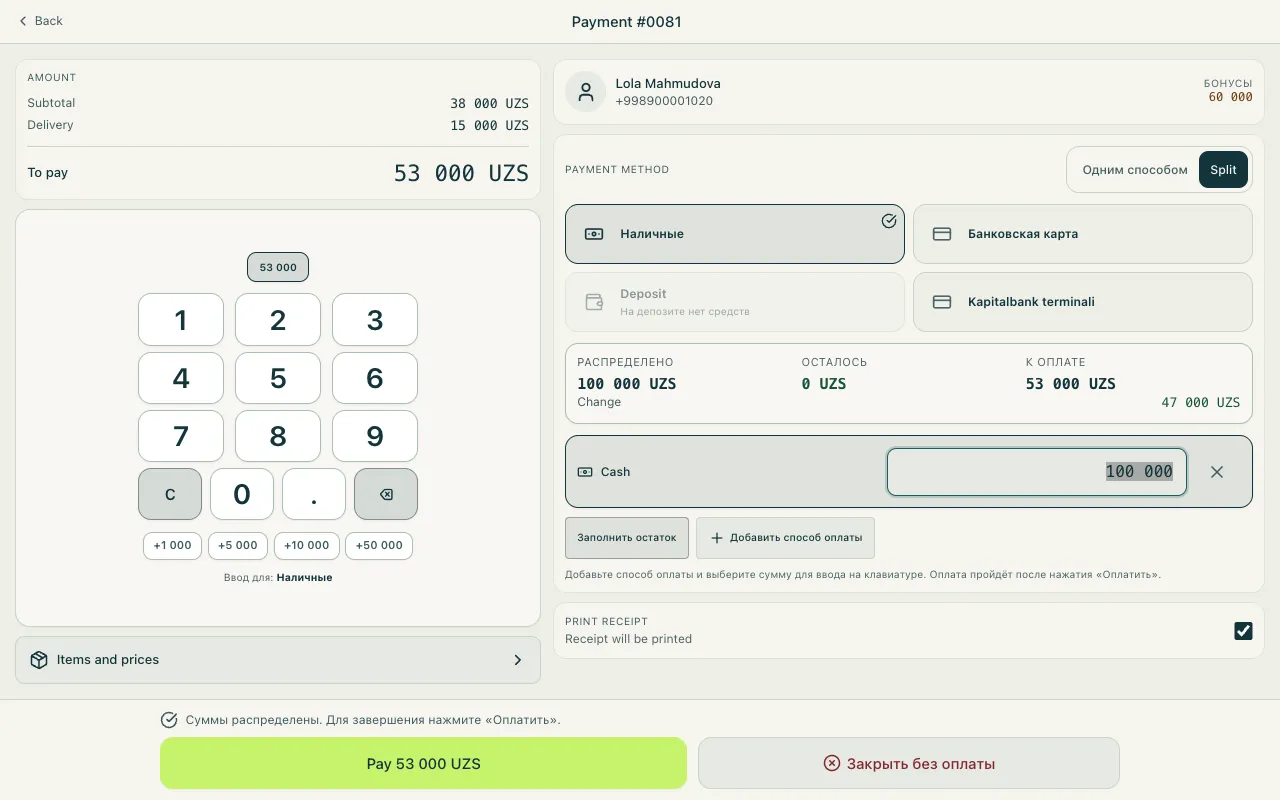
- On the payment screen switch to Split under «Payment method».
- Fill in the rows: enter the amounts for cash, card and other methods. Add a row with Добавить способ оплаты (add payment method) or Ещё карта (another card).
- The top shows «Распределено» (allocated) and «Осталось» (remaining). Заполнить остаток puts the rest into one row; Разделить поровну splits it equally.
- When «Суммы распределены…» (the amounts are allocated) appears at the bottom, press the pay button.
Good to know
- There are two more ways into a split: type a partial amount for one method and tap another tile, or press Оплатить несколькими картами.
- Payme / Click with the QR code on the register screen cannot be part of a split. Only one scanner method (Click Pass or Payme Go) is allowed; it is charged first and the remaining parts are then recorded automatically.
- Change is given only on the cash part. There may be several card rows but only one deposit row.
- If the payment was not finished, the amounts you entered are kept for this order and restored when you come back to the screen.
Sale on debt, deposit and certificate #
Payment methods tied to the customer and their conditions.
Sale on debt
- Attach a customer to the order. Without one the register says «Для оплаты в долг сначала выберите клиента в заказе» (choose a customer first) and shows Выбрать клиента (choose customer).
- On the payment screen choose the debt tile. The panel shows the customer, their current debt and the available limit.
- Check «Срок возврата долга» (repayment date) — by default 30 days from today — and add a comment if you wish.
- Press the pay button — the order is put on the customer’s debt.
Good to know
- The debt tile appears only if that payment method is enabled in the admin panel. Who may buy on debt and for how much is decided by the credit policy (Settings → Payments): a per-customer limit, a common limit or no limit. If the limit is used up the register says so.
- The register warns about a customer with overdue debt but does not block the sale.
- A sale on debt is accepted offline too.
- Deposit. The «Deposit» tile shows the customer’s deposit balance; with no customer, a zero balance or no connection the tile is disabled and states why. If the deposit is not enough, choose another method for the rest.
- Certificates and bonuses are not payment tiles: bonuses are redeemed in the terminal, and a certificate is picked in the «Promos» window or in the «Сертификаты» block of the payment screen (see «Customers, bonuses and discounts»).
Receipt and fiscalization #
What is printed after payment and what happens with the fiscal receipt.
- The payment screen has a «Print receipt» switch (on by default, with «Receipt will be printed» under it). When it is on the receipt prints by itself after payment — no preview, no question. Switched off it says «No print».
- On success — «Receipt printed»; if the printer fails — «Receipt print failed: …». A print failure does not undo the payment; the receipt can be printed later from the archive.
- If receipt fiscalization is connected, after a payment confirmed by the server the register sends the receipt for fiscalization and shows «Receipt successfully fiscalized». On a failure it shows «Fiscalization failed» with the reason: the payment stays valid — report the error to the administrator. If fiscalization is not connected, nothing is shown.
- For a payment taken offline, fiscalization is not performed at that moment.
- If bonuses were earned, a «НАЧИСЛЯЕТСЯ БОНУСОВ +N» (bonuses awarded) card may appear after payment.

When a payment fails or its status is unclear #
How the register protects against charging twice and what the cashier should do.
- «The previous payment status is unclear…» — the pay button is disabled and a red message is shown at the bottom. It means the previous payment request may have reached the server but no answer came back. Do not pay again: check the order in the list (its payment badge) and, for an online payment, in the customer’s app. The register keeps rechecking the status by itself.
- «Оплата требует внимания» (payment needs attention) — a box with the error text. The amounts you entered are kept; read the message before you try again.
- Before paying, the register rereads the order from the server. If the order is already paid it says so and returns to the list; if the total changed on the server it asks you to refresh the order and pay again.
- While the payment is being processed («Проводим оплату…»), do not close the screen or press the button again — wait for the confirmation.