Changing, cancelling and returning
Changing and splitting an order, cancelling with reasons, returns, closing without payment and the receipt archive.
Which action you need depends on the state of the order: an open order is changed or cancelled in the terminal; money for a closed receipt is returned through the archive; closing on the house is done on the payment screen. Most of these actions may ask for the admin password.
Changing an order and splitting the check #
Go back to an open order, change its contents and move part of it into a new order.
Changing an order
- Tap the row in the orders list — the order opens in the terminal.
- Add or remove items. Removing or reducing a quantity may ask for the admin password.
- Send the changes to the kitchen: На кухню (N) or «…» («More») → «Отправить изменения на кухню» (send changes to the kitchen).
Good to know
- Cancelled orders, paid and completed orders, and orders paid online open read-only.
- In an order paid online but not yet completed, removing an item is processed as a refund.
Splitting the check
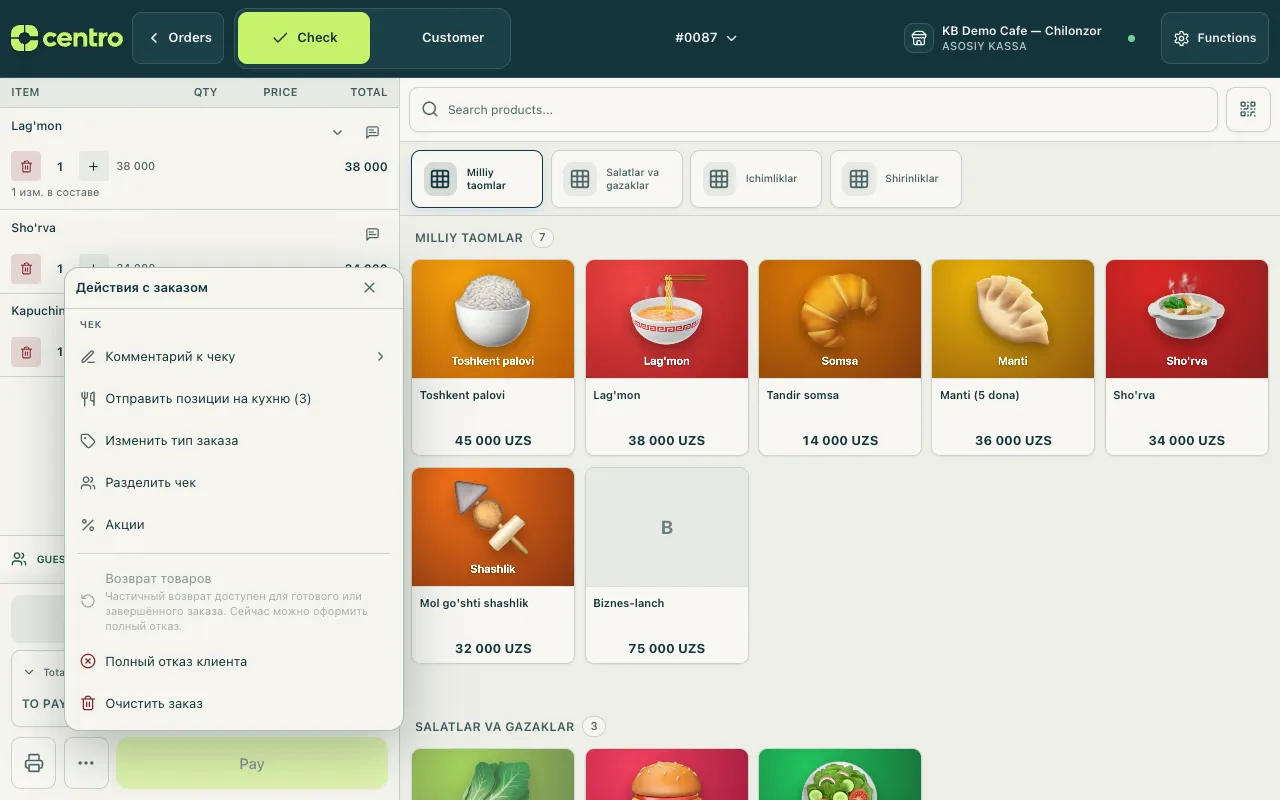
- In the terminal press «…» («More») → «Разделить чек» (split check). The order must be saved on the server and hold at least 2 items.
- Tick the items in the check that should go into the new order.
- Press Split Bill (with nothing ticked the button reads «Cancel Split»). The admin password is asked if it is set up that way.
- The register reports «Bill split. New order #… created» — the ticked items move to a new order that is paid separately.
Cancelling an order #
Clearing an order, a full customer refusal and the cancellation reasons.
The active orders list has no cancel button (only Reject on unaccepted orders). An order is cancelled from the terminal, in the «Действия с заказом» (order actions) menu opened by «…» («More»). Cancelling needs a server connection.
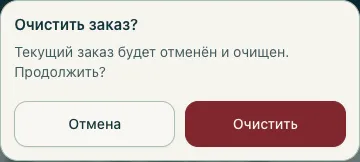
«Очистить заказ» — cancel and clear the order
- Open the order in the terminal and press «…» («More») → «Очистить заказ» (clear order).
- If preparation has started choose «Причина отмены» (cancellation reason): an entry mistake, a defect, the customer refused, not delivered, recreating the order, or «Другое» (other) — then a comment is required. If preparation has not started, no reason is asked.
- Confirm with Очистить (clear). The register asks for the admin password if it is set up that way.
«Полный отказ клиента» — the customer refuses the whole order
- In the terminal press «…» («More») → «Полный отказ клиента» (full customer refusal).
- Choose a reason in «Причина отказа» (refusal reason) and for each item pick «To stock» or «В заявку на списание» (into a write-off request).
- Press Подтвердить полный отказ (confirm full refusal). The whole order is cancelled and its payment is reversed under the order’s rules.
Tip: Items sent into a write-off request wait for approval in the admin panel (Stock → Write-offs).
Returning items #
A full or partial return against a closed receipt.
How to do it
- On the orders screen open the «ARCHIVE» tab (the admin password is asked if set up). Find the receipt: search works by order number, customer and phone; the last 7 days are shown by default.
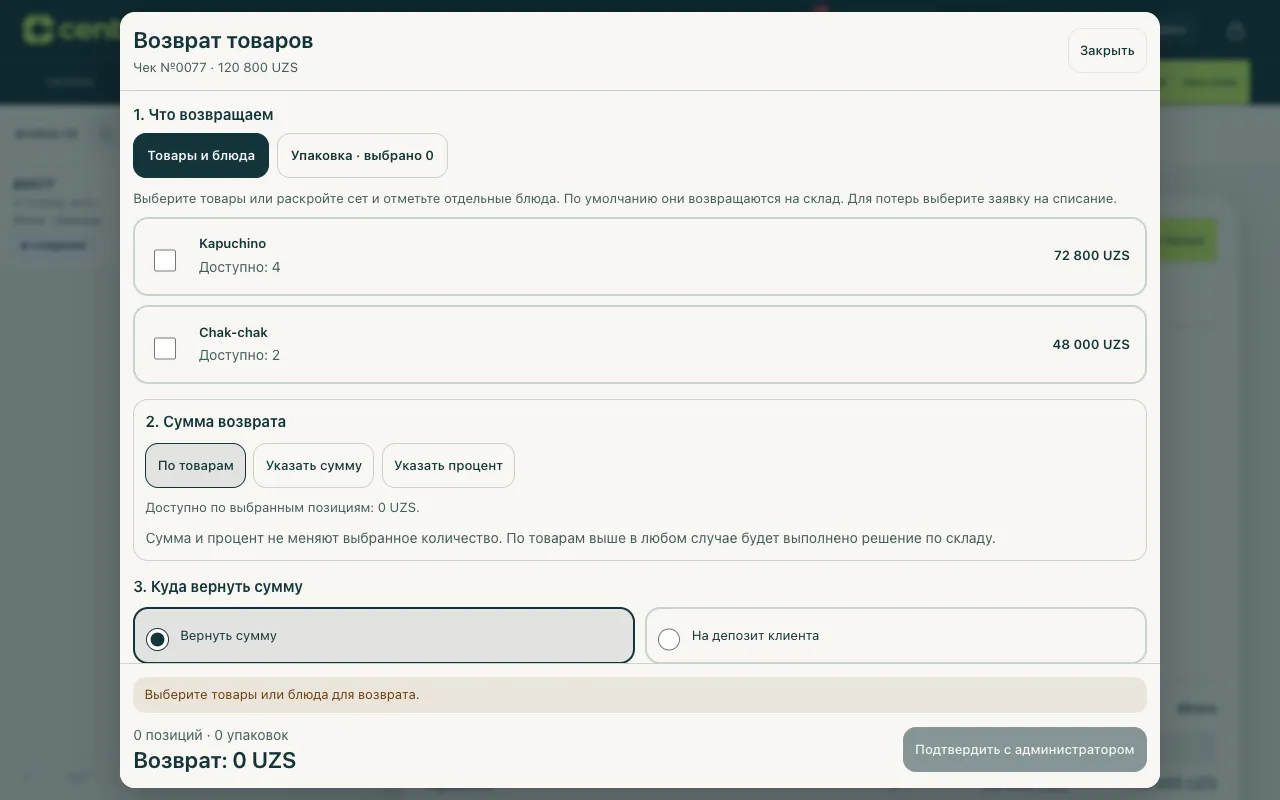
- Select the receipt and press Return items — the «Возврат товаров» window opens (it is in Russian).
- «1. Что возвращаем» (what is returned): tick the items and enter the quantity — a partial quantity is allowed. For each line choose «На склад» (to stock) or «В заявку на списание» (into a write-off request).
- «2. Сумма возврата» (refund amount): «По товарам» (by items), «Указать сумму» (enter an amount) or «Указать процент» (enter a percentage).
- «3. Куда вернуть сумму» (where the money goes): «Вернуть сумму» (refund the money) or «На депозит клиента» (to the customer’s deposit). The amount is split by the original payment methods.
- Fill in «Причина возврата» (return reason) and press Подтвердить с администратором (confirm with the administrator) — the admin password is asked.
Good to know
- A shift must be open to make a return.
- The register does not itself send back money paid by card or transfer: return it through the original terminal or bank and tick the confirmation box in the window.
- For a receipt paid through an online service (Payme, Click) the service refunds the whole original payment; with a partial return the rest is taken as a new payment with Оплатить остаток (pay the remainder).
- Nothing is printed for a return. The archived receipt then shows «Возвращено» (refunded) and «История возвратов» (return history).
- A return for a ready or completed order can also be started from the terminal: «…» («More») → «Возврат товаров».
Closing without payment #
Close an order on the house, stating the reason.
How to do it
- Open the order’s payment screen and press Закрыть без оплаты (close without payment) at the bottom.
- Choose «Причина списания» (write-off reason): free / compliment, staff meal, representation, tasting, spoilage / defect, or «Другое» (other, with text). Press Далее (next).
- Confirm with Да, закрыть без оплаты (yes, close without payment). The admin password is asked if it is set up that way.
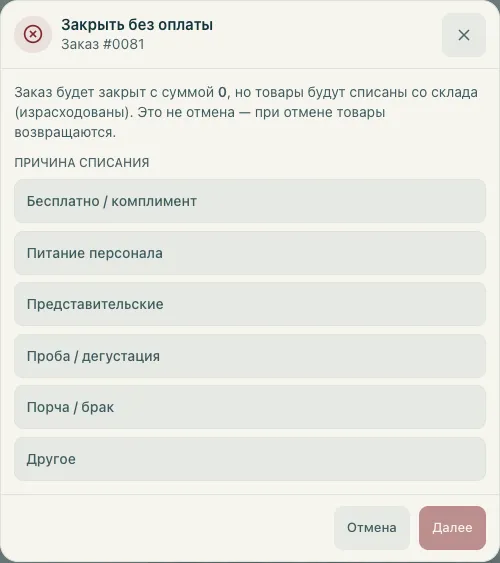
The register reports «Order closed without payment. Items were written off.»; in the archive the receipt is marked «Закрыт без оплаты» with the reason. The action cannot be undone and works only while online. The button is shown if it is enabled in the admin panel (Settings → Parameters → «Orders»).
The receipt archive and reprinting a receipt #
Find a closed receipt, view it and print it again.
How to do it
- Open the «ARCHIVE» tab on the orders screen.
- Find the receipt by search or date and select it — the receipt view opens on the right: order type, cashier, opening and closing time, items and payment.
- Press Print Receipt — the receipt prints again on the receipt printer.
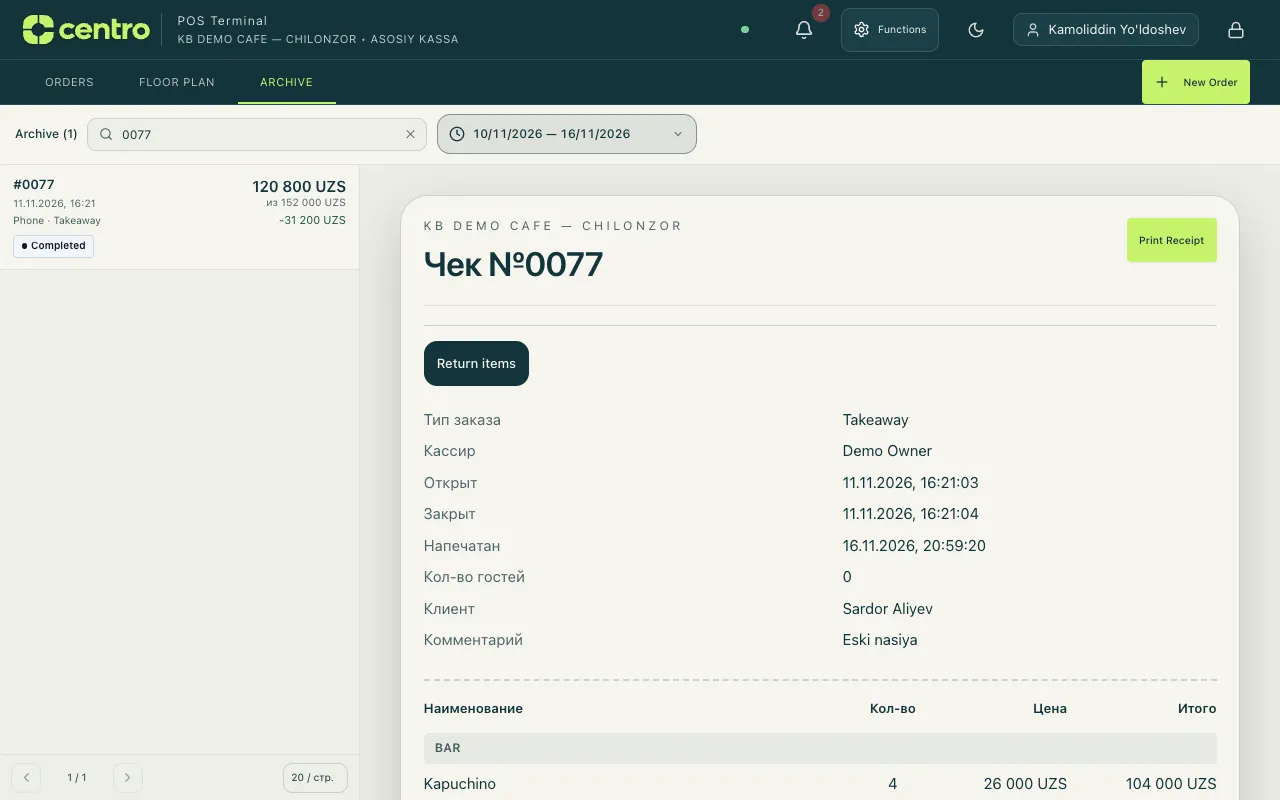
The archive holds completed, cancelled and delivered orders. An active (not yet closed) order has no receipt reprint button — for it the printer icon in the terminal («Pre-print») prints a pre-check.