Incoming orders
Accepting and rejecting orders from the online store, the app, the kiosk and aggregators.
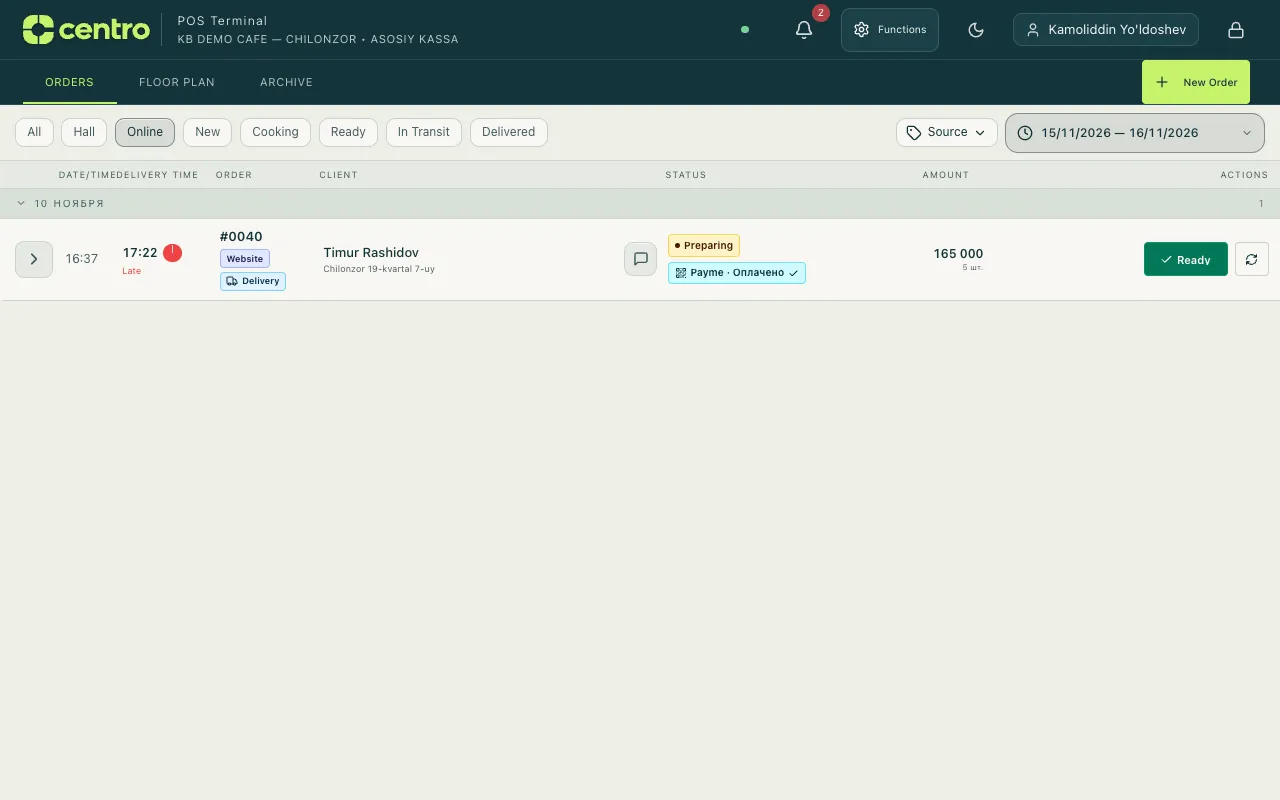
Orders from the online store, the mobile app, the kiosk, the waiter app and aggregators do not open in a separate window — they appear as ordinary rows in the orders list. Until an order is accepted its row has two buttons: Accept and Reject.
Accepting an order #
Look at an online or kiosk order and take it into work.
How to do it
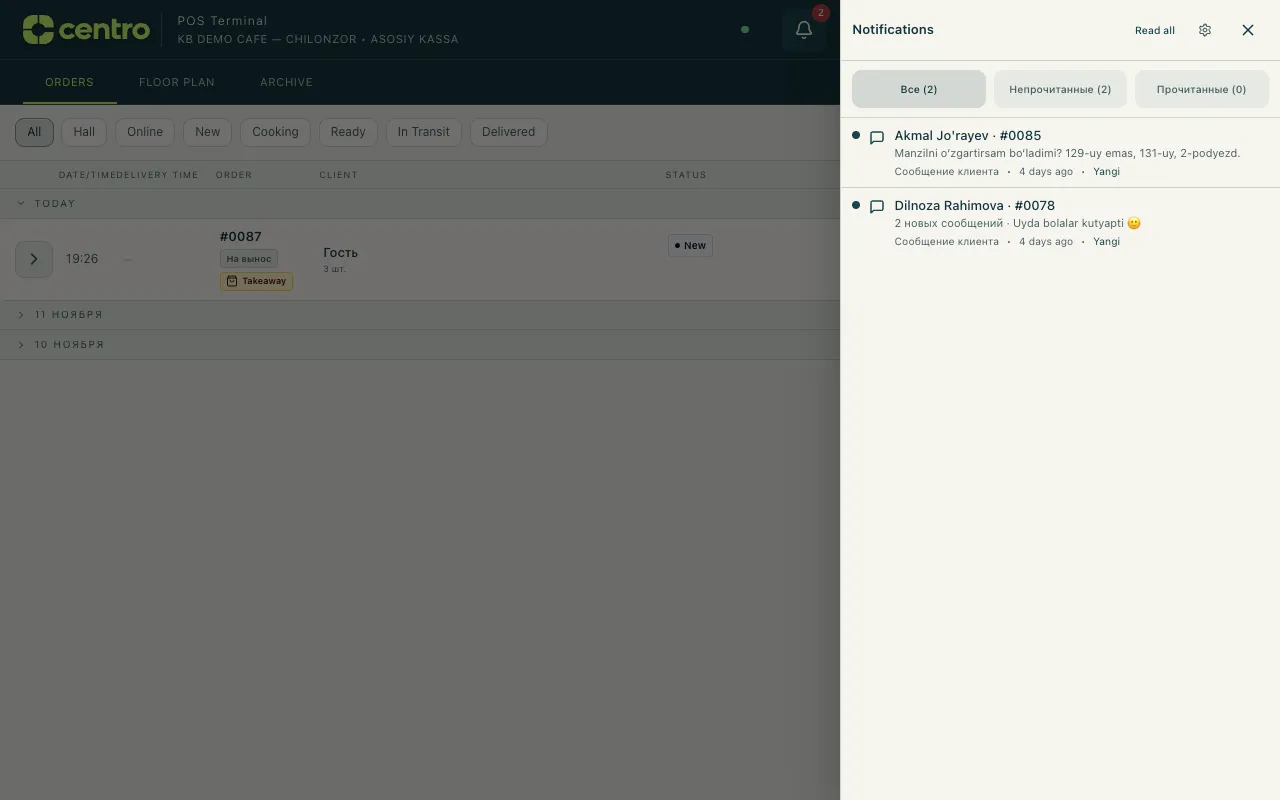
- When a new order arrives the register plays a sound, shows a notification, and the order appears in the list with the «New» status. Use the «Online» or «New» filter to find it quickly.
- To look at the order first tap its row — it opens read-only in the terminal; or expand it with the chevron at the start of the row: customer, phone, source, items and amounts.
- Press Accept on the row. There are no further questions: the order is attached to this register.
- Then, as a separate step, press To Kitchen — the order then reaches the kitchen and follows the usual statuses.
Good to know
- An order that has not been accepted cannot be edited: the register says «Press "Accept" for this order first.».
- With several registers the order goes to the one that pressed first; the other shows «The order was already accepted by another register. The list was refreshed.».
- Orders still waiting for an online payment are not listed — they appear once the payment is confirmed. A prepaid order carries the «Оплачено» (paid) badge, and once ready it shows a hand-over or complete button instead of Pay.
- Kiosk orders arrive under the «Online» filter with the «Kiosk» source and follow the same path: accept → kitchen → payment.
- The register shows no timer or repeat reminder for a new order and never accepts it by itself — keep an eye on the list.
Rejecting an order #
Decline an incoming order and state the reason.
How to do it
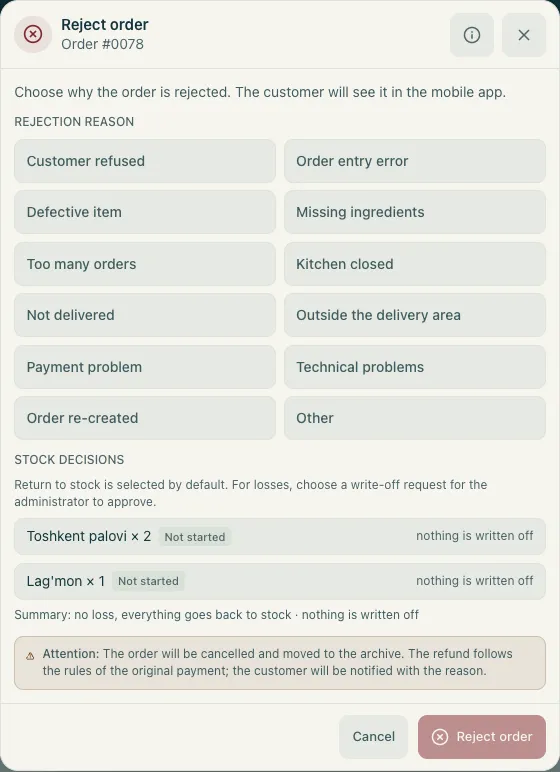
- Press Reject on the row of an unaccepted order — the «Отклонить заказ» (reject order) window opens.
- Choose the reason: the customer cancelled, ingredients are missing, too many orders, the kitchen is closed, no delivery to that area, a payment problem, a technical problem, or «Другое» (other) — then you type the reason yourself. The list is shown in Russian.
- If the «Stock decisions» section appears, choose for each item: «To stock» (return it) or «В заявку на списание» (into a write-off request).
- Press Отклонить заказ (reject order). The register asks for the admin password if it is set up that way.
The order is cancelled and moves to the archive. The customer sees the reason in the mobile app; money for a paid order is refunded under the rules of the original payment.
Notifications, customer chat and transfer to a branch #
The bell, the order chat and handing an online order to another branch.
- Notifications. The bell in the orders screen header shows the unread count and opens the «Notifications» panel: new, paid, cancelled and completed orders, reservations and customer messages. Read all marks everything as read.
- Customer chat. A row of an order with a customer has a chat icon: it opens the customer’s conversation with the venue about this order. You can type text and attach a photo.
- Transfer to another branch. A row of an order from the website, the app or an aggregator has a «Transfer order» icon. In the window choose the branch, enter the branch password (if the source branch has one), optionally a reason, and press Перенести (transfer). The order leaves your list; in the receiving branch it appears with the «Перенесён» (transferred) badge and has to be accepted there with Accept.