Checklists
Templates for recurring checks and their runs: opening, closing, cleaning, quality.
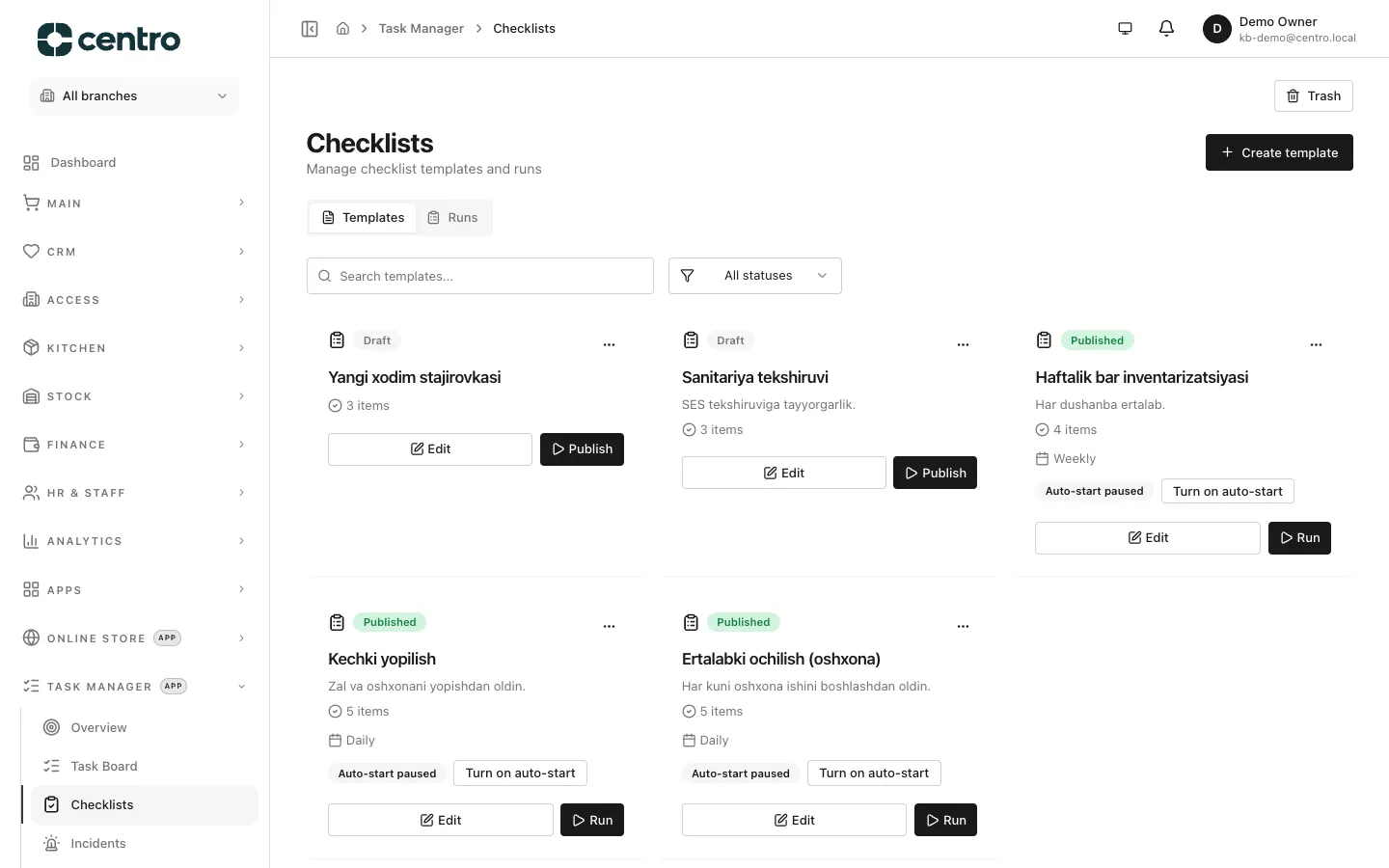
Open in the admin panel/tasks/checklists The page header is «Checklists». A checklist has two parts: the template (the list of items, built once) and the run (a copy of the template for a specific venue, employee and deadline). The employee fills in the run in Task Terminal, and you see the result here.
How to open
- In the sidebar, expand the Task Manager group.
- Click Checklists.
On the page
- Create template — top right, opens the builder.
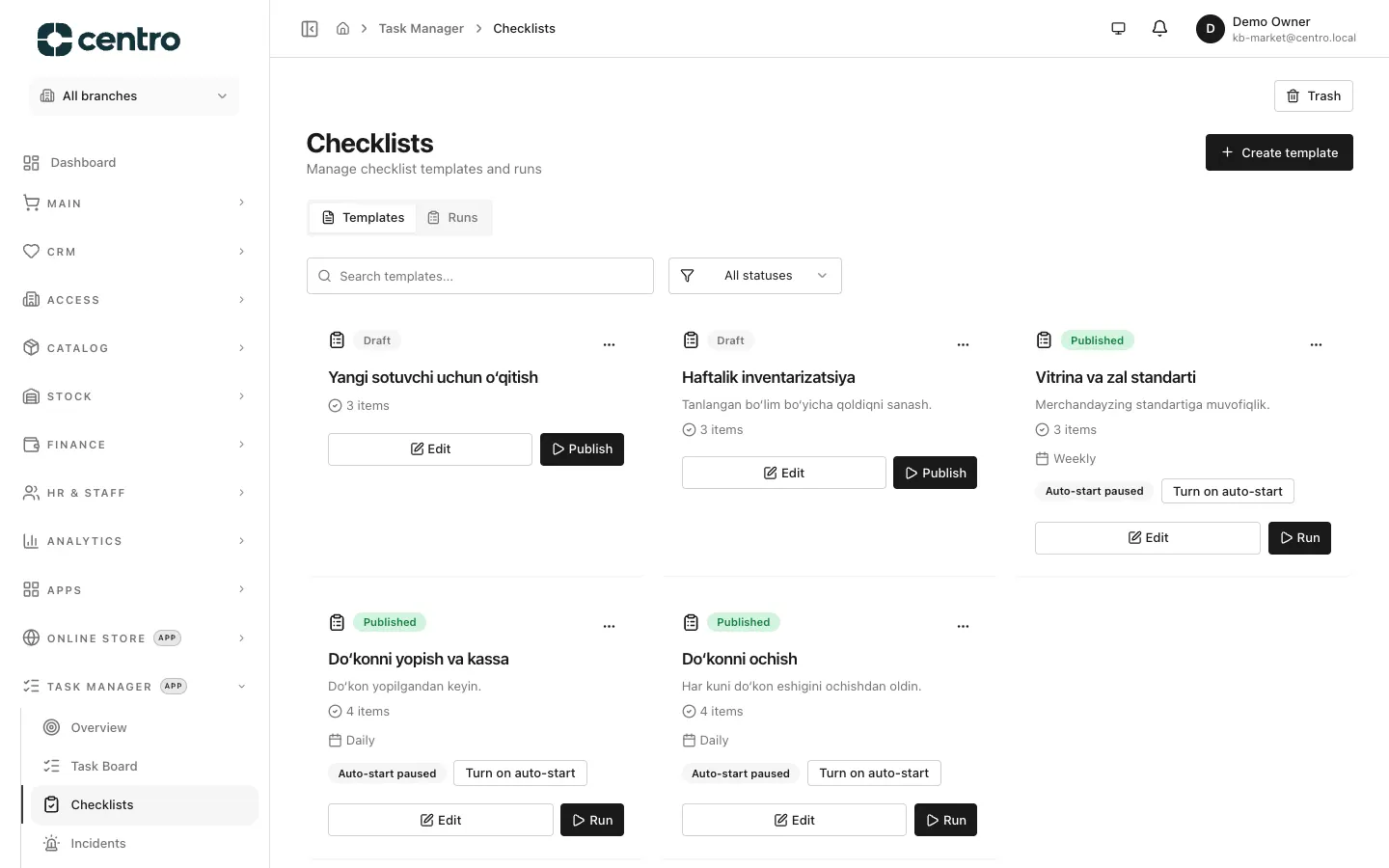
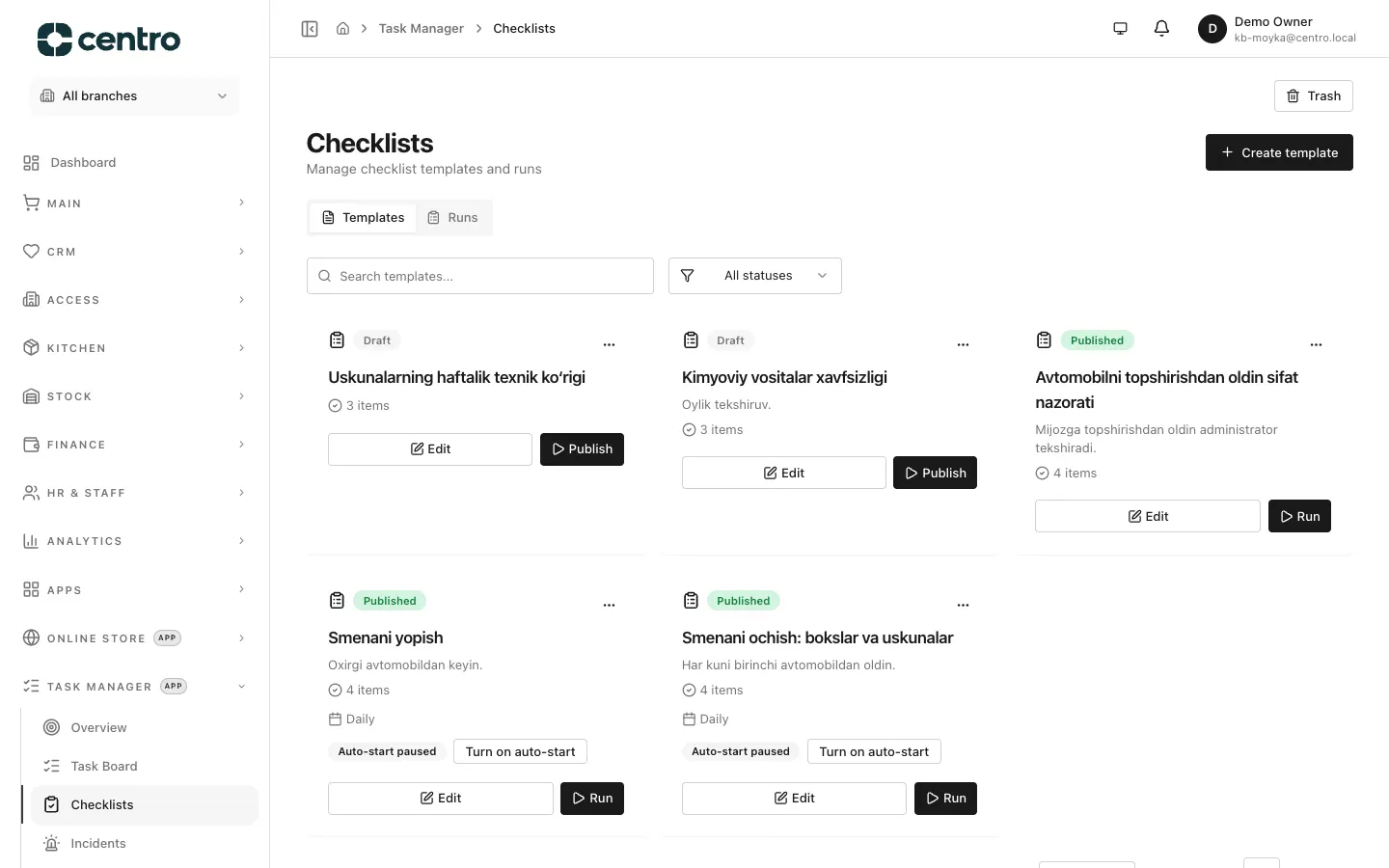
- The «Templates» tab — all templates, search and a status filter.
- The «Runs» tab — checklists handed out and their progress. The selected tab is kept in the page address.
Tip: For a one-off job a task on the board is handier (tasks can have items too). A checklist is for checks that repeat the same way every day or week.
The «Templates» tab #
Template cards, the status filter, publishing and running.
Template card
- Status
- «Draft» — new, can’t be run yet; «Published» — ready to run and available in Task Terminal; «Archived» — inactive.
- Title, description, «N items»
- How many check items the template has.
- Frequency
- When a schedule is set: «Daily», «Weekly» or «Monthly».
- Auto-start state
- On a template with a schedule: «Next run: …» — when the next run will be created; «Auto-start begins once the template is published» — on a draft; «Auto-start paused» and the Turn on auto-start button — the schedule was saved before auto-start went live; «The schedule could not be read — save the template again» — the schedule could not be read.
- «Edit», «Publish», «Run»
- «Edit» opens the builder; a draft has «Publish» (publishes immediately on click), a published template has «Run».
New templates are at the top of the list. The search works on the template name within the current page; switch pages with the pager at the bottom.
Important: The status filter («Drafts», «Published», «Archive») doesn’t narrow the list yet — find the template by its status badge or the search. Publishing can’t be undone: check the items before you publish.
The checklist builder #
Building a template: category, item types, required items, roles, photo evidence and schedule.
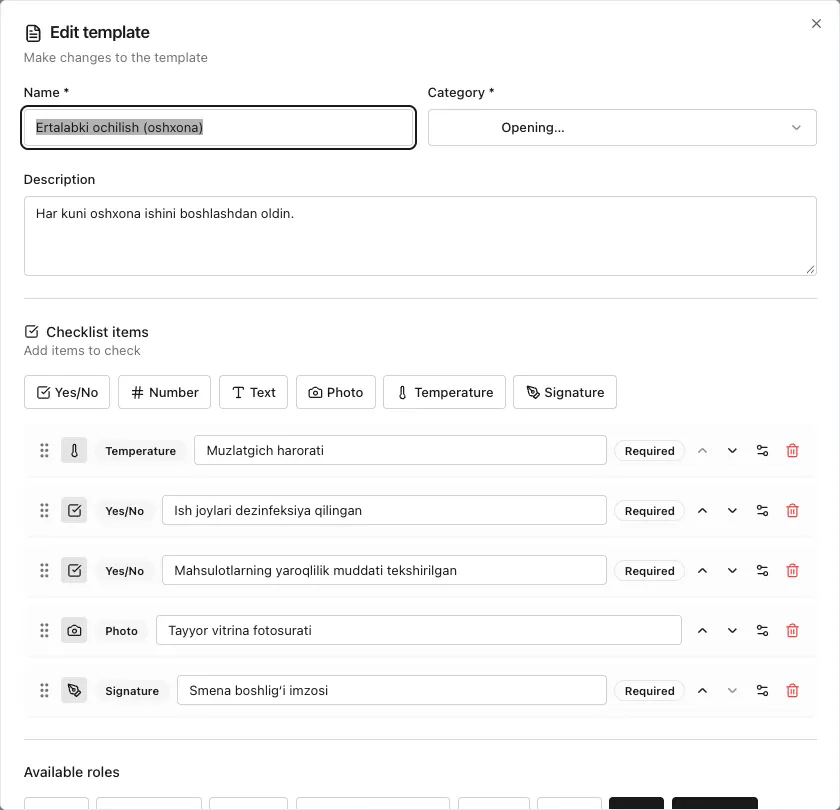
- Click Create template (or Edit on a card).
- Enter a name (at least 3 characters) and choose a category.
- Add items with the type buttons and write the text of each; reorder with the ↑ ↓ arrows.
- Pick the roles, the number of photos and, if needed, the schedule.
- Click Create template — it is saved as a draft; after checking it, click Publish on the card.
Main fields
- «Name *»
- At least 3 characters. For example: «Morning opening (kitchen)».
- «Category *»
- «Opening», «Closing», «Cleaning», «Kitchen», «Safety», «Quality», «Inventory», «Training».
- «Description»
- When and by whom the checklist is filled in.
Item types
- «Yes/No»
- A simple tick: done or not.
- «Number»
- A number is entered; the item settings have «Minimum» and «Maximum» — the allowed range (e.g. a stock count or pressure).
- «Text»
- A free comment.
- «Photo»
- The employee uploads a photo as proof of the result.
- «Temperature»
- A temperature reading with a «Minimum»/«Maximum» range (+2…+4 for a fridge).
- «Signature»
- The responsible person’s signature.
The ⚙ button next to an item opens its settings: the «Required item» and «Critical (blocks completion)» switches and, for numbers and temperatures, «Minimum» and «Maximum». The bin deletes the item.
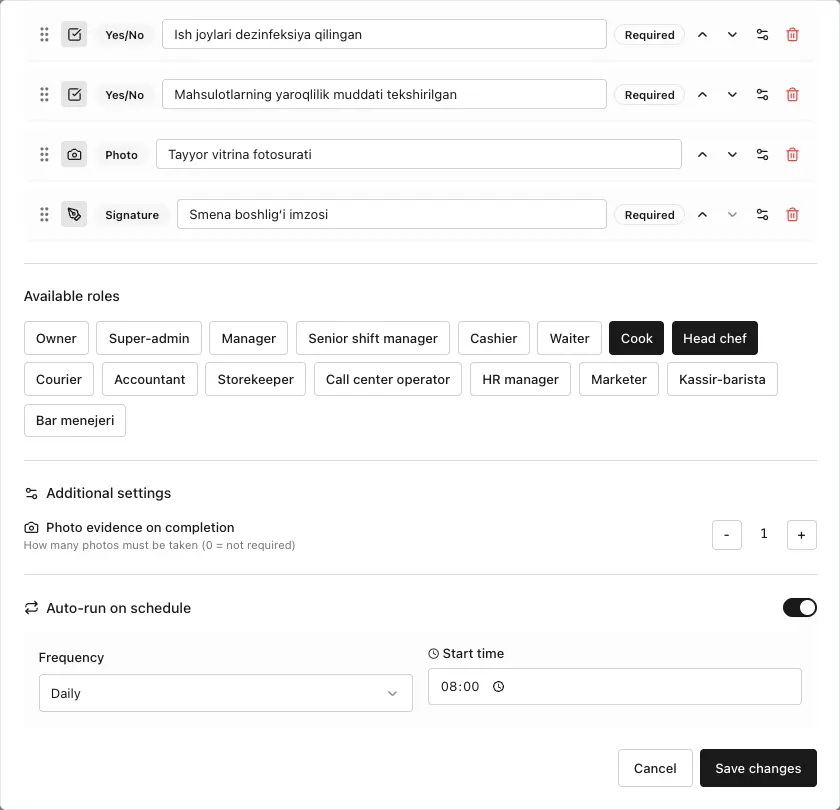
Additional settings
- «Available roles»
- The organization’s positions. When chosen, the run window lists only employees in these positions and only they see the template in Task Terminal. Nothing chosen — for everyone.
- «Photo evidence on completion»
- 0–10. The checklist can’t be finished until this many photos are uploaded (0 — not required).
- «Auto-run on schedule»
- «Frequency» (daily / weekly / monthly), «Start time» and, for weekly, «Days of the week». A run is created automatically at this time in the organization’s time zone; «Monthly» means the 1st of every month. The frequency and the next run show on the template card. Switch it off and save to remove the schedule.
How auto-run works
- Only a published, non-archived template runs. A draft says «Auto-start begins once the template is published»; the schedule counts from the moment of publishing.
- At the set time one run is created per venue of the template (one shared run if no venue is chosen). It appears on the Runs tab with no assignee, as «Pending».
- Runs are not back-filled for the time before the schedule was saved or changed. If several runs were missed while the server was down, only the last one is created.
- Schedules saved before auto-run went live are paused: the card says «Auto-start paused». Click Turn on auto-start — the schedule works from that moment («Auto-start turned on»).
Tip: If you need a checklist at other times or on an event (for example, after an incident), create a rule in Automation with the «Start checklist» action. Hand out a one-off checklist with Run.
Important: An item’s «Critical (blocks completion)» flag is not saved yet — it is off when you reopen the template.
Template examples for a restaurant
- «Morning opening (kitchen)» — Opening: fridge temperature, workstation disinfection, product dates, a showcase photo, the shift lead’s signature.
- «Evening closing» — Closing: stoves off, leftovers in the fridge, Z-report.
- «Weekly bar inventory» — Inventory, «Number» items, role «Bar menejeri».
Template examples for a store
- «Store opening» — Opening: lights and music, till and change float, fitting rooms, a window photo.
- «Window and floor standard» — Quality: price tags, size order, a mannequin photo.
- «Weekly inventory» — counting and the difference with «Number» items.
Template examples for a car wash
- «Shift opening: bays and equipment» — pressure washer, chemicals in the foam generator, water temperature, bays and drains.
- «Quality check before handing over the car» — Quality: body, windows, interior, a final photo; role «Moyka administratori».
- «Chemical safety» — Safety: labels, gloves and goggles, ventilation.
Running a checklist #
Hand a published template to a venue and an employee with a deadline.
- On the «Templates» tab, click Run on a published template card.
- Choose the Venue — then the active employees of that venue (filtered by the template’s roles) appear.
- If needed, set the Station / Zone and tick one or more assignees.
- Check the Deadline (by default — in 4 hours) and click Start.
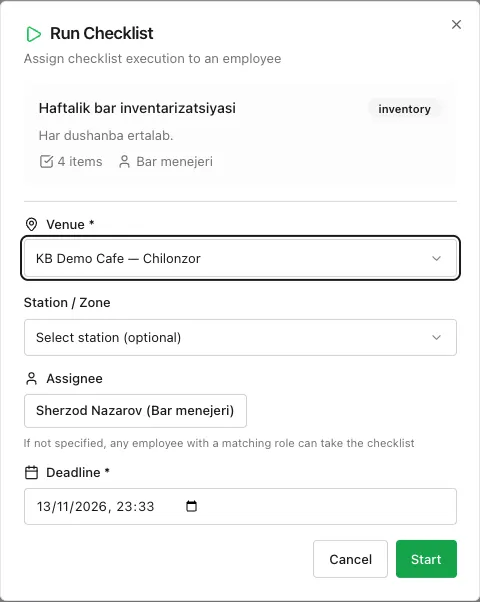
- «Venue *»
- Required. Which venue the checklist is done at.
- «Station / Zone»
- «Kitchen», «Hall», «Bar», «Delivery», «Warehouse» or «Not specified» — for reference.
- «Assignee»
- You can pick several employees — a separate run is created for each («Start (3)»).
- «Deadline *»
- After it the run is shown in red on the «Runs» tab.
Important: A run without an assignee is visible only in the admin panel: in Task Terminal an employee sees only runs assigned to them (or starts a published template themselves). If some runs fail when several employees are picked, the message lists who was not started and they stay selected — pressing again won’t create duplicates.
The «Runs» tab #
Who is doing which checklist, how far along it is and when it is due.
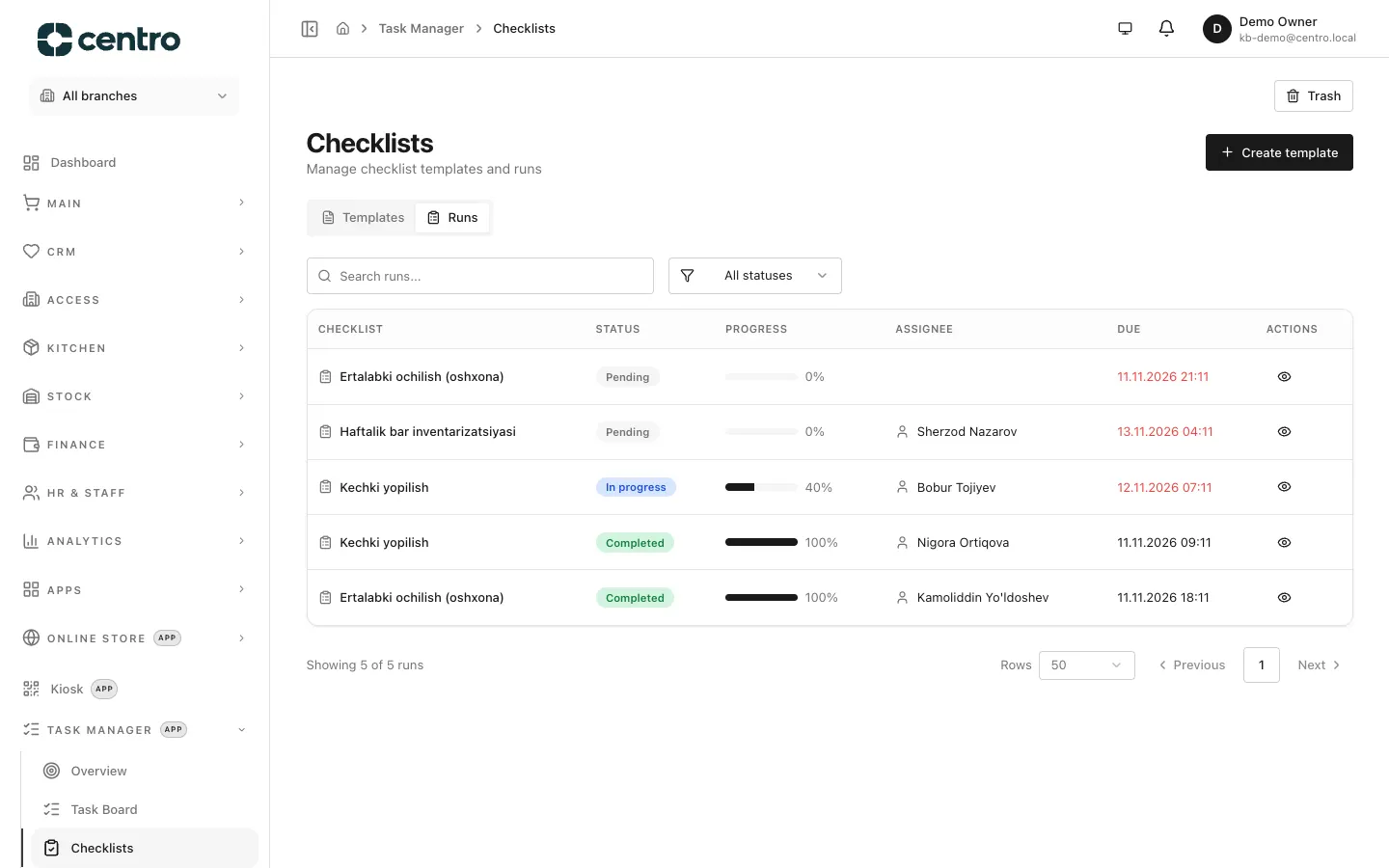
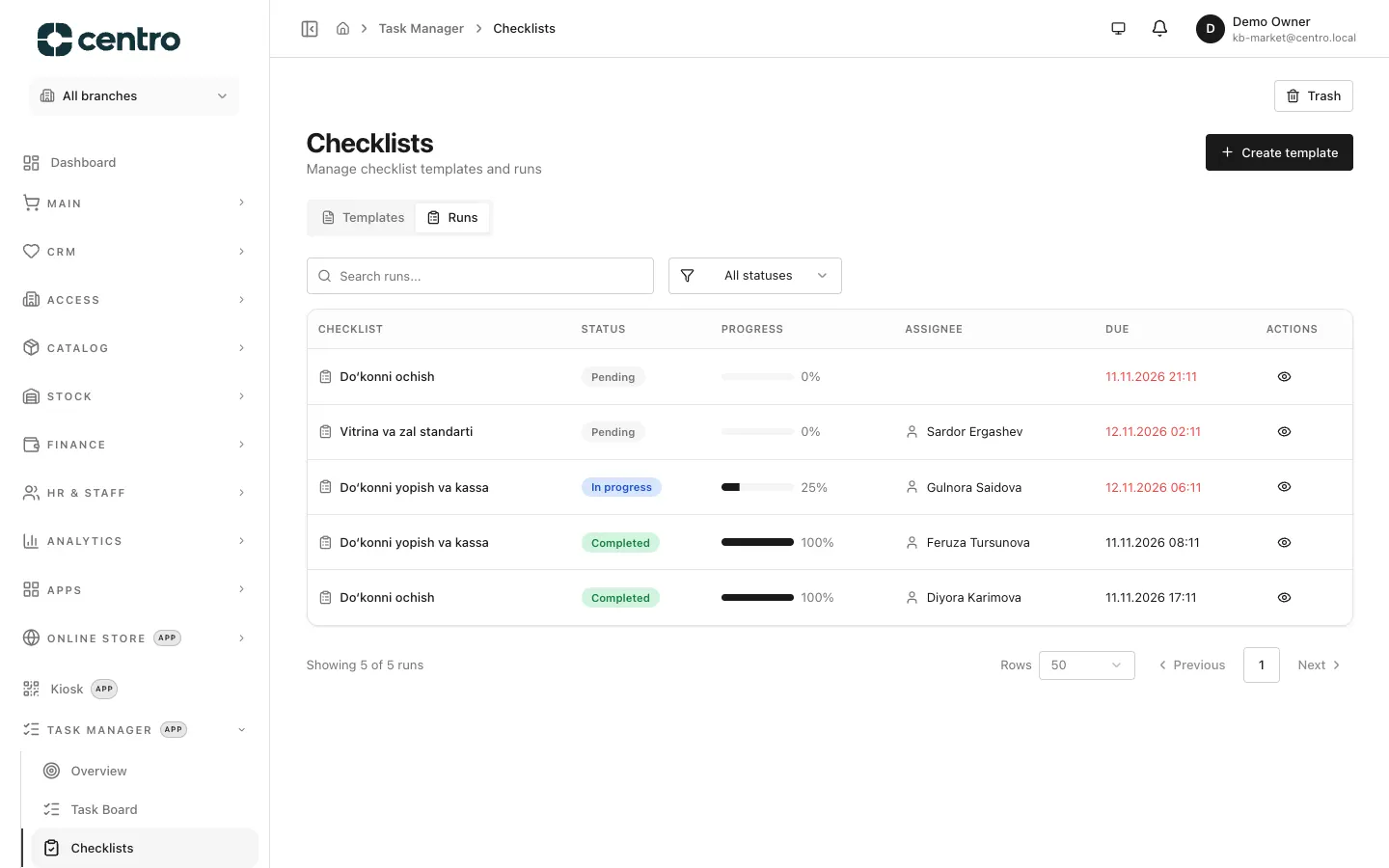
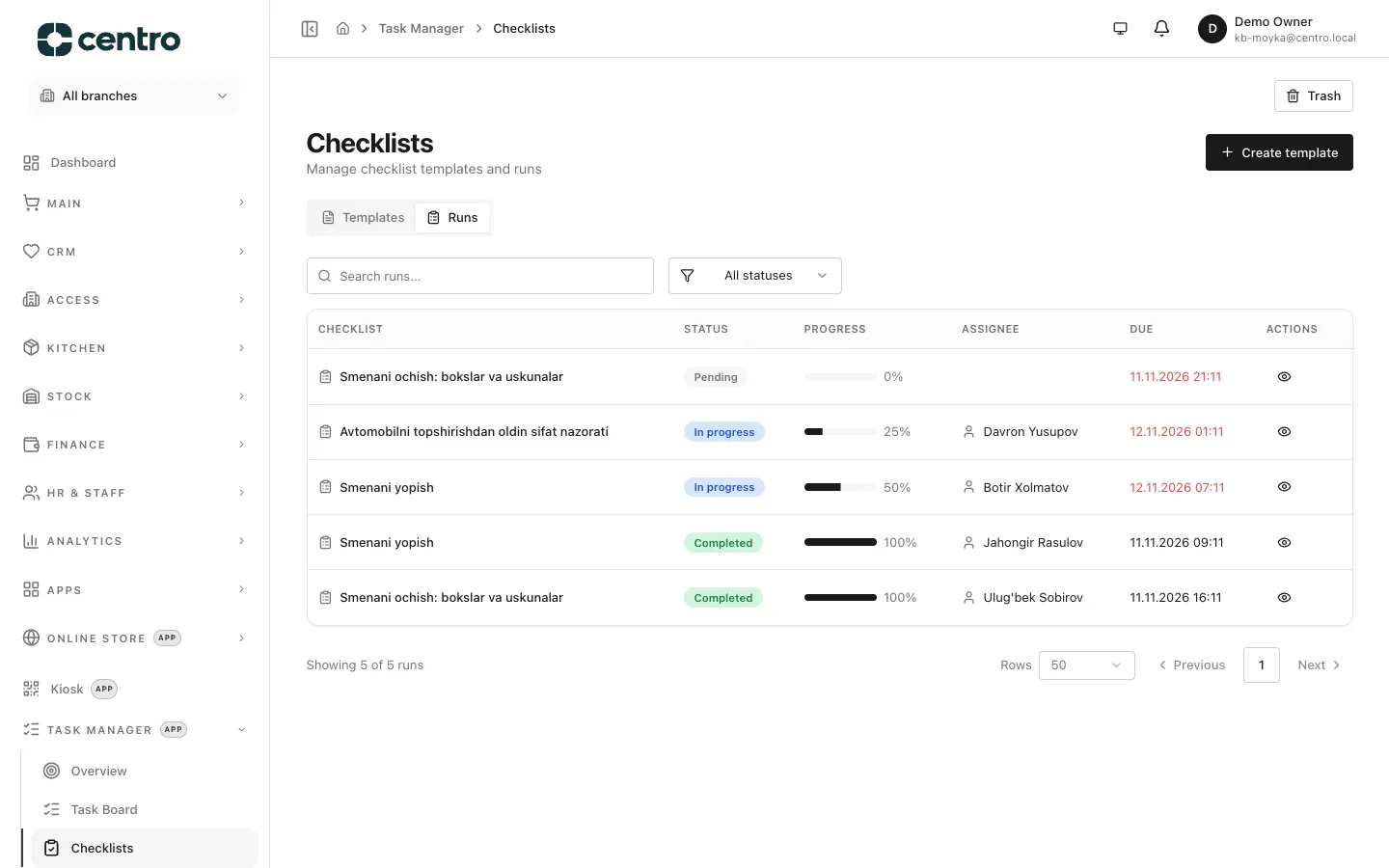
Columns
- «Checklist»
- The template name.
- «Status»
- «Pending» — not started yet; «In progress» — the employee ticked the first item; «Completed» — every item is ticked (automatic); «Expired».
- «Progress»
- The percentage of ticked items.
- «Assignee»
- Who it was given to (empty — no assignee).
- «Due»
- The due date; red if it has passed and the checklist isn’t completed.
The employee ticks the items in Task Terminal: each tick immediately increases «Progress», and after the last item the run becomes «Completed» by itself and can no longer change. If the template requires photos, the last item can’t be closed until enough photos are uploaded. The status filter and the search by template name narrow the list.