Automation
Rules that create tasks, start checklists and send notifications on a schedule or when an event happens; pause, setup check and the run log.
Open in the admin panel/tasks/automation A rule (a «trigger» in the interface) tells the system: when something happens — on a schedule (for example, every day at 08:00) or on an event (a new, completed or cancelled order, a new incident, a completed checklist, an overdue task) — run the actions: create a task on the board, start a checklist from a template or send a notification to the admin panel. Rules are checked every minute in the organization’s time zone; each occurrence runs once and is recorded in the log.
How to open
- In the sidebar, expand the Task Manager group.
- Click Automation (or the «Automation» tile on the Overview).
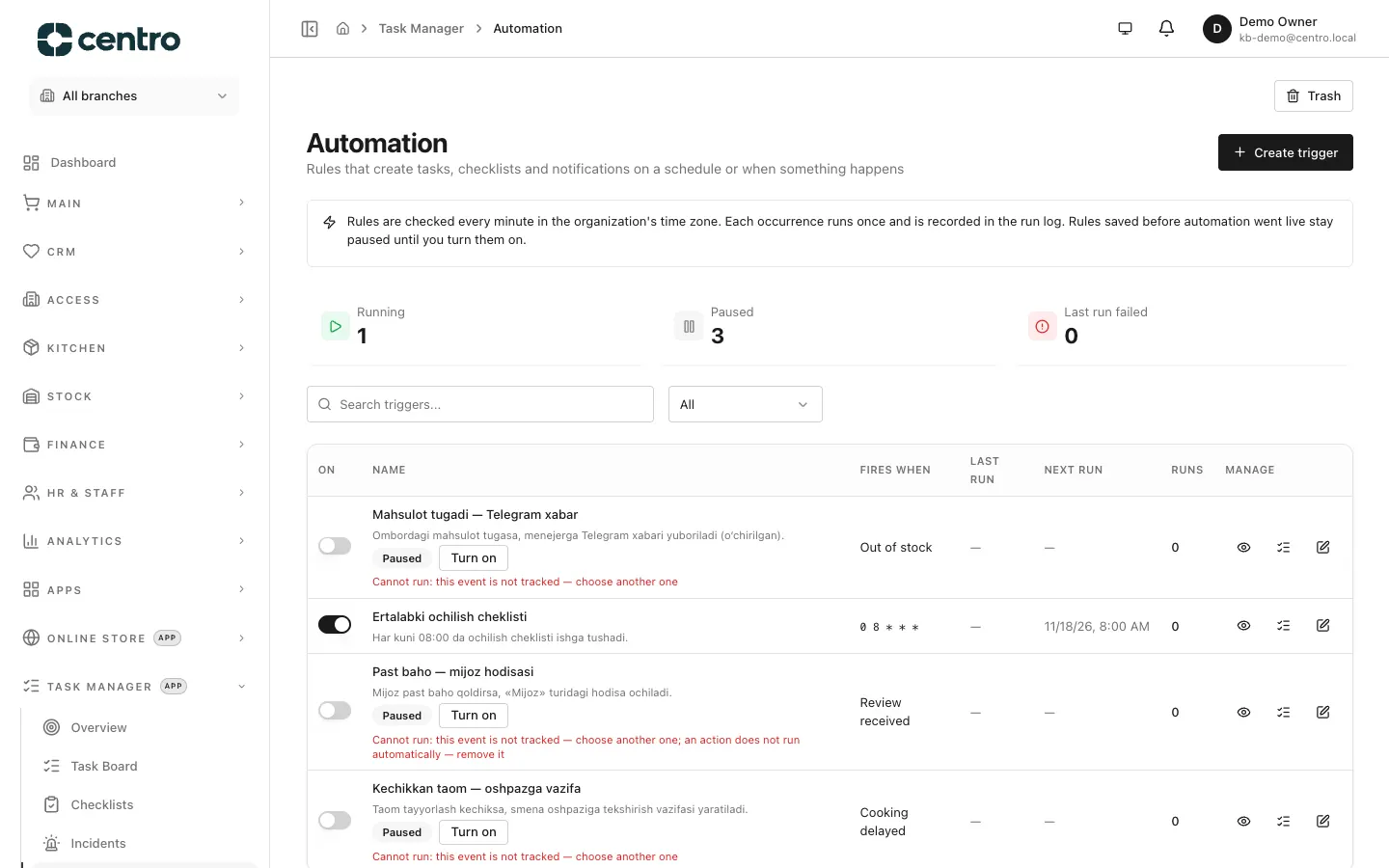
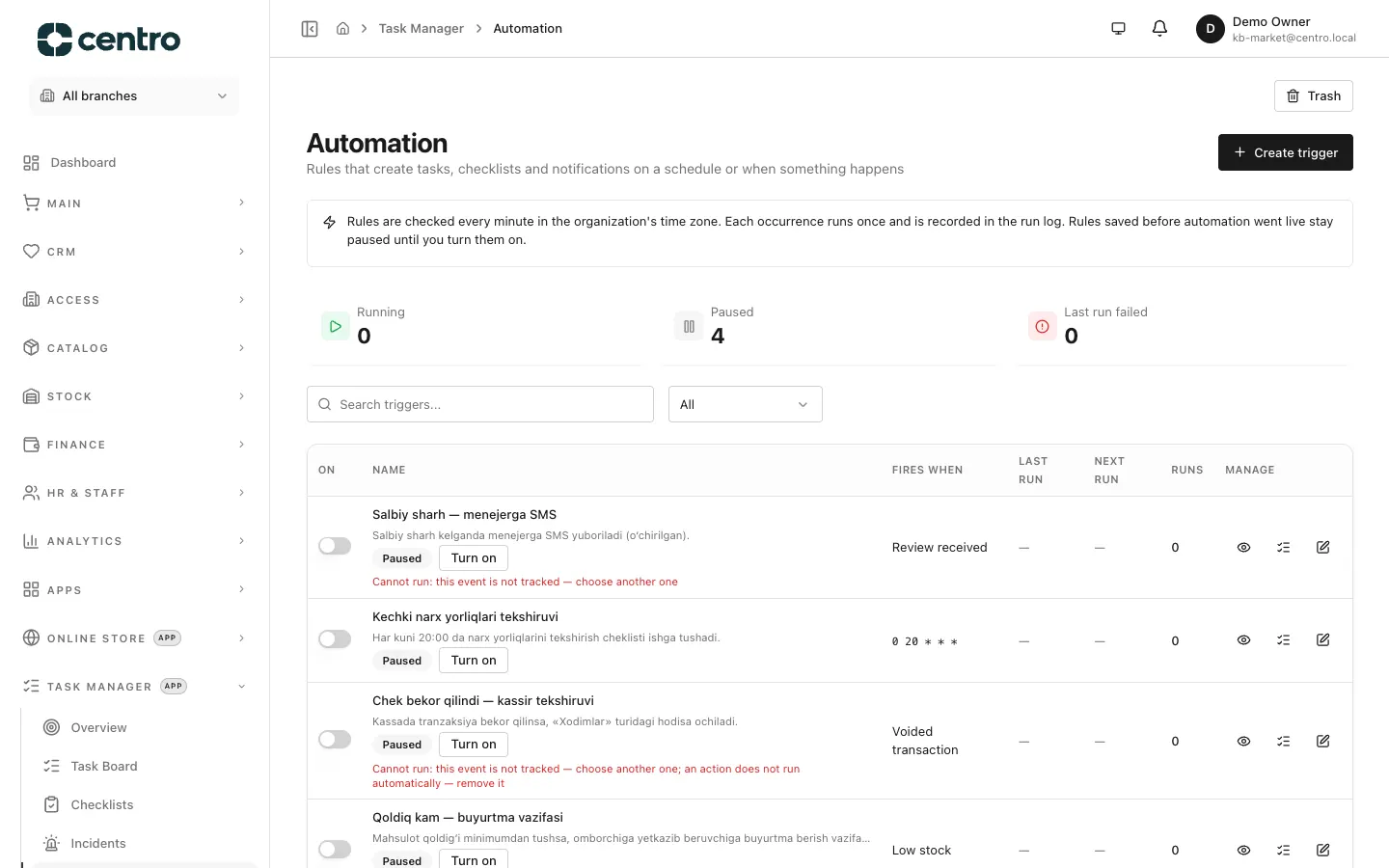
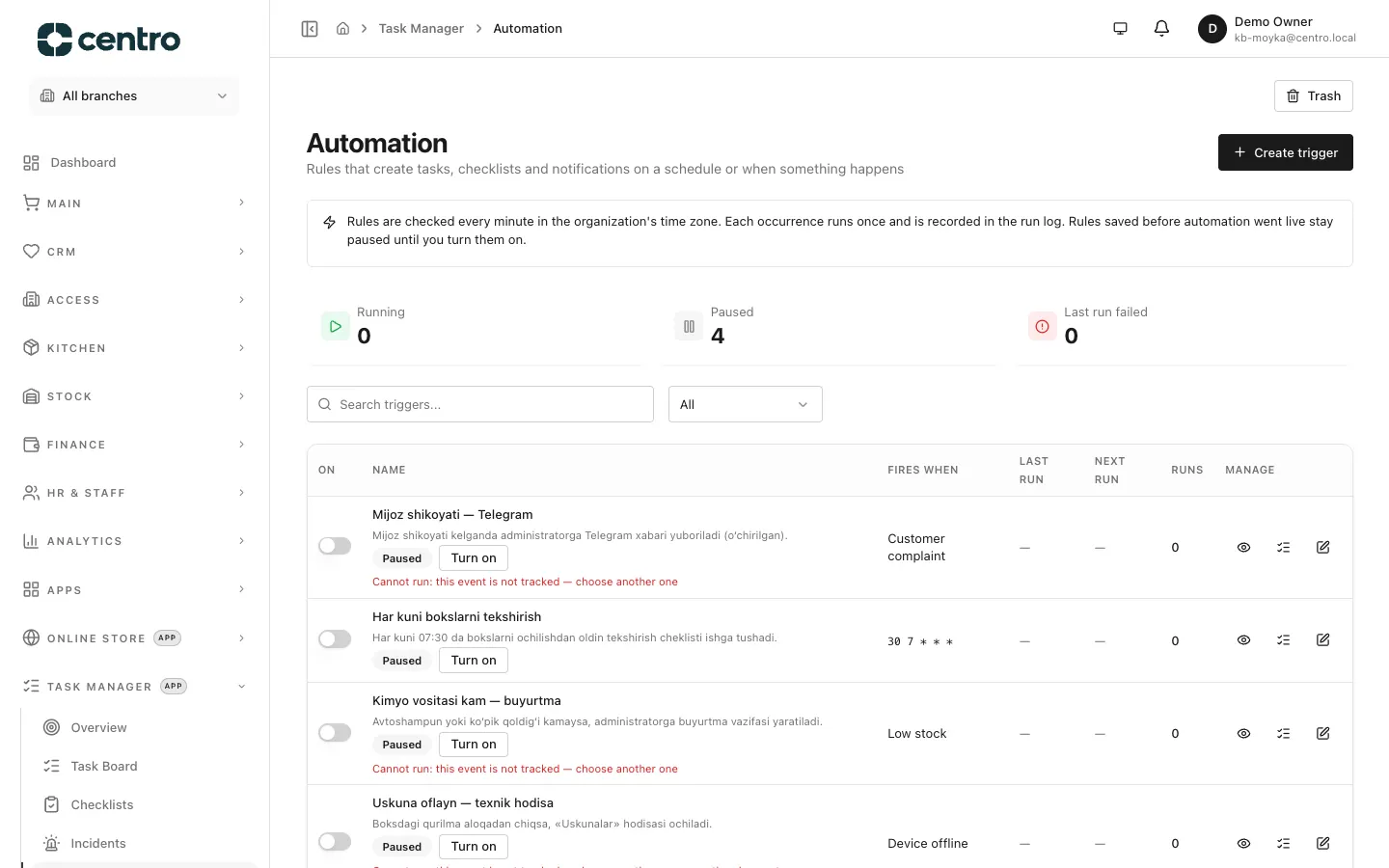
Page elements
- «Running», «Paused», «Last run failed»
- Rules on the current page of the list: those switched on and able to run, those paused, and those whose last run failed.
- Search and «Status»
- Search — by rule name on the current page. Filter: «All», «Active», «Inactive».
- «On» and «Name»
- The switch turns the rule on or off at once («Trigger activated» / «Trigger deactivated»). Under the name — the description, the «Paused» badge and a Turn on button for a paused rule, and the red «Cannot run: …» line with the reasons for a rule that can’t run.
- «Fires when», «Last run», «Next run», «Runs»
- The event name or the cron expression; the last run’s status («Success» / «Failed»), time and error text; the next date and time of a schedule rule, or «On event» for a switched-on event rule; the number of successful runs.
- «Manage»
- Eye — «Details», the «Check setup» button and the pencil — «Edit». There is no delete button: switch an unneeded rule off.
Examples for a restaurant
- Every day at 08:00 — start the «Morning opening (kitchen)» checklist.
- «Order cancelled» — a notification to managers «Order {{order.number}} cancelled».
- «Checklist completed» with «Score (%)» < 80 — a follow-up task with «P1 - High» priority.
Examples for a store
- Every day at 09:00 — start the «Store opening» checklist.
- «Order cancelled» — a task to check the receipt, with {{order.number}} in the title.
- «Task overdue» with «Priority» = critical — a notification to owners.
Examples for a car wash
- Every day at 07:30 — start the «Shift opening: bays and equipment» checklist.
- «New incident» with «Severity» = high or critical — a «P0 - Critical» task and a notification to managers.
Tip: The page is visible to employees whose position has access to the «Automation» section (Access → Positions). Rules run while the plan includes «Tasks and checklists»; events from an unpaid period are not processed later.
The rule form: source, event and schedule #
Name, «Active», the source («On a schedule», «Orders», «Operations»), the event or the schedule — creating and editing a rule.
How to create a rule
- Click Create trigger in the page header — the «Create automation trigger» window opens.
- Fill in «Name *» (at least 3 characters) and, if needed, «Description». With «Active» switched off the rule is saved as a draft and does not run.
- In «Source and event» pick «Source *». For «On a schedule» set the schedule; for «Orders» and «Operations» pick the «Event *».
- For an event rule, add conditions if needed — see «Rule conditions».
- Use the buttons under «Actions *» to add at least one action and fill in its fields — see «Rule actions».
- Click Create trigger at the bottom of the window (when editing — Save changes).
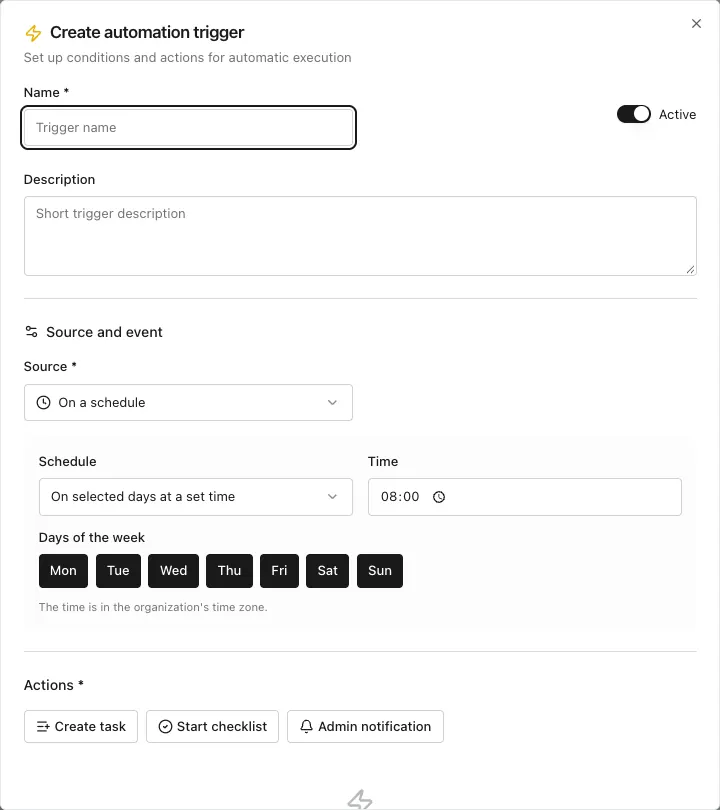
Sources and events
- «On a schedule»
- The rule fires at the set time; there is no event and no conditions. The schedule is described below.
- «Orders»
- «New order» — any order except drafts and deleted ones; «Order completed» — the order is completed or delivered; «Order cancelled» — the order is cancelled. Completion and cancellation count when they happen within 2 days of the order being created.
- «Operations»
- «New incident» — an incident is registered; «Checklist completed» — a checklist run is finished; «Task overdue» — an open task (the «Pending» and «In progress» board columns) reaches its due date. If the due date is moved and passes again, the rule fires again.
The «Schedule» block
- «On selected days at a set time»
- «Time» and «Days of the week» (starting on Monday; chosen days are filled). At least one day is required. The default is every day at 08:00.
- «Cron expression»
- Five fields: minute, hour, day, month, weekday. For example, «0 8 * * 1-5» is 08:00 on weekdays. Any other number of fields is not saved.
The time follows the organization’s time zone (Tashkent if none is set). In the list a schedule rule shows in the «Fires when» column as a cron expression: for example, every day at 08:00 is «0 8 * * *».
Important: If the automation cannot run a switched-on rule (for example, no event or no checklist template is chosen), the server does not save it: a «Cannot run» message lists the reasons. Fix them, or switch «Active» off and save it as a draft.
Rule conditions #
A filter on the event’s fields: «AND» / «OR», conditions and groups.
The «Conditions (optional)» block exists only for an event rule and appears once the event is chosen. Without conditions the trigger fires on every event of the chosen type. Changing the source or the event clears the conditions.
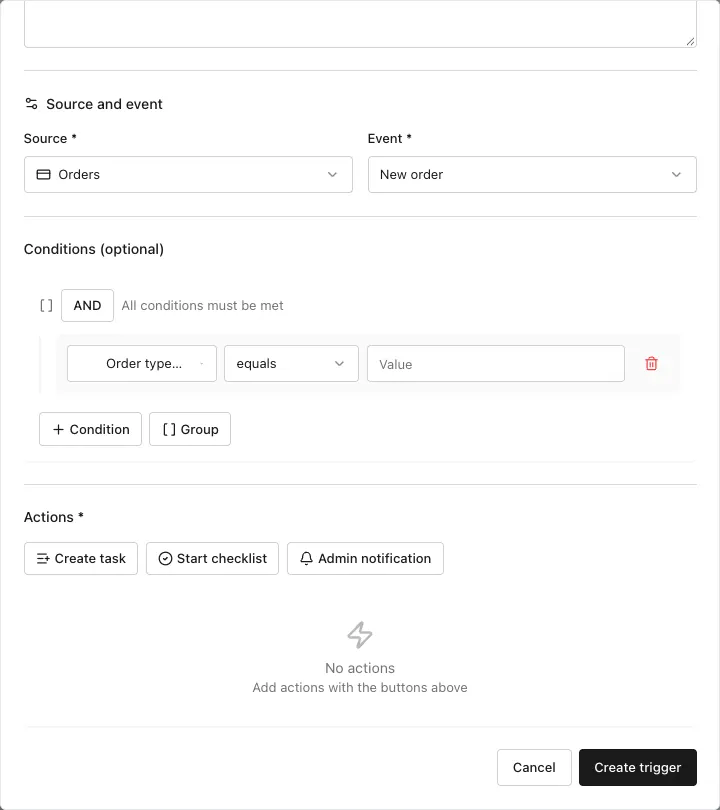
How to add a condition
- Click Condition — a row is added: field, operator and value.
- Pick the field and the operator («equals», «not equal», «greater than», «less than», «greater or equal», «less or equal», «is in», «is not in») and enter the value.
- With several conditions, the button in the block header switches how they combine: «AND» — all conditions must be met, «OR» — one is enough.
- Group adds a nested group with its own AND/OR, for example «total > 500 000 AND (type = delivery OR type = takeaway)». You can nest up to two levels. The bin deletes a condition or a group.
Event fields
- Orders
- «Order type (dine_in, takeaway, delivery, aggregator)», «Order source», «Order total», «Order number».
- «New incident»
- «Incident type», «Severity (low, medium, high, critical)», «Incident source».
- «Checklist completed»
- «Score (%)», «Failed items».
- «Task overdue»
- «Priority (low, medium, high, critical)», «Task type».
Tip: Text values are compared ignoring case. For «is in» / «is not in» list the values separated by commas: «delivery, aggregator». For fields such as type and severity enter the codes shown in brackets (for example, «critical»).
Rule actions #
Three actions: create a task, start a checklist and an admin notification — what is created and where.
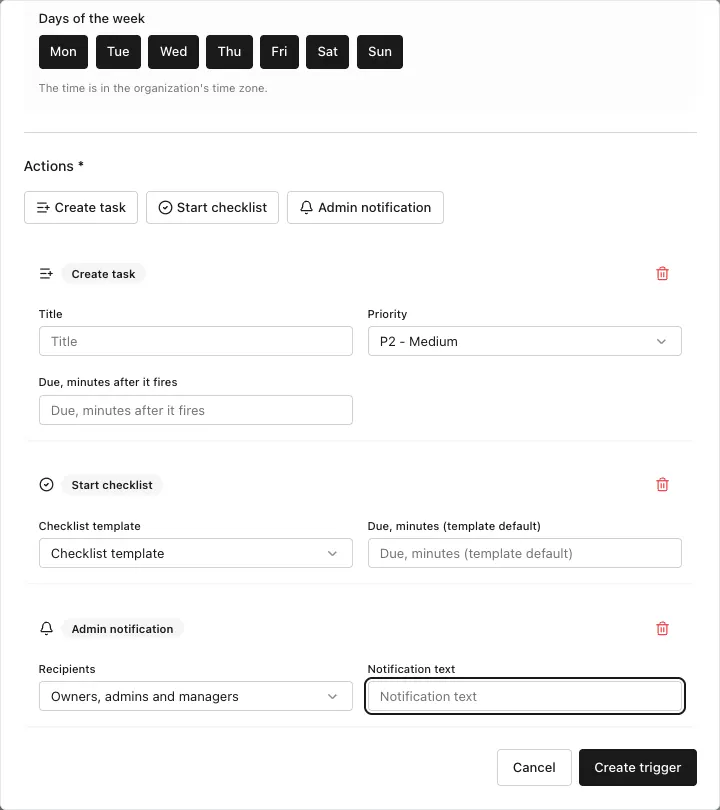
- «Create task»
- «Title» (empty — the rule name), «Priority» («P0 - Critical» … «P3 - Low», default «P2 - Medium») and «Due, minutes after it fires». The task appears on the Task Board with no assignee, in the «Pending» column; its author is the employee who created the rule and its tag is «automation». An event rule creates the task at the event’s venue and links it to the order or incident; a schedule rule creates one task with no venue.
- «Start checklist»
- «Checklist template» (published templates only; if there are none — «No published checklist templates») and «Due, minutes (template default)». A run with no assignee, as «Pending», appears in Checklists → Runs: at the event’s venue, or for a schedule rule one per venue of the template. If the template is archived, deleted or not available at the event’s venue, the run ends with an error.
- «Admin notification»
- «Recipients» («Owners, admins and managers», «Owners», «Administrators», «Managers») and «Notification text» (empty — the rule name). The notification arrives in the admin bell under the rule name — to active employees of that role who have access to the event’s venue. If there are none, the run ends with an error.
Tip: In an event rule the task title and the notification text can include event data — the field name in double curly braces: {{order.number}}, {{order.total}}, {{incident.title}}, {{checklist.name}}, {{task.title}}. {{rule.name}} and {{occurrence.at}} (when it fired) are always available.
Important: The actions run together: if one fails, nothing from that occurrence is kept and the error goes to the run log. That occurrence is not retried — fix the cause and the rule fires on the next event or at the next time.
Run log, details and the setup check #
«Run log», the «Details» window and the «Check setup» button — how to tell whether a rule ran and why not.
«Run log»
- Where
- At the bottom of the page — the last 20 runs of all rules with the «All» / «Success» / «Failed» filter; in the «Details» window — the last 20 of one rule.
- Columns
- «Time», «Rule» (in the shared log), «Reason» — «Scheduled: …» with the planned time or the event name, «Status» — «Success» or «Failed», «Result» — «Actions: N, created or notified: M» or the error text.
Buttons in the «Manage» column
- Eye — «Details»
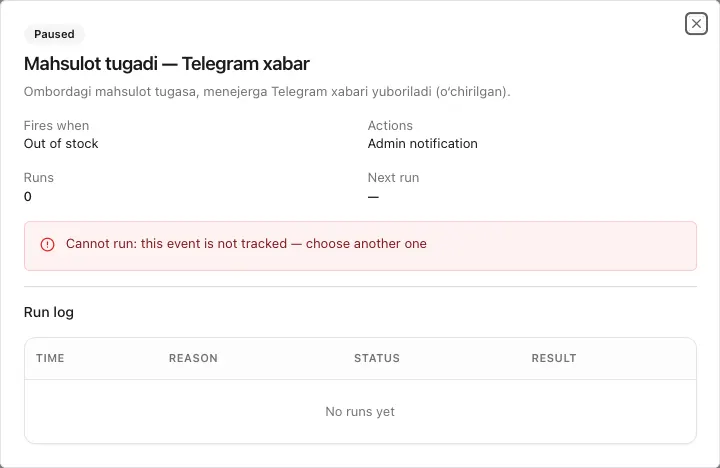
- The status badge («Active», «Disabled» or «Paused»), name and description, «Fires when», «Actions», «Runs», «Next run», «Cannot run» with the reasons if the rule can’t run, and the rule’s log at the bottom.
- «Check setup»
- Checks the saved rule without running anything. Answers: «The rule is set up correctly and runs automatically», «The rule is set up correctly but switched off — turn it on to run it» or «The trigger test failed» with what is missing (for example, «this event is not tracked — choose another one»).
- Pencil — «Edit»
- Opens the «Edit trigger» form — the same as the create form.
How rules run
- The automation checks switched-on rules every minute; a rule runs at most once per event or planned time.
- A rule that is switched on (or back on) does not catch up on the past: only events and times after it was switched on count. If several planned times were missed, only the last one runs.
- «Runs» counts successful runs only. Failures show in the «Last run» column, the «Last run failed» counter and the log.
Paused and old rules #
Rules saved before the automation went live are «Paused» — how to turn them on and fix them.
Before, the page only stored rules and nothing executed them. When the automation went live, all old rules were paused so that they would not start firing on their own. Such a rule has the «Paused» badge and a Turn on button under its name, its «On» switch is off, and it counts in the «Paused» counter.
How to turn an old rule on
- Click Turn on under the name or the «On» switch. If the rule can run, «Trigger activated» appears and it works from that minute — events from the paused period are not processed.
- If «Cannot run» appears, the rule has something that no longer runs. Open it with the pencil, fix the reasons, switch «Active» on (a paused rule shows it off) and click Save changes — the rule leaves the pause.
What to fix in old rules
- Event
- The former sources (kitchen, delivery, stock, quality control, CRM, finance, POS, sensors and others) are no longer tracked: the list says «this event is not tracked — choose another one». When you edit the rule such an event is cleared — pick a new one from «Orders» or «Operations», or move the rule to a schedule.
- Actions
- Creating an incident, loyalty compensation and webhooks no longer run. In the form such an action shows the red «Does not run automatically — remove it» badge — delete it with the bin.
- Checklist template
- If the «Start checklist» action has no «Checklist template» — «no checklist template is selected»: choose a published template.
Tip: The «Active» filter looks at the saved on flag, so a paused rule may also show under «Active». The real state is shown by the «Paused» badge and the counters.