Overview
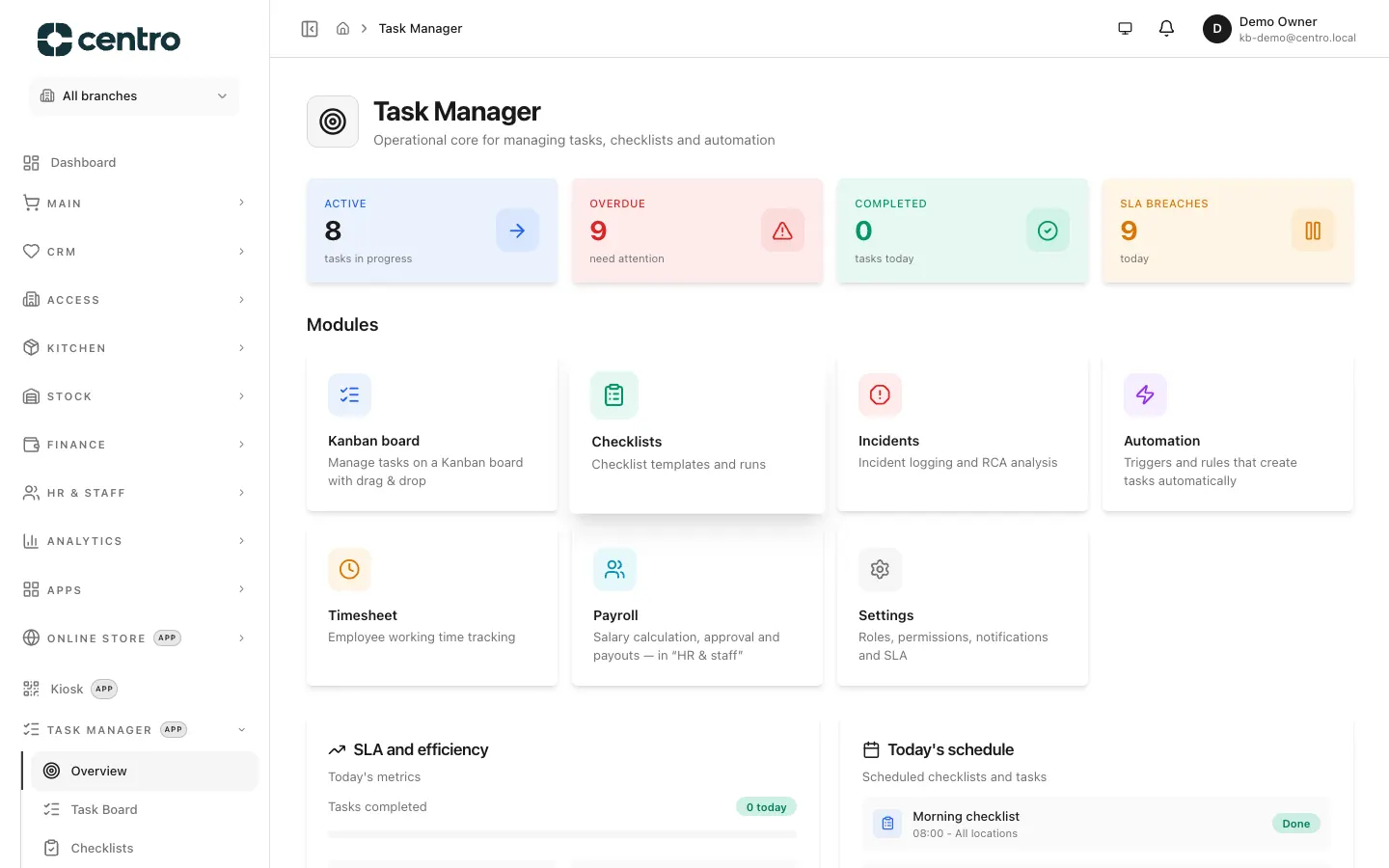
The Task Manager home page: active, overdue and completed-today tasks, plus quick links to the modules.
Open in the admin panel/tasks The page header is «Task Manager». Nothing is entered here: it is a short summary of the team’s work and the entry point to tasks, checklists, incidents and automation.
How to open
- In the sidebar, expand the Task Manager group.
- Click Overview.
Page blocks
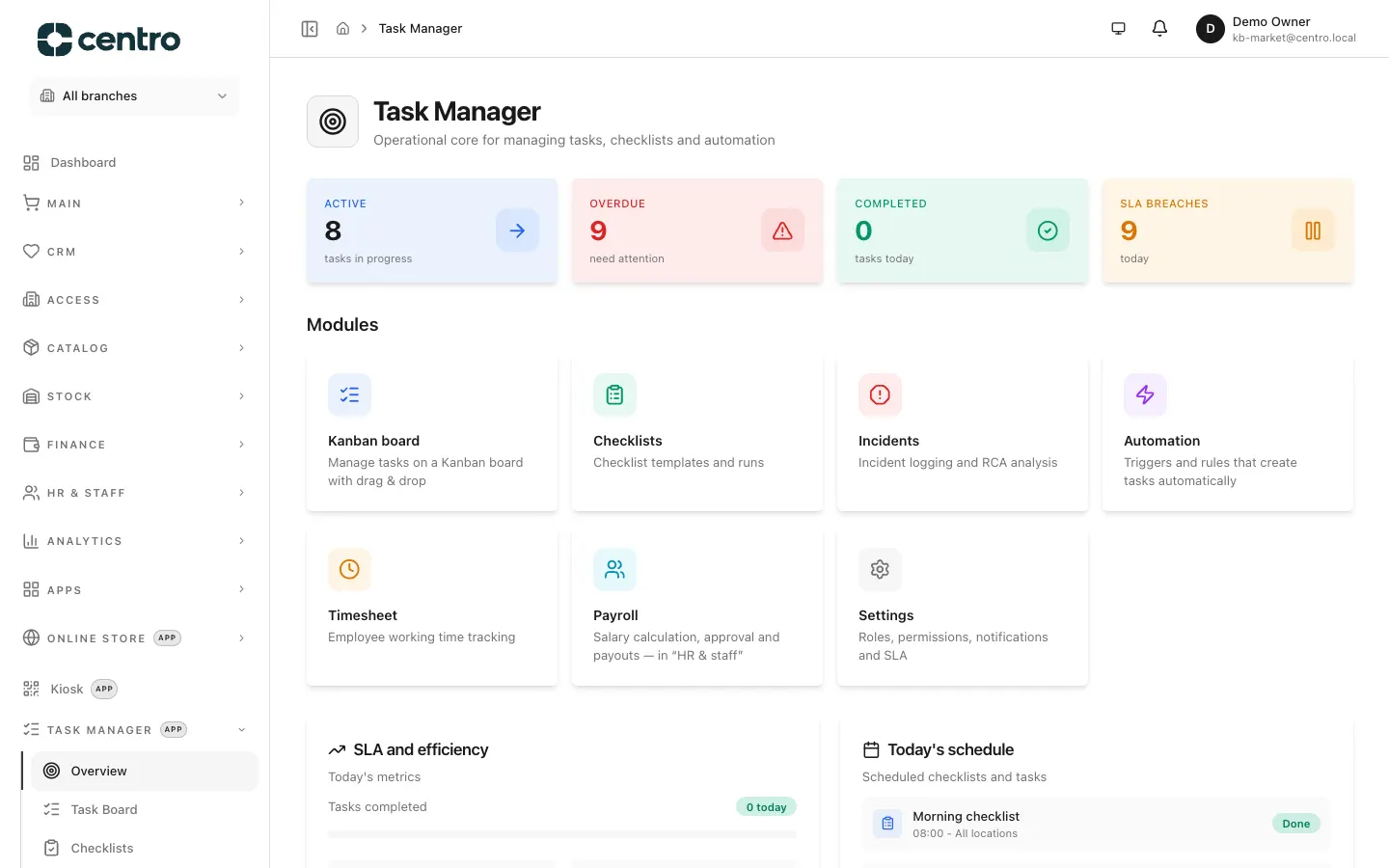
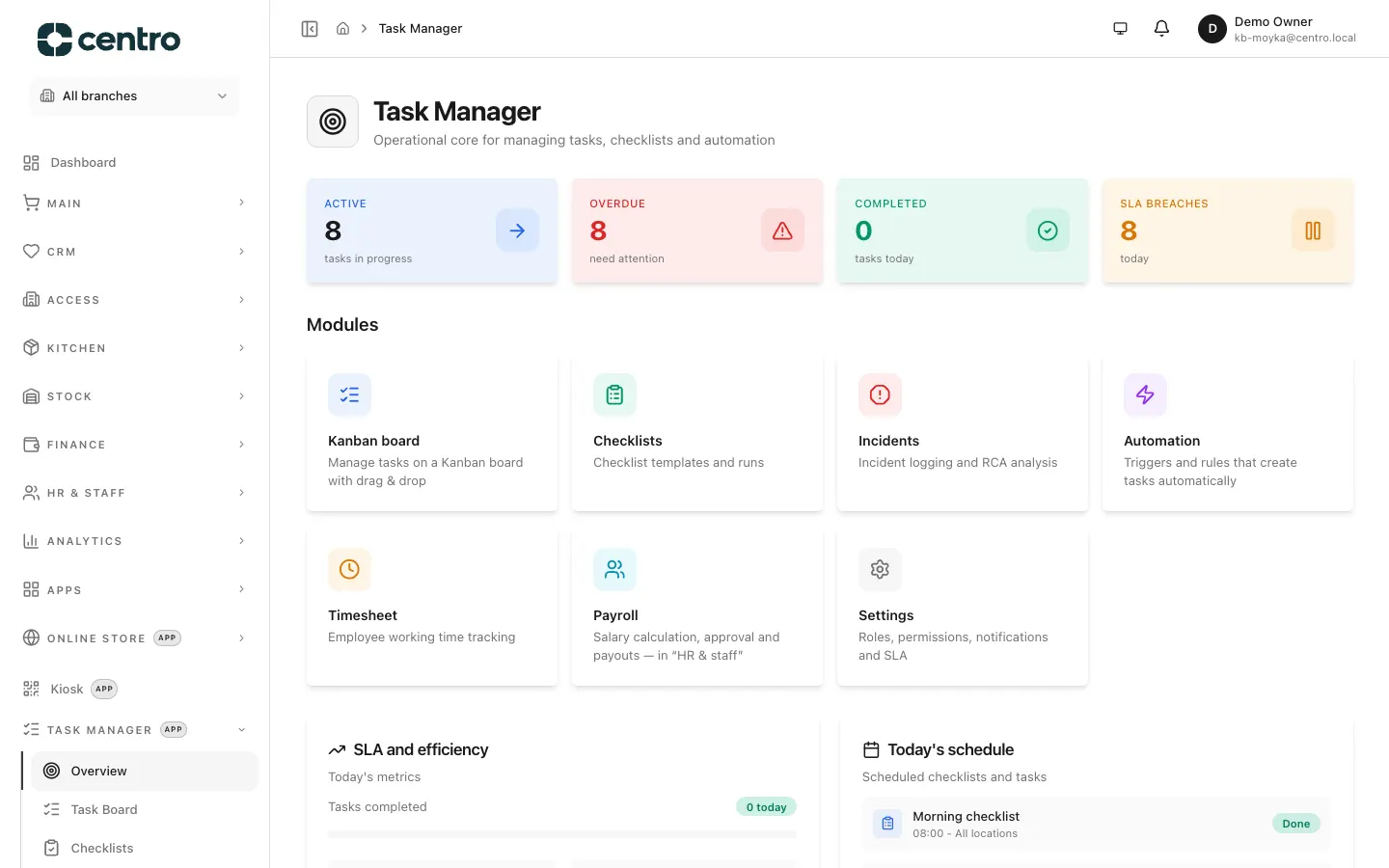
- Counters
- «Active», «Overdue», «Completed» and «SLA breaches» — see «How the figures are calculated» below for the formulas.
- «Modules»
- The tiles open the sections: «Kanban board» (the task board), «Checklists», «Incidents», «Automation» and «Settings». The «Timesheet» and «Payroll» tiles lead to HR: «Timesheet» opens HR & staff → Attendance, «Payroll» opens HR & staff → Salaries (salary calculation, approval and payouts live there).
- «SLA and efficiency»
- Tasks completed today, the completion-share bar, «Average time» (in minutes) and «SLA breaches».
- «Today’s schedule»
- A sample morning, daytime and evening checklist.
Tip: The separate «Payroll» and «Timesheet» pages inside Task Manager are no longer opened — the tiles lead straight to HR. Everything about salaries is in the HR & staff → Salaries topic, timesheets and clock events are in HR & staff → Attendance.
Important: The «Today’s schedule» block currently shows a sample, not real data (always 08:00, 14:00 and 22:00, «All locations»). See the real checklist runs and their statuses on the Checklists → Runs tab.
How the figures are calculated #
Which tasks the cards and the «SLA and efficiency» block count.
All figures come from the board’s tasks (deleted ones are excluded) and are counted across every venue you can access. They refresh when the page opens.
- «Active» — «tasks in progress»
- The sum of tasks in the «Pending» and «In progress» statuses. Blocked tasks are not included.
- «Overdue»
- Tasks that are neither completed nor cancelled and whose deadline has passed — blocked ones included.
- «Completed» — «tasks today»
- How many tasks were moved to «Completed» today.
- «SLA breaches»
- Currently equals the number of overdue tasks: every task not completed by its deadline counts as an SLA breach.
- «SLA and efficiency»
- «Tasks completed» — completed today; the bar is today’s completed share of all tasks (cancelled included). «Average time» — the average number of minutes from creating a task to completing it (over all completed tasks). «SLA breaches» — the same as the card above.
Tip: If «Average time» keeps growing, tasks sit in «Pending» too long: sort them out on the board by priority and deadline.
How work flows through Task Manager #
The manager assigns tasks and checklists, the employee does them in Task Terminal, the manager sees the result here.
- On the Task Board, create a one-off task: what to do, who, at which venue and by when.
- For recurring checks (opening, closing, hygiene), build a template in Checklists, publish it and run it for the right employee — or switch on «Auto-run on schedule» and the runs are created by themselves.
- In Automation, set up rules: on a schedule or on an event (a new or cancelled order, a new incident, a completed checklist, an overdue task) tasks, checklists and notifications appear by themselves.
- The employee signs in to the Task Terminal app (an iPad at the venue) with a PIN, sees the tasks and checklists assigned to them, ticks items, uploads photos and changes the status.
- Track the result on the Overview (figures) and on the board (progress on the card, overdue ones in red).
Tip: Use Incidents for problems (an equipment failure, a guest complaint) — it adds tasks to this same board.