How to turn the section on
You need the «Tasks and checklists» feature (in the «Enterprise» plan), the Task Manager app switched on and the «Tasks» group permissions.
Conditions
- The plan has «Tasks and checklists» — it is part of the «Enterprise» plan. On other plans the «Configure locations and modules» window has a «Tasks and checklists» field: a value above zero adds the feature once the configuration is paid.
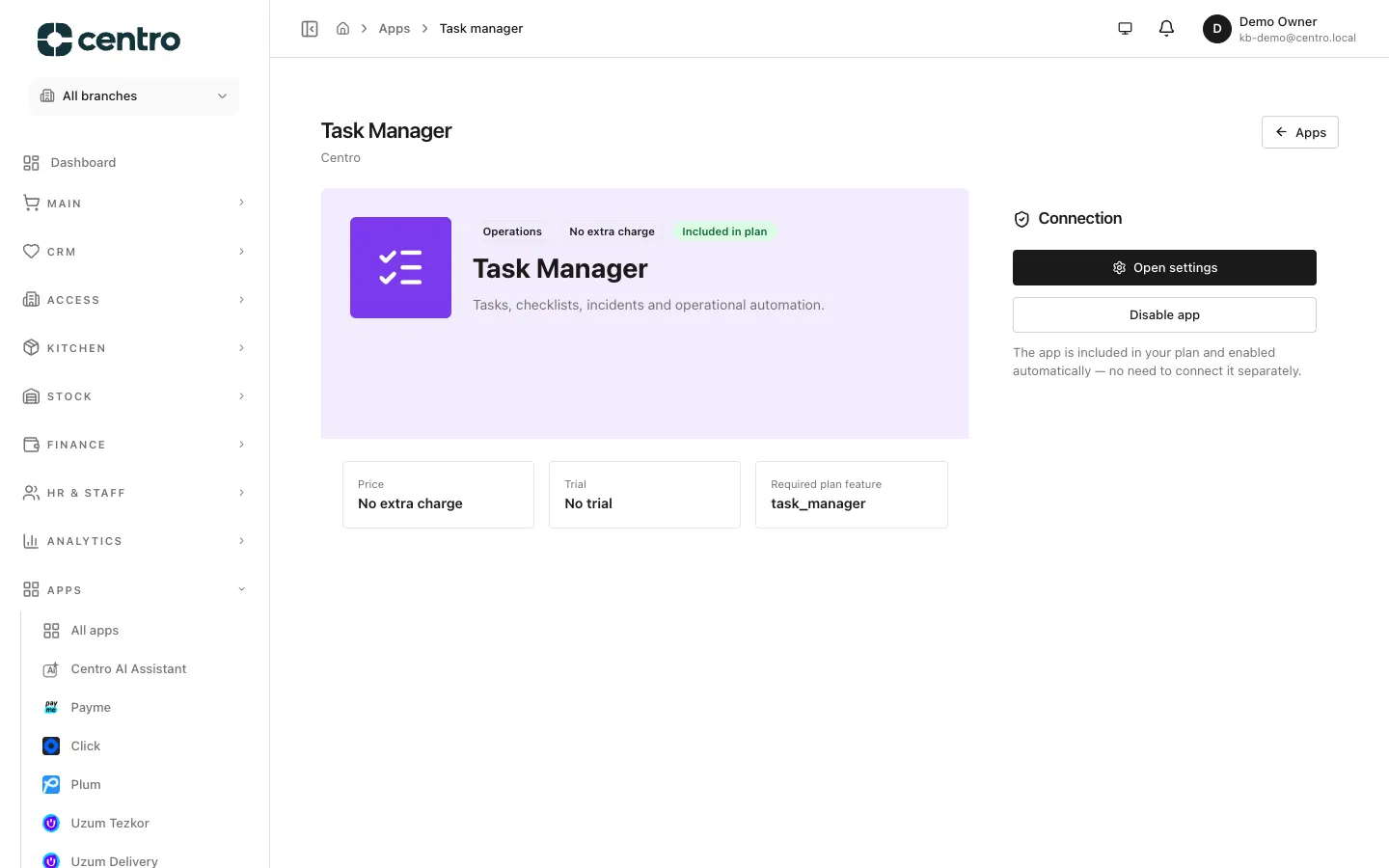
- The Task Manager app in Apps («Included in plan») is not disabled: it is switched on automatically with the plan, and disabling it hides the whole group.
Menu item — what an employee needs
- Overview, Task Board, Settings
- The «Tasks» permission in the «Tasks» group — at least «View».
- Checklists
- The «Checklists» permission in the «Tasks» group — at least «View».
- Incidents
- The «Incidents» permission in the «Tasks» group — at least «View».
- Automation
- The «Automation» permission in the «Tasks» group — at least «View».
Tip: The Task Terminal tablet app is a separate «Task Terminal» module (5.91 USD per month, from the «Business» plan); it does not affect the menu.
How to give an employee access
- Open Access → Positions (this item is visible only to the organization owner) and open the employee’s position for editing.
- In the «Admin panel access» block find the «Tasks» group and choose «View» (read only) or «Full access» (create and change) in the rows you need.
- Press «Save changes».
- The employee reloads the page and the items appear in the menu. With «No access» the item is hidden, and a direct link to the page redirects to the first available page of the menu (usually «Dashboard»).