Incidents
A log of operational problems: registration, severity, root cause analysis (RCA), resolution and verification. A log of store problems: fridges, price tags, expired goods, cash shortages — with RCA, resolution and verification. A log of car-wash problems: box equipment, customer complaints, car chemicals, safety — with RCA, resolution and verification.
Open in the admin panel/tasks/incidents An incident is an operational problem that must be recorded, analysed and fixed: broken equipment, a customer complaint, a cash shortage, a safety violation. The page shows all incidents with their status and severity; for each one you run a cause analysis (RCA), record the fix and a manager confirms the result. Incidents are created manually, from the dispatcher screen or automatically (if enabled in the settings).
How to open
- In the sidebar, expand the Task Manager group.
- Click Incidents.
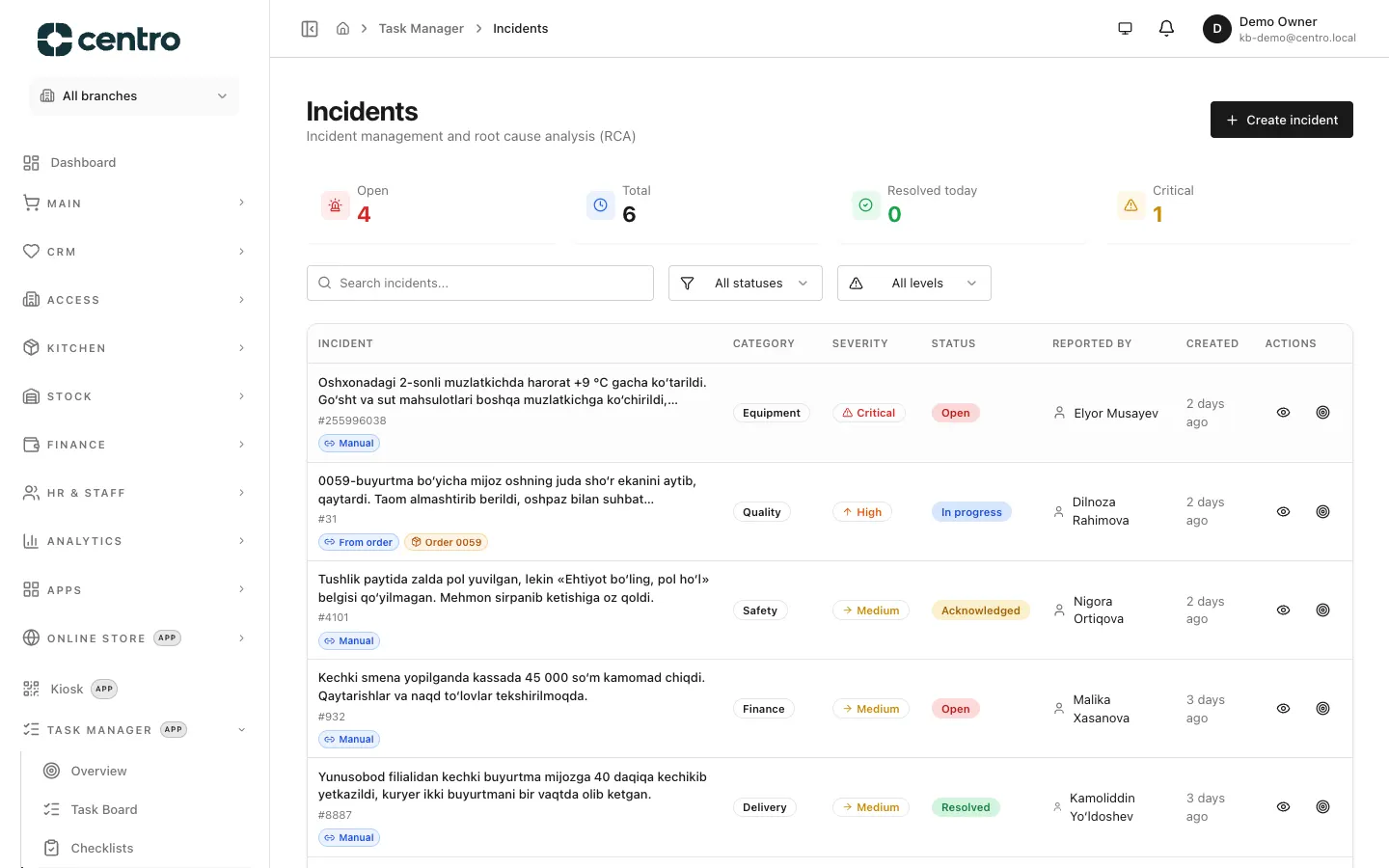
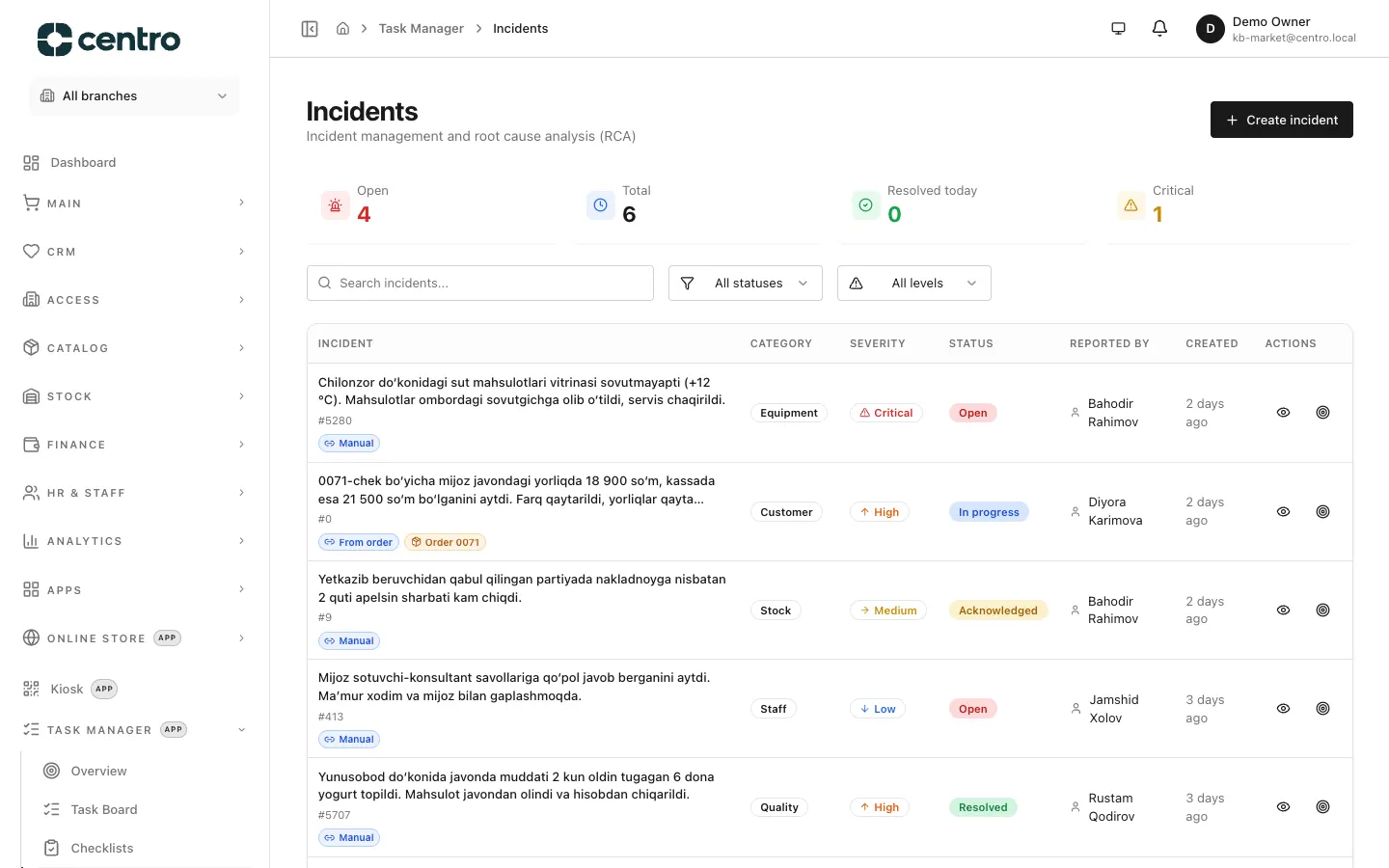
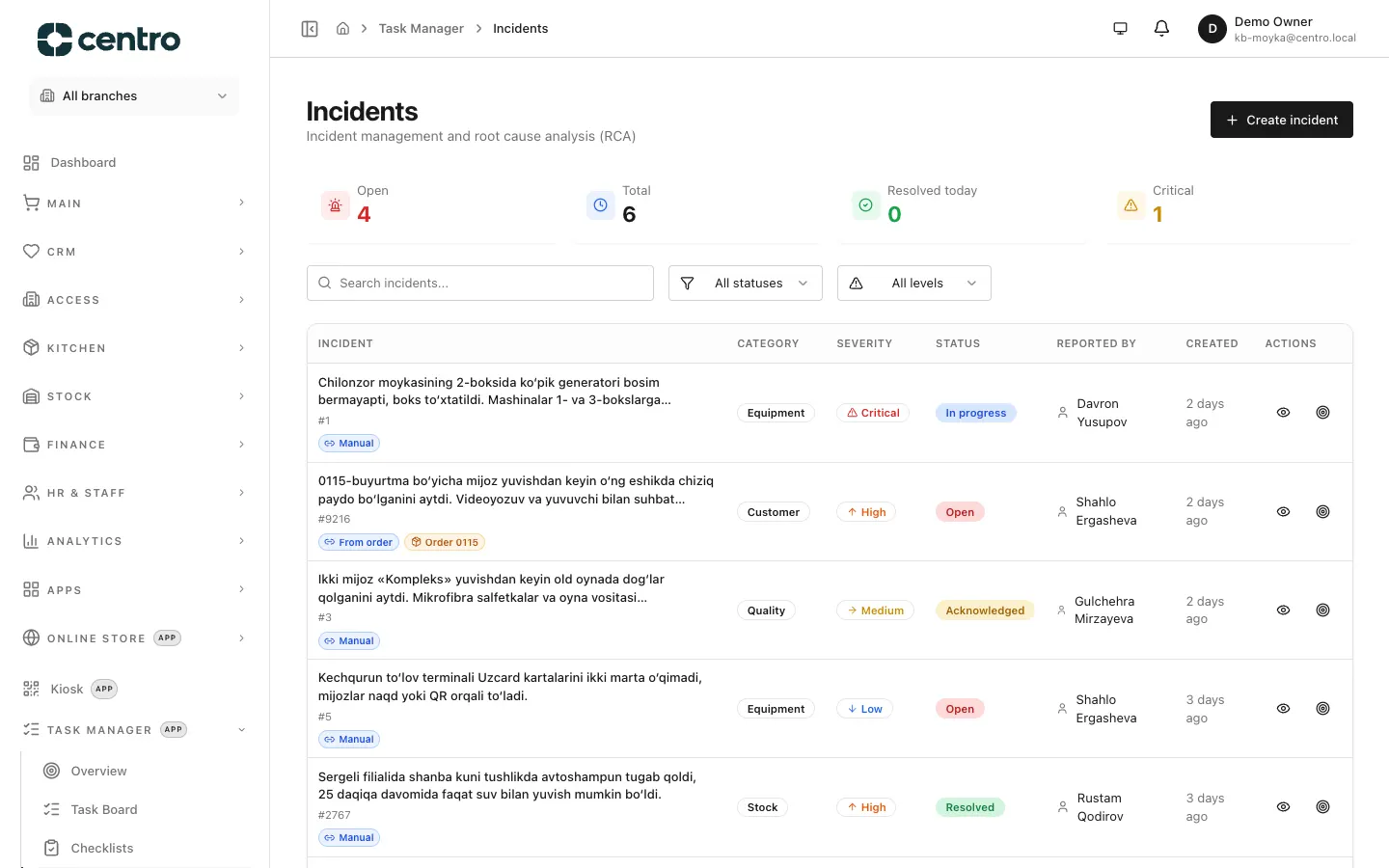
Counters
- «Open»
- Unresolved incidents: «Open», «Acknowledged» and «In progress» together.
- «Total»
- All incidents of the selected branch, whatever their status.
- «Resolved today»
- Incidents marked resolved today.
- «Critical»
- The number of level 5 «Critical» incidents.
Filters and table columns
- Search
- By the description text or the first 8 characters of the id — only among the incidents on the current page.
- «All statuses» / «All levels»
- Status and severity filters — applied on the server, together with paging.
- «Incident»
- The description, the incident number and the source chips (the first three, the rest as «+N»). The number is taken from the last digits of the id and is not sequential.
- «Category», «Severity», «Status»
- The incident type, the level badge and the current status.
- «Reported by», «Created»
- Who registered it and how long ago («about 2 hours ago»).
- «Actions»
- Eye — the incident card; target — the RCA form (only with full access to «Incidents»).
Tip: View-only users see the list and the cards but not the Create incident, RCA and resolution buttons. Permissions are granted in Access → Positions — the position’s access to the «Incidents» section.
Statuses and severity levels #
How an incident moves from «Open» to «Verified» and how the severity level is stored.
Statuses
- «Open»
- Every new incident is created in this status — manually or automatically.
- «Acknowledged» and «In progress»
- Someone has taken the incident and is working on it. Other apps set these statuses (for example the dispatcher screen or the staff terminal); the incidents page has no button for them.
- «Resolved»
- After the fix is described in the card and Mark as resolved is clicked. The resolution time and who resolved it are stored.
- «Verified»
- After a manager has checked the result and clicked Confirm the fix. Only a «Resolved» incident can be verified.
- «Closed» and «Reopened»
- Present in the filter but not set from the incidents page — they come from the automatic-incident workflow and other apps.
Severity
- 1 «Minimal» and 2 «Low»
- Minor deviations. The server stores both as «Low».
- 3 «Medium»
- Needs attention, may affect customers.
- 4 «High»
- A serious problem that needs a quick response.
- 5 «Critical»
- Needs immediate action. Only this level is counted in «Critical».
Tip: If you pick level 1 in the form, the list and the card show the incident as «Low» — this is expected: the server stores four values (low, medium, high, critical).
The create-incident form #
Type, severity, venue, related order and description — what is required and what is stored.
How to register an incident
- On the Incidents page click Create incident.
- Choose the «Incident type *» and the severity (1–5) — a hint for the chosen level appears below.
- Select the «Venue *» and, if needed, the «Station / Zone» and the «Related order (optional)».
- In «Incident description *» describe what happened, when and under what circumstances (at least 10 characters) and click Create incident.
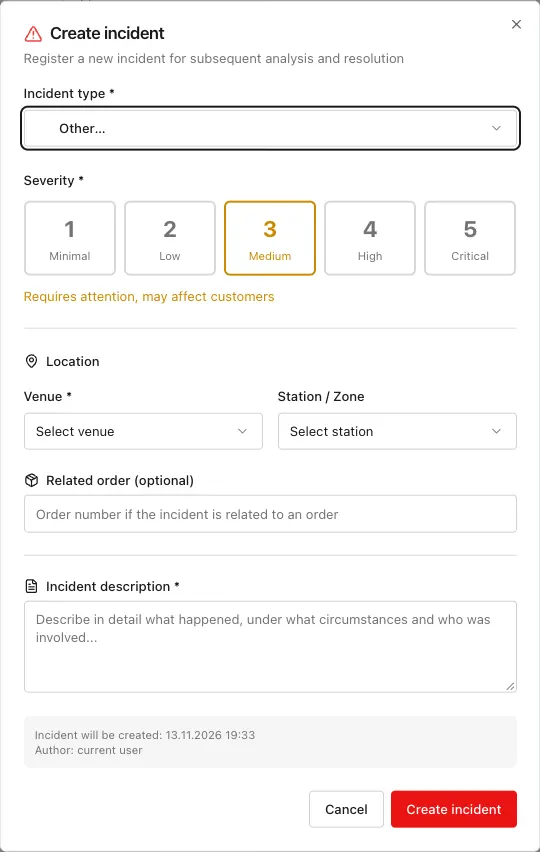
Form fields
- «Incident type *»
- 10 types: «Equipment», «Quality», «Safety», «Customer», «Staff», «Delivery», «Stock», «Service» (a process failure without a customer complaint), «Finance» (a payment, refund or settlement discrepancy), «Other». The list shows it in the «Category» column.
- Severity (1–5)
- Default — 3 «Medium». See «Statuses and severity levels» for what each level means.
- «Venue *»
- Venues (branches) only, no warehouses. The list and the counters of the page also respect the branch selected in the header.
- «Station / Zone»
- «Kitchen», «Hall», «Bar», «Delivery», «Warehouse», «Checkout» or «Not specified». The chosen zone is saved and shown in the incident card as «Zone».
- «Related order (optional)»
- Type the number from the receipt («ORD-000123», «123» or «#123»). On save the system looks for an exact match among orders; if several match it asks for the full number, if none — it shows an error. A linked order adds the «Order» tile, a source chip and the «Order kitchen» section to the card.
- «Incident description *»
- At least 10 characters. The list shows the description as the incident’s main text, so put the key fact in the first sentence.
Important: The card title is set automatically to «Инцидент» (the form has no title field). Manually created incidents may show «User» instead of the employee’s name in «Reported by». Mention the people involved in the description.
Opened from the dispatcher. When an incident is created from a chat, call or order on the dispatcher screen, the form opens by itself with the «The dispatcher context will be saved in the incident» block on top (chat, call, order, customer, courier chips). The type is preselected (order or delivery — «Delivery», chat or call — «Customer»), the severity is 4 «High», and the description is prefilled with the source ids and the line «Что произошло:».
Incident card and timeline #
The eye icon opens the card: description, source, analysis results, resolve and verify buttons and the timestamps.
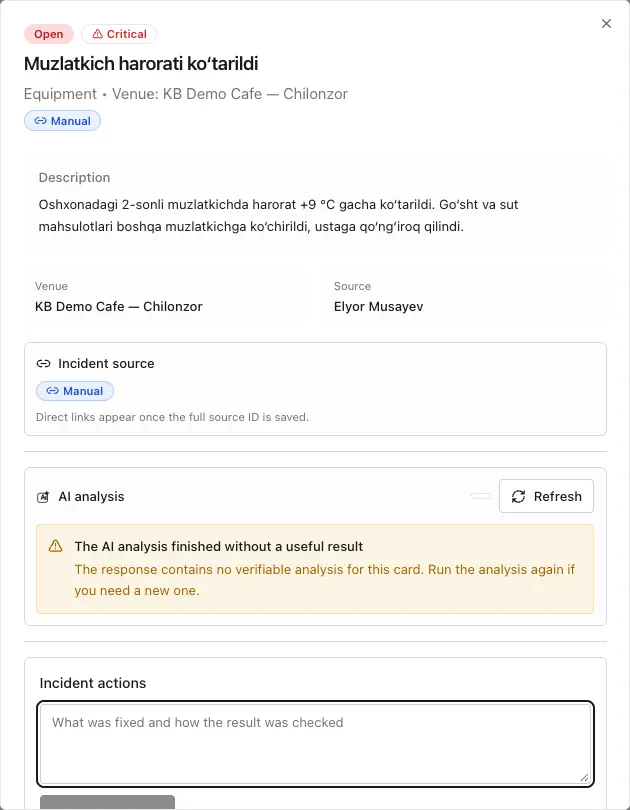
Card blocks (top to bottom)
- Header
- Status and severity badges, the incident title, the «Type • Venue: …» line and the source chips («Manual», «From order», «Order 0059», «Dispatcher» and so on).
- «Description» and tiles
- «Venue» (for stock incidents — «Warehouse»), «Zone», «Order» and «Source». The «Source» tile shows who registered the incident (the employee’s name or «System»).
- «Incident source»
- Source chips and links that open the chat, call, order or customer (when the full id is stored).
- «Order kitchen»
- Only for incidents linked to an order. See «The «Order kitchen» section».
- «AI analysis»
- On every incident except stock ones. See «AI analysis».
- «Related tasks»
- How many tasks were created from the incident («Tasks created: N»).
- «Cause analysis», «Root cause», «Corrective actions»
- The results saved in the RCA form. See «Root cause analysis (RCA)».
- «Resolution status»
- When the incident was resolved («Incident resolved date»).
- «Incident actions»
- For an unresolved incident — the resolution field and Mark as resolved; for a resolved one — Confirm the fix. Only users with full access to the «Incidents» section see this block.
- «Timeline»
- The «Created», «Resolved» and «Verified» times in the organization’s time zone.
How to close an incident
- Open the card and scroll to «Incident actions».
- Describe what was fixed and how the result was checked — the button stays disabled without text.
- Click Mark as resolved — the status becomes «Resolved».
- Once a manager has checked the result on site, they click Confirm the fix in the same card — the status becomes «Verified».
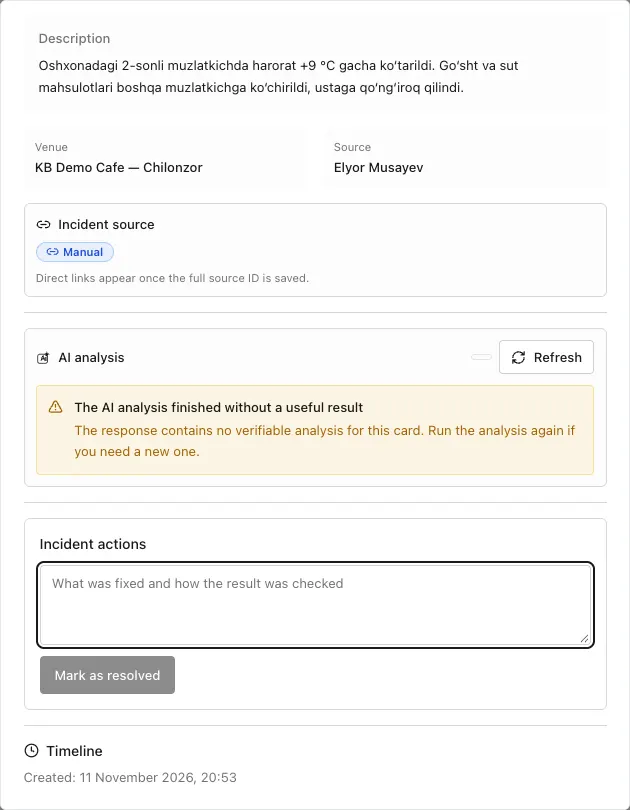
Tip: The resolution text is stored with the incident but is not shown in the card. Record important conclusions in the RCA form — those are always visible in the card.
AI analysis #
Translation, likely cause, recommendations and questions for the manager — generated on the server.
The «AI analysis» block in the card starts an analysis job on the server when you click Run (next time — Refresh). The system collects the incident’s description and evidence and a language model returns the result: «Language», «Translation/meaning» (if the description is in another language), «Likely cause», «Analysis», «Recommendations», «Missing data», «Questions for the manager». Customer-facing incidents (chat, review, delivery, a linked customer) also get a «Draft reply to the customer». While the job runs the block refreshes every 5 seconds; the status badge shows «Queued», «Analyzing», «Done», «Error» and so on.
Important limits
- Stock incidents (type «Stock» or automatic stock rules) have no such block.
- Running it needs full access to «Incidents» and access to the AI assistant.
- Customer phone, address and other personal data are never listed under «Missing data».
- The AI result is a hypothesis. A person makes the decision and the RCA; the analysis does not change the incident status.
Tip: If the analysis has never been run, the current version may show «The AI analysis finished without a useful result» with a Refresh button — this simply means «no analysis yet». Click Refresh to get one.
The «Order kitchen» section #
On an incident linked to an order: the frozen snapshot taken at creation and the current kitchen history.
If the incident is linked to an order, the card gets the «Order kitchen» section. It shows two documents separately: «Snapshot at incident creation» — the evidence from the kitchen display (KDS) at the moment of creation that never changes afterwards (each dish unit, its route through stations, the cook, steps, deviations, participants), and «Current history» — the live state of the order for comparison. While the order is in the kitchen the block refreshes every 15 seconds. Full history opens the order on its «Kitchen» tab.
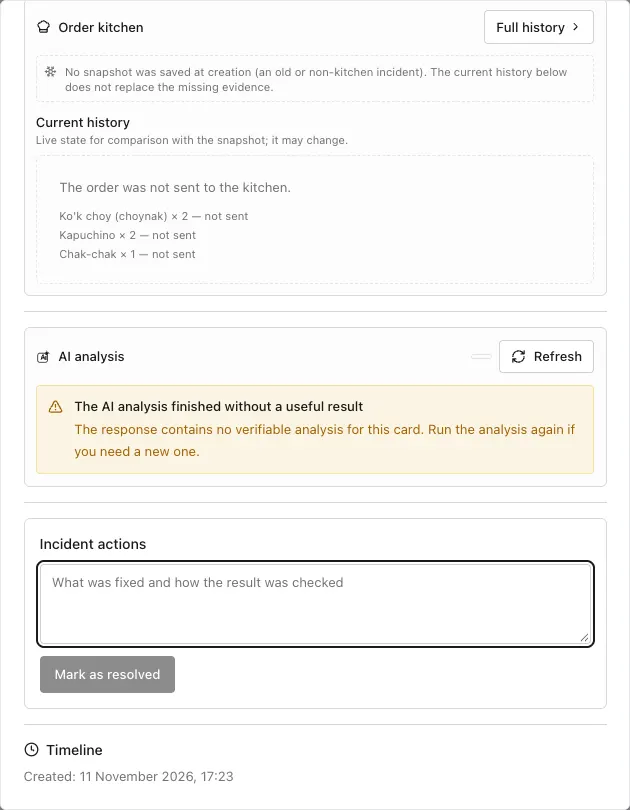
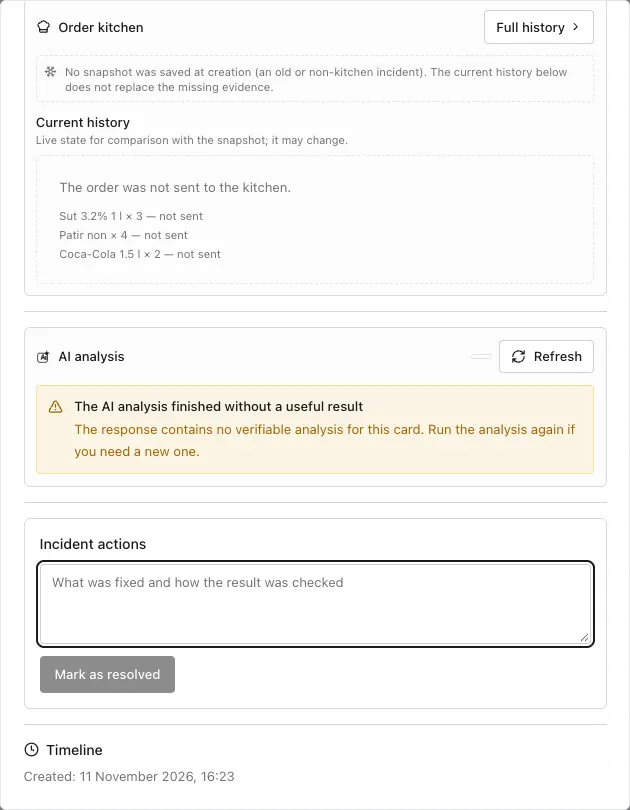
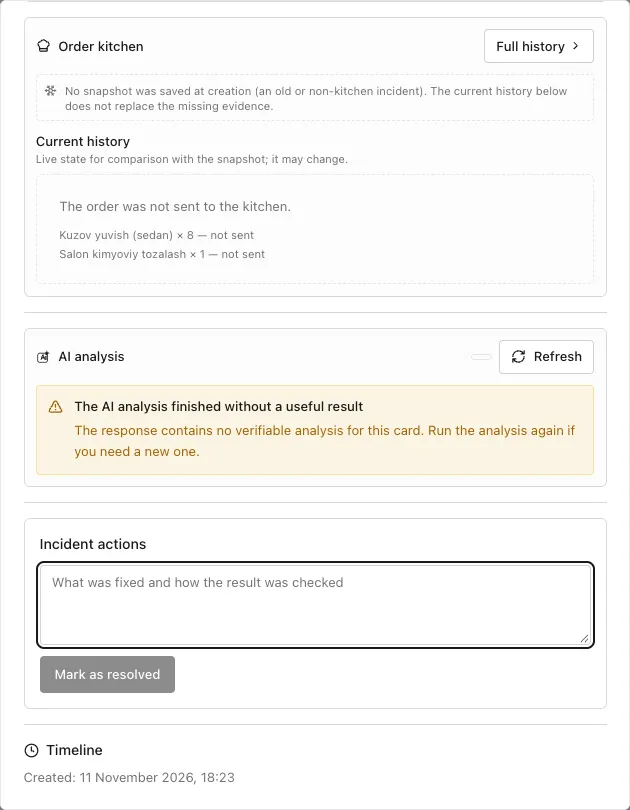
Important: A snapshot is only made for automatic kitchen incidents on orders that went through the kitchen display. A manually created incident shows «No snapshot was saved at creation…» — the current history does not replace the missing evidence.
In a store there is no kitchen display, but the section still appears on every incident linked to an order: the snapshot says «not saved», the current history says «The order was not sent to the kitchen.» and lists the items as «not sent». This is expected — for a store check the receipt contents and prices on the order page itself.
In a car wash the section works as in a restaurant: if the order was sent to the kitchen display (KDS), the current history shows the stages, who did them and when; if the display is not used — «The order was not sent to the kitchen.» with the services listed as «not sent».
Root cause analysis (RCA) #
«5 Whys», the root cause and corrective actions — so the incident does not happen again.
How to run an RCA
- In the incident row click the target icon («RCA: root cause analysis»).
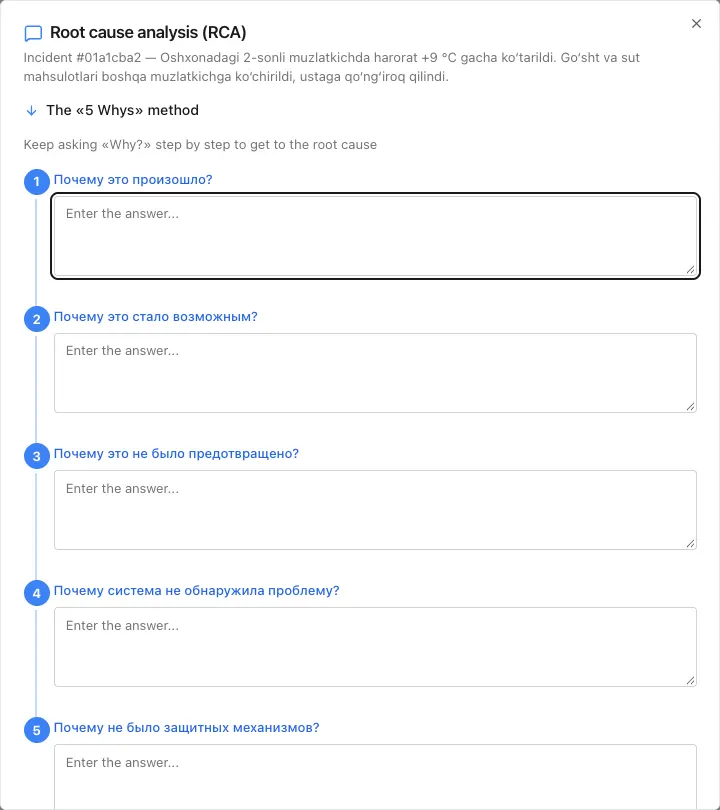
- Answer the «5 Whys» questions one after another — at least one answer is required, empty ones are not saved.
- Based on the answers, write the «Root cause» (at least 10 characters).
- Add corrective actions with Add action: a description (at least 5 characters), an owner, a deadline and a status.
- Set the «RCA owner» and the «RCA completion deadline *» (one week ahead by default) and click Save RCA.
After saving, the card gets three blocks: «Cause analysis» (the questions and answers as text), a red «Root cause» and «Corrective actions» (one line per action: description, owner, deadline). The RCA does not change the incident status — mark it resolved separately.
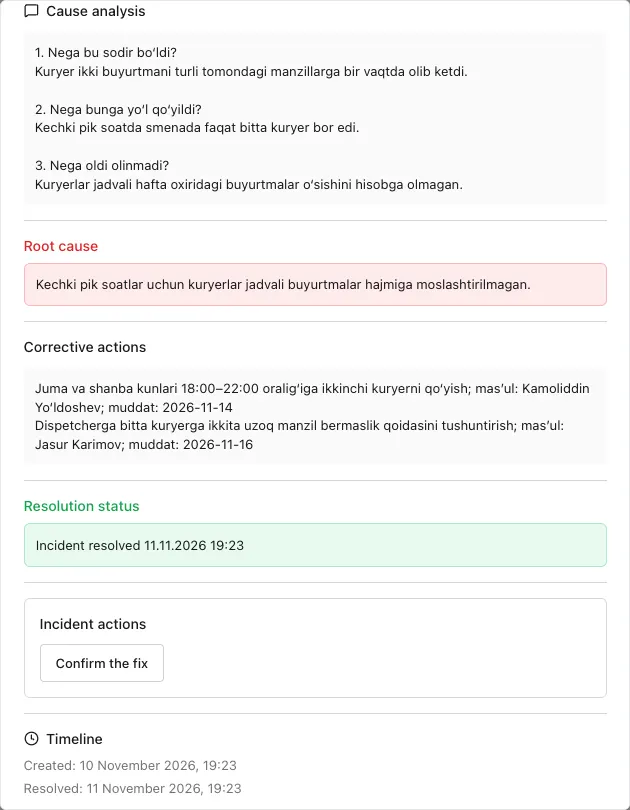
Tip: The RCA is saved in full: the answers to the «Why» questions, the root cause, the actions (with owner, deadline and status), the RCA owner and the RCA deadline. When you reopen the form everything saved is there — you can add to it and continue; saving again replaces the previous RCA.
Tip: The template questions («Почему это произошло?» and so on) are saved together with the answers and are shown in Russian whatever the interface language.
Automatic incidents #
Problems the system records by itself and what turns them on.
Besides manual ones, a background server process can open incidents for operational problems by itself. Two conditions are needed: «Automatic issue detection» is on in Settings → General, and the plan or a module includes the feature. Buying a plan alone does not turn monitoring on.
What is monitored
- Stock: expiry within 24 hours, low or negative balances, stuck transfers, large unapproved write-offs.
- Kitchen and production: dishes over SLA (KDS), stuck production batches.
- Delivery and reservations: late or stuck deliveries, no-shows and late reservations, overdue callbacks.
- Customers: low-rated reviews, chats waiting for a reply.
- Staff: lateness for shifts.
- Finance: overdue supplier payables and receivables.
- System: SMS provider errors, POS sync errors and offline-order sync failures.
In a store the kitchen (KDS) and production rules never fire — there is no data for them. The main value is in the stock rules: expiry dates, low balances and write-offs.
Tip: Automatic incidents are recognisable by their source chip; such a source cannot be chosen manually. Repeats are merged — one open incident per problem.