Performance
Employee KPI goals: templates, assignment, progress and completion statistics.
Open in the admin panel/hr/performance On the «Performance» page you give employees measurable goals (KPIs) and track how they are met: for example a waiter's monthly revenue, the share of orders the kitchen prepared on time or a courier's number of deliveries. Goals are created from ready templates or manually, and results are entered by hand.
How to open
- In the sidebar, expand the HR & staff group.
- Click Performance.
Statistics
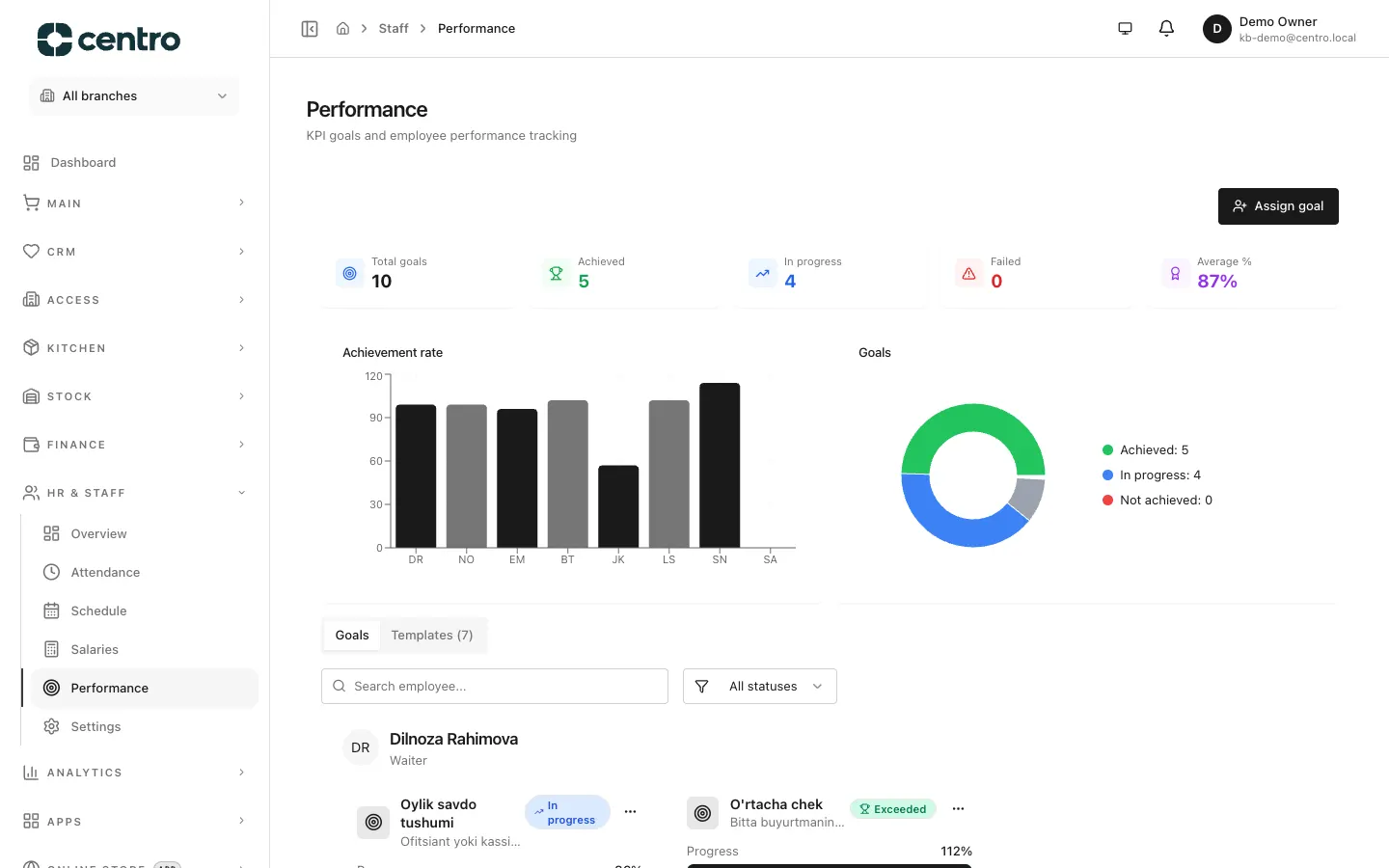
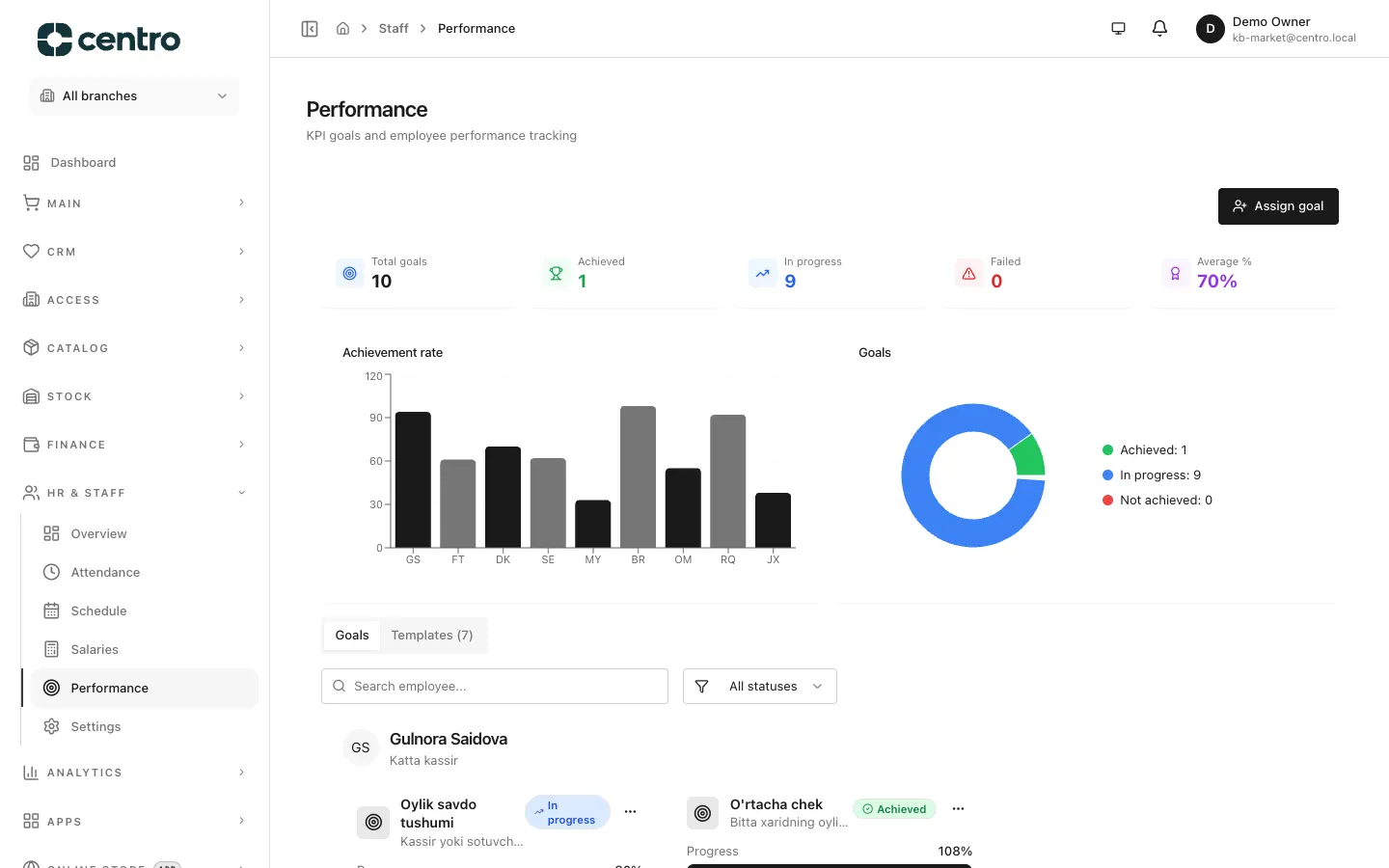
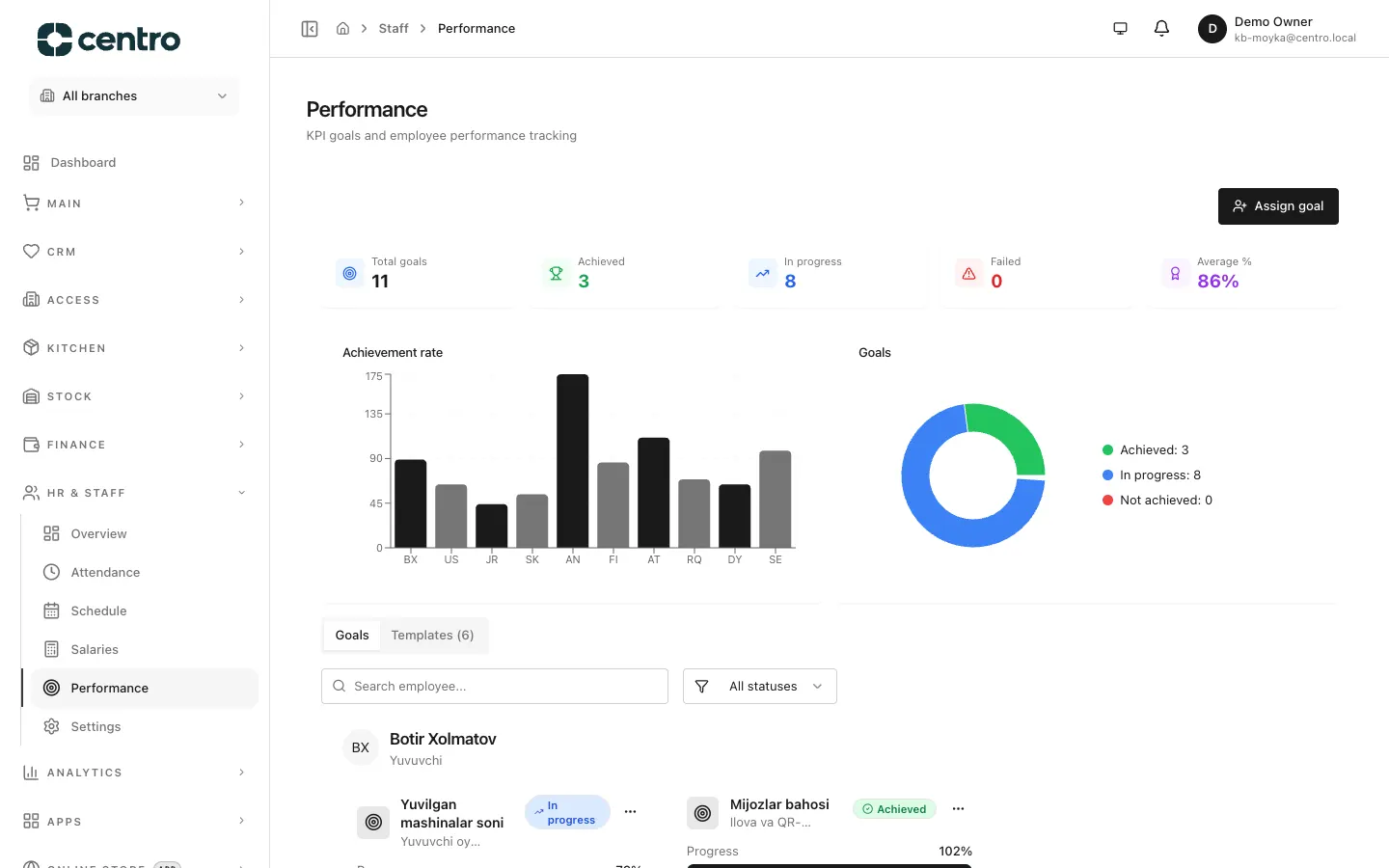
- «Total goals»
- How many goals are loaded (the status filter applies).
- «Achieved»
- Goals with the «Achieved» and «Exceeded» statuses together.
- «In progress» / «Failed»
- The number of goals with that status.
- «Average %»
- A plain average of every goal’s completion percentage (unweighted; over-achievement above 100% counts in full).
- «Achievement rate»
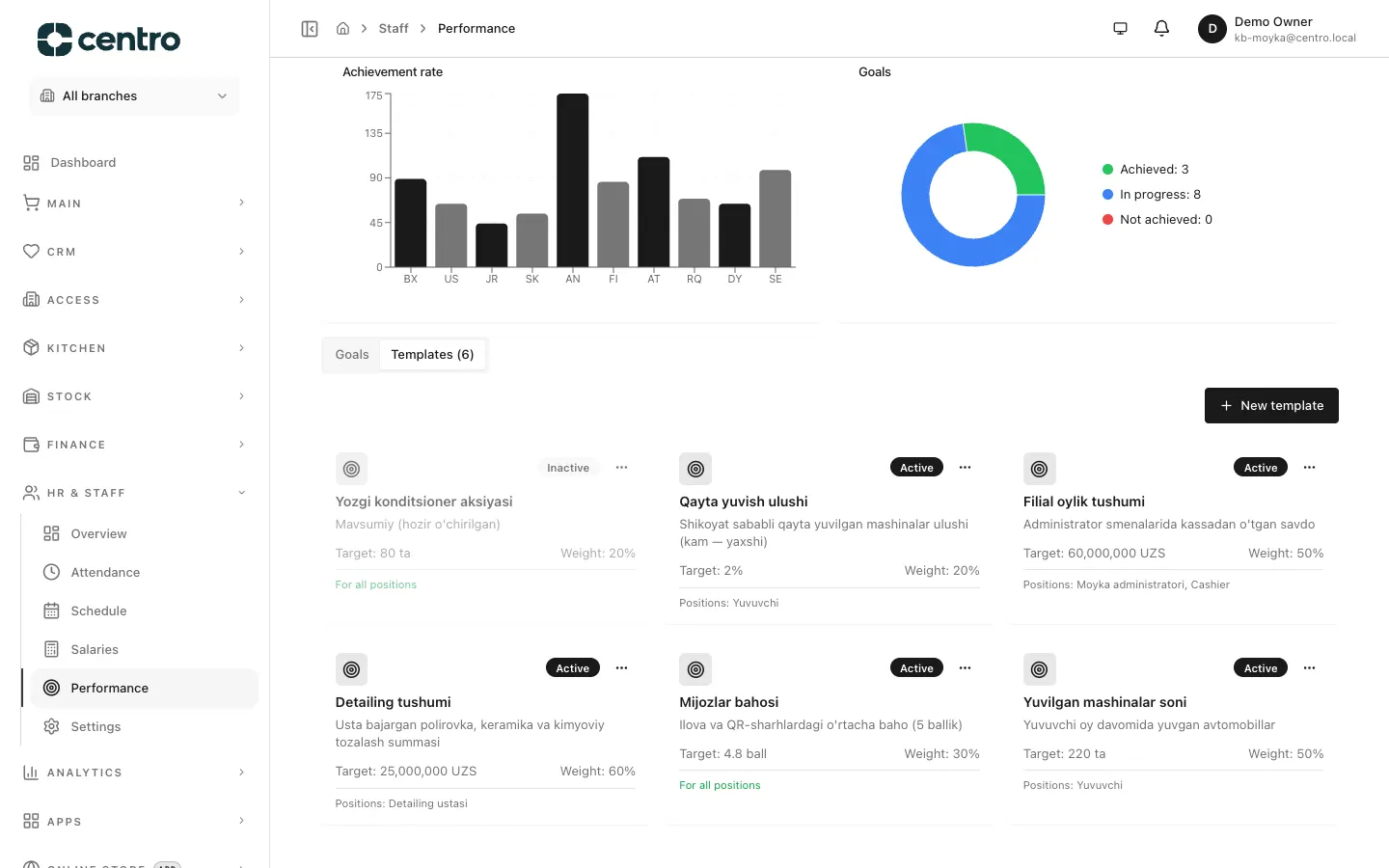
- A bar chart of each employee's average goal percentage (labels are initials; hover to see the full name). The first 10 employees are shown.
- «Goals» (chart)
- A donut chart of goals by status; the grey slice is «Not started».
Tip: The charts appear only when there is at least one goal.
Goals and progress #
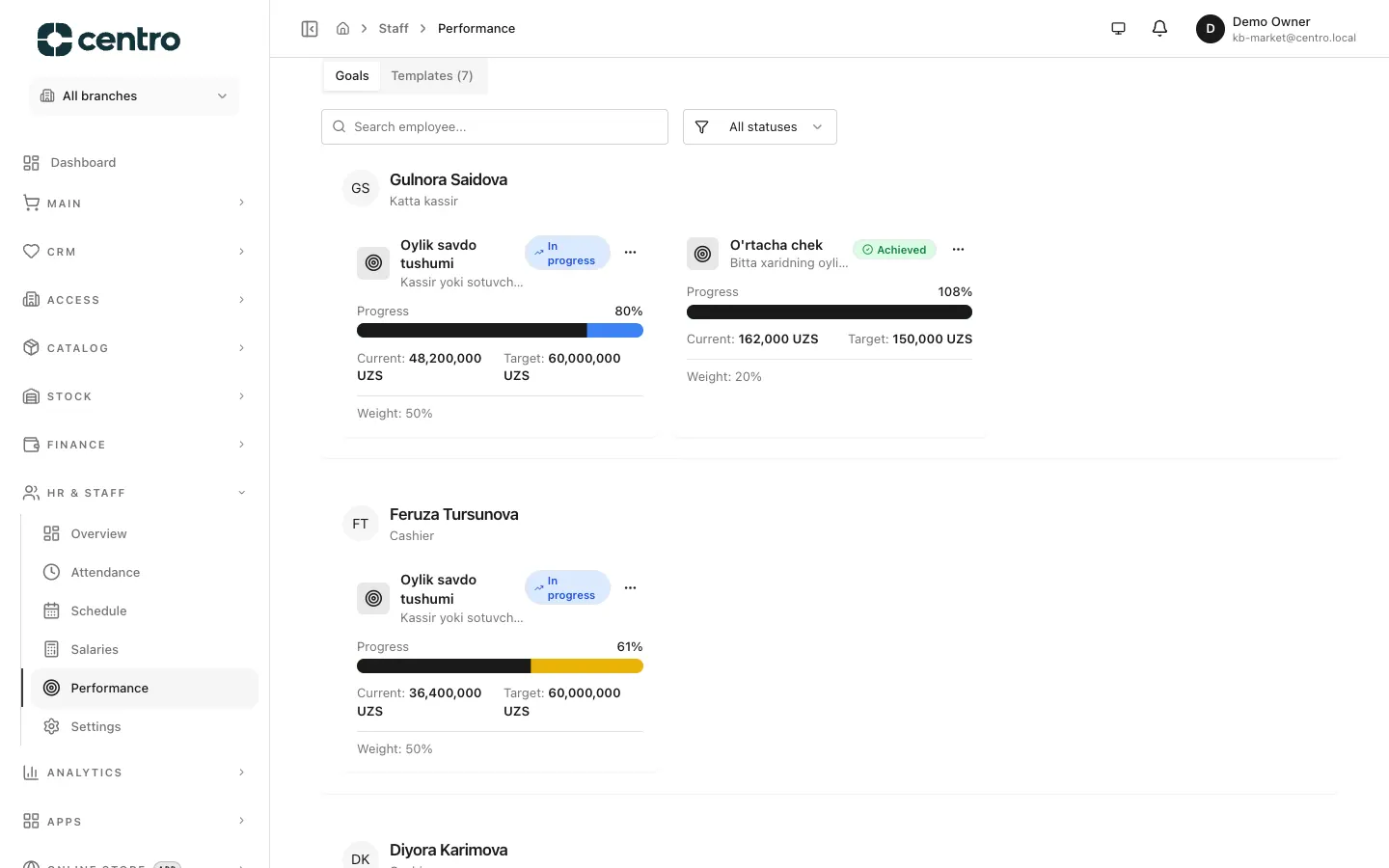
Each employee's KPI goals: current value, target, completion percentage and status.
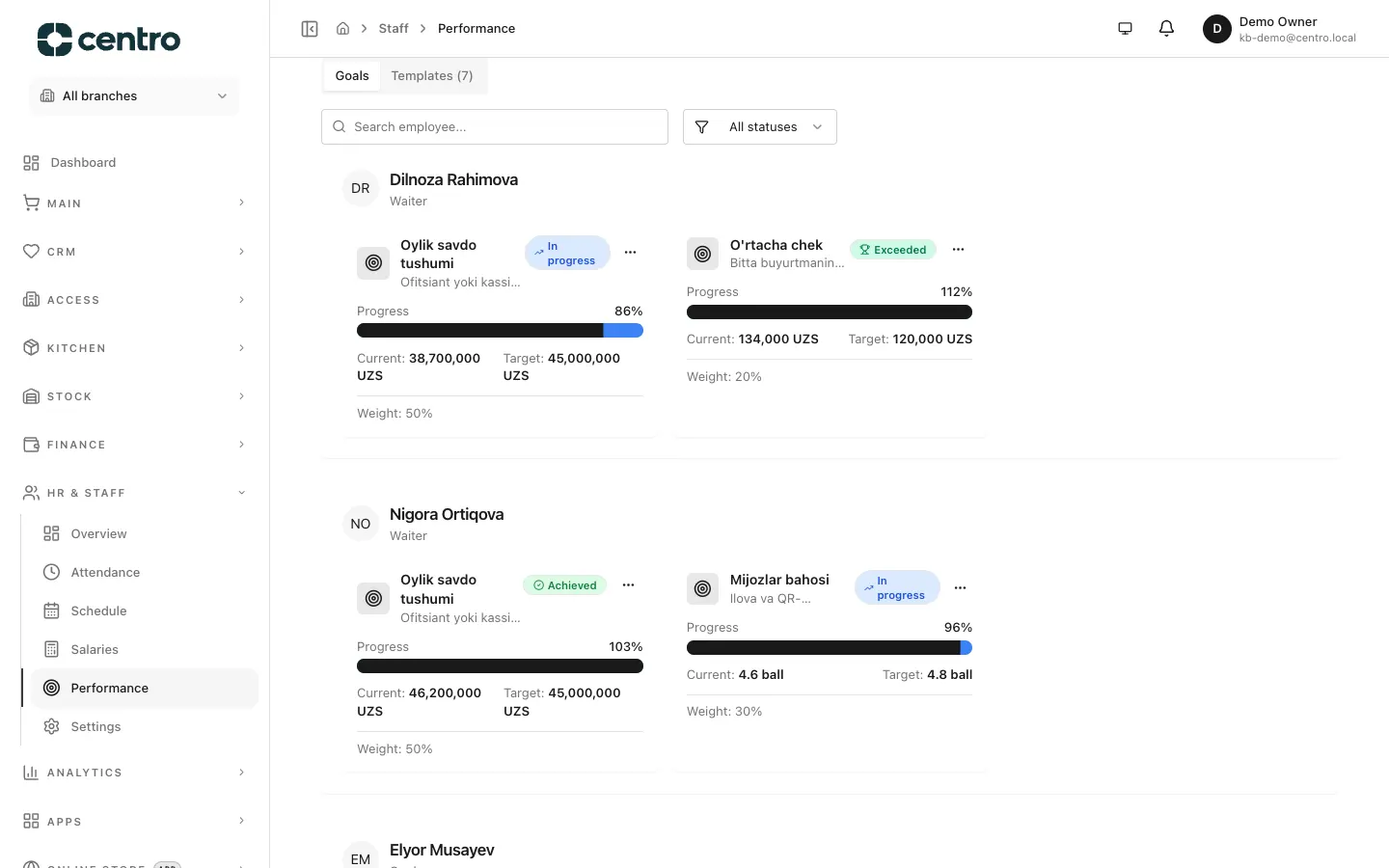
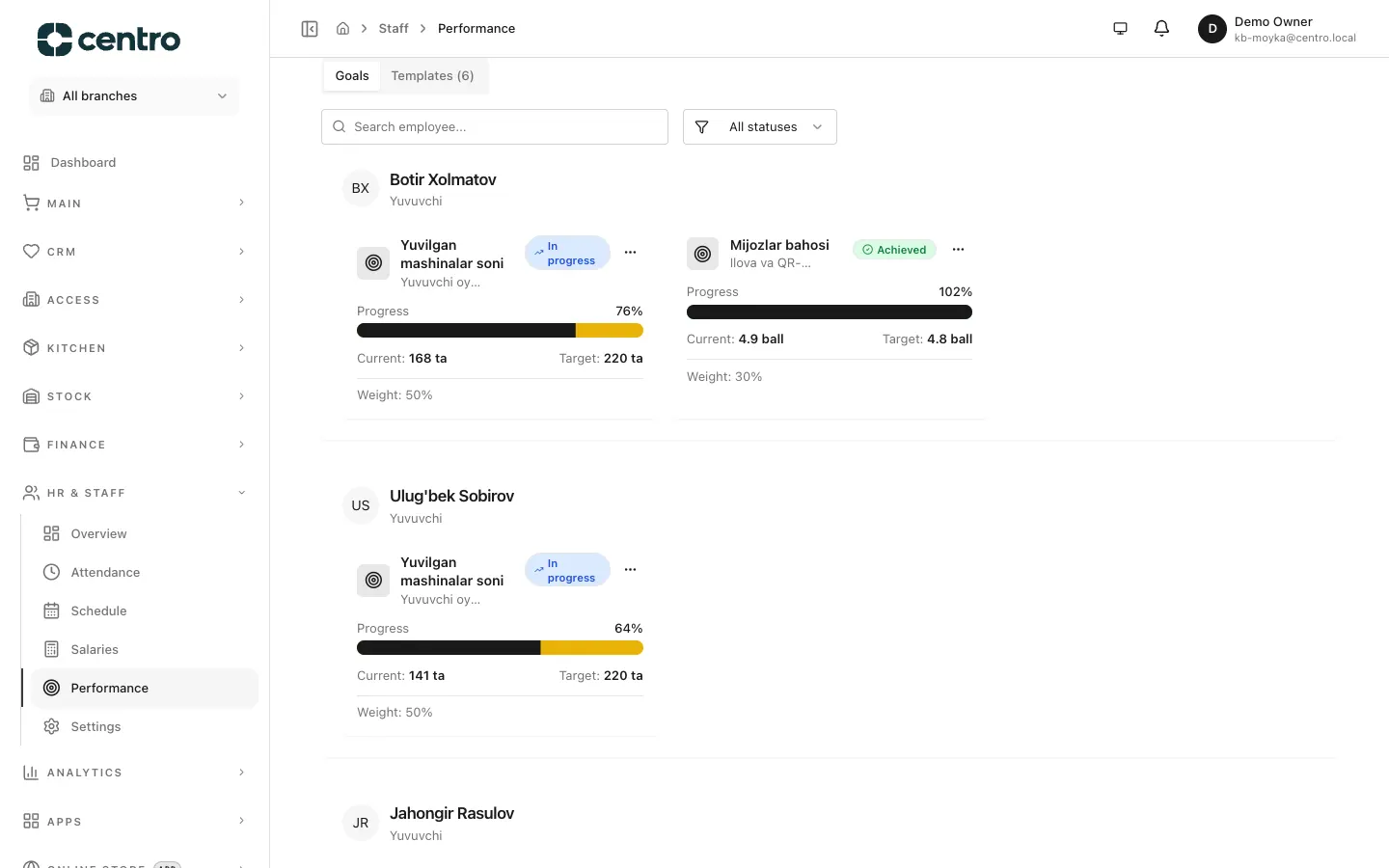
On the «Goals» tab, goals are grouped by employee: each employee gets a block with a card for every goal. A card shows the goal name and description, a status badge, the «Progress» bar with a percentage, the «Current:» and «Target:» values and the weight.
Filters
- «Search employee...»
- Keeps only the blocks of employees whose name matches.
- «All statuses»
- Shows only goals with the chosen status. The filter also changes the stat cards and charts above, because they are calculated from the goals currently loaded.
Statuses
- «Not started»
- A new goal with no progress entered yet (current value 0).
- «In progress»
- The current value is above 0 but below 100% of the target.
- «Achieved»
- Completion from 100% to 110%.
- «Exceeded»
- Completion above 110%.
- «Failed»
- This status is never set automatically and cannot be chosen on the page — it only appears if an external integration sets it through the API.
How the percentage is calculated: current value ÷ target value × 100. The progress bar stops at 100%, while the number can go higher (for example 112%). The server recalculates the status every time progress is saved.
How to update progress
- Click «⋯» on the goal card.
- Choose «Update progress».
- In «New value», enter the cumulative total since the start of the period (not an increment, the running total).
- Click «Save» — the percentage and status update immediately.
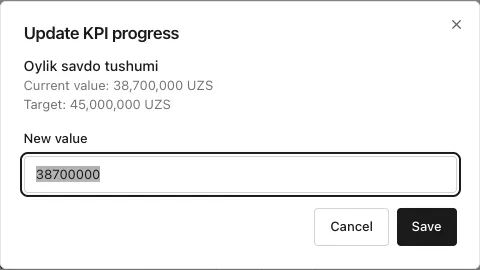
Important: The value cannot be negative and must stay below 1000% of the target — otherwise the dialog shows an error with the largest allowed number.
Tip: Progress is entered by hand: the page does not pull figures from sales or orders automatically. For example, take a waiter's monthly revenue from the «Analytics» reports and enter it once a week.
Deleting a goal: «⋯» → «Delete» and confirm. A deleted goal cannot be restored. The name, target and period of a goal cannot be edited later — if needed, delete the old goal and assign a new one.
Assigning a goal #
How to give an employee a KPI goal from a template or manually.
- Click «Assign goal» in the top-right corner of the page.
- Pick the employee in the «Employee *» list (name and position are shown).
- In «KPI template», choose a template — only active templates that fit this employee’s position are listed. Or choose «Create manually».
- With a template, the name, metric type and unit come from the template and are locked; the target value, weight and period can still be changed.
- Click «Assign goal».
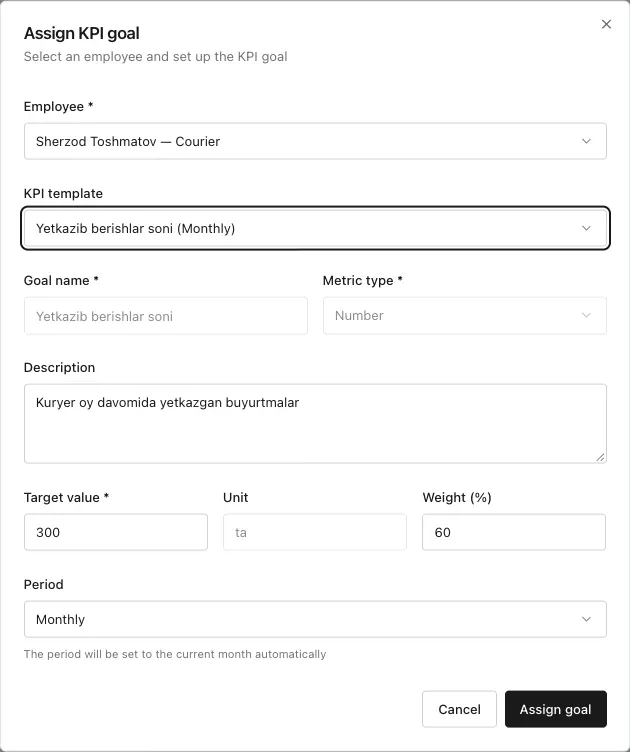
Important: Period dates are not picked by hand: based on «Period», the goal is tied automatically to the current day, week (Monday to Sunday), month, quarter or year. You cannot set next month’s goal in advance — assign it once the month starts.
KPI templates #
Ready-made goal presets for recurring metrics: name, metric, target, weight, period and positions.
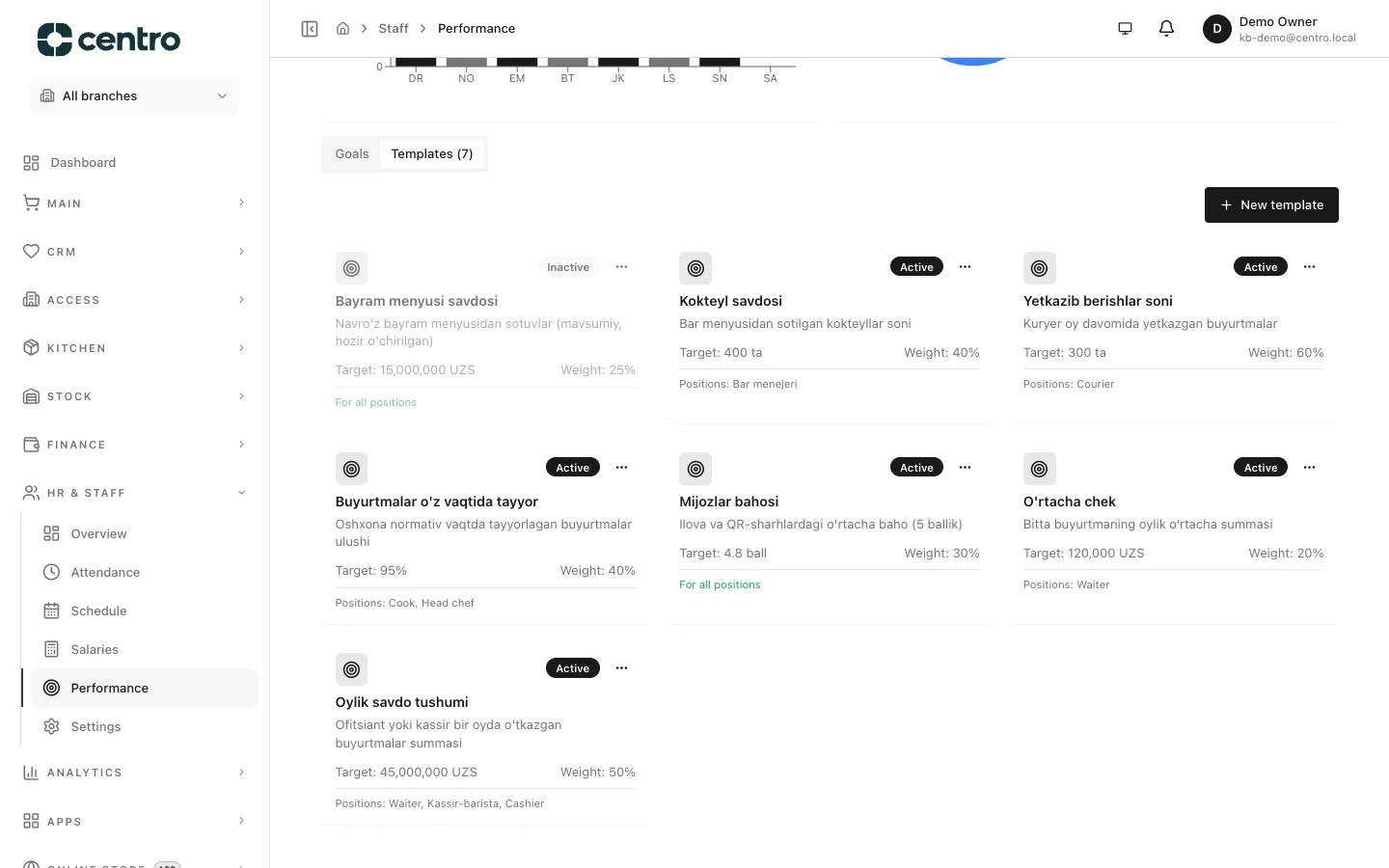
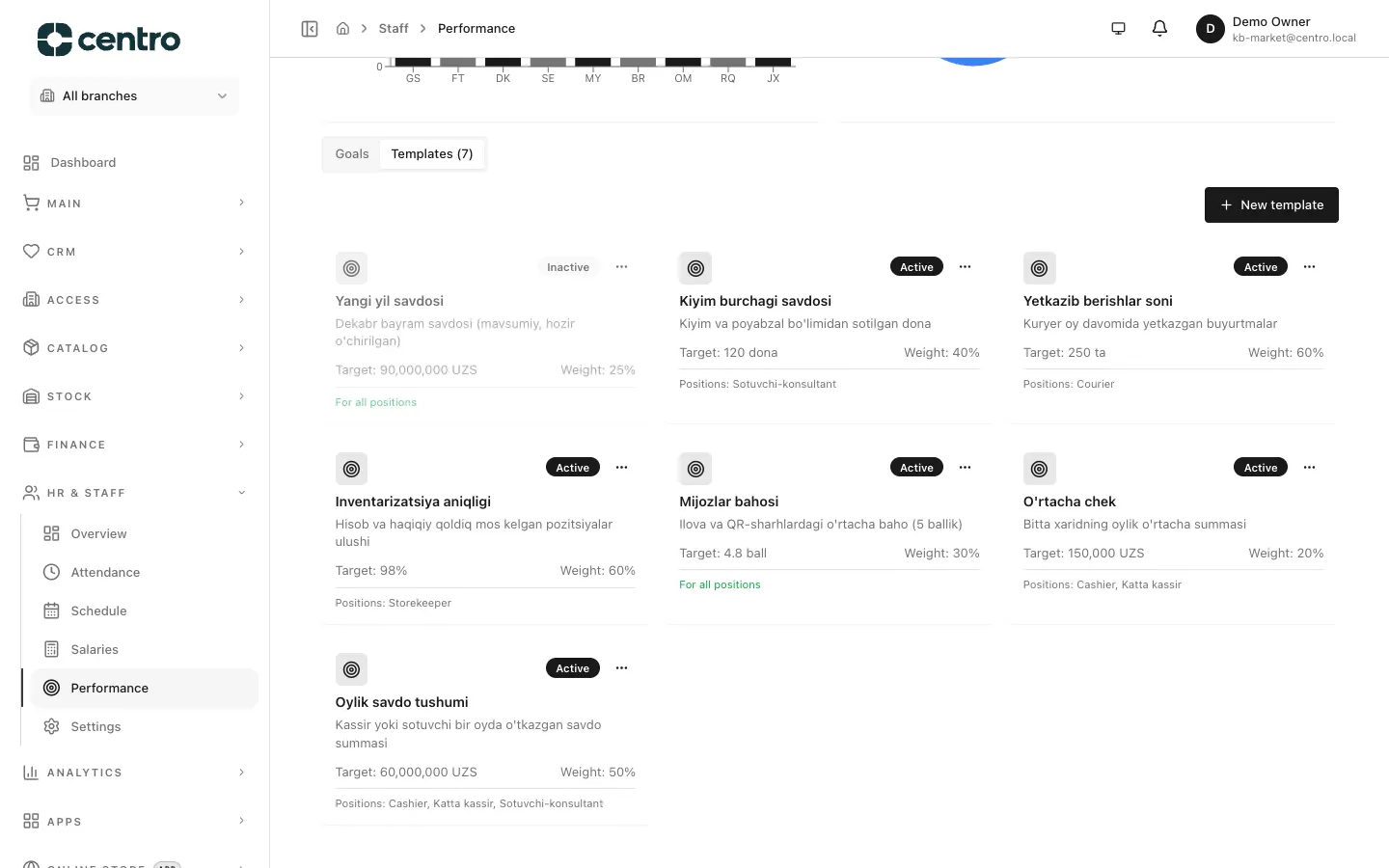
The «Templates» tab (the count is in brackets) shows every template as a card: status («Active»/«Inactive»), name, description, «Target:», «Weight:» and positions («For all positions» or a list). An inactive template is dimmed and not offered when assigning goals, but goals already created from it stay.
How to create a template
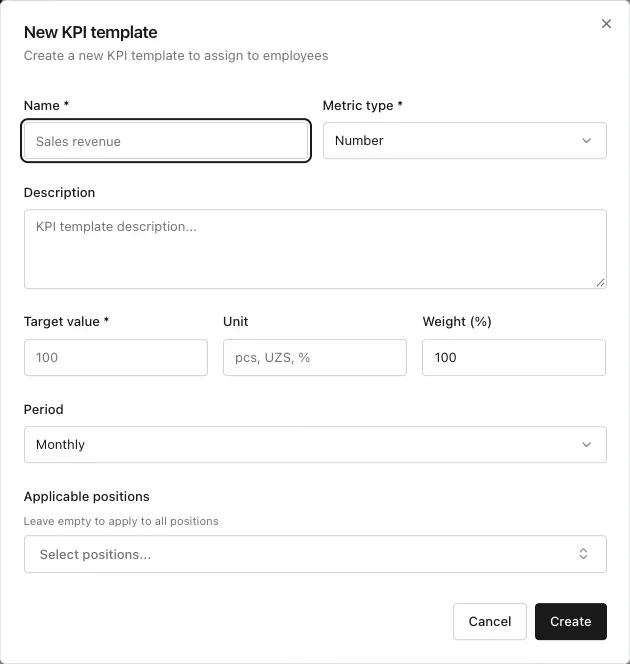
- Open the «Templates» tab and click «New template».
- Fill in the fields (see below).
- Click «Create».
Template fields
- «Name *»
- The metric name, e.g. «Oylik savdo tushumi». Up to 255 characters.
- «Metric type *»
- «Number», «Percentage (%)», «Currency (…)» or «Rating». Controls how values are displayed: currency gets digit grouping and the currency symbol, percentage gets a «%» sign.
- «Description»
- What is measured and how — shown on the card.
- «Target value *»
- The number that counts as 100%; must be greater than 0.
- «Unit»
- Printed after the value («ta», «ball»). For a currency metric, leave it empty to use the organization’s currency symbol.
- «Weight (%)»
- 0 to 100. Marks how important the metric is among an employee's goals; on this page it is only displayed — «Average %» and the charts ignore weight.
- «Period»
- «Daily», «Weekly», «Monthly», «Quarterly» or «Yearly».
- «Applicable positions»
- Which positions the template is offered to. Empty means all positions.
- «Active»
- Only shown when editing. Turn it off to stop offering the template when assigning goals.
Tip: Editing a template («⋯» → «Edit») does not change goals already assigned — the template values are copied into a goal when it is created. Make seasonal metrics inactive instead of deleting them.
Monthly KPI cycle #
Goals from templates at the start of the month, weekly progress and the result at month end.
- Once: create templates per position (waiters — «Oylik savdo tushumi» and «O'rtacha chek», kitchen — «Buyurtmalar o'z vaqtida tayyor», couriers — «Yetkazib berishlar soni»).
- In the first days of the month, assign each employee goals from the templates — the period automatically becomes the current month.
- Once a week, enter the cumulative result of each goal via «Update progress».
- At month end, use the «Achievement rate» chart and the statuses to see who hit their goals, and account for bonuses in the «Salaries» section.
Important: Goals from past months do not disappear — the page shows goals of all periods together and calculates the statistics from all of them. If old goals get in the way, delete them or use the status filter.