Salaries
Calculate monthly salaries, approve them and pay from a finance account — one by one or in batches.
Open in the admin panel/hr/payroll The page header is «Payroll». It has two tabs: «Calculations» — the monthly calculation for each employee, and «Payout batches» — to approve and pay a whole month at once. The server computes the amounts from the employee’s pay scheme, timesheet, bonuses and approved penalties; here you only choose who to calculate and for which month.
How to open
- In the sidebar, expand the HR & staff group.
- Click Salaries.
Before you start
- Every employee needs a pay scheme — in the employee card or via the position (HR settings → pay schemes).
- Hourly and mixed schemes need the month’s timesheet or clock-in/out events («Attendance»).
- To pay, you need at least one active finance account, and the employee must be linked to a venue.
The «Calculations» tab #
Each employee's salary calculation for the selected month: days, earnings, deductions and the amount to pay.
One row is one employee’s calculation for one month. When the page opens the filter is set to the current month and year, so switch the month first to see last month’s payroll.
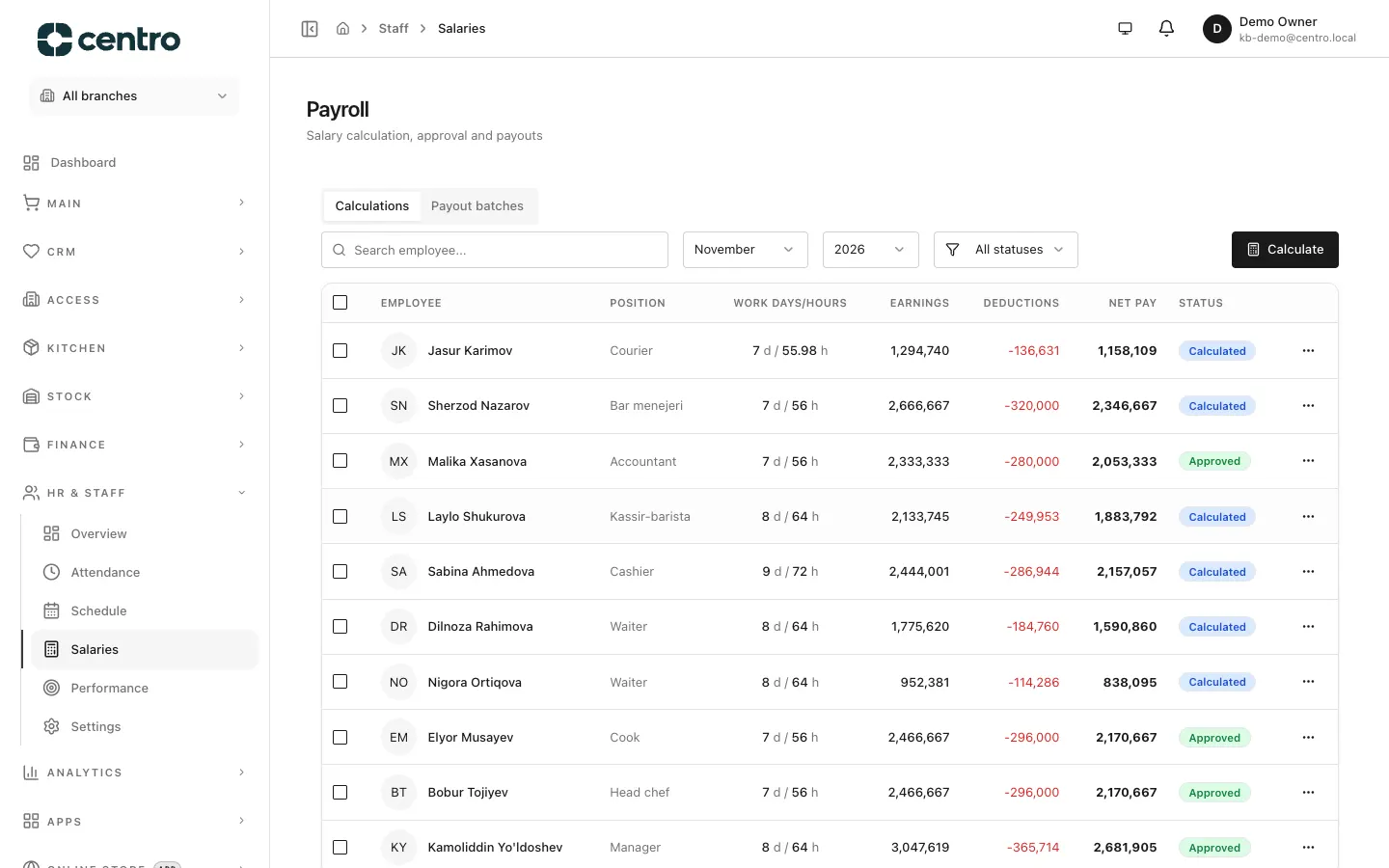
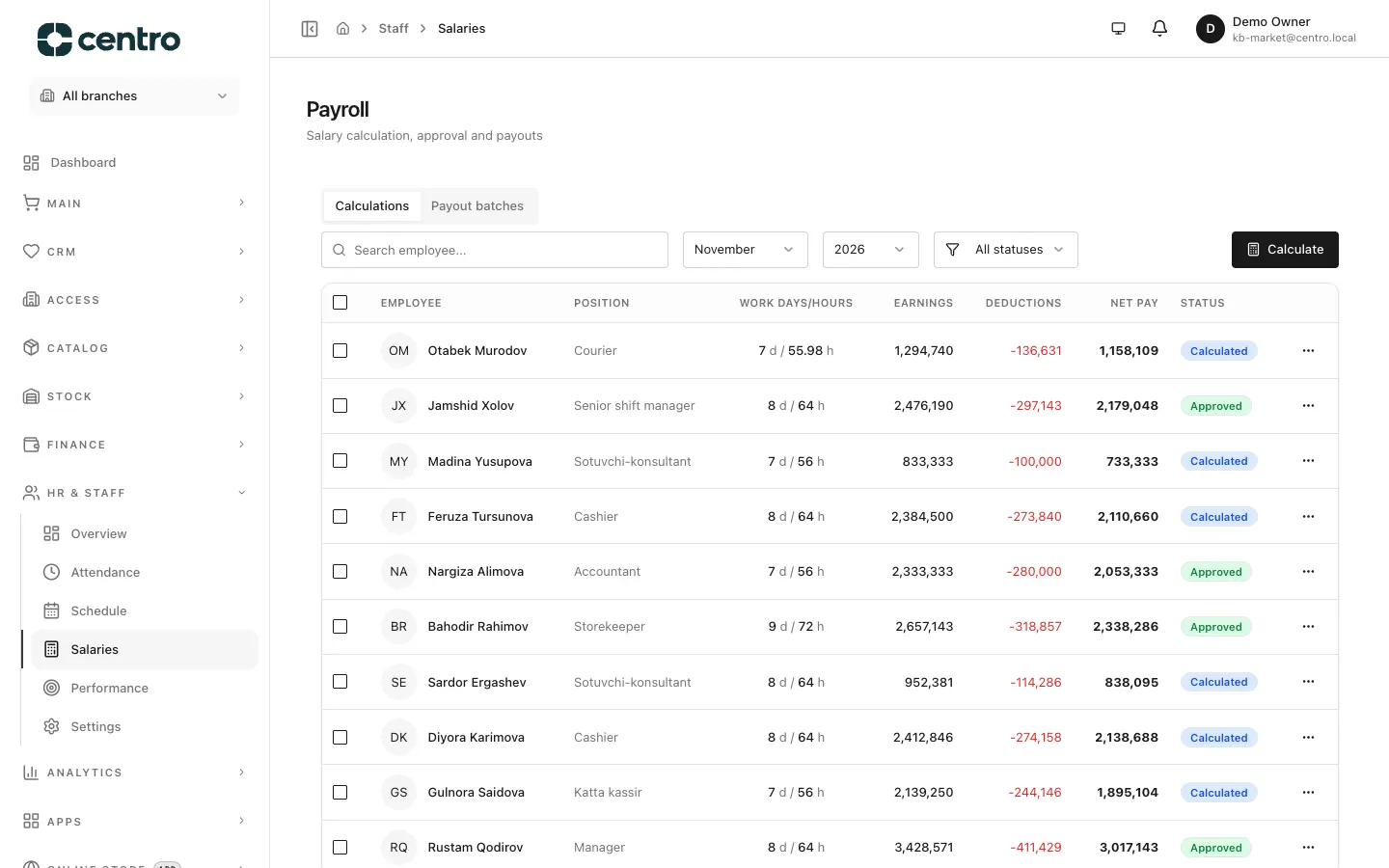
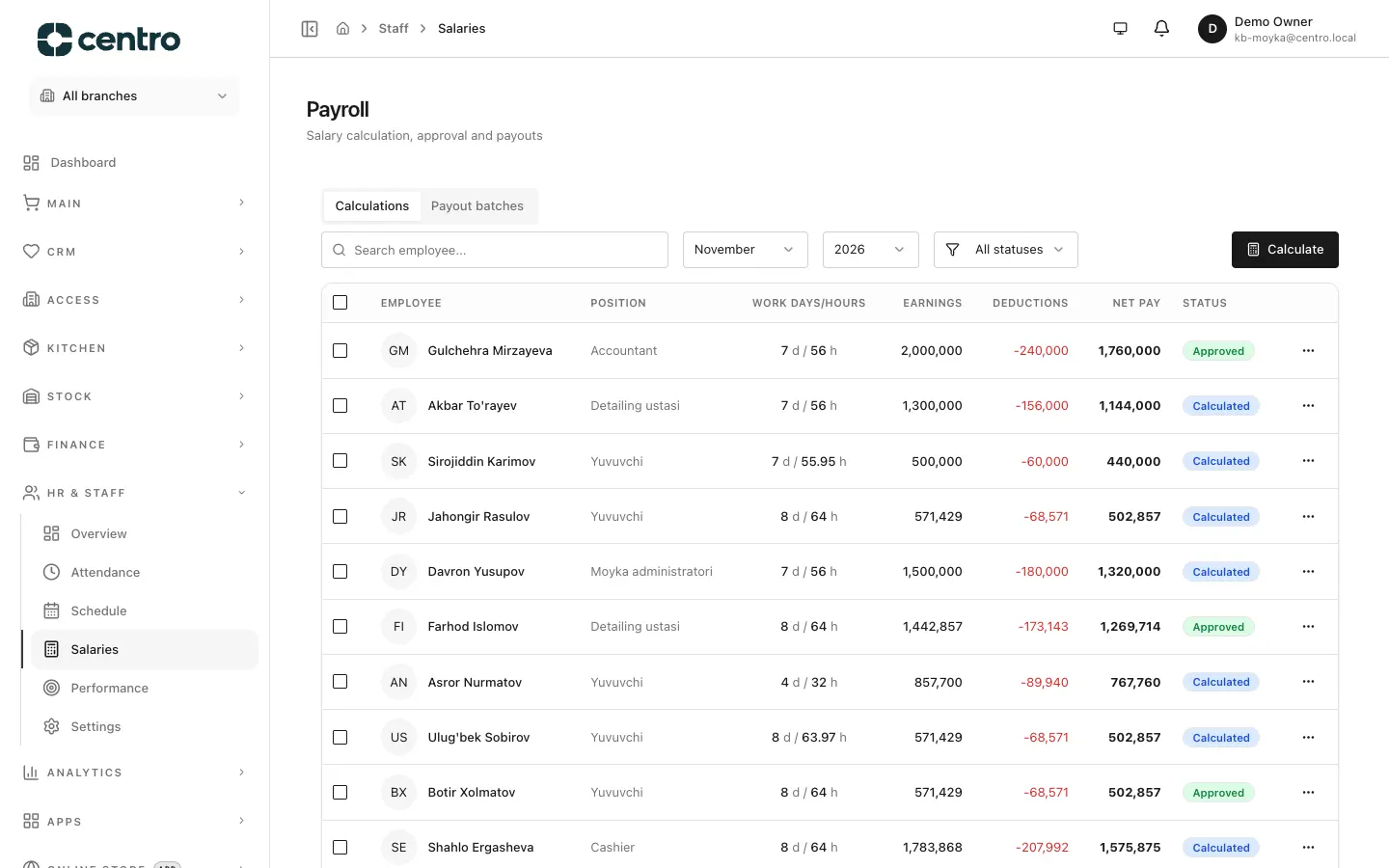
Filter bar
- «Search employee...»
- Searches by employee name or position (within the loaded list).
- Month and year
- Choose which period the calculations are shown for. Changing the period clears the row selection.
- «All statuses»
- Status filter: «Draft», «Calculated», «Approved», «Paid».
- «Calculate»
- Opens the calculation dialog (see below).
Table columns
- «Employee»
- The employee name saved at calculation time.
- «Position»
- The employee's position.
- «Work days/Hours»
- Days and hours worked in the month — taken from the timesheet or from clock-in/out events.
- «Earnings»
- Total gross: base salary, hourly pay, overtime, commission and bonuses.
- «Deductions»
- The total withheld from the employee's pay (shown with a minus).
- «Net pay»
- Take-home amount = earnings − deductions.
- «Status»
- Where the calculation is in its life cycle (see below).
Statuses
- Calculated — the calculation exists; it can be recalculated, approved or put into a batch.
- Approved — the amount is agreed; it can no longer be recalculated, only paid.
- Paid — the payout is posted to finance as an expense. Final status.
- Draft and Cancelled — normally not used for calculations: «Calculate» immediately sets «Calculated».
Tip: The checkbox on the left is active only for «Calculated» and «Approved» rows. Tick rows and «Selected: N», «Approve» and «Pay» appear at the top. «Approve» works only if every ticked row is «Calculated», «Pay» only if every ticked row is «Approved».
Calculating salaries #
Create or refresh the monthly calculation for selected employees.
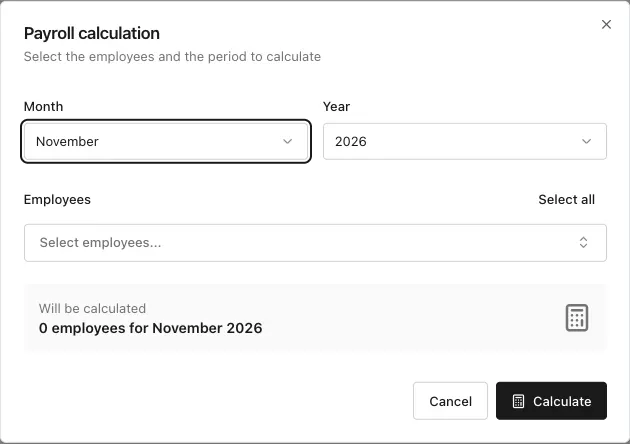
How to calculate
- On the «Calculations» tab click «Calculate».
- Pick «Month» and «Year» — usually the past, closed month.
- Open the «Employees» list and tick the people you need, or click «Select all».
- Check the number of employees and the period in the «Will be calculated» box, then click «Calculate» in the dialog.
If some employees fail, the rest are still saved and the reasons appear in a notification. If nobody could be calculated, the dialog stays open and lists the reason for each employee.
Common reasons for failure
- No pay scheme — the employee has no scheme assigned and none is linked to their position. Create one in HR settings on the pay schemes tab and link it to the position.
- Already approved or paid — such a calculation is an accounting record and is never recalculated.
- Employee not found or deleted.
Tip: Recalculating is safe: a «Calculated» row is simply replaced with a new one. After fixing the timesheet, approving a penalty or changing the scheme, just calculate the employee again.
How the amounts are calculated #
How earnings, taxes, deductions and penalties are derived from the pay scheme and timesheet.
The calculation runs on the server. The scheme is taken from the employee card first and, if none is set there, from the one linked to the position. Days and hours worked come from the month's timesheet or, if there is none, from clock-in/out events.
Earnings (gross)
- Base salary (monthly, mixed and commission schemes): salary × days worked ÷ working days in the month (Mon–Fri). A full month gives the full salary.
- Hourly pay (hourly and mixed): rate × hours worked.
- Overtime: rate × overtime multiplier × overtime hours. The multiplier is set in HR settings (default 1.0).
- Commission (commission scheme): a percentage or tiers of the employee's sales revenue, profit or units.
- Bonuses: fixed and percentage scheme bonuses (percentages apply to the pre-bonus amount), the KPI bonus, night and weekend premiums, task points. Quarterly bonuses are added only in March, June, September and December, yearly ones in December; one-time bonuses are never added automatically.
Deductions and net pay
- Personal income tax — gross × the income-tax rate from the scheme. Withheld from pay.
- Scheme deductions (fixed or a percentage of gross) and extra taxes paid by the employee.
- Penalties — only those approved by a manager and not disputed; they show up in the deductions list as «rule: description».
- Net pay = gross − deductions. Deductions never exceed gross.
Important: «Social tax» and «Pension fund» are employer liabilities: the details show them for reference, but they are not part of «Total deductions» and do not reduce take-home pay. The percentages in brackets (12%, 8.5%) are standard labels; the rates from the pay scheme are what is actually applied.
Tip: In a car wash, a washer on a «Commission» scheme earns commission on the cars they washed: the base is the revenue (or profit, or number of services) of the orders where they are set as «Specialist». Only completed, non-deleted, non-complimentary orders count. An order the cashier also washed is counted once.
Details and payslip #
The full breakdown of one employee's calculation and a printable payslip.
In the «…» menu at the end of a row, «Details» opens a side panel, and «Open and print payslip» opens the payslip in a new window and starts printing (you can save it as PDF from there).
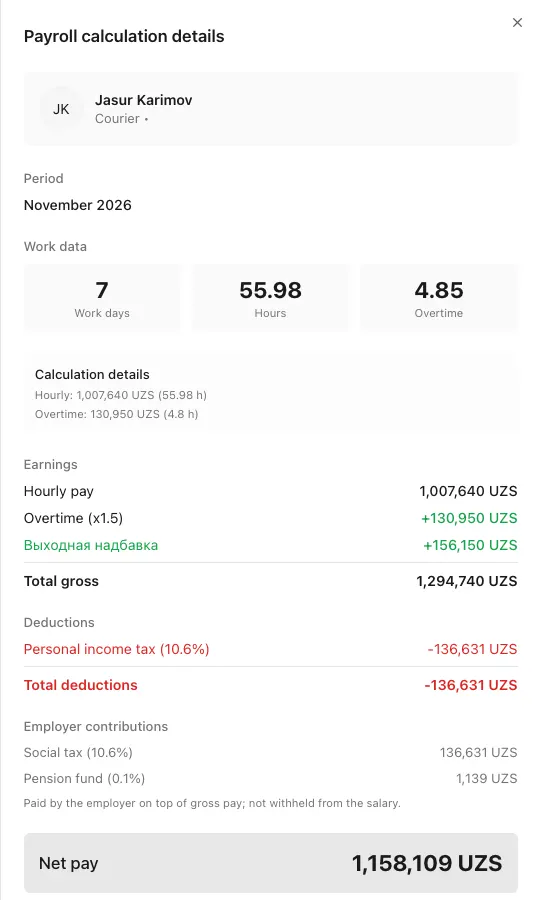
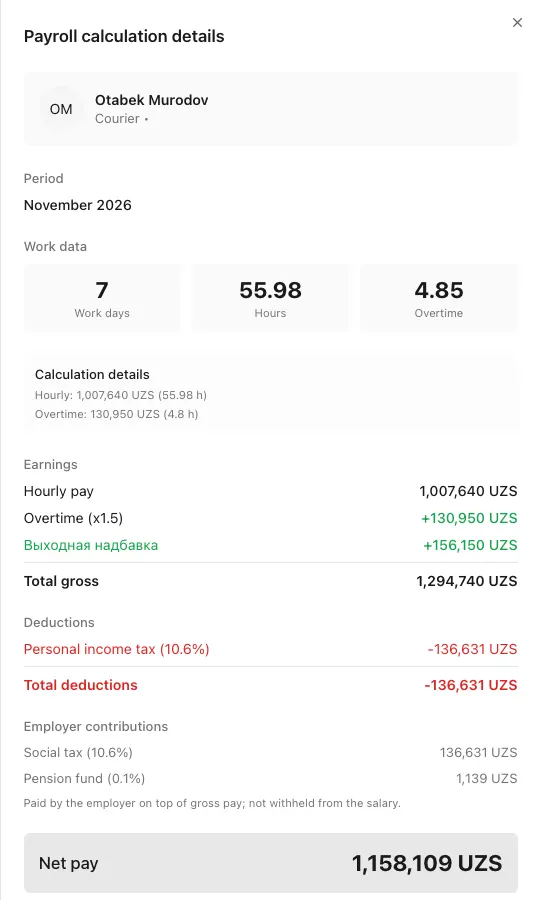
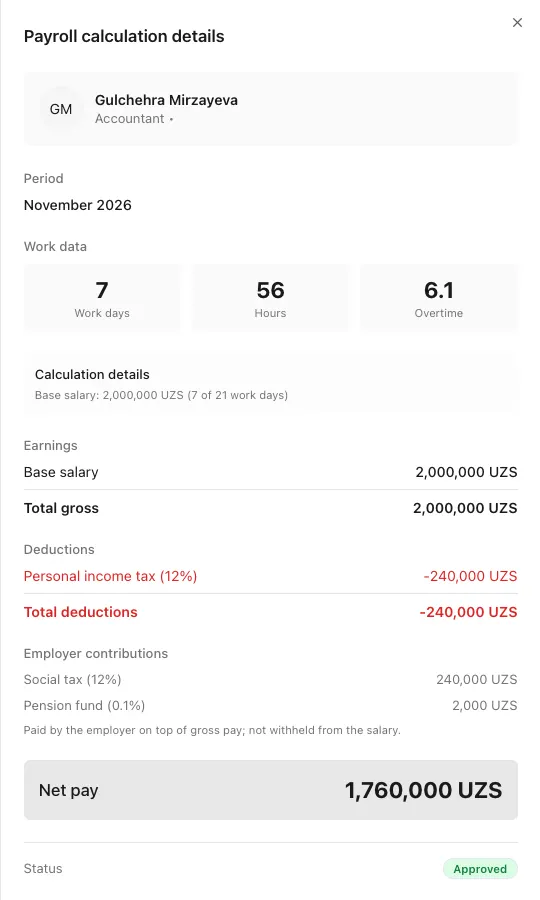
- «Work data»
- Work days, hours and overtime hours.
- «Calculation details»
- Each earning with a short explanation: salary, hourly, overtime, commission.
- «Earnings»
- Earnings and bonuses with the «Total gross» line.
- «Deductions»
- Taxes, scheme deductions and penalties with «Total deductions».
- «Payslip» / «Download PDF»
- Both buttons open the same printable payslip.
Important: If the browser blocks pop-ups, the payslip will not open — allow pop-ups for the site.
Approving and paying #
Approve calculations and post the payout from a finance account.
- Tick the «Calculated» rows and click «Approve» — the status becomes «Approved».
- Tick the «Approved» rows and click «Pay».
- In the dialog choose the «Payout account» (active finance accounts with their current balance) and click «Pay».
For every paid calculation finance gets an expense transaction for the «Net pay» amount described as «Зарплата: Name (MM/YYYY)», and the chosen account balance goes down. The transaction is linked to the employee’s venue.
Important: If the employee is not linked to any venue, the payout cannot be posted. Link the employee to a venue and recalculate. There is no button to undo a payout — check the amounts before paying.
The «Payout batches» tab #
Collect all of a month's calculations into one batch to approve and pay them together.
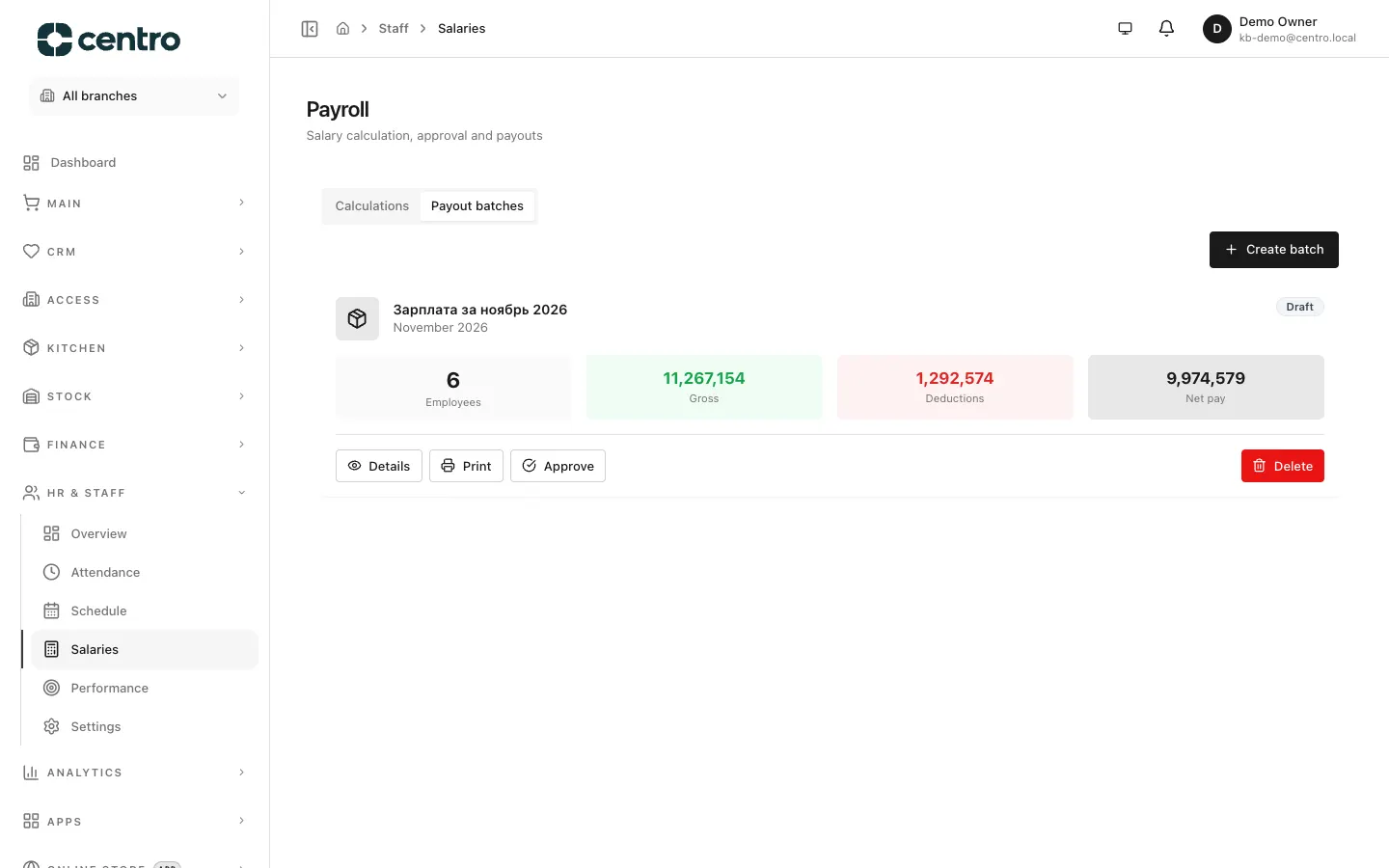
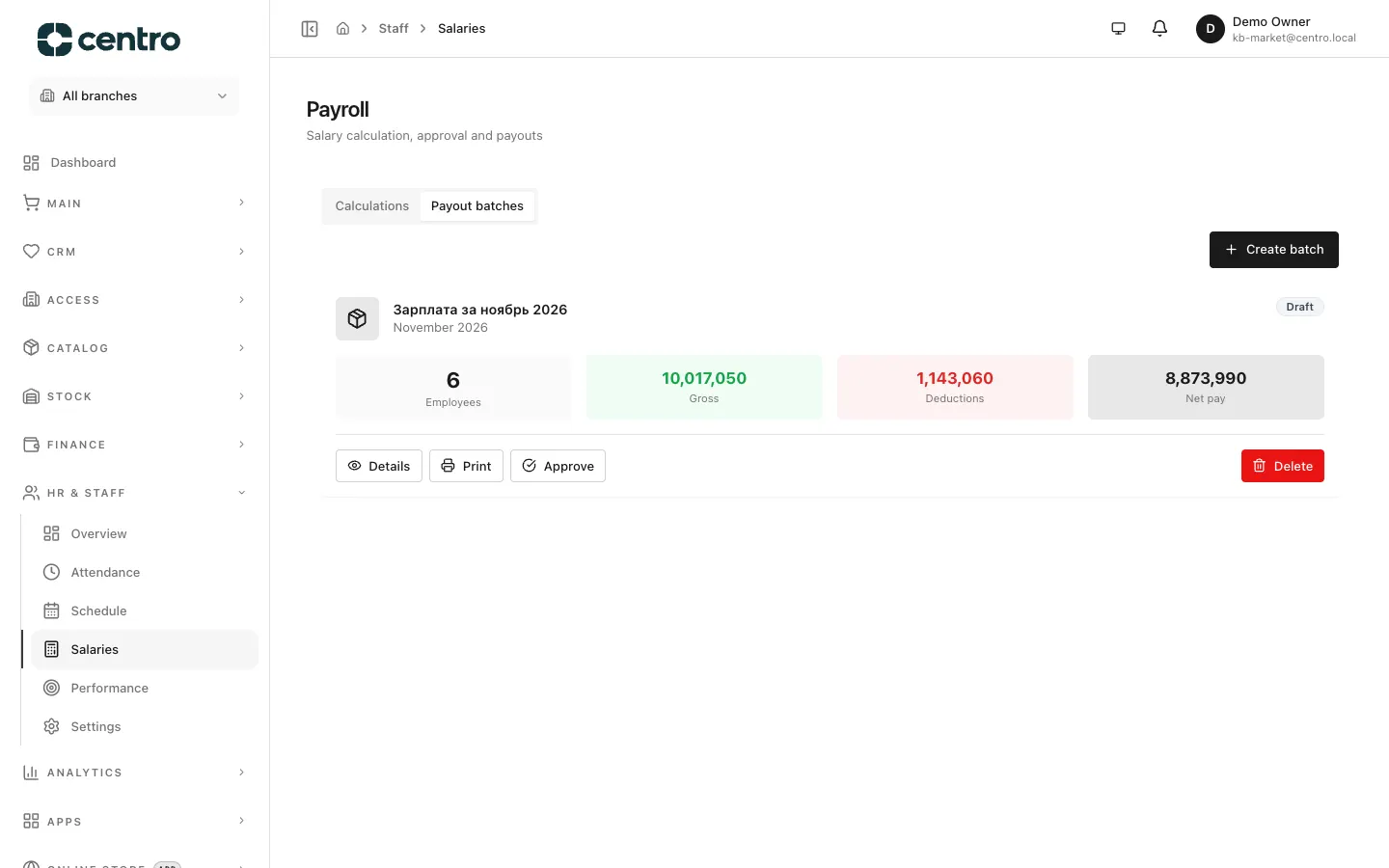
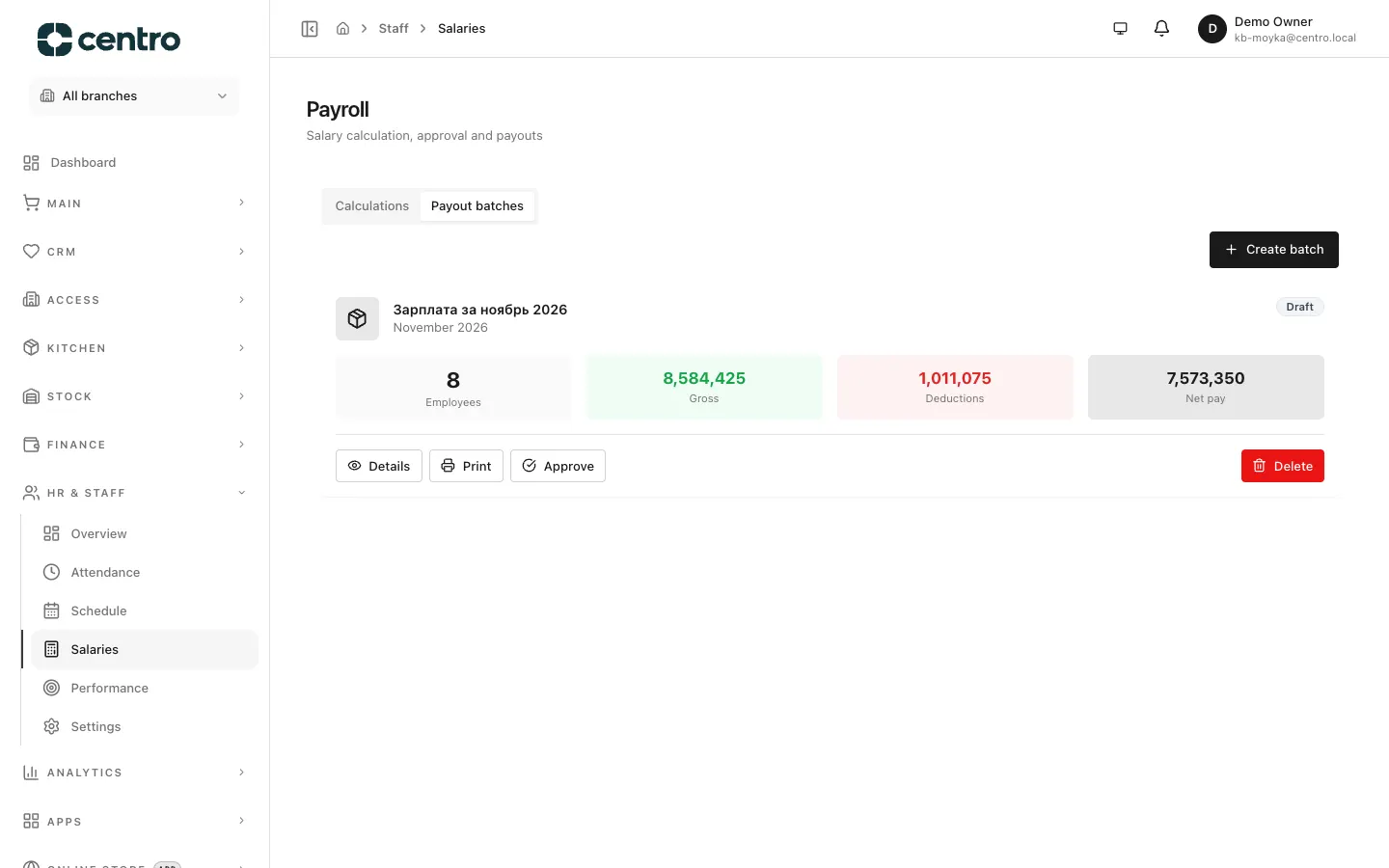
Creating a batch
- First calculate the month on the «Calculations» tab.
- Go to «Payout batches» and click «Create batch».
- Choose the month and year, leave «All departments» in «Department (optional)» and click «Create batch».
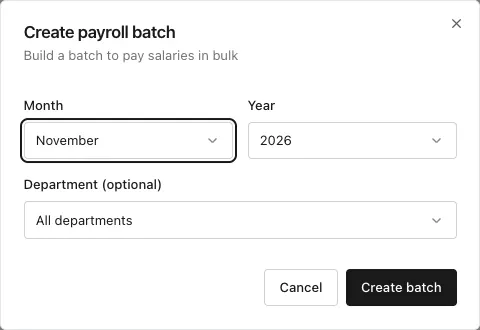
A batch takes every «Calculated» calculation of the period; approved, paid or already batched ones are skipped. The batch name is generated automatically, e.g. «Зарплата за ноябрь 2026».
Batch card
- «Employees»
- Number of calculations in the batch.
- «Gross» / «Deductions» / «Net pay»
- Totals of the batch's calculations at the moment it was created.
- «Details»
- Expands «Employee calculations»: net and gross for each person.
- «Print»
- Prints the current page with the browser.
- «Approve»
- Moves a «Draft» batch and all its calculations to «Approved».
- «Pay»
- For an approved batch: pick an account and an expense is created in finance for each calculation.
- «Delete»
- Only for a «Draft» batch. The calculations themselves stay and can go into a new batch.
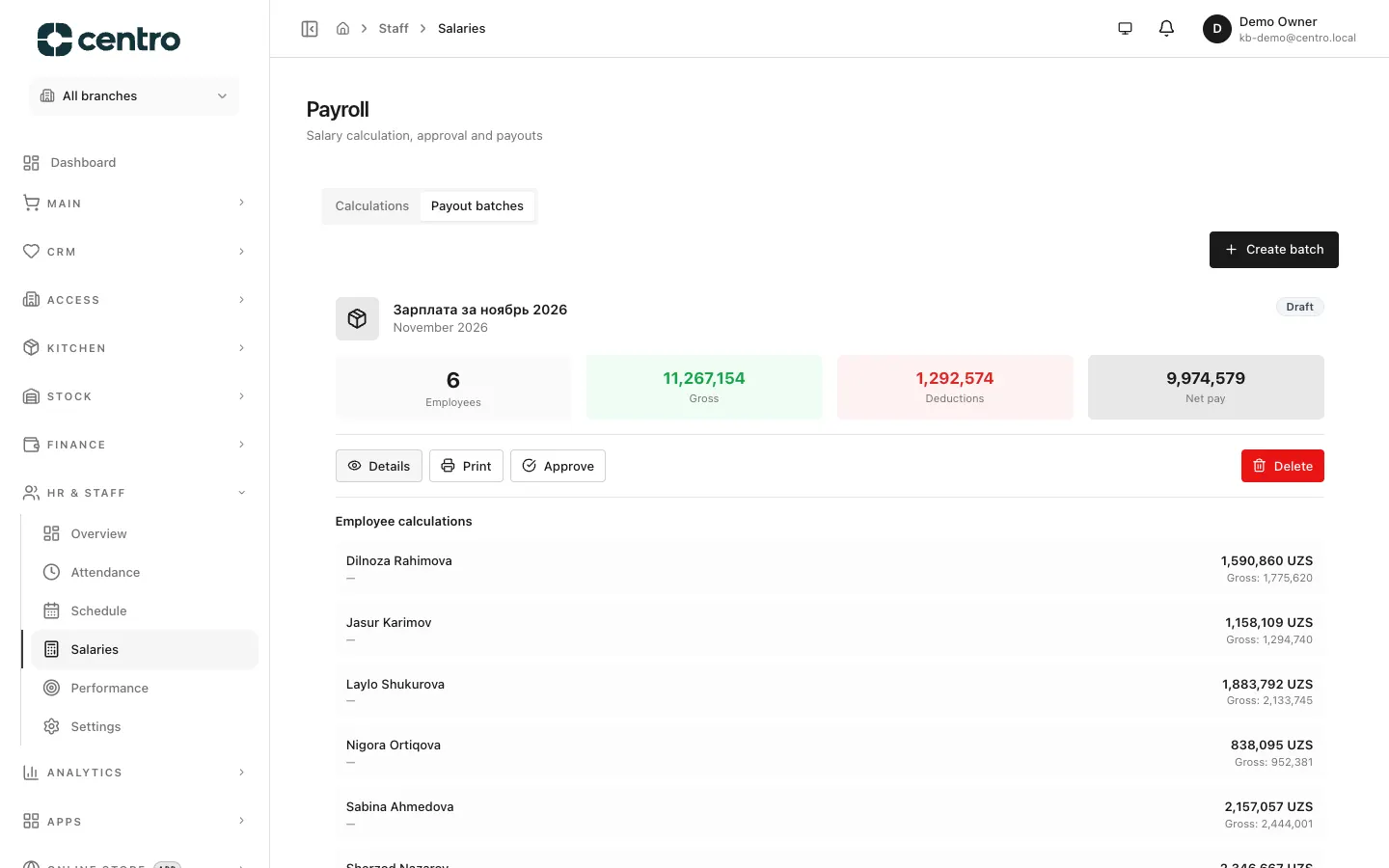
Important: The department filter does not work yet: calculations do not store a department, so a batch with a department selected comes out empty and returns an error. Always choose «All departments».
Typical monthly routine #
The steps from closing the month to paying salaries.
- On the «Attendance» page review and approve the month’s timesheet.
- Review the automatic penalties: only approved ones are deducted from pay.
- In «Salaries» → «Calculations» choose last month and calculate everyone.
- Look through the details; if something is off, fix the data and recalculate.
- Approve and pay — row by row or as one batch («Payout batches»).
- Print the payslips for employees.
Tip: Paying row by row and paying a batch give the same result. A batch is handier with many employees: one button approves and pays the whole month.