Settings
Pay schemes, penalty rules, pay multipliers and task points — the basis for the payroll calculation.
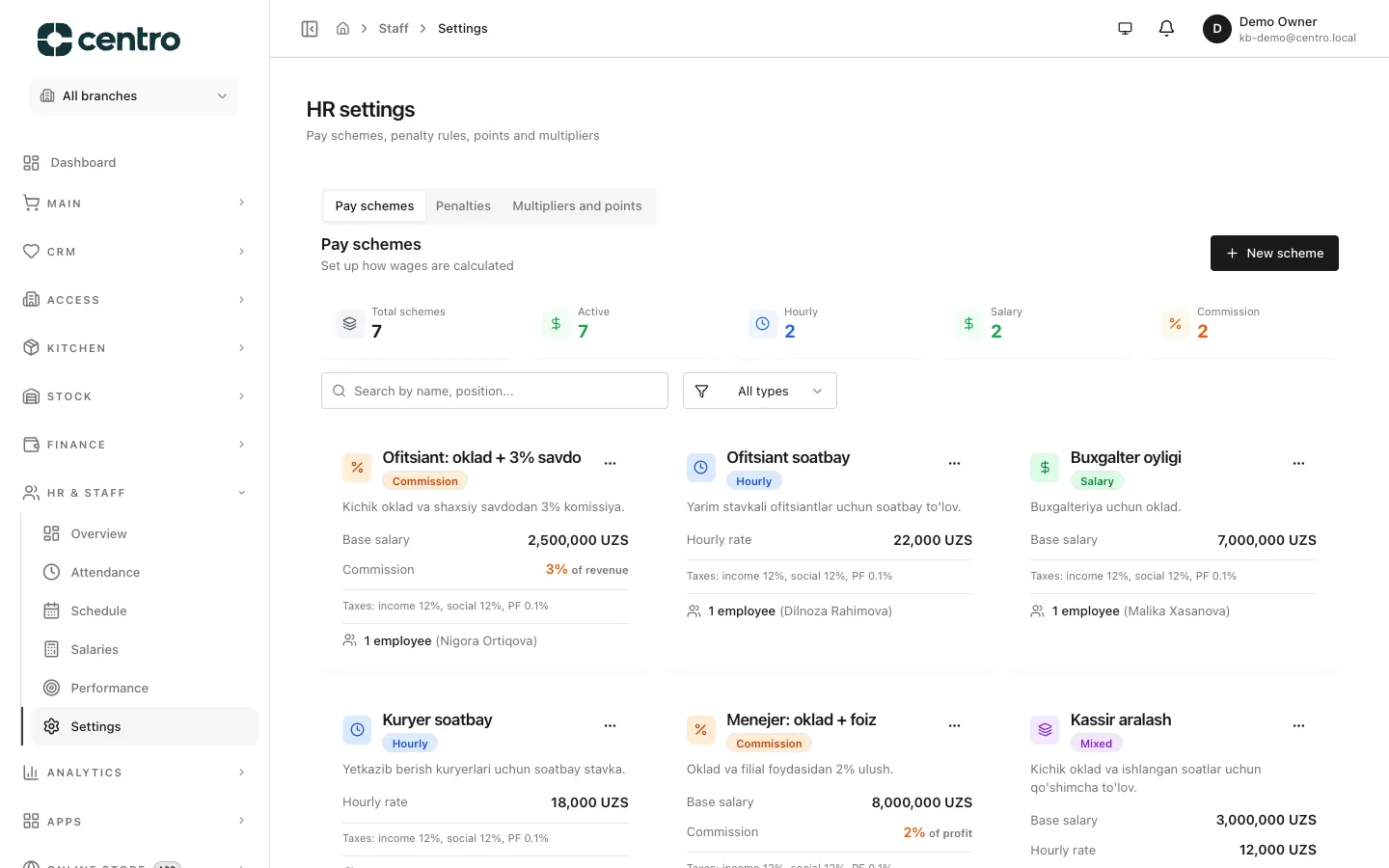
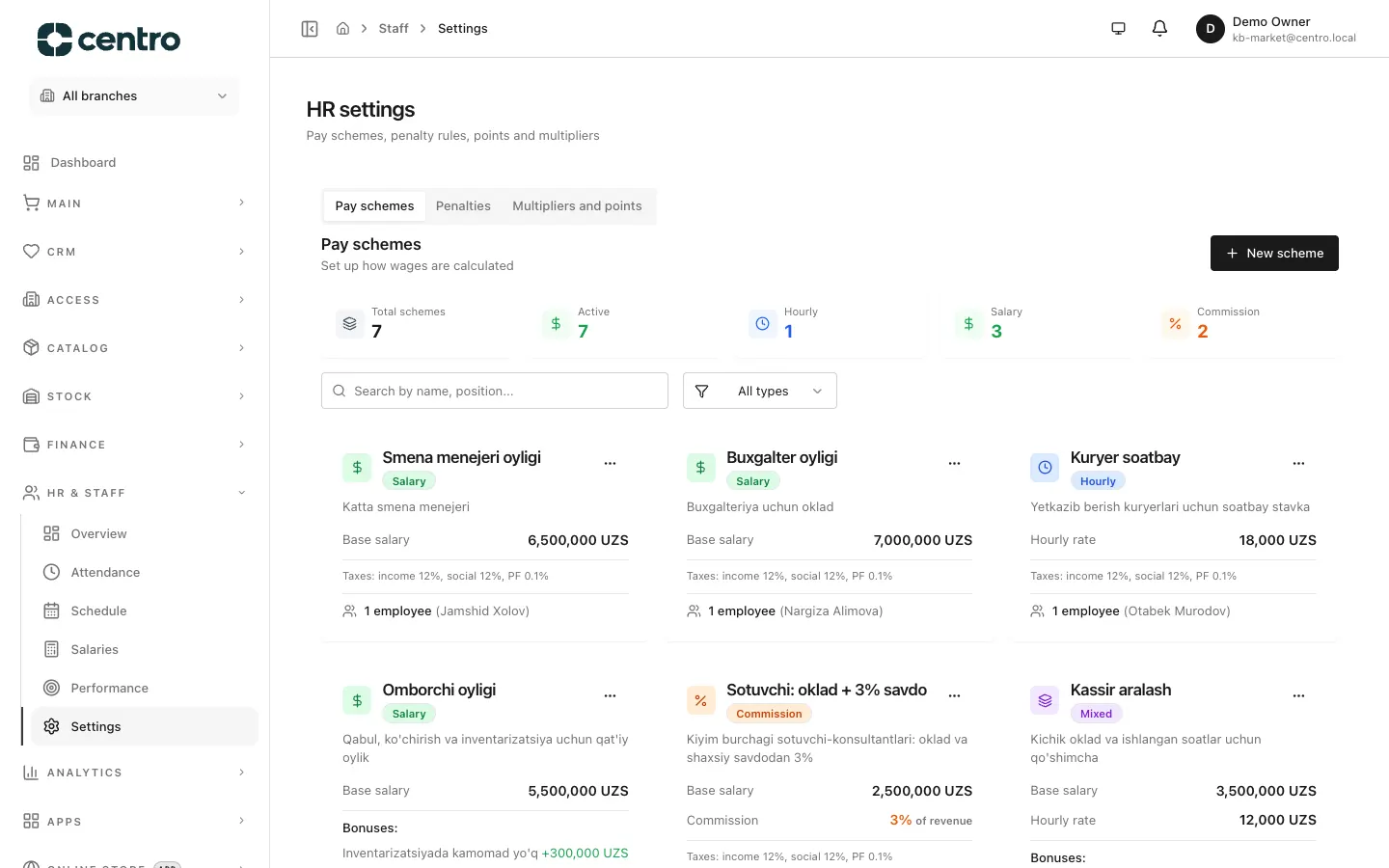
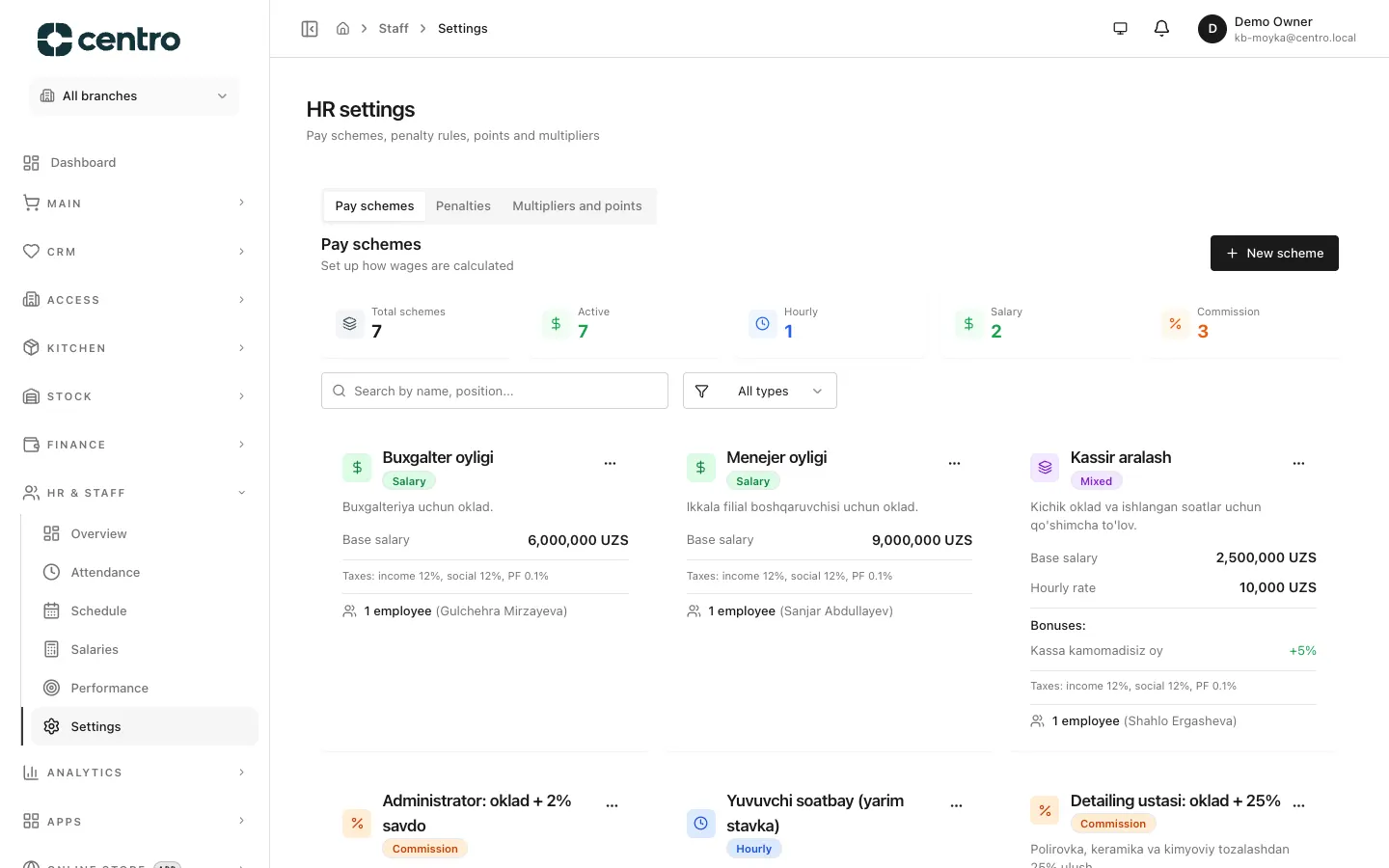
Open in the admin panel/hr/settings The page header is «HR settings». This is where you define how employees are paid: every calculation on the «Salaries» page takes its schemes, penalty rules and multipliers from here. There are three tabs: «Pay schemes», «Penalties» and «Multipliers and points».
How to open
- In the sidebar, expand the HR & staff group.
- Click Settings.
Tip: Access is controlled by the «Pay schemes» permission: view rights to look, full rights to create, change and delete. Saving «Multipliers and points» needs full access to tasks.
Pay schemes #
How wages are calculated: salary, hourly, mixed and commission schemes with their tax rates.
The first tab is «Pay schemes». A scheme is a rule: what the employee is paid for (salary, hours, sales), how much, and which taxes apply. A scheme pays nothing by itself: it is linked to employees and used by the calculation on the «Salaries» page.
Stats and filters
- Total schemes / Active
- All schemes (respecting the type filter) and how many are switched «Active».
- Hourly / Salary / Commission
- Number of schemes of each type. «Mixed» schemes have no card of their own — they only count in «Total schemes».
- Search by name, position...
- Searches the scheme name and the positions linked to it.
- All types
- Keeps schemes of one type. Search and filter are saved in the page address and restored when you come back.
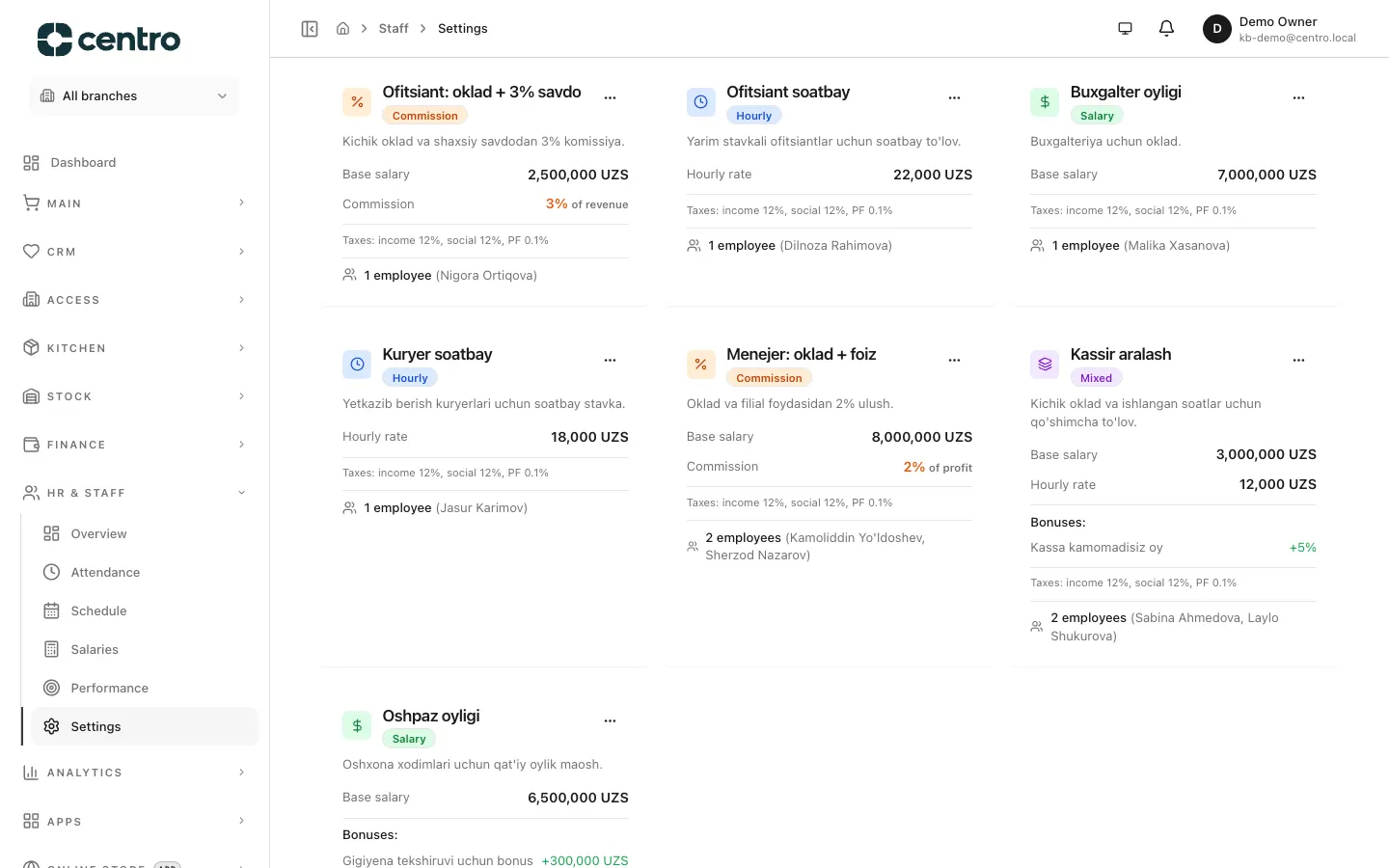
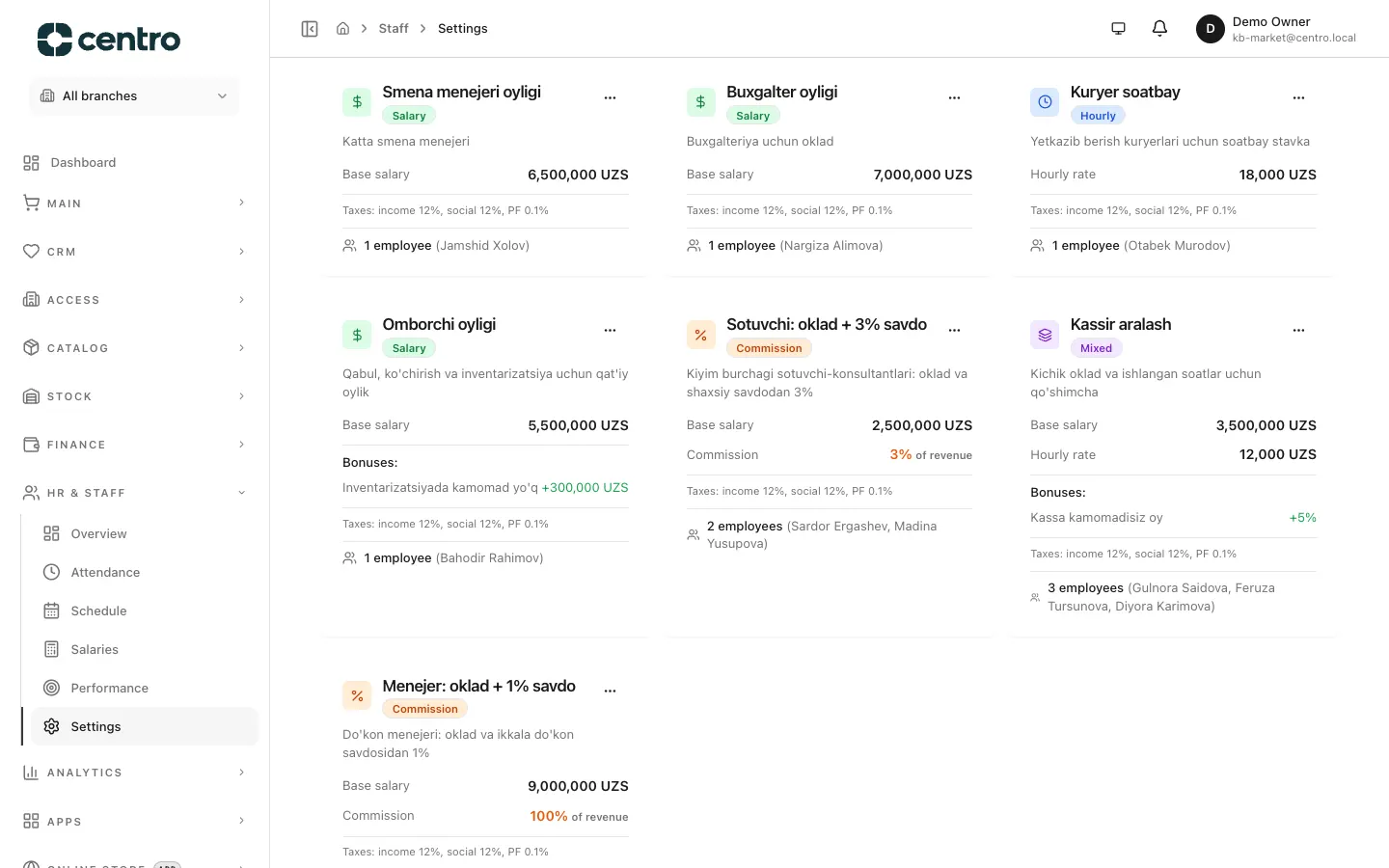
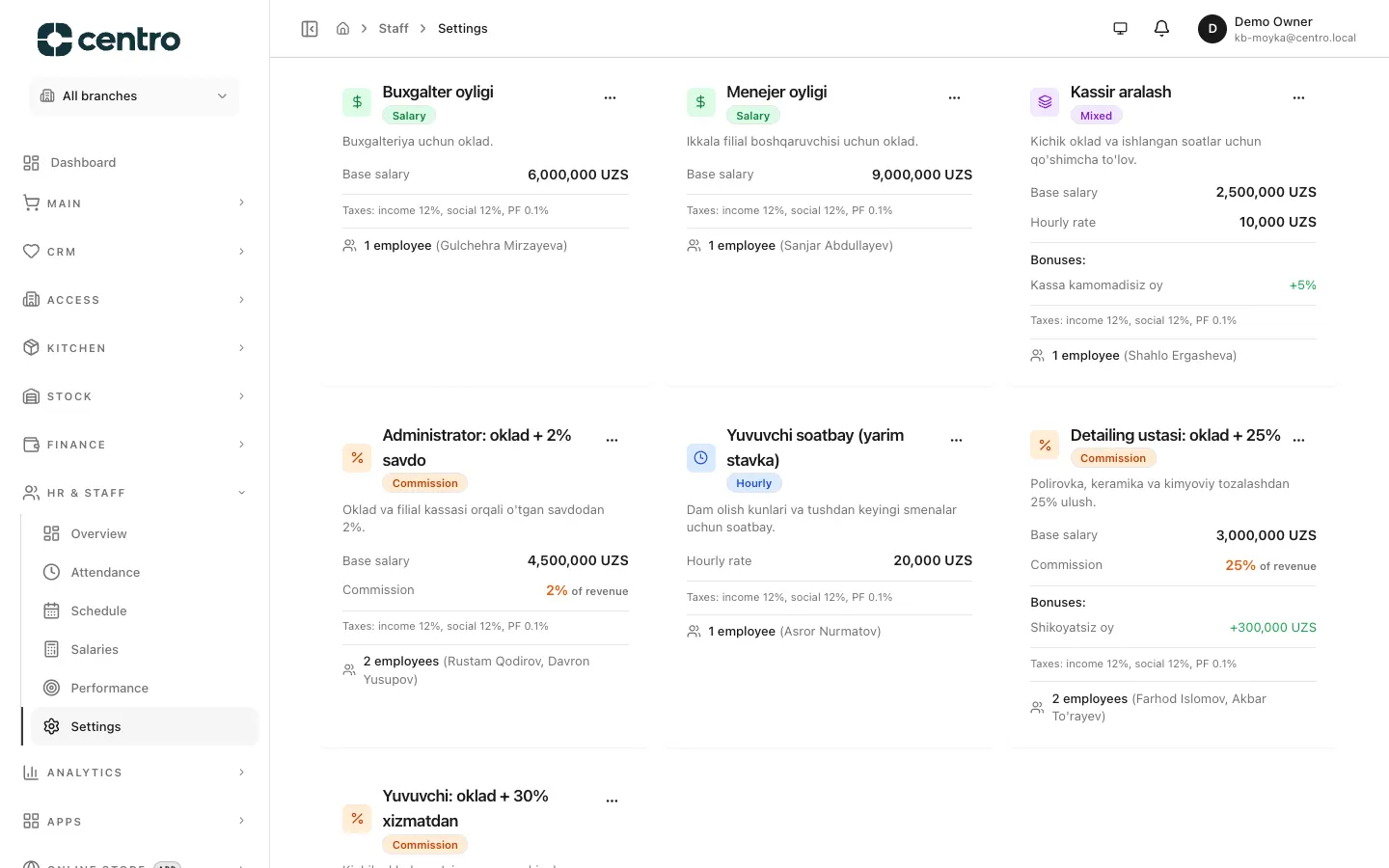
Scheme card
- Base salary / Hourly rate
- Amounts set in the scheme; zero amounts are hidden.
- Commission
- Rate and base: «of revenue», «of profit» or «per unit».
- Bonuses:
- Bonus rules added to the scheme via the API: a fixed amount (+UZS), a percentage of pre-bonus earnings (+%) or a KPI bonus. Monthly ones apply every month, quarterly ones in March, June, September and December, yearly ones in December. Bonuses cannot be edited in the form.
- Taxes
- The scheme’s income tax, social tax and pension fund (PF) rates.
- N employees
- How many employees have this scheme chosen in their card, plus the first three names. Employees who get the scheme by position are not counted here.
Tip: The card’s «…» menu has Edit and Delete. An inactive scheme looks faded.
Creating and editing a scheme #
Every field of the «New pay scheme» dialog and how it affects the payroll calculation.
How to create a scheme
- On the «Pay schemes» tab, click New scheme in the top right.
- Fill in the Name and pick the Scheme type — the type decides which amount fields appear.
- Enter the salary and/or hourly rate in the organization currency and turn on the Commission switch if needed.
- Check the tax rates (defaults 12% / 12% / 0.1%) and click Create.
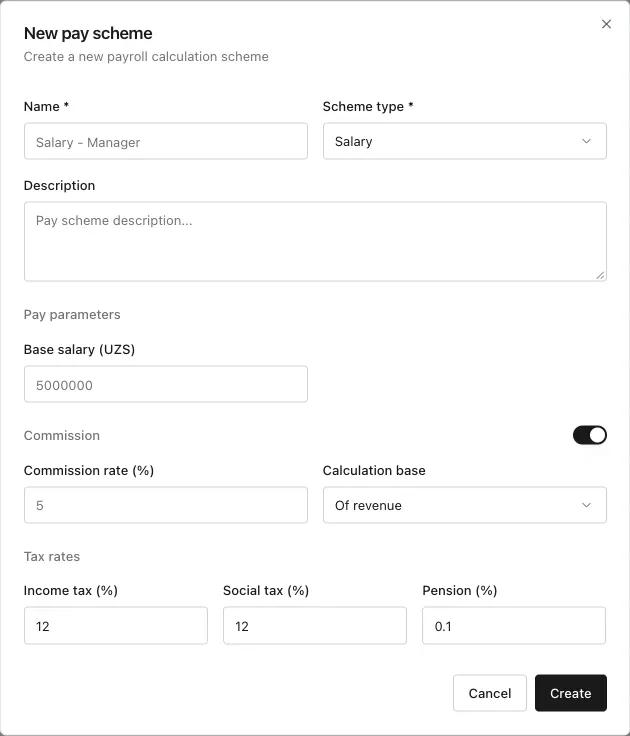
Form fields
- Name *
- Required, up to 255 characters. This is the name shown in the «Pay scheme» list of the employee card.
- Scheme type *
- «Salary» — only «Base salary»; «Hourly» — only «Hourly rate»; «Mixed» — both; «Commission» — a salary plus a commission on sales.
- Description
- Optional note; it is shown on the scheme card under the name.
- Base salary (UZS)
- The amount for a full month. If the employee worked fewer days than planned, the salary is prorated: salary × days worked / planned days.
- Hourly rate (UZS)
- For «Hourly» and «Mixed»: rate × hours worked per the timesheet. Overtime is paid at rate × the «Overtime (×)» multiplier; night and weekend premiums are also based on this rate.
- Commission rate (%)
- Appears when the «Commission» switch is on. Must be above 1% and at most 100: payroll currently reads 1 or less as a fraction (1 = 100%), so the form rejects such a rate.
- Calculation base
- «Of revenue» — of the month’s revenue from orders where the employee is the cashier (or waiter); «Of profit» — that revenue minus the cost of the items; «Per unit» — for each unit sold.
- Income tax (%)
- Withheld from the gross total and reduces the take-home amount. Default 12%.
- Social tax (%) / Pension (%)
- Employer costs: shown in the payslip but do not reduce take-home pay. Defaults 12% and 0.1%. Each rate is 0 to 100; 0 is allowed.
- Active
- Only shown when editing. A deactivated scheme stays as a faded card and is not picked automatically by position.
Important: Commission is only paid by schemes of type «Commission». If you turn the switch on in an «Hourly» or «Salary» scheme, the rate shows on the card but is not added to pay. For «salary + % of sales» choose the «Commission» type.
Tip: When you change the type, the amount in the hidden field is kept (e.g. after switching from «Hourly» to «Commission» the hourly rate stays on the card). Clear the unneeded amount before changing the type.
Assigning a scheme to an employee #
Which scheme payroll uses: the one in the employee card or the one linked to the position.
- In the sidebar open Access → Employees and edit the employee.
- Pick the scheme in the «Pay scheme» field and save.
- Go back to HR & staff → Settings: the bottom of the scheme card now shows the employee count and the first three names.
Payroll first takes the scheme from the employee card. If there is none, it looks for an active scheme by the employee’s position name (the scheme’s position list; it is filled via the API — the form has no such field, but search uses it). If neither is found, the «Salaries» page reports «No pay scheme» for that employee.
Important: Deleting a scheme («…» on the card → Delete) happens right after the confirmation and cannot be undone. Linked employees will have no scheme at the next calculation — reassign them first, or just turn «Active» off.
Penalties #
Automatic penalties for lateness and absence: when they are charged, how they are approved and how they are deducted from pay.
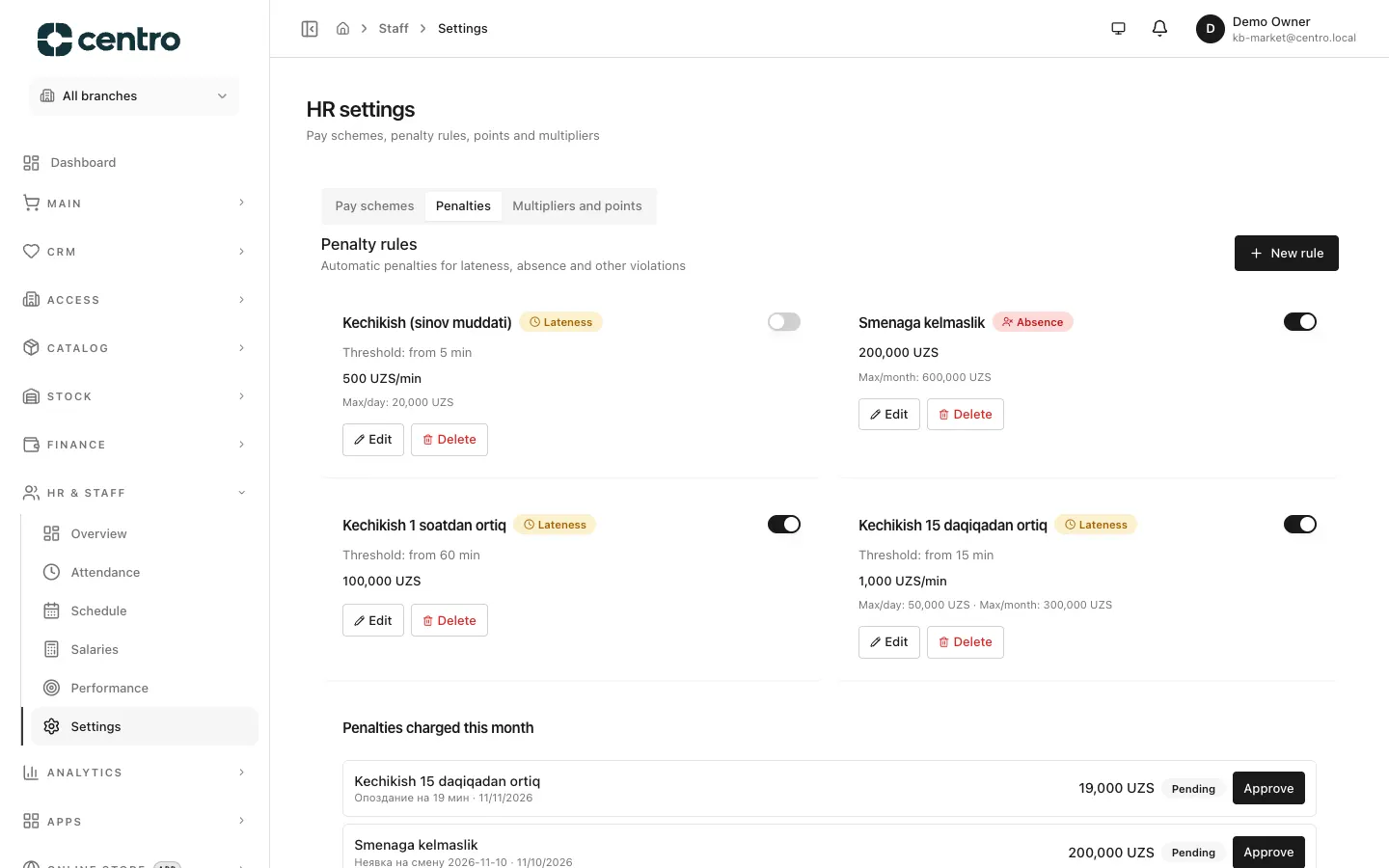
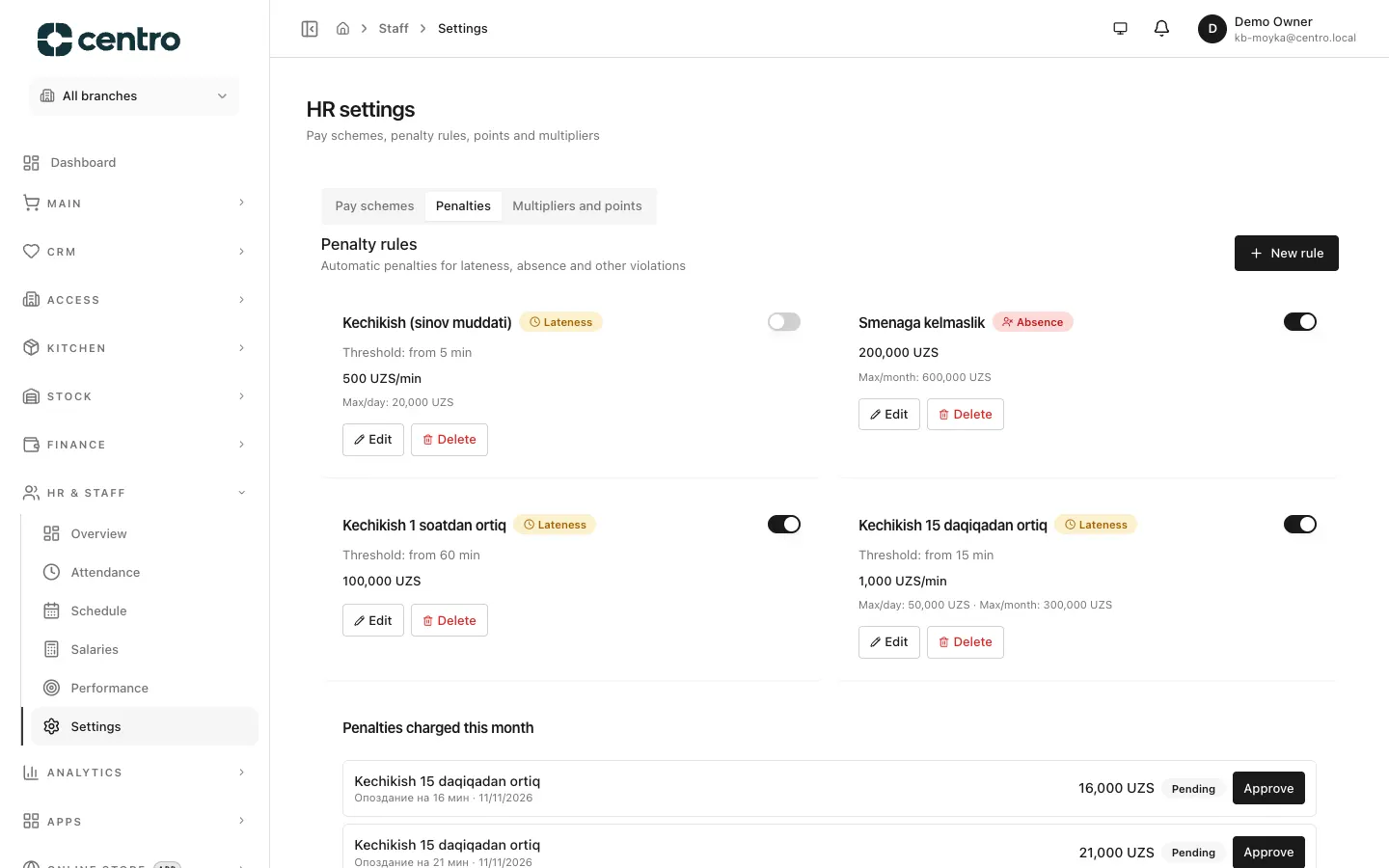
On the «Penalty rules» tab each rule is a card: name, type badge (Lateness / Absence), on/off switch, threshold, amount and limits. Below is the «Penalties charged this month» list.
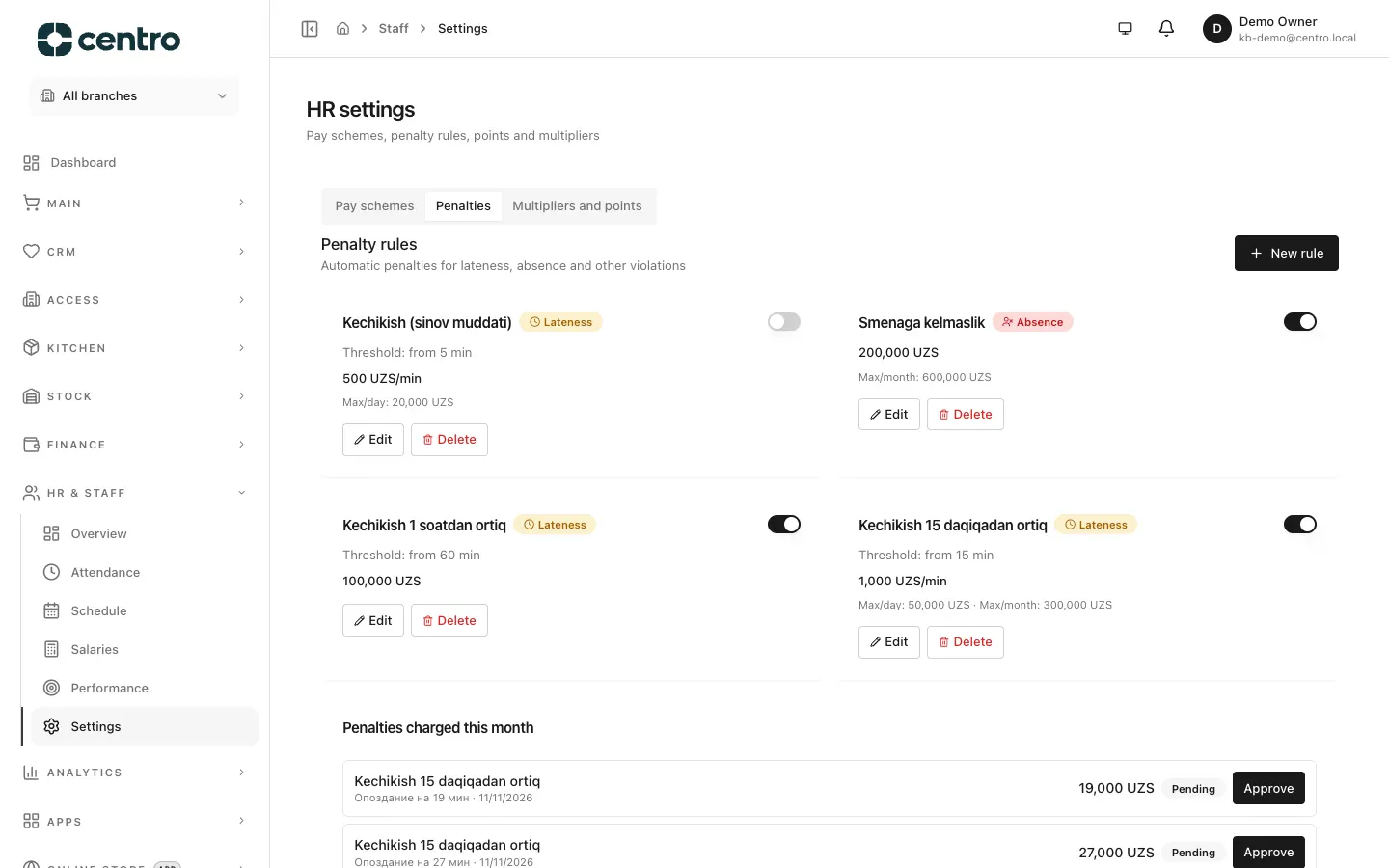
How penalties appear
- Penalties are created not when you save a rule but when payroll is calculated on the «Salaries» page («Calculate salary») — per employee per month.
- Lateness: the clock-in (Attendance) is compared with the start of that day’s shift in the «Schedule». No scheduled shift — no lateness.
- Absence: a past scheduled (not cancelled) shift has no clock-in at all.
- A new penalty is «Pending» and does not affect pay. After Approve it becomes «Approved» and is included in other deductions at the next calculation (never more than the take-home amount).
- Recalculating deletes and recreates unapproved penalties — there are no duplicates.
Tip: To pause a rule, turn off the switch on its card: inactive rules are not used in the calculation.
Important: The Delete button on a card removes the rule immediately, without confirmation.
Tip: The «Late grace period» setting (on the «Multipliers and points» tab) only affects the «late» mark in attendance; penalty rules use their own «Threshold».
Penalty rule dialog #
Violation type, threshold, calculation method and limits.
- On the «Penalties» tab click New rule (to change an existing one — Edit on its card).
- Enter the name, violation type, calculation type and amounts.
- Click Create (or Save) — the rule is active right away.
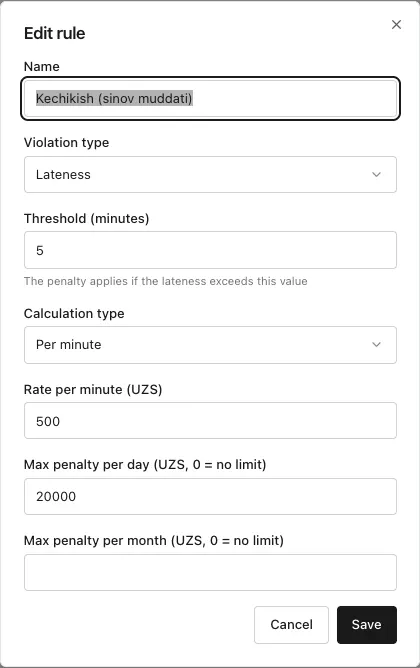
- Name
- Required, up to 255 characters. This name appears in the list of charged penalties and on the payslip.
- Violation type
- «Lateness» — clocking in after the scheduled shift start; «Absence» — no clock-in at all for a past scheduled shift.
- Threshold (minutes)
- Only for «Lateness»: the penalty applies when lateness is greater than this value. With 15, being 15 minutes late is free; 16 minutes is penalized.
- Calculation type
- «Fixed amount» — the same amount per case; «Per minute» — all late minutes × the rate (lateness only). Absence supports only a fixed amount.
- Penalty amount / Rate per minute (UZS)
- The amount for the selected calculation type; must be greater than 0.
- Max penalty per day / per month
- The cap on what this rule can charge one employee per day and per month. 0 means no limit.
Multipliers and points #
Late grace period, maximum shift, night hours, overtime/night/weekend multipliers and points for tasks.
The third tab has three inner tabs: «General», «Points» and «Multipliers». These are organization-wide settings. All three edit one draft: Save on any of them saves everything, Reset discards unsaved changes. Both buttons are enabled only after you change something.
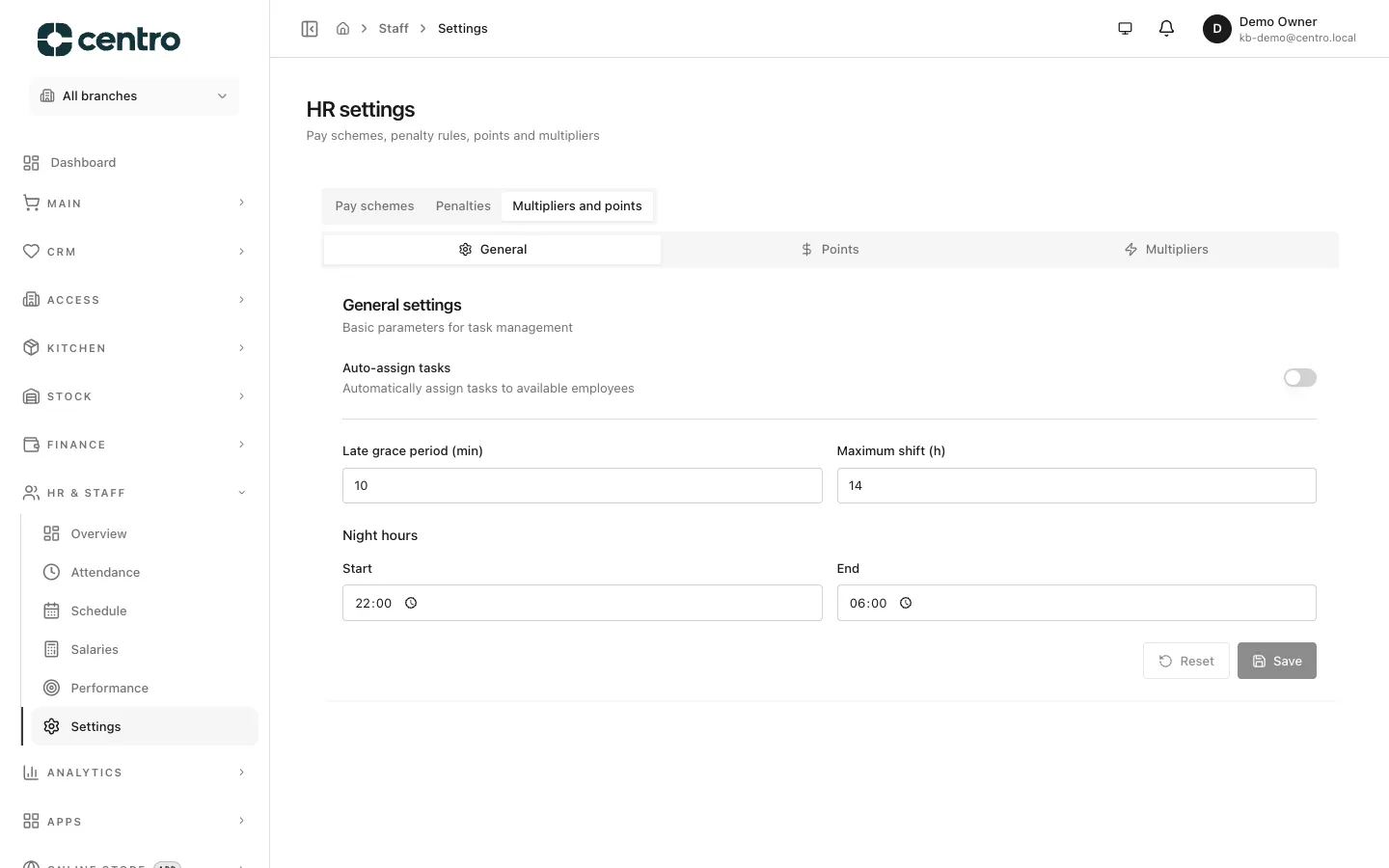
General
- Auto-assign tasks
- Automatically assign Task Manager tasks to available employees.
- Late grace period (min)
- 0–240, whole number. Anyone clocking in within this many minutes after the shift start is not marked late in attendance; beyond it, lateness is shown as minutes over the grace period.
- Maximum shift (h)
- 1–24. An open shift without a clock-out is not counted longer than this in the timesheet.
- Night hours: Start / End
- As HH:MM, e.g. 22:00 – 06:00. Hours worked inside this window get the «Night shifts (×)» premium.
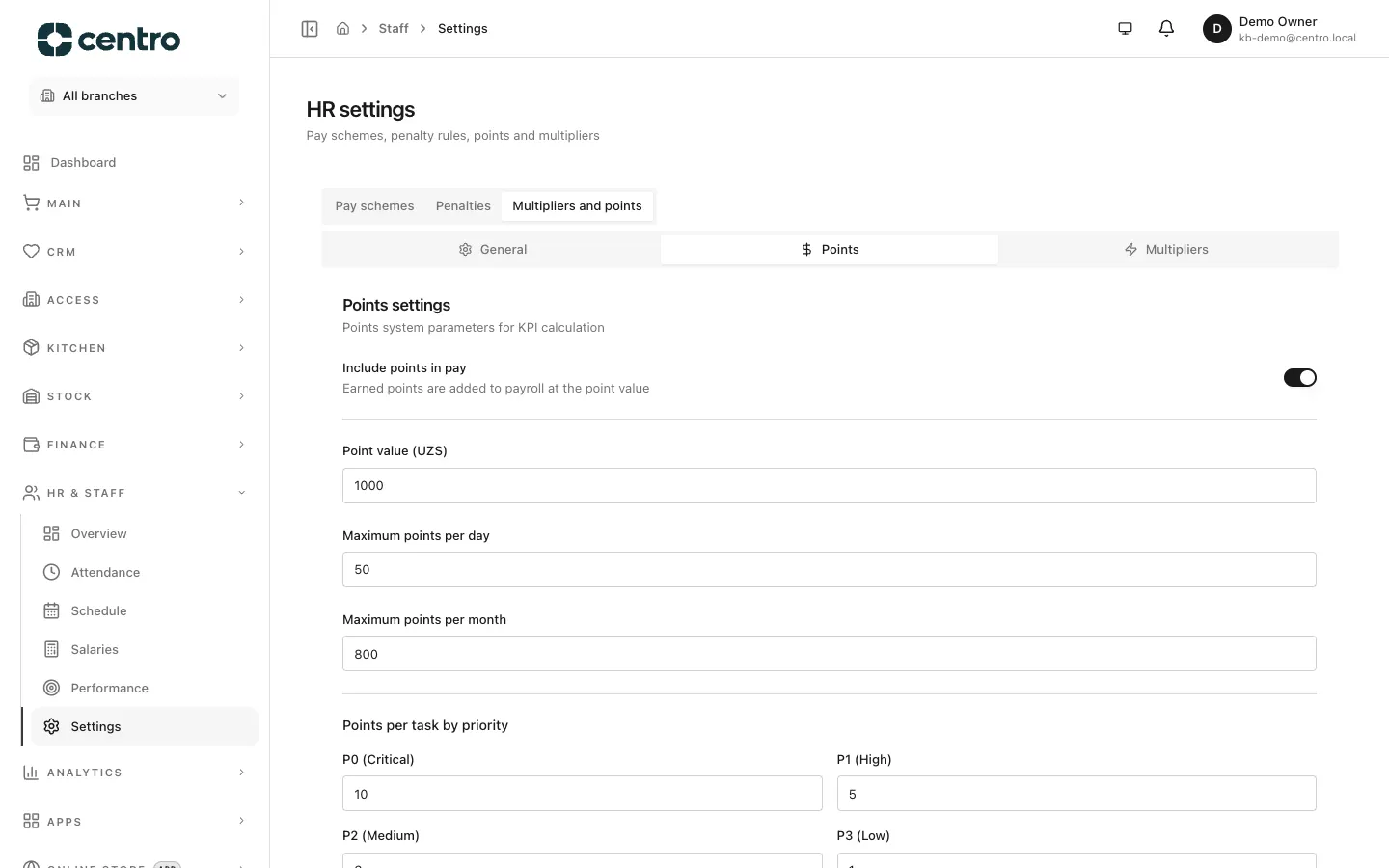
Points
- Include points in pay
- When on, points for tasks completed in the month × the point value are added to pay as the «Баллы за задачи» bonus (the name is written by the server).
- Point value (UZS)
- How much one point is worth in the organization currency.
- Maximum points per day / per month
- Points that go into pay are capped by these limits.
- Points per task by priority
- Points for a task of each priority — from P0 (Critical) to P3 (Low), 0 to 100,000.
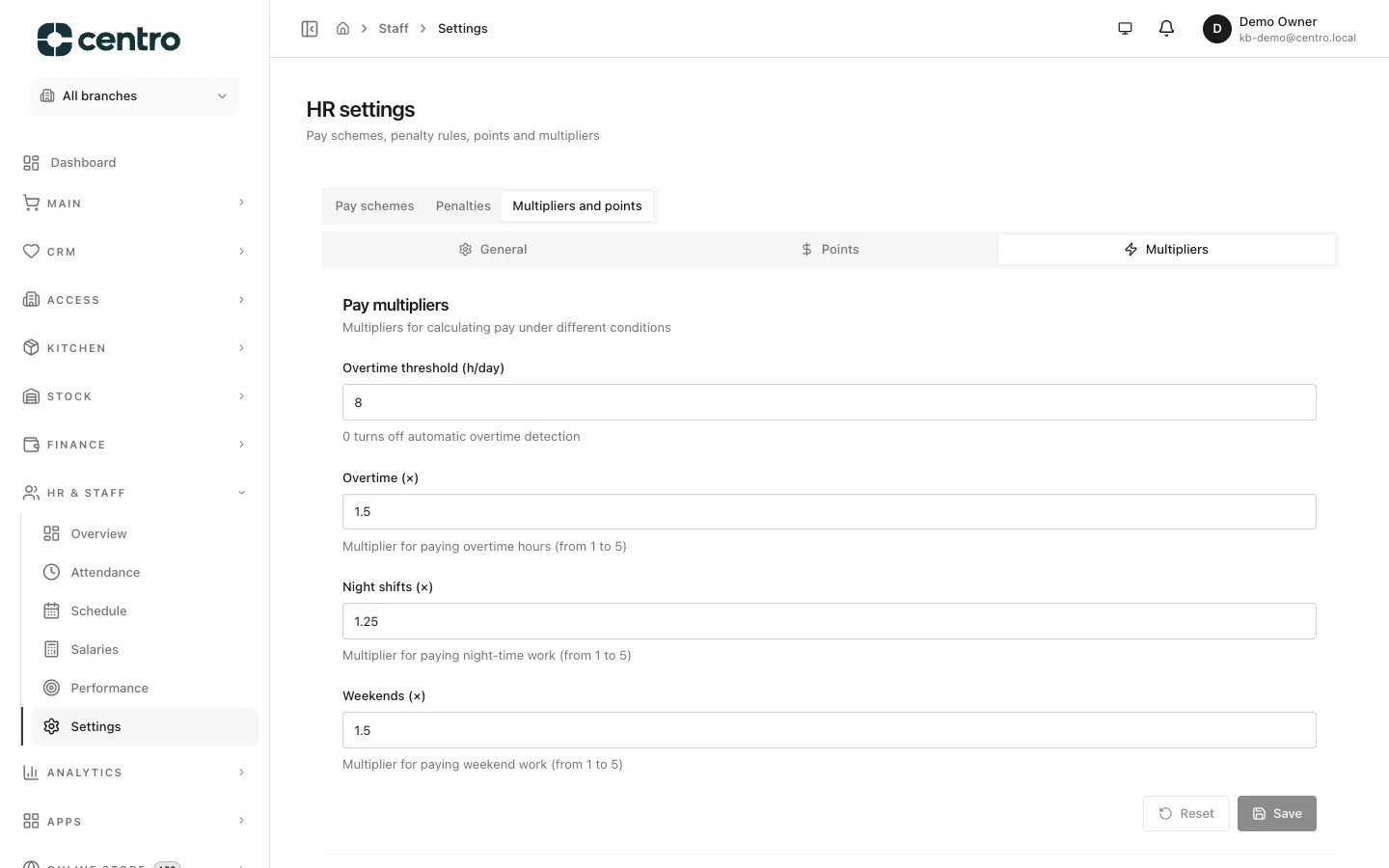
Multipliers
- Overtime threshold (h/day)
- The value is saved but payroll does not use it yet: hours above 8 per working day count as overtime (0 does not turn this off either).
- Overtime (×)
- 1–5. Overtime pay = hourly rate × multiplier × overtime hours (in «Hourly» and «Mixed» schemes).
- Night shifts (×) / Weekends (×)
- 1–5. A premium for schemes with an hourly rate: rate × (multiplier − 1) × night or weekend hours. Weekends are Saturday and Sunday. 1 means no premium.
Important: New values apply only to the next payroll calculation; already calculated and approved payrolls do not change.
Setting up HR from scratch #
What to set up, and in which order, before the first payroll run.
- In «Pay schemes» create a scheme for each group of employees (cooks — salary, couriers — hourly, manager — salary + percentage, etc.).
- Choose the «Pay scheme» in each employee card and check the employee counts on the scheme cards.
- In «Multipliers and points» set the grace period, night hours and multipliers and click Save.
- If needed, add lateness and absence rules under «Penalties» — they work with shifts from the «Schedule».
- At month end calculate payroll on the «Salaries» page, review and approve pending penalties, then recalculate.
Example for a store: sales clerks/cashiers — «Commission» (salary + a percentage «Of revenue»), storekeeper and loaders — «Hourly», manager — «Salary». The commission base is the sales credited to the employee in the «Sales by employee» report; after the first run check the commission line in the employee’s details.
Example for a car wash: washers — «Commission» (salary + a percentage «Of revenue»), administrator/cashier — «Salary», shift helpers — «Hourly». The washer’s percentage is calculated automatically from the orders where they are the «Specialist» (details: «Salaries» → «How the amounts are calculated»).