How to turn the section on
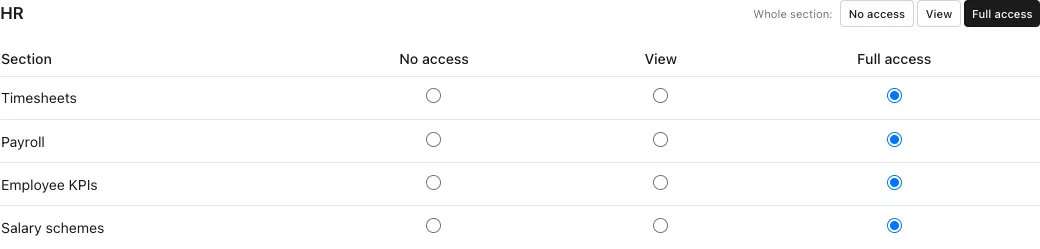
The HR group in the menu does not depend on the plan; the items are opened by the «HR» group permissions.
In the plan list «Staff management» is shown for the free trial, «Business» and «Enterprise», but the HR & staff group in the menu is not hidden by the plan or an app — only by position permissions.
Menu item — what an employee needs
- Overview, Attendance, Schedule
- The «Timesheets» permission in the «HR» group — at least «View».
- Salaries
- The «Payroll» permission in the «HR» group — at least «View». The matrix has the «Payroll» row twice — the menu uses the one in the «HR» group, not in «Finance».
- Performance
- The «Employee KPIs» permission in the «HR» group — at least «View».
- Settings
- The «Salary schemes» permission in the «HR» group — at least «View».
How to give an employee access
- Open Access → Positions (this item is visible only to the organization owner) and open the employee’s position for editing.
- In the «Admin panel access» block find the «HR» group and choose «View» (read only) or «Full access» (create and change) in the rows you need.
- Press «Save changes».
- The employee reloads the page and the items appear in the menu. With «No access» the item is hidden, and a direct link to the page redirects to the first available page of the menu (usually «Dashboard»).